> ## Documentation Index
> Fetch the complete documentation index at: https://manual.voiceping.net/llms.txt
> Use this file to discover all available pages before exploring further.
# Changing Your Payment Credit Card
> How to change your registered credit card from PC or the mobile app
export const ContactEn = () => <>
If you have any questions, please contact us via this form.
Official Links
Visit our official website
Follow us on X
Like us on Facebook
Connect on LinkedIn
;
## 1. PC
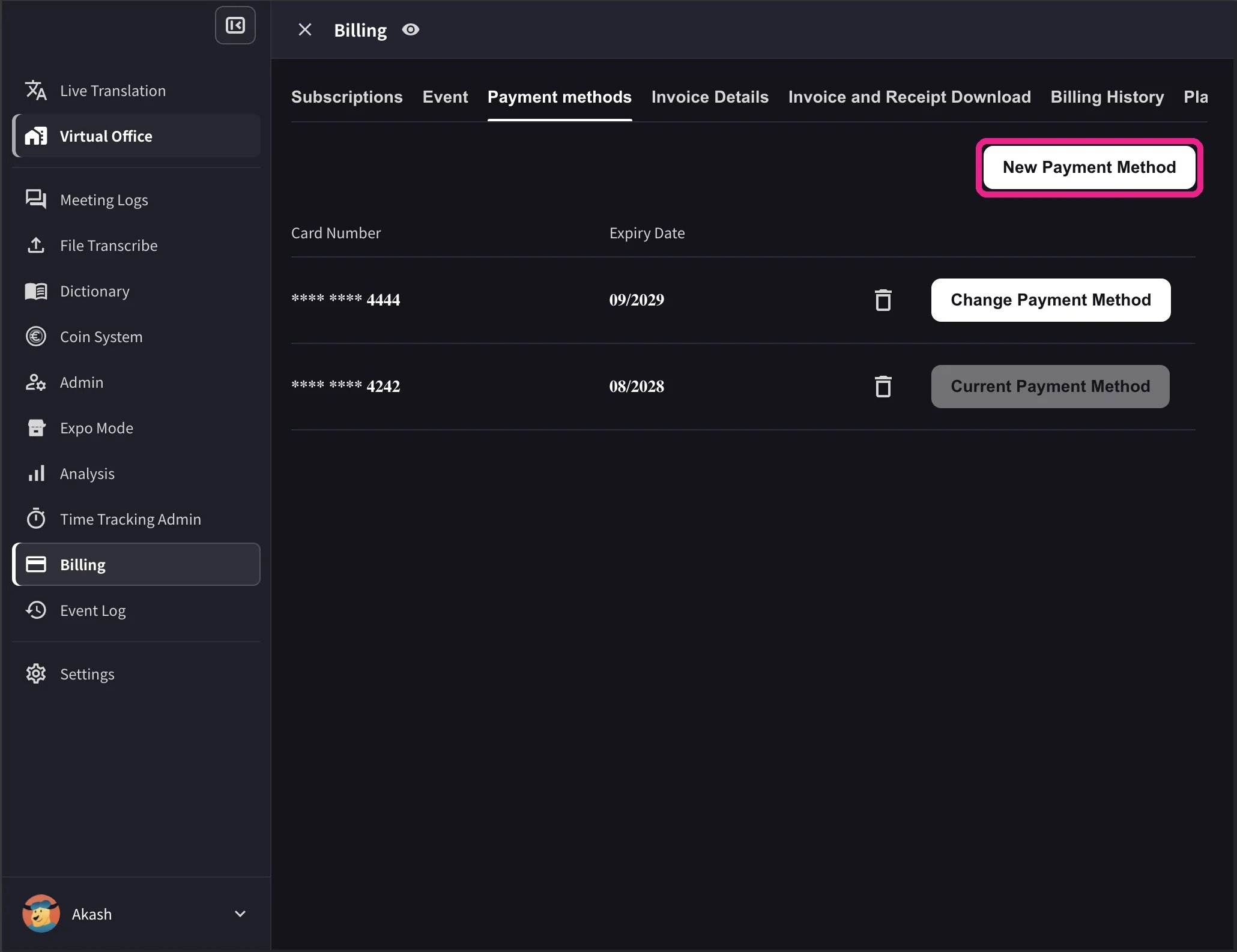
1. Open top nav → **Billing** → **Payment methods** and click **New Payment Method** to register a new credit card.
 2. In the card list, click **Change Payment Method** on the card you want to use. The active card shows **Current Payment Method** after the change completes.
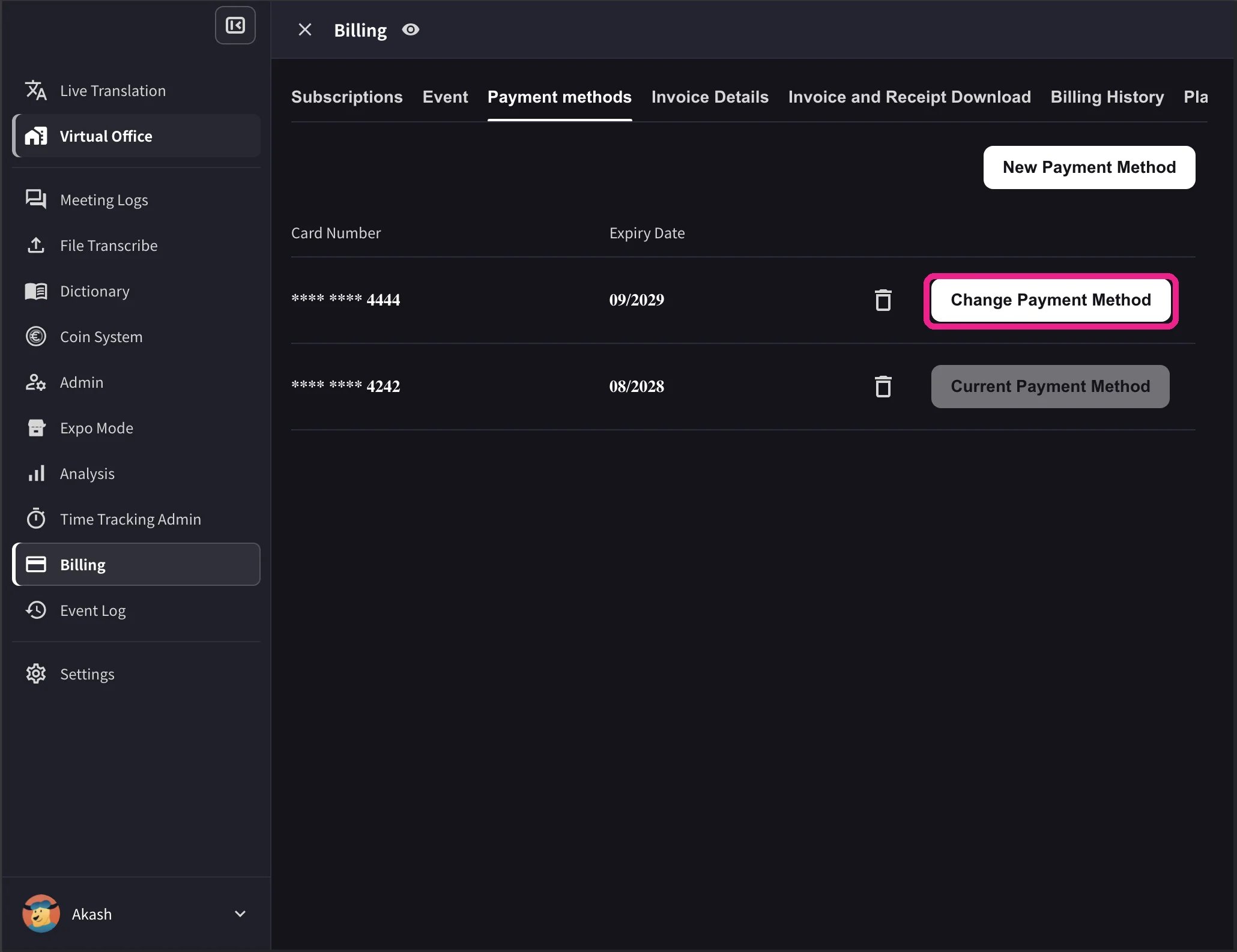 The desktop list also shows card expiry dates and a delete icon. **Change Payment Method** appears only when the workspace has an active Stripe subscription and no scheduled cancellation. Cards that cannot be used with the workspace currency show **Not Supported** instead of the change action.
## 2. Mobile
From the mobile app, card management lives under **Billing → Manage Cards**.
Open the side menu → **User Settings** → **Billing** → **Manage Cards**.
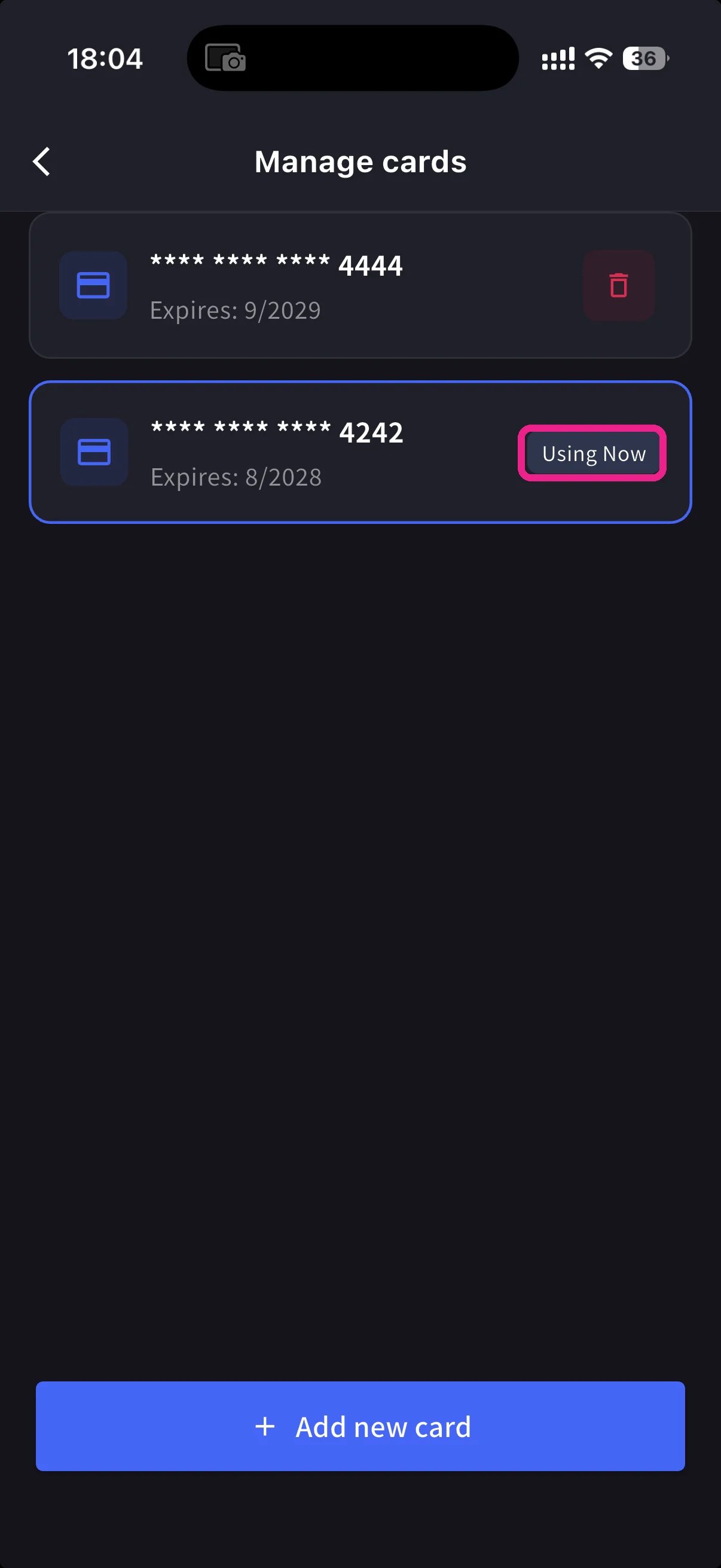
Every card on file is listed. The one in use has a **Using Now** pill.
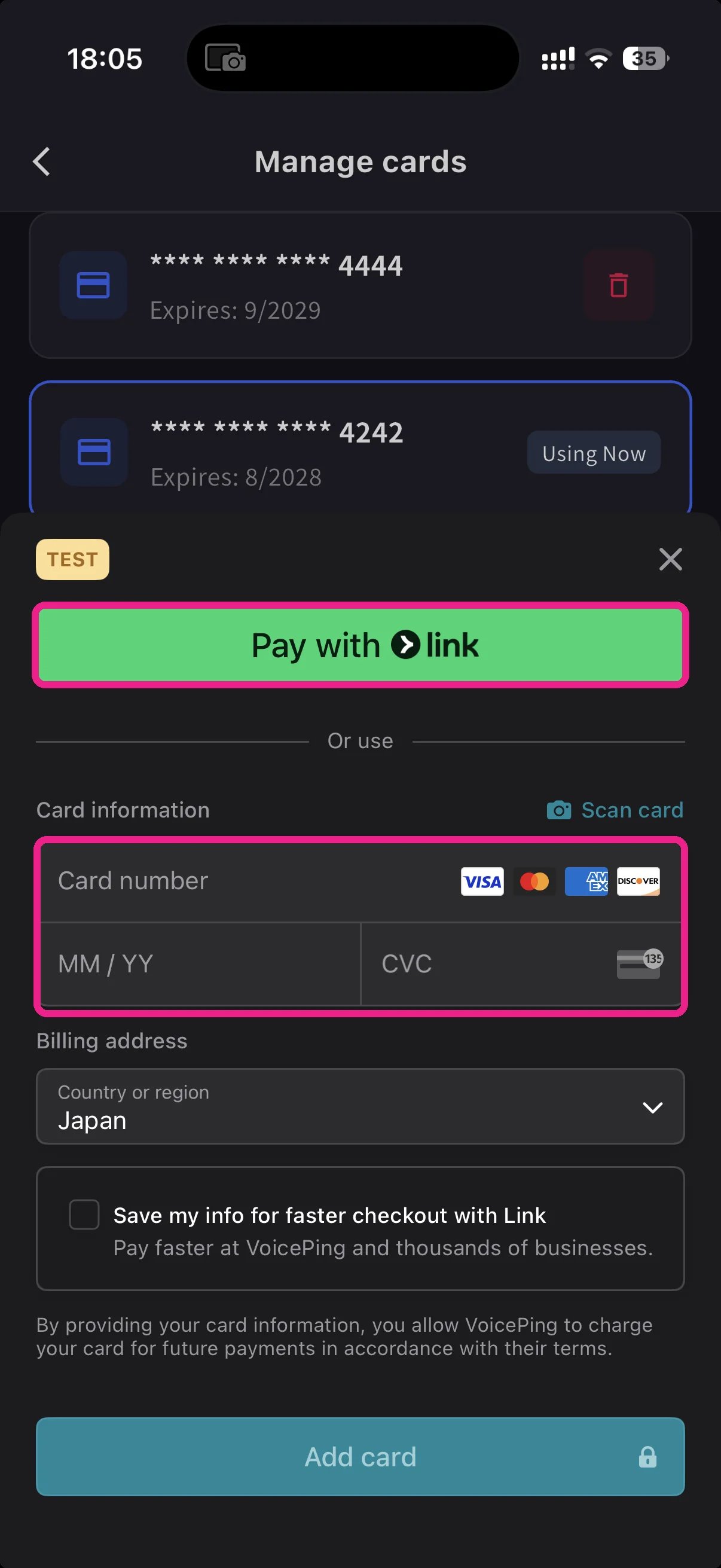
Tap the blue **+ Add new card** button at the bottom. The add-card sheet offers two paths:
* **Pay with Link** — Stripe Link one-tap if your phone number is already linked.
* **Manual card** — type the number, MM/YY, CVC, or tap **📷 Scan card** to fill it from the camera. Pick a billing country and tap **Add card**.
Back on Manage Cards, tap the card you want to use — the **Using Now** pill moves to it. Future charges run on the selected card.
Cards are tokenised by Stripe — VoicePing never stores the raw card number.
**Link** saves typing — if you've used Stripe Link elsewhere, your card auto-fills after entering your phone. Changes made on mobile sync instantly with the PC Billing page.
## Related
* [Plan Changes, Cancellation & Trial End](/en/plan-changes) — upgrade, downgrade, cancel
* [Invoices, Receipts & Billing Activity](/en/invoices-receipts) — invoice PDFs, receipts, event log
The desktop list also shows card expiry dates and a delete icon. **Change Payment Method** appears only when the workspace has an active Stripe subscription and no scheduled cancellation. Cards that cannot be used with the workspace currency show **Not Supported** instead of the change action.
## 2. Mobile
From the mobile app, card management lives under **Billing → Manage Cards**.
Open the side menu → **User Settings** → **Billing** → **Manage Cards**.
Every card on file is listed. The one in use has a **Using Now** pill.
Tap the blue **+ Add new card** button at the bottom. The add-card sheet offers two paths:
* **Pay with Link** — Stripe Link one-tap if your phone number is already linked.
* **Manual card** — type the number, MM/YY, CVC, or tap **📷 Scan card** to fill it from the camera. Pick a billing country and tap **Add card**.
Back on Manage Cards, tap the card you want to use — the **Using Now** pill moves to it. Future charges run on the selected card.
Cards are tokenised by Stripe — VoicePing never stores the raw card number.
**Link** saves typing — if you've used Stripe Link elsewhere, your card auto-fills after entering your phone. Changes made on mobile sync instantly with the PC Billing page.
## Related
* [Plan Changes, Cancellation & Trial End](/en/plan-changes) — upgrade, downgrade, cancel
* [Invoices, Receipts & Billing Activity](/en/invoices-receipts) — invoice PDFs, receipts, event log