> ## Documentation Index
> Fetch the complete documentation index at: https://manual.voiceping.net/llms.txt
> Use this file to discover all available pages before exploring further.
# How to Start 1-Week Free Trial
> How to start the 1-week free trial of the premium plan
export const ContactEn = () => <>
If you have any questions, please contact us via this form.
Official Links
Visit our official website
Follow us on X
Like us on Facebook
Connect on LinkedIn
;
## 1. Member Registration & Workspace Creation
[Workspace Setup](/en/owner-signup)
## 2. Starting the Free Trial
### WEB App Registration Steps
1. Log in from [here](https://app.voiceping.io/user/login/).
2. Open the **Billing** page from the left sidebar. On the **Subscriptions** tab, click **1 Week Free Trial** under the **Premium Plan**.
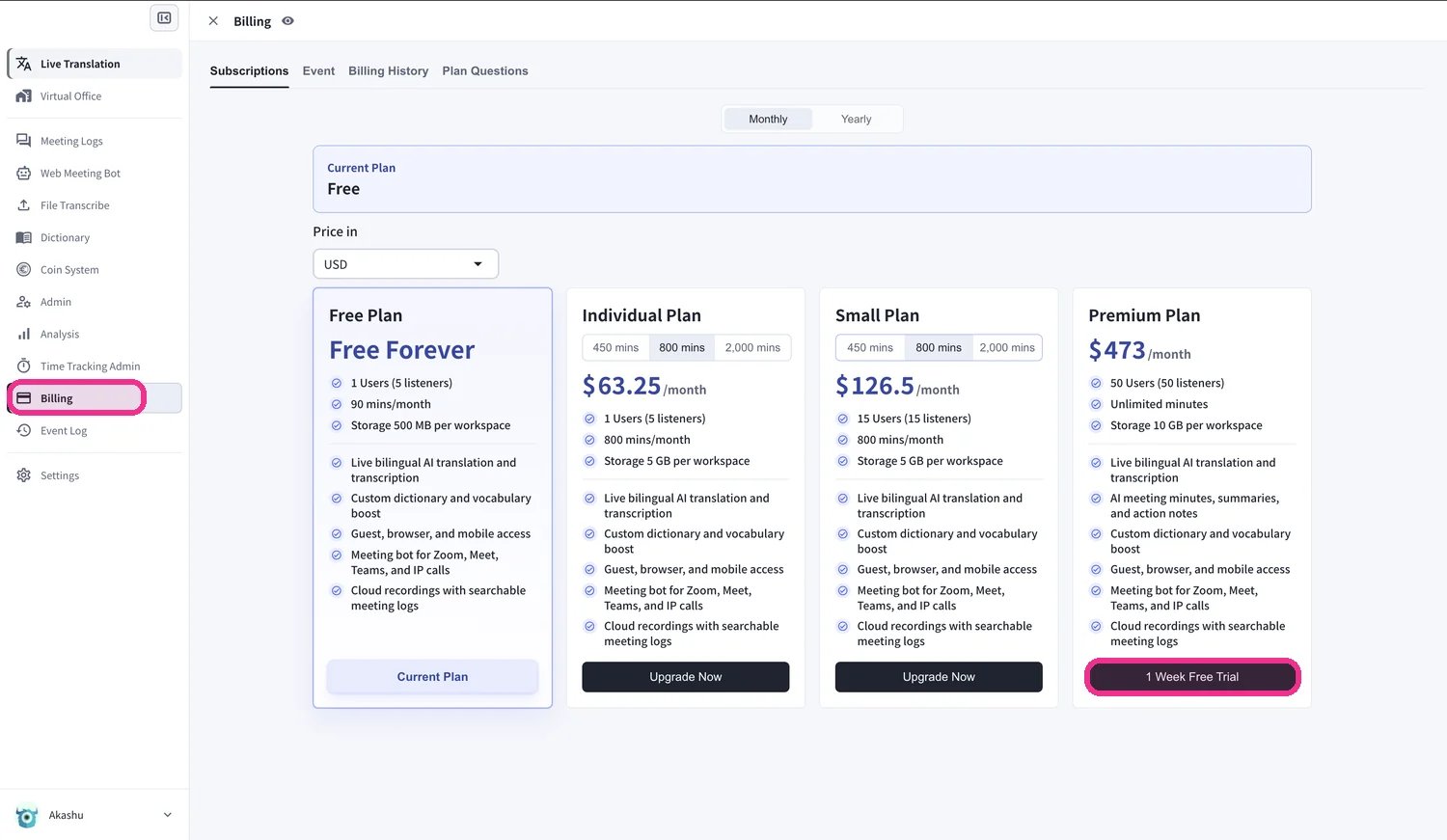 3. The **Paid Plan Trial policy** dialog appears. Check when the trial ends — after it ends, your workspace returns to the Free plan unless you purchase a paid plan separately.
 4. Tick **Do you agree with above?**, then click **Start Trial**.
 5. Enter your **card details** on the secure Stripe checkout, then click **Subscribe**. The trial period is free — your card is only charged after the trial ends.
 6. Once the payment is confirmed, you'll see **"Your Premium plan is active"**. Click **View subscription**.
 7. Your **Subscriptions** page now shows **Premium** as the current plan, along with the next billing date.
 To confirm the trial started, open the **Billing History** tab. You'll see **Succeeded to start Trial** and **Succeeded to add payment method** entries.
 ## How to Cancel
Cancellation is completed when you switch back to the **Free plan**. On the **Subscriptions** tab of the **Billing** page, click **Start Free Plan** under **Free Plan**.
## How to Cancel
Cancellation is completed when you switch back to the **Free plan**. On the **Subscriptions** tab of the **Billing** page, click **Start Free Plan** under **Free Plan**.
