> ## Documentation Index
> Fetch the complete documentation index at: https://manual.voiceping.net/llms.txt
> Use this file to discover all available pages before exploring further.
# Invoices, Receipts & Billing Activity
> Download invoice PDFs and receipts, update bill-to details, and audit every subscription event — from PC or the mobile app.
export const ContactEn = () => <>
If you have any questions, please contact us via this form.
Official Links
Visit our official website
Follow us on X
Like us on Facebook
Connect on LinkedIn
;
Everything you need to audit your subscription lives in one place: the **Billing** section on PC and the **Billing** hub on mobile. Download invoice PDFs, grab receipts, edit the bill-to fields that appear on future invoices, and review the full event log.
## On PC (Billing tabs)
Open top nav → **Billing**. Three desktop tabs cover invoice and audit workflows:
| Tab | What it's for |
| -------------------------------- | ------------------------------------------------------------------------------------------------------- |
| **Invoice Details** | Bill-to name, email, and phone that appear on your invoice PDFs |
| **Invoice and Receipt Download** | Monthly list of charges with downloadable invoice PDFs and receipts |
| **Billing History** | Full subscription, payment-method, trial, cancellation, restore, renewal, and payment-failure event log |
### Invoice Details
Set the name, email, and phone that Stripe stamps onto your invoice PDFs.
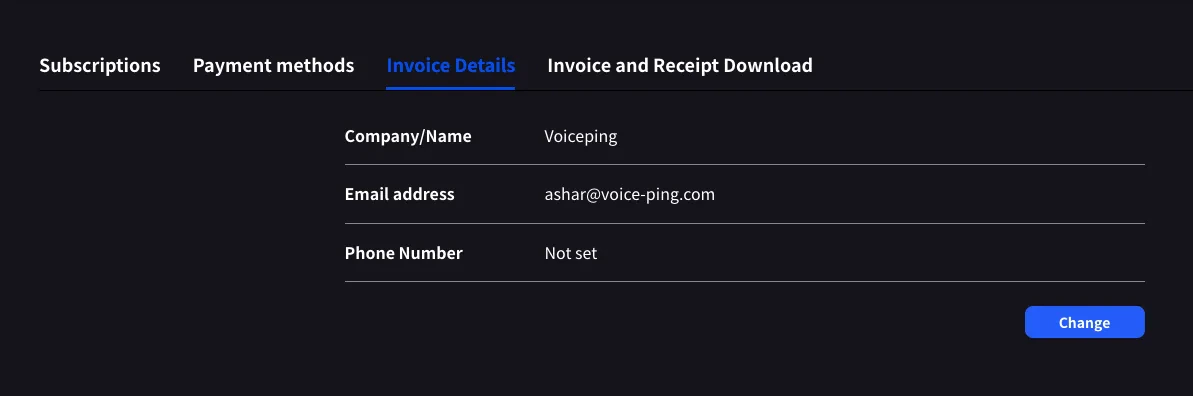 Click **Change** to edit any field.
Update these **before** your next billing date. Stripe reads these fields at the moment of invoice generation — editing later does not restamp past PDFs.
### Invoice and Receipt Download
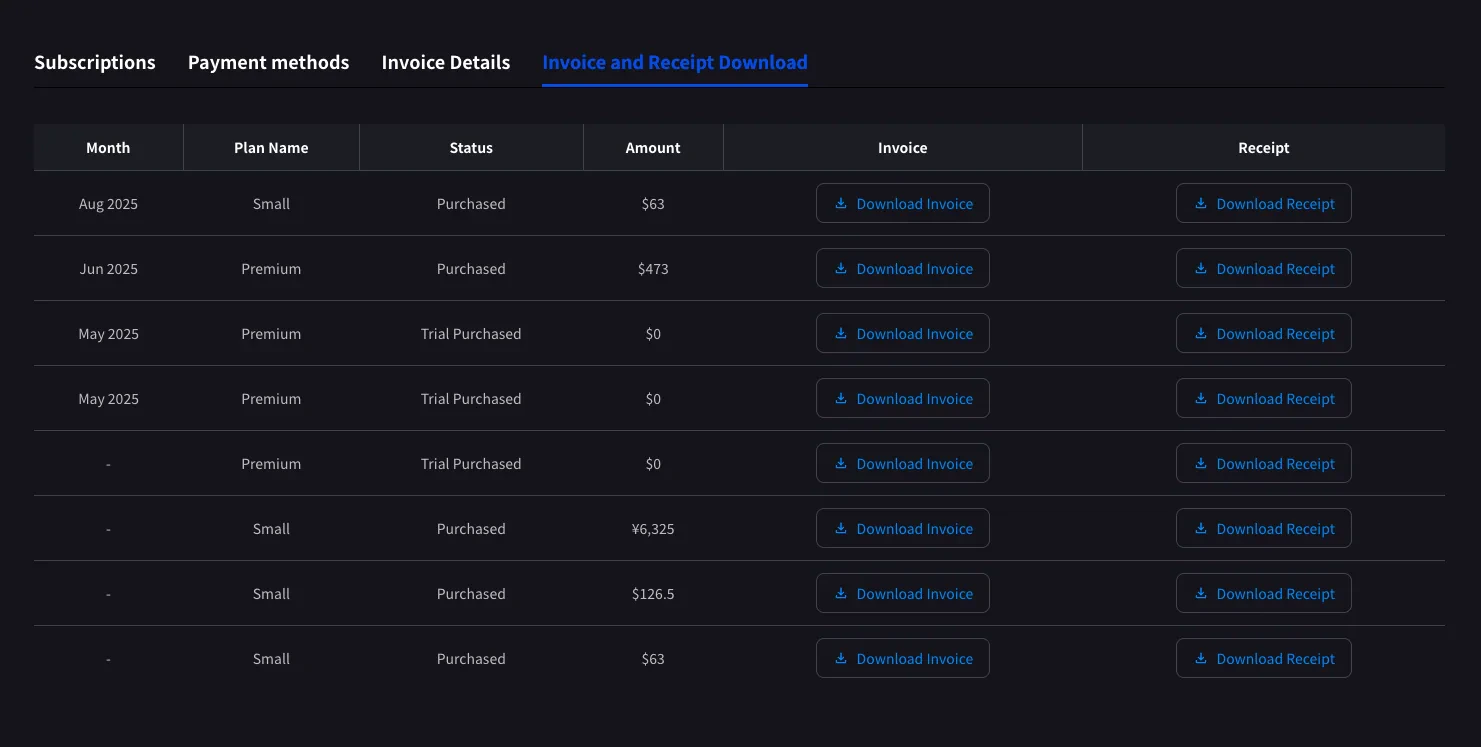
Every completed charge appears as a row with month, plan name, status, amount, and download buttons for both the invoice PDF and the receipt.
Click **Change** to edit any field.
Update these **before** your next billing date. Stripe reads these fields at the moment of invoice generation — editing later does not restamp past PDFs.
### Invoice and Receipt Download
Every completed charge appears as a row with month, plan name, status, amount, and download buttons for both the invoice PDF and the receipt.
 | Button | Opens |
| -------------------- | -------------------------------------------------------------------------------------------------- |
| **Download Invoice** | The invoice PDF (share / save / forward to finance) |
| **Download Receipt** | Receipt download or stored receipt link; if unavailable, the hosted receipt/invoice fallback opens |
Only completed charges appear here. Scheduled plan changes show up after the next billing date, once Stripe generates the invoice. `$0` rows with status **Trial Purchased** are logged too — useful for tracking when a trial began.
### Billing History
Use **Billing History** when you need the full audit trail, not only completed invoice rows.
| Column | What it shows |
| ------------------------- | -------------------------------------------------------------------------------------------------------------------------------------------------- |
| **Status** | Event result, such as purchase, upgrade, scheduled change, cancellation, restore, payment-method change, trial update, renewal, or payment failure |
| **Event Date (UTC+9)** | When the billing event was recorded |
| **Plan Name** | The plan involved in the event, including tiered Individual / Small minute labels when available |
| **Start Date / End Date** | The subscription period affected by the event |
| **Price** | The billed amount when the event has a displayable charge |
Use **Billing History** for "what changed and when?" Use **Invoice and Receipt Download** when finance needs the actual invoice PDF or receipt.
## On Mobile (Billing hub)
The mobile app collapses the same invoice features into the **Billing** hub, plus a Billing Activity log for subscription moves on mobile.
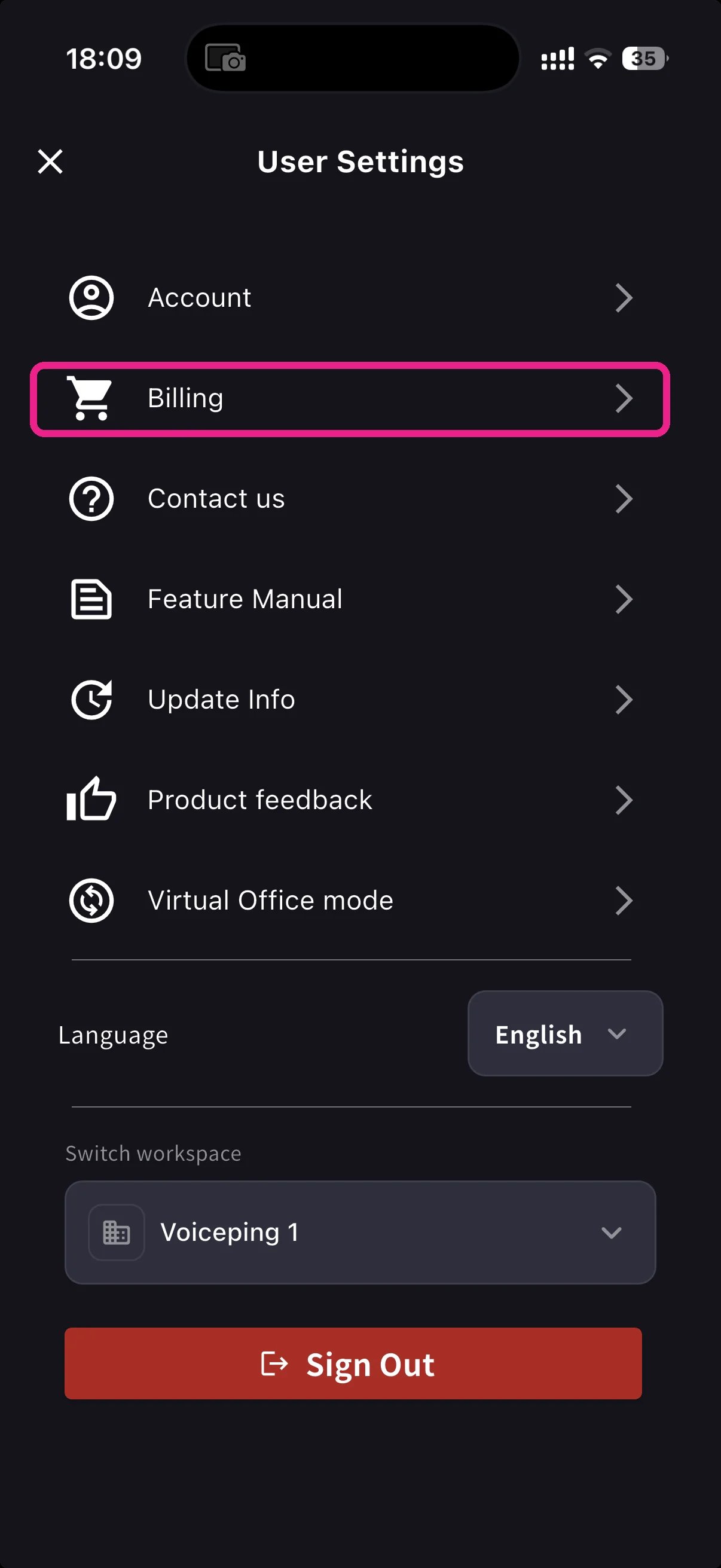
Open the side menu from the home screen, tap **Billing** (cart icon).
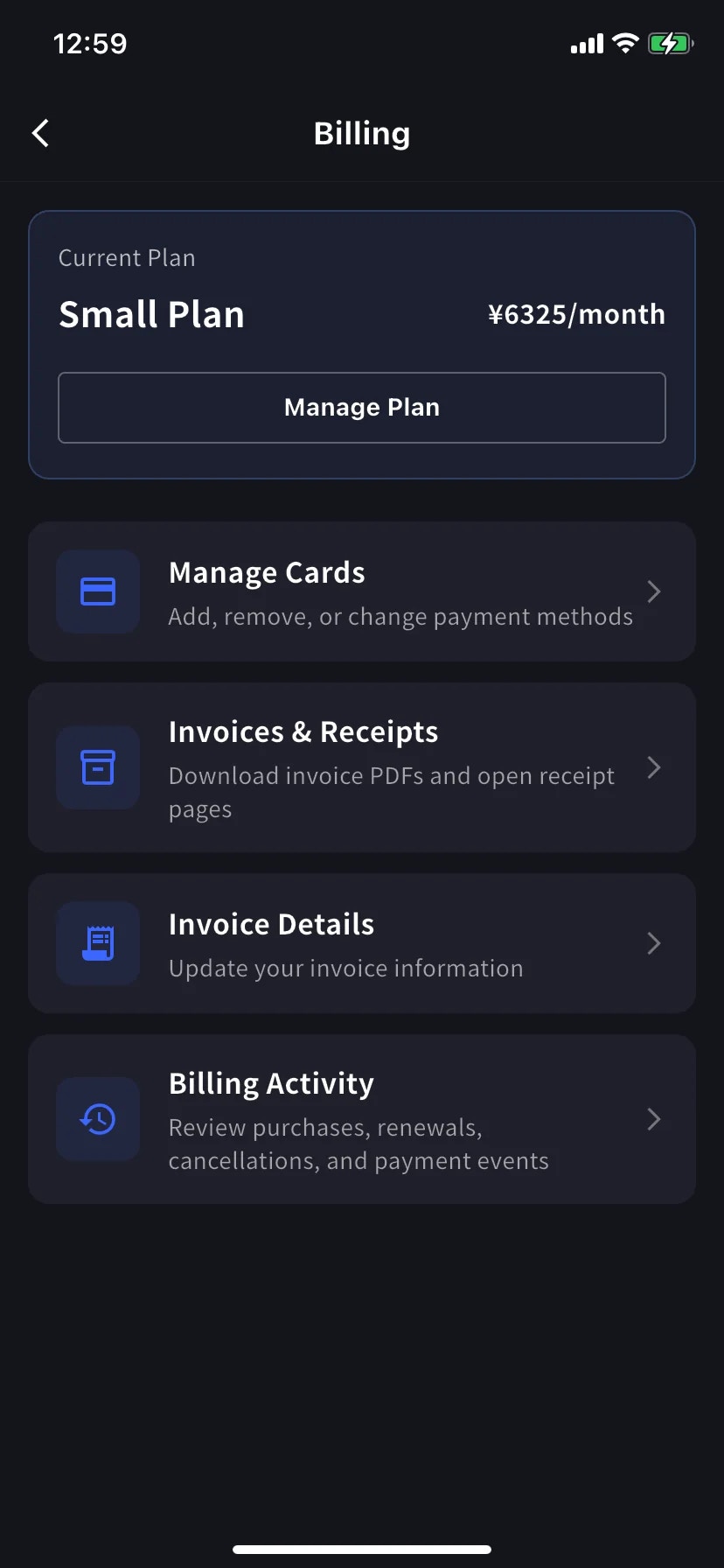
Below the Current Plan card, three shortcuts cover invoicing:
| Shortcut | What it's for |
| ----------------------- | ----------------------------------------------------------- |
| **Invoice Details** | Bill-to name, email, phone |
| **Invoices & Receipts** | Invoice PDFs and receipt downloads or stored receipt links |
| **Billing Activity** | Event log of every subscription move, with timestamp and IP |
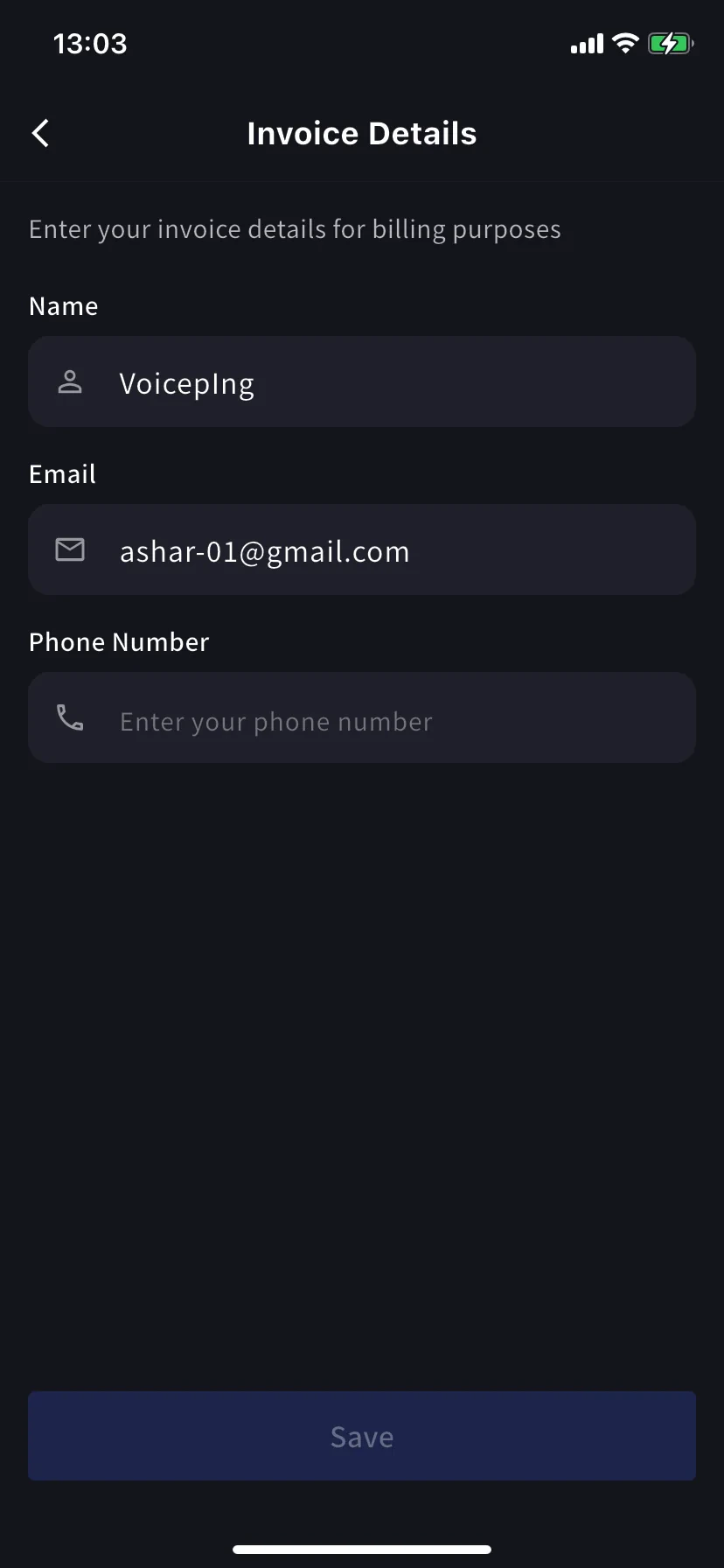
### Invoice Details (mobile)
Same fields as the PC tab — name, email, phone for your invoice PDFs.
Set this **before** your next billing date. Stripe uses these fields at the moment of invoice generation — editing later won't restamp past PDFs.
### Invoices & Receipts (mobile)
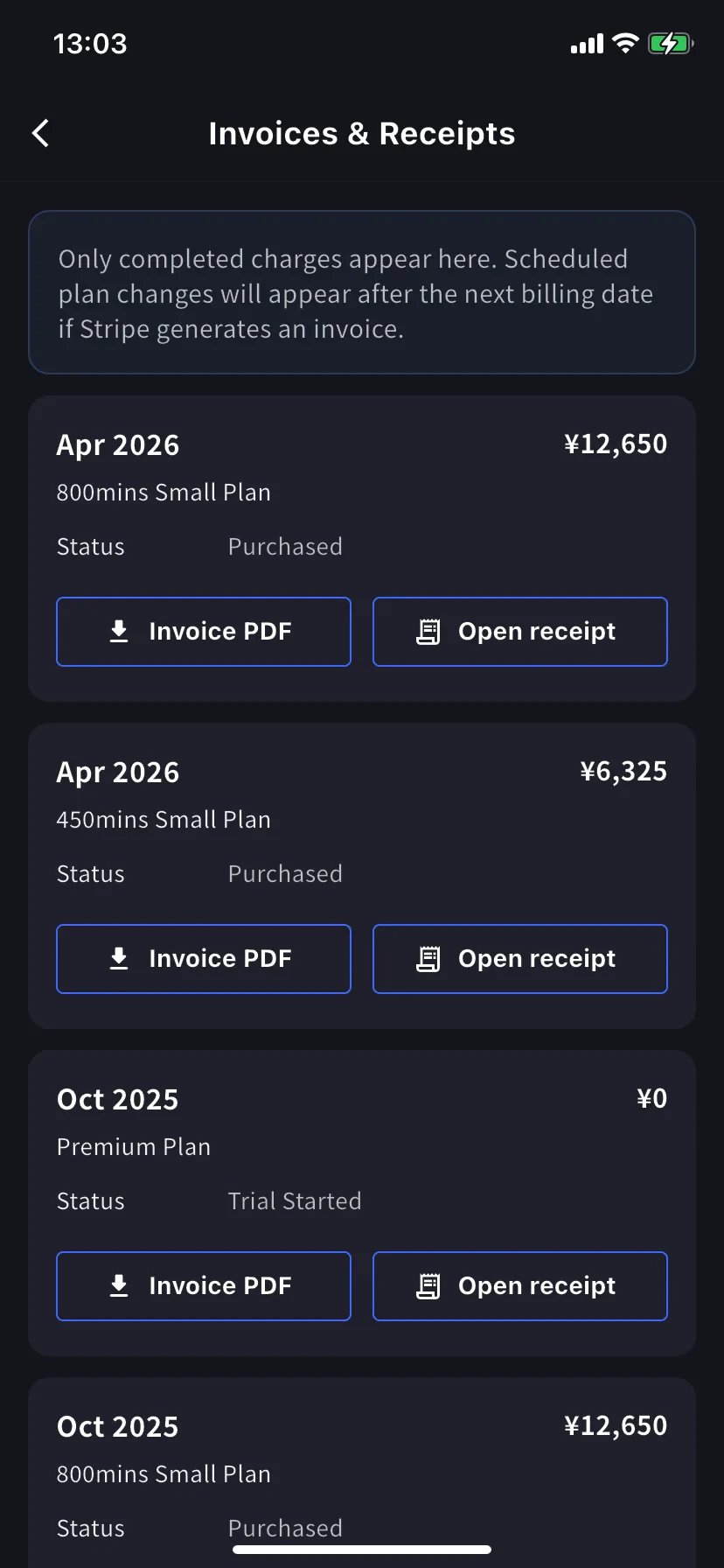
Past charges appear as monthly cards. Each card has two actions.
| Button | Opens |
| ---------------- | -------------------------------------------------------------------------------------------------- |
| **Invoice PDF** | The downloadable invoice PDF (share / save / forward) |
| **Open receipt** | Receipt download or stored receipt link; if unavailable, the hosted receipt/invoice fallback opens |
### Billing Activity (mobile only)
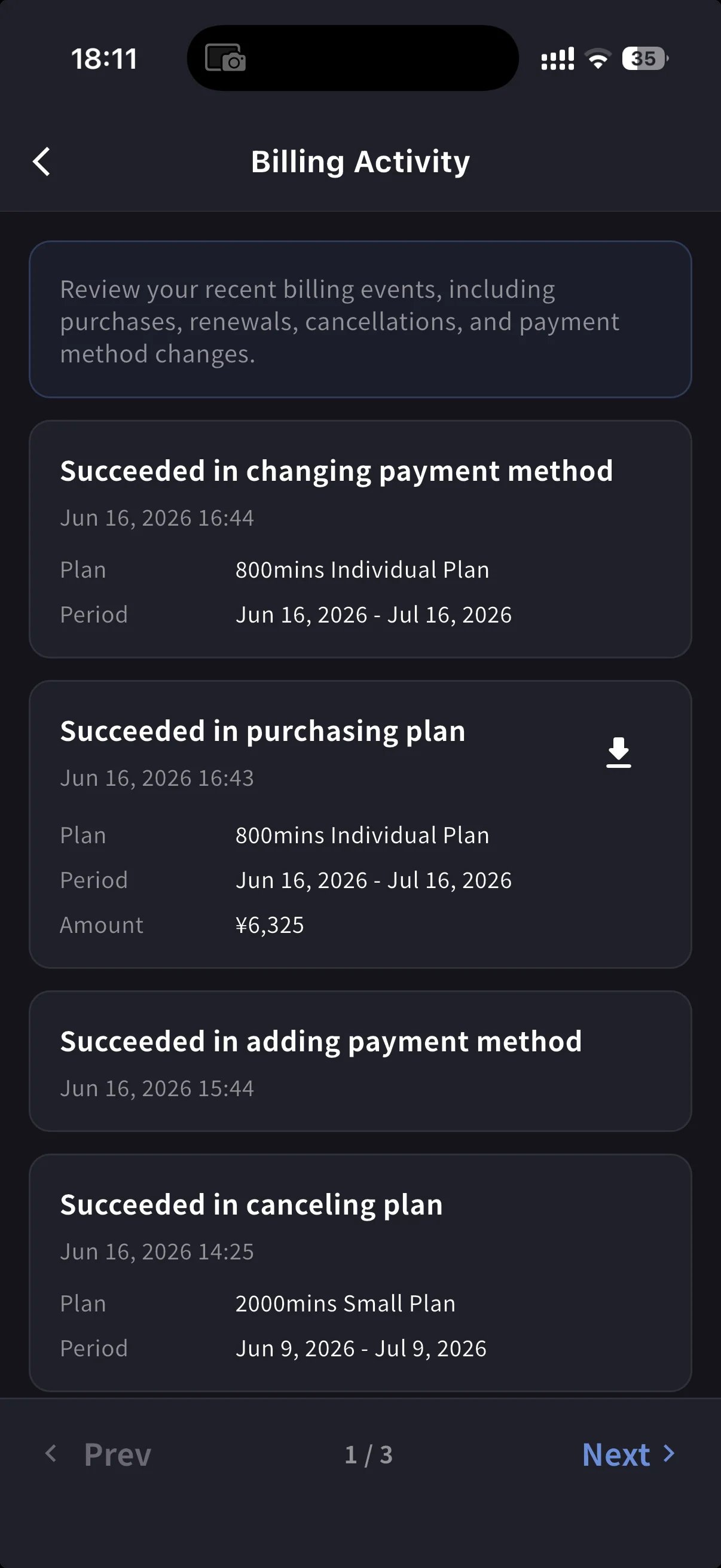
Event log — everything your workspace did to its subscription, in one place.
Each row carries:
* Event name — e.g. *Succeeded in upgrading plan*, *Subscription will be canceled on the next payment date*, *Succeeded in restoring subscription*
* Timestamp (`YYYY/MM/DD HH:MM`)
* Plan, billing period, and amount (when applicable)
* **IP Address** — who acted from where, for audit / security review
* Download icon on completed charges — pulls the invoice PDF for that event
Use it to answer "wait, when did that happen?" without digging through emails.
On PC, use **Billing History** for the full event log and **Invoice and Receipt Download** for finance documents. On mobile, **Billing Activity** gives a compact activity log with timestamps, IP address, and invoice download actions where available.
## Tips
* **Bill-to changes apply to future invoices only.** Update Invoice Details before the next billing date to avoid having to reissue.
* **Receipts vs invoices.** The invoice is the charge document. The receipt action opens the stored receipt/download when available; otherwise it opens the hosted Stripe fallback.
* **Mobile and PC stay in sync.** Edits on one surface appear on the other immediately.
## Related
* [Plan Changes, Cancellation & Trial End](/en/plan-changes) — upgrade, downgrade, cancel (PC and mobile)
* [Changing Your Payment Credit Card](/en/credit-card-change) — card management (PC and mobile)
* [Pricing](/en/pricing) — plan tiers and minute allowances
| Button | Opens |
| -------------------- | -------------------------------------------------------------------------------------------------- |
| **Download Invoice** | The invoice PDF (share / save / forward to finance) |
| **Download Receipt** | Receipt download or stored receipt link; if unavailable, the hosted receipt/invoice fallback opens |
Only completed charges appear here. Scheduled plan changes show up after the next billing date, once Stripe generates the invoice. `$0` rows with status **Trial Purchased** are logged too — useful for tracking when a trial began.
### Billing History
Use **Billing History** when you need the full audit trail, not only completed invoice rows.
| Column | What it shows |
| ------------------------- | -------------------------------------------------------------------------------------------------------------------------------------------------- |
| **Status** | Event result, such as purchase, upgrade, scheduled change, cancellation, restore, payment-method change, trial update, renewal, or payment failure |
| **Event Date (UTC+9)** | When the billing event was recorded |
| **Plan Name** | The plan involved in the event, including tiered Individual / Small minute labels when available |
| **Start Date / End Date** | The subscription period affected by the event |
| **Price** | The billed amount when the event has a displayable charge |
Use **Billing History** for "what changed and when?" Use **Invoice and Receipt Download** when finance needs the actual invoice PDF or receipt.
## On Mobile (Billing hub)
The mobile app collapses the same invoice features into the **Billing** hub, plus a Billing Activity log for subscription moves on mobile.
Open the side menu from the home screen, tap **Billing** (cart icon).
Below the Current Plan card, three shortcuts cover invoicing:
| Shortcut | What it's for |
| ----------------------- | ----------------------------------------------------------- |
| **Invoice Details** | Bill-to name, email, phone |
| **Invoices & Receipts** | Invoice PDFs and receipt downloads or stored receipt links |
| **Billing Activity** | Event log of every subscription move, with timestamp and IP |
### Invoice Details (mobile)
Same fields as the PC tab — name, email, phone for your invoice PDFs.
Set this **before** your next billing date. Stripe uses these fields at the moment of invoice generation — editing later won't restamp past PDFs.
### Invoices & Receipts (mobile)
Past charges appear as monthly cards. Each card has two actions.
| Button | Opens |
| ---------------- | -------------------------------------------------------------------------------------------------- |
| **Invoice PDF** | The downloadable invoice PDF (share / save / forward) |
| **Open receipt** | Receipt download or stored receipt link; if unavailable, the hosted receipt/invoice fallback opens |
### Billing Activity (mobile only)
Event log — everything your workspace did to its subscription, in one place.
Each row carries:
* Event name — e.g. *Succeeded in upgrading plan*, *Subscription will be canceled on the next payment date*, *Succeeded in restoring subscription*
* Timestamp (`YYYY/MM/DD HH:MM`)
* Plan, billing period, and amount (when applicable)
* **IP Address** — who acted from where, for audit / security review
* Download icon on completed charges — pulls the invoice PDF for that event
Use it to answer "wait, when did that happen?" without digging through emails.
On PC, use **Billing History** for the full event log and **Invoice and Receipt Download** for finance documents. On mobile, **Billing Activity** gives a compact activity log with timestamps, IP address, and invoice download actions where available.
## Tips
* **Bill-to changes apply to future invoices only.** Update Invoice Details before the next billing date to avoid having to reissue.
* **Receipts vs invoices.** The invoice is the charge document. The receipt action opens the stored receipt/download when available; otherwise it opens the hosted Stripe fallback.
* **Mobile and PC stay in sync.** Edits on one surface appear on the other immediately.
## Related
* [Plan Changes, Cancellation & Trial End](/en/plan-changes) — upgrade, downgrade, cancel (PC and mobile)
* [Changing Your Payment Credit Card](/en/credit-card-change) — card management (PC and mobile)
* [Pricing](/en/pricing) — plan tiers and minute allowances