> ## Documentation Index
> Fetch the complete documentation index at: https://manual.voiceping.net/llms.txt
> Use this file to discover all available pages before exploring further.
# Plan Changes, Cancellation & Trial End
> Upgrade or downgrade VoicePing plans, cancel subscriptions, end free trials, or request contract-based billing.
export const ContactEn = () => <>
If you have any questions, please contact us via this form.
Official Links
Visit our official website
Follow us on X
Like us on Facebook
Connect on LinkedIn
;
Upgrade, downgrade, or cancel from the Billing → Subscriptions tab.
Manage Plan in the Billing hub — upgrade, downgrade, cancel, restore.
Every successful plan change or cancellation triggers a confirmation email from `account@voice-ping.com`.
## The four moves
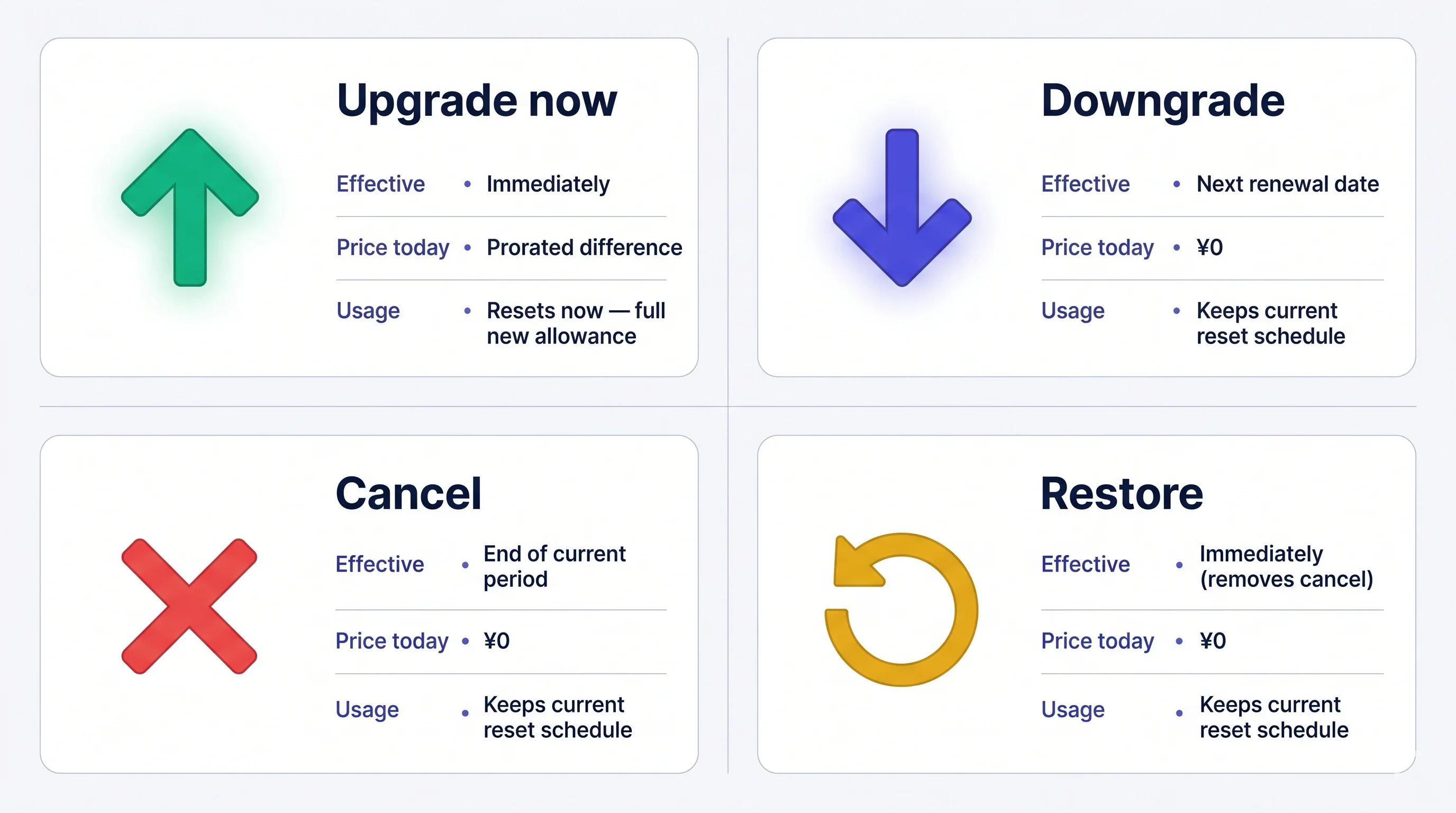
Every subscription change — PC or mobile — is one of four moves. Effective date, price today, and usage reset behavior are the same on either surface.
 Fees are **non-refundable** once charged. If you cancel, your current plan stays active until the period ends — you can restore free any time before that.
## How to Change Plans
### 1. PC
**Open the Subscriptions tab:** top nav → **Billing** → **Subscriptions**.
The desktop tab shows your current plan, next billing date, and any scheduled plan change before the plan cards. Use the **Monthly / Yearly** toggle to switch billing periods. Workspaces without a Stripe price can choose the display currency before selecting a paid plan.
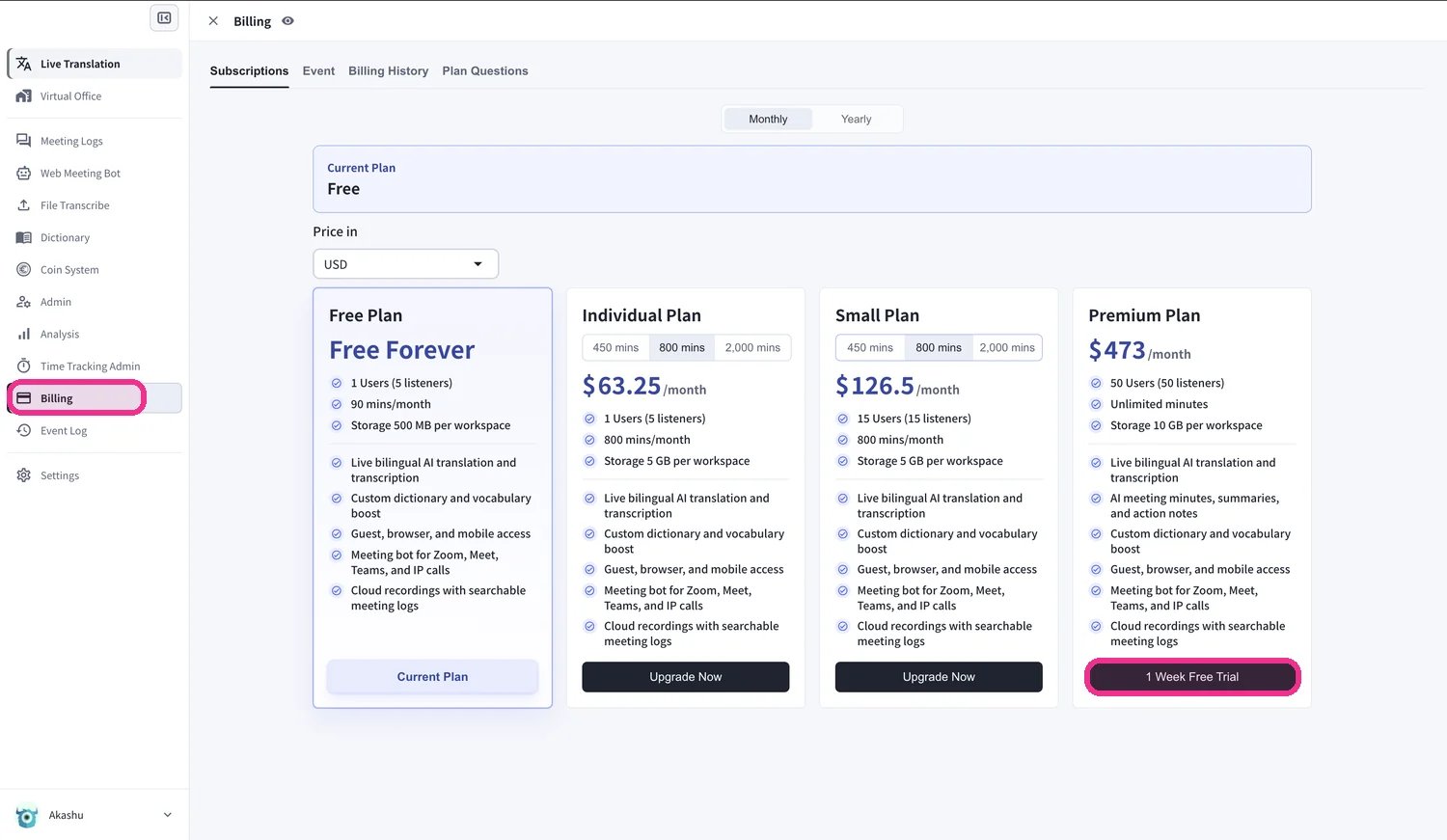
* **From Free Plan** — choose a paid card and use **Upgrade Now**, **Subscribe**, or **1 Week Free Trial** where available.
* **From a paid plan** — choose another plan card. Higher tiers show **Upgrade Now**; lower tiers show **Downgrade Plan**; a scheduled future choice shows **Next Plan**.
* **If cancellation is scheduled** — the current plan card shows **Restore Now** so you can remove the scheduled cancellation.
**Pick the target plan:**
* **Individual / Small / Premium** — choose the plan card. Individual and Small may include a minutes selector before confirmation. Individual is **single-user and monthly only**.
* **Enterprise** — click **Contact support** because Enterprise uses support-assisted setup and custom pricing.
* **Event** — open the **Event** tab for one-time interpretation support, audience tiers, support add-ons, and included event features.
* **Premium from Free** — click **1-Week Free Trial** → **Start Trial** → enter card. Trial runs 1 week, then auto-charges.
* **Lower tier (downgrade)** — pick the tier → confirm. Current plan stays active until the renewal date; the new plan applies from the next cycle.
**Individual is a single-user plan.** A workspace can switch to Individual only when it has **one active member**. If you have more, remove the extra members first — VoicePing blocks the change and shows how many users to remove until the workspace is down to one.
Fees are **non-refundable** once charged. If you cancel, your current plan stays active until the period ends — you can restore free any time before that.
## How to Change Plans
### 1. PC
**Open the Subscriptions tab:** top nav → **Billing** → **Subscriptions**.
The desktop tab shows your current plan, next billing date, and any scheduled plan change before the plan cards. Use the **Monthly / Yearly** toggle to switch billing periods. Workspaces without a Stripe price can choose the display currency before selecting a paid plan.
* **From Free Plan** — choose a paid card and use **Upgrade Now**, **Subscribe**, or **1 Week Free Trial** where available.
* **From a paid plan** — choose another plan card. Higher tiers show **Upgrade Now**; lower tiers show **Downgrade Plan**; a scheduled future choice shows **Next Plan**.
* **If cancellation is scheduled** — the current plan card shows **Restore Now** so you can remove the scheduled cancellation.
**Pick the target plan:**
* **Individual / Small / Premium** — choose the plan card. Individual and Small may include a minutes selector before confirmation. Individual is **single-user and monthly only**.
* **Enterprise** — click **Contact support** because Enterprise uses support-assisted setup and custom pricing.
* **Event** — open the **Event** tab for one-time interpretation support, audience tiers, support add-ons, and included event features.
* **Premium from Free** — click **1-Week Free Trial** → **Start Trial** → enter card. Trial runs 1 week, then auto-charges.
* **Lower tier (downgrade)** — pick the tier → confirm. Current plan stays active until the renewal date; the new plan applies from the next cycle.
**Individual is a single-user plan.** A workspace can switch to Individual only when it has **one active member**. If you have more, remove the extra members first — VoicePing blocks the change and shows how many users to remove until the workspace is down to one.
 **Prorated billing on upgrades.** A new billing cycle starts on the upgrade date; the unused portion of the old plan is credited against the new price, and usage resets. The later in the period you upgrade, the smaller the credit — upgrading on the renewal date is cheapest. **Downgrades** apply at the next renewal; the renewal date stays unchanged.
The desktop **Billing History** tab records completed and scheduled plan events, including upgrades, downgrades, cancellations, restores, renewals, payment-method changes, trial events, and payment failures. The **Plan Questions** tab explains plan-change timing, invoices, yearly mode, Enterprise, and Event.
### 2. Mobile
App Store policy: the upgrade and cancellation buttons only appear after all 60 free minutes have been used. Use the 60 minutes or change plan from PC.
Every plan change on mobile runs through **Manage Plan** in the Billing hub.
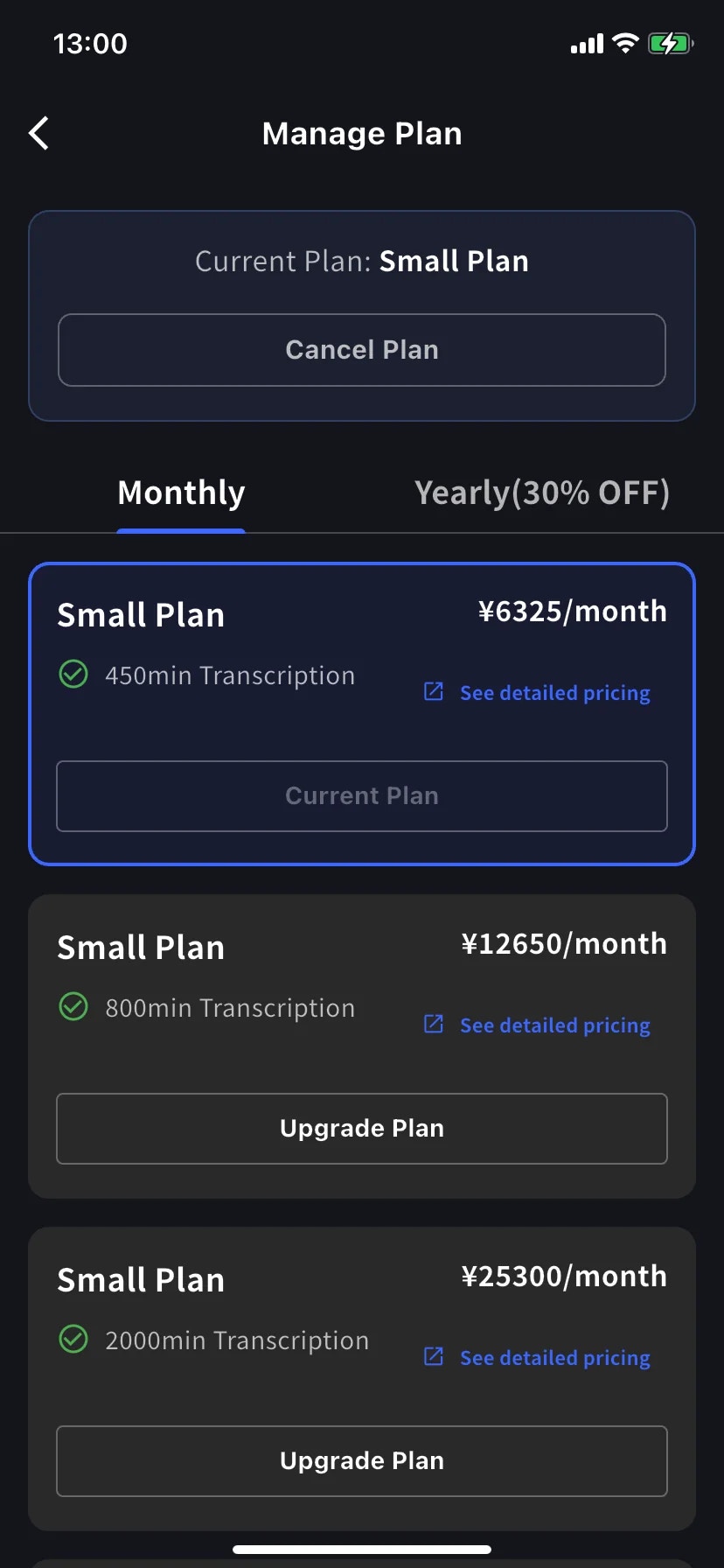
Side menu → **User Settings** → **Billing** → **Manage Plan** (or tap **Manage Plan** on the Current Plan card). Toggle **Monthly** / **Yearly** at the top. Tiers above current show **Upgrade Plan**; tiers below show **Change Plan**.
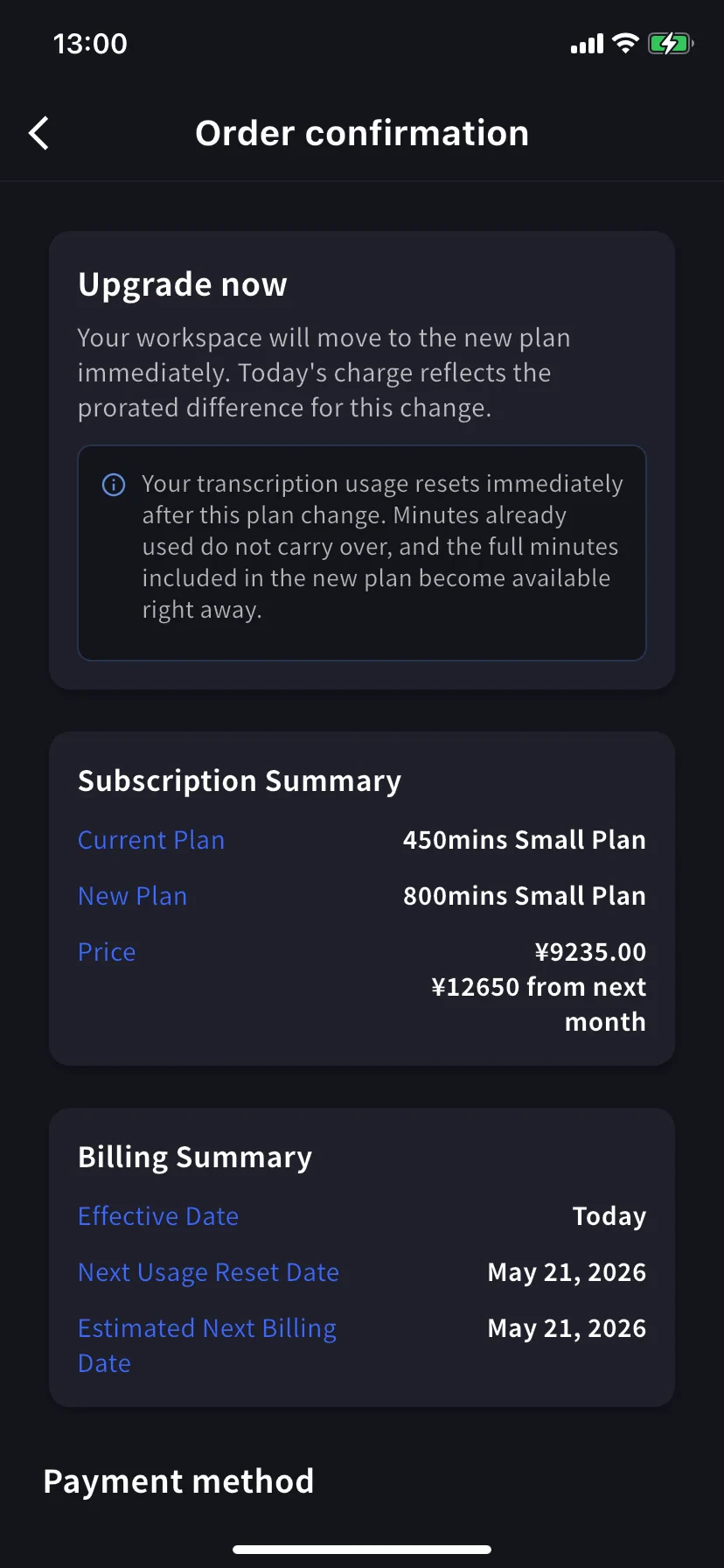
Tap **Upgrade Plan** on a higher tier. Banner: *Upgrade now — your workspace will move to the new plan immediately. Today's charge reflects the prorated difference.* Pick an existing card or tap **+ Add new card**, tick Terms / Privacy, then tap **Confirm Plan Change**.
**Premium from Free Plan** starts with a 1-week trial — no charge until it ends.
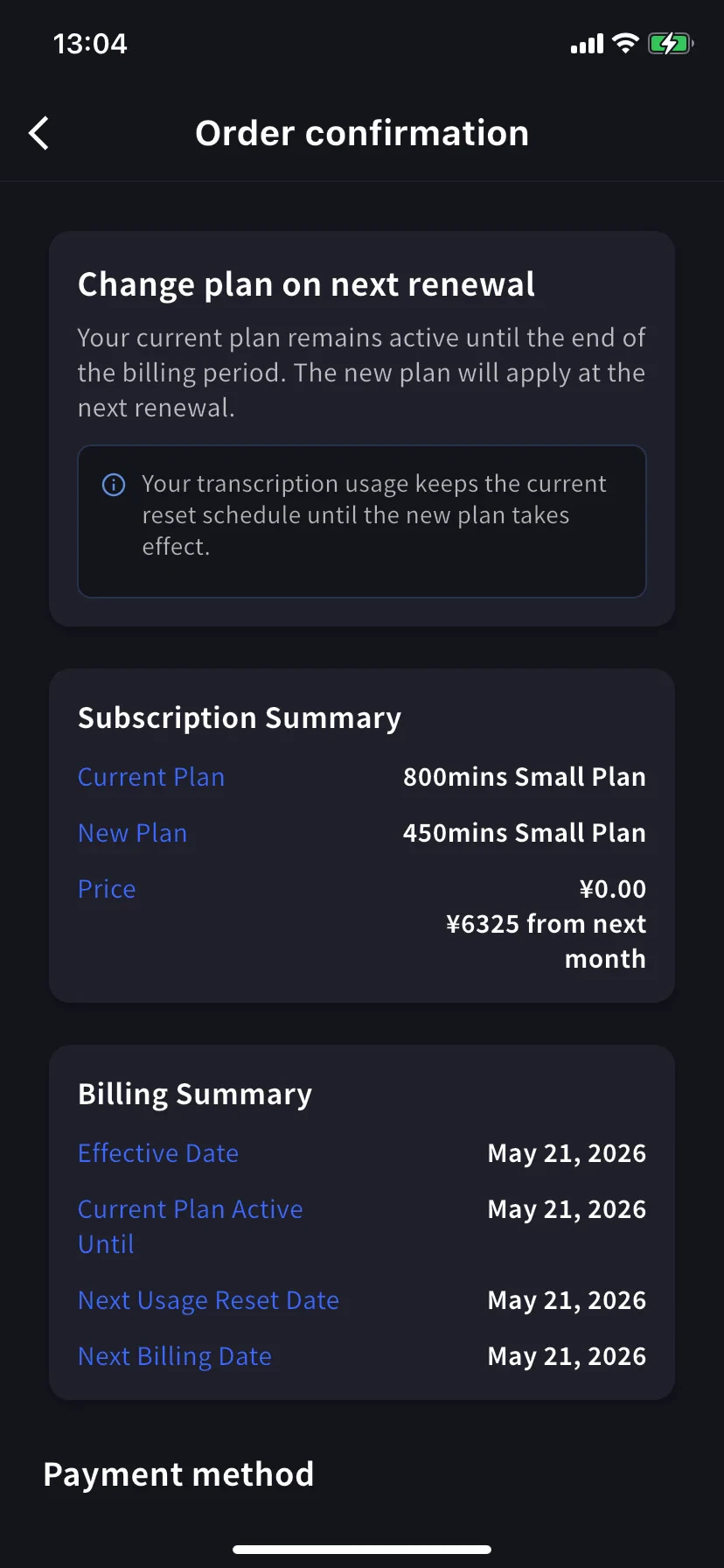
Tap **Change Plan** on a lower tier. Banner: *Change plan on next renewal — your current plan remains active until the end of the billing period.* Price today is **¥0 / \$0**. Confirm the same way as an upgrade.
### 3. Enterprise / Written / Electronic Contract Customers
See [Contract Procedures](/en/contract-procedures) and apply via [this form](https://forms.gle/6AUho7oj3zBr79e96) with:
1. Company name 2. Company address 3. Company phone 4. Contact person 5. Contract date 6. Current plan & desired plan
## Cancellation / Trial End
### 1. PC
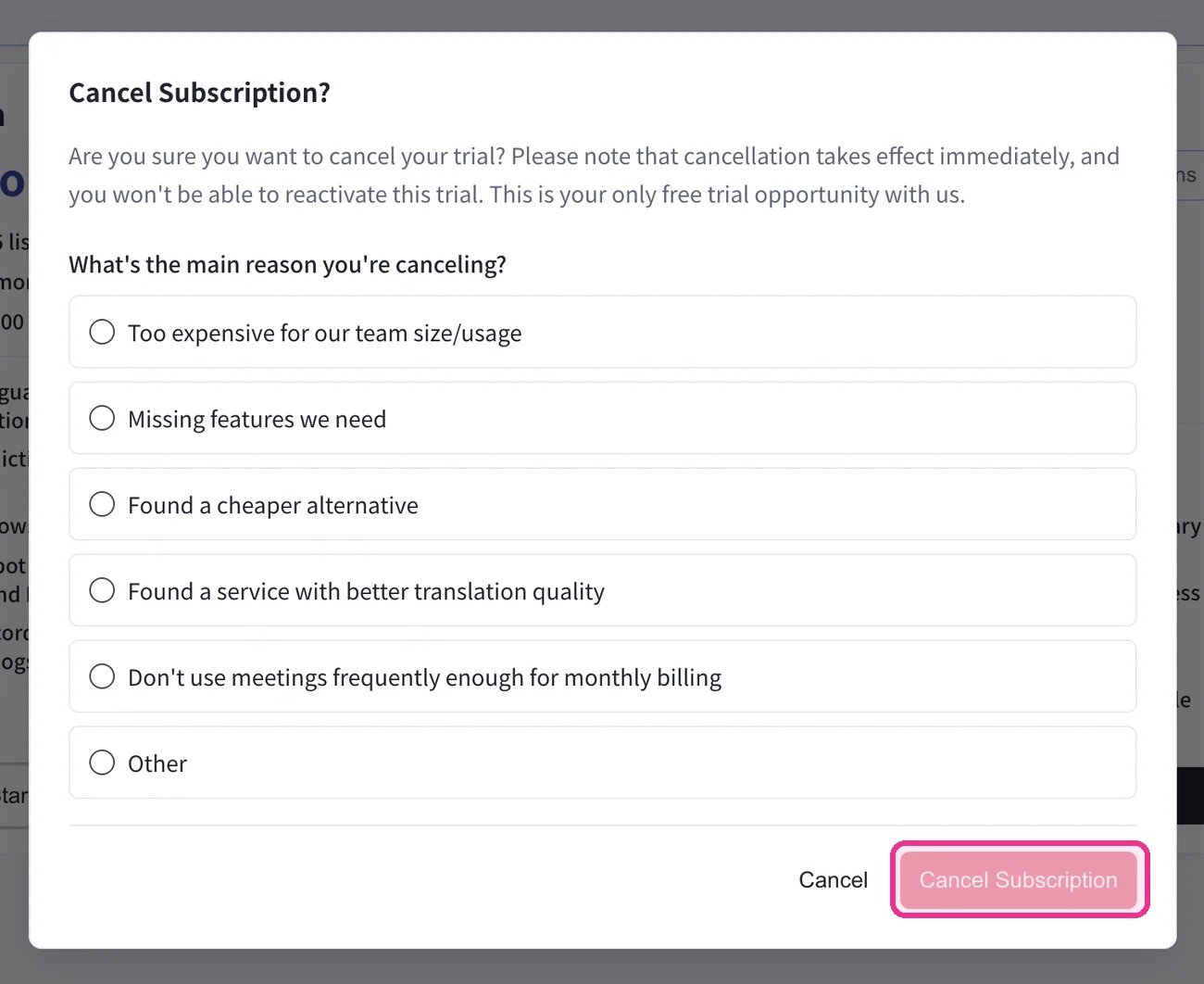
Top nav → **Billing** → **Subscriptions** → under **Free Plan** click **Start Free Plan**. In the **Cancel Subscription?** dialog, pick a reason, then click **Cancel Subscription**.
**Prorated billing on upgrades.** A new billing cycle starts on the upgrade date; the unused portion of the old plan is credited against the new price, and usage resets. The later in the period you upgrade, the smaller the credit — upgrading on the renewal date is cheapest. **Downgrades** apply at the next renewal; the renewal date stays unchanged.
The desktop **Billing History** tab records completed and scheduled plan events, including upgrades, downgrades, cancellations, restores, renewals, payment-method changes, trial events, and payment failures. The **Plan Questions** tab explains plan-change timing, invoices, yearly mode, Enterprise, and Event.
### 2. Mobile
App Store policy: the upgrade and cancellation buttons only appear after all 60 free minutes have been used. Use the 60 minutes or change plan from PC.
Every plan change on mobile runs through **Manage Plan** in the Billing hub.
Side menu → **User Settings** → **Billing** → **Manage Plan** (or tap **Manage Plan** on the Current Plan card). Toggle **Monthly** / **Yearly** at the top. Tiers above current show **Upgrade Plan**; tiers below show **Change Plan**.
Tap **Upgrade Plan** on a higher tier. Banner: *Upgrade now — your workspace will move to the new plan immediately. Today's charge reflects the prorated difference.* Pick an existing card or tap **+ Add new card**, tick Terms / Privacy, then tap **Confirm Plan Change**.
**Premium from Free Plan** starts with a 1-week trial — no charge until it ends.
Tap **Change Plan** on a lower tier. Banner: *Change plan on next renewal — your current plan remains active until the end of the billing period.* Price today is **¥0 / \$0**. Confirm the same way as an upgrade.
### 3. Enterprise / Written / Electronic Contract Customers
See [Contract Procedures](/en/contract-procedures) and apply via [this form](https://forms.gle/6AUho7oj3zBr79e96) with:
1. Company name 2. Company address 3. Company phone 4. Contact person 5. Contract date 6. Current plan & desired plan
## Cancellation / Trial End
### 1. PC
Top nav → **Billing** → **Subscriptions** → under **Free Plan** click **Start Free Plan**. In the **Cancel Subscription?** dialog, pick a reason, then click **Cancel Subscription**.
 Confirm the cancellation in the **Billing History** tab — a **Succeeded to cancel Trial** entry (or the equivalent cancel-plan entry) appears.
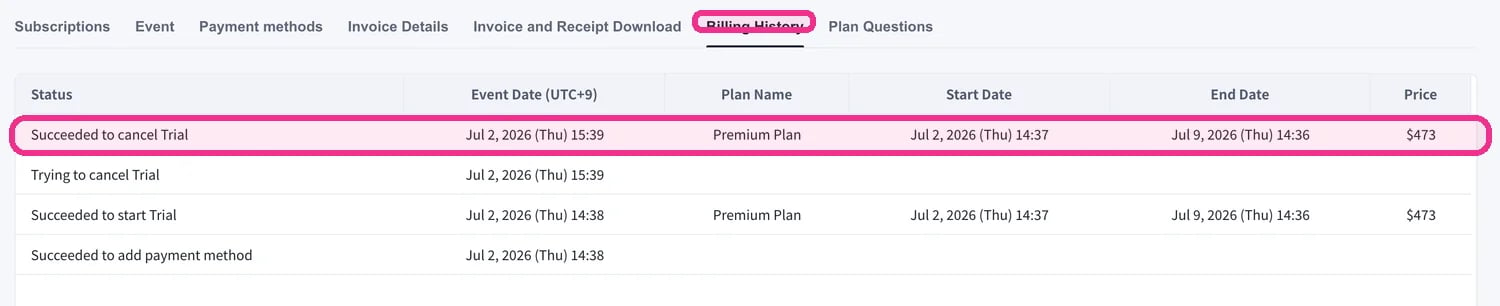 Always confirm the cancellation appears in **Billing History**. If you skip this step, cancellation is considered incomplete and no refund is possible.
### 2. Mobile
Cancel from **Manage Plan** in the Billing hub. Restore any time before the period ends.
##### Cancel
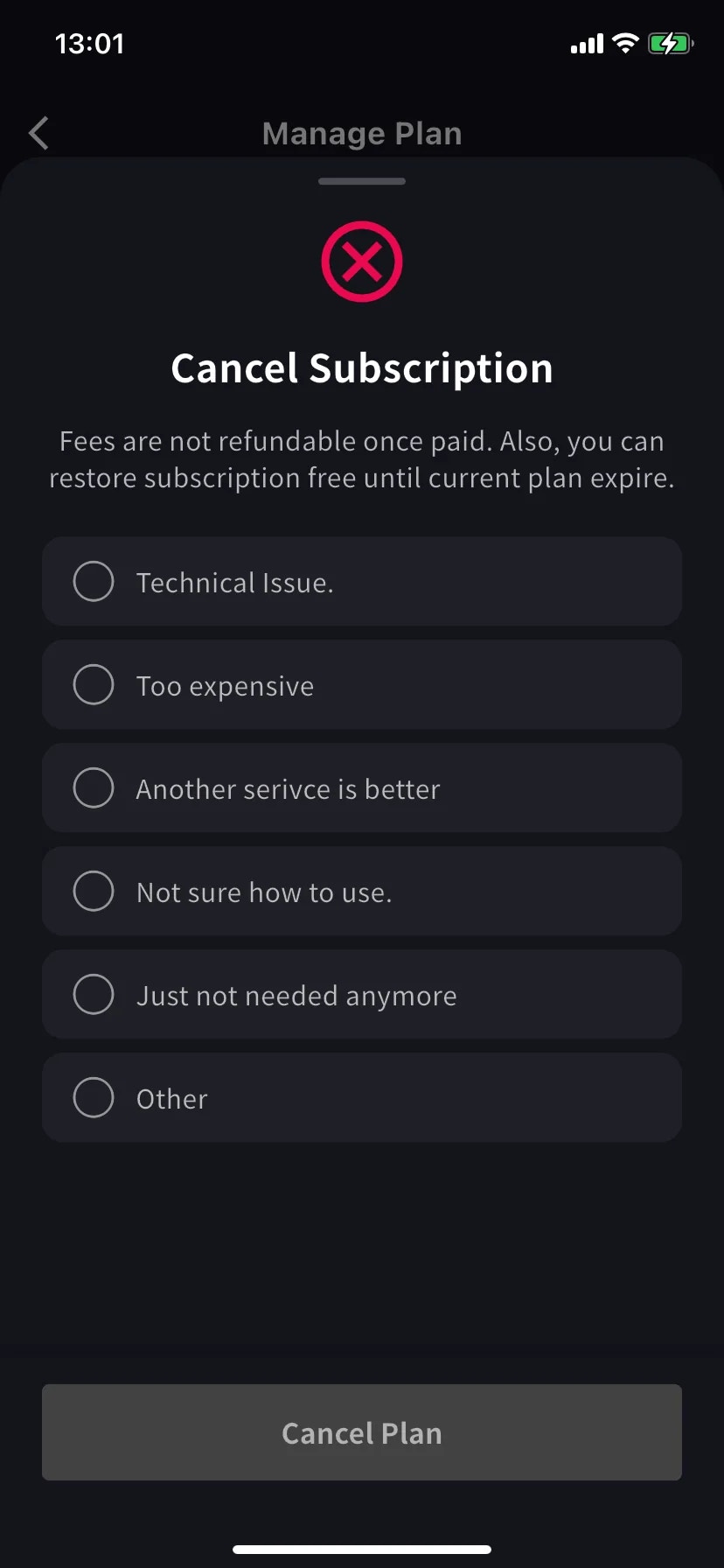
A sheet with a required reason list slides up. Pick one — the Cancel Plan button stays grey until a reason is selected.
Selecting **Other** requires at least 15 characters.
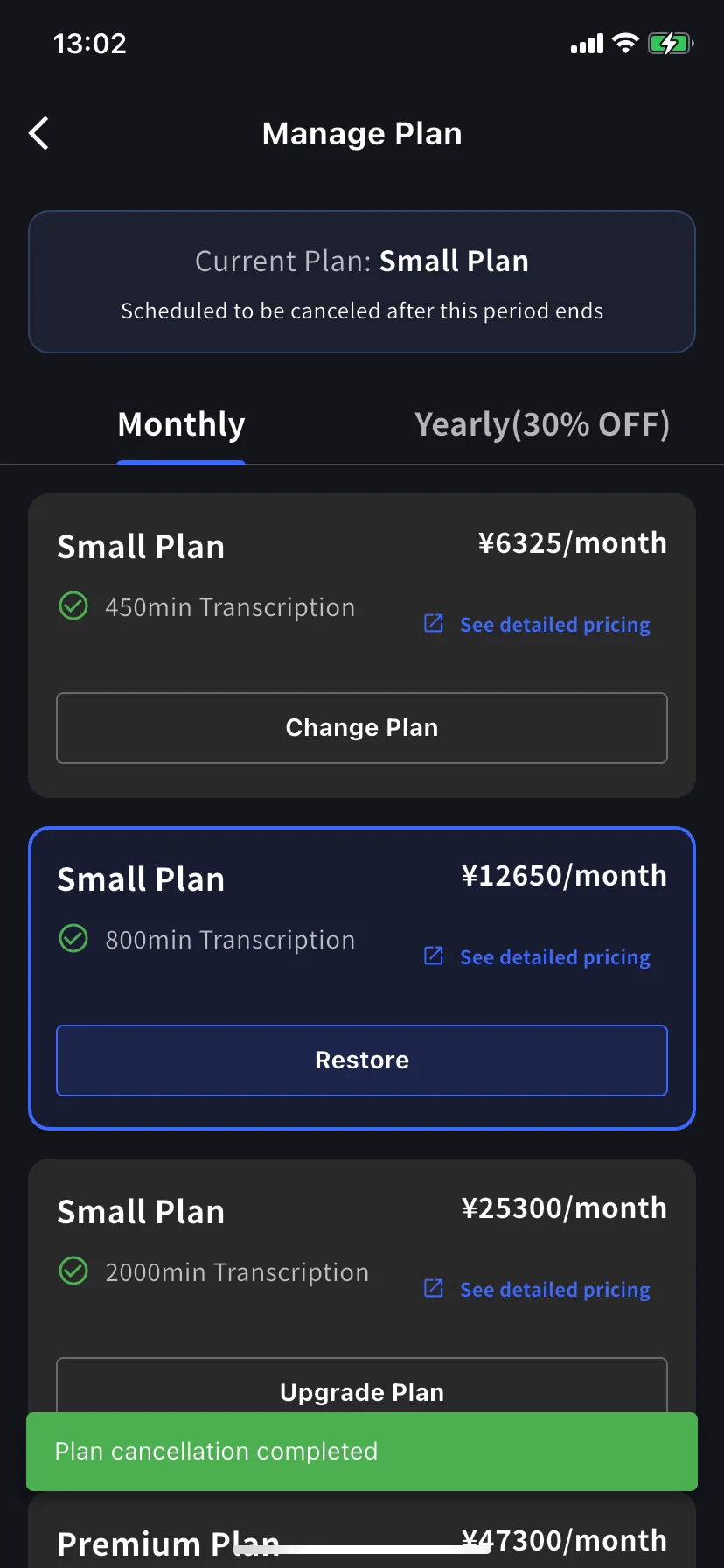
Current plan banner changes to **Scheduled to be canceled after this period ends**; lower tiers show a **Restore** button. You keep the plan and its minutes until the renewal date.
##### Restore auto-renewal
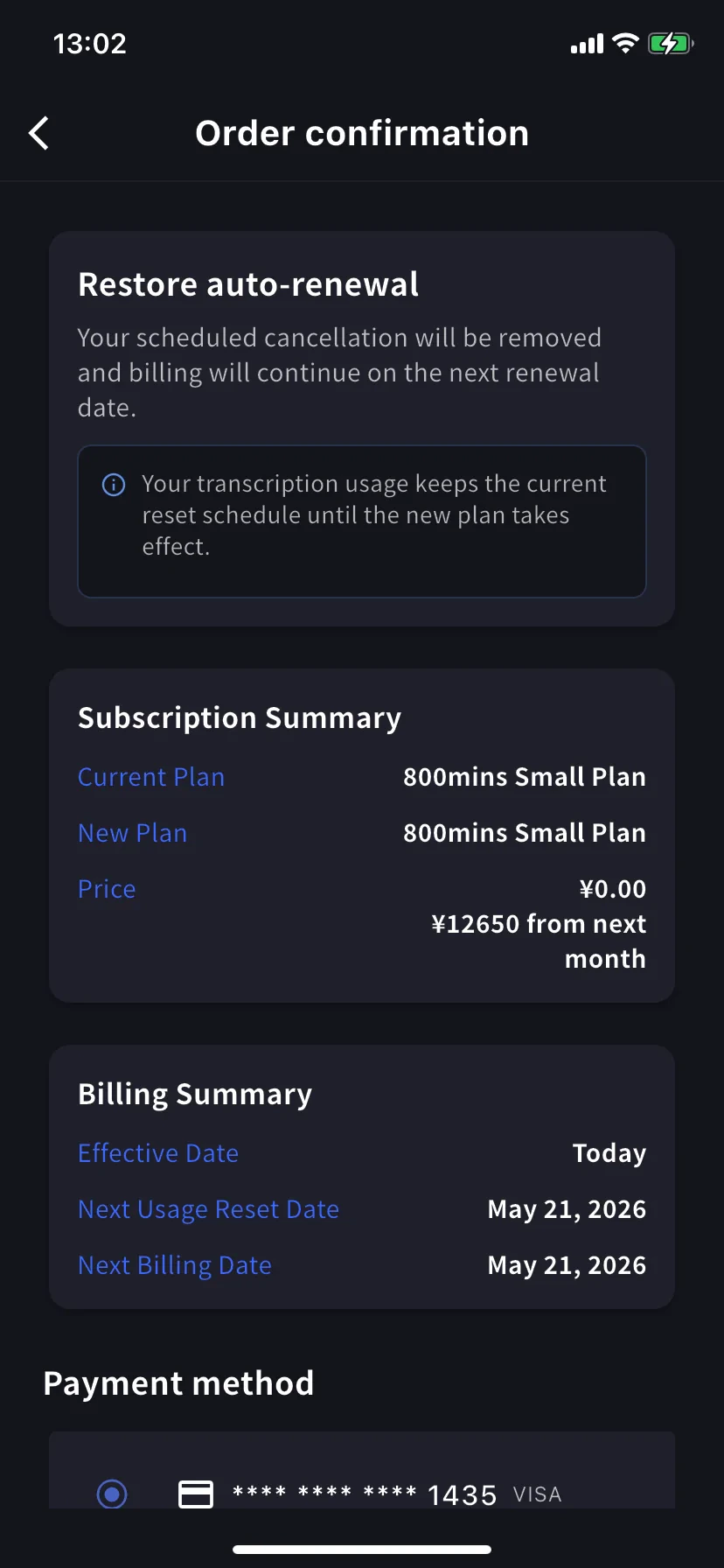
Tap **Restore** on the current tier. Order confirmation reads *Restore auto-renewal — your scheduled cancellation will be removed and billing will continue on the next renewal date.* Price today is \$0. Tap **Confirm Plan Change** and you're back on a normal renewing subscription. Usage keeps its reset schedule.
### 3. Enterprise / Written / Electronic Contract Customers
Contract/manual billing customers still see the **Subscriptions** tab, but it shows a managed VoicePing/manual contract screen. Apply for changes or cancellation via [this form](https://forms.gle/6AUho7oj3zBr79e96) with:
1. Company name 2. Company address 3. Company phone 4. Contact person 5. Contract date 6. Contract plan type 7. Cancellation reason
Always confirm the cancellation appears in **Billing History**. If you skip this step, cancellation is considered incomplete and no refund is possible.
### 2. Mobile
Cancel from **Manage Plan** in the Billing hub. Restore any time before the period ends.
##### Cancel
A sheet with a required reason list slides up. Pick one — the Cancel Plan button stays grey until a reason is selected.
Selecting **Other** requires at least 15 characters.
Current plan banner changes to **Scheduled to be canceled after this period ends**; lower tiers show a **Restore** button. You keep the plan and its minutes until the renewal date.
##### Restore auto-renewal
Tap **Restore** on the current tier. Order confirmation reads *Restore auto-renewal — your scheduled cancellation will be removed and billing will continue on the next renewal date.* Price today is \$0. Tap **Confirm Plan Change** and you're back on a normal renewing subscription. Usage keeps its reset schedule.
### 3. Enterprise / Written / Electronic Contract Customers
Contract/manual billing customers still see the **Subscriptions** tab, but it shows a managed VoicePing/manual contract screen. Apply for changes or cancellation via [this form](https://forms.gle/6AUho7oj3zBr79e96) with:
1. Company name 2. Company address 3. Company phone 4. Contact person 5. Contract date 6. Contract plan type 7. Cancellation reason