> ## Documentation Index
> Fetch the complete documentation index at: https://manual.voiceping.net/llms.txt
> Use this file to discover all available pages before exploring further.
# RealTime AI Interpreter
> Keep talking while you hear translations on your computer, through a meeting bot, or on your phone. Try an English–Japanese exchange and check automatic audio controls.
export const ContactEn = () => <>
If you have any questions, please contact us via this form.
Official Links
Visit our official website
Follow us on X
Like us on Facebook
Connect on LinkedIn
;
VoicePing's **full-duplex interpretation** keeps listening while it reads translations aloud (text-to-speech, or TTS). Follow the steps for your setup and try a short conversation.
*The illustrations show conceptual workflows.*
## English ↔ Japanese demonstration
 Enable the language pair and playback below, then take turns speaking.
| Say | Example translated speech |
| - | - |
| “The meeting starts at nine.” | 「会議は9時に始まります。」 |
| 「資料を送ります。」 | “I'll send the materials.” |
**Other languages are supported too.** Availability depends on the recognition, translation, and speech system. The exact translation may vary.
## Web and desktop
Enable the language pair and playback below, then take turns speaking.
| Say | Example translated speech |
| - | - |
| “The meeting starts at nine.” | 「会議は9時に始まります。」 |
| 「資料を送ります。」 | “I'll send the materials.” |
**Other languages are supported too.** Availability depends on the recognition, translation, and speech system. The exact translation may vary.
## Web and desktop
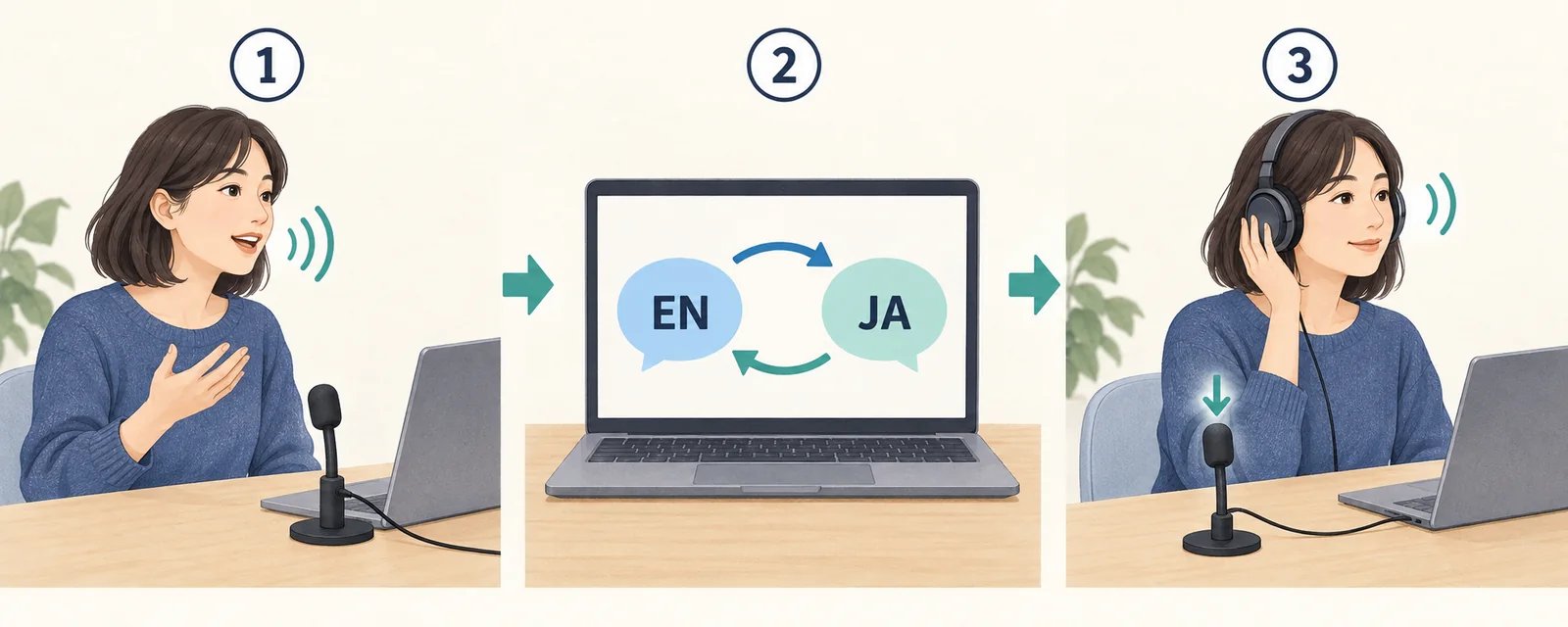 **Hear translations on your own computer.**
1. Start live translation, choose your microphone or [system audio](/en/zoom-teams-translation), and grant access.
2. Set speech to **English**, translation to **Japanese**, and turn on **Bilingual**.
3. Turn on the **speaking-person button** beside the bottom timer and test both directions. Purple means on; a slash means off. **Each new session starts with autoplay off.**
### Play one sentence or stop speech
Autoplay reads newly finalized translations in order. It does not replay past history.
Hover over a **translated row**, focus its toolbar with the keyboard, or tap it. Select play beside edit to interrupt automatic speech with that sentence, using the separate fixed speed. This does not enable autoplay.
Turning autoplay off also cancels queued speech. Stop a manually selected sentence with its own stop button. Stopping translation also ends audio capture.
### Let attendees listen on their own devices
The host enables sharing and listener **Text-to-speech**, then distributes the URL or QR code. Listeners choose a language and select **Unmute**. See [live captions](/en/live-subtitles).
Volume is 0–100% (default 100%). Speed defaults to **Auto**; explicitly choose **Manual** for 0.5–2.0× playback. Volume and speed settings are saved on that device. Mute is a separate control.
If the browser cannot select an output, use device settings. After an app interruption, return to the page and unmute if needed. If you also hear the bot, stop one output to avoid duplicate speech.
## Meeting bot
**Hear translations on your own computer.**
1. Start live translation, choose your microphone or [system audio](/en/zoom-teams-translation), and grant access.
2. Set speech to **English**, translation to **Japanese**, and turn on **Bilingual**.
3. Turn on the **speaking-person button** beside the bottom timer and test both directions. Purple means on; a slash means off. **Each new session starts with autoplay off.**
### Play one sentence or stop speech
Autoplay reads newly finalized translations in order. It does not replay past history.
Hover over a **translated row**, focus its toolbar with the keyboard, or tap it. Select play beside edit to interrupt automatic speech with that sentence, using the separate fixed speed. This does not enable autoplay.
Turning autoplay off also cancels queued speech. Stop a manually selected sentence with its own stop button. Stopping translation also ends audio capture.
### Let attendees listen on their own devices
The host enables sharing and listener **Text-to-speech**, then distributes the URL or QR code. Listeners choose a language and select **Unmute**. See [live captions](/en/live-subtitles).
Volume is 0–100% (default 100%). Speed defaults to **Auto**; explicitly choose **Manual** for 0.5–2.0× playback. Volume and speed settings are saved on that device. Mute is a separate control.
If the browser cannot select an output, use device settings. After an app interruption, return to the page and unmute if needed. If you also hear the bot, stop one output to avoid duplicate speech.
## Meeting bot
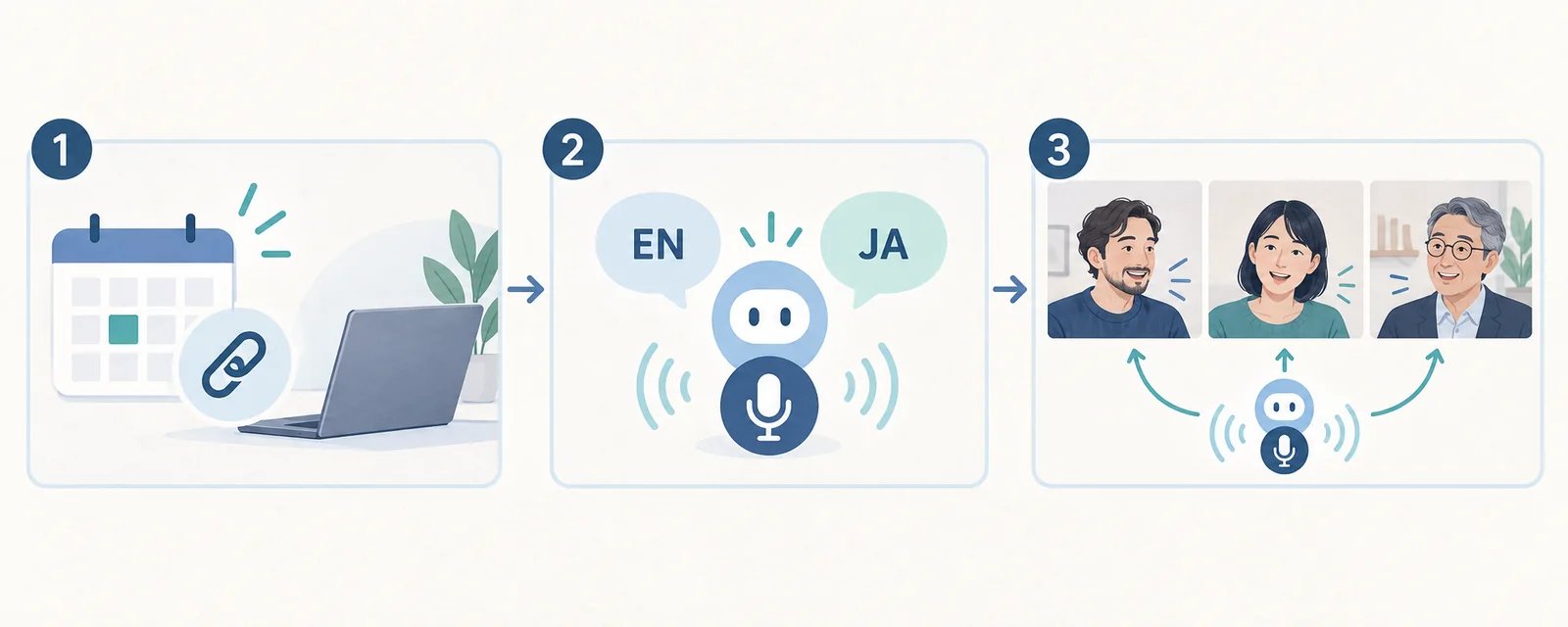 **Send translated speech to everyone in Zoom, Google Meet, or Teams.**
1. Open **Meeting Logs → Web Meeting Bot → Schedule** and enter the meeting URL and time.
2. Choose **English** as the first language and **Japanese** as the second. Enable **Interpretation mode**, check volume, and schedule. Web initially uses off and 70%; later bookings restore your last submitted settings.
3. Have the host admit and unmute the bot. Confirm that speech is ready, then test both directions.
### Live controls, chat, and calendar settings
The creator can use the interpretation switch in **Live**, or edit **Setting → Save**. Mobile also offers **Interpretation TTS mode / Audio volume**. A newly called mobile bot starts with interpretation off and volume 100%.
| Send in meeting chat | Action |
| - | - |
| `tts on` / `tts off` | Start / stop interpretation speech |
| `volume 50` or `volume 50%` | Set volume to 50% |
| `volume 0` | Silence speech |
Turning interpretation off stops active and queued speech while captions continue. Re-enabling starts with new speech. Volume cannot be changed while off, but its value is retained.
Acknowledgment is separate from speech readiness. Resolve any reported failure and resend `tts on`; also check whether the host muted the bot.
**Integration** keeps separate interpretation, language, and volume defaults for Google and Outlook Calendar. They apply to upcoming meetings; initial volume is 70%. The second language remains available for captions when interpretation is off. See [Web Meeting Bot](/en/web-meeting-bot) for scheduling, permissions, and usage limits.
### Automatic detection, supported languages, and captions
Both fixed languages must support bot speech. Check the second language if it was filled automatically. This pair determines the spoken translation direction.
With **first language = Automatic, second = Japanese**, the other speaker is translated into Japanese. Japanese replies go to the most recently confirmed counterpart language. Let the other person speak first. A language assumed by fallback recognition is not remembered as the reply destination. Unsupported speech languages can still appear as captions.
Send each command as a whole chat message: `en ja` sets a fixed pair, `auto en ja` sets detection candidates (up to four), and `auto` restores the creator's defaults. Default candidates follow personal or workspace settings.
The bot camera can show original text, translations, and a listener QR code. Captions continue with TTS off. Listener speech has separate controls.
## Offline mobile
**Send translated speech to everyone in Zoom, Google Meet, or Teams.**
1. Open **Meeting Logs → Web Meeting Bot → Schedule** and enter the meeting URL and time.
2. Choose **English** as the first language and **Japanese** as the second. Enable **Interpretation mode**, check volume, and schedule. Web initially uses off and 70%; later bookings restore your last submitted settings.
3. Have the host admit and unmute the bot. Confirm that speech is ready, then test both directions.
### Live controls, chat, and calendar settings
The creator can use the interpretation switch in **Live**, or edit **Setting → Save**. Mobile also offers **Interpretation TTS mode / Audio volume**. A newly called mobile bot starts with interpretation off and volume 100%.
| Send in meeting chat | Action |
| - | - |
| `tts on` / `tts off` | Start / stop interpretation speech |
| `volume 50` or `volume 50%` | Set volume to 50% |
| `volume 0` | Silence speech |
Turning interpretation off stops active and queued speech while captions continue. Re-enabling starts with new speech. Volume cannot be changed while off, but its value is retained.
Acknowledgment is separate from speech readiness. Resolve any reported failure and resend `tts on`; also check whether the host muted the bot.
**Integration** keeps separate interpretation, language, and volume defaults for Google and Outlook Calendar. They apply to upcoming meetings; initial volume is 70%. The second language remains available for captions when interpretation is off. See [Web Meeting Bot](/en/web-meeting-bot) for scheduling, permissions, and usage limits.
### Automatic detection, supported languages, and captions
Both fixed languages must support bot speech. Check the second language if it was filled automatically. This pair determines the spoken translation direction.
With **first language = Automatic, second = Japanese**, the other speaker is translated into Japanese. Japanese replies go to the most recently confirmed counterpart language. Let the other person speak first. A language assumed by fallback recognition is not remembered as the reply destination. Unsupported speech languages can still appear as captions.
Send each command as a whole chat message: `en ja` sets a fixed pair, `auto en ja` sets detection candidates (up to four), and `auto` restores the creator's defaults. Default candidates follow personal or workspace settings.
The bot camera can show original text, translations, and a listener QR code. Captions continue with TTS off. Listener speech has separate controls.
## Offline mobile
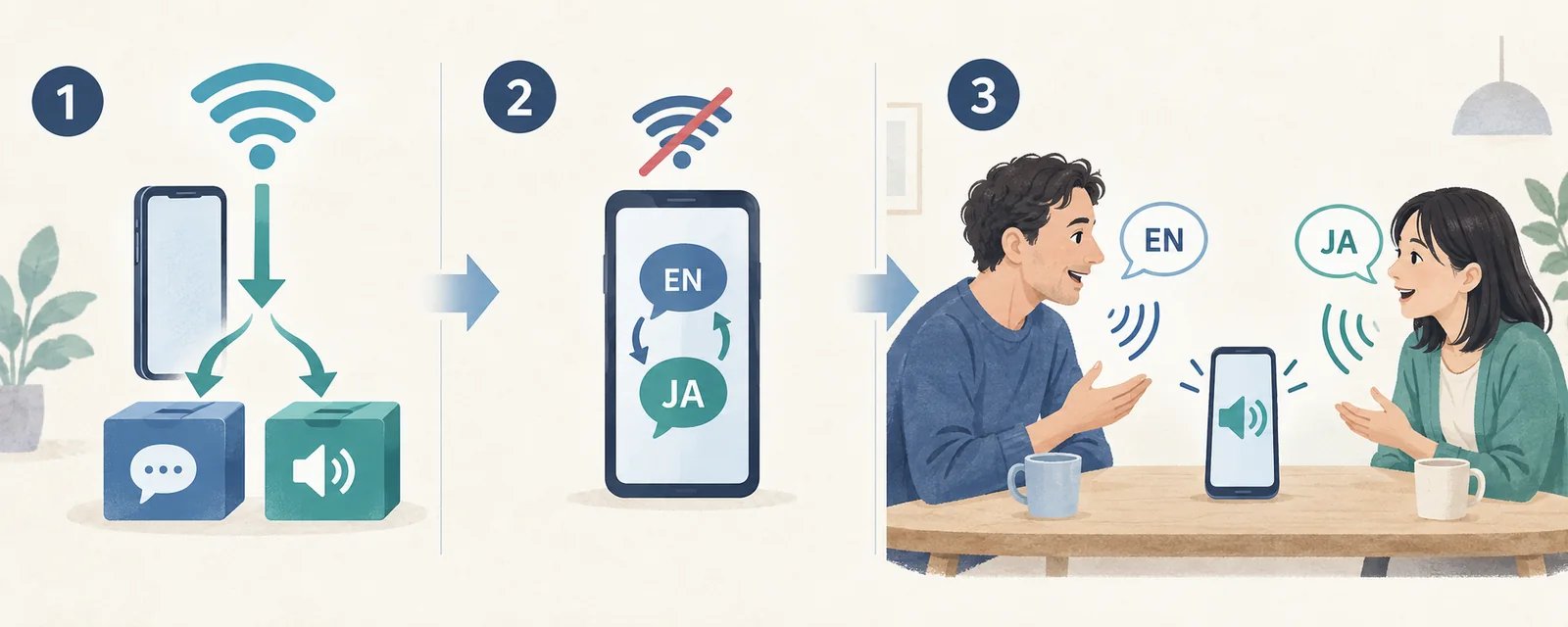 **Interpret without a connection after preparing your phone.**
1. While online, open **Home → Offline → Offline Models**. Prepare recognition and translation models plus voices for both languages. Check remaining plan time and expiry.
2. Select **Start**, allow the microphone, and choose **English → Japanese** with **Bilingual** on. Bilingual defaults to off and is saved.
3. Enable **autoplay** to the right of the bottom microphone and test both directions. It defaults to off but is saved, so check its current state each time.
### Languages, downloads, and usage time
Recognition models v0.1/v0.2 support English, Japanese, Korean, Chinese (Simplified/Traditional), Cantonese, Vietnamese, and Thai. Version v0.0 excludes Vietnamese and Thai. Translation targets are the seven languages/script options excluding Cantonese.
Choose an explicit offline pair; online Automatic detection is unavailable here. Simplified and Traditional Chinese are script variants, not separate spoken languages for a bilingual pair.
Your translation provider may require models for both source and target. Optional VoicePing translation models are not installed automatically. After installing device voices, return to the app and confirm readiness.
Sync your entitlement while connected, then test without a connection. Free use has a daily time limit; unlimited use requires a valid eligible paid plan.
### Translate another app's audio and save history
From **Home → Offline**, select **Screen Record** on iOS or **Device Audio** on Android 10+. The session opens stopped. Press record, grant OS consent, then play the source app. Enable autoplay to hear translations.
This processes audio and does not save screen video. This iOS route does not use the microphone. Android needs recording permission and capture consent. Some apps restrict capture; streaming an online video still needs a connection.
End the session and re-enter to change input source. Restarting capture requires OS consent again. Back stops capture before opening the title/save screen; canceling save leaves it stopped. If stopping fails, retry and confirm the OS recording indicator disappears.
History and recordings are stored on the device. Check saved content before deleting data or uninstalling. Background buffering is finite; processing cannot continue indefinitely after iOS suspends the app. See [offline translation](/en/mobile-offline-translation).
## Speech and automatic audio adjustment
**Interpret without a connection after preparing your phone.**
1. While online, open **Home → Offline → Offline Models**. Prepare recognition and translation models plus voices for both languages. Check remaining plan time and expiry.
2. Select **Start**, allow the microphone, and choose **English → Japanese** with **Bilingual** on. Bilingual defaults to off and is saved.
3. Enable **autoplay** to the right of the bottom microphone and test both directions. It defaults to off but is saved, so check its current state each time.
### Languages, downloads, and usage time
Recognition models v0.1/v0.2 support English, Japanese, Korean, Chinese (Simplified/Traditional), Cantonese, Vietnamese, and Thai. Version v0.0 excludes Vietnamese and Thai. Translation targets are the seven languages/script options excluding Cantonese.
Choose an explicit offline pair; online Automatic detection is unavailable here. Simplified and Traditional Chinese are script variants, not separate spoken languages for a bilingual pair.
Your translation provider may require models for both source and target. Optional VoicePing translation models are not installed automatically. After installing device voices, return to the app and confirm readiness.
Sync your entitlement while connected, then test without a connection. Free use has a daily time limit; unlimited use requires a valid eligible paid plan.
### Translate another app's audio and save history
From **Home → Offline**, select **Screen Record** on iOS or **Device Audio** on Android 10+. The session opens stopped. Press record, grant OS consent, then play the source app. Enable autoplay to hear translations.
This processes audio and does not save screen video. This iOS route does not use the microphone. Android needs recording permission and capture consent. Some apps restrict capture; streaming an online video still needs a connection.
End the session and re-enter to change input source. Restarting capture requires OS consent again. Back stops capture before opening the title/save screen; canceling save leaves it stopped. If stopping fails, retry and confirm the OS recording indicator disappears.
History and recordings are stored on the device. Check saved content before deleting data or uninstalling. Background buffering is finite; processing cannot continue indefinitely after iOS suspends the app. See [offline translation](/en/mobile-offline-translation).
## Speech and automatic audio adjustment
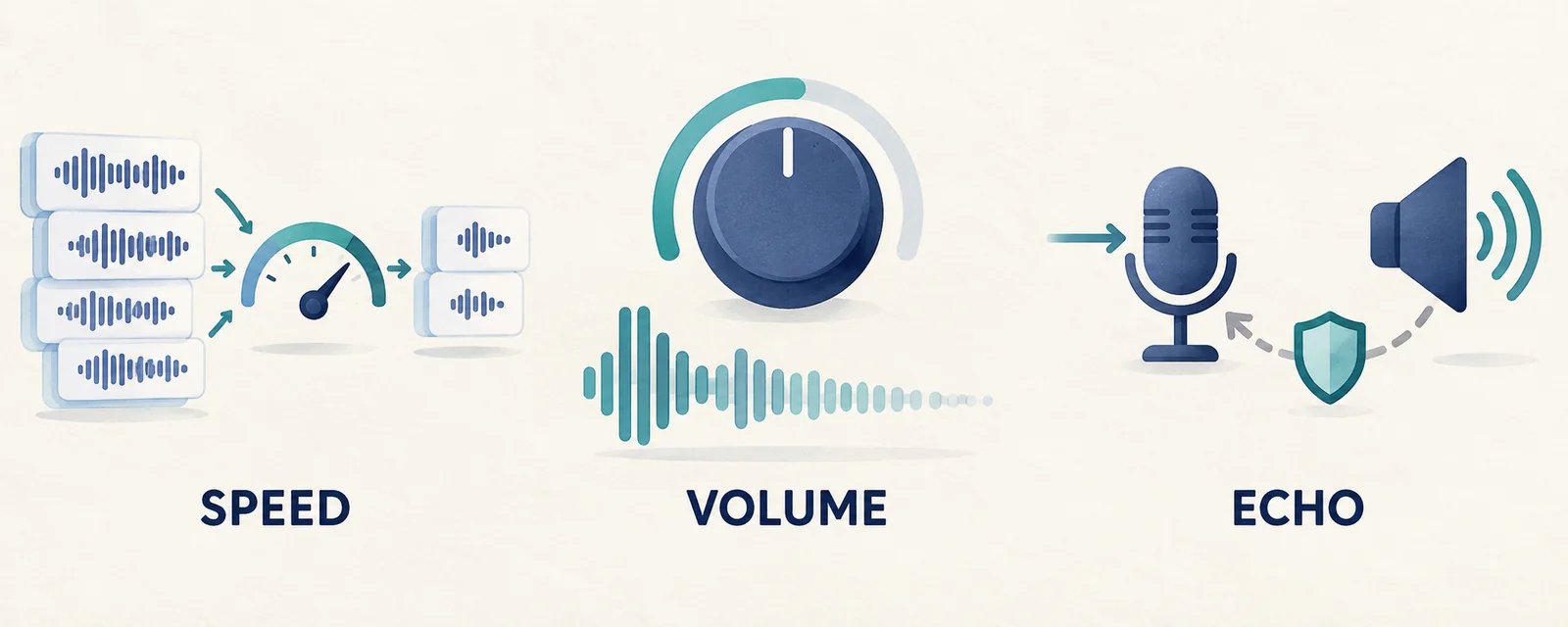 | Feature | Automatic behavior |
| - | - |
| Speed | Speeds up when speech builds up; returns to normal as the queue clears |
| Volume | Applies bot output correction and maintains the chosen level |
| Echo protection | Reduces recognition of its own speech while listening continues |
Computer, listener, bot, and mobile controls are **independent**. For silence, check the intended output's switch, volume, supported voice, and device. Pause between short phrases if speech falls behind. For repeated translations, try headphones or lower volume.
### Automatic speed and manual settings
| Output | Automatic adjustment |
| - | - |
| Web / desktop | Smoothly adjusts 1.0–1.3× while preserving pitch; prepares upcoming speech in order |
| Listener | Defaults to Auto, 1.0–1.3×; supported environments begin as audio arrives |
| Meeting bot | Generates each phrase at 1.0–1.3×; no fixed-speed control |
| Mobile | Adjusts per phrase for online/offline microphone and device audio; targets up to 1.3× |
Actual mobile speed varies with iOS, Android, and the chosen voice. Manual fixed speed remains separate: automatic speed does not overwrite it or multiply the two rates.
Recognition, translation, and speech preparation take time. Speech queues have limits, and simultaneous speakers are not guaranteed to be recognized accurately.
### Bot volume correction and mobile output
Bot volume ranges from 0–100% and applies to active and queued speech. A curve gives finer control at low volume; an additional **10 dB output reduction** applies even to saved settings and 100%. Automatic gain control (AGC) is disabled to prevent the level from rising again. This does not normalize loudness for every participant.
Mobile device-audio playback does not deliberately lower the source app's volume or switch it to a call mode. iOS mixes speech with the source. Check the available output route and device volume.
### Echo protection and stopping speech
* **Web:** Uses supported microphone echo cancellation and exclusion of its own output. A fallback may filter text similar to recent TTS; it can also filter a person repeating that phrase.
* **Bot:** Uses the actual output audio to remove feedback, then suppresses residual repeats. It cannot guarantee removal of all echoes from participant devices.
* **Mobile app:** If required protection or an audio route becomes unavailable, speech is canceled while healthy capture continues. Check the notice and output before retrying. Manual playback with autoplay off may enter a nearby microphone. Device capture uses dedicated output exclusion.
Stopping recording, changing sessions, or turning autoplay off cancels queued speech; late results do not restart it.
### Recognition accuracy, dictionaries, and noise adjustment
* **High Accuracy:** Mobile recognition quality is independent of autoplay. Offline autoplay also leaves online recognition preferences unchanged.
* **Bot recognition segments:** Maximum message duration defaults to 10 seconds, configurable from 5–20. Interpretation does not force it to two seconds.
* **Recognition recovery:** A fallback service may recognize a specific language while Automatic remains selected.
* **Dictionaries:** Recognition hints and translation terms update during meetings. The pronunciation dictionary does not control TTS pronunciation.
* **Quiet speech:** Mobile bounds ambient-level calibration to reduce missed quiet speech. Virtual-office automatic noise removal is separate and does not apply to live/offline translation or device-audio input.
This documentation is built and hosted on [Mintlify](https://mintlify.com), a developer documentation platform.
| Feature | Automatic behavior |
| - | - |
| Speed | Speeds up when speech builds up; returns to normal as the queue clears |
| Volume | Applies bot output correction and maintains the chosen level |
| Echo protection | Reduces recognition of its own speech while listening continues |
Computer, listener, bot, and mobile controls are **independent**. For silence, check the intended output's switch, volume, supported voice, and device. Pause between short phrases if speech falls behind. For repeated translations, try headphones or lower volume.
### Automatic speed and manual settings
| Output | Automatic adjustment |
| - | - |
| Web / desktop | Smoothly adjusts 1.0–1.3× while preserving pitch; prepares upcoming speech in order |
| Listener | Defaults to Auto, 1.0–1.3×; supported environments begin as audio arrives |
| Meeting bot | Generates each phrase at 1.0–1.3×; no fixed-speed control |
| Mobile | Adjusts per phrase for online/offline microphone and device audio; targets up to 1.3× |
Actual mobile speed varies with iOS, Android, and the chosen voice. Manual fixed speed remains separate: automatic speed does not overwrite it or multiply the two rates.
Recognition, translation, and speech preparation take time. Speech queues have limits, and simultaneous speakers are not guaranteed to be recognized accurately.
### Bot volume correction and mobile output
Bot volume ranges from 0–100% and applies to active and queued speech. A curve gives finer control at low volume; an additional **10 dB output reduction** applies even to saved settings and 100%. Automatic gain control (AGC) is disabled to prevent the level from rising again. This does not normalize loudness for every participant.
Mobile device-audio playback does not deliberately lower the source app's volume or switch it to a call mode. iOS mixes speech with the source. Check the available output route and device volume.
### Echo protection and stopping speech
* **Web:** Uses supported microphone echo cancellation and exclusion of its own output. A fallback may filter text similar to recent TTS; it can also filter a person repeating that phrase.
* **Bot:** Uses the actual output audio to remove feedback, then suppresses residual repeats. It cannot guarantee removal of all echoes from participant devices.
* **Mobile app:** If required protection or an audio route becomes unavailable, speech is canceled while healthy capture continues. Check the notice and output before retrying. Manual playback with autoplay off may enter a nearby microphone. Device capture uses dedicated output exclusion.
Stopping recording, changing sessions, or turning autoplay off cancels queued speech; late results do not restart it.
### Recognition accuracy, dictionaries, and noise adjustment
* **High Accuracy:** Mobile recognition quality is independent of autoplay. Offline autoplay also leaves online recognition preferences unchanged.
* **Bot recognition segments:** Maximum message duration defaults to 10 seconds, configurable from 5–20. Interpretation does not force it to two seconds.
* **Recognition recovery:** A fallback service may recognize a specific language while Automatic remains selected.
* **Dictionaries:** Recognition hints and translation terms update during meetings. The pronunciation dictionary does not control TTS pronunciation.
* **Quiet speech:** Mobile bounds ambient-level calibration to reduce missed quiet speech. Virtual-office automatic noise removal is separate and does not apply to live/offline translation or device-audio input.
This documentation is built and hosted on [Mintlify](https://mintlify.com), a developer documentation platform.