> ## Documentation Index
> Fetch the complete documentation index at: https://manual.voiceping.net/llms.txt
> Use this file to discover all available pages before exploring further.

# SSO Setup Manual (HENNGE One)

> Single sign-on setup guide using HENNGE One

export const ContactEn = () => <>
    <Tip>
      If you have any questions, please contact us via <a href="https://forms.gle/6AUho7oj3zBr79e96">this form</a>.
    </Tip>

    <h2>Official Links</h2>

    <CardGroup cols={2}>
      <Card title="Official Website" icon="globe" href="https://voiceping.net/en/">
        Visit our official website
      </Card>
      <Card title="X (Twitter)" icon="x-twitter" href="https://x.com/VoicePingMedia">
        Follow us on X
      </Card>
      <Card title="Facebook" icon="facebook" href="https://www.facebook.com/voiceping.inc">
        Like us on Facebook
      </Card>
      <Card title="LinkedIn" icon="linkedin" href="https://www.linkedin.com/company/28684130/">
        Connect on LinkedIn
      </Card>
    </CardGroup>
  </>;

## About Single Sign-On (SSO) Feature

Workspaces using the Enterprise plan can enable single sign-on (SSO) to allow **login using HENNGE One**.

By setting up SSO, you can smoothly log in to VoicePing using an account registered in HENNGE One.

This manual explains:

* How to enable SSO in the workspace
* Steps to configure HENNGE One as the Identity Provider (IdP)

***

## Frequently Asked Questions

<AccordionGroup>
  <Accordion title="I want existing users to only be able to log in with SSO when SSO is set up later">
    This is possible.

    When SSO is enabled, existing users will automatically be unable to log in without SSO. If they are already logged in, they will need to log out once.
  </Accordion>
</AccordionGroup>

***

## HENNGE One Configuration

### Prerequisites

<Check>Have a VoicePing **Enterprise plan** contract</Check>
<Check>Have an account with **HENNGE One administrator privileges**</Check>

### Steps

<Steps>
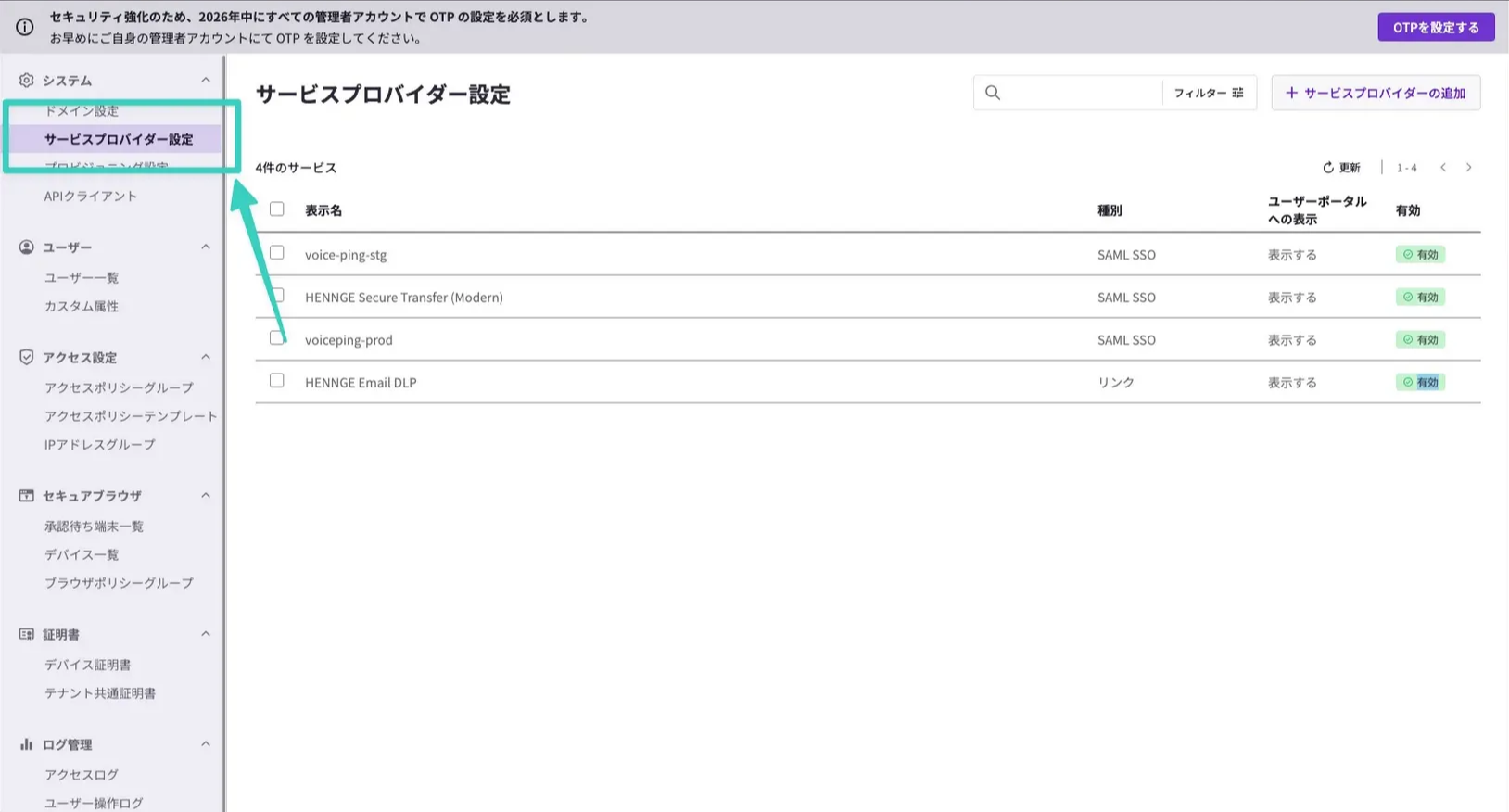
  <Step title="Go to HENNGE One Admin Screen">
    Click "Service Provider Settings".

    <Frame>
      <img src="https://mintcdn.com/test-cf63e467/LU3oFsc_lcA5rDjy/ja/images/sso-hennge/01-hennge-admin.png?fit=max&auto=format&n=LU3oFsc_lcA5rDjy&q=85&s=891ca312df85f22ddd84e0e81eebba7c" alt="HENNGE One admin screen" width="1628" height="876" data-path="ja/images/sso-hennge/01-hennge-admin.png" />
    </Frame>
  </Step>

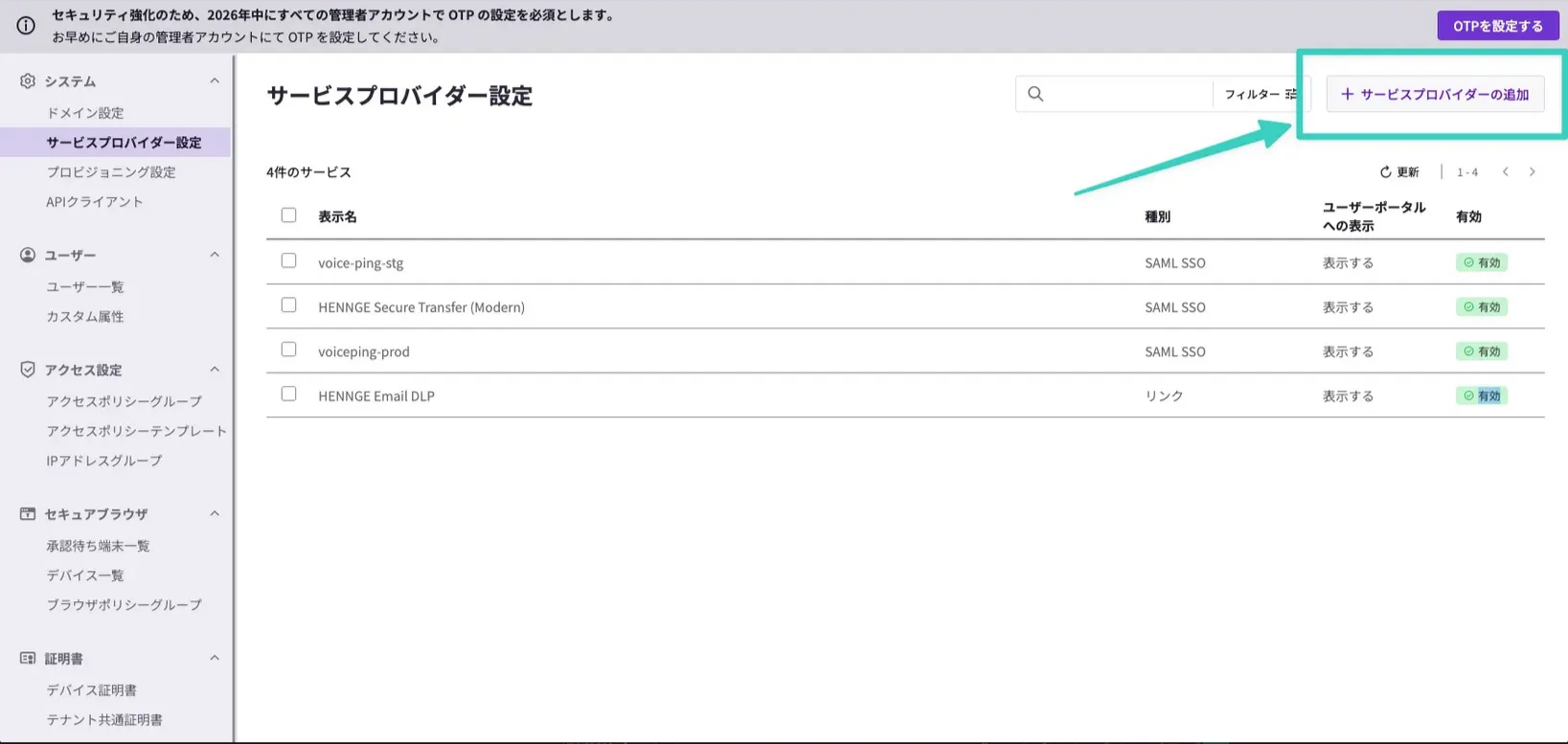
  <Step title="Add Service Provider">
    Click "Add Service Provider".

    <Frame>
      <img src="https://mintcdn.com/test-cf63e467/LU3oFsc_lcA5rDjy/ja/images/sso-hennge/02-add-sp.png?fit=max&auto=format&n=LU3oFsc_lcA5rDjy&q=85&s=5631dacfd8e6d950963277c563087ade" alt="Add service provider" width="1637" height="777" data-path="ja/images/sso-hennge/02-add-sp.png" />
    </Frame>
  </Step>

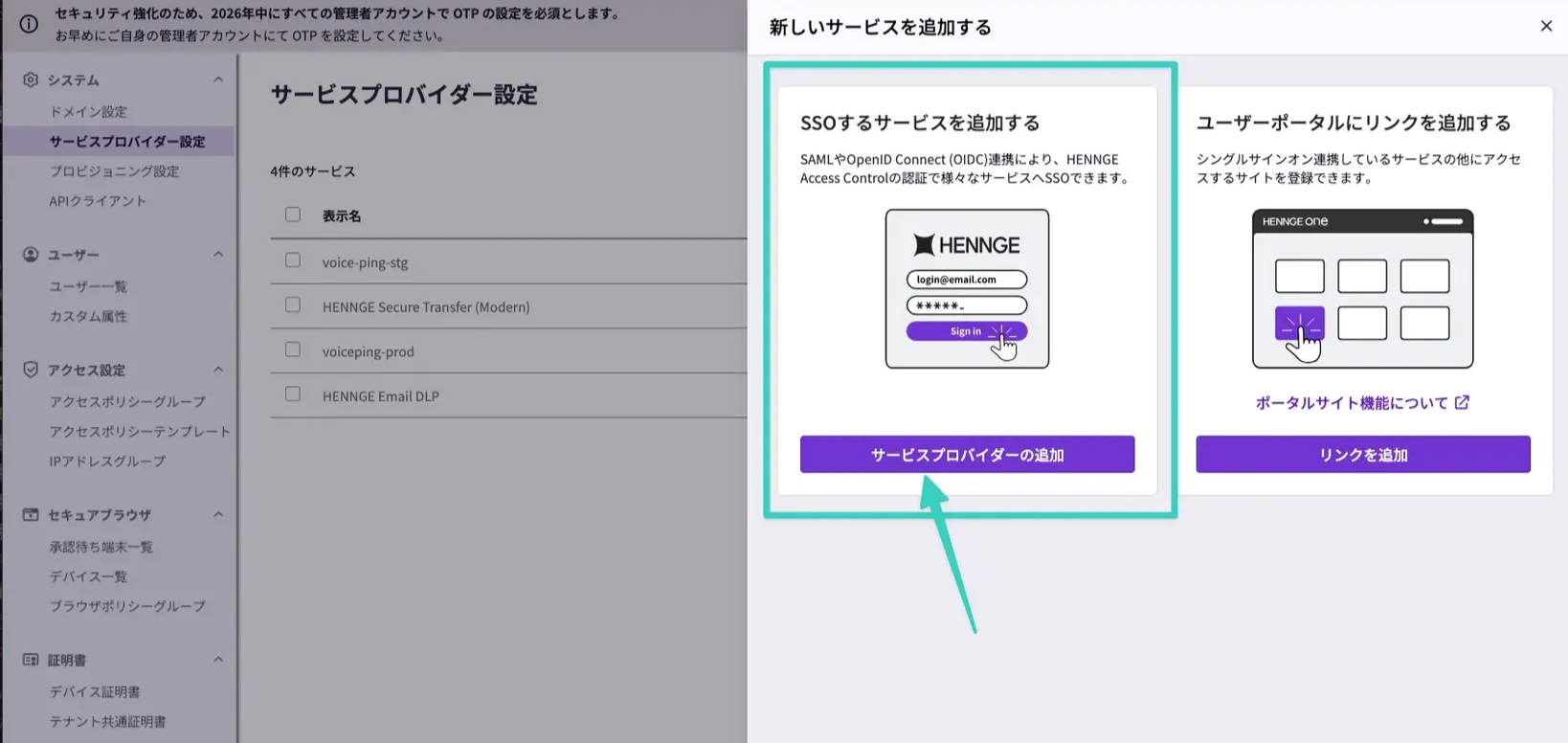
  <Step title="Add SSO Service">
    Select "Add service for SSO".

    <Frame>
      <img src="https://mintcdn.com/test-cf63e467/LU3oFsc_lcA5rDjy/ja/images/sso-hennge/03-sso-service.png?fit=max&auto=format&n=LU3oFsc_lcA5rDjy&q=85&s=9a0c7389377c04afca49c14208acd4ca" alt="Add SSO service" width="1638" height="776" data-path="ja/images/sso-hennge/03-sso-service.png" />
    </Frame>
  </Step>

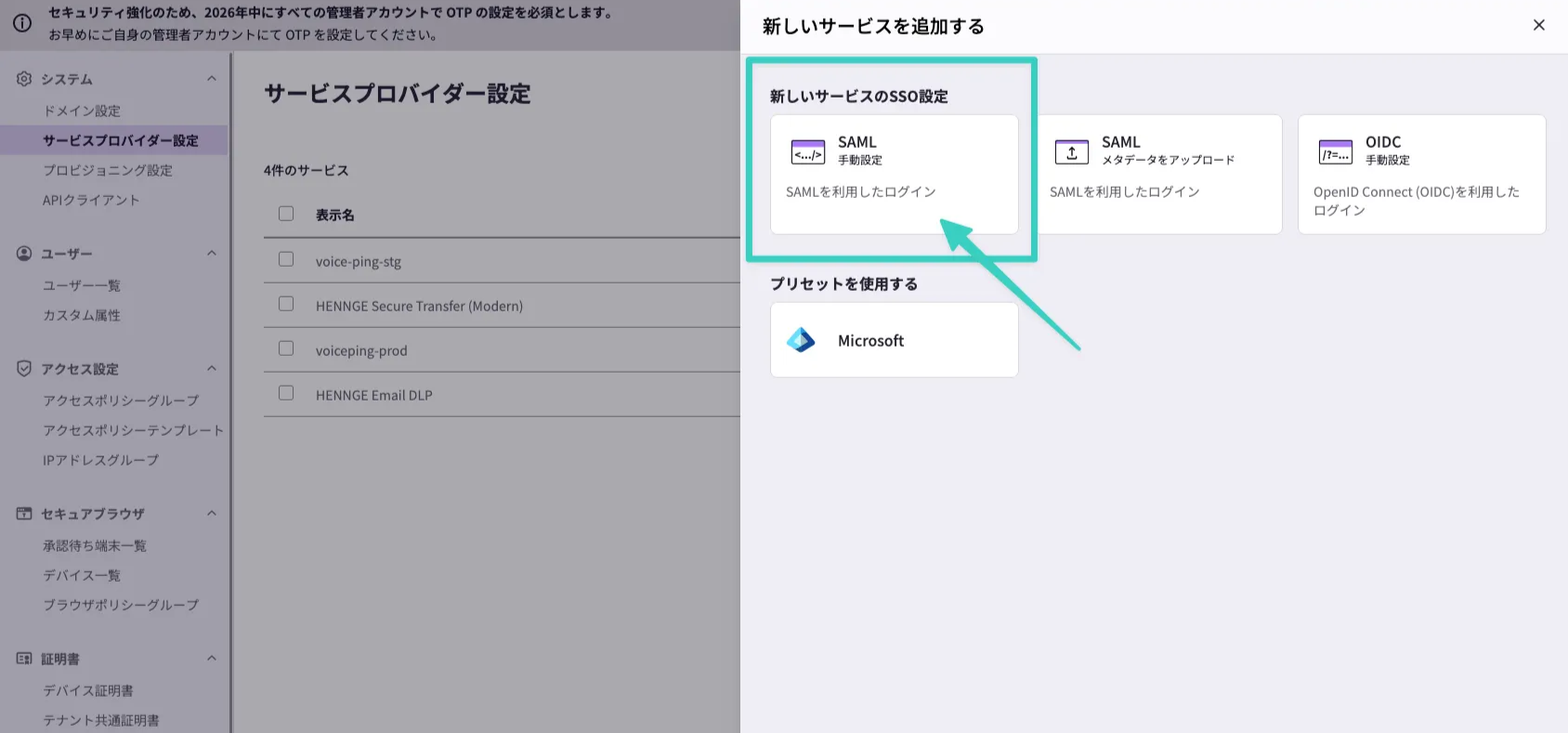
  <Step title="Select Manual SAML Configuration">
    Select "Manual SAML Configuration".

    <Frame>
      <img src="https://mintcdn.com/test-cf63e467/LU3oFsc_lcA5rDjy/ja/images/sso-hennge/04-saml-manual.png?fit=max&auto=format&n=LU3oFsc_lcA5rDjy&q=85&s=7544561ea72aa4d325f0bff363489b63" alt="Manual SAML configuration" width="1688" height="789" data-path="ja/images/sso-hennge/04-saml-manual.png" />
    </Frame>
  </Step>

  <Step title="Enter Required Information">
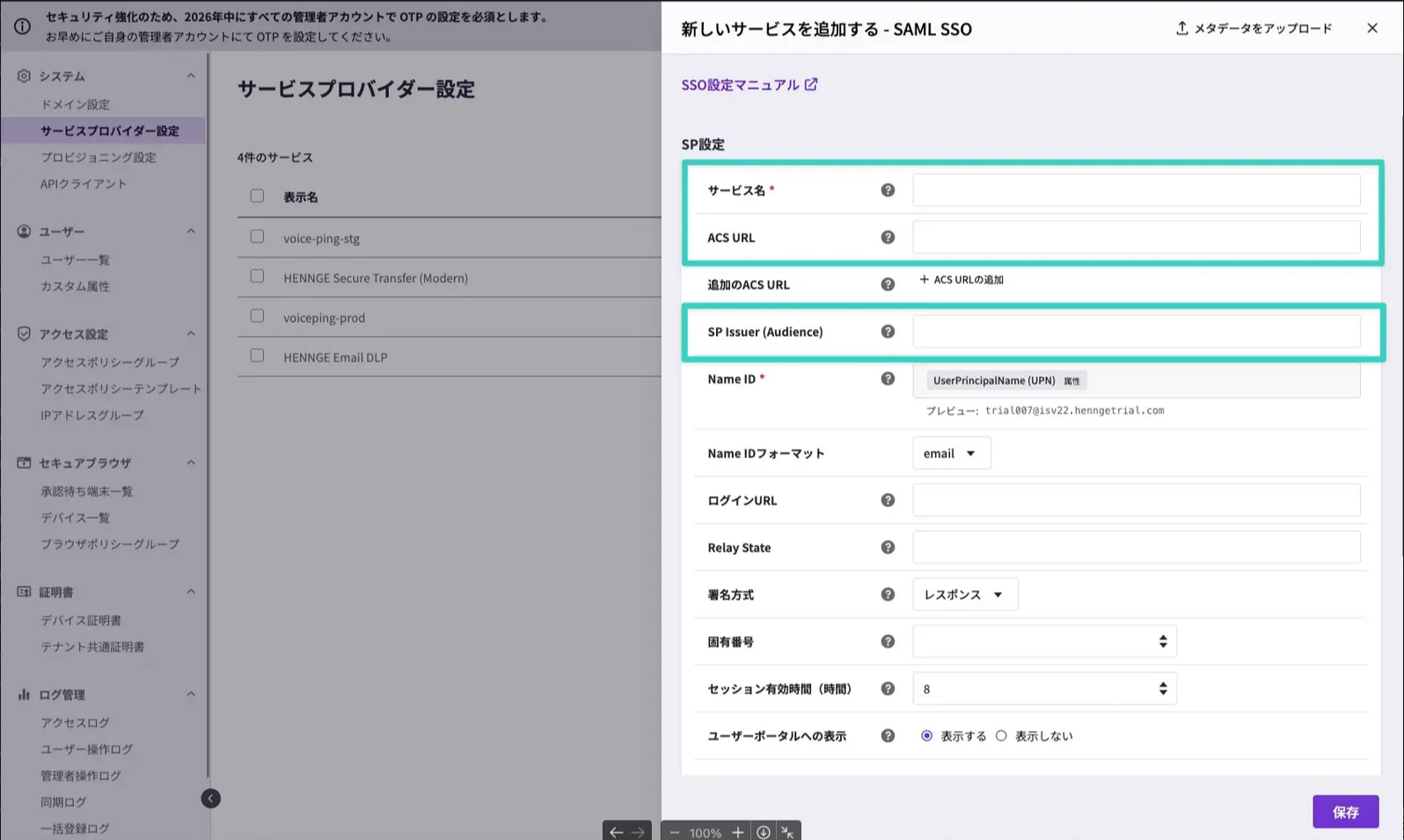
    Enter the following information and save.

    | Item                    | Value                                      |
    | ----------------------- | ------------------------------------------ |
    | Service Name            | VoicePing (any value you like)             |
    | ACS URL                 | `https://api.voiceping.io/api/v1/user/acs` |
    | SP Issuer (Audience)    | `voice-ping`                               |
    | Attribute Configuration | Attribute: email, Value: Select Email      |
    <Frame>
      <img src="https://mintcdn.com/test-cf63e467/LU3oFsc_lcA5rDjy/ja/images/sso-hennge/05-sp-config.png?fit=max&auto=format&n=LU3oFsc_lcA5rDjy&q=85&s=cf764bdbce7b082433ed10fc49528d76" alt="Enter SP configuration" width="1596" height="955" data-path="ja/images/sso-hennge/05-sp-config.png" />
    </Frame>

    After entering, click "Save".
  </Step>

  <Step title="Download IdP Metadata">
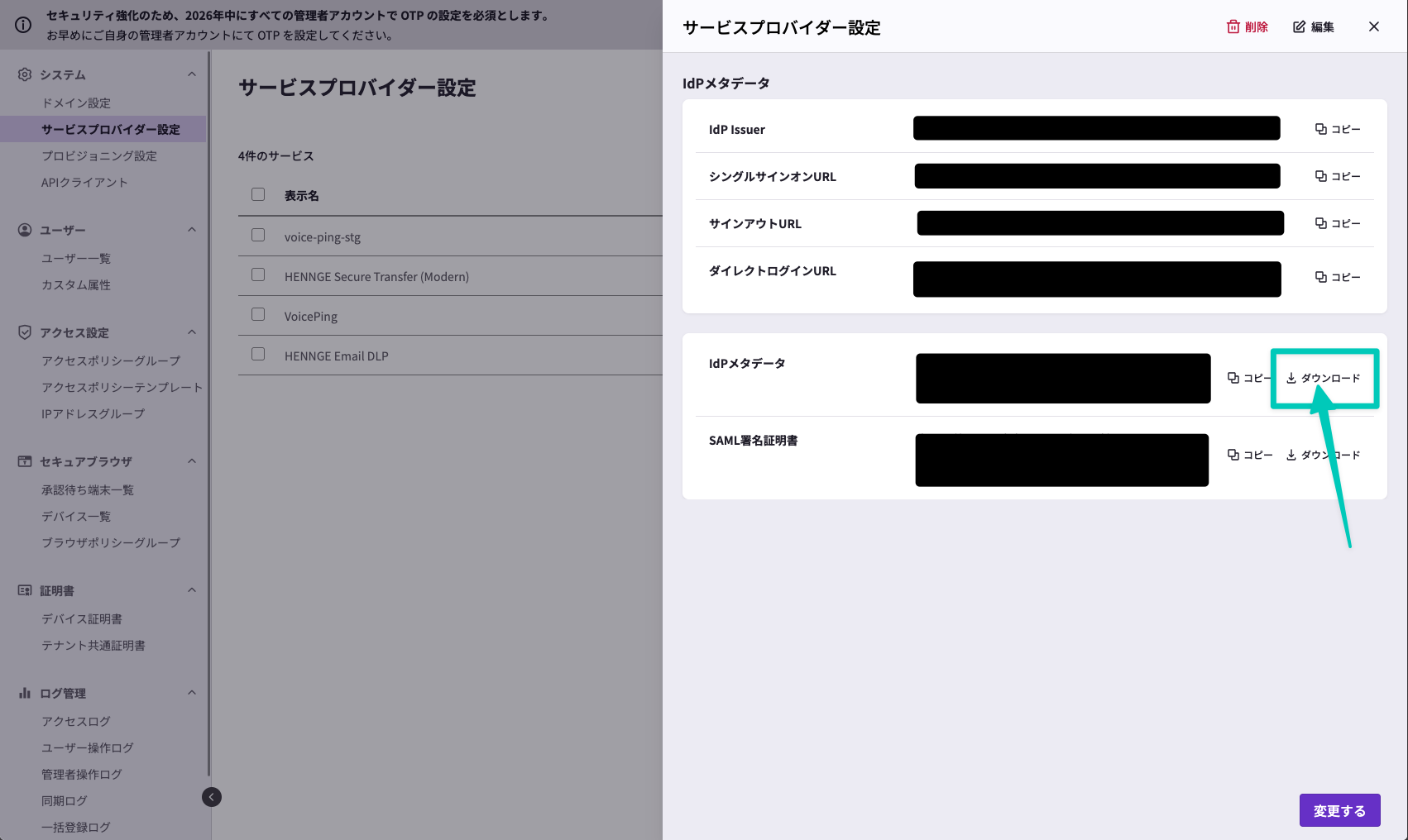
    Click the created provider and click "Metadata".
    <Frame>
      <img src="https://mintcdn.com/test-cf63e467/LU3oFsc_lcA5rDjy/ja/images/sso-hennge/06-metadata.png?fit=max&auto=format&n=LU3oFsc_lcA5rDjy&q=85&s=83bd539b3474b27e05ea160c4b6dc762" alt="Metadata" width="1702" height="1016" data-path="ja/images/sso-hennge/06-metadata.png" />
    </Frame>

    Click "Download" for **IdP Metadata**.

    <Warning>
      Note that it's not the SAML signature.
    </Warning>

    A file with .xml extension will be downloaded. This will be needed later for VoicePing configuration.
  </Step>

  <Step title="Update Access Policy">
    Update the access policy for target users.

    <Frame>
      <img src="https://mintcdn.com/test-cf63e467/LU3oFsc_lcA5rDjy/ja/images/sso-hennge/07-access-policy.png?fit=max&auto=format&n=LU3oFsc_lcA5rDjy&q=85&s=673511de214a9a72c81447ff3ec60be9" alt="Access policy" width="1703" height="1004" data-path="ja/images/sso-hennge/07-access-policy.png" />
    </Frame>

    Refer to [HENNGE One documentation](https://www.desknets.com/neo/download/doc/saml/henngeone.html) for specific grant methods.
  </Step>
</Steps>

***

## VoicePing Configuration

### Prerequisites

<Check>Have a VoicePing **Enterprise plan** contract</Check>
<Check>Have an account with **workspace owner privileges**</Check>

### Steps

<Steps>
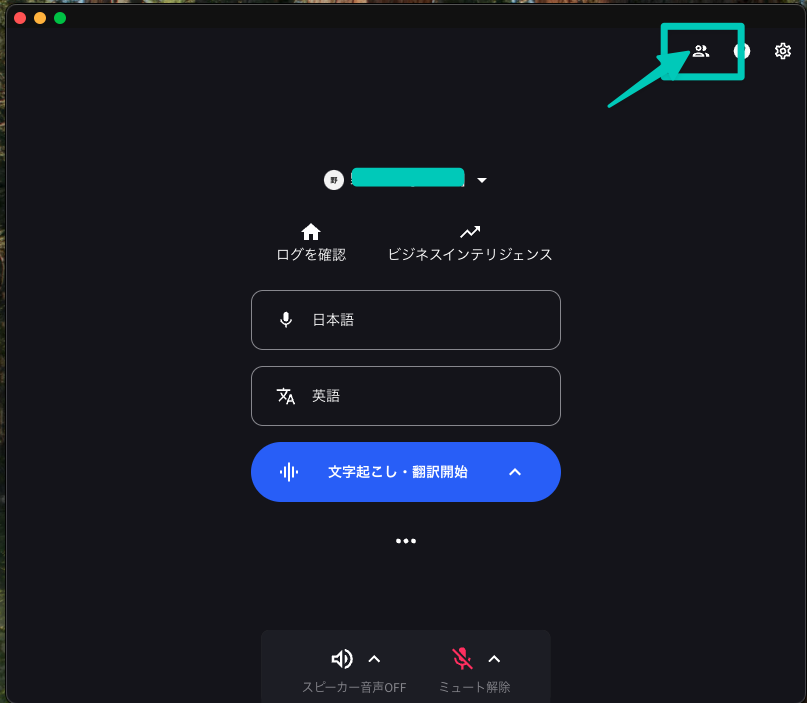
  <Step title="Open Admin Dashboard">
    <Frame>
      <img src="https://mintcdn.com/test-cf63e467/LU3oFsc_lcA5rDjy/ja/images/sso-hennge/08-vp-dashboard.png?fit=max&auto=format&n=LU3oFsc_lcA5rDjy&q=85&s=bfff924da3fe3a1839d057bc344d8155" alt="Admin dashboard" width="807" height="703" data-path="ja/images/sso-hennge/08-vp-dashboard.png" />
    </Frame>
  </Step>

  <Step title="Click Member Management Tab">
    <Frame>
      <img src="https://mintcdn.com/test-cf63e467/LU3oFsc_lcA5rDjy/ja/images/sso-hennge/09-member-management.png?fit=max&auto=format&n=LU3oFsc_lcA5rDjy&q=85&s=f9bbf4b0cd76c077a2efd911babbe170" alt="Member management" width="1701" height="919" data-path="ja/images/sso-hennge/09-member-management.png" />
    </Frame>
  </Step>

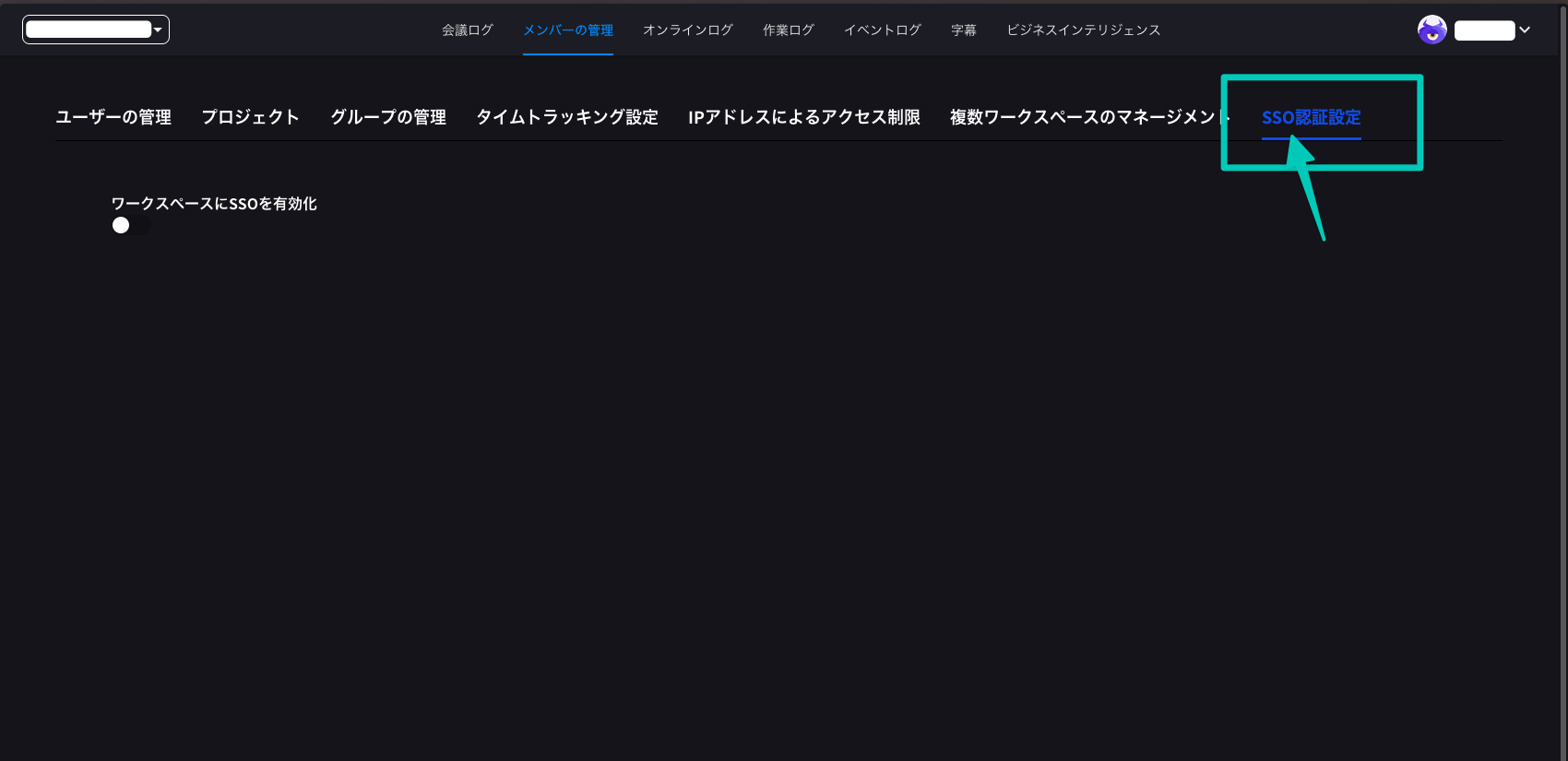
  <Step title="Click SSO Authentication Settings">
    <Frame>
      <img src="https://mintcdn.com/test-cf63e467/LU3oFsc_lcA5rDjy/ja/images/sso-hennge/10-sso-settings.png?fit=max&auto=format&n=LU3oFsc_lcA5rDjy&q=85&s=22370883becbfa2494365ededf5a3d56" alt="SSO authentication settings" width="1700" height="825" data-path="ja/images/sso-hennge/10-sso-settings.png" />
    </Frame>
  </Step>

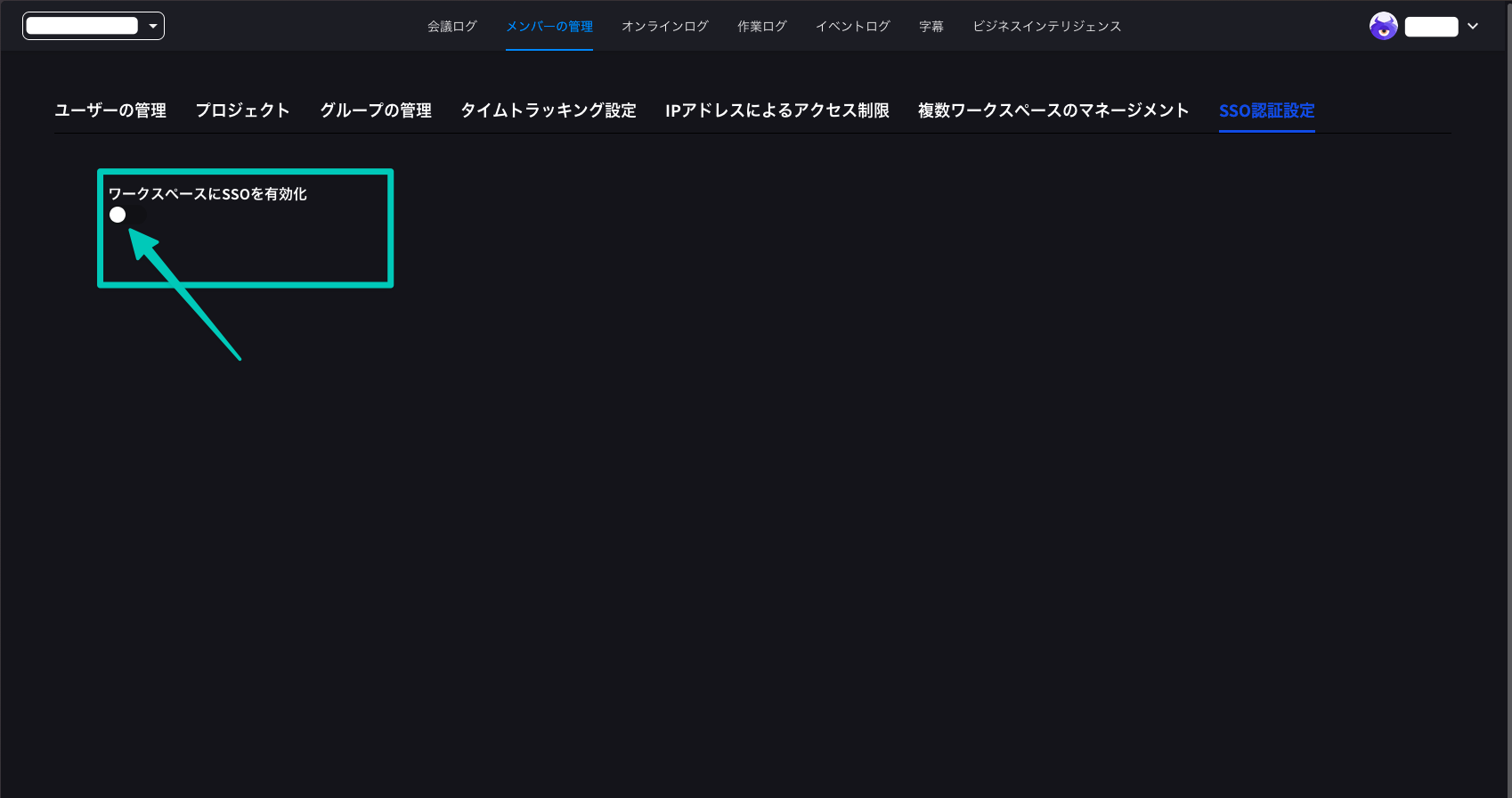
  <Step title="Enable SSO">
    Turn on "Enable SSO for workspace".

    <Frame>
      <img src="https://mintcdn.com/test-cf63e467/LU3oFsc_lcA5rDjy/ja/images/sso-hennge/11-enable-sso.png?fit=max&auto=format&n=LU3oFsc_lcA5rDjy&q=85&s=4cab5d4c1d915448d153306568e6307e" alt="Enable SSO" width="1698" height="896" data-path="ja/images/sso-hennge/11-enable-sso.png" />
    </Frame>
  </Step>

  <Step title="Check Organization ID">
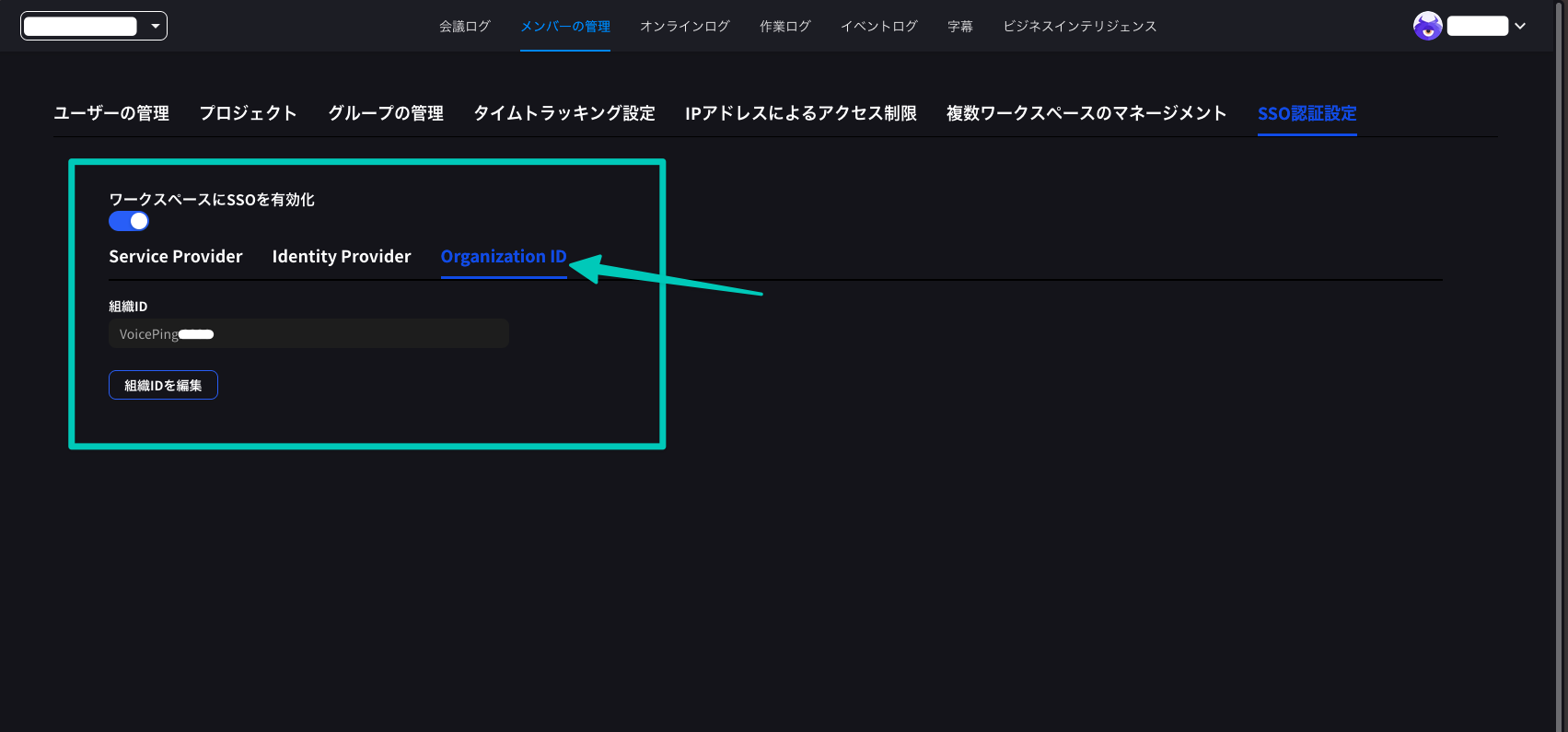
    Select "Organization ID" and check the organization ID.

    <Info>
      The organization ID will be needed later during login operations.
    </Info>

    <Frame>
      <img src="https://mintcdn.com/test-cf63e467/LU3oFsc_lcA5rDjy/ja/images/sso-hennge/12-org-id.png?fit=max&auto=format&n=LU3oFsc_lcA5rDjy&q=85&s=e45896a7559021cd504186d24b5c407e" alt="Organization ID" width="1703" height="795" data-path="ja/images/sso-hennge/12-org-id.png" />
    </Frame>
  </Step>

  <Step title="Select HENNGE One">
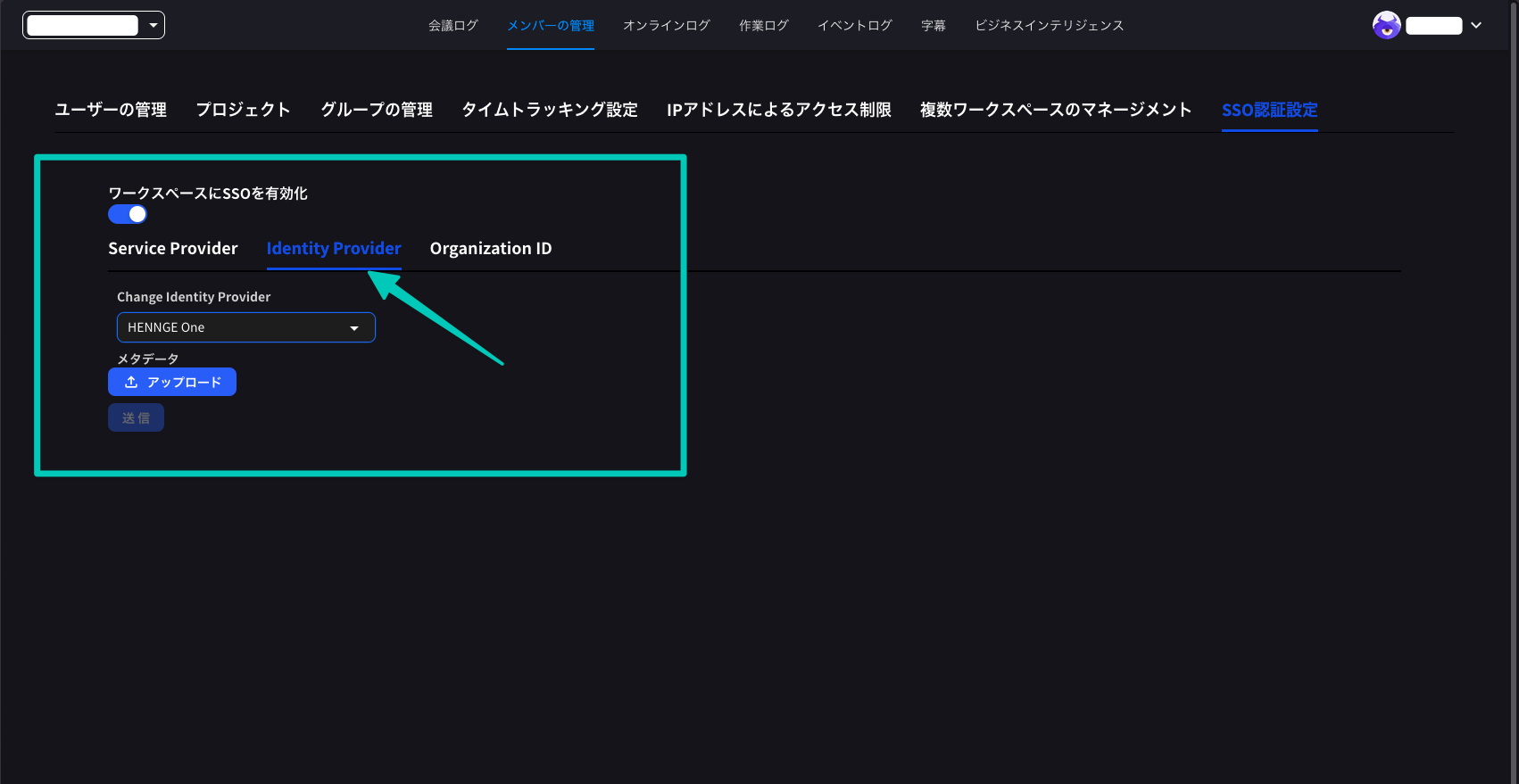
    Click the "Identity Provider" tab and select HENNGE One.
    <Frame>
      <img src="https://mintcdn.com/test-cf63e467/LU3oFsc_lcA5rDjy/ja/images/sso-hennge/13-select-hennge.png?fit=max&auto=format&n=LU3oFsc_lcA5rDjy&q=85&s=b3e86c8e1dd927dff84279f25ba4326b" alt="Select HENNGE One" width="1702" height="879" data-path="ja/images/sso-hennge/13-select-hennge.png" />
    </Frame>
  </Step>

  <Step title="Upload Metadata">
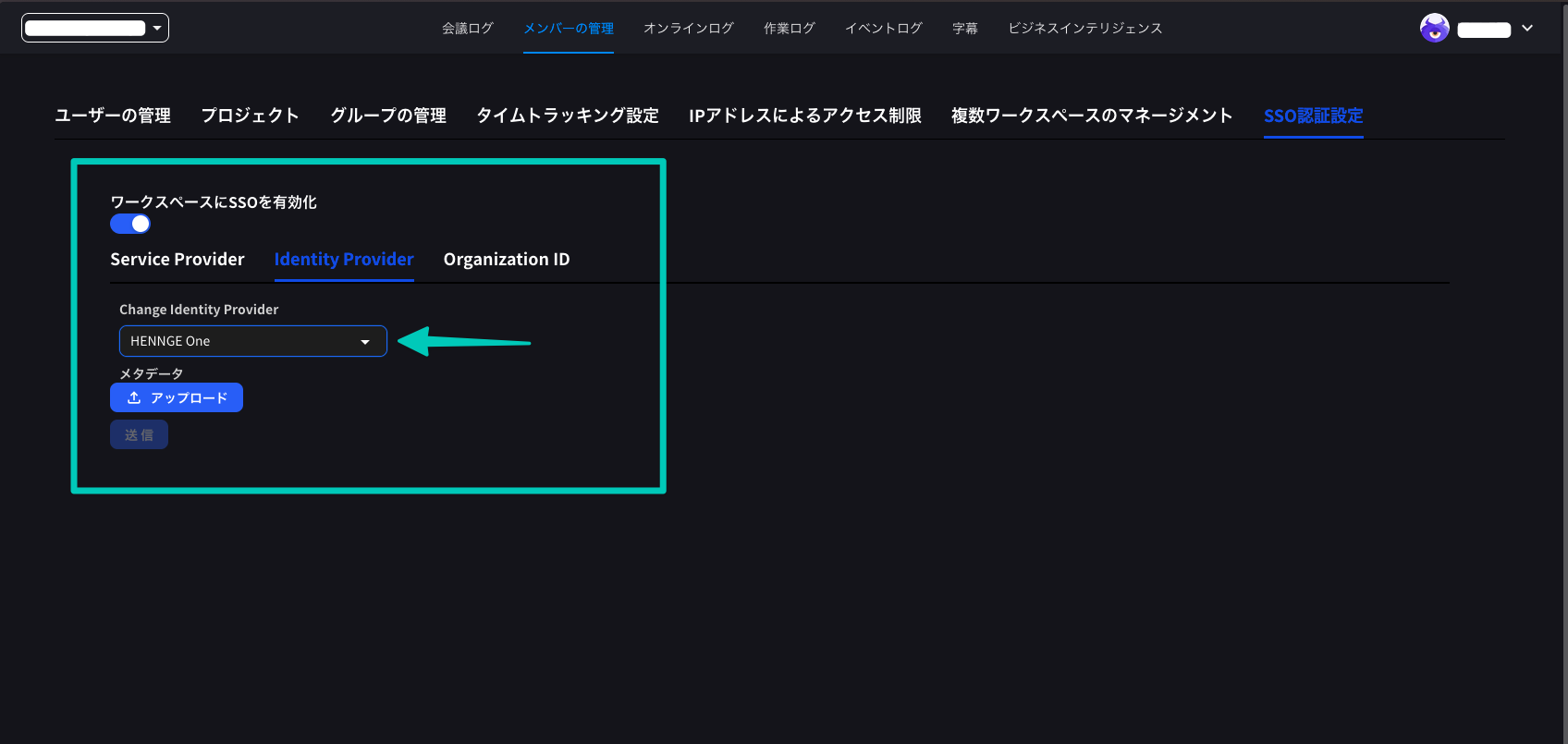
    Upload the file (.xml extension) downloaded from HENNGE One configuration and submit.
    <Frame>
      <img src="https://mintcdn.com/test-cf63e467/LU3oFsc_lcA5rDjy/ja/images/sso-hennge/14-upload-metadata.png?fit=max&auto=format&n=LU3oFsc_lcA5rDjy&q=85&s=8be12d7bcc42f660ecf15212f6a5a2df" alt="Upload metadata" width="1696" height="805" data-path="ja/images/sso-hennge/14-upload-metadata.png" />
    </Frame>
  </Step>

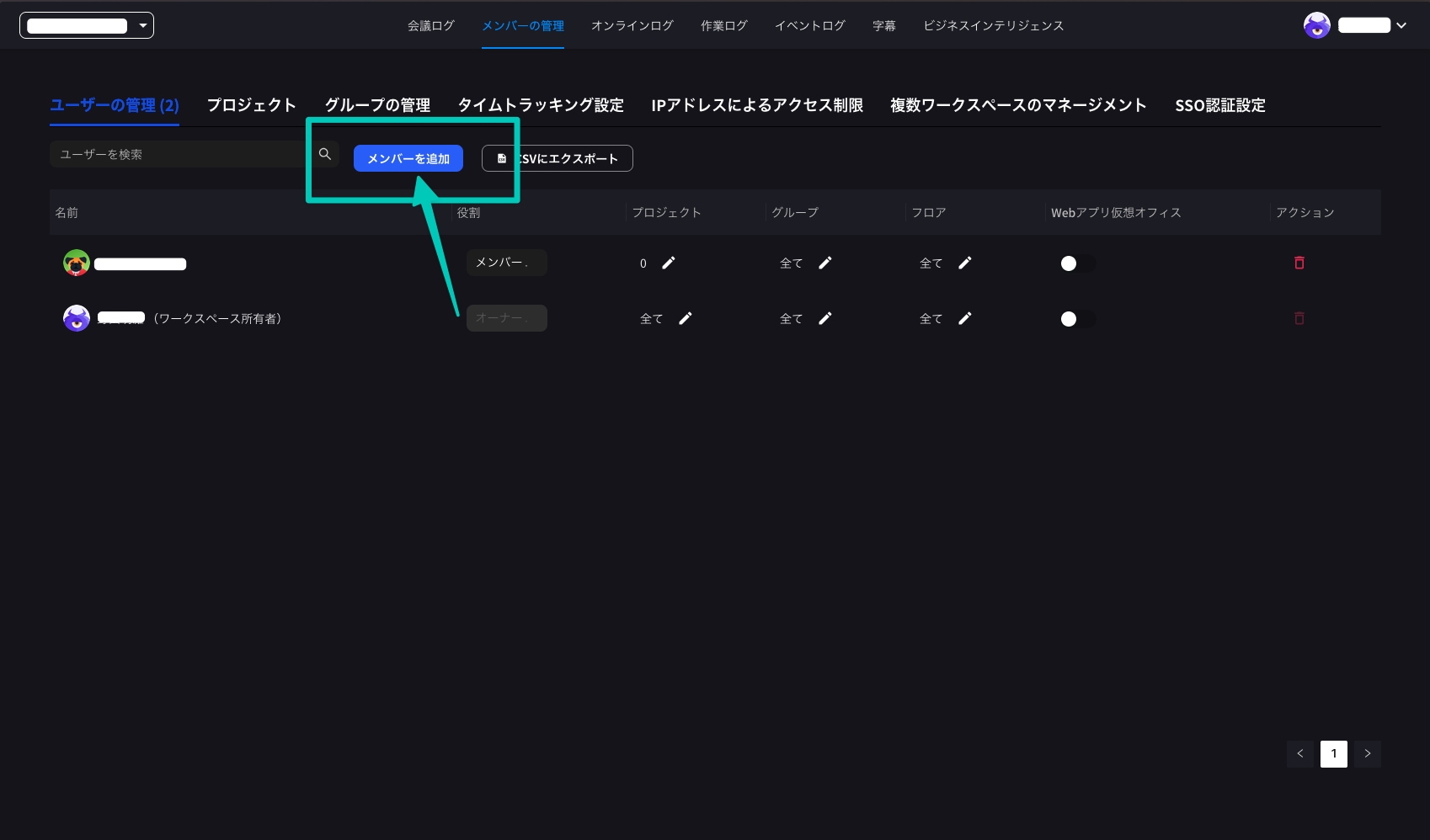
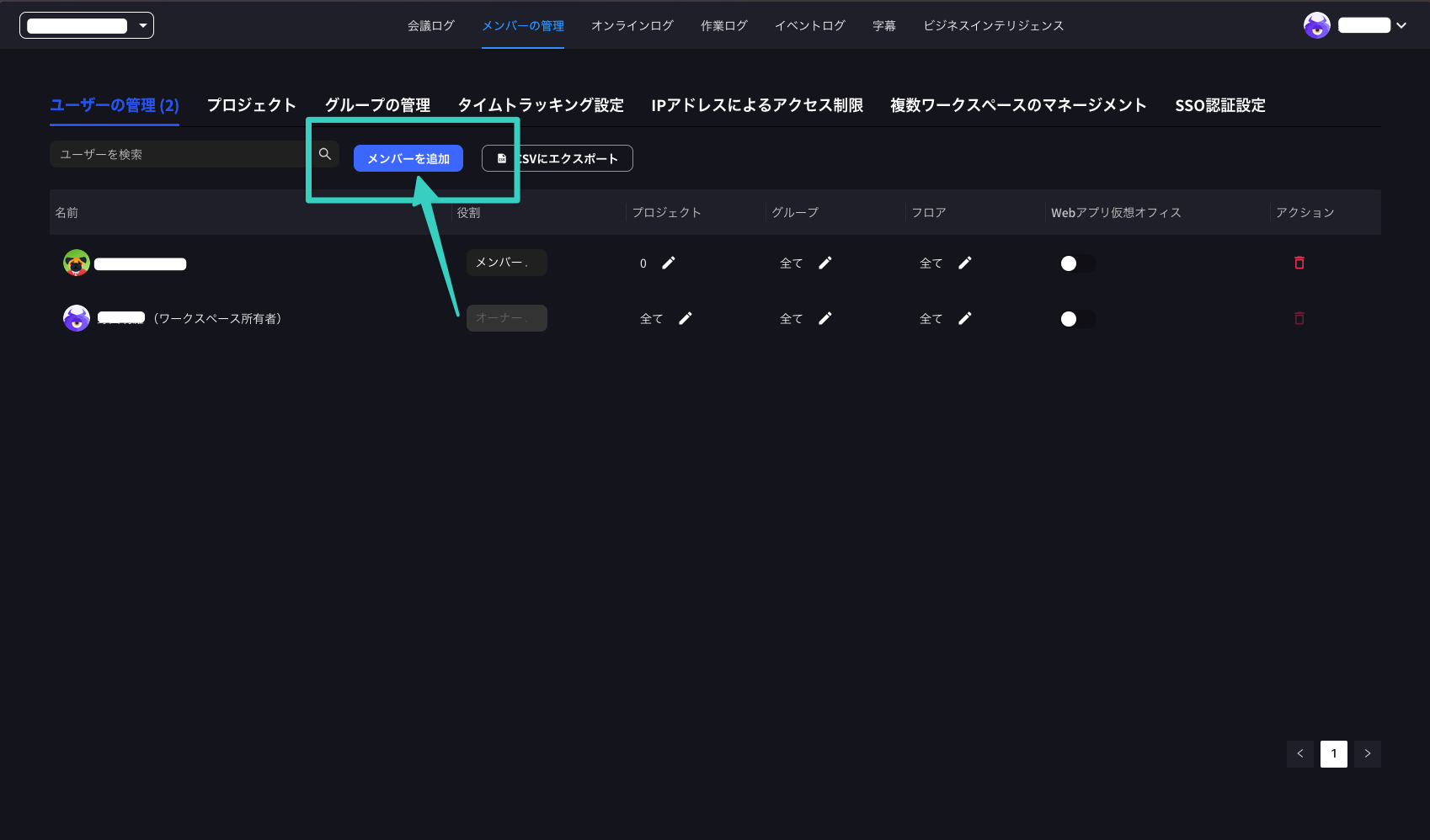
  <Step title="Add Users">
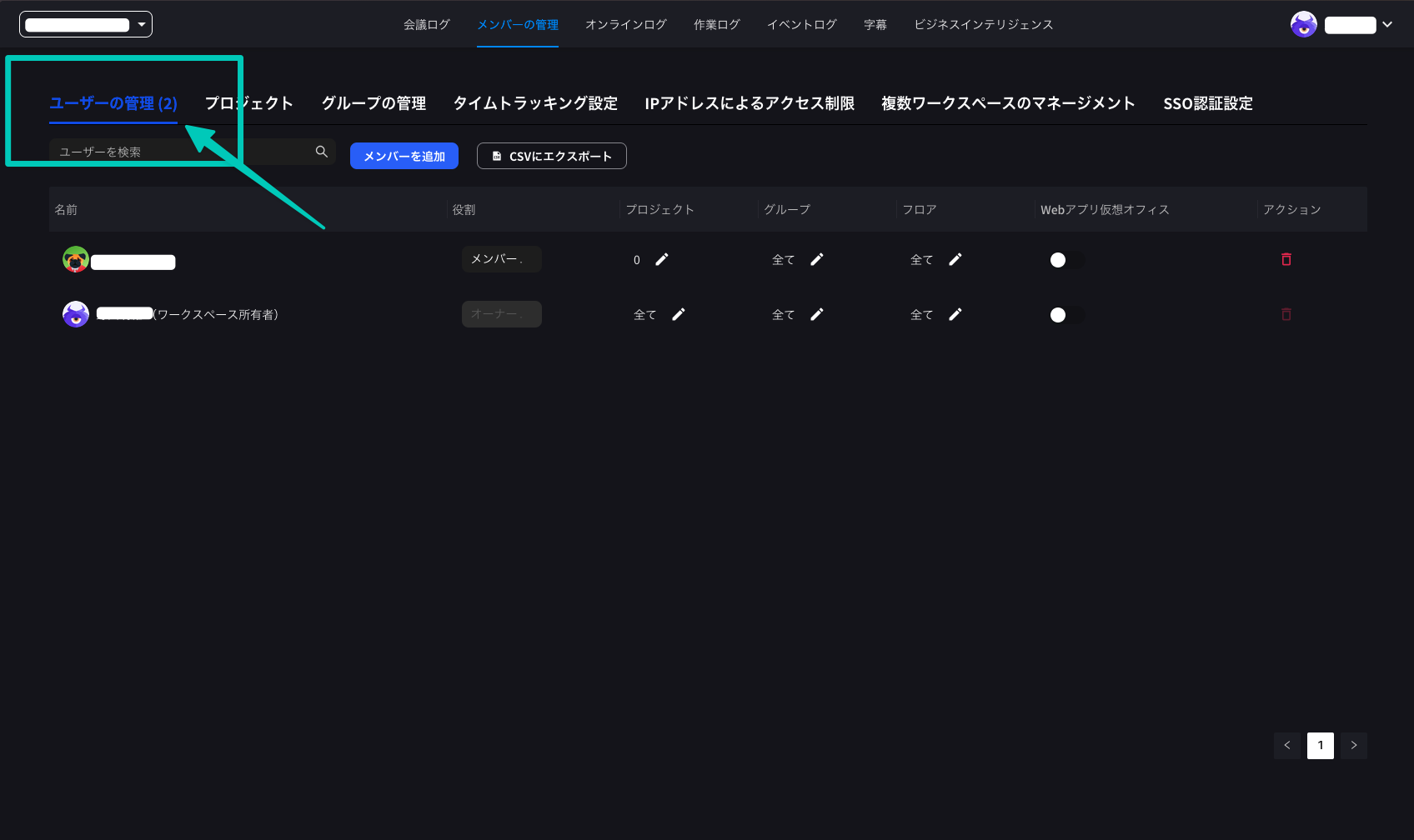
    Click the "User Management" tab and click the "Add Members" button.
    <Frame>
      <img src="https://mintcdn.com/test-cf63e467/LU3oFsc_lcA5rDjy/ja/images/sso-hennge/15-add-members.png?fit=max&auto=format&n=LU3oFsc_lcA5rDjy&q=85&s=d90ace6f3bef948059835ef612e2c885" alt="Add members" width="1696" height="1008" data-path="ja/images/sso-hennge/15-add-members.png" />
    </Frame>

    Click "Create User" and create using csv file or manual input.
    <Frame>
      <img src="https://mintcdn.com/test-cf63e467/LU3oFsc_lcA5rDjy/ja/images/sso-hennge/16-create-users.png?fit=max&auto=format&n=LU3oFsc_lcA5rDjy&q=85&s=d4888d2b2b8dbb3192753c15ea0e9faa" alt="Create users" width="1698" height="998" data-path="ja/images/sso-hennge/16-create-users.png" />
    </Frame>
  </Step>
</Steps>

***

## Logging in with SSO

### Web Version

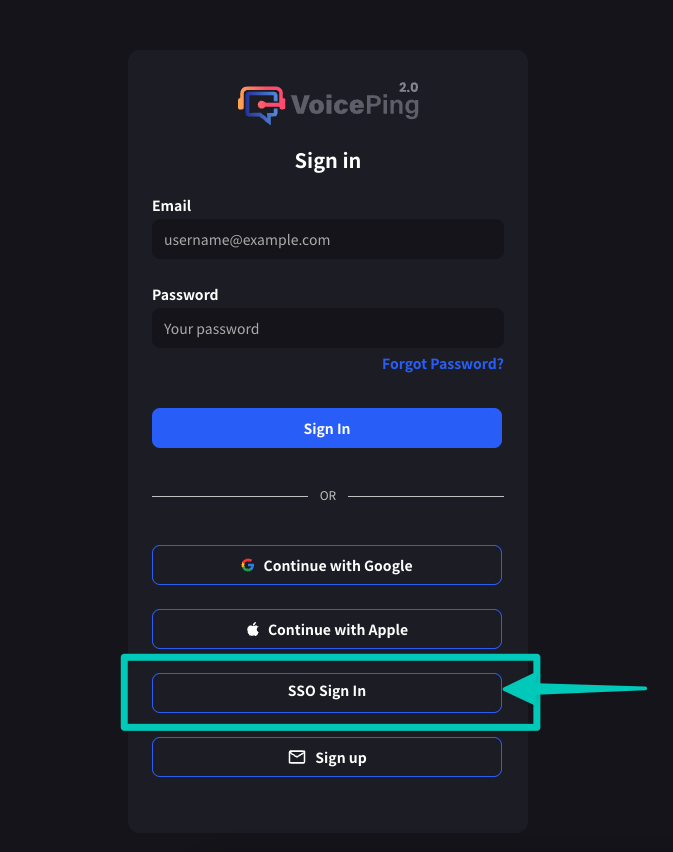
1. Access the VoicePing login screen ([app.voiceping.io](https://app.voiceping.io/user/login))
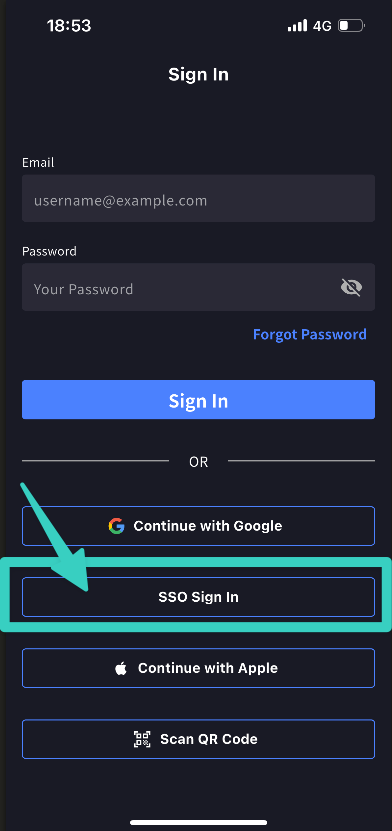
2. Click "SSO Sign In"
<Frame>
  <img src="https://mintcdn.com/test-cf63e467/LU3oFsc_lcA5rDjy/ja/images/sso-hennge/17-login-web.png?fit=max&auto=format&n=LU3oFsc_lcA5rDjy&q=85&s=50da14d8eaa1f2a95b0cd38e47b467d3" alt="Web login" width="673" height="852" data-path="ja/images/sso-hennge/17-login-web.png" />
</Frame>

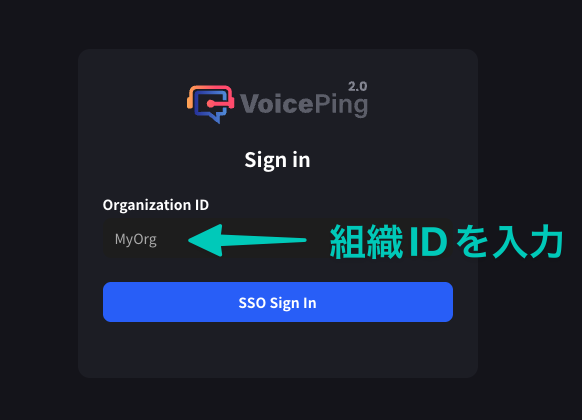
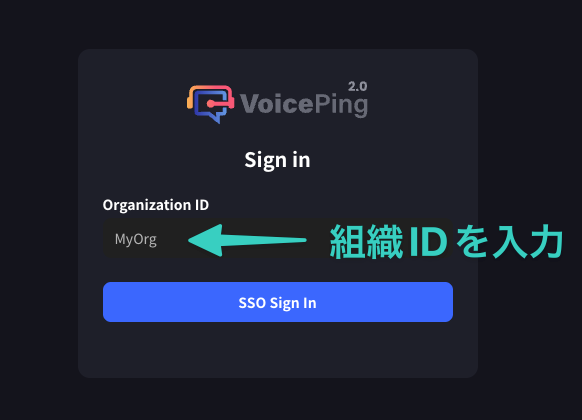
3. Enter organization ID

<Frame>
  <img src="https://mintcdn.com/test-cf63e467/LU3oFsc_lcA5rDjy/ja/images/sso-hennge/18-org-id-input.png?fit=max&auto=format&n=LU3oFsc_lcA5rDjy&q=85&s=ca3f35ec8ffa5c182cb5ad0666064826" alt="Organization ID input" width="582" height="420" data-path="ja/images/sso-hennge/18-org-id-input.png" />
</Frame>

If configured correctly, the HENNGE login screen will open.

<Frame>
  <img src="https://mintcdn.com/test-cf63e467/LU3oFsc_lcA5rDjy/ja/images/sso-hennge/20-hennge-login-screen.png?fit=max&auto=format&n=LU3oFsc_lcA5rDjy&q=85&s=55d30161253b4b701ac979bffb9f81b9" alt="HENNGE login screen" width="1696" height="1008" data-path="ja/images/sso-hennge/20-hennge-login-screen.png" />
</Frame>

4. Enter HENNGE One credentials and log in
<Frame>
  <img src="https://mintcdn.com/test-cf63e467/LU3oFsc_lcA5rDjy/ja/images/sso-hennge/21-hennge-login-form.png?fit=max&auto=format&n=LU3oFsc_lcA5rDjy&q=85&s=45f4bc1d7a9b0fb47d8164d149b2c0a5" alt="HENNGE login form" width="1698" height="998" data-path="ja/images/sso-hennge/21-hennge-login-form.png" />
</Frame>

<Frame>
  <img src="https://mintcdn.com/test-cf63e467/LU3oFsc_lcA5rDjy/ja/images/sso-hennge/22-hennge-authentication.png?fit=max&auto=format&n=LU3oFsc_lcA5rDjy&q=85&s=5f1337ed2f32d93212b789a4d243ee25" alt="HENNGE authentication" width="1009" height="574" data-path="ja/images/sso-hennge/22-hennge-authentication.png" />
</Frame>

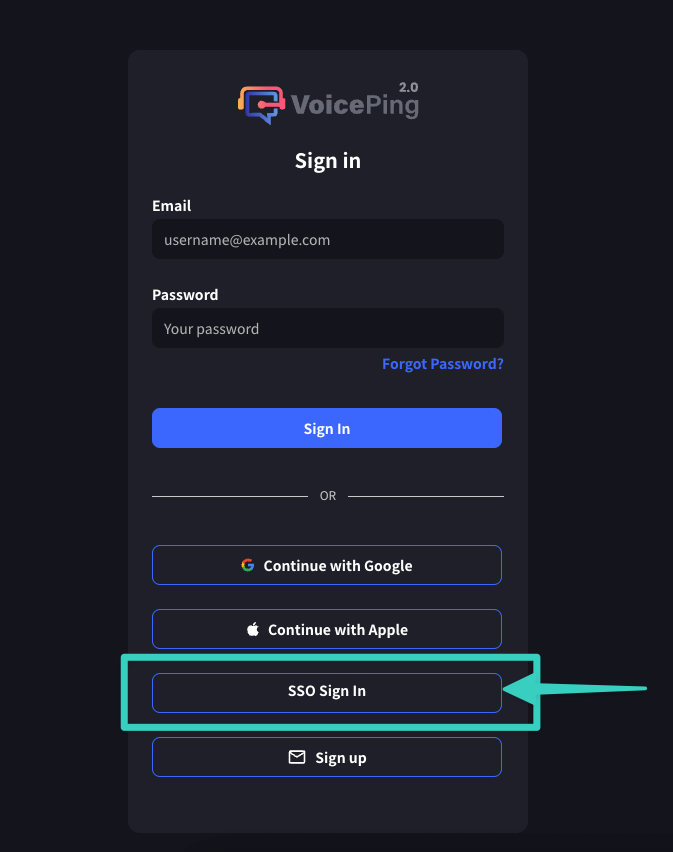
5. After authentication is complete, you will be redirected to VoicePing
<Frame>
  <img src="https://mintcdn.com/test-cf63e467/LU3oFsc_lcA5rDjy/ja/images/sso-hennge/23-voiceping-redirect.png?fit=max&auto=format&n=LU3oFsc_lcA5rDjy&q=85&s=668dd1fb27e14727ef3ce1aa353d0882" alt="VoicePing redirect" width="673" height="852" data-path="ja/images/sso-hennge/23-voiceping-redirect.png" />
</Frame>

<Frame>
  <img src="https://mintcdn.com/test-cf63e467/LU3oFsc_lcA5rDjy/ja/images/sso-hennge/24-successful-login.png?fit=max&auto=format&n=LU3oFsc_lcA5rDjy&q=85&s=0bb960e48852dafebd47773669001ae3" alt="Successful login" width="582" height="420" data-path="ja/images/sso-hennge/24-successful-login.png" />
</Frame>

After successful login, you will be redirected to the VoicePing app.

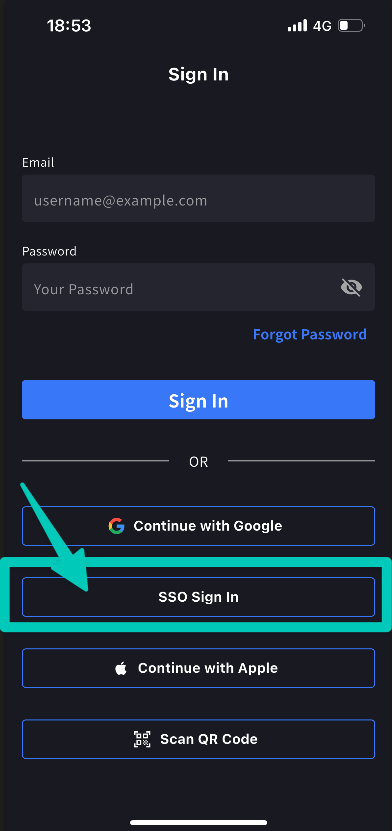
### Mobile Version

You can log in from desktop app or mobile app using the same steps.
<Frame>
  <img src="https://mintcdn.com/test-cf63e467/LU3oFsc_lcA5rDjy/ja/images/sso-hennge/19-login-mobile.png?fit=max&auto=format&n=LU3oFsc_lcA5rDjy&q=85&s=934c2a785a2f5ba3d601cb1b76c632f4" alt="Mobile login" width="392" height="831" data-path="ja/images/sso-hennge/19-login-mobile.png" />
</Frame>

<Frame>
  <img src="https://mintcdn.com/test-cf63e467/LU3oFsc_lcA5rDjy/ja/images/sso-hennge/25-mobile-login.png?fit=max&auto=format&n=LU3oFsc_lcA5rDjy&q=85&s=57398eef3cddce12a98ad0f22bdb9378" alt="Mobile login complete" width="392" height="831" data-path="ja/images/sso-hennge/25-mobile-login.png" />
</Frame>

***

<ContactEn />