> ## Documentation Index
> Fetch the complete documentation index at: https://manual.voiceping.net/llms.txt
> Use this file to discover all available pages before exploring further.

# アプリ連携

> VoicePing 3.0 の Google Calendar、Outlook Calendar、Slack 連携を管理します。

export const FeedbackJa = () => <>
    <Tip>
      このフィーチャーへのご意見やご要望は、<a href="/ja/product-feedback">Product Feedback</a> からチームへお送りください。
    </Tip>

    <h2>公式リンク</h2>

    <CardGroup cols={2}>
      <Card title="公式サイト" icon="globe" href="https://voiceping.net/">
        公式ウェブサイトはこちら
      </Card>
      <Card title="X (Twitter)" icon="x-twitter" href="https://x.com/VoicePingMedia">
        Xでフォロー
      </Card>
      <Card title="Facebook" icon="facebook" href="https://www.facebook.com/voiceping.inc">
        Facebookでいいね
      </Card>
      <Card title="LinkedIn" icon="linkedin" href="https://www.linkedin.com/company/28684130/">
        LinkedInでつながる
      </Card>
    </CardGroup>
  </>;

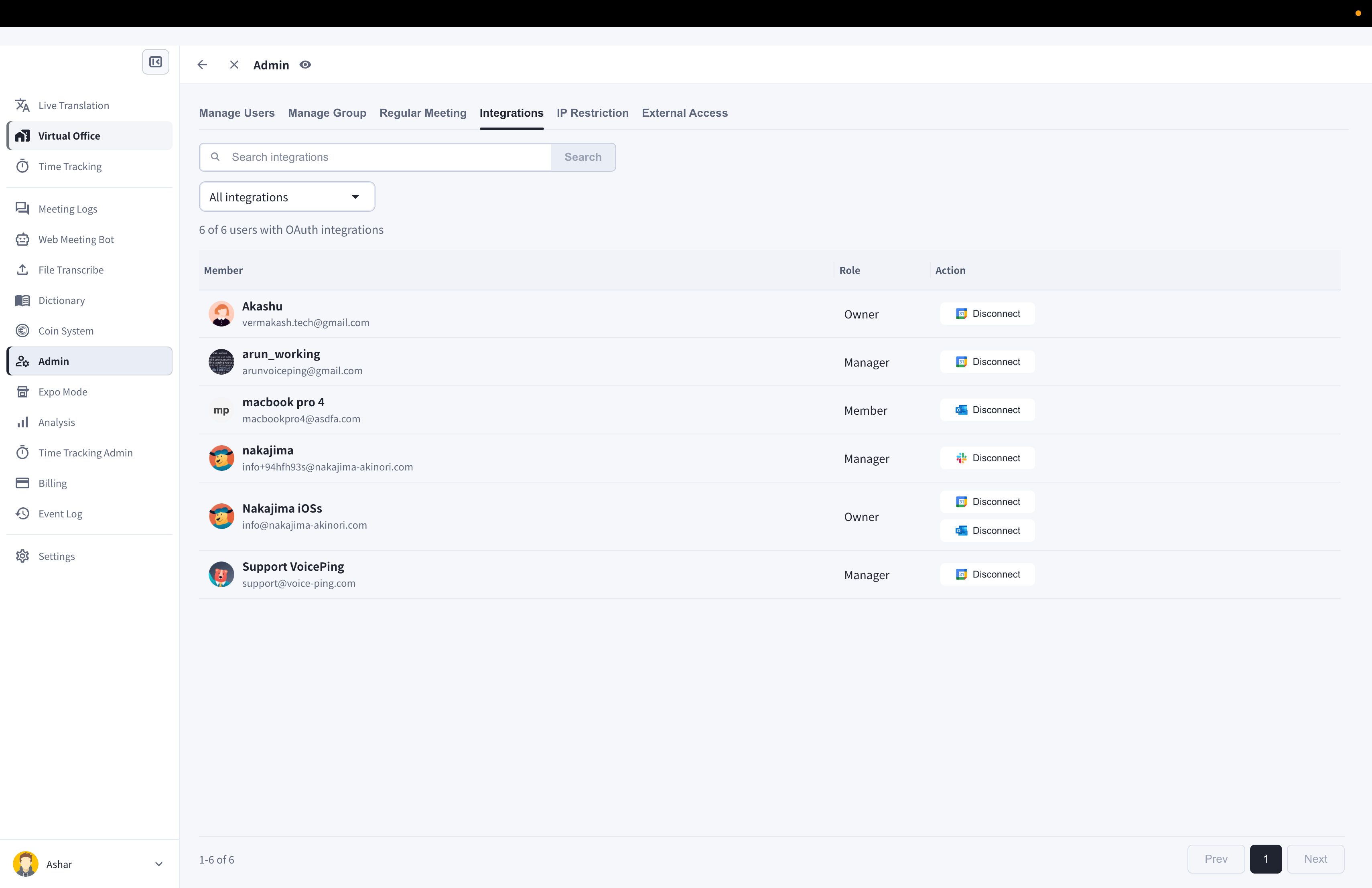
VoicePing 3.0 では、Google Calendar、Outlook Calendar、Slack のユーザー連携を管理します。

## Integrations を開く

1. **Admin** を開きます。
2. **Integrations** を選択します。
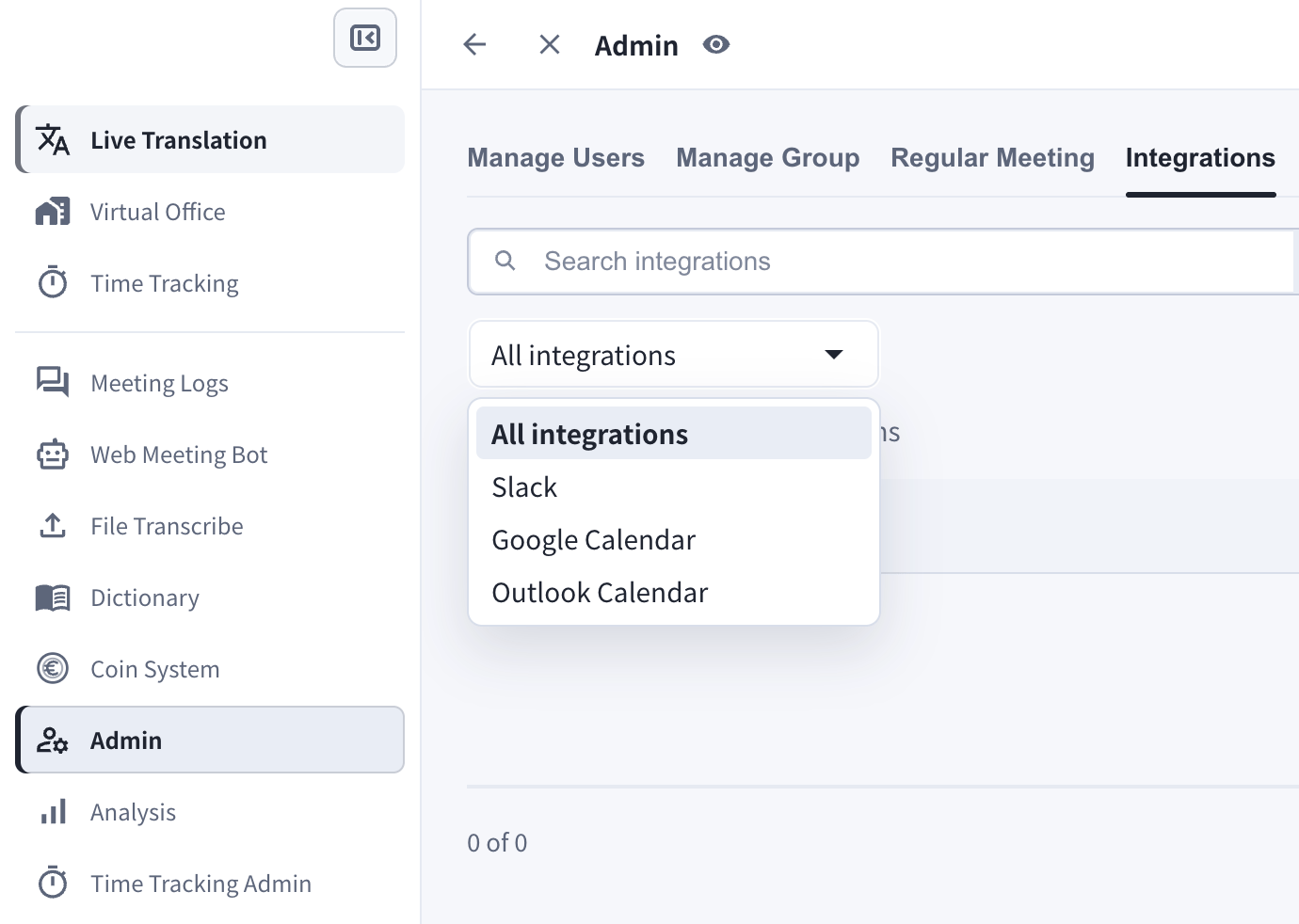
3. **All integrations**、**Slack**、**Google**、**Outlook** で絞り込みます。
<Frame>
  <img src="https://mintcdn.com/test-cf63e467/gwYYf2JyOC1avljj/en/images/app-integrations/01-admin-integrations-list.png?fit=max&auto=format&n=gwYYf2JyOC1avljj&q=85&s=9879eef5f3453be3f13955ba8db19d4b" alt="Admin の Integrations 画面 — 連携済みメンバーの一覧、ロール、Disconnect ボタン" width="3420" height="2214" data-path="en/images/app-integrations/01-admin-integrations-list.png" />
</Frame>

<Frame>
  <img src="https://mintcdn.com/test-cf63e467/gwYYf2JyOC1avljj/en/images/app-integrations/02-integrations-provider-filter.png?fit=max&auto=format&n=gwYYf2JyOC1avljj&q=85&s=bd6dc3262a6373ffb727dba9db1b9c7f" alt="All integrations、Slack、Google Calendar、Outlook Calendar で絞り込めるプロバイダーフィルター" width="1380" height="982" data-path="en/images/app-integrations/02-integrations-provider-filter.png" />
</Frame>

<Frame>
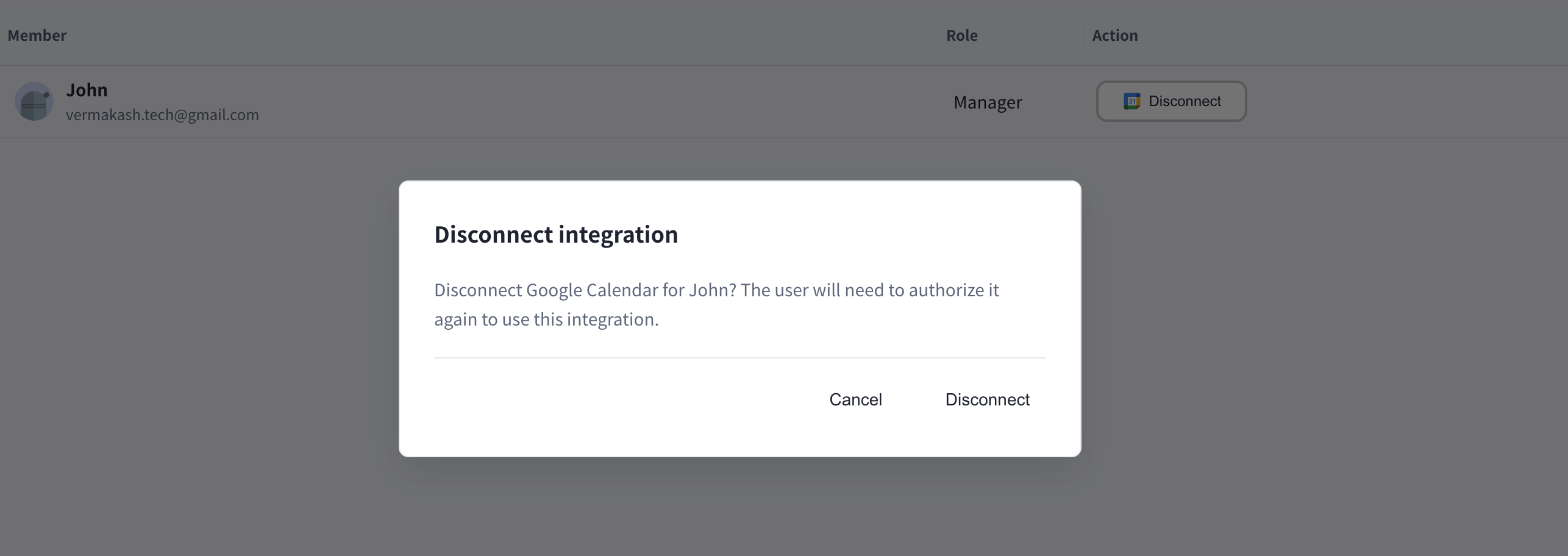
  <img src="https://mintcdn.com/test-cf63e467/gwYYf2JyOC1avljj/en/images/app-integrations/03-disconnect-confirmation.png?fit=max&auto=format&n=gwYYf2JyOC1avljj&q=85&s=f93ff5e258fbf8816f4f1eaa059ec3c0" alt="連携解除の確認ダイアログ — 解除後、メンバーは再認証すると再び利用できます" width="2572" height="912" data-path="en/images/app-integrations/03-disconnect-confirmation.png" />
</Frame>

## カレンダー連携

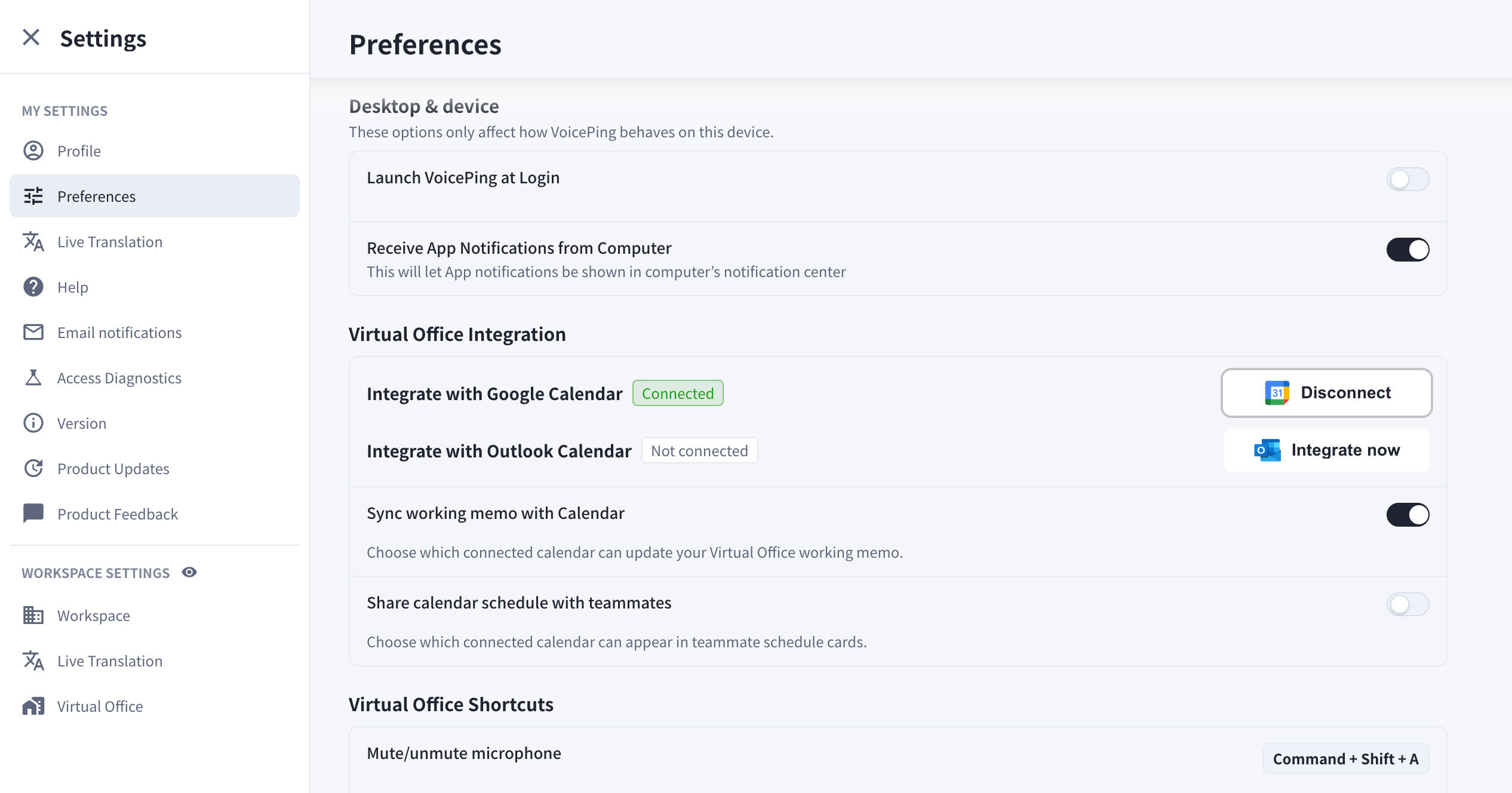
メンバーは自身の設定からカレンダーを接続できます。カレンダー連携では次が可能です。

* チームメンバーに予定の空き状況を共有します。
* カレンダー由来の会議検出と picture-in-picture 通知を補助します。
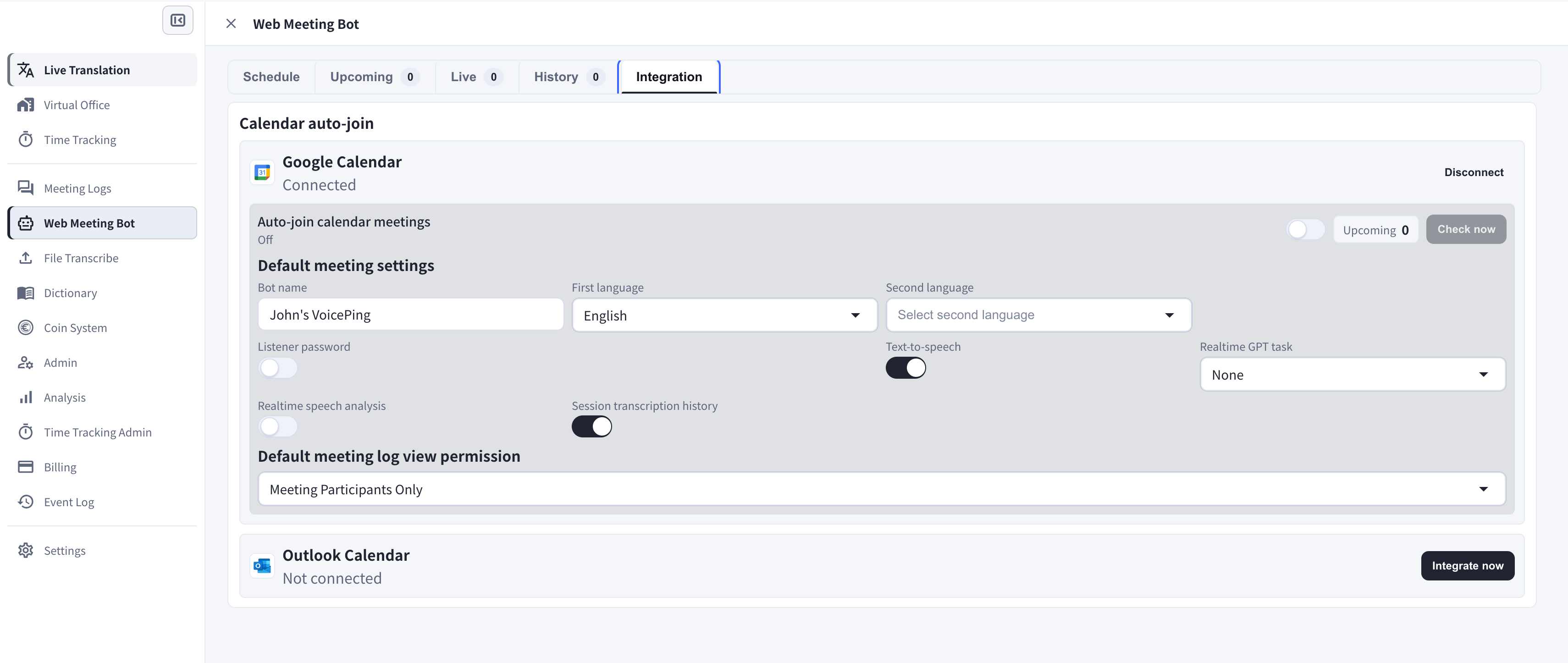
* Web Meeting Bot がカレンダー予定内の Zoom、Google Meet、Microsoft Teams セッションを準備できます。
<Frame>
  <img src="https://mintcdn.com/test-cf63e467/gwYYf2JyOC1avljj/en/images/app-integrations/04-settings-calendar-integration.png?fit=max&auto=format&n=gwYYf2JyOC1avljj&q=85&s=13bd28ca5a51be1b71b04e428b694211" alt="Settings → Preferences の Virtual Office Integration セクション — Integrate with Google Calendar と Integrate with Outlook Calendar" width="2532" height="1328" data-path="en/images/app-integrations/04-settings-calendar-integration.png" />
</Frame>

<Frame>
  <img src="https://mintcdn.com/test-cf63e467/gwYYf2JyOC1avljj/en/images/app-integrations/05-web-meeting-bot-integration-tab.png?fit=max&auto=format&n=gwYYf2JyOC1avljj&q=85&s=80d8ed7e31ad264c1d852c814831447c" alt="Web Meeting Bot の Integration タブ — Google Calendar と Outlook Calendar のカレンダー自動参加設定" width="3420" height="1446" data-path="en/images/app-integrations/05-web-meeting-bot-integration-tab.png" />
</Frame>

## Google Calendar

**Integrate with Google Calendar** から Google Calendar を接続します。後から Integrations で解除できます。

## Outlook Calendar

**Integrate with Outlook Calendar** から Microsoft Outlook Calendar を接続します。後から Integrations で解除できます。

## Slack

Slack 連携は Integrations 画面で管理します。管理者は接続済みメンバーを確認し、必要に応じてプロバイダーアクセスを解除できます。

<Note>
  旧式の通知連携手順は非推奨のため、VoicePing 3.0 の公開マニュアルでは扱いません。
</Note>

<FeedbackJa />