> ## Documentation Index
> Fetch the complete documentation index at: https://manual.voiceping.net/llms.txt
> Use this file to discover all available pages before exploring further.
# お支払いクレジットカードの変更
> PCまたはモバイルアプリから登録済みクレジットカードを変更する方法。
export const ContactJa = () => <>
ご不明な点がございましたら、こちらのフォームよりお問い合わせください。
公式リンク
公式ウェブサイトはこちら
Xでフォロー
Facebookでいいね
LinkedInでつながる
;
## 1. PC
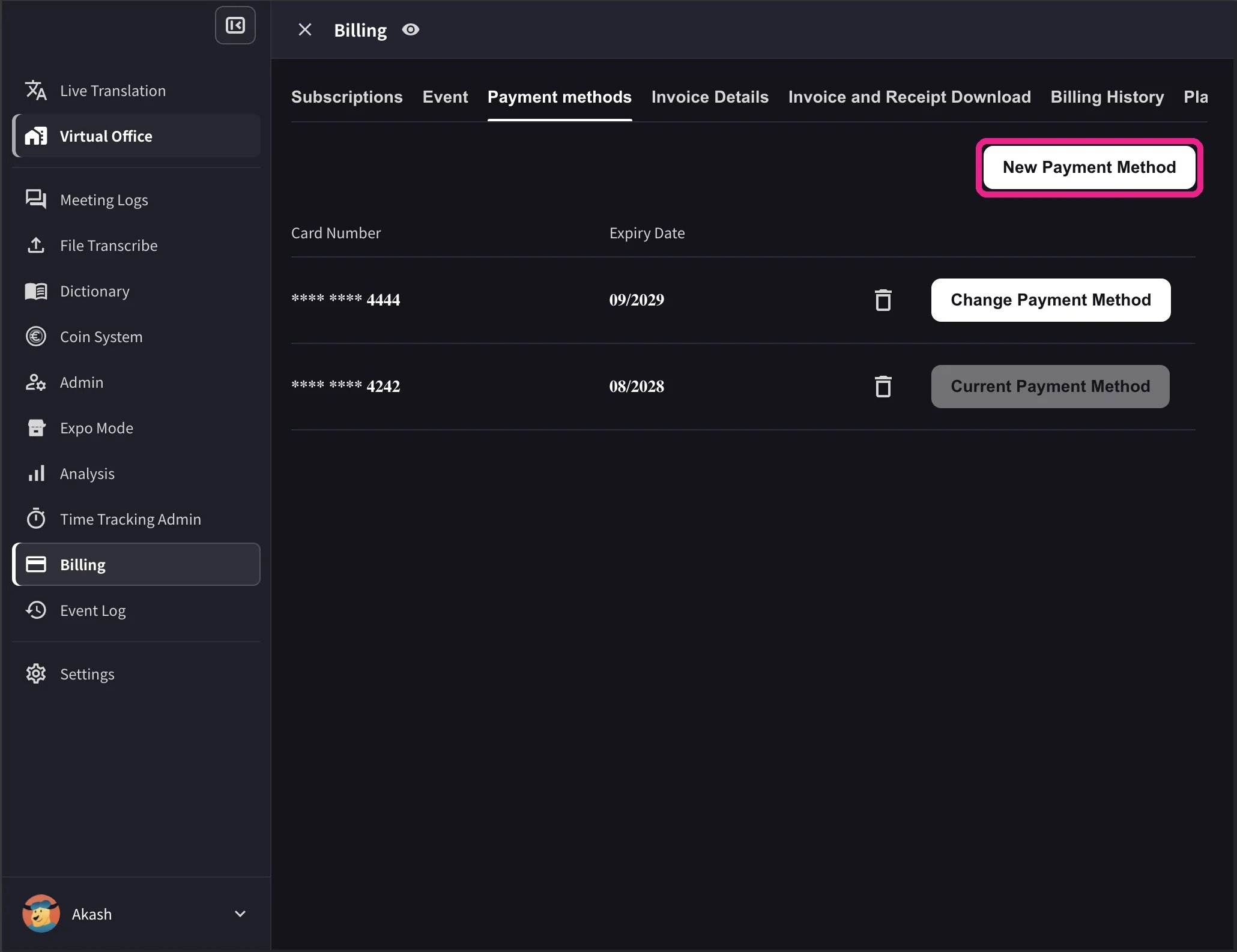
1. 上部ナビゲーション → **Billing** → **Payment methods** を開き、新しいクレジットカードを登録します。
 2. In the card list, click **Change Payment Method** on the card you want to use. The active card shows **Current Payment Method** after the change completes.
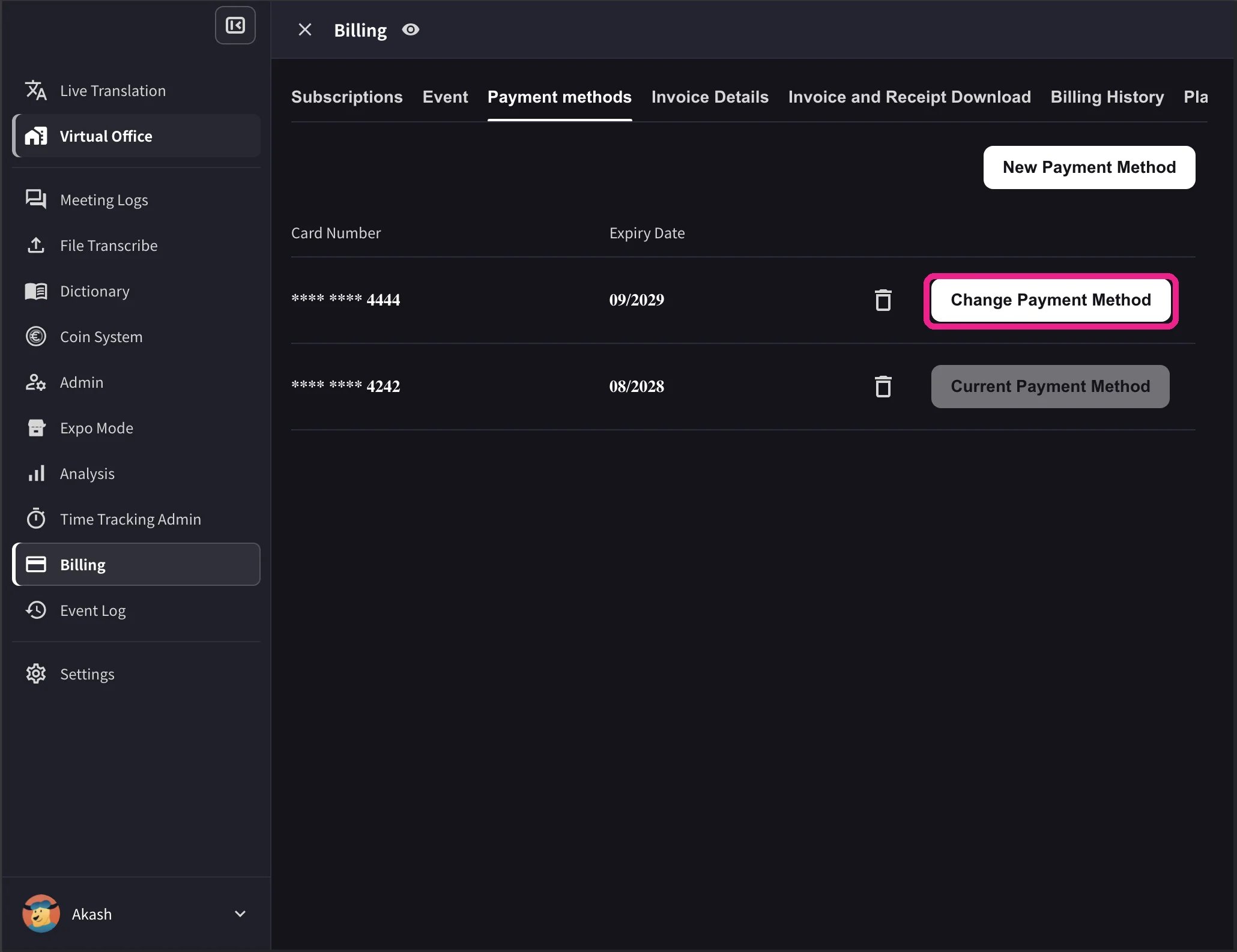 The desktop list also shows card expiry dates and a delete icon. **Change Payment Method** appears only when the workspace has an active Stripe subscription and no scheduled cancellation. Cards that cannot be used with the workspace currency show **Not Supported** instead of the change action.
## 2. Mobile
モバイルアプリでは、カード管理は **Billing → Manage Cards** にあります。
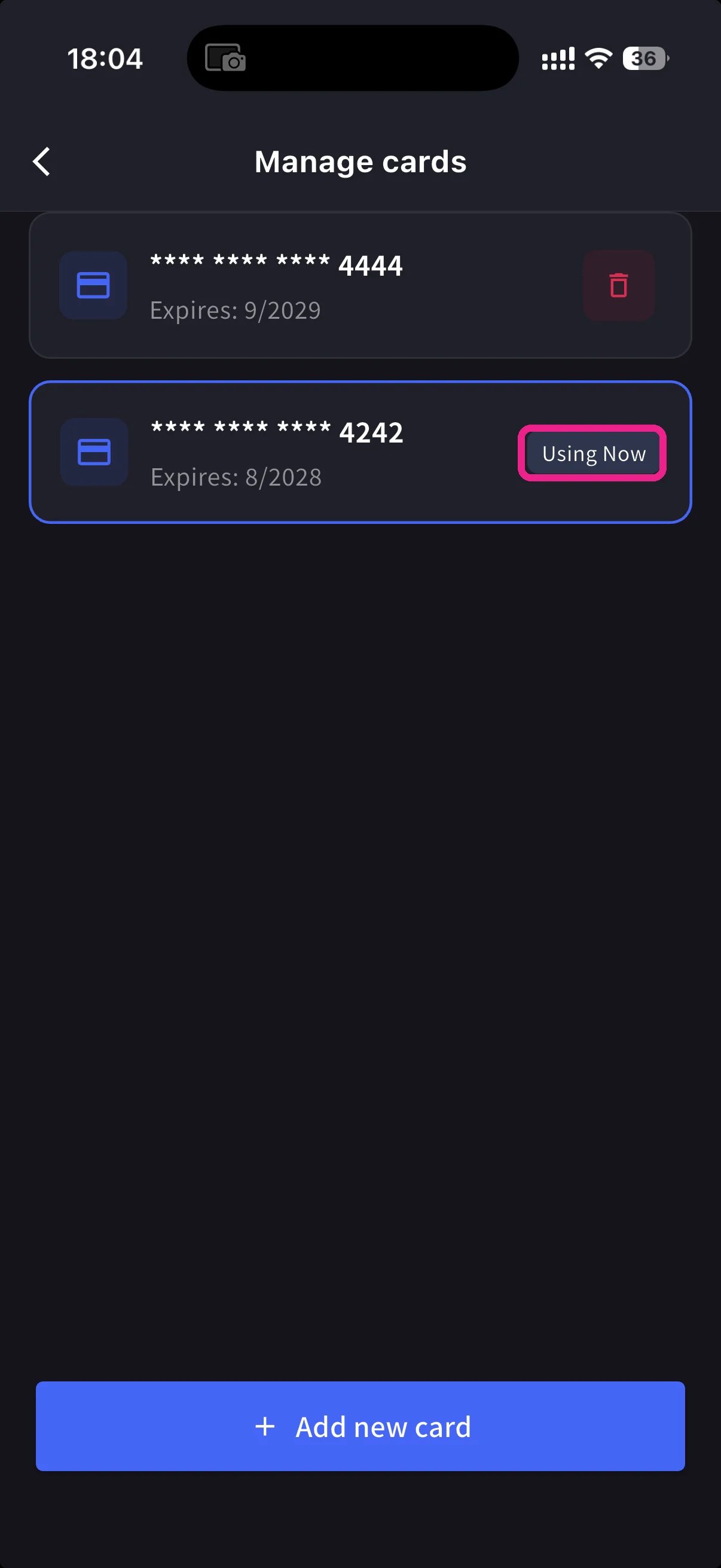
サイドメニュー → **User Settings** → **Billing** → **Manage Cards** を開きます。登録済みカードが一覧表示され、利用中のカードには **Using Now** が付きます。
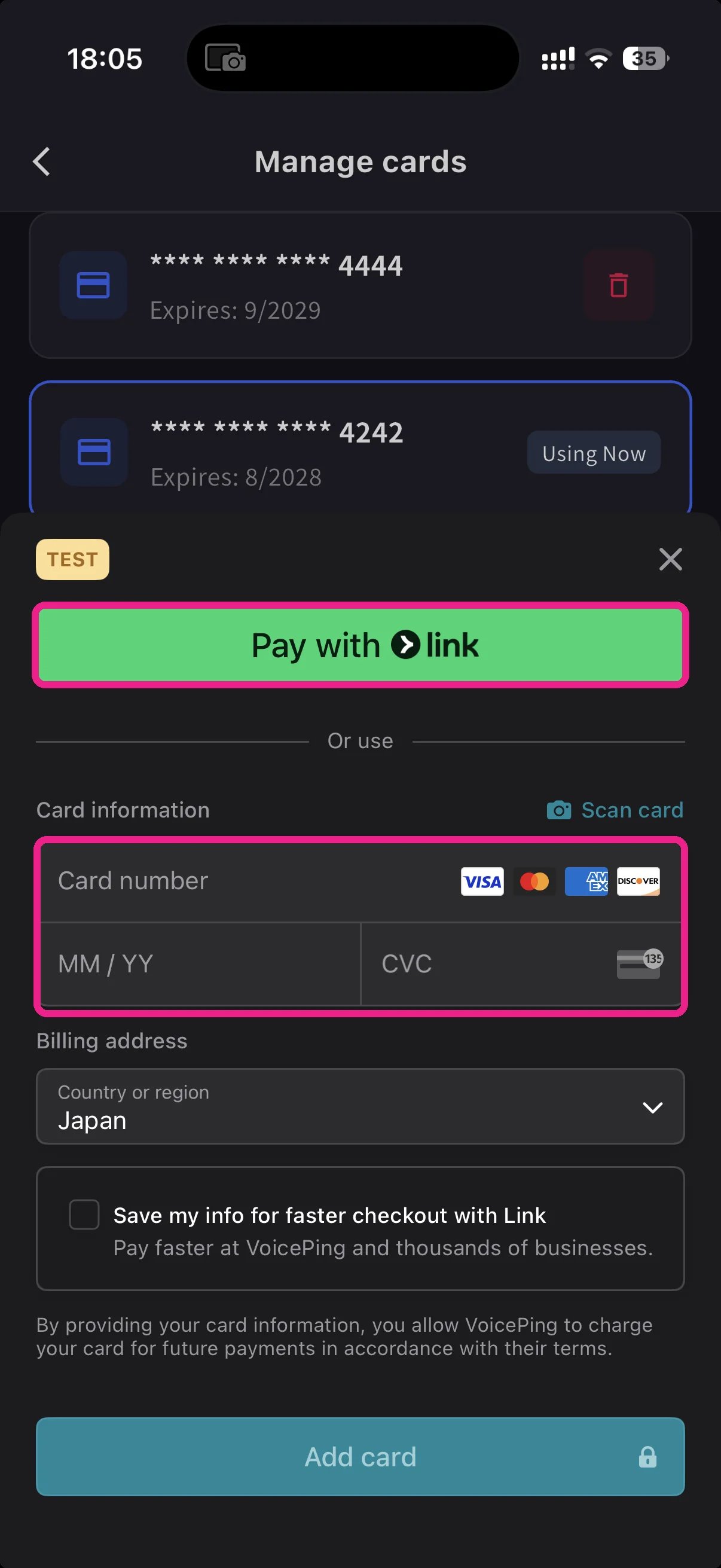
下部の青い **+ Add new card** ボタンをタップします。カード追加シートには2つの方法があります。
* **Pay with Link** — 電話番号がStripe Linkに登録済みの場合、ワンタップで支払えます。
* **Manual card** — カード番号、MM/YY、CVCを入力するか、**📷 Scan card** でカメラから読み取ります。請求先国を選び、**Add card** をタップします。
Manage Cardsに戻り、使いたいカードをタップします。**Using Now** がそのカードに移動し、今後の請求は選択したカードで行われます。
カード情報はStripeでトークン化されます。VoicePingがカード番号そのものを保存することはありません。
**Link** を使うと入力を省略できます。ほかの場所でStripe Linkを使ったことがある場合、電話番号を入力するとカードが自動入力されます。モバイルでの変更はWebアプリにもすぐ同期されます。
## Related
* [Plan Changes, Cancellation & Trial End](/ja/plan-changes) — プラン変更、ダウングレード、解約
* [Invoices, Receipts & Billing Activity](/ja/invoices-receipts) — 請求書PDF、領収書、イベントログ
The desktop list also shows card expiry dates and a delete icon. **Change Payment Method** appears only when the workspace has an active Stripe subscription and no scheduled cancellation. Cards that cannot be used with the workspace currency show **Not Supported** instead of the change action.
## 2. Mobile
モバイルアプリでは、カード管理は **Billing → Manage Cards** にあります。
サイドメニュー → **User Settings** → **Billing** → **Manage Cards** を開きます。登録済みカードが一覧表示され、利用中のカードには **Using Now** が付きます。
下部の青い **+ Add new card** ボタンをタップします。カード追加シートには2つの方法があります。
* **Pay with Link** — 電話番号がStripe Linkに登録済みの場合、ワンタップで支払えます。
* **Manual card** — カード番号、MM/YY、CVCを入力するか、**📷 Scan card** でカメラから読み取ります。請求先国を選び、**Add card** をタップします。
Manage Cardsに戻り、使いたいカードをタップします。**Using Now** がそのカードに移動し、今後の請求は選択したカードで行われます。
カード情報はStripeでトークン化されます。VoicePingがカード番号そのものを保存することはありません。
**Link** を使うと入力を省略できます。ほかの場所でStripe Linkを使ったことがある場合、電話番号を入力するとカードが自動入力されます。モバイルでの変更はWebアプリにもすぐ同期されます。
## Related
* [Plan Changes, Cancellation & Trial End](/ja/plan-changes) — プラン変更、ダウングレード、解約
* [Invoices, Receipts & Billing Activity](/ja/invoices-receipts) — 請求書PDF、領収書、イベントログ