> ## Documentation Index
> Fetch the complete documentation index at: https://manual.voiceping.net/llms.txt
> Use this file to discover all available pages before exploring further.

# セミナーのライブ音声翻訳字幕

> 登壇者の音声をリアルタイムで翻訳し、参加者に字幕を提供する方法

export const FeedbackJa = () => <>
    <Tip>
      このフィーチャーへのご意見やご要望は、<a href="/ja/product-feedback">Product Feedback</a> からチームへお送りください。
    </Tip>

    <h2>公式リンク</h2>

    <CardGroup cols={2}>
      <Card title="公式サイト" icon="globe" href="https://voiceping.net/">
        公式ウェブサイトはこちら
      </Card>
      <Card title="X (Twitter)" icon="x-twitter" href="https://x.com/VoicePingMedia">
        Xでフォロー
      </Card>
      <Card title="Facebook" icon="facebook" href="https://www.facebook.com/voiceping.inc">
        Facebookでいいね
      </Card>
      <Card title="LinkedIn" icon="linkedin" href="https://www.linkedin.com/company/28684130/">
        LinkedInでつながる
      </Card>
    </CardGroup>
  </>;

<Note>
  * 登壇者側・参加者側ともにインターネット環境が必要です。[https://fast.com/](https://fast.com/)よりインターネットスピードの検証が可能です。30mbps以上を推奨（最低10mbps必要）
  * QRコードの画像・URLは固定でセッションをスタート・終了しても変わりません。パスワードを設定することでセキュリティを高めることができます
  * 参加者側でのマイク、翻訳テキストの読み上げ機能の有効化・無効化が設定できます
  * 文字起こし言語を非表示にして、翻訳テキストのみを表示して、壇上のスクリーンに映し出すことができます
  * 文字の色、サイズは変更できます
  * 翻訳速度の調整ができます
  * プレゼンテーション字幕を表示させることができます。詳細は[字幕モード（背景透明）](/ja/transparent-presentation-subtitle-display-mode)をご覧ください
</Note>

## 【ホスト向け】登壇者の音声を翻訳する方法

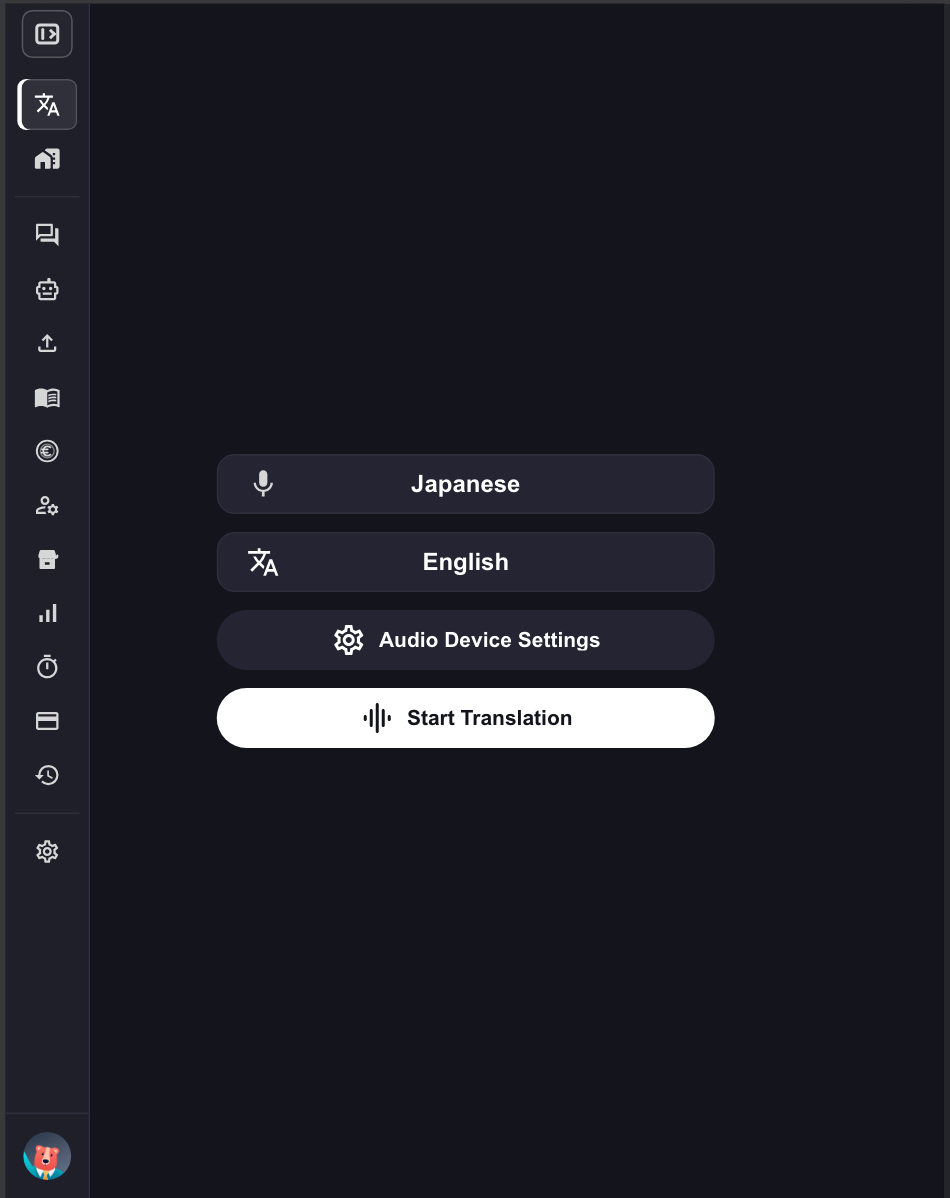
1. **VoicePingアプリを起動し、「翻訳開始」をクリックしてください。**
<Frame>
  <img src="https://mintcdn.com/test-cf63e467/IbZ1LFopeCpJTyUC/en/images/live-subtitles/01-launch-app.png?fit=max&auto=format&n=IbZ1LFopeCpJTyUC&q=85&s=9ed1a4b0f09ba89b373b892e125616cf" alt="VoicePingアプリ起動" width="400" data-path="en/images/live-subtitles/01-launch-app.png" />
</Frame>

2. **翻訳言語を指定してください。**
   * マイクアイコン：文字起こし言語（登壇者の言語）
   * 「文＆A」アイコン：翻訳言語（参加者むけの言語）

<Frame>
  <img src="https://mintcdn.com/test-cf63e467/IbZ1LFopeCpJTyUC/en/images/live-subtitles/02-language-selection.png?fit=max&auto=format&n=IbZ1LFopeCpJTyUC&q=85&s=541ac8d5729b909975020002467b58a4" alt="言語選択" width="400" data-path="en/images/live-subtitles/02-language-selection.png" />
</Frame>

<Tip>
  例：英語を日本語に翻訳したい場合は、マイクアイコンを「英語」、「文＆A」アイコンを「日本語」に設定します。
</Tip>

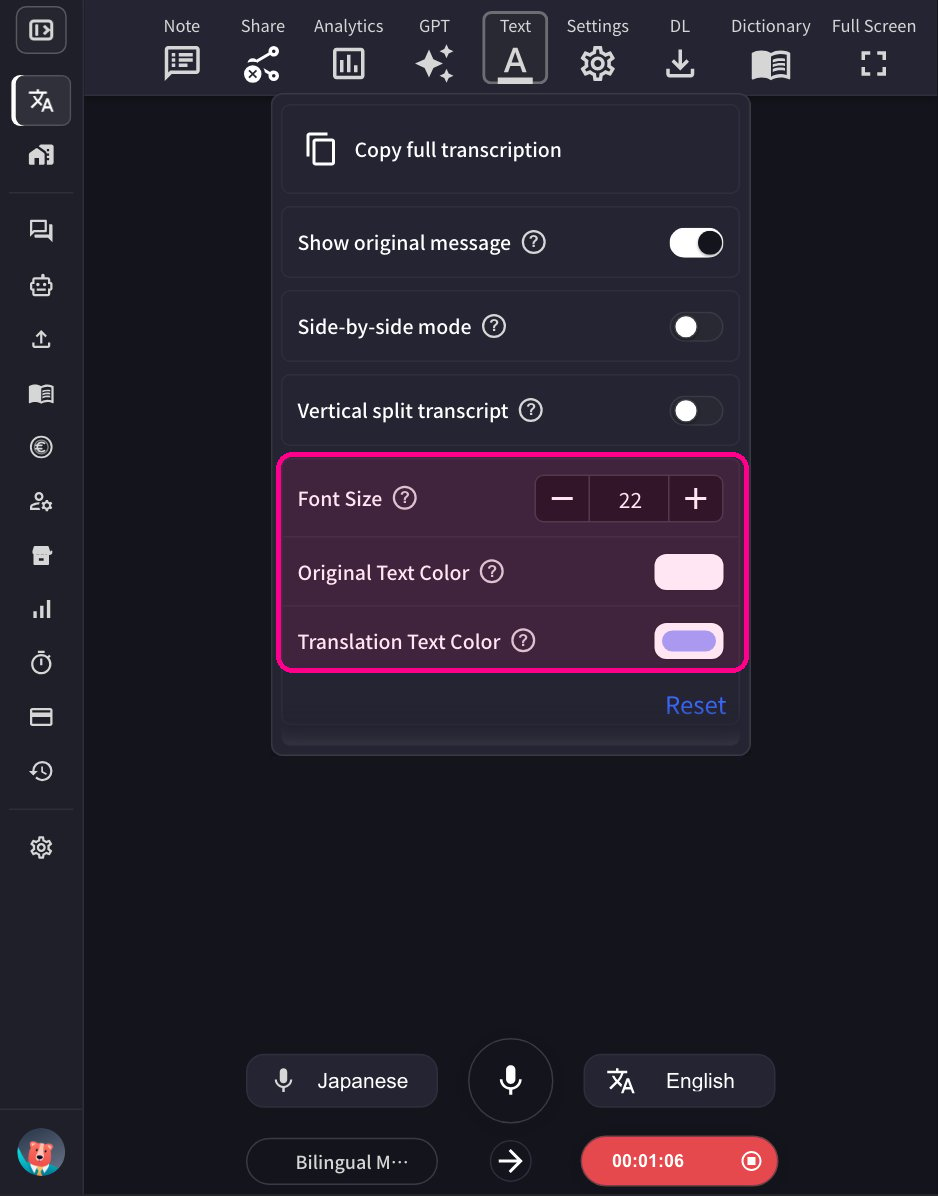
3. **会場スクリーンの大きさに合わせて、VoicePing翻訳画面の大きさ・テキストサイズ・色を調整します。**

   * **文字サイズ**と**文字色**を設定するには、**テキスト**パネルを開きます。
<Frame>
  <img src="https://mintcdn.com/test-cf63e467/IbZ1LFopeCpJTyUC/en/images/live-subtitles/04-adjust-settings.png?fit=max&auto=format&n=IbZ1LFopeCpJTyUC&q=85&s=1a4346a13b33f3942084e667c7546232" alt="テキストパネル — 文字サイズと文字色" width="400" data-path="en/images/live-subtitles/04-adjust-settings.png" />
</Frame>

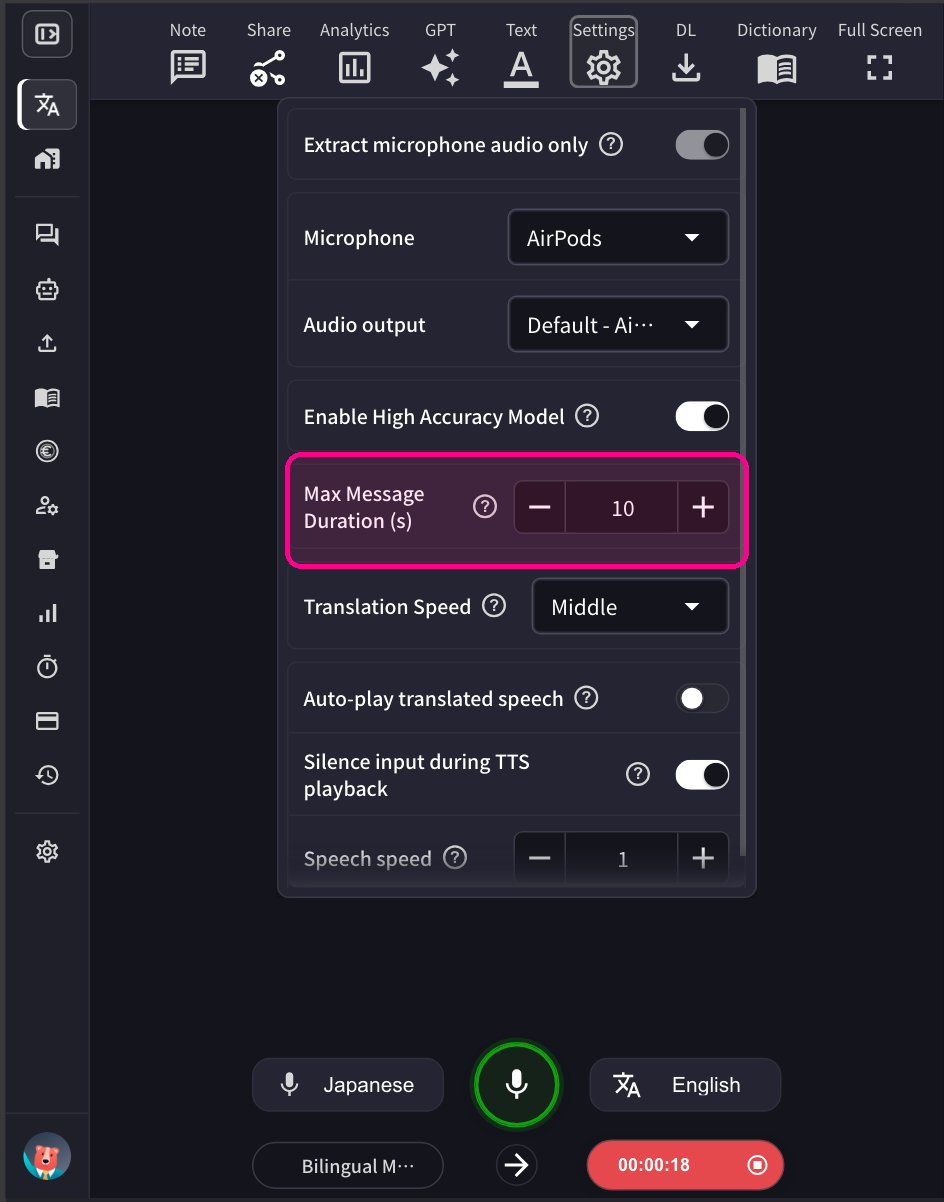
* 1つの音声セグメントの長さを調節する場合は、**設定**パネルで最大メッセージ時間を調整します
<Frame>
  <img src="https://mintcdn.com/test-cf63e467/IbZ1LFopeCpJTyUC/en/images/live-subtitles/04b-max-message-duration.png?fit=max&auto=format&n=IbZ1LFopeCpJTyUC&q=85&s=c4851f68f534c3447a8abc0983df2028" alt="設定パネル — 最大メッセージ時間" width="400" data-path="en/images/live-subtitles/04b-max-message-duration.png" />
</Frame>

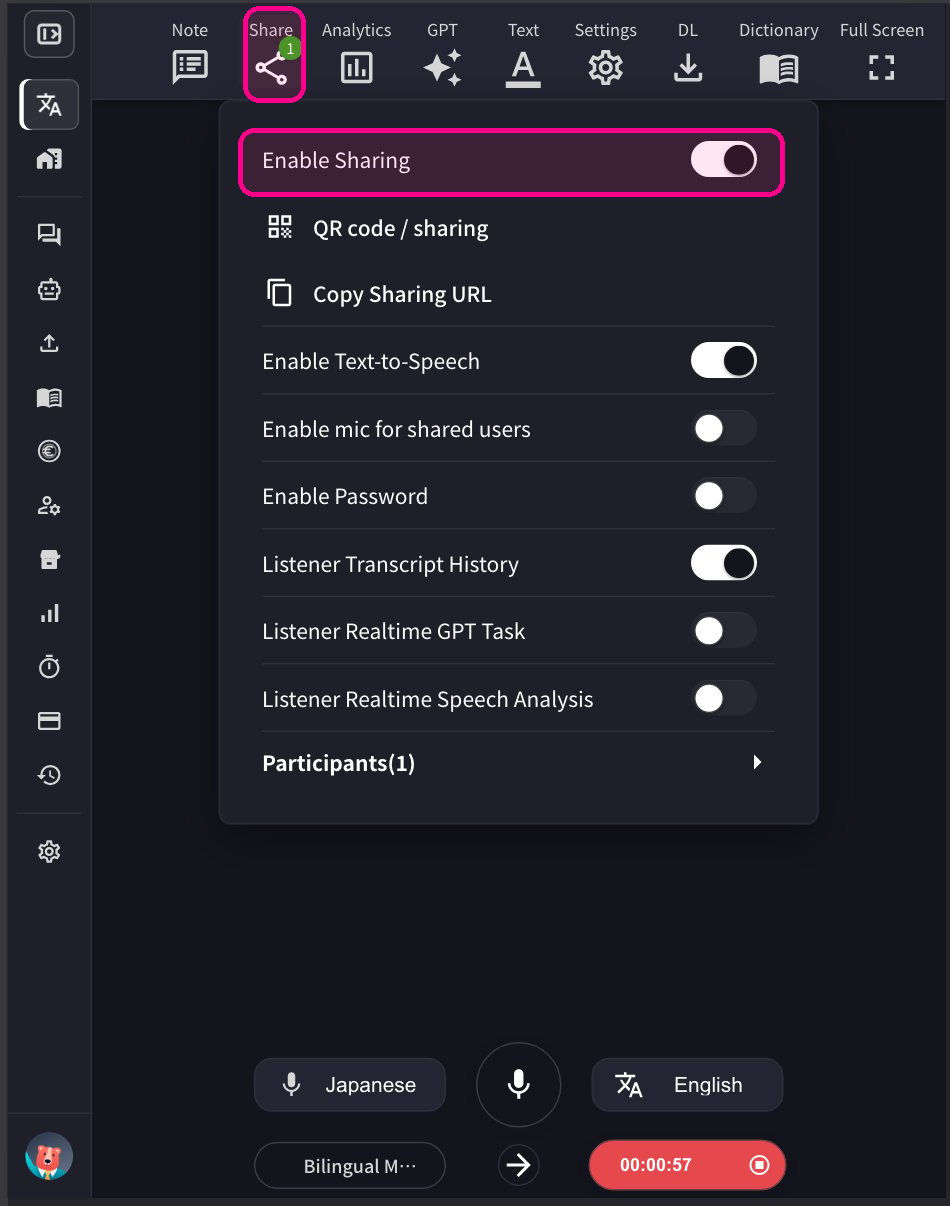
4-1. **セッションを共有するには、上部の共有アイコンをクリックして共有を有効にします。**
<Frame>
  <img src="https://mintcdn.com/test-cf63e467/IbZ1LFopeCpJTyUC/en/images/live-subtitles/03-start-transcription.png?fit=max&auto=format&n=IbZ1LFopeCpJTyUC&q=85&s=da0be3b16d3a282d1b64af3bc4f1f734" alt="文字起こし・翻訳開始ボタン" width="400" data-path="en/images/live-subtitles/03-start-transcription.png" />
</Frame>

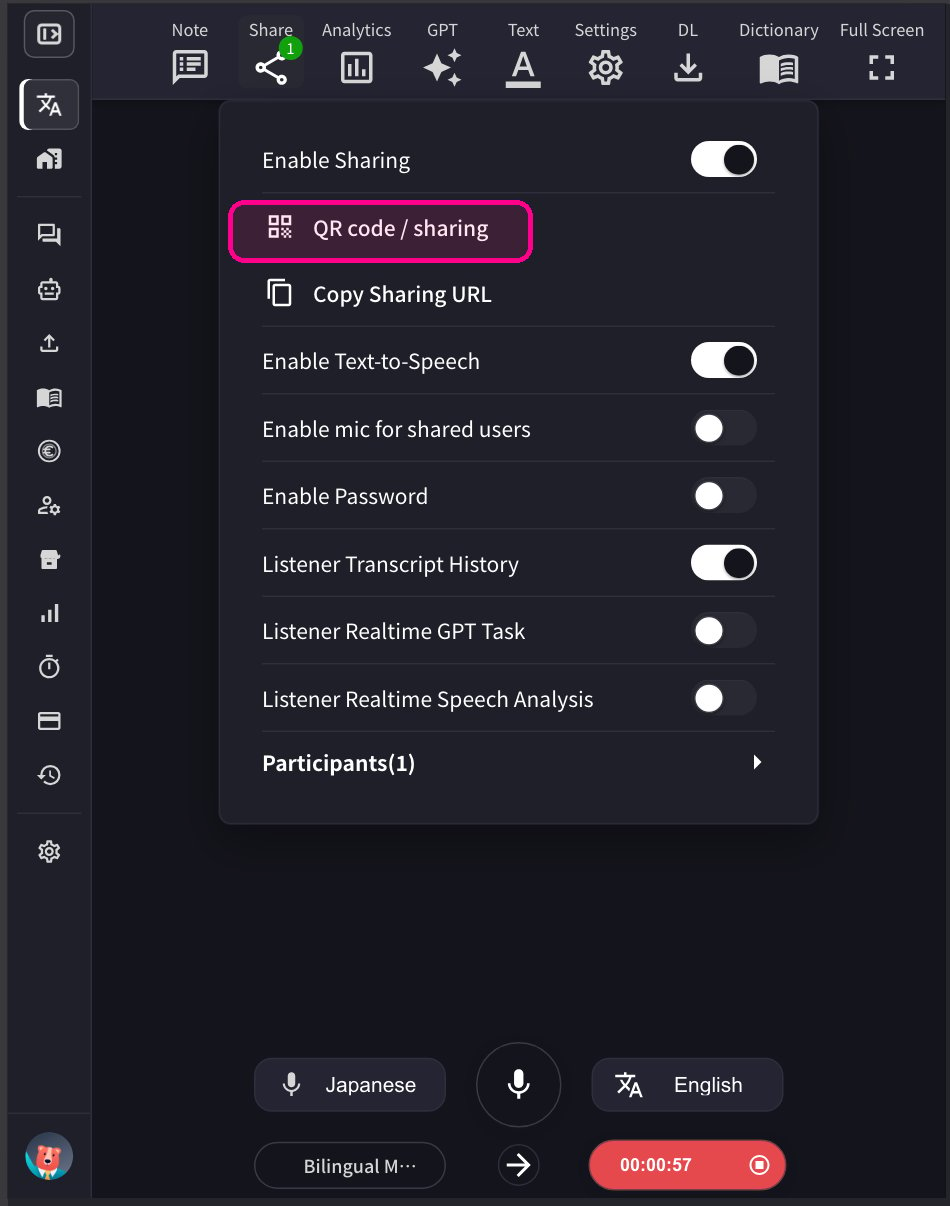
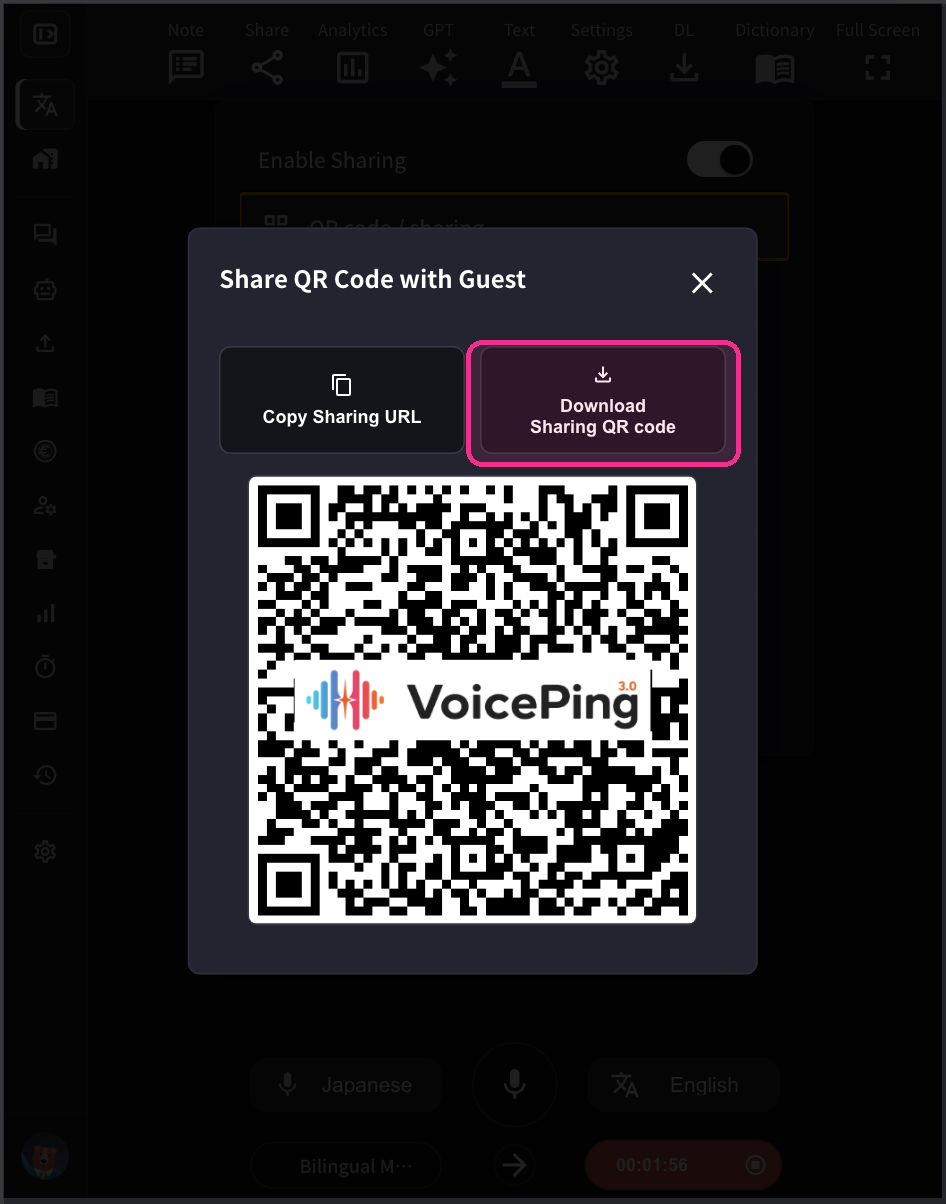
4-2. **参加者が自分のモバイル端末からこのセッションに参加するためのQRコードを共有するには、QR画像を公開して共有してください。** このQRコードはアカウントごとの固定URLです。QRコードは永久に変わりません。
<Frame>
  <img src="https://mintcdn.com/test-cf63e467/IbZ1LFopeCpJTyUC/en/images/live-subtitles/05-qr-share-1.png?fit=max&auto=format&n=IbZ1LFopeCpJTyUC&q=85&s=632c99591de7c4186f538f1cb7def4c6" alt="QRコード共有" width="400" data-path="en/images/live-subtitles/05-qr-share-1.png" />
</Frame>

<Frame>
  <img src="https://mintcdn.com/test-cf63e467/IbZ1LFopeCpJTyUC/en/images/live-subtitles/05-qr-share-2.png?fit=max&auto=format&n=IbZ1LFopeCpJTyUC&q=85&s=11aab6b396b9672783c5c1d424fee535" alt="QRコード表示" width="400" data-path="en/images/live-subtitles/05-qr-share-2.png" />
</Frame>

<Tip>
  参加者数は累計アクセス数ではなく、**同時接続数**でカウントされます。参加者が退出するとカウントは減ります。例えば、50人がQRコードから参加し、その後全員退出した場合、再び50人全員分の枠をご利用いただけます。
</Tip>

## 【参加者向け】参加方法

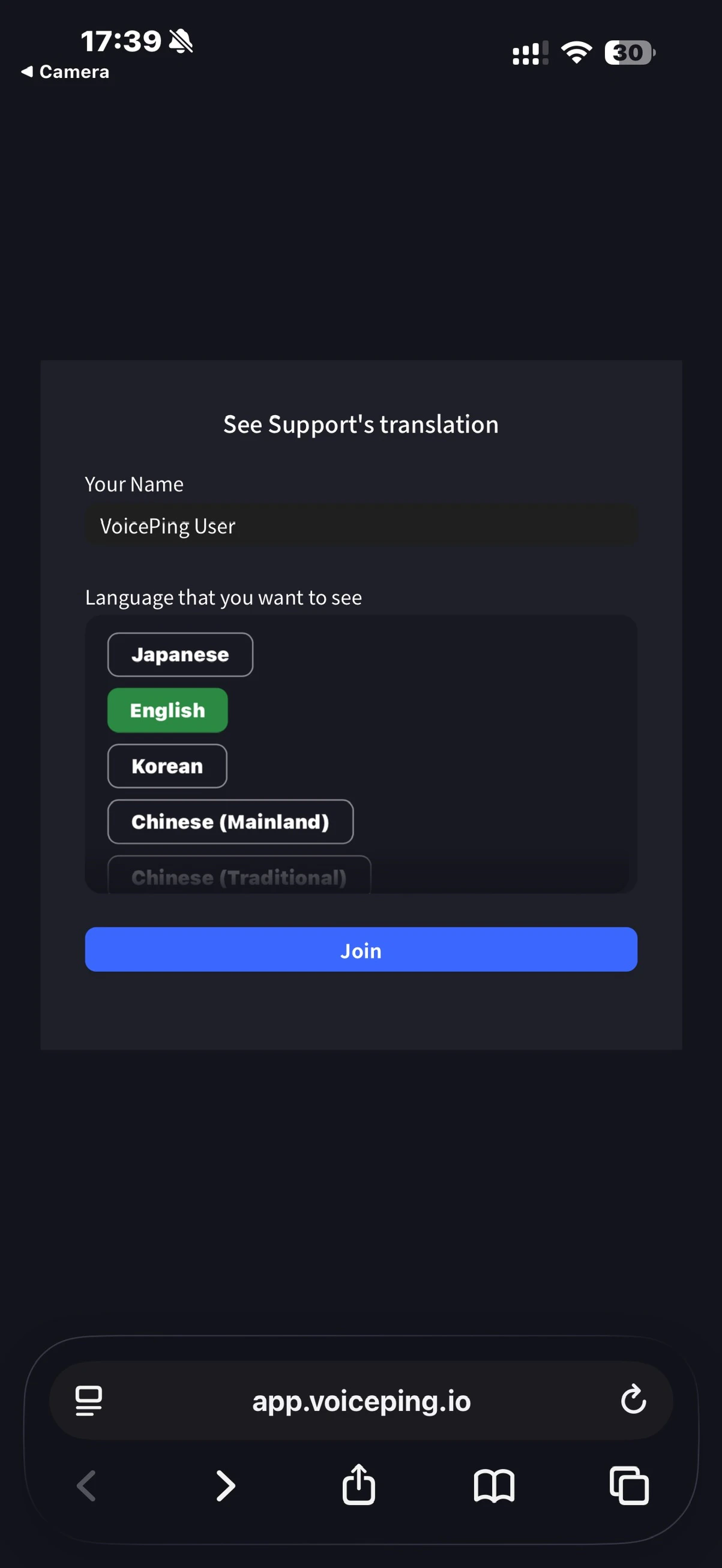
1. **モバイルカメラでQRコードをスキャンするか、PCウェブアプリケーションから上記URLをクリックして翻訳チャンネルにアクセスします。**
<Frame>
  <img src="https://mintcdn.com/test-cf63e467/IpSCqaapOB7XFWT9/en/images/live-subtitles/06-participant-join.jpeg?fit=max&auto=format&n=IpSCqaapOB7XFWT9&q=85&s=21c908f811de52c595b6fff763c69043" alt="参加者参加画面" width="400" data-path="en/images/live-subtitles/06-participant-join.jpeg" />
</Frame>

2. **アクセスすると以下の項目を入力します：**
   * 名前：参加者の名前を入力します
   * ご覧になりたい言語：希望する翻訳言語を選択します

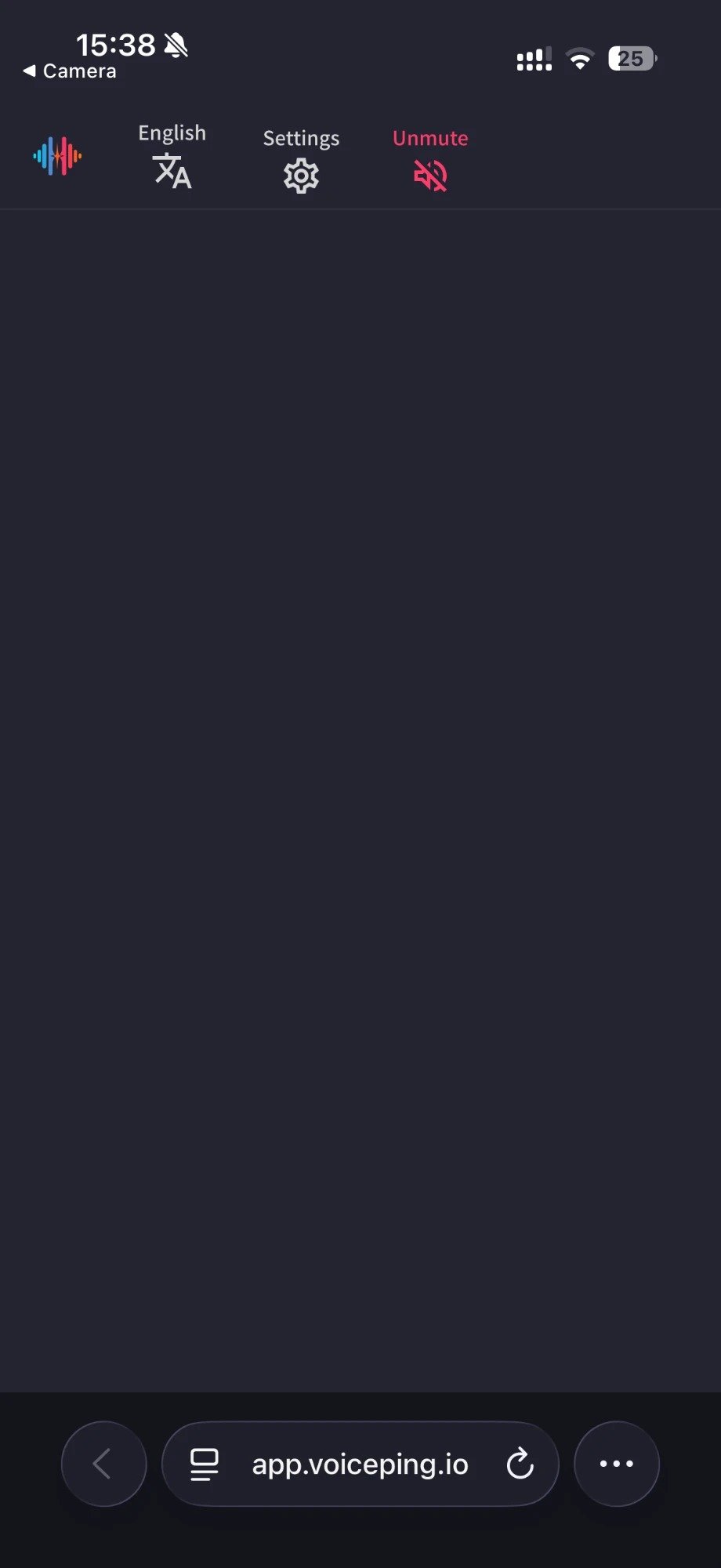
3. **入場すると、以下の操作ができます：**
   * 言語変更
   * 「設定」で翻訳の見え方を調整
   * 読み上げ速度の調整
   * 読み上げ機能のオン・オフ
   * 退室
<Frame>
  <img src="https://mintcdn.com/test-cf63e467/IbZ1LFopeCpJTyUC/en/images/live-subtitles/07-participant-operations.jpeg?fit=max&auto=format&n=IbZ1LFopeCpJTyUC&q=85&s=9dbc84b4520353c53bf555ee141a1543" alt="参加者操作" width="400" data-path="en/images/live-subtitles/07-participant-operations.jpeg" />
</Frame>

<FeedbackJa />