> ## Documentation Index
> Fetch the complete documentation index at: https://manual.voiceping.net/llms.txt
> Use this file to discover all available pages before exploring further.
# ライブ字幕をリスナーに共有(QR)
> その場の参加者が自分のスマホでライブ字幕と翻訳を読めます — インストール不要・アカウント不要。
export const FeedbackJa = () => <>
このフィーチャーへのご意見やご要望は、Product Feedback からチームへお送りください。
公式リンク
公式ウェブサイトはこちら
Xでフォロー
Facebookでいいね
LinkedInでつながる
;
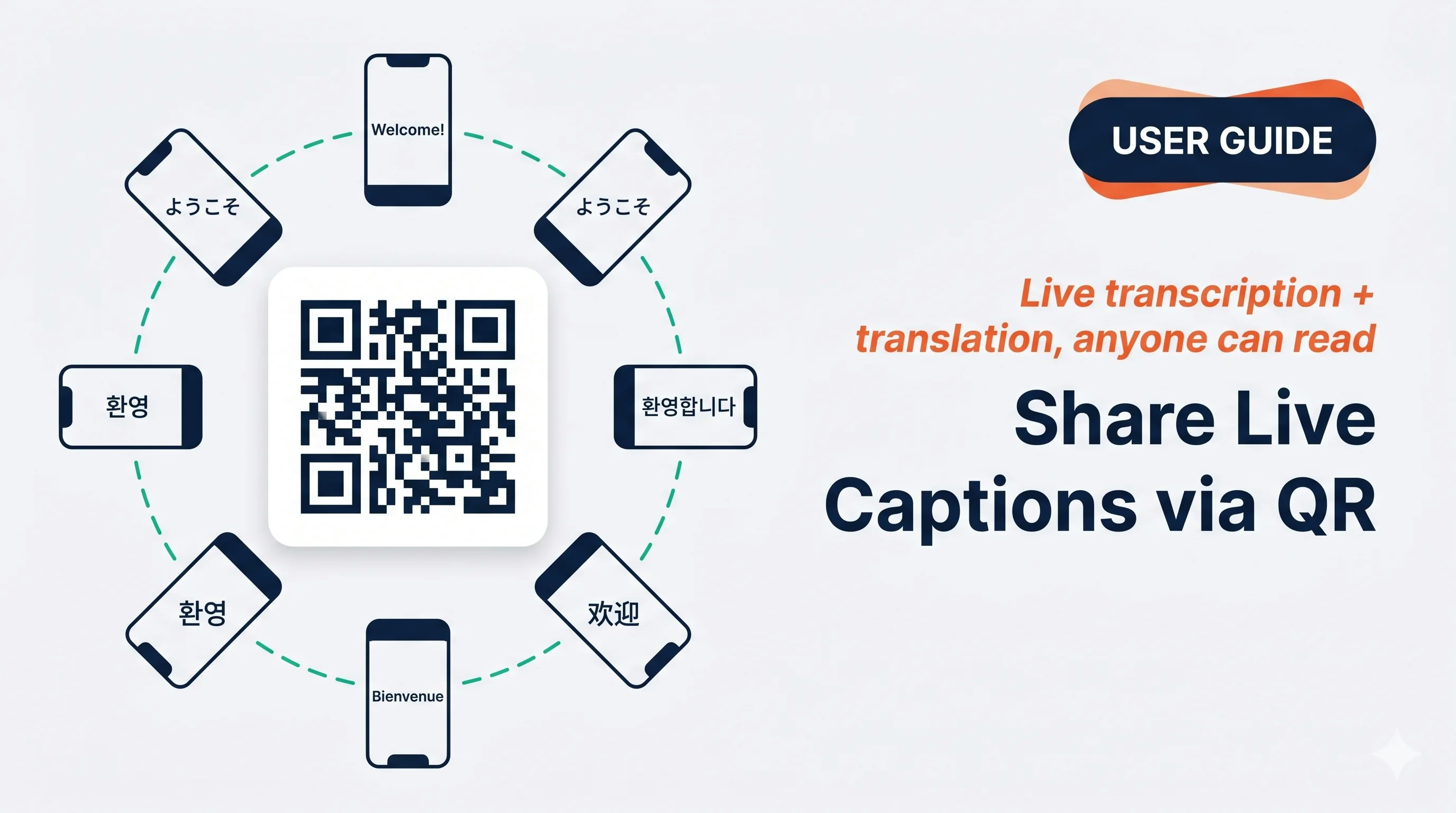 QRコードを相手のスマホカメラでスキャンしてもらうだけで、ライブ字幕を相手の言語で読んでもらえます — インストール不要、アカウント不要です。
## こんなシーンで使えます
テーブルを囲む全員がQRをスキャン。1つの画面に集まらなくても、各自の言語で読めます。
あなたが話し、数人のグループが歩きながら自分のスマホでついてくる小規模ツアーに。
生徒がスキャンして好きな言語を選択。マイクを有効にすれば質問も返せます。
共有ボタンでリンクをSlack / LINE / メールへ — 離れた相手もライブで読めます。
## リスナー共有シートを開く
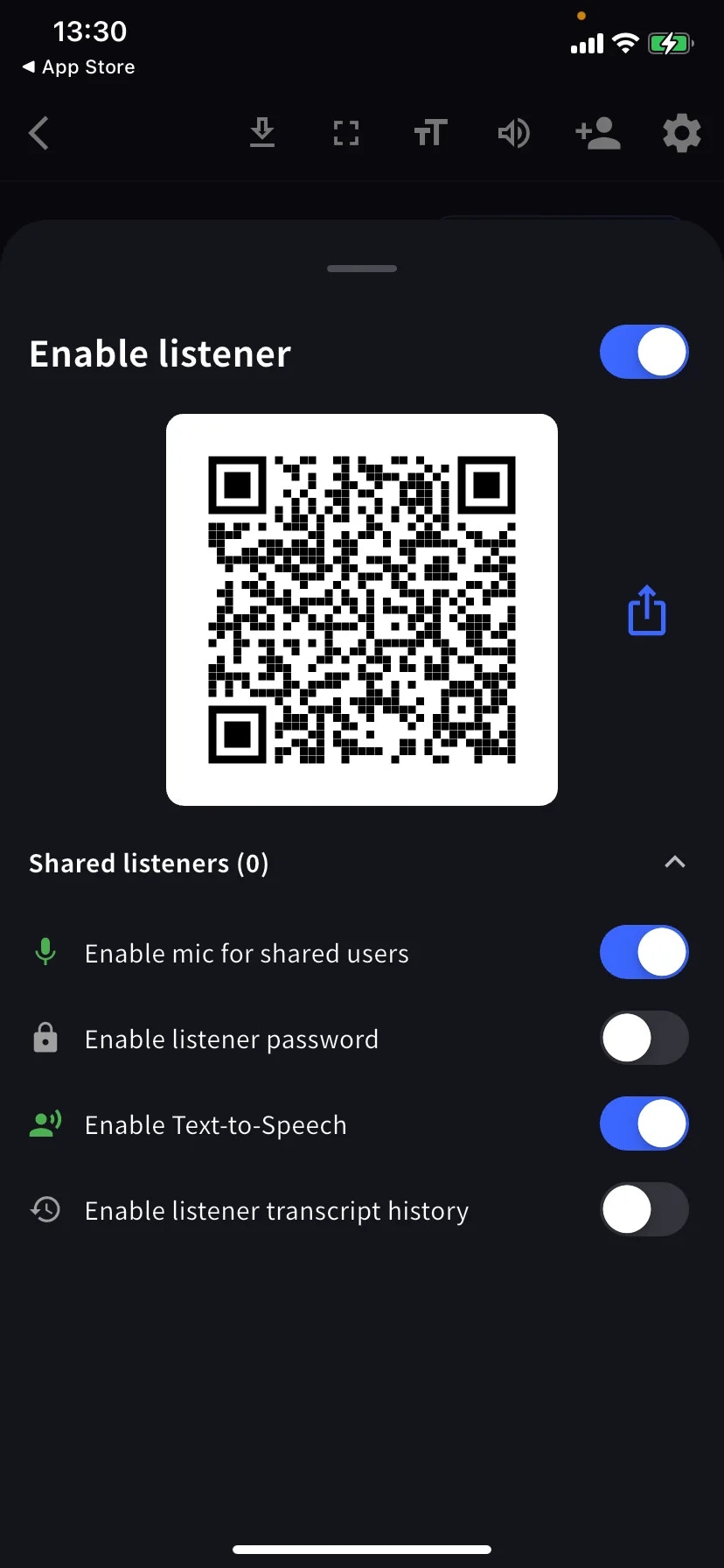
ライブセッション中にツールバーの **+👤** をタップし、**Enable listener** をオンにします。
表示されたQRをスキャンしてもらうか、共有アイコンをタップしてSlack / メール / Teamsなどでリンクを送信します。リスナーは参加ページで翻訳言語を選び、すぐに字幕を見始められます。
## リスナー側コントロール
| トグル | 内容 |
| -------------------------------------- | -------------------------- |
| **Enable mic for shared users** | リスナーが発話可能。発話内容は文字起こしに入ります。 |
| **Enable listener password** | リスナー閲覧前にパスコードを要求します。 |
| **Enable Text-to-Speech** | リスナー側のブラウザで翻訳が音声再生されます。 |
| **Enable listener transcript history** | 各リスナーがローカルにコピーを保持します。 |
**Shared listeners (N)** 行を展開すると、現在の参加リスナー一覧が表示されます。
## シーン別プリセット
Mic オフ · Password オフ · TTS オフ。各自が自分のスマホで好きな言語を読めます。
Password オン(コードは別チャネルで共有)· Mic オフ · History オフ。
生徒が質問できるよう Mic オン · レビュー用に History オン。
QRを見せる代わりに、共有ボタンでSlack / LINE / メールにリンクを直接送信。
## 使いこなしのヒント
* イベント前に2台目のデバイスでQRをテストしておきましょう。
* QRは会議を End するまで有効です。
* パスワードは入り口のゲートであり、エンドツーエンドの秘匿通信ではありません。機密性の高い内容には Share Scope の制限を組み合わせてください。
## 関連ページ
* [モバイルのライブ文字起こし](/ja/mobile-live-transcription) · [設定](/ja/mobile-live-transcription-settings)
* [ライブ字幕(PC)](/ja/live-subtitles)
QRコードを相手のスマホカメラでスキャンしてもらうだけで、ライブ字幕を相手の言語で読んでもらえます — インストール不要、アカウント不要です。
## こんなシーンで使えます
テーブルを囲む全員がQRをスキャン。1つの画面に集まらなくても、各自の言語で読めます。
あなたが話し、数人のグループが歩きながら自分のスマホでついてくる小規模ツアーに。
生徒がスキャンして好きな言語を選択。マイクを有効にすれば質問も返せます。
共有ボタンでリンクをSlack / LINE / メールへ — 離れた相手もライブで読めます。
## リスナー共有シートを開く
ライブセッション中にツールバーの **+👤** をタップし、**Enable listener** をオンにします。
表示されたQRをスキャンしてもらうか、共有アイコンをタップしてSlack / メール / Teamsなどでリンクを送信します。リスナーは参加ページで翻訳言語を選び、すぐに字幕を見始められます。
## リスナー側コントロール
| トグル | 内容 |
| -------------------------------------- | -------------------------- |
| **Enable mic for shared users** | リスナーが発話可能。発話内容は文字起こしに入ります。 |
| **Enable listener password** | リスナー閲覧前にパスコードを要求します。 |
| **Enable Text-to-Speech** | リスナー側のブラウザで翻訳が音声再生されます。 |
| **Enable listener transcript history** | 各リスナーがローカルにコピーを保持します。 |
**Shared listeners (N)** 行を展開すると、現在の参加リスナー一覧が表示されます。
## シーン別プリセット
Mic オフ · Password オフ · TTS オフ。各自が自分のスマホで好きな言語を読めます。
Password オン(コードは別チャネルで共有)· Mic オフ · History オフ。
生徒が質問できるよう Mic オン · レビュー用に History オン。
QRを見せる代わりに、共有ボタンでSlack / LINE / メールにリンクを直接送信。
## 使いこなしのヒント
* イベント前に2台目のデバイスでQRをテストしておきましょう。
* QRは会議を End するまで有効です。
* パスワードは入り口のゲートであり、エンドツーエンドの秘匿通信ではありません。機密性の高い内容には Share Scope の制限を組み合わせてください。
## 関連ページ
* [モバイルのライブ文字起こし](/ja/mobile-live-transcription) · [設定](/ja/mobile-live-transcription-settings)
* [ライブ字幕(PC)](/ja/live-subtitles)