> ## Documentation Index
> Fetch the complete documentation index at: https://manual.voiceping.net/llms.txt
> Use this file to discover all available pages before exploring further.
# モバイルでのアップグレード・ダウングレード・キャンセル
> VoicePingプランの変更、キャンセル、自動更新の復元をモバイルアプリから直接行えます。
export const ContactJa = () => <>
ご不明な点がございましたら、こちらのフォームよりお問い合わせください。
公式リンク
公式ウェブサイトはこちら
Xでフォロー
Facebookでいいね
LinkedInでつながる
;
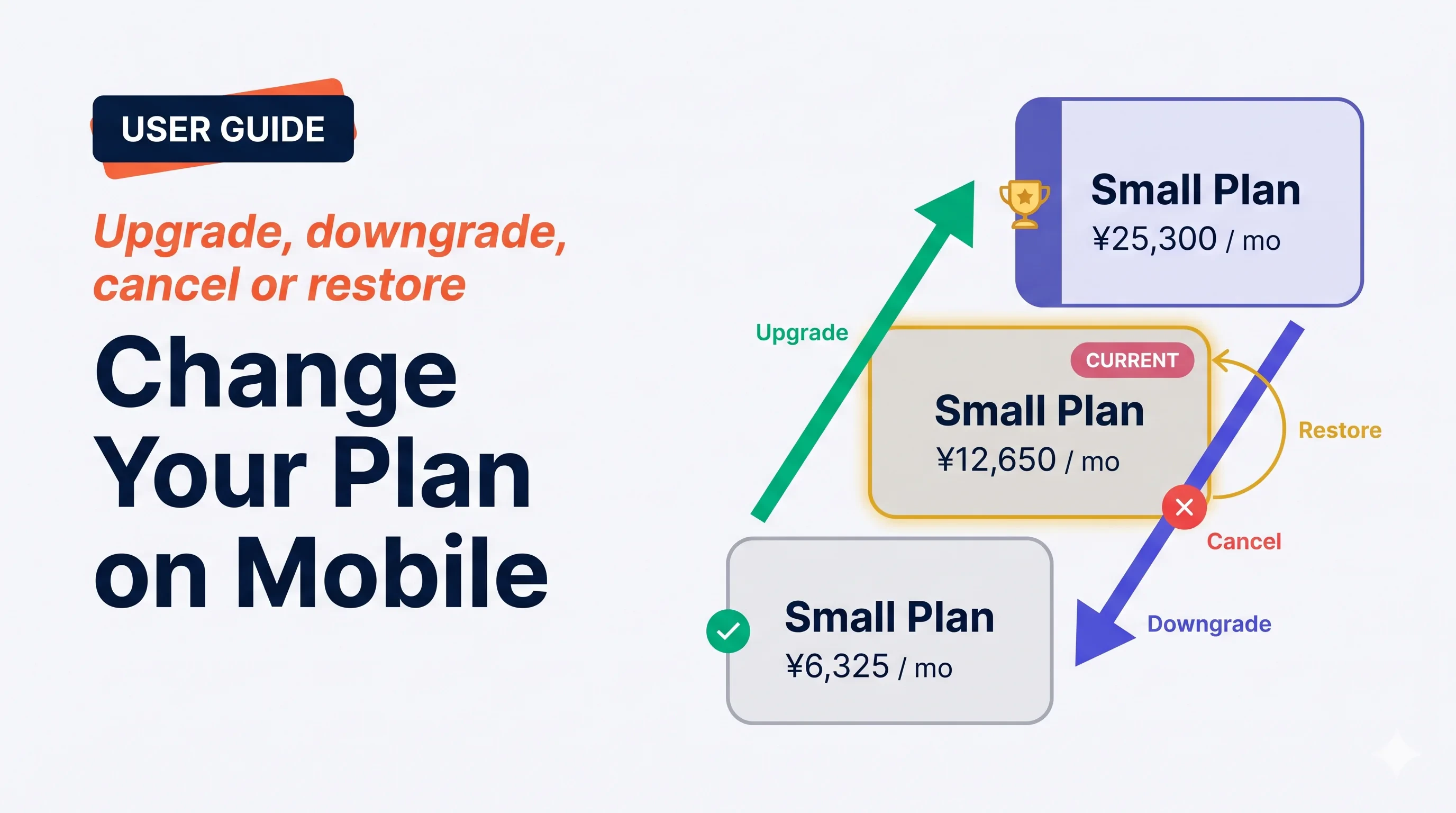 **Manage Plan** 画面はサブスクリプションのあらゆる操作を扱います — 即時アップグレード、次回更新時のダウングレード、キャンセル、予約済みキャンセルの復元。VoicePingは確認前に *いつ*、*価格*、*使用量のリセット* を明確に表示するよう配慮しています。
## 4つの操作
**Manage Plan** 画面はサブスクリプションのあらゆる操作を扱います — 即時アップグレード、次回更新時のダウングレード、キャンセル、予約済みキャンセルの復元。VoicePingは確認前に *いつ*、*価格*、*使用量のリセット* を明確に表示するよう配慮しています。
## 4つの操作
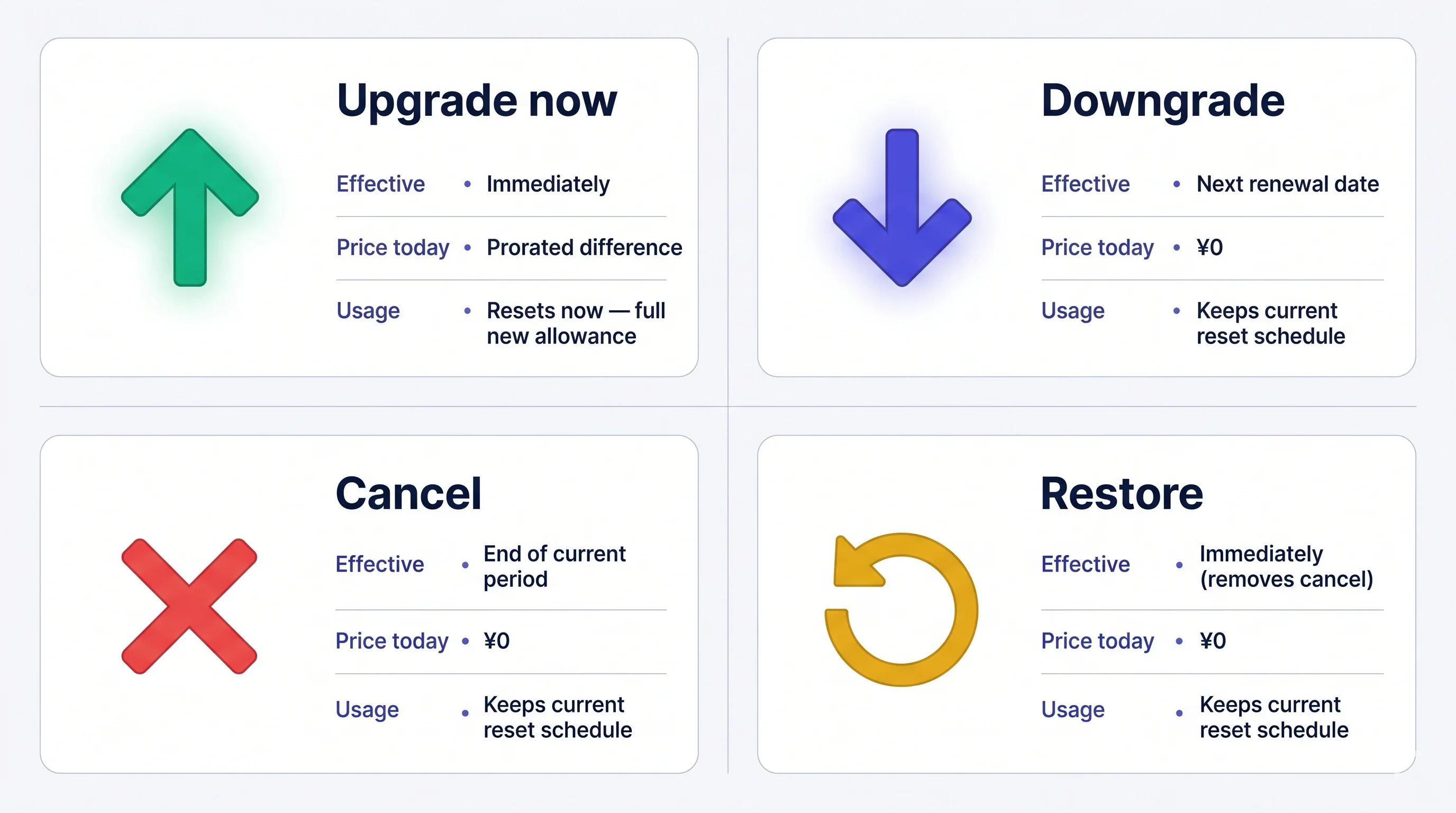 料金は請求後は **返金不可** です。キャンセルしても、期間終了まで現在のプランは有効 — 期間内ならいつでも無料で復元できます。
## Manage Plan を開く
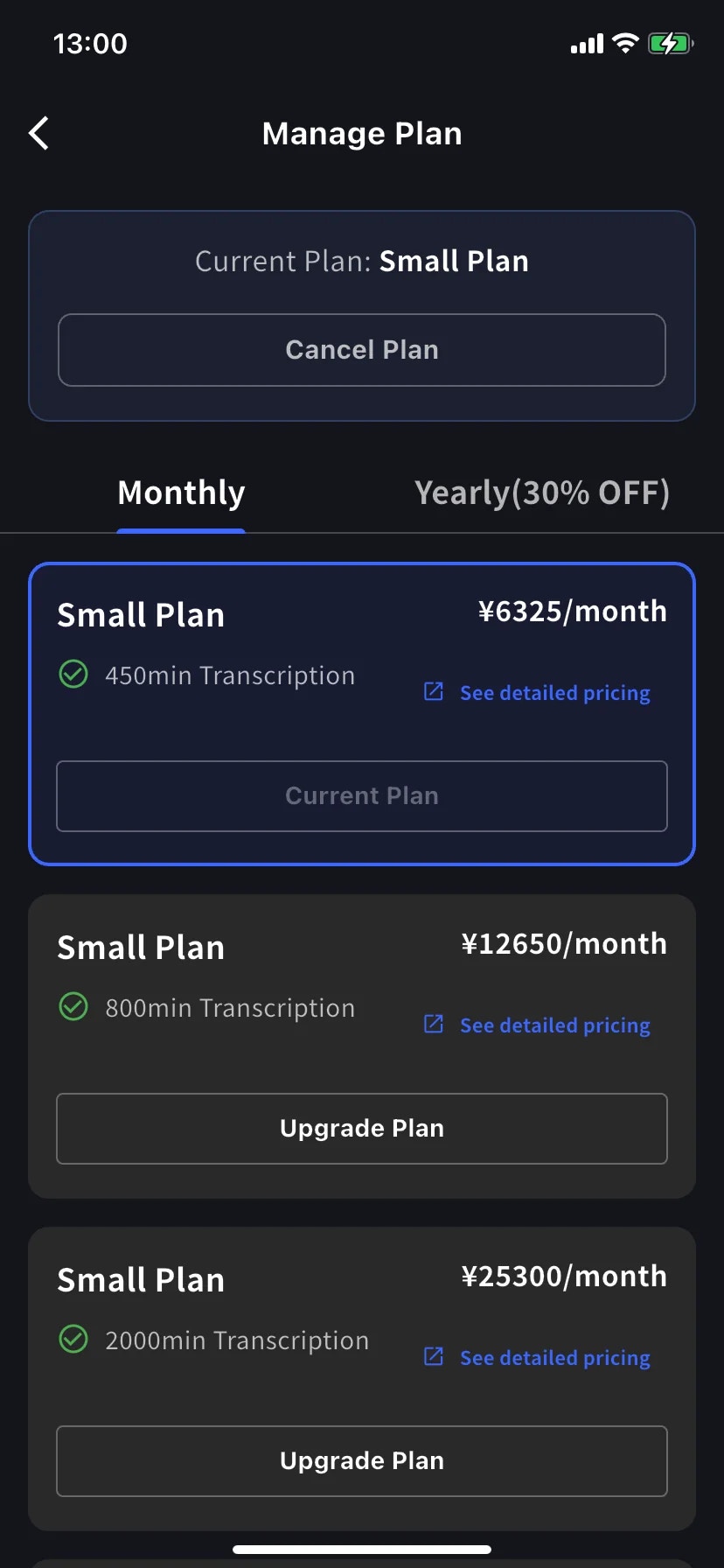
サイドメニュー → **User Settings** → **Billing** → **Manage Plan**、または Current Plan カードで直接 **Manage Plan** をタップ。
* **Monthly** / **Yearly** タブでラダーを切り替え — 価格は月単位で表示、年額は一括請求。
* 現在のプランは青い枠で囲まれ、ボタンに **Current Plan** スタンプ。
* 上位プランには **Upgrade Plan**、下位プランには **Change Plan** が表示。
* **Cancel Plan** は画面上部、現在プランのバッジ横にあります。
## 今すぐアップグレード
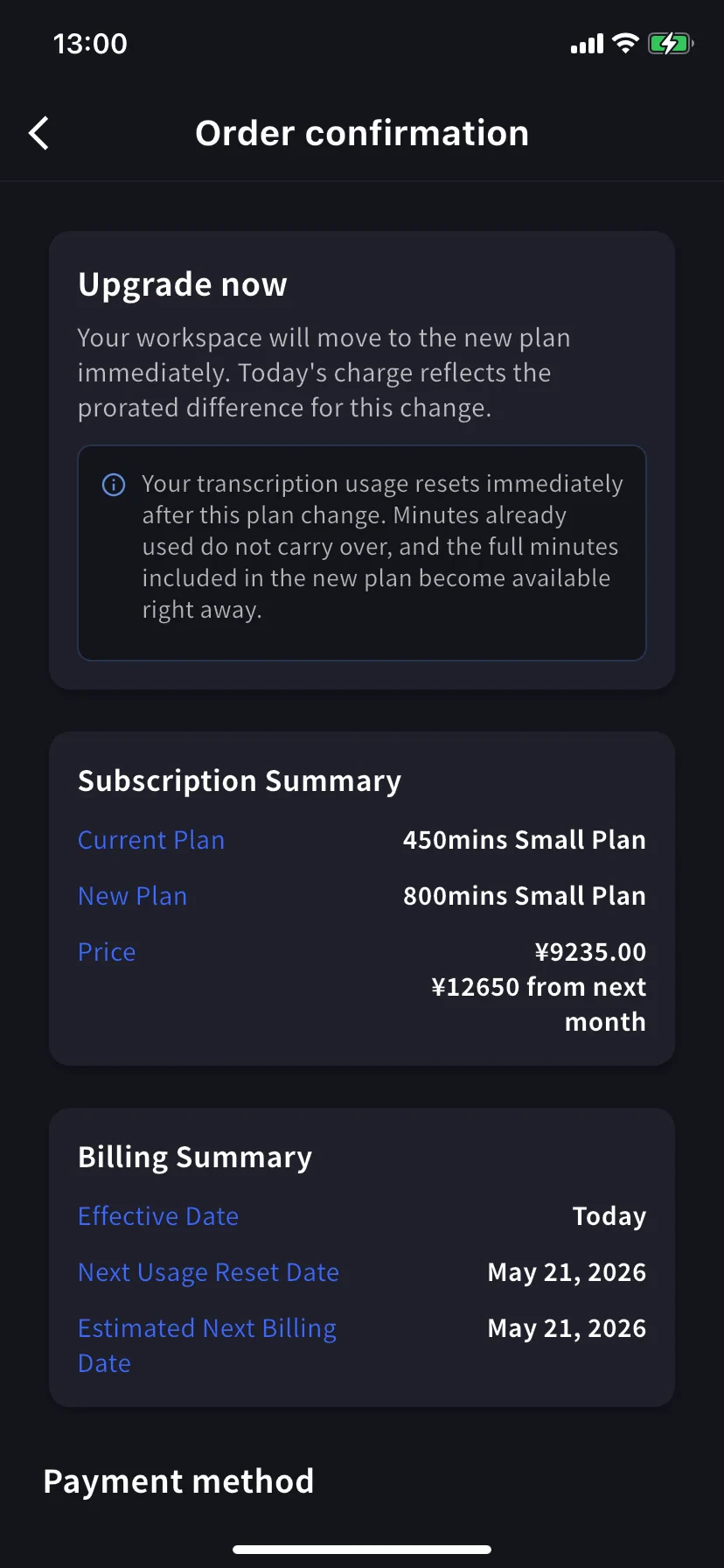
**Order confirmation** 画面へ。バナーは *Upgrade now — your workspace will move to the new plan immediately. Today's charge reflects the prorated difference for this change.*
**文字起こし使用量は即座にリセット。** 既に使った分は繰り越されず、新プランのフルの分数が即座に利用可能になります。
Subscription Summary に現在と新しいプラン、2つの価格(本日の日割り額と翌月からの正規額)が表示されます。Billing Summary で **Effective Date: Today** と次のリセット/請求日を確認。
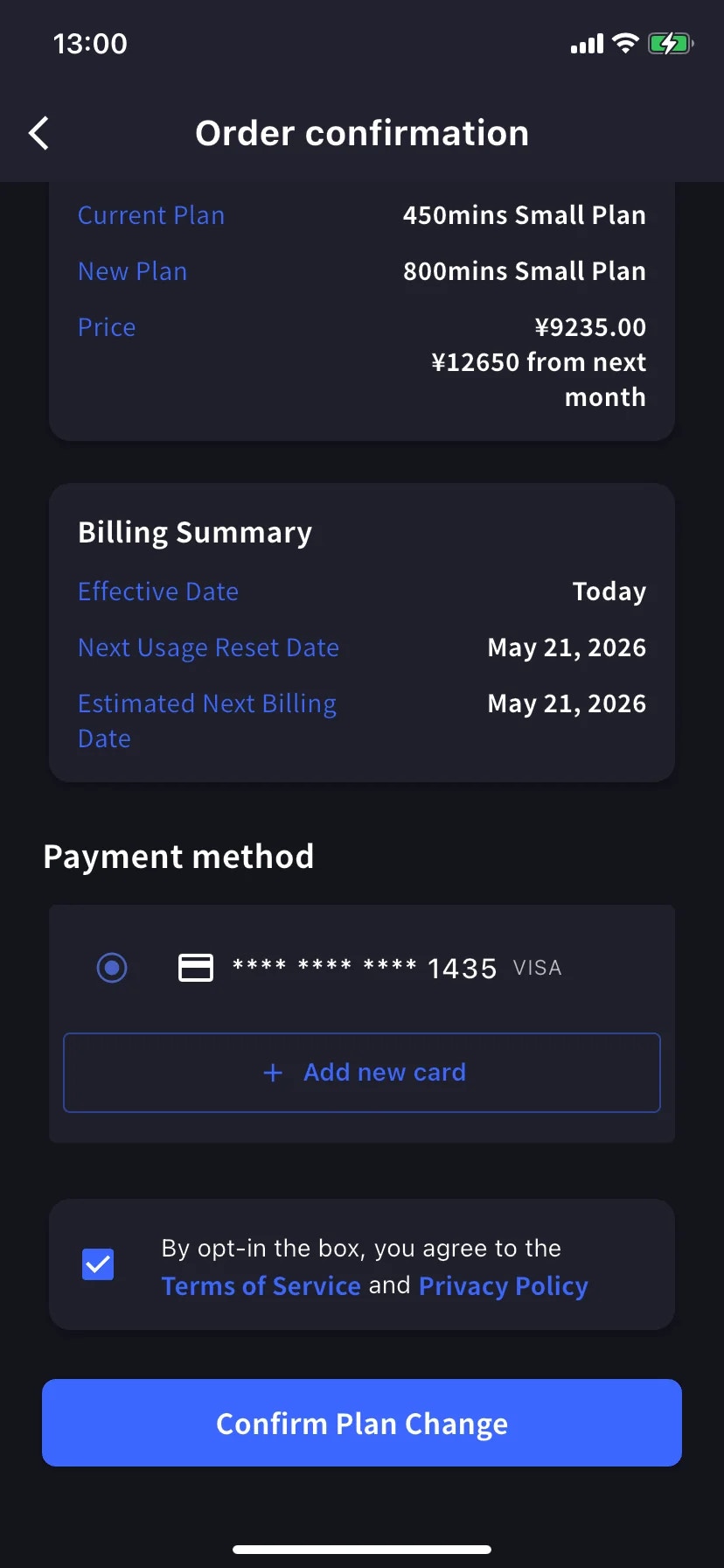
**Payment method** までスクロール、既存のカードを選ぶか **+ Add new card** でStripeシートを開く(Linkまたは手動入力 — [モバイルで請求管理](/ja/mobile-billing#manage-cards) 参照)。利用規約/プライバシーのチェックボックスをオン。
青い **Confirm Plan Change** ボタンをタップ。処理中は一時的にボタンが暗転します。
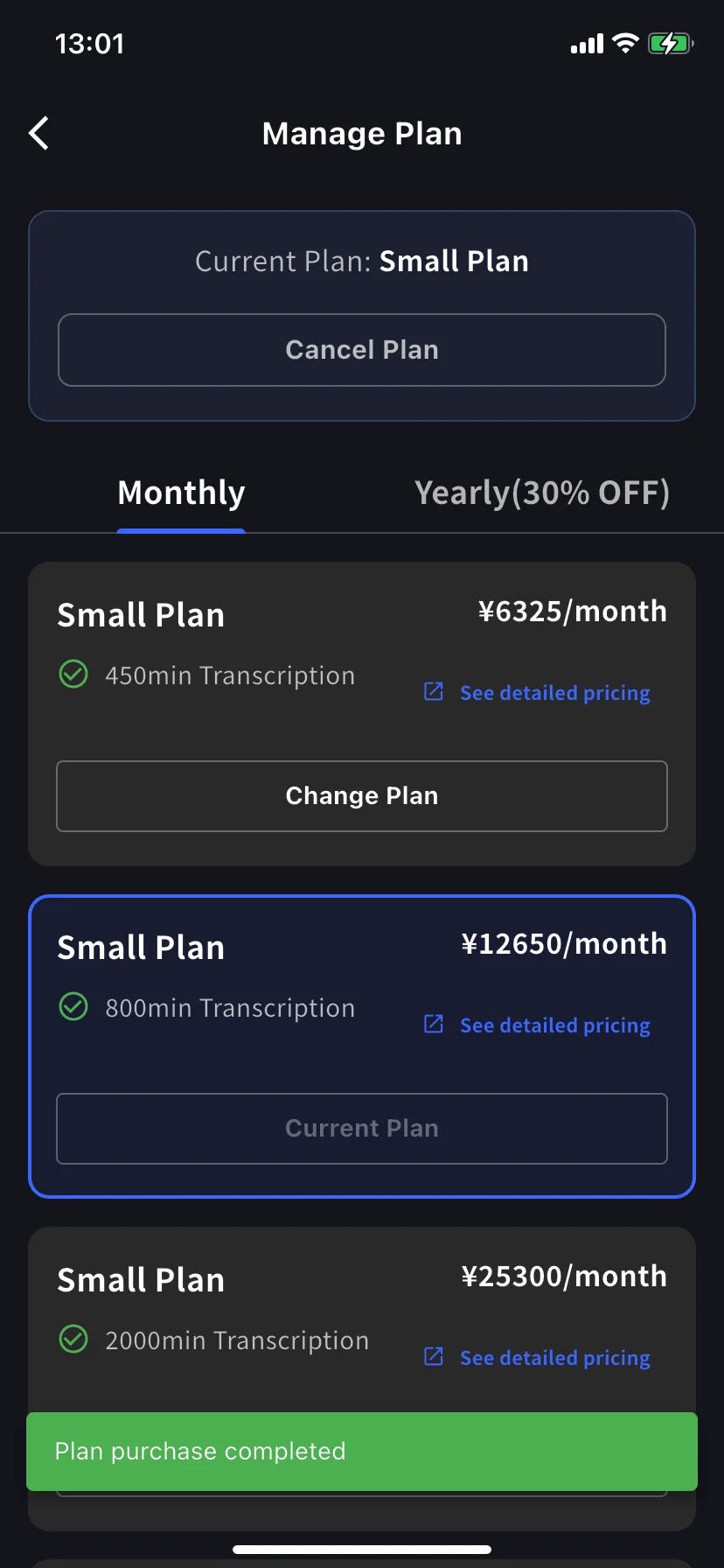
成功すると Manage Plan に戻り、緑の **Plan purchase completed** トーストと、新しいティアが現在プランとして枠で囲まれて表示されます。
日割り請求は旧プランで既に使った時間を除くため、請求期間の後半にアップグレードするほど新プランの正規額に近くなります。最も安くアップグレードしたいなら更新日付近に — あるいは気にせず必要なときにアップグレードしましょう。
## ダウングレード — 次回更新時に適用
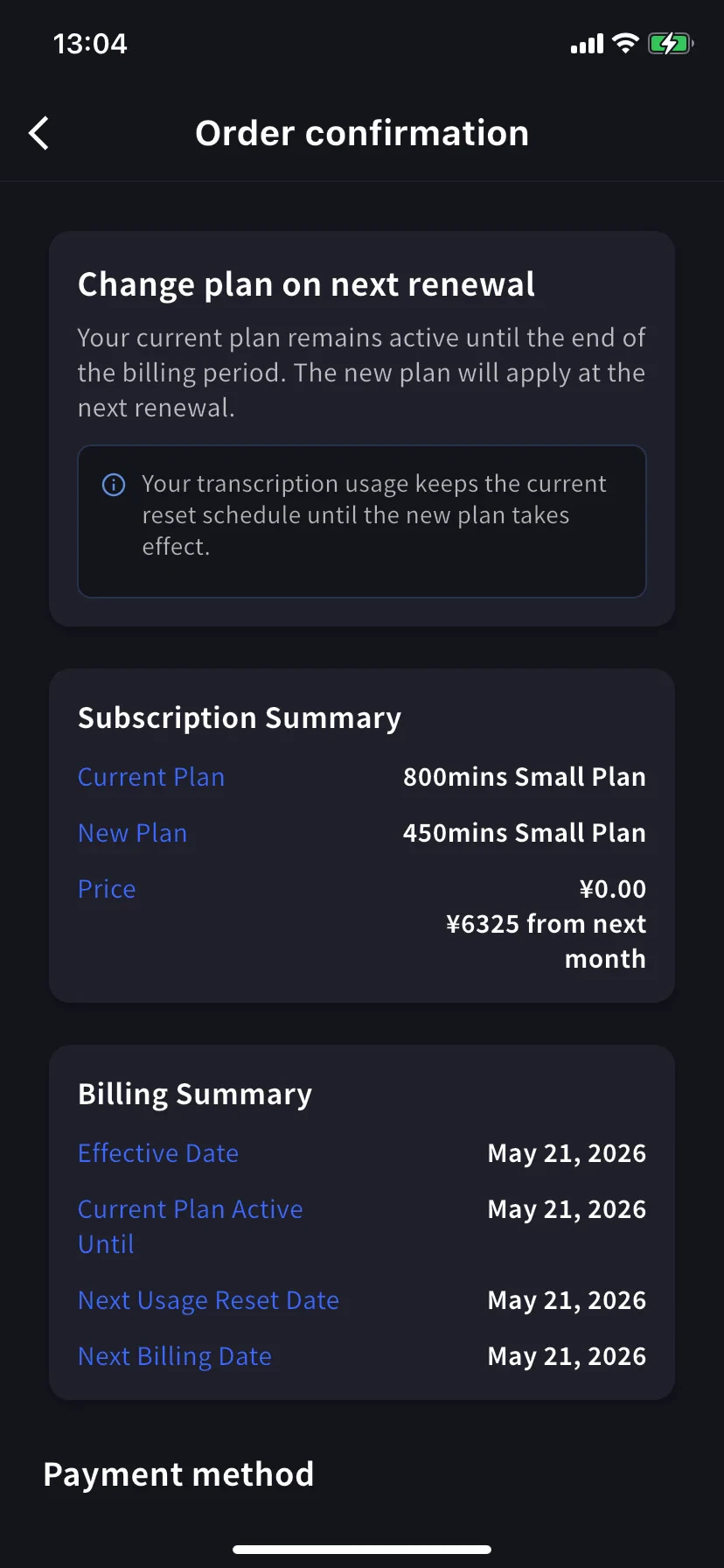
下位ティアの **Change Plan** をタップ。確認バナーは変わります — *Change plan on next renewal — your current plan remains active until the end of the billing period. The new plan will apply at the next renewal.*
本日の請求額は **¥0.00** — 翌月から低い料金に。Billing Summary に **Effective Date** と **Current Plan Active Until**(更新日)が表示されます。
**使用量はスケジュールを維持。** 更新まで現在プランの分数を使えて、低い割り当ては更新後から。
確認方法はアップグレードと同じです。
## サブスクリプションのキャンセル
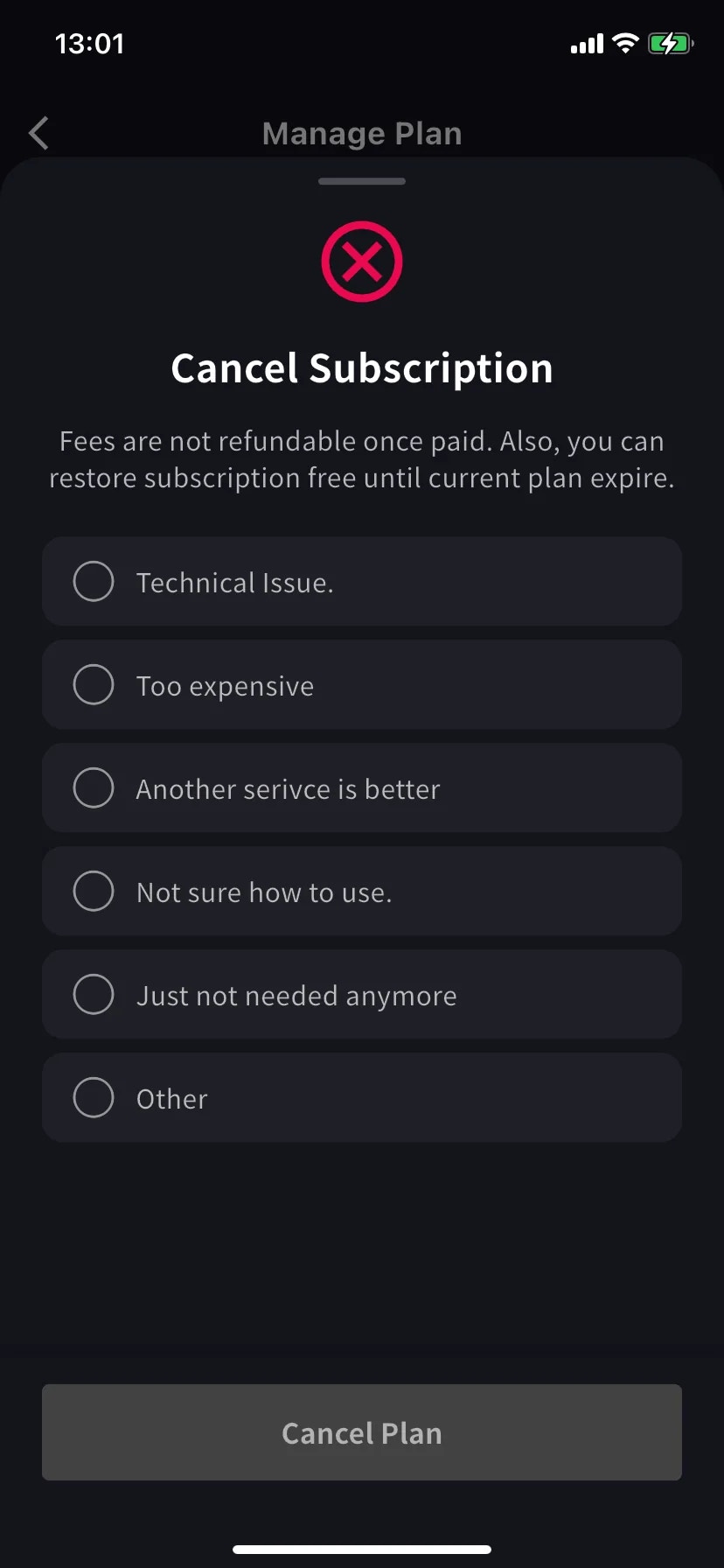
赤い ⊗ アイコンと必須の理由リスト付きのシートがスライドアップします。
理由を1つ選択 — 理由を選ぶまで Cancel Plan ボタンはグレー。
支払い済みの料金は返金されません。期間終了まで現在のプランは利用可能 — 期間内ならいつでも無料で復元できます。
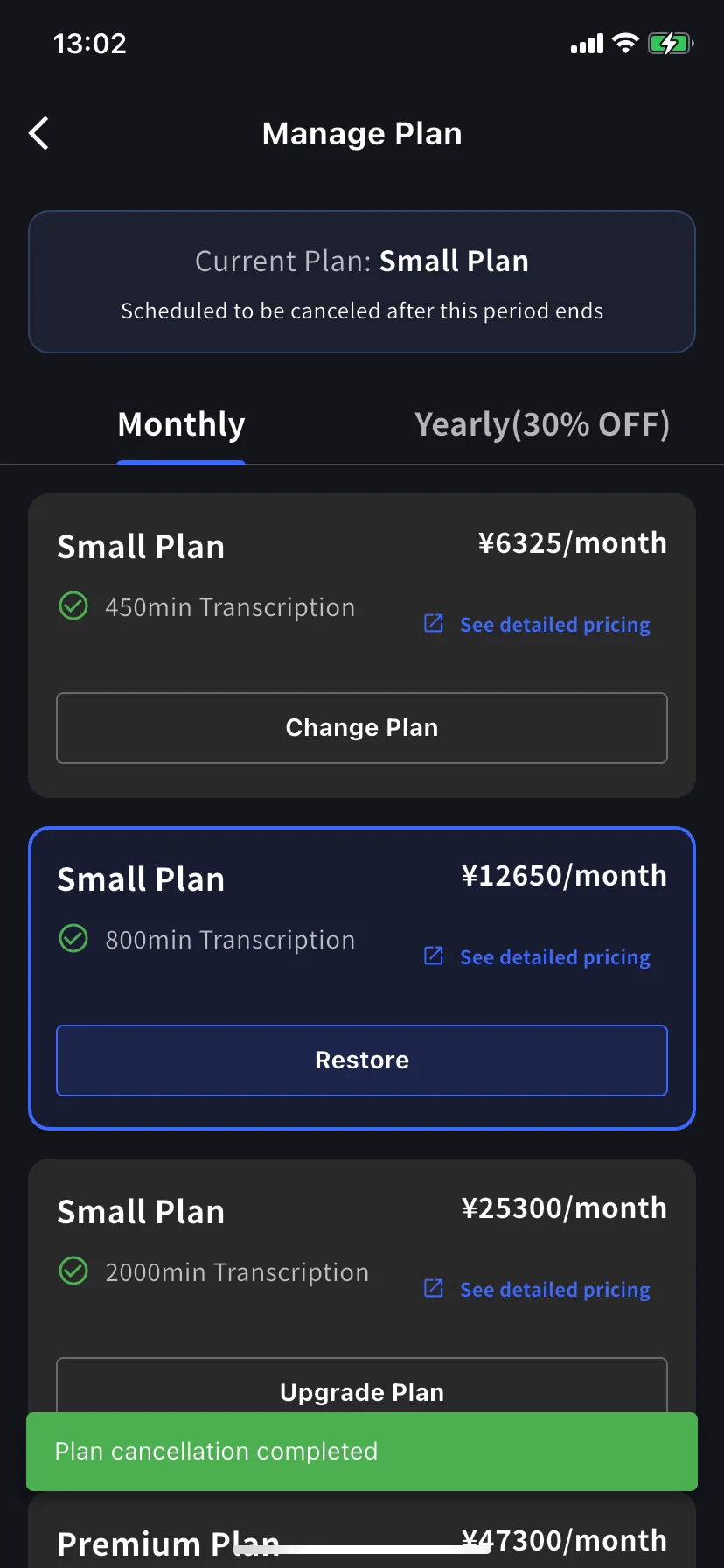
現在プランのバナーが **Scheduled to be canceled after this period ends** に変わり、下位ティアに **Restore** ボタンが表示されます。
緑の **Plan cancellation completed** トーストでスケジュールを確認。更新日までプランとその分数をすべて保持できます。
## 自動更新を復元
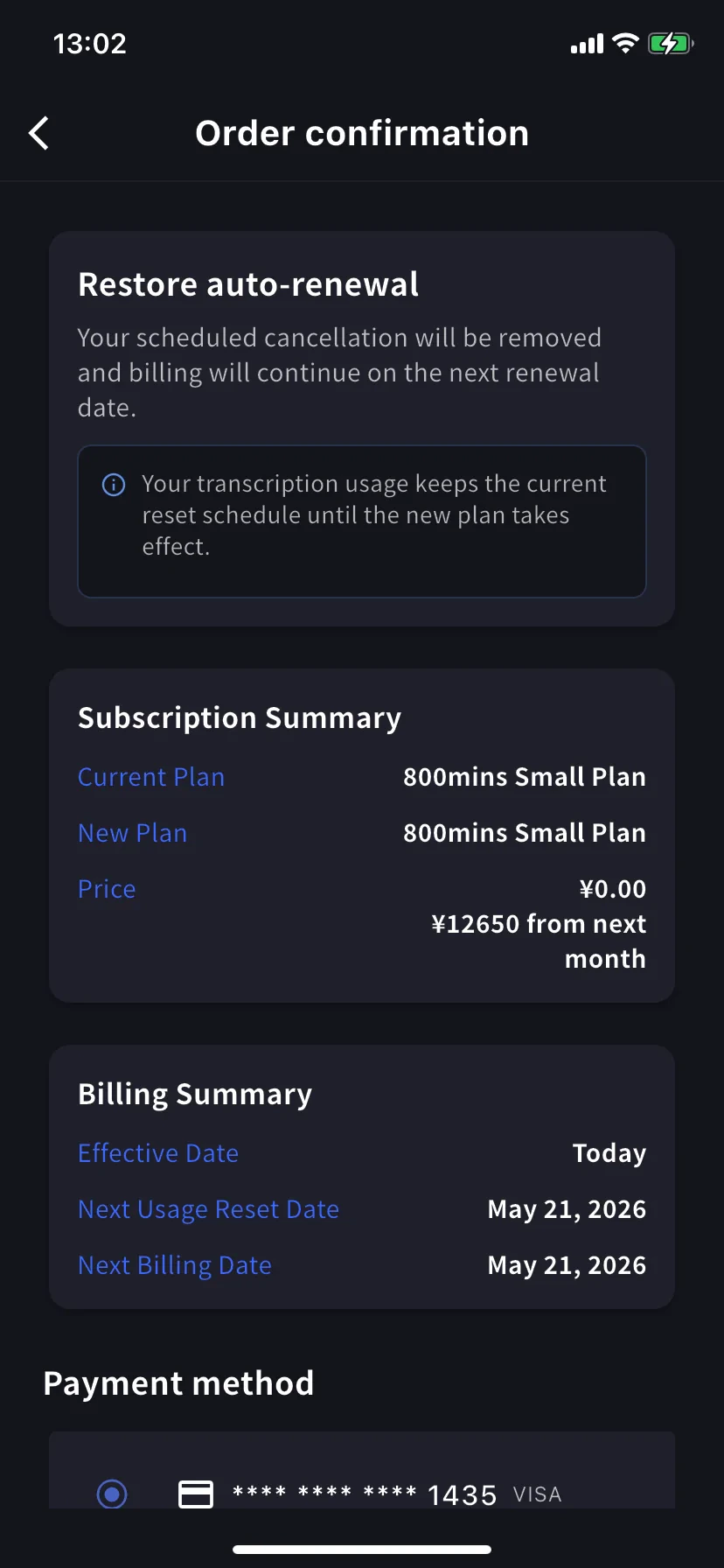
気が変わった? 現在ティアの **Restore** をタップ。
Order confirmation には *Restore auto-renewal — your scheduled cancellation will be removed and billing will continue on the next renewal date.* 本日の請求額は ¥0。**Confirm Plan Change** をタップすると、通常の更新サブスクリプションに戻ります。
使用量は現在のリセットスケジュールを維持 — 復元しても分数はリセットされません。
## どの確認画面を見ている?
3つの画面は同じレイアウト(Subscription Summary / Billing Summary / Payment method / Confirm)を共有しています。**バナーの見出し** で確認してください:
| バナー | 方向 | 有効日 |
| ------------------------------- | --------- | ----- |
| **Upgrade now** | 上位ティア | 本日 |
| **Change plan on next renewal** | 下位ティア | 次回更新時 |
| **Restore auto-renewal** | キャンセル取り消し | 本日 |
## 使いこなしのヒント
* **Yearlyタブは30%オフ。** 長期コミットするなら、同じティアで Monthly → Yearly に切り替えるだけで即時割引が適用されたアップグレードに。
* **変更後は Billing Activity を確認。** これらの操作はすべてタイムスタンプとIP付きで記録されます — チームの他のメンバーもアプリを入れている場合に便利。
* **ダウングレード ≠ キャンセル。** ダウングレードは(より小さい)有料プランを維持、キャンセルは期間終了後に Free に落ちます。本当にやりたい方を選んでください。
* **カードを先に追加。** アップグレードする予定があるなら、先に [Manage Cards](/ja/mobile-billing#manage-cards) でカードを追加 — アップグレードフローで再利用されます。
## 関連ページ
* [モバイルで請求管理](/ja/mobile-billing) — カード、請求書、領収書、アクティビティログ
* [プラン変更・解約・試用期間終了](/ja/plan-changes) — PC管理ダッシュボードでの同等機能
* [料金](/ja/pricing) — プラン階層と分数
* [無料プラン](/ja/free-plan) / [無料試用](/ja/free-trial)
料金は請求後は **返金不可** です。キャンセルしても、期間終了まで現在のプランは有効 — 期間内ならいつでも無料で復元できます。
## Manage Plan を開く
サイドメニュー → **User Settings** → **Billing** → **Manage Plan**、または Current Plan カードで直接 **Manage Plan** をタップ。
* **Monthly** / **Yearly** タブでラダーを切り替え — 価格は月単位で表示、年額は一括請求。
* 現在のプランは青い枠で囲まれ、ボタンに **Current Plan** スタンプ。
* 上位プランには **Upgrade Plan**、下位プランには **Change Plan** が表示。
* **Cancel Plan** は画面上部、現在プランのバッジ横にあります。
## 今すぐアップグレード
**Order confirmation** 画面へ。バナーは *Upgrade now — your workspace will move to the new plan immediately. Today's charge reflects the prorated difference for this change.*
**文字起こし使用量は即座にリセット。** 既に使った分は繰り越されず、新プランのフルの分数が即座に利用可能になります。
Subscription Summary に現在と新しいプラン、2つの価格(本日の日割り額と翌月からの正規額)が表示されます。Billing Summary で **Effective Date: Today** と次のリセット/請求日を確認。
**Payment method** までスクロール、既存のカードを選ぶか **+ Add new card** でStripeシートを開く(Linkまたは手動入力 — [モバイルで請求管理](/ja/mobile-billing#manage-cards) 参照)。利用規約/プライバシーのチェックボックスをオン。
青い **Confirm Plan Change** ボタンをタップ。処理中は一時的にボタンが暗転します。
成功すると Manage Plan に戻り、緑の **Plan purchase completed** トーストと、新しいティアが現在プランとして枠で囲まれて表示されます。
日割り請求は旧プランで既に使った時間を除くため、請求期間の後半にアップグレードするほど新プランの正規額に近くなります。最も安くアップグレードしたいなら更新日付近に — あるいは気にせず必要なときにアップグレードしましょう。
## ダウングレード — 次回更新時に適用
下位ティアの **Change Plan** をタップ。確認バナーは変わります — *Change plan on next renewal — your current plan remains active until the end of the billing period. The new plan will apply at the next renewal.*
本日の請求額は **¥0.00** — 翌月から低い料金に。Billing Summary に **Effective Date** と **Current Plan Active Until**(更新日)が表示されます。
**使用量はスケジュールを維持。** 更新まで現在プランの分数を使えて、低い割り当ては更新後から。
確認方法はアップグレードと同じです。
## サブスクリプションのキャンセル
赤い ⊗ アイコンと必須の理由リスト付きのシートがスライドアップします。
理由を1つ選択 — 理由を選ぶまで Cancel Plan ボタンはグレー。
支払い済みの料金は返金されません。期間終了まで現在のプランは利用可能 — 期間内ならいつでも無料で復元できます。
現在プランのバナーが **Scheduled to be canceled after this period ends** に変わり、下位ティアに **Restore** ボタンが表示されます。
緑の **Plan cancellation completed** トーストでスケジュールを確認。更新日までプランとその分数をすべて保持できます。
## 自動更新を復元
気が変わった? 現在ティアの **Restore** をタップ。
Order confirmation には *Restore auto-renewal — your scheduled cancellation will be removed and billing will continue on the next renewal date.* 本日の請求額は ¥0。**Confirm Plan Change** をタップすると、通常の更新サブスクリプションに戻ります。
使用量は現在のリセットスケジュールを維持 — 復元しても分数はリセットされません。
## どの確認画面を見ている?
3つの画面は同じレイアウト(Subscription Summary / Billing Summary / Payment method / Confirm)を共有しています。**バナーの見出し** で確認してください:
| バナー | 方向 | 有効日 |
| ------------------------------- | --------- | ----- |
| **Upgrade now** | 上位ティア | 本日 |
| **Change plan on next renewal** | 下位ティア | 次回更新時 |
| **Restore auto-renewal** | キャンセル取り消し | 本日 |
## 使いこなしのヒント
* **Yearlyタブは30%オフ。** 長期コミットするなら、同じティアで Monthly → Yearly に切り替えるだけで即時割引が適用されたアップグレードに。
* **変更後は Billing Activity を確認。** これらの操作はすべてタイムスタンプとIP付きで記録されます — チームの他のメンバーもアプリを入れている場合に便利。
* **ダウングレード ≠ キャンセル。** ダウングレードは(より小さい)有料プランを維持、キャンセルは期間終了後に Free に落ちます。本当にやりたい方を選んでください。
* **カードを先に追加。** アップグレードする予定があるなら、先に [Manage Cards](/ja/mobile-billing#manage-cards) でカードを追加 — アップグレードフローで再利用されます。
## 関連ページ
* [モバイルで請求管理](/ja/mobile-billing) — カード、請求書、領収書、アクティビティログ
* [プラン変更・解約・試用期間終了](/ja/plan-changes) — PC管理ダッシュボードでの同等機能
* [料金](/ja/pricing) — プラン階層と分数
* [無料プラン](/ja/free-plan) / [無料試用](/ja/free-trial)