> ## Documentation Index
> Fetch the complete documentation index at: https://manual.voiceping.net/llms.txt
> Use this file to discover all available pages before exploring further.

# モバイルで他アプリの音声をキャプチャ

> スマホで再生中のあらゆる音声にライブ字幕と翻訳 — YouTube、ポッドキャスト、オンラインコースなどに対応。

export const FeedbackJa = () => <>
    <Tip>
      このフィーチャーへのご意見やご要望は、<a href="/ja/product-feedback">Product Feedback</a> からチームへお送りください。
    </Tip>

    <h2>公式リンク</h2>

    <CardGroup cols={2}>
      <Card title="公式サイト" icon="globe" href="https://voiceping.net/">
        公式ウェブサイトはこちら
      </Card>
      <Card title="X (Twitter)" icon="x-twitter" href="https://x.com/VoicePingMedia">
        Xでフォロー
      </Card>
      <Card title="Facebook" icon="facebook" href="https://www.facebook.com/voiceping.inc">
        Facebookでいいね
      </Card>
      <Card title="LinkedIn" icon="linkedin" href="https://www.linkedin.com/company/28684130/">
        LinkedInでつながる
      </Card>
    </CardGroup>
  </>;

<Frame>
  <img src="https://mintcdn.com/test-cf63e467/z13MfE0CikV5b-4X/en/images/mobile-screen-record/hero-screen-record.webp?fit=max&auto=format&n=z13MfE0CikV5b-4X&q=85&s=0b9ef6267149aab213e587264deba281" alt="Capture Other-App Audio on Mobile" width="2752" height="1536" data-path="en/images/mobile-screen-record/hero-screen-record.webp" />
</Frame>

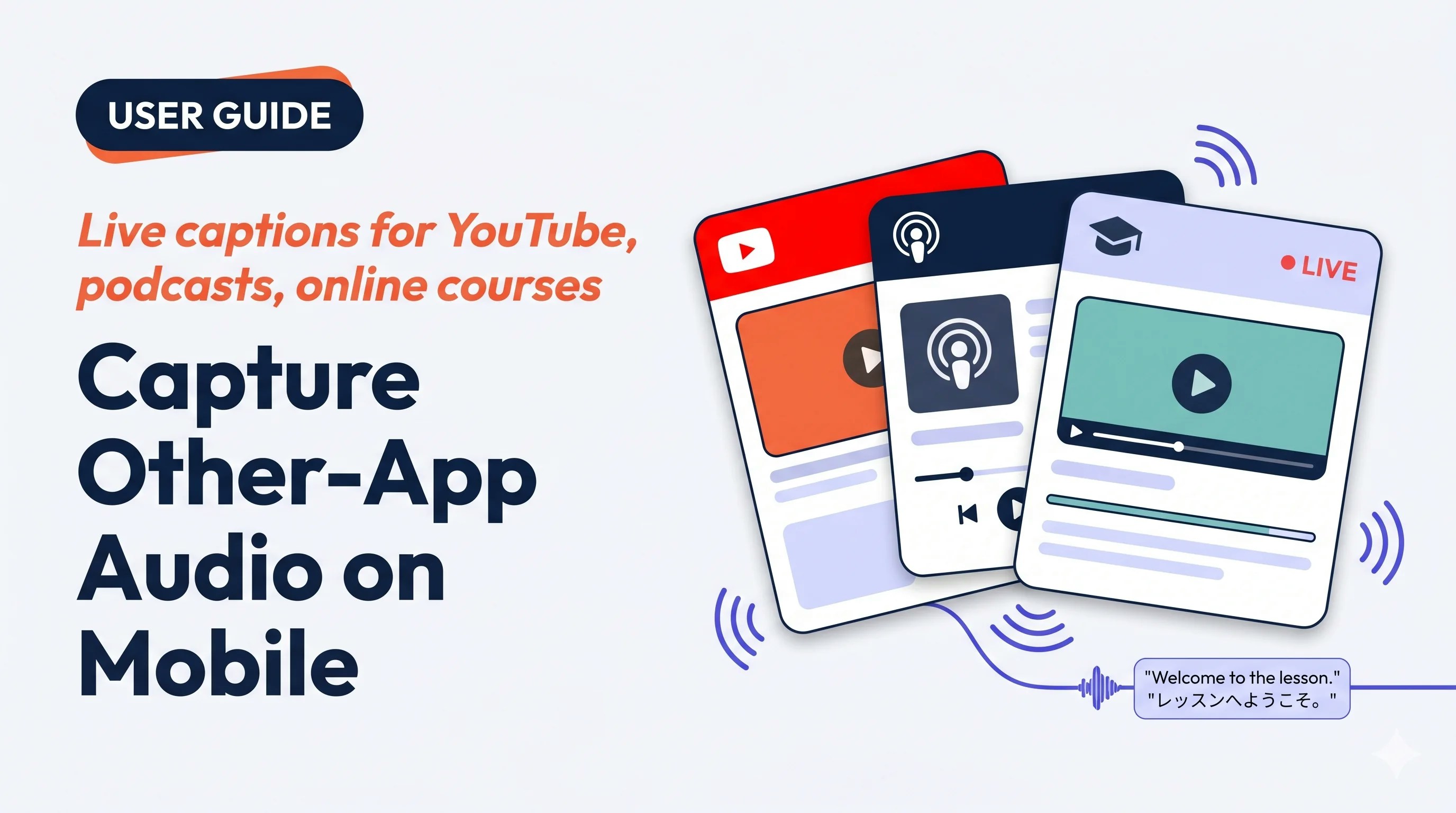
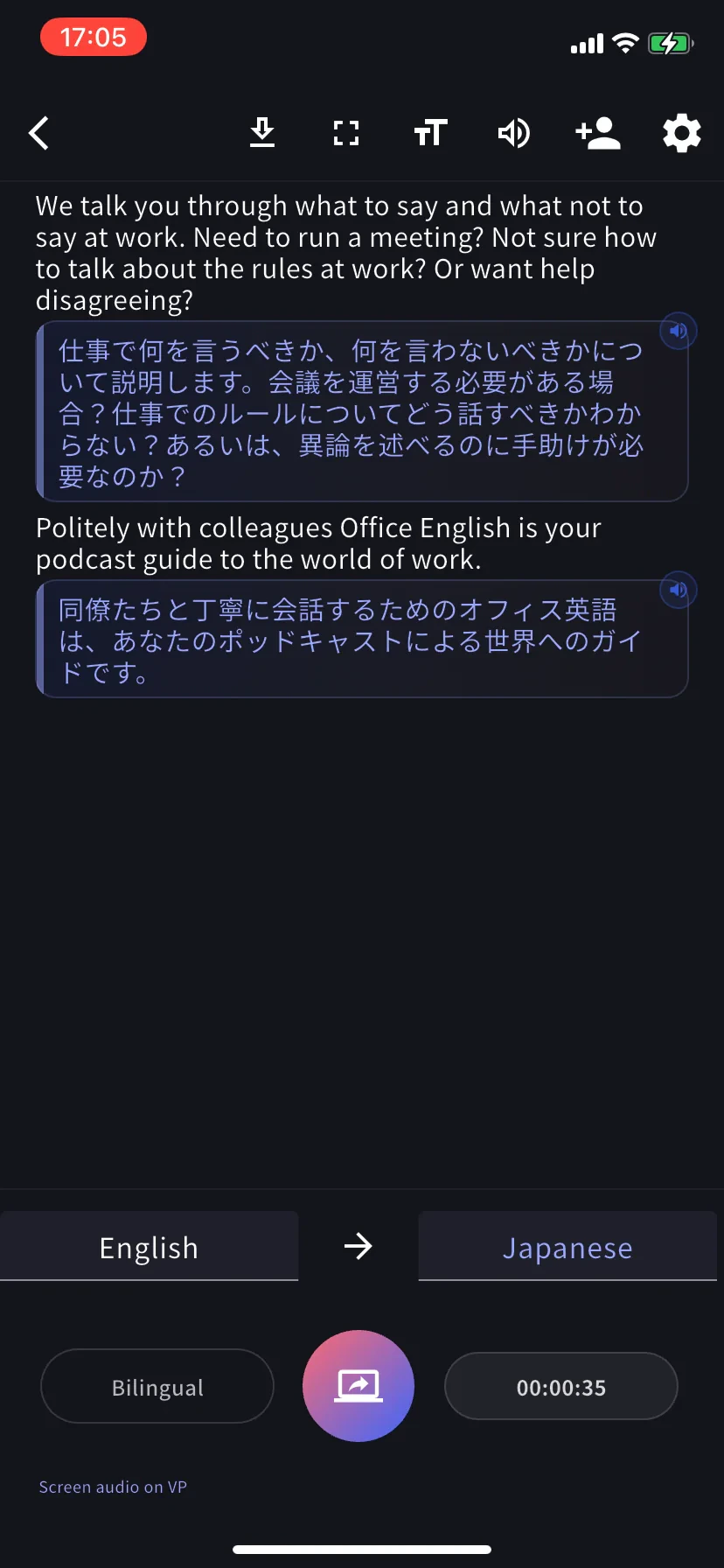
スマホで再生中の音声にVoicePingを向けるだけ — 外国語のYouTube動画、ポッドキャスト、オンラインコース、保存した音声クリップなどの音声を、通常のセッション画面でライブのバイリンガル字幕で読めます。

## こんなシーンで使えます

<CardGroup cols={2}>
  <Card img="https://mintcdn.com/test-cf63e467/z13MfE0CikV5b-4X/en/images/mobile-screen-record/usecases/training-webinar.webp?fit=max&auto=format&n=z13MfE0CikV5b-4X&q=85&s=1b37d856c837f389d8eafbb33cc0fe3f" width="2048" height="2048" data-path="en/images/mobile-screen-record/usecases/training-webinar.webp">
    外国語の講義、Udemy、ウェビナー録画を自分の言語で読みながら聴講。
  </Card>

  <Card img="https://mintcdn.com/test-cf63e467/yJOLVx6nWj9-gzC6/en/images/mobile-screen-record/usecases/youtube-podcast.webp?fit=max&auto=format&n=yJOLVx6nWj9-gzC6&q=85&s=1eafb0c4ffe0ff4ace41ce074240772b" width="2048" height="2048" data-path="en/images/mobile-screen-record/usecases/youtube-podcast.webp">
    外国語のYouTubeやポッドキャストを移動中に翻訳 — ダウンロード不要。
  </Card>

  <Card img="https://mintcdn.com/test-cf63e467/z13MfE0CikV5b-4X/en/images/mobile-screen-record/usecases/review-recordings.webp?fit=max&auto=format&n=z13MfE0CikV5b-4X&q=85&s=f9d49e250e089e1a396ecd91e6654269" width="2048" height="2048" data-path="en/images/mobile-screen-record/usecases/review-recordings.webp">
    別アプリで開いた保存済み音声ファイルを、再生しながらVoicePingで字幕化。
  </Card>

  <Card img="https://mintcdn.com/test-cf63e467/z13MfE0CikV5b-4X/en/images/mobile-screen-record/usecases/language-practice.webp?fit=max&auto=format&n=z13MfE0CikV5b-4X&q=85&s=32f8cef353723c1428b346a7cf695ae5" width="2048" height="2048" data-path="en/images/mobile-screen-record/usecases/language-practice.webp">
    ネイティブ発音のポッドキャストで、常時翻訳付きのリスニング学習。
  </Card>
</CardGroup>

## ポイント

* スマホで **音声を再生するあらゆるアプリ** に対応（OSのスクリーンキャプチャ制限の範囲内）
* 通常のVoicePingミーティング画面と同じ — 編集、議事録、エクスポート、辞書がすべて使えます
* セッションはワークスペース履歴に保存 — PCからもチームで後から開けます
* **iOS（Screen Record）** · **Android（Device Audio）** 両対応

## キャプチャを開始する

<Steps>
  <Step title="＋ → Screen Record">
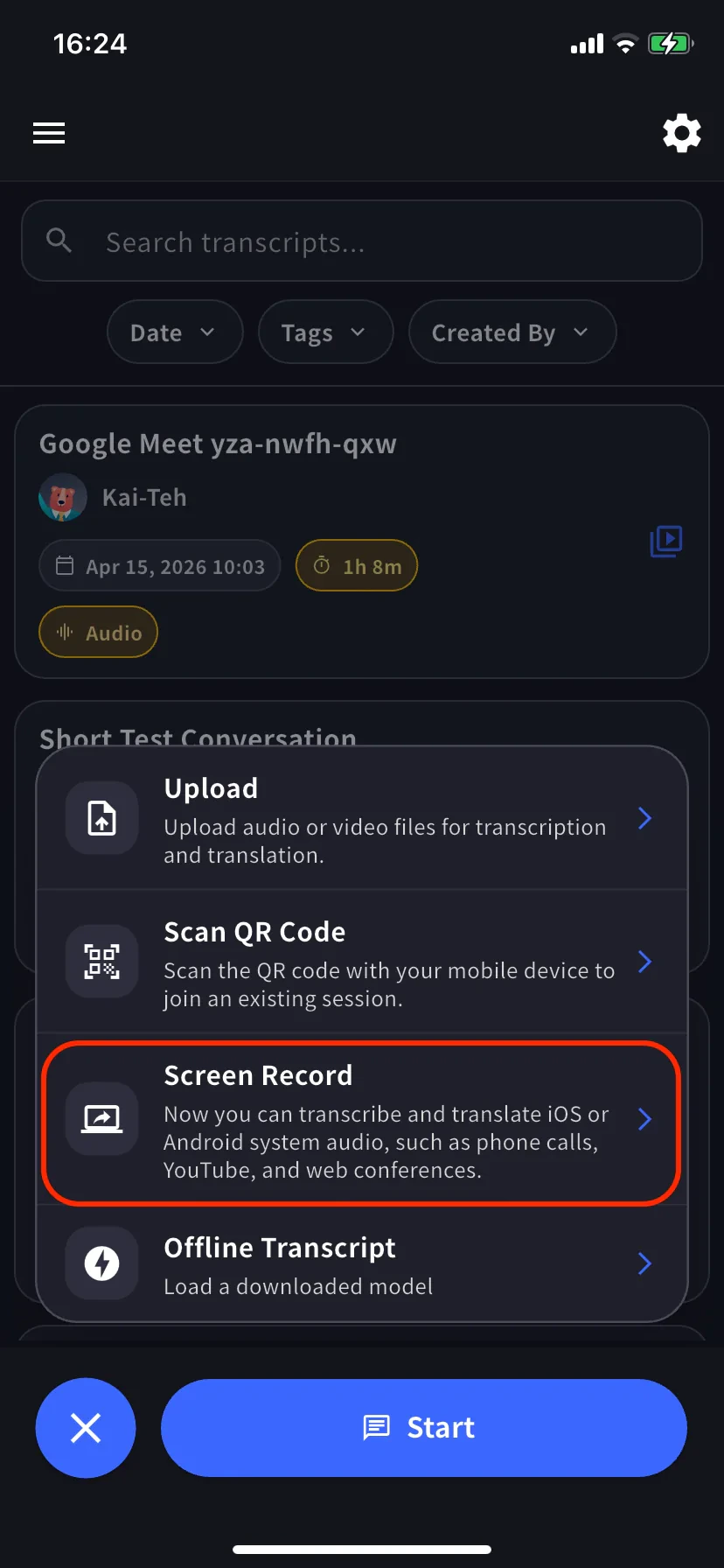
    ホーム画面でセッションメニューを開いて選択します。Androidでは **Device Audio** という名前です。

    <div style={{display: "flex", gap: "12px", justifyContent: "center", flexWrap: "wrap"}}>
      <div style={{flex: "1 1 220px", maxWidth: "240px"}}>
        <Frame>
          <img src="https://mintcdn.com/test-cf63e467/yJOLVx6nWj9-gzC6/ja/images/mobile-screen-record/01-plus-menu-screen-record.webp?fit=max&auto=format&n=yJOLVx6nWj9-gzC6&q=85&s=cf1b0fe441efeda219aec42e7c7ed987" alt="＋メニューでScreen Recordをハイライト" width="828" height="1792" data-path="ja/images/mobile-screen-record/01-plus-menu-screen-record.webp" />
        </Frame>
      </div>

      <div style={{flex: "1 1 220px", maxWidth: "240px"}}>
        <Frame>
          <img src="https://mintcdn.com/test-cf63e467/yJOLVx6nWj9-gzC6/ja/images/mobile-screen-record/02-capture-screen.webp?fit=max&auto=format&n=yJOLVx6nWj9-gzC6&q=85&s=72732700340e66c791410252eb619e2f" alt="言語タブとBilingualトグル付きのライブ画面" width="828" height="1792" data-path="ja/images/mobile-screen-record/02-capture-screen.webp" />
        </Frame>
      </div>
    </div>

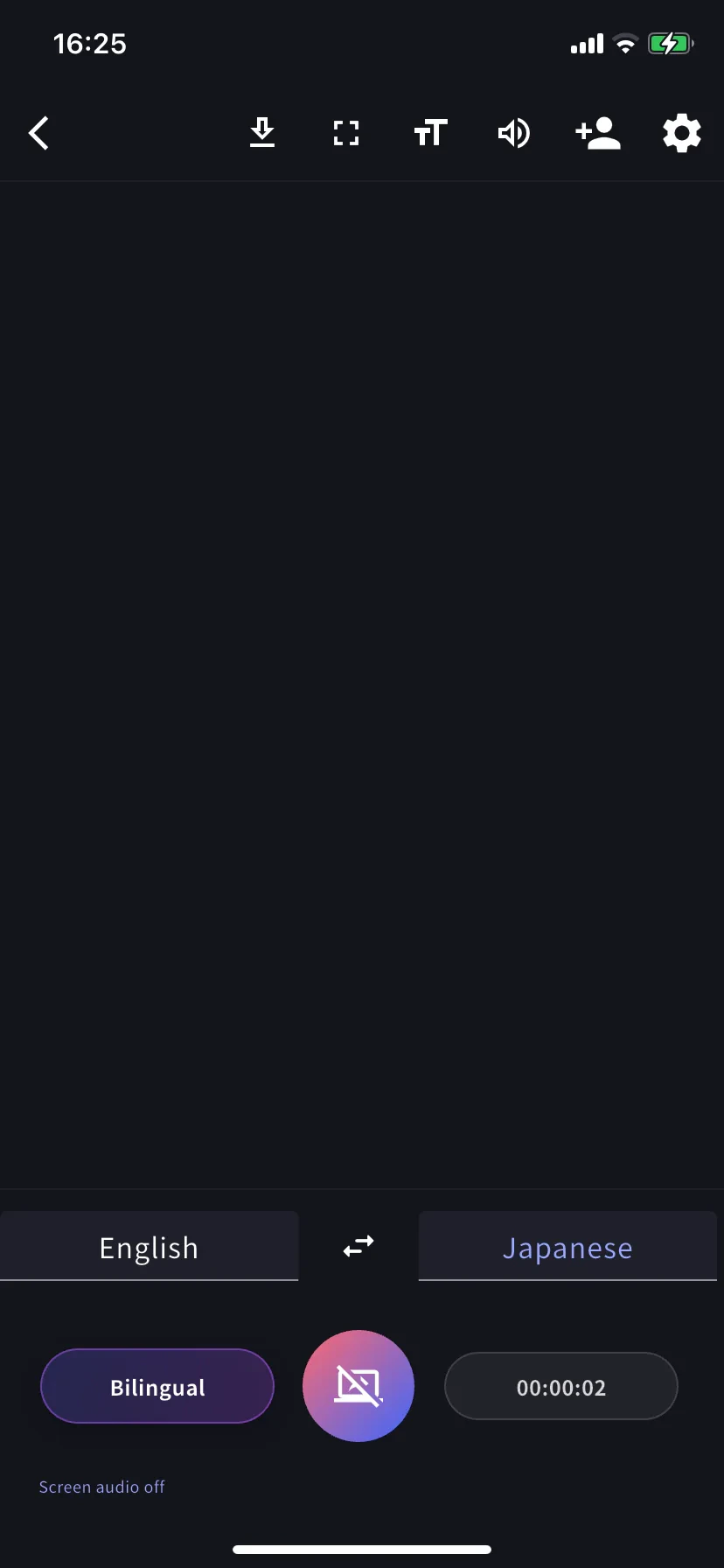
    文字起こし言語（左タブ）と翻訳言語（右タブ）を選びます。両方表示したい場合は **Bilingual** をオンに。
  </Step>

  <Step title="ブロードキャストを開始">
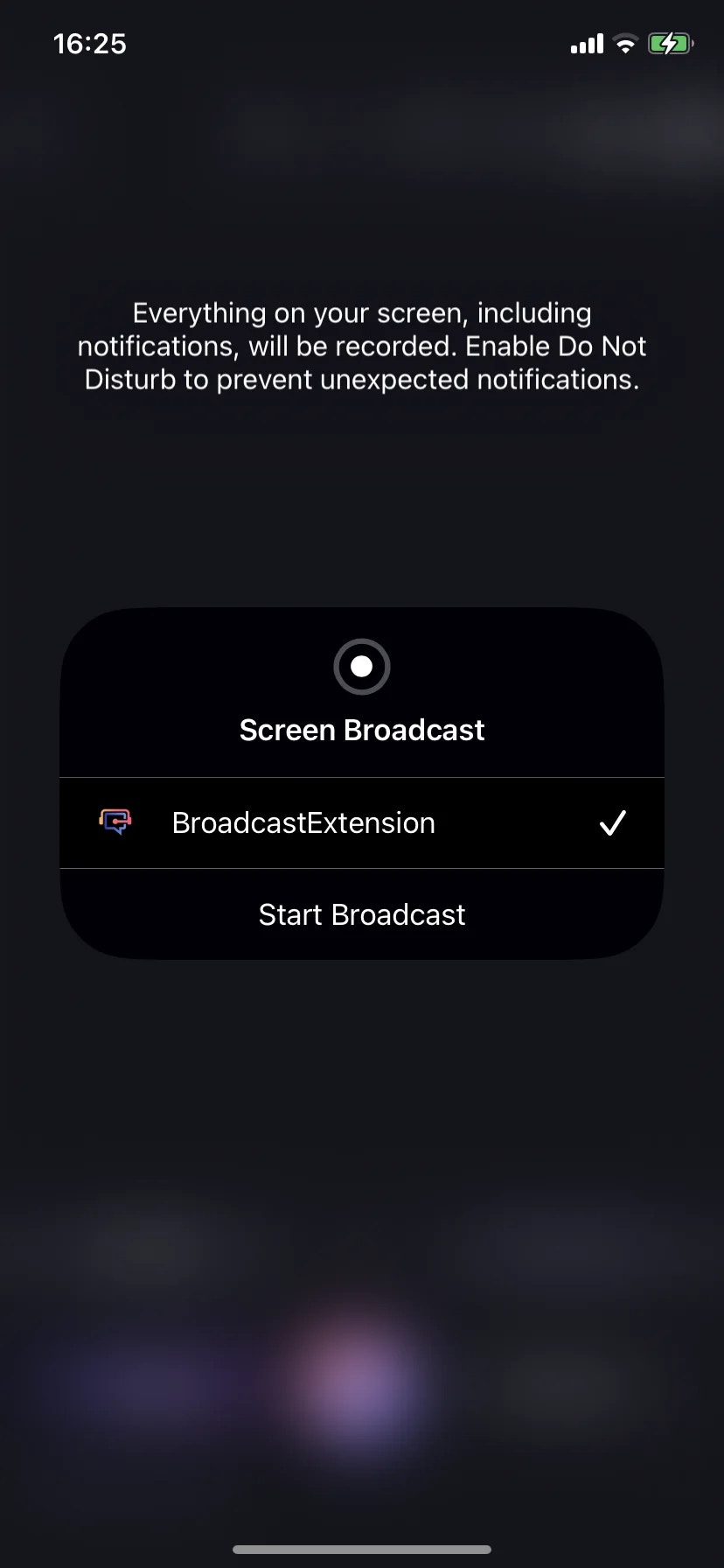
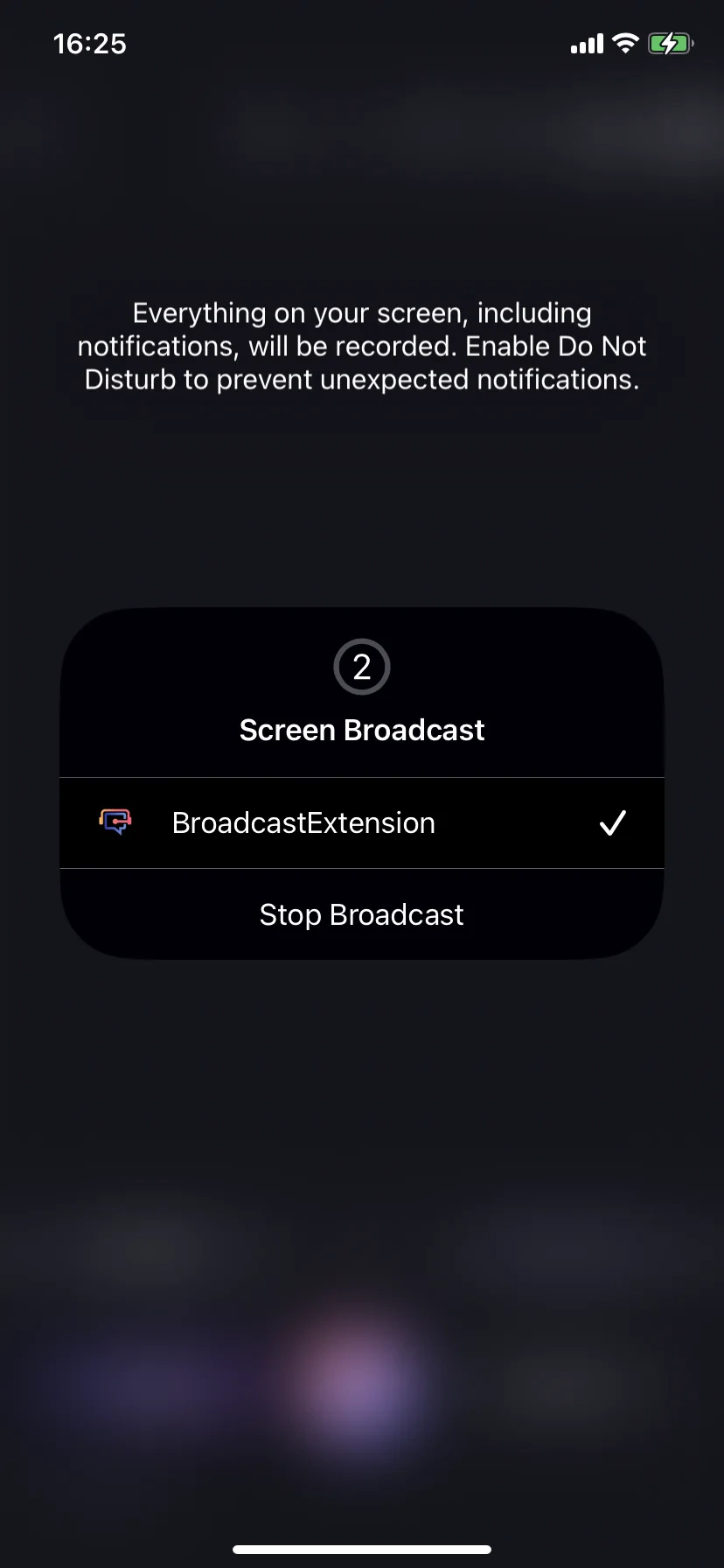
    キャプチャボタンをタップ。iOSでは **BroadcastExtension → Start Broadcast** を選択。Androidではメディアプロジェクションの許可ダイアログを承認。開始後はシートが **Stop Broadcast** に切り替わります。

    <div style={{display: "flex", gap: "12px", justifyContent: "center", flexWrap: "wrap"}}>
      <div style={{flex: "1 1 200px", maxWidth: "220px"}}>
        <Frame>
          <img src="https://mintcdn.com/test-cf63e467/yJOLVx6nWj9-gzC6/ja/images/mobile-screen-record/03-broadcast-start.webp?fit=max&auto=format&n=yJOLVx6nWj9-gzC6&q=85&s=dab7f16292726e5a7882accfb617f16d" alt="iOSのStart Broadcastシート" width="828" height="1792" data-path="ja/images/mobile-screen-record/03-broadcast-start.webp" />
        </Frame>
      </div>

      <div style={{flex: "1 1 200px", maxWidth: "220px"}}>
        <Frame>
          <img src="https://mintcdn.com/test-cf63e467/yJOLVx6nWj9-gzC6/ja/images/mobile-screen-record/04-broadcast-active.webp?fit=max&auto=format&n=yJOLVx6nWj9-gzC6&q=85&s=e8c222c0318cbf212cd1d61f9371ea07" alt="ブロードキャスト中のStop Broadcast表示" width="828" height="1792" data-path="ja/images/mobile-screen-record/04-broadcast-active.webp" />
        </Frame>
      </div>
    </div>
  </Step>

  <Step title="キャプチャしたいアプリで再生してVoicePingに戻る">
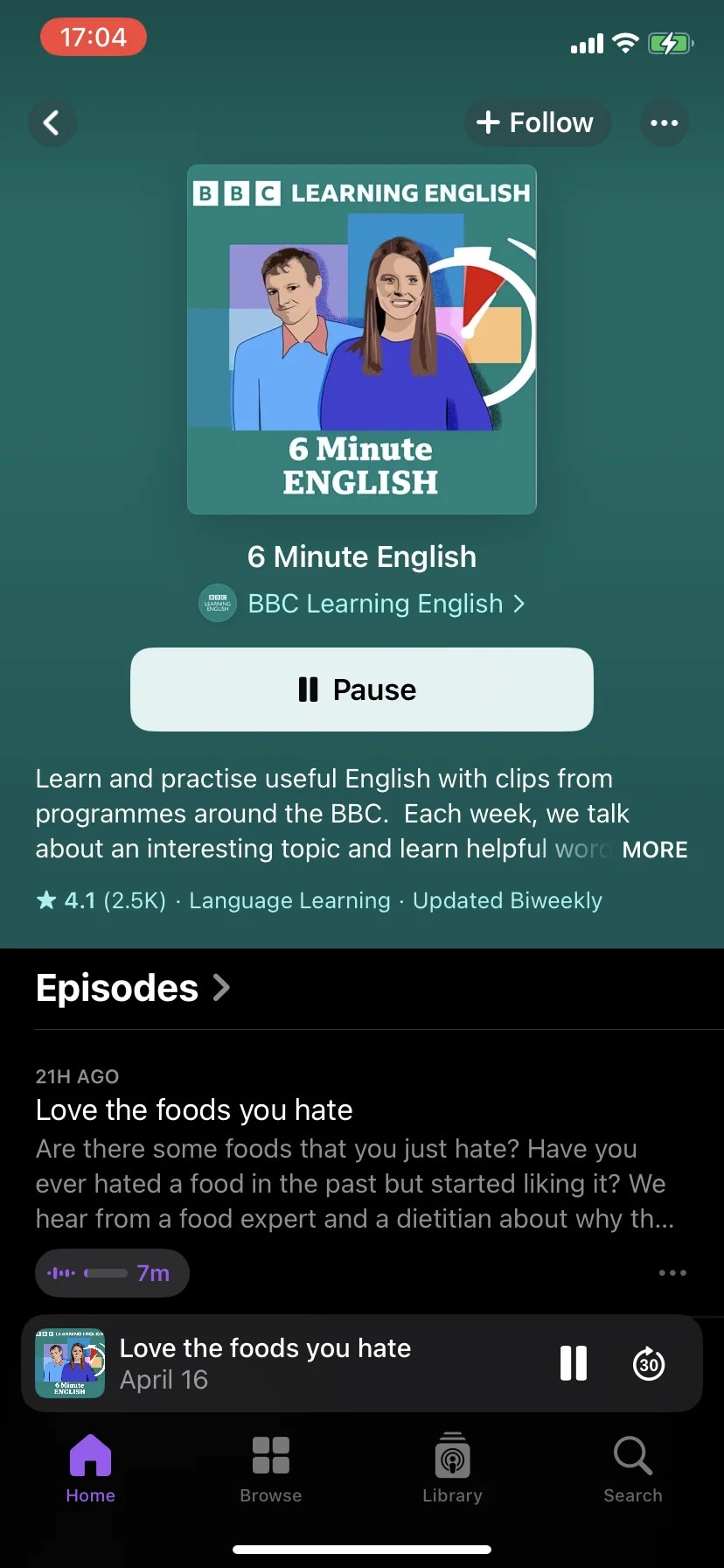
    VoicePingをバックグラウンドにして、キャプチャしたいアプリ（YouTube、ポッドキャストアプリ、Safari、オンラインコースなど音の出るアプリ）を開いて再生。VoicePingに戻ると、タイマー付きでバイリンガル字幕が流れ始めます。

    <div style={{display: "flex", gap: "12px", justifyContent: "center", flexWrap: "wrap"}}>
      <div style={{flex: "1 1 200px", maxWidth: "220px"}}>
        <Frame>
          <img src="https://mintcdn.com/test-cf63e467/yJOLVx6nWj9-gzC6/ja/images/mobile-screen-record/05-source-app-playing.webp?fit=max&auto=format&n=yJOLVx6nWj9-gzC6&q=85&s=8060036c19cb9e0303cb50a05cb3e404" alt="ソースアプリ再生中、裏でVoicePingがキャプチャ" width="828" height="1792" data-path="ja/images/mobile-screen-record/05-source-app-playing.webp" />
        </Frame>
      </div>

      <div style={{flex: "1 1 200px", maxWidth: "220px"}}>
        <Frame>
          <img src="https://mintcdn.com/test-cf63e467/yJOLVx6nWj9-gzC6/ja/images/mobile-screen-record/06-live-transcript.webp?fit=max&auto=format&n=yJOLVx6nWj9-gzC6&q=85&s=f06c2d8cc0224f8b0bcd50202677f676" alt="ソースアプリから取り込んだライブのバイリンガル字幕" width="828" height="1792" data-path="ja/images/mobile-screen-record/06-live-transcript.webp" />
        </Frame>
      </div>
    </div>
  </Step>
</Steps>

## 停止する

* **iOS** — ステータスバーの放送インジケータをタップ → **Stop Broadcast**、またはVoicePing内のキャプチャボタン。
* **Android** — プロジェクション通知をタップ、またはVoicePing内のキャプチャボタン。

停止するとセッションが確定し、通常のミーティングと同じようにワークスペース履歴に保存されます。

## 使いこなしのヒント

* 自分も話す場合は **ヘッドホン** を使用してください（スピーカー再生音がマイクに回り込むのを防ぎます）。
* 開始前に **おやすみモード** をオンに — 通知音もキャプチャされます（iOSが警告表示します）。
* 長時間セッションは充電器を接続してください（CPUとネットワーク負荷が高い）。
* 一部アプリはキャプチャを保護しています（DRM保護配信、銀行アプリなど）。文字起こしが空の場合、ソースアプリが遮断している可能性があります。
* 自動判定がずれる場合は、左下のタブから文字起こし言語を手動で切り替えてください。

## セッション終了後

通常のVoicePingミーティングと同じ扱いです：[文字起こしの編集](/ja/realtime-edit)、[議事録生成](/ja/meeting-minutes)、エクスポート、横断検索。精度向上のためワークスペース [辞書](/ja/dictionary) に固有名詞を事前登録しておくのがおすすめです。
<FeedbackJa />