> ## Documentation Index
> Fetch the complete documentation index at: https://manual.voiceping.net/llms.txt
> Use this file to discover all available pages before exploring further.
# 会員登録: 新規ワークスペースの作成(オーナー用)
> ここでは、新規ワークスペースを作成する管理者(オーナー)の方が、VoicePingの利用を開始するまでの流れを説明します。
export const ContactJa = () => <>
ご不明な点がございましたら、こちらのフォームよりお問い合わせください。
公式リンク
公式ウェブサイトはこちら
Xでフォロー
Facebookでいいね
LinkedInでつながる
;
ここでは、新規ワークスペースを作成する管理者(オーナー)の方が、VoicePingの利用を開始するまでの流れを説明します。
## PCの場合
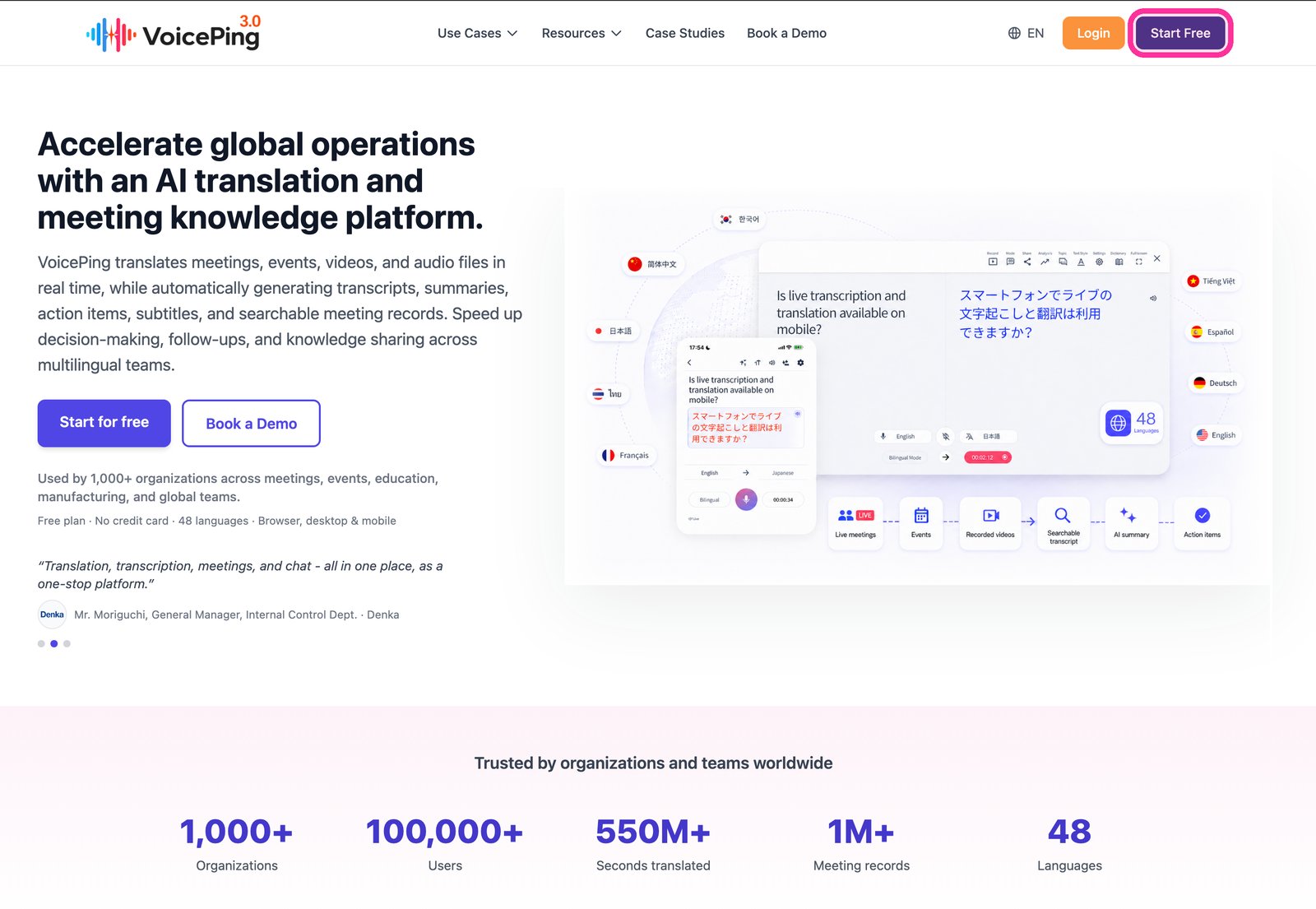
1. **[VoicePingのホームページ](https://voiceping.net/)にアクセスし、右上の「Start Free」ボタンをクリックしてください。**
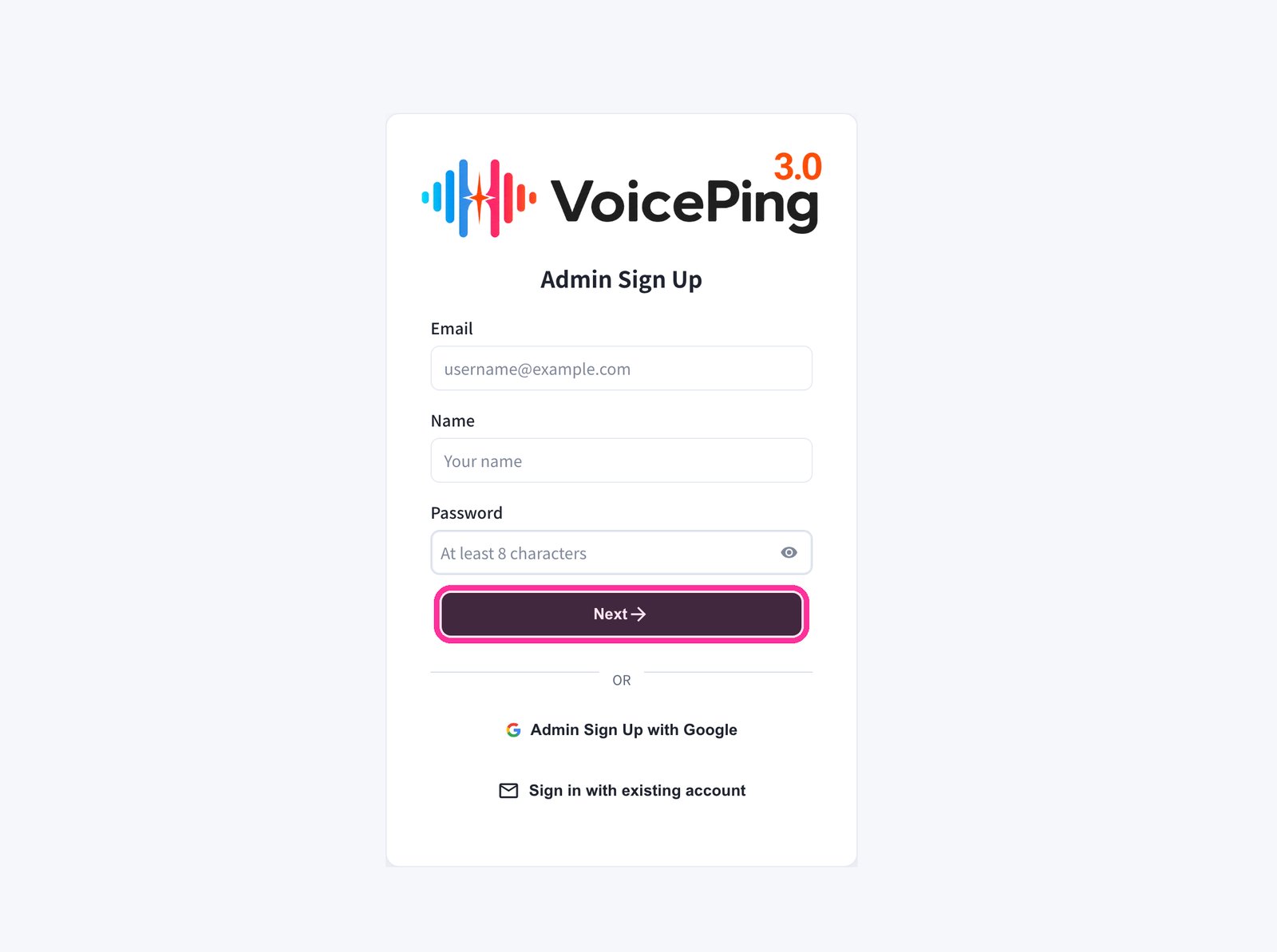
 2. **会員登録画面が表示されます。メールアドレス、名前、パスワードを入力し、「Next →」をクリックしてください。**
* Googleアカウントで登録する場合は「Admin Sign Up with Google」をクリックしてください。
* すでにアカウントをお持ちの方は「Sign in with existing account」をクリックしてください。
2. **会員登録画面が表示されます。メールアドレス、名前、パスワードを入力し、「Next →」をクリックしてください。**
* Googleアカウントで登録する場合は「Admin Sign Up with Google」をクリックしてください。
* すでにアカウントをお持ちの方は「Sign in with existing account」をクリックしてください。
 3. **登録したメールアドレスに送信される認証コードを入力してください。**
4. **画面の案内に従い、ワークスペースの基本設定を行ってください。**
## モバイル・タブレットの場合
### メールアドレスで登録する場合
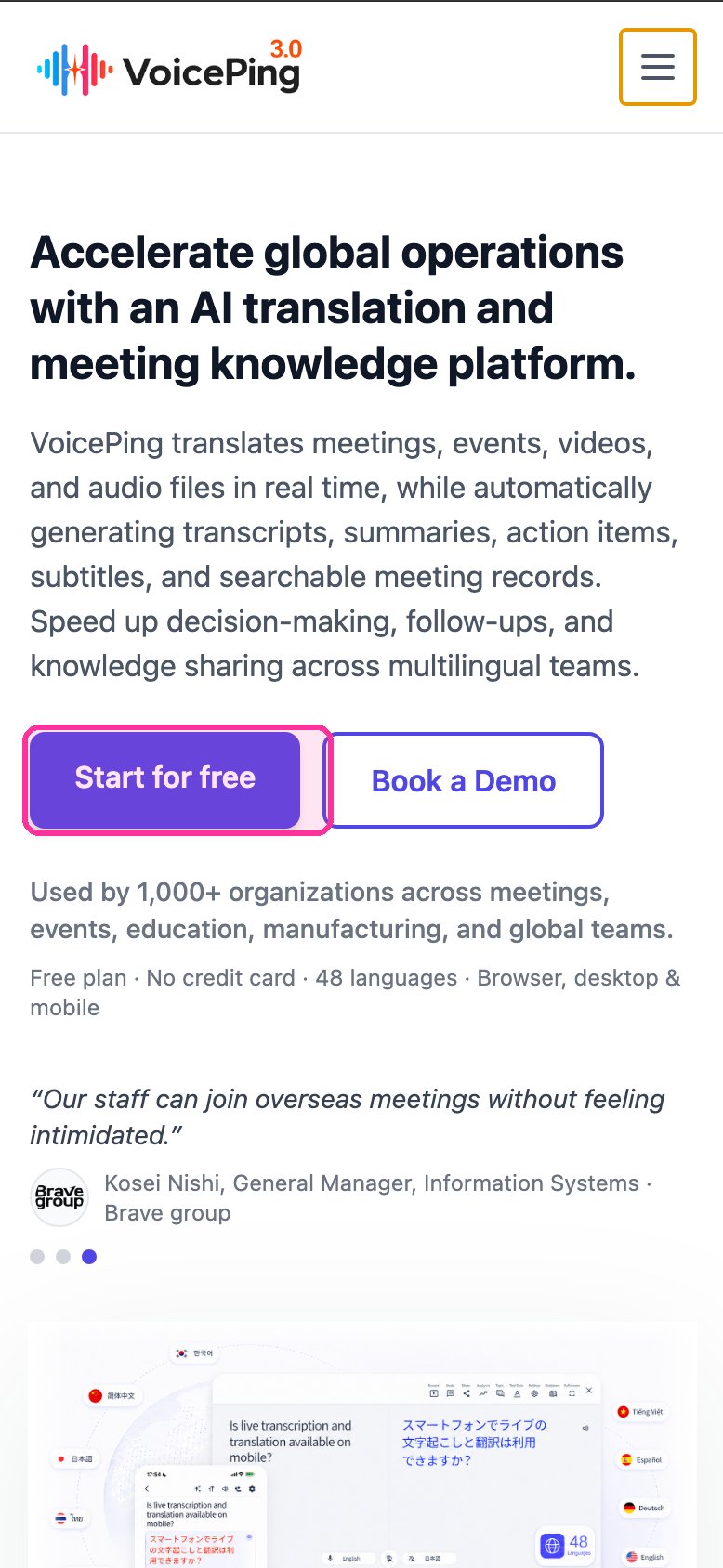
1. **[VoicePingのホームページ](https://voiceping.net/)にアクセスし、「Start for free」ボタンをタップしてください。**
3. **登録したメールアドレスに送信される認証コードを入力してください。**
4. **画面の案内に従い、ワークスペースの基本設定を行ってください。**
## モバイル・タブレットの場合
### メールアドレスで登録する場合
1. **[VoicePingのホームページ](https://voiceping.net/)にアクセスし、「Start for free」ボタンをタップしてください。**
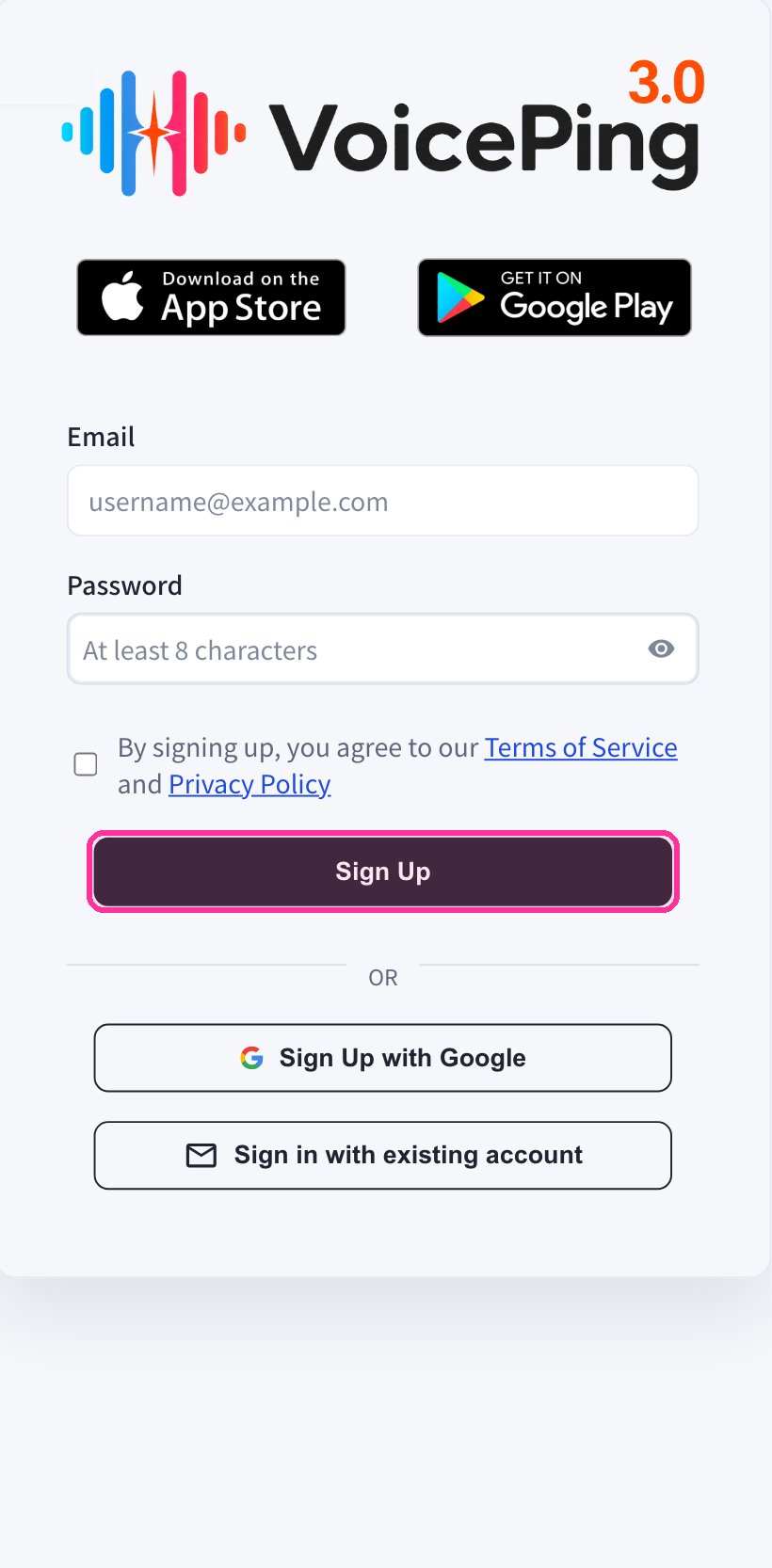
 2. **モバイルWEBアプリで会員登録画面が表示されます。メールアドレスとパスワードを入力し、利用規約に同意の上、「Sign Up」をタップしてください。**
 3. **登録したメールアドレスに送信される認証コードを入力してください。**
4. **画面の案内に従い、ワークスペースの基本設定を行ってください。**
5. **[App Store](https://apps.apple.com/jp/app/voiceping-2-0/id6450720360)または[Google Play](https://play.google.com/store/apps/details?id=com.voiceping.app)からVoicePingアプリをダウンロードし、作成したアカウントでログインしてください。**
### GoogleアカウントまたはAppleアカウントで登録する場合
GoogleアカウントまたはAppleアカウントをお持ちの方は、モバイルアプリから直接アカウント作成・ログインが可能です。
1. **[App Store](https://apps.apple.com/jp/app/voiceping-2-0/id6450720360)または[Google Play](https://play.google.com/store/apps/details?id=com.voiceping.app)からVoicePingアプリをダウンロードしてください。**
2. **アプリを起動し、GoogleアカウントまたはAppleアカウントでサインアップしてください。**
PCアプリのダウンロードがうまくいかない場合は、[PCアプリのダウンロード](/ja/pc-download)ページから直接ダウンロードできます。
3. **登録したメールアドレスに送信される認証コードを入力してください。**
4. **画面の案内に従い、ワークスペースの基本設定を行ってください。**
5. **[App Store](https://apps.apple.com/jp/app/voiceping-2-0/id6450720360)または[Google Play](https://play.google.com/store/apps/details?id=com.voiceping.app)からVoicePingアプリをダウンロードし、作成したアカウントでログインしてください。**
### GoogleアカウントまたはAppleアカウントで登録する場合
GoogleアカウントまたはAppleアカウントをお持ちの方は、モバイルアプリから直接アカウント作成・ログインが可能です。
1. **[App Store](https://apps.apple.com/jp/app/voiceping-2-0/id6450720360)または[Google Play](https://play.google.com/store/apps/details?id=com.voiceping.app)からVoicePingアプリをダウンロードしてください。**
2. **アプリを起動し、GoogleアカウントまたはAppleアカウントでサインアップしてください。**
PCアプリのダウンロードがうまくいかない場合は、[PCアプリのダウンロード](/ja/pc-download)ページから直接ダウンロードできます。