> ## Documentation Index
> Fetch the complete documentation index at: https://manual.voiceping.net/llms.txt
> Use this file to discover all available pages before exploring further.
# プラン変更・解約・トライアル終了
> VoicePingのプランアップグレード、ダウングレード、解約、無料トライアル終了、契約請求の申請方法。
export const ContactJa = () => <>
ご不明な点がございましたら、こちらのフォームよりお問い合わせください。
公式リンク
公式ウェブサイトはこちら
Xでフォロー
Facebookでいいね
LinkedInでつながる
;
Billing → Subscriptions タブからアップグレード、ダウングレード、解約を行います。
BillingハブのManage Planでアップグレード、ダウングレード、解約、復元を行います。
プラン変更または解約が正常に完了すると、`account@voice-ping.com` から確認メールが送信されます。
## 4つの操作
PCでもモバイルでも、サブスクリプション変更は次の4種類です。適用日、本日の請求額、利用量リセットの扱いはどちらでも同じです。
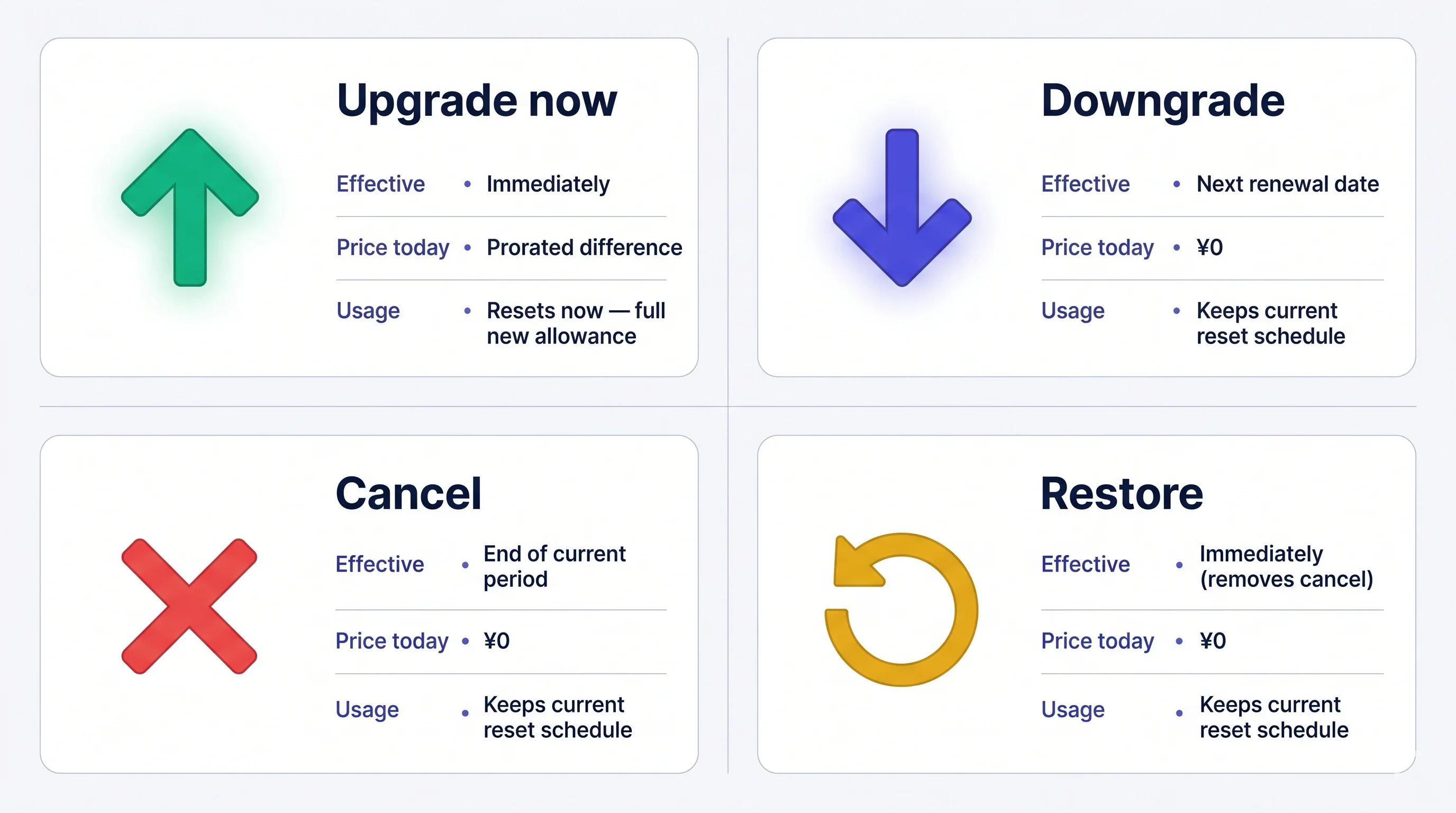 一度請求された料金は**返金できません**。解約後も現在のプランは期間終了まで有効です。期間終了前であれば無料で復元できます。
## プラン変更方法
### 1. PC
**Subscriptionsタブを開く:** 上部ナビゲーション → **Billing** → **Subscriptions**。
* **Free Planから** — **Upgrade Free Plan** CTAをクリックします。
* **有料プランから** — 現在のプラン横の **Change Plan** をクリックします。
**変更先プランを選ぶ:**
* **Small / Premium / Enterprise** — **Upgrade Plan** → **Purchase** → カード入力。個人プランは**1ユーザー専用・月払いのみ**です。
* **FreeからPremium** — **1-Week Free Trial** → **Start Trial** → カード入力。1週間のトライアル後に自動課金されます。
* **下位プランへの変更** — プランを選択して確認します。現在のプランは更新日まで有効で、次回サイクルから新プランが適用されます。
**個人プランは1ユーザー専用です。** ワークスペースのアクティブメンバーが**1名**の場合のみ、個人プランに変更できます。複数名いる場合は先に余分なメンバーを削除してください。1名になるまでVoicePingは変更をブロックし、削除が必要な人数を表示します。
一度請求された料金は**返金できません**。解約後も現在のプランは期間終了まで有効です。期間終了前であれば無料で復元できます。
## プラン変更方法
### 1. PC
**Subscriptionsタブを開く:** 上部ナビゲーション → **Billing** → **Subscriptions**。
* **Free Planから** — **Upgrade Free Plan** CTAをクリックします。
* **有料プランから** — 現在のプラン横の **Change Plan** をクリックします。
**変更先プランを選ぶ:**
* **Small / Premium / Enterprise** — **Upgrade Plan** → **Purchase** → カード入力。個人プランは**1ユーザー専用・月払いのみ**です。
* **FreeからPremium** — **1-Week Free Trial** → **Start Trial** → カード入力。1週間のトライアル後に自動課金されます。
* **下位プランへの変更** — プランを選択して確認します。現在のプランは更新日まで有効で、次回サイクルから新プランが適用されます。
**個人プランは1ユーザー専用です。** ワークスペースのアクティブメンバーが**1名**の場合のみ、個人プランに変更できます。複数名いる場合は先に余分なメンバーを削除してください。1名になるまでVoicePingは変更をブロックし、削除が必要な人数を表示します。
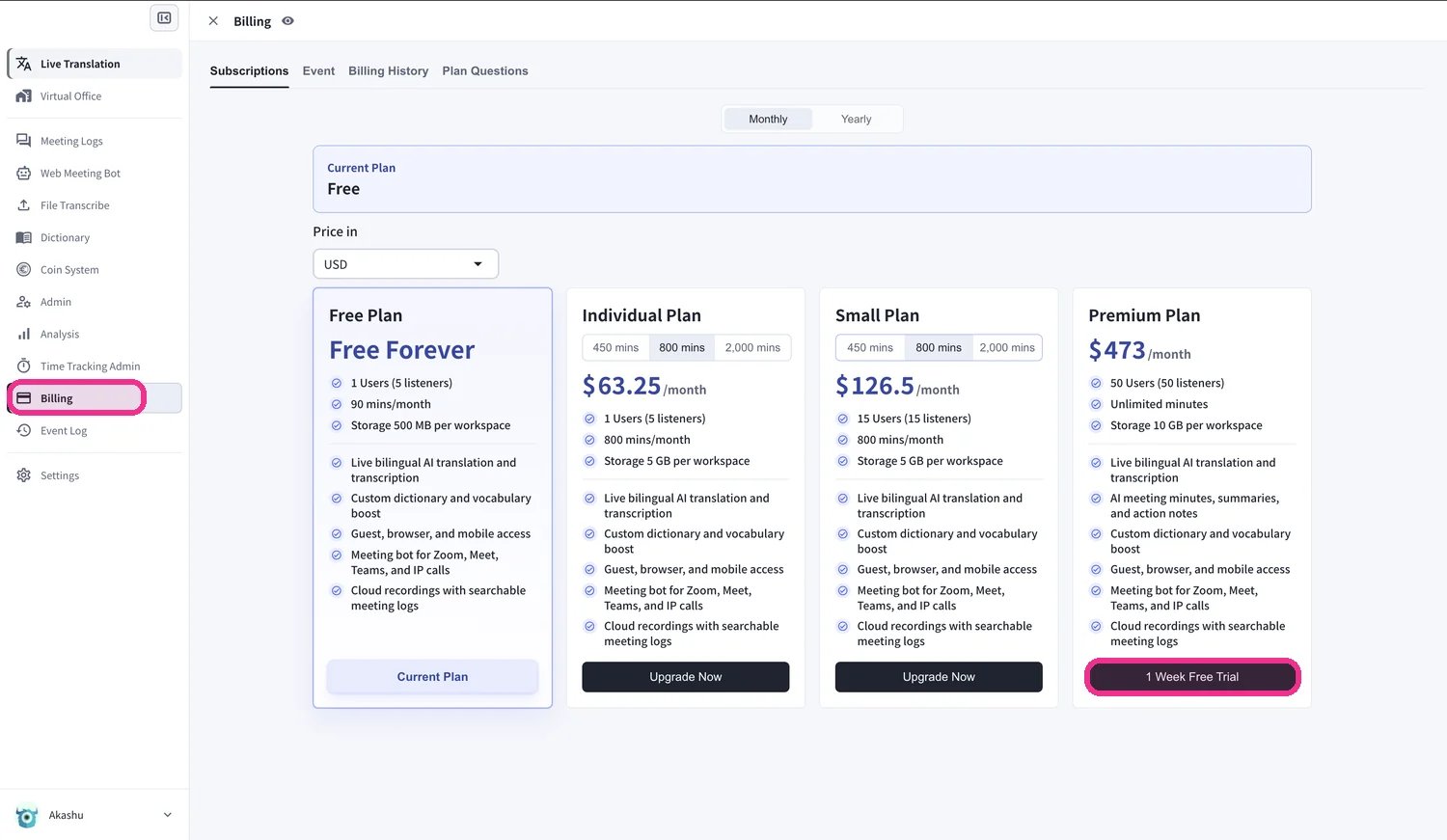 **アップグレードの按分請求。** アップグレード日に新しい請求サイクルが始まり、旧プランの未使用分が新プラン料金に充当され、利用量はリセットされます。期間の後半でアップグレードするほど充当額は小さくなるため、更新日にアップグレードするのが最も安くなります。**ダウングレード** は次回更新日から適用され、更新日は変わりません。
### 2. Mobile
App Storeの規定により、無料の60分をすべて使い切るまでアップグレード・解約ボタンは表示されません。60分を使い切るか、PCからプランを変更してください。
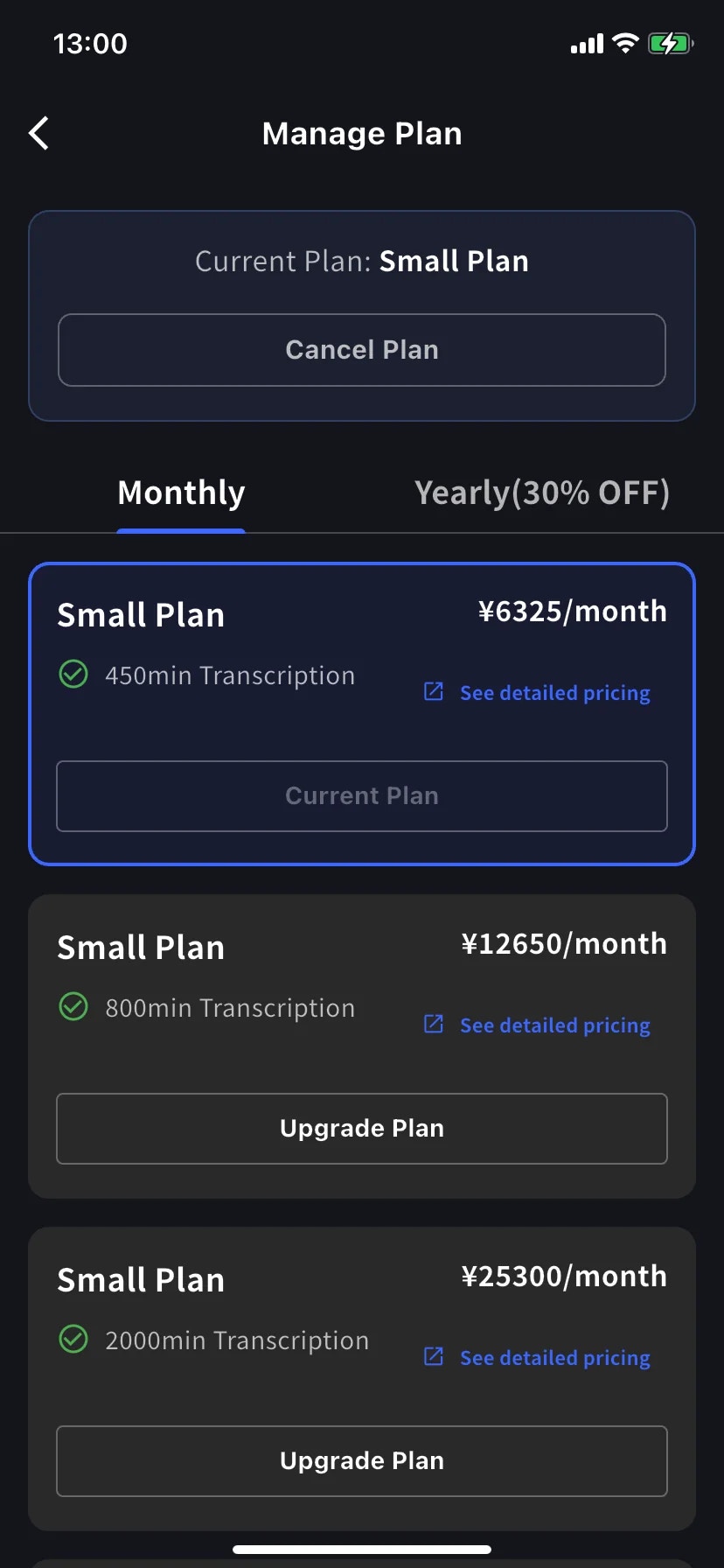
モバイルのプラン変更はすべてBillingハブの **Manage Plan** から行います。
サイドメニュー → **User Settings** → **Billing** → **Manage Plan** を開きます。またはCurrent Planカードの **Manage Plan** をタップします。上部で **Monthly** / **Yearly** を切り替えます。現在より上位のプランは **Upgrade Plan**、下位のプランは **Change Plan** と表示されます。
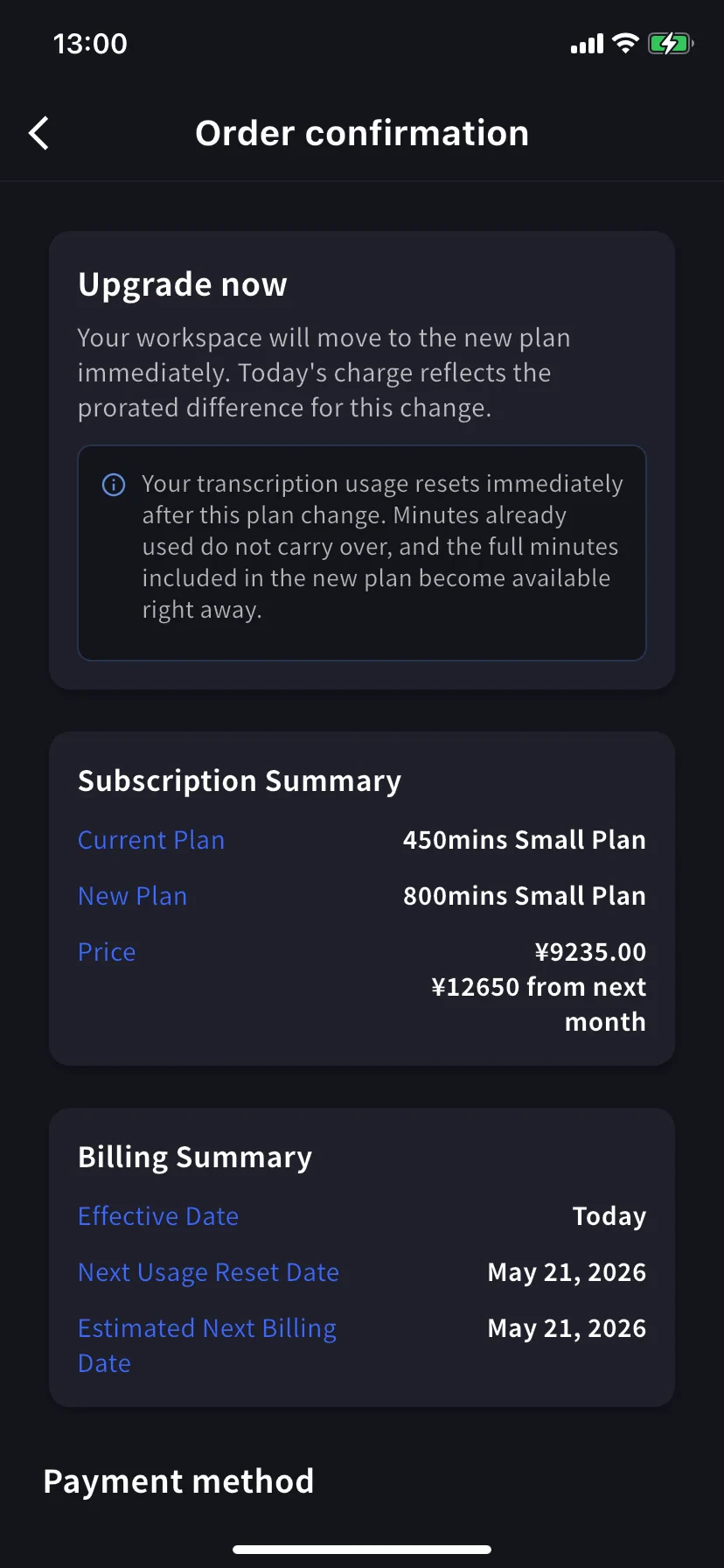
上位プランの **Upgrade Plan** をタップします。バナーには「今すぐアップグレードされ、請求は按分差額になる」旨が表示されます。既存カードを選ぶか **+ Add new card** をタップし、Terms / Privacy に同意して **Confirm Plan Change** をタップします。
**Free PlanからPremium** は1週間のトライアルから始まり、終了まで請求は発生しません。
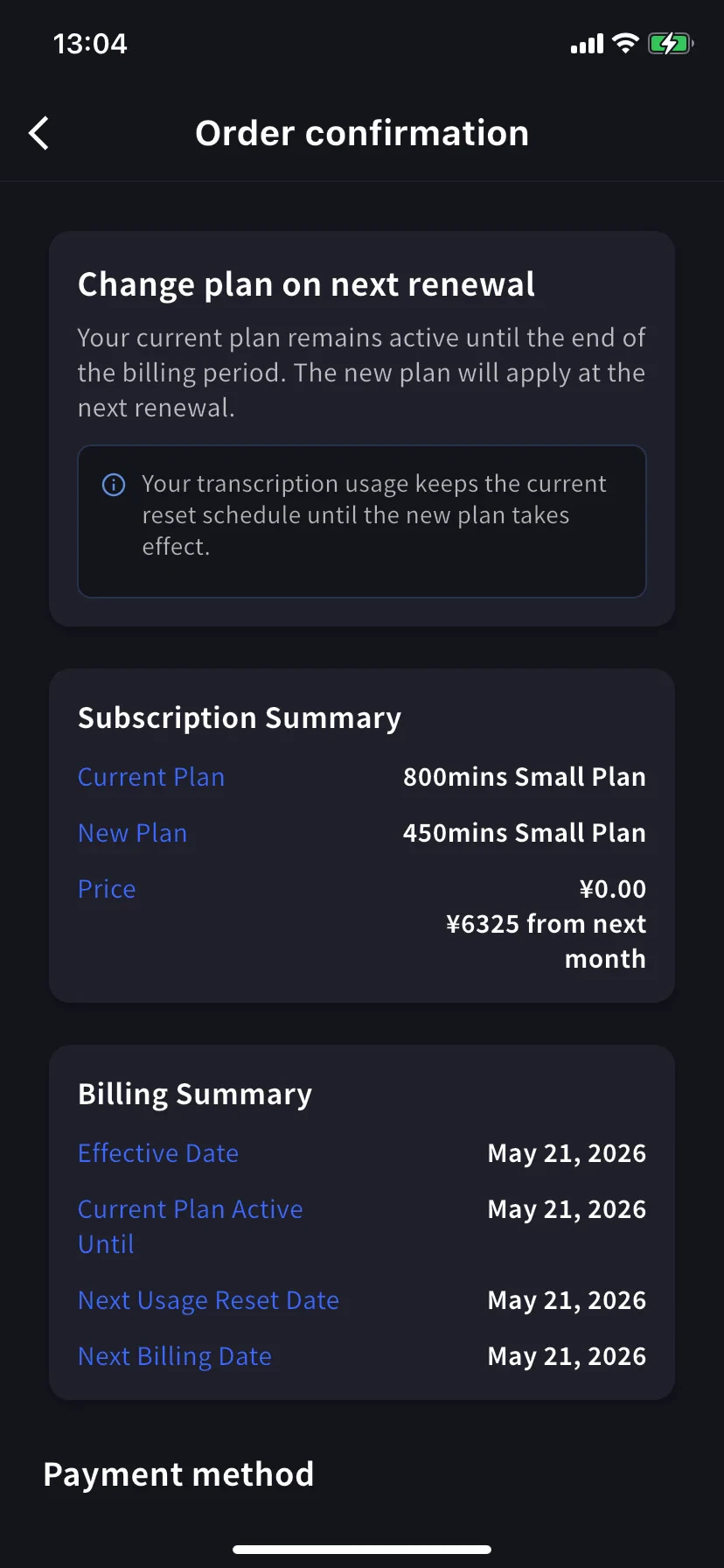
下位プランの **Change Plan** をタップします。バナーには、現在のプランが請求期間終了まで有効であることが表示されます。本日の料金は **¥0 / \$0** です。アップグレードと同じ流れで確認します。
### 3. Enterprise / 書面契約 / 電子契約のお客様
[契約手続き](/ja/contract-procedures) を確認し、[このフォーム](https://forms.gle/6AUho7oj3zBr79e96) から次の情報を送信してください。
1. 会社名 2. 会社住所 3. 会社電話番号 4. 担当者 5. 契約日 6. 現在のプランと希望プラン
## 解約 / トライアル終了
### 1. PC
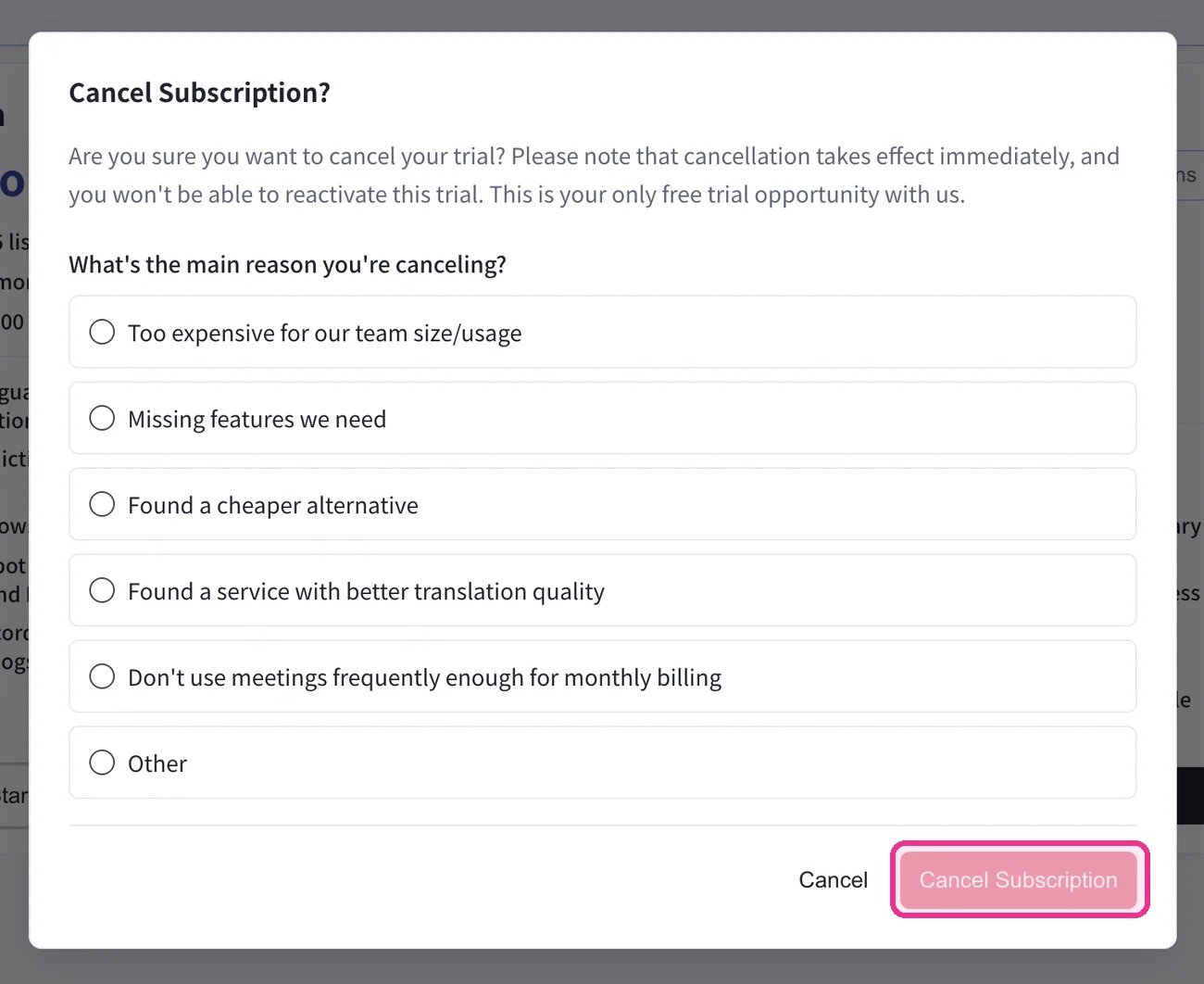
上部ナビゲーション → **Billing** → **Subscriptions** → **Free Plan** 欄の **Start Free Plan** をクリックします。**Cancel Subscription?** ダイアログで理由を選び、**Cancel Subscription** をクリックします。
**アップグレードの按分請求。** アップグレード日に新しい請求サイクルが始まり、旧プランの未使用分が新プラン料金に充当され、利用量はリセットされます。期間の後半でアップグレードするほど充当額は小さくなるため、更新日にアップグレードするのが最も安くなります。**ダウングレード** は次回更新日から適用され、更新日は変わりません。
### 2. Mobile
App Storeの規定により、無料の60分をすべて使い切るまでアップグレード・解約ボタンは表示されません。60分を使い切るか、PCからプランを変更してください。
モバイルのプラン変更はすべてBillingハブの **Manage Plan** から行います。
サイドメニュー → **User Settings** → **Billing** → **Manage Plan** を開きます。またはCurrent Planカードの **Manage Plan** をタップします。上部で **Monthly** / **Yearly** を切り替えます。現在より上位のプランは **Upgrade Plan**、下位のプランは **Change Plan** と表示されます。
上位プランの **Upgrade Plan** をタップします。バナーには「今すぐアップグレードされ、請求は按分差額になる」旨が表示されます。既存カードを選ぶか **+ Add new card** をタップし、Terms / Privacy に同意して **Confirm Plan Change** をタップします。
**Free PlanからPremium** は1週間のトライアルから始まり、終了まで請求は発生しません。
下位プランの **Change Plan** をタップします。バナーには、現在のプランが請求期間終了まで有効であることが表示されます。本日の料金は **¥0 / \$0** です。アップグレードと同じ流れで確認します。
### 3. Enterprise / 書面契約 / 電子契約のお客様
[契約手続き](/ja/contract-procedures) を確認し、[このフォーム](https://forms.gle/6AUho7oj3zBr79e96) から次の情報を送信してください。
1. 会社名 2. 会社住所 3. 会社電話番号 4. 担当者 5. 契約日 6. 現在のプランと希望プラン
## 解約 / トライアル終了
### 1. PC
上部ナビゲーション → **Billing** → **Subscriptions** → **Free Plan** 欄の **Start Free Plan** をクリックします。**Cancel Subscription?** ダイアログで理由を選び、**Cancel Subscription** をクリックします。
 **Billing History** タブで解約を確認します。**Succeeded to cancel Trial** の項目(または該当する解約プランの項目)が表示されます。
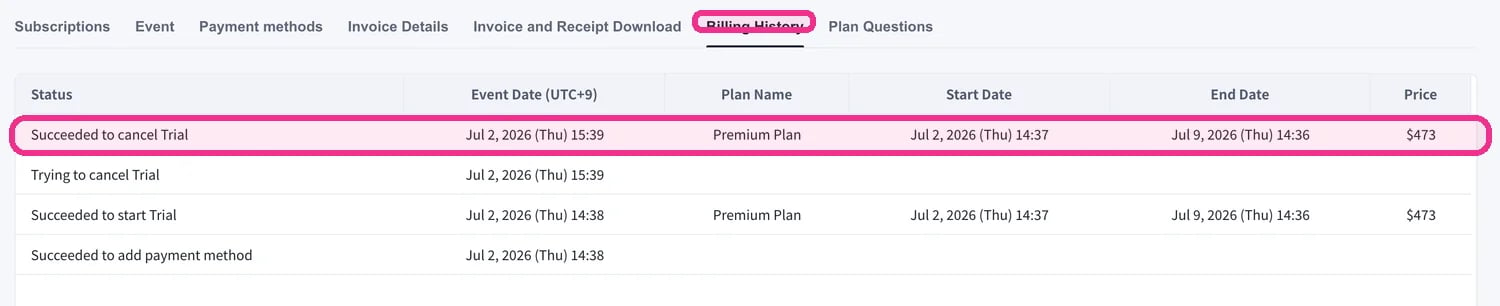 解約が **Billing History** に表示されていることを必ず確認してください。この確認を省略した場合、解約は未完了として扱われ、返金はできません。
### 2. Mobile
モバイルではBillingハブの **Manage Plan** から解約します。期間終了前であればいつでも復元できます。
##### 解約
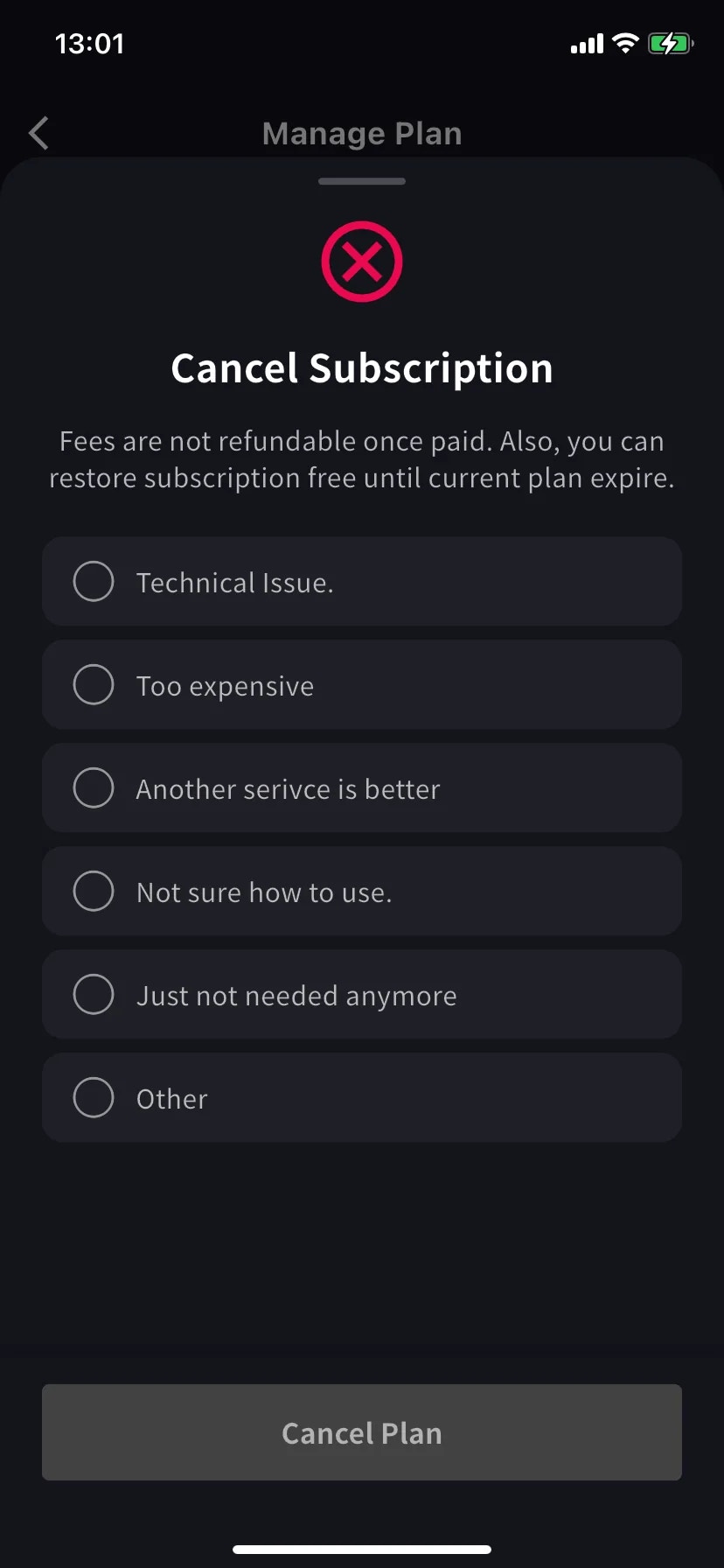
理由選択が必須のシートが表示されます。理由を選ぶまでCancel Planボタンはグレーのままです。
**Other** を選ぶ場合は15文字以上の入力が必要です。
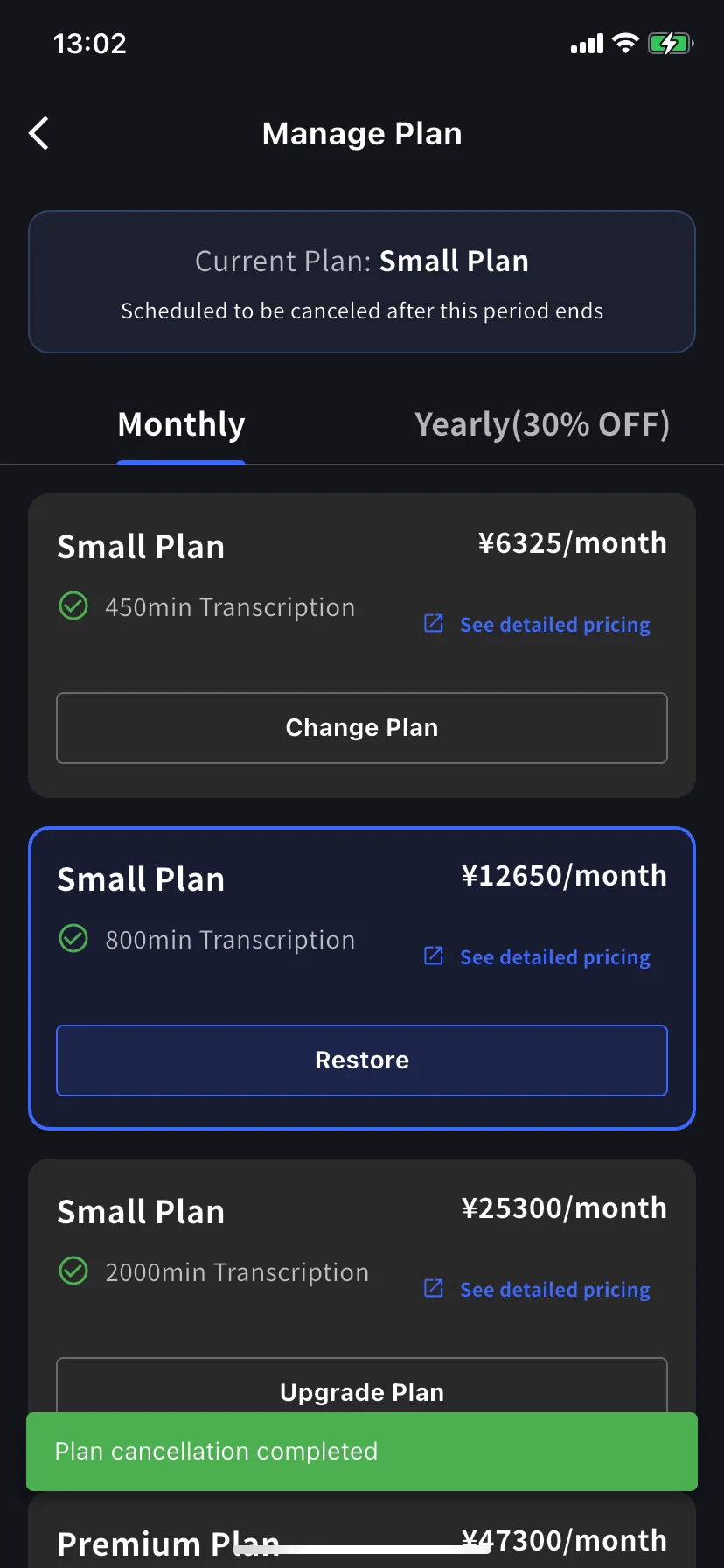
Current planのバナーが **Scheduled to be canceled after this period ends** に変わり、下位プランには **Restore** ボタンが表示されます。更新日までは現在のプランと分数を利用できます。
##### 自動更新を復元する
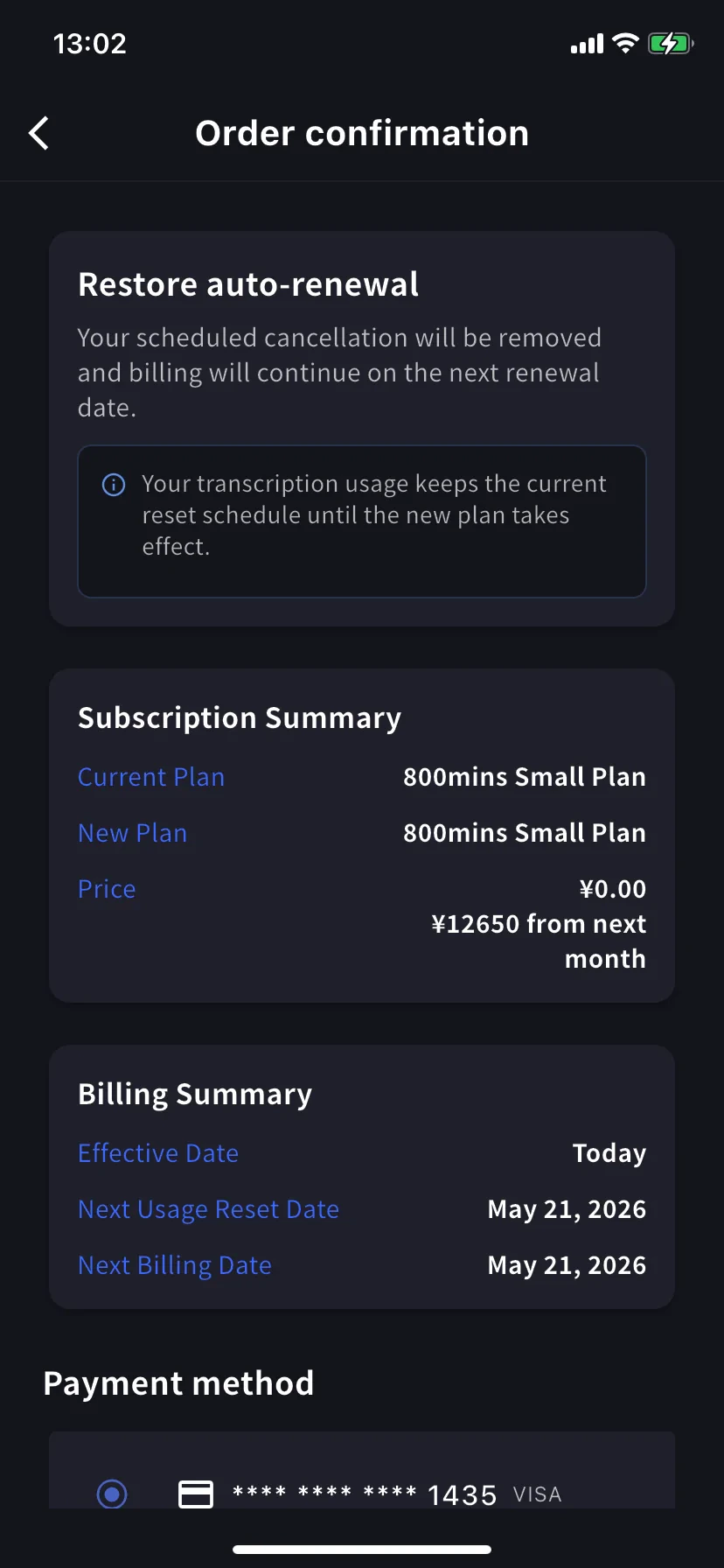
現在のプランで **Restore** をタップします。確認画面には、予約された解約が取り消され次回更新日から請求が継続する旨が表示されます。本日の料金は\$0です。**Confirm Plan Change** をタップすると通常の自動更新に戻ります。利用量のリセット予定は変わりません。
### 3. Enterprise / 書面契約 / 電子契約のお客様
契約請求・手動請求のお客様にも **Subscriptions** タブは表示されますが、VoicePing管理の手動契約画面が表示されます。プラン変更や解約は[このフォーム](https://forms.gle/6AUho7oj3zBr79e96) から次の情報を送信してください。
1. 会社名 2. 会社住所 3. 会社電話番号 4. 担当者 5. 契約日 6. 契約プラン種別 7. 解約理由
解約が **Billing History** に表示されていることを必ず確認してください。この確認を省略した場合、解約は未完了として扱われ、返金はできません。
### 2. Mobile
モバイルではBillingハブの **Manage Plan** から解約します。期間終了前であればいつでも復元できます。
##### 解約
理由選択が必須のシートが表示されます。理由を選ぶまでCancel Planボタンはグレーのままです。
**Other** を選ぶ場合は15文字以上の入力が必要です。
Current planのバナーが **Scheduled to be canceled after this period ends** に変わり、下位プランには **Restore** ボタンが表示されます。更新日までは現在のプランと分数を利用できます。
##### 自動更新を復元する
現在のプランで **Restore** をタップします。確認画面には、予約された解約が取り消され次回更新日から請求が継続する旨が表示されます。本日の料金は\$0です。**Confirm Plan Change** をタップすると通常の自動更新に戻ります。利用量のリセット予定は変わりません。
### 3. Enterprise / 書面契約 / 電子契約のお客様
契約請求・手動請求のお客様にも **Subscriptions** タブは表示されますが、VoicePing管理の手動契約画面が表示されます。プラン変更や解約は[このフォーム](https://forms.gle/6AUho7oj3zBr79e96) から次の情報を送信してください。
1. 会社名 2. 会社住所 3. 会社電話番号 4. 担当者 5. 契約日 6. 契約プラン種別 7. 解約理由