> ## Documentation Index
> Fetch the complete documentation index at: https://manual.voiceping.net/llms.txt
> Use this file to discover all available pages before exploring further.
# 字幕モード(背景透明)
> プレゼンやウェビナー中に、スライド・PDF・動画の上にライブでAI字幕を透明背景で重ねて表示。テキスト・色・全画面表示を調整できる、リアルタイムの二言語字幕機能です。
export const FeedbackJa = () => <>
このフィーチャーへのご意見やご要望は、Product Feedback からチームへお送りください。
公式リンク
公式ウェブサイトはこちら
Xでフォロー
Facebookでいいね
LinkedInでつながる
;
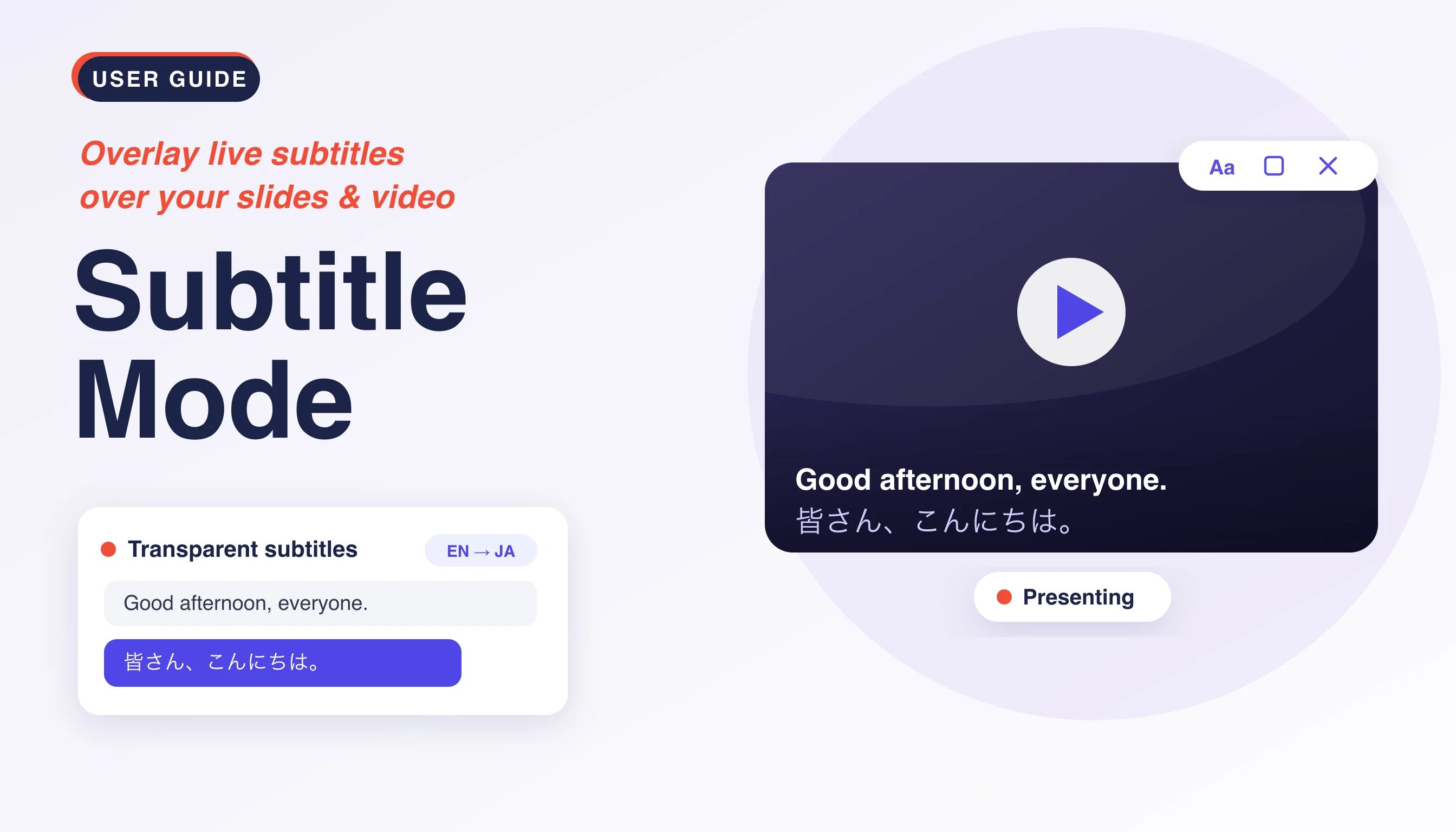 字幕モードは、VoicePingのライブ文字起こしと翻訳を**背景を透明化**した字幕として表示します。字幕が共有中のコンテンツ(スライド、PDF、動画(YouTube、映画など))の上に直接浮かび上がるため、視聴者があなたのコンテンツを隠すことなく読み進められる、プレゼンやウェビナーに最適な機能です。
## 使用方法
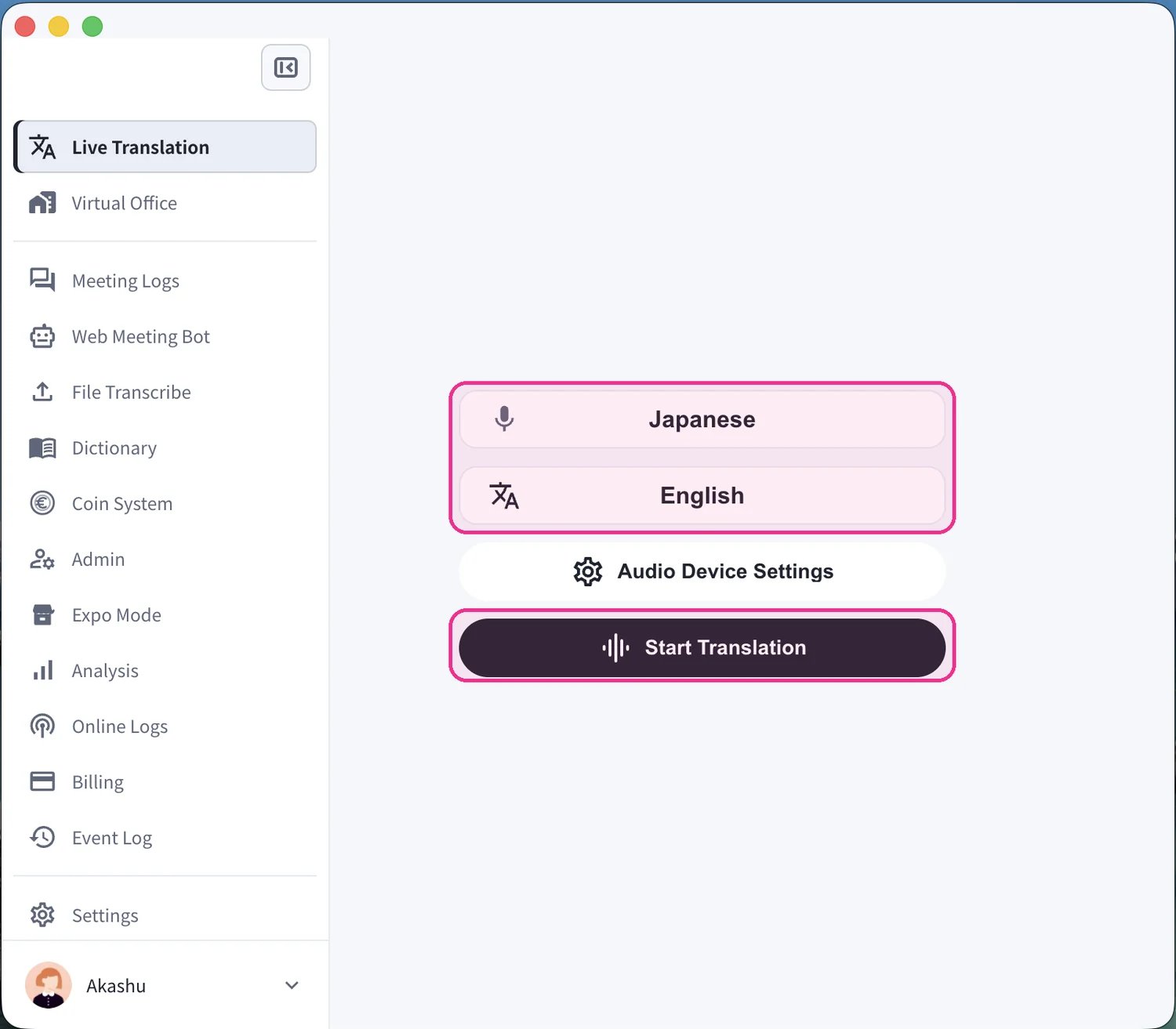
1. **翻訳を開始します。** **Live Translation** 画面で、話す言語(マイクアイコン)と翻訳する言語("Text & A" アイコン)を設定し、**Start Translation** をクリックします。
字幕モードは、VoicePingのライブ文字起こしと翻訳を**背景を透明化**した字幕として表示します。字幕が共有中のコンテンツ(スライド、PDF、動画(YouTube、映画など))の上に直接浮かび上がるため、視聴者があなたのコンテンツを隠すことなく読み進められる、プレゼンやウェビナーに最適な機能です。
## 使用方法
1. **翻訳を開始します。** **Live Translation** 画面で、話す言語(マイクアイコン)と翻訳する言語("Text & A" アイコン)を設定し、**Start Translation** をクリックします。
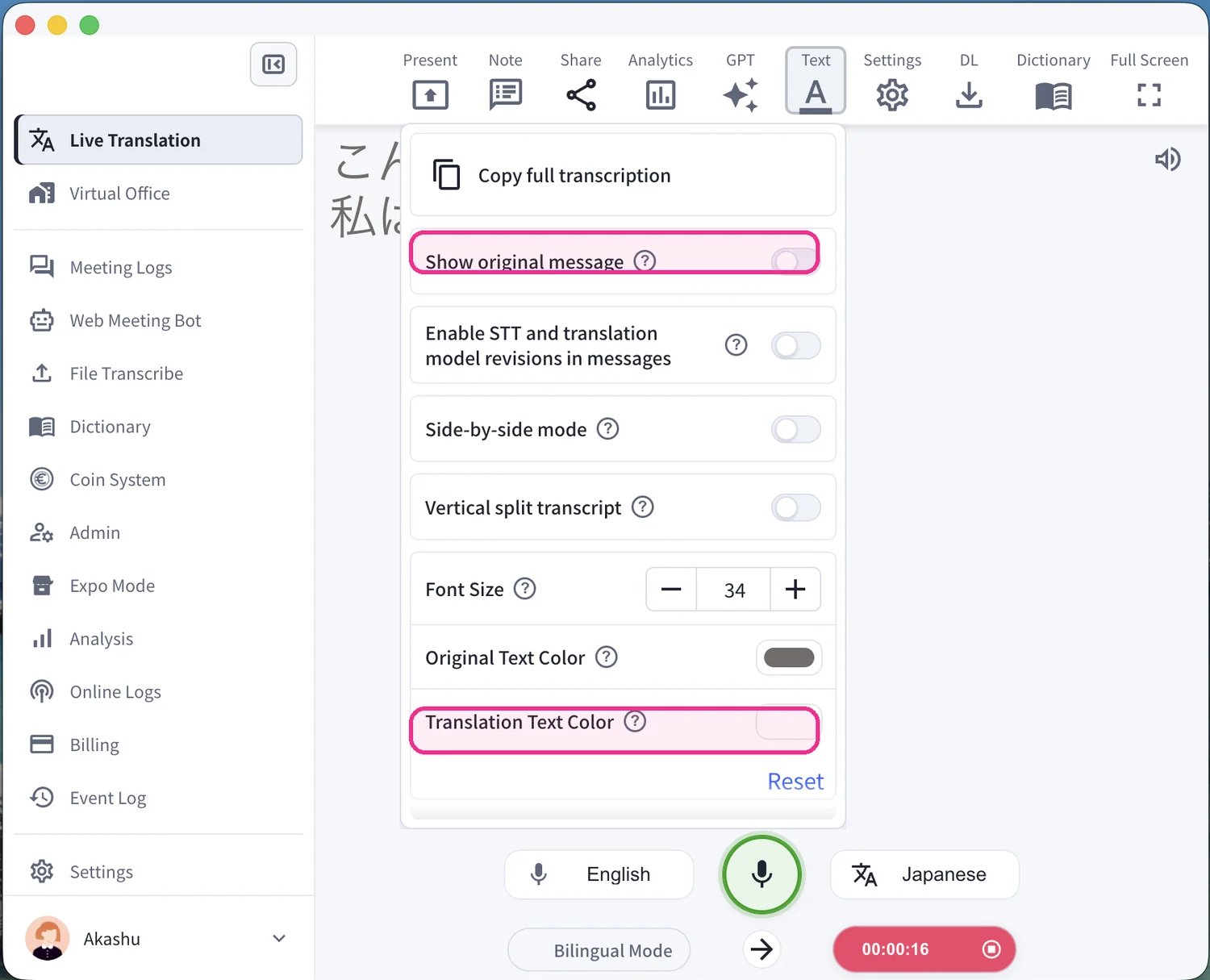
 2. **字幕の見た目を設定します。** プレゼンの前に、上部ツールバーの **Text** パネルを開いて表示を調整します。**Show original message** を切り替えて原文言語の表示・非表示を選び、**Translation Text Color**(と文字サイズ)を設定して、コンテンツの上でも字幕が読みやすいようにします。
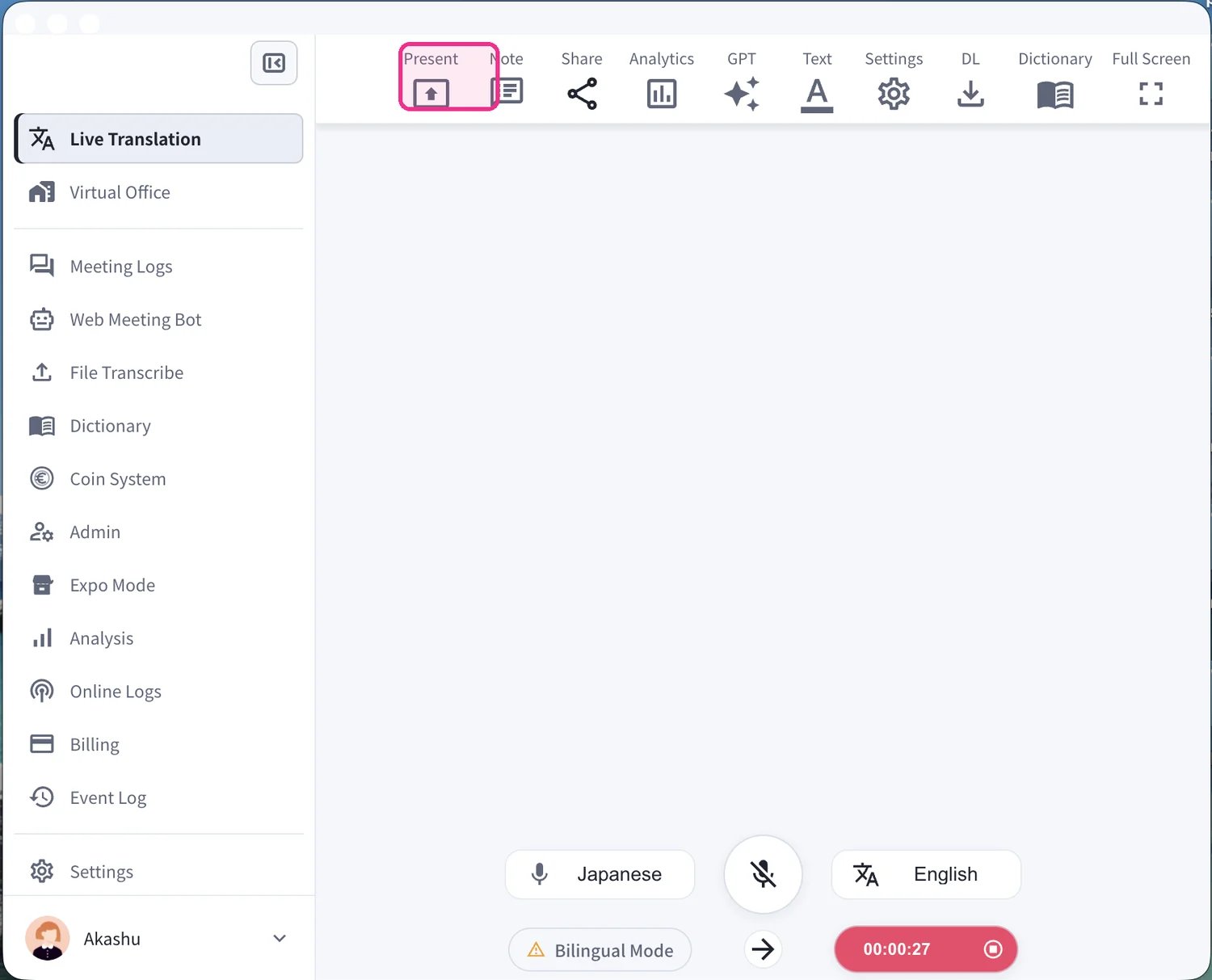
 3. **Present モードを開きます。** 上部ツールバーの **Present** をクリックして、プレゼンテーション用の字幕ウィンドウを起動します。
 4. **コンテンツの上に字幕を重ねます。** 字幕ウィンドウが透明な背景で開きます。スライド、PDF、または動画の上に配置すると、ライブ字幕(原文と翻訳)がリアルタイムで資料の上に表示されます。
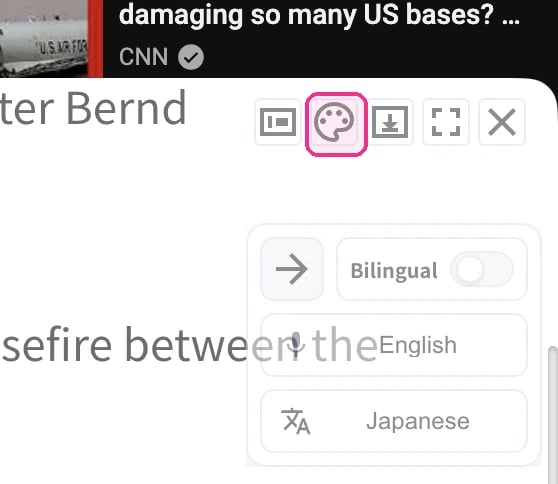
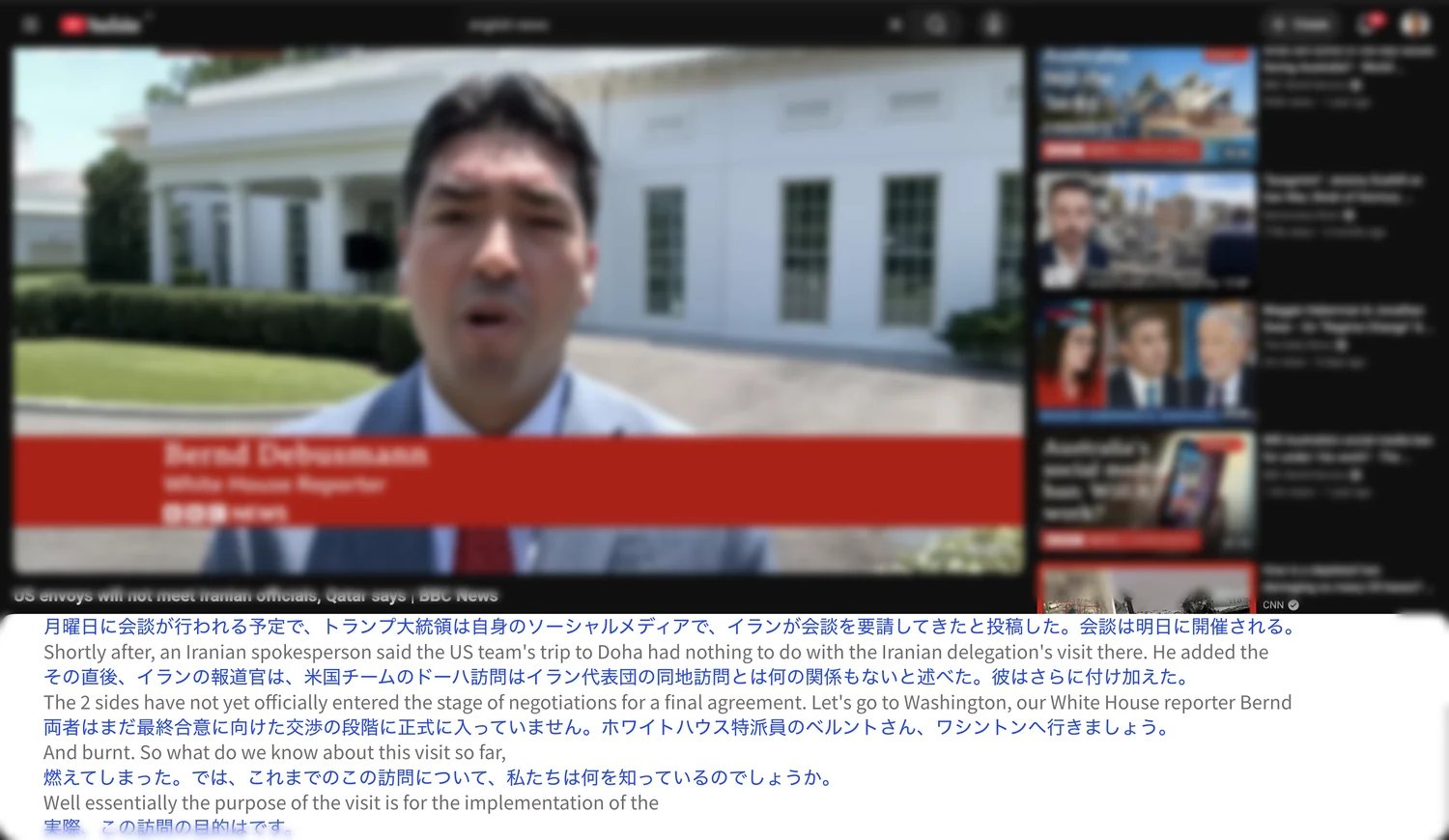 5. **透明モードを切り替えます。** フローティングの字幕ウィンドウで**パレットアイコン**をクリックすると、字幕が透けた背景でコンテンツに重なる透明モードと、透明でない不透明な背景とを切り替えられます。また、**Bilingual** の切り替えや、文字起こし・翻訳の言語の切り替えも可能です。
 6. **クリーンに重ねた字幕でプレゼンします。** 仕上げに全画面に切り替えます。背景のボックスなしで、透明な字幕が動画やスライドの上に直接表示されます。
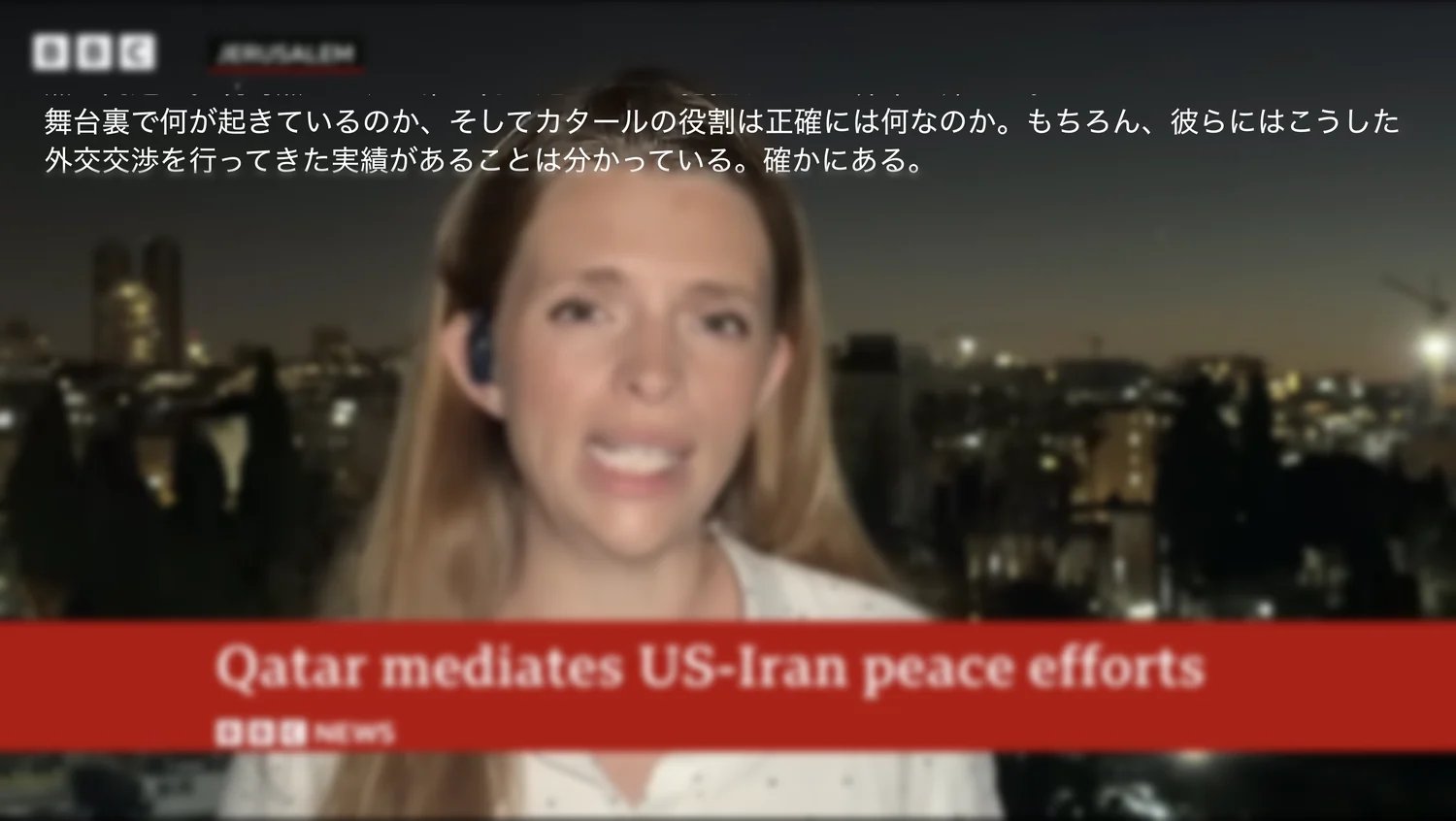 字幕の文字サイズや色を調整したり、文字起こし言語を非表示にして翻訳のみを表示したりできます。話者と参加者の設定の詳細については、[セミナー向けのライブ音声翻訳字幕](/ja/live-subtitles)をご覧ください。