> ## Documentation Index
> Fetch the complete documentation index at: https://manual.voiceping.net/llms.txt
> Use this file to discover all available pages before exploring further.

# 퇴근 및 앱 종료

> VoicePing 앱 완전 종료 방법 (Windows 및 Mac)

export const FeedbackKo = () => <>
    <Tip>
      이 기능에 대한 아이디어나 요청은 <a href="/ko/product-feedback">Product Feedback</a>을 통해 팀에 보내주세요.
    </Tip>

    <h2>공식 링크</h2>

    <CardGroup cols={2}>
      <Card title="공식 웹사이트" icon="globe" href="https://voiceping.net/en/">
        공식 웹사이트 방문
      </Card>
      <Card title="X (Twitter)" icon="x-twitter" href="https://x.com/VoicePingMedia">
        X에서 팔로우
      </Card>
      <Card title="Facebook" icon="facebook" href="https://www.facebook.com/voiceping.inc">
        Facebook에서 좋아요
      </Card>
      <Card title="LinkedIn" icon="linkedin" href="https://www.linkedin.com/company/28684130/">
        LinkedIn에서 연결
      </Card>
    </CardGroup>
  </>;

VoicePing 앱은 멤버가 가상 공간에 "상주"할 수 있도록 설계되어 있어서, 완전히 앱을 종료하지 않는 한 백그라운드에서 계속 실행되는 구조입니다.

## 계정에서 로그아웃하기

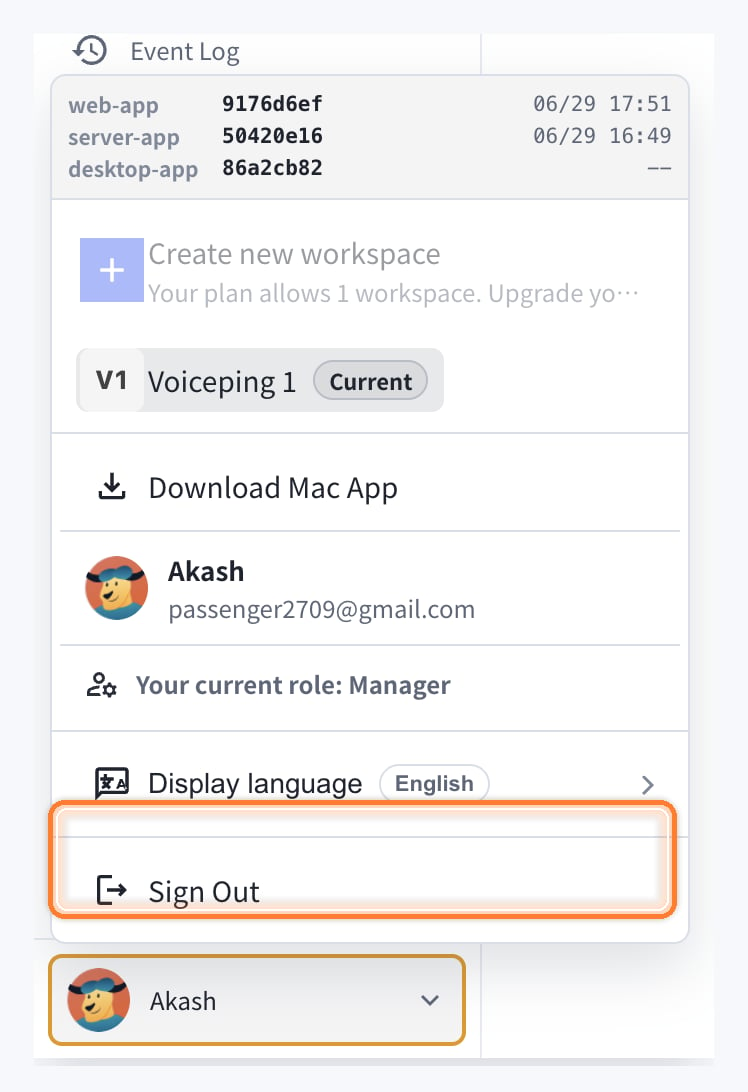
현재 VoicePing 계정에서 나가거나 다른 계정으로 전환하려면 "Sign Out"을 사용합니다. 로그아웃해도 데스크톱 앱이 완전히 종료되지는 않습니다.

1. 왼쪽 아래의 프로필 메뉴를 클릭합니다.
2. "Sign Out"을 클릭합니다.
<Frame>
  <img src="https://mintcdn.com/test-cf63e467/1_BQkW2BilGmh1Db/en/images/app-logout/sign-out-menu-highlighted.png?fit=max&auto=format&n=1_BQkW2BilGmh1Db&q=85&s=95748d7f0f7226b0e4778eb43f95ea39" alt="강조 표시된 Sign Out 메뉴" width="748" height="1092" data-path="en/images/app-logout/sign-out-menu-highlighted.png" />
</Frame>

## Windows OS의 경우

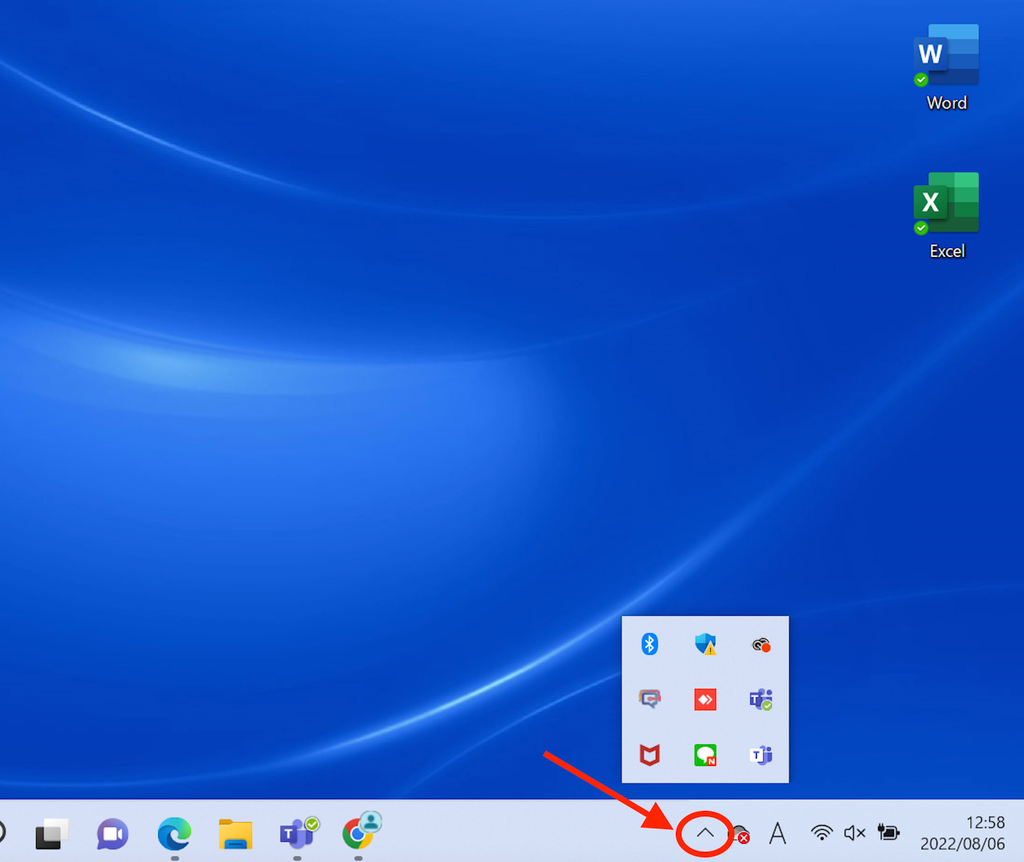
### 단계 1: 숨겨진 인디케이터 열기

메뉴바 오른쪽 하단의 숨겨진 인디케이터를 왼쪽 클릭
<Frame>
  <img src="https://mintcdn.com/test-cf63e467/4vHpBWNcRcAS0vJ1/ja/images/app-logout/01-windows-indicator.png?fit=max&auto=format&n=4vHpBWNcRcAS0vJ1&q=85&s=45ddbc053e2f5f25bb59ef833bc2519c" alt="Windows 인디케이터" width="1024" height="862" data-path="ja/images/app-logout/01-windows-indicator.png" />
</Frame>

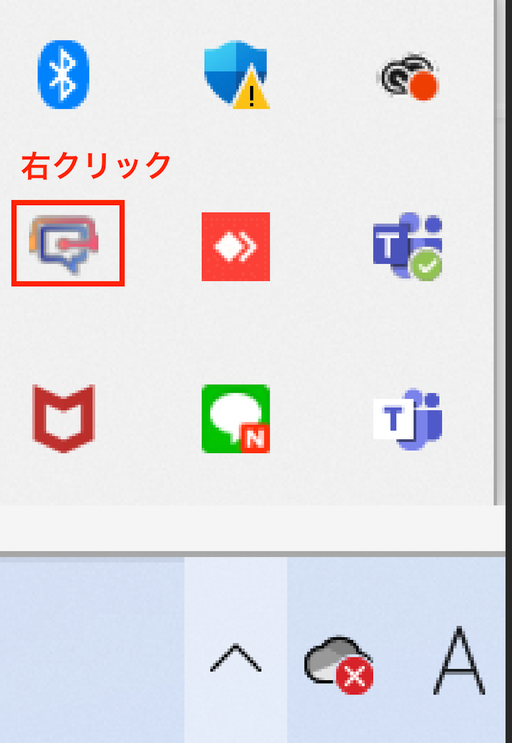
### 단계 2: VoicePing 앱 우클릭

VoicePing 앱을 우클릭
<Frame>
  <img src="https://mintcdn.com/test-cf63e467/4vHpBWNcRcAS0vJ1/ja/images/app-logout/02-right-click-menu.png?fit=max&auto=format&n=4vHpBWNcRcAS0vJ1&q=85&s=9a2f7b07483f8efe3e62752d9340e961" alt="VoicePing 우클릭 메뉴" width="512" height="743" data-path="ja/images/app-logout/02-right-click-menu.png" />
</Frame>

### 단계 3: 앱 종료

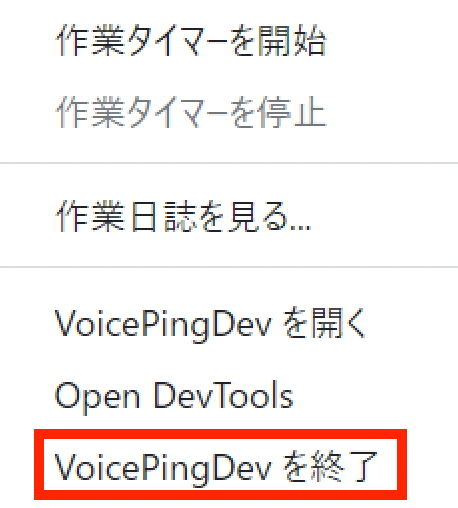
"VoicePing 종료"를 클릭

<Frame>
  <img src="https://mintcdn.com/test-cf63e467/4vHpBWNcRcAS0vJ1/ja/images/app-logout/03-quit-button.png?fit=max&auto=format&n=4vHpBWNcRcAS0vJ1&q=85&s=6f8f3400c1a53b5adeda6ab475326bf8" alt="종료 버튼" width="458" height="508" data-path="ja/images/app-logout/03-quit-button.png" />
</Frame>

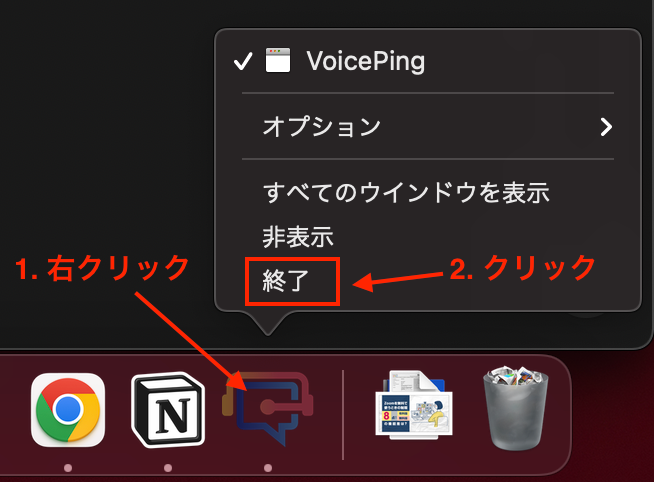
## Mac OS의 경우

### 단계 1: 앱 우클릭

오른쪽 하단의 현재 실행 중인 앱이 표시되는 바에서 VoicePing 앱을 우클릭

### 단계 2: 종료 클릭

"종료"를 클릭
<Frame>
  <img src="https://mintcdn.com/test-cf63e467/4vHpBWNcRcAS0vJ1/ja/images/app-logout/04-mac-quit-screen.png?fit=max&auto=format&n=4vHpBWNcRcAS0vJ1&q=85&s=5792e763b707b2bfdfacb685eeced266" alt="Mac 종료 화면" width="654" height="482" data-path="ja/images/app-logout/04-mac-quit-screen.png" />
</Frame>

<FeedbackKo />