> ## Documentation Index
> Fetch the complete documentation index at: https://manual.voiceping.net/llms.txt
> Use this file to discover all available pages before exploring further.
# 결제 신용카드 변경
> PC 또는 모바일 앱에서 등록된 결제 카드를 변경하는 방법입니다.
export const ContactKo = () => <>
문의 사항이 있으시면 이 양식을 통해 연락해 주세요.
공식 링크
공식 웹사이트 방문
X에서 팔로우
Facebook에서 좋아요
LinkedIn에서 연결
;
## 1. PC
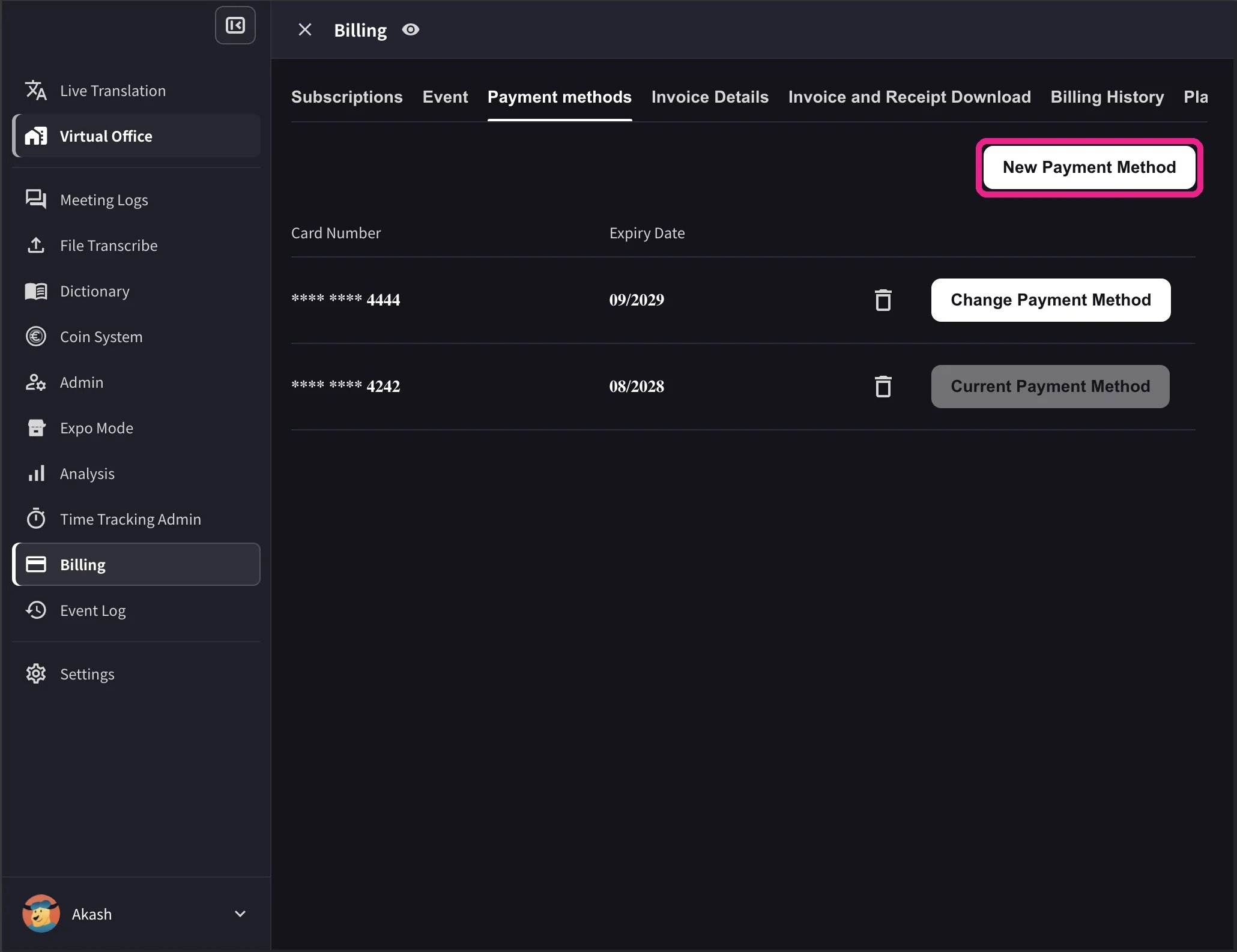
1. 상단 내비게이션 → **Billing** → **Payment methods** 를 열고 새 신용카드를 등록합니다.
 2. In the card list, click **Change Payment Method** on the card you want to use. The active card shows **Current Payment Method** after the change completes.
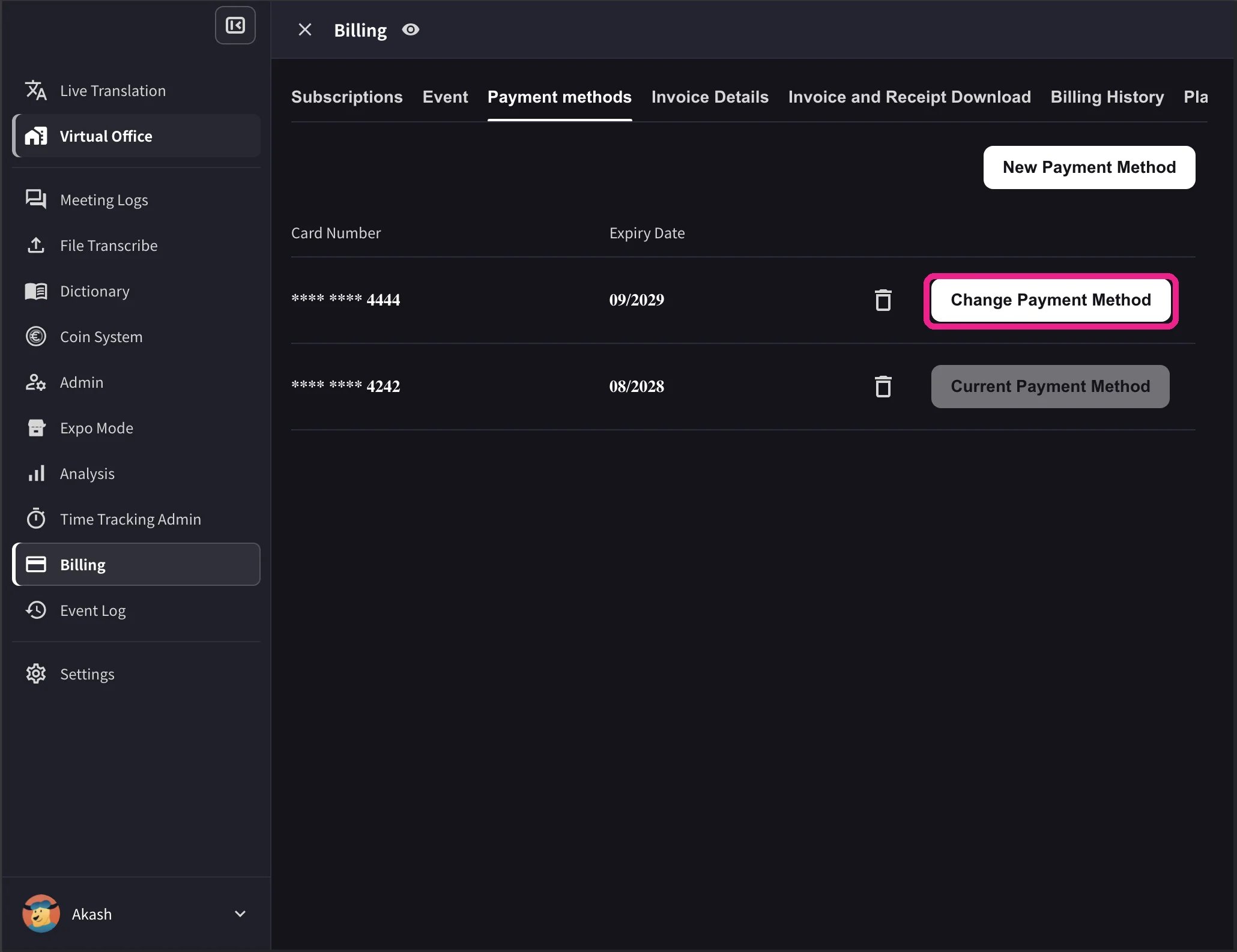 The desktop list also shows card expiry dates and a delete icon. **Change Payment Method** appears only when the workspace has an active Stripe subscription and no scheduled cancellation. Cards that cannot be used with the workspace currency show **Not Supported** instead of the change action.
## 2. Mobile
모바일 앱에서는 카드 관리가 **Billing → Manage Cards** 아래에 있습니다.
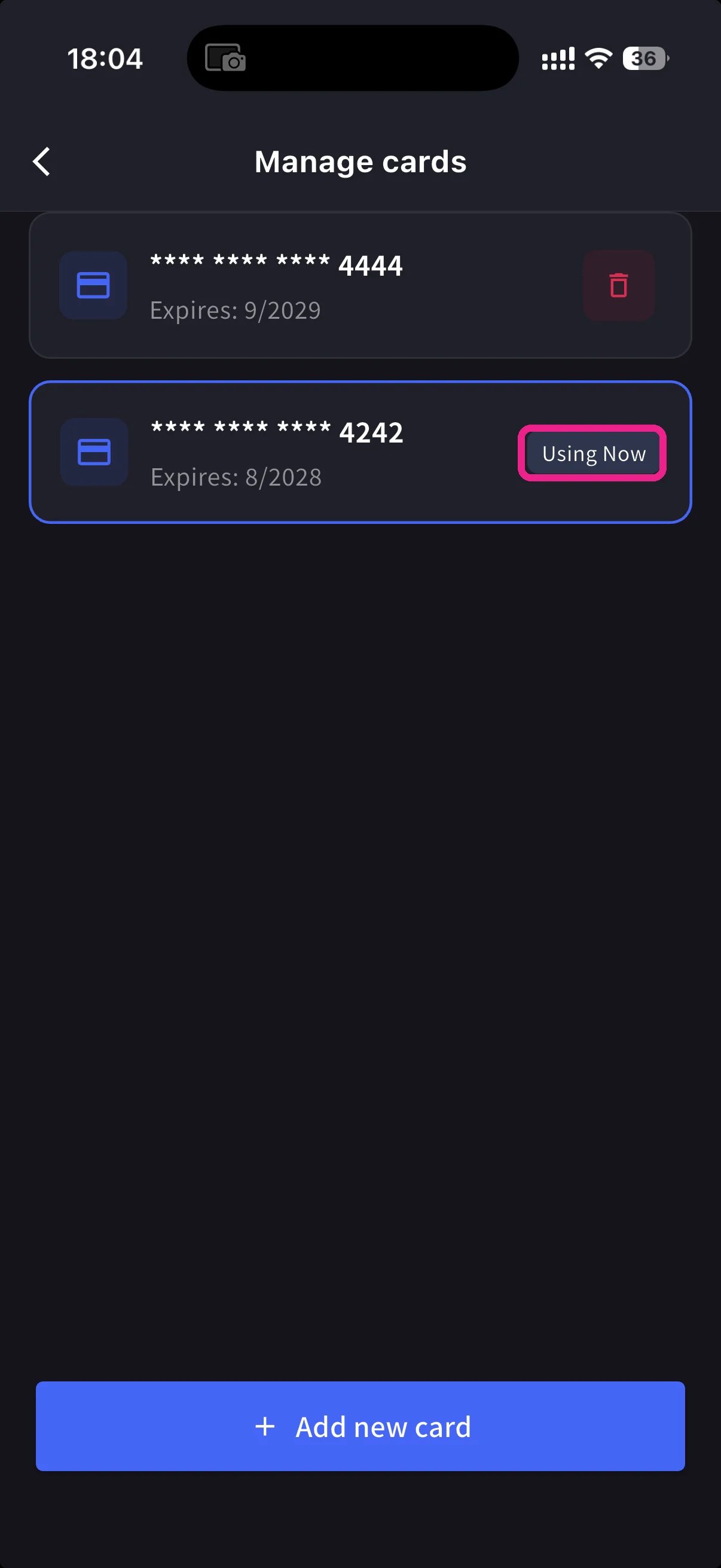
사이드 메뉴 → **User Settings** → **Billing** → **Manage Cards** 를 엽니다. 등록된 모든 카드가 표시되며, 사용 중인 카드에는 **Using Now** 표시가 붙습니다.
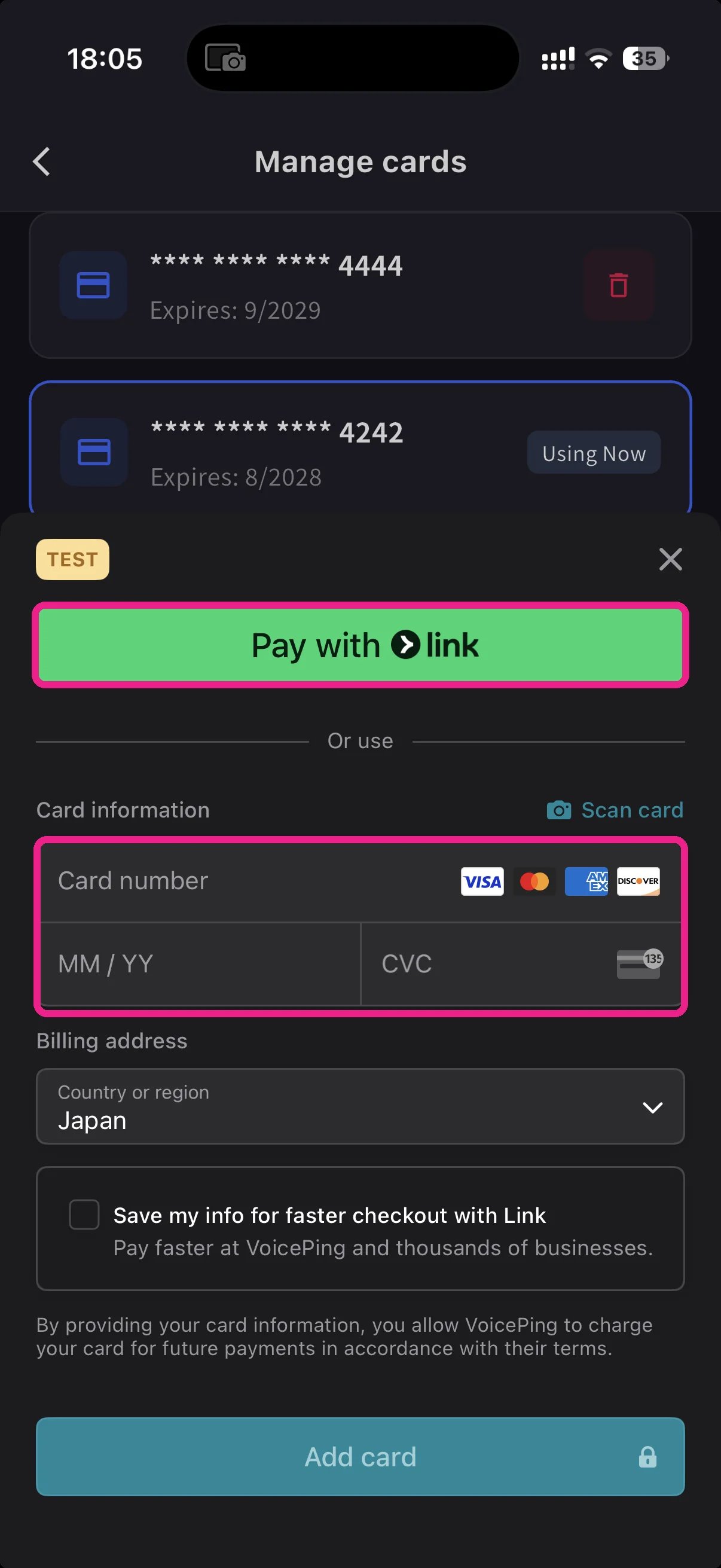
하단의 파란색 **+ Add new card** 버튼을 탭합니다. 카드 추가 시트에는 두 가지 방법이 있습니다.
* **Pay with Link** — 전화번호가 이미 Stripe Link에 연결되어 있으면 원탭으로 결제합니다.
* **Manual card** — 카드번호, MM/YY, CVC를 입력하거나 **📷 Scan card** 로 카메라에서 자동 입력합니다. 청구 국가를 선택하고 **Add card** 를 탭합니다.
Manage Cards로 돌아와 사용할 카드를 탭합니다. **Using Now** 표시가 해당 카드로 이동하고 향후 결제는 선택한 카드로 진행됩니다.
카드는 Stripe에서 토큰화됩니다. VoicePing은 원본 카드 번호를 저장하지 않습니다.
**Link** 를 사용하면 입력을 줄일 수 있습니다. 다른 곳에서 Stripe Link를 사용한 적이 있으면 전화번호 입력 후 카드가 자동 입력됩니다. 모바일에서 변경한 내용은 웹 앱과 즉시 동기화됩니다.
## Related
* [Plan Changes, Cancellation & Trial End](/ko/plan-changes) — 업그레이드, 다운그레이드, 해지
* [Invoices, Receipts & Billing Activity](/ko/invoices-receipts) — 청구서 PDF, 영수증, 이벤트 로그
The desktop list also shows card expiry dates and a delete icon. **Change Payment Method** appears only when the workspace has an active Stripe subscription and no scheduled cancellation. Cards that cannot be used with the workspace currency show **Not Supported** instead of the change action.
## 2. Mobile
모바일 앱에서는 카드 관리가 **Billing → Manage Cards** 아래에 있습니다.
사이드 메뉴 → **User Settings** → **Billing** → **Manage Cards** 를 엽니다. 등록된 모든 카드가 표시되며, 사용 중인 카드에는 **Using Now** 표시가 붙습니다.
하단의 파란색 **+ Add new card** 버튼을 탭합니다. 카드 추가 시트에는 두 가지 방법이 있습니다.
* **Pay with Link** — 전화번호가 이미 Stripe Link에 연결되어 있으면 원탭으로 결제합니다.
* **Manual card** — 카드번호, MM/YY, CVC를 입력하거나 **📷 Scan card** 로 카메라에서 자동 입력합니다. 청구 국가를 선택하고 **Add card** 를 탭합니다.
Manage Cards로 돌아와 사용할 카드를 탭합니다. **Using Now** 표시가 해당 카드로 이동하고 향후 결제는 선택한 카드로 진행됩니다.
카드는 Stripe에서 토큰화됩니다. VoicePing은 원본 카드 번호를 저장하지 않습니다.
**Link** 를 사용하면 입력을 줄일 수 있습니다. 다른 곳에서 Stripe Link를 사용한 적이 있으면 전화번호 입력 후 카드가 자동 입력됩니다. 모바일에서 변경한 내용은 웹 앱과 즉시 동기화됩니다.
## Related
* [Plan Changes, Cancellation & Trial End](/ko/plan-changes) — 업그레이드, 다운그레이드, 해지
* [Invoices, Receipts & Billing Activity](/ko/invoices-receipts) — 청구서 PDF, 영수증, 이벤트 로그