> ## Documentation Index
> Fetch the complete documentation index at: https://manual.voiceping.net/llms.txt
> Use this file to discover all available pages before exploring further.

# 워크플로우 — 30초 만에 후속 이메일 발송

> 방금 끝난 회의록을 전문적인 후속 이메일(요약, 확정된 의사결정, 담당자가 지정된 실행 항목, 다음 단계)로 변환합니다. VoicePing MCP Access를 사용합니다.

export const FeedbackKo = () => <>
    <Tip>
      이 기능에 대한 아이디어나 요청은 <a href="/ko/product-feedback">Product Feedback</a>을 통해 팀에 보내주세요.
    </Tip>

    <h2>공식 링크</h2>

    <CardGroup cols={2}>
      <Card title="공식 웹사이트" icon="globe" href="https://voiceping.net/en/">
        공식 웹사이트 방문
      </Card>
      <Card title="X (Twitter)" icon="x-twitter" href="https://x.com/VoicePingMedia">
        X에서 팔로우
      </Card>
      <Card title="Facebook" icon="facebook" href="https://www.facebook.com/voiceping.inc">
        Facebook에서 좋아요
      </Card>
      <Card title="LinkedIn" icon="linkedin" href="https://www.linkedin.com/company/28684130/">
        LinkedIn에서 연결
      </Card>
    </CardGroup>
  </>;

## 30초 만에 후속 이메일 발송

**상황.** 회의가 방금 끝났습니다. 모든 사람이 결정된 내용의 약 40%만 기억합니다. 가장 먼저 요약본을 보낸 사람이 기록을 정하고 ― 실행 항목을 확정합니다. 이것은 모든 영업·프로젝트 팀에서 단일 최고 레버리지 습관입니다.

이 워크플로우는 [MCP Access](/ko/external-access/mcp) 를 이미 활성화하고 AI 클라이언트에 연결했다고 가정합니다.

<Steps>
  <Step title="회의 컨텍스트 가져오기">
    ```text theme={null}
    Search my VoicePing transcripts for Dallas market investor engagement.
    ```

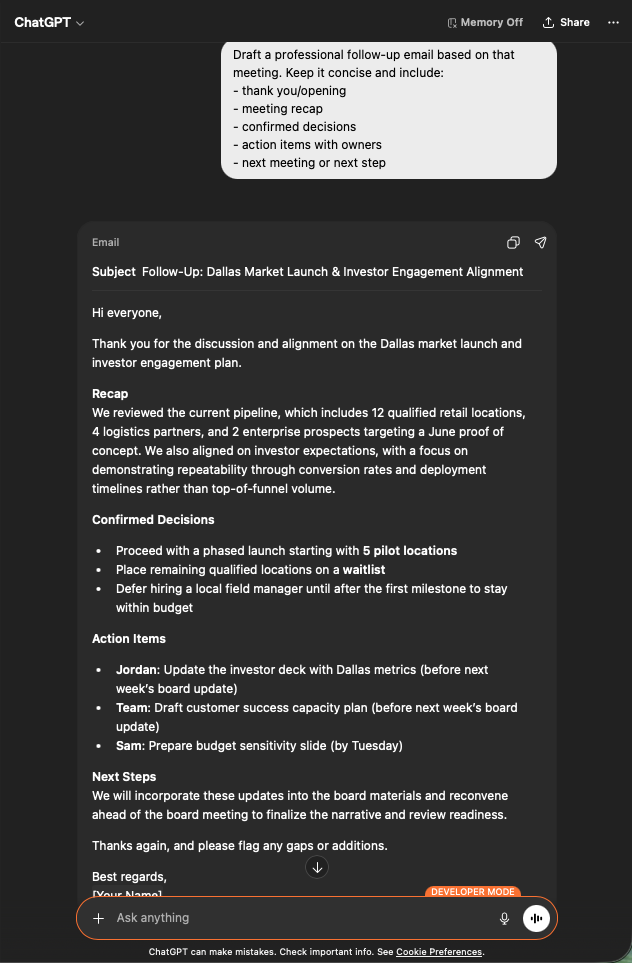
    구조화된 요약을 받게 됩니다: 핵심 요약, 투자자 기대, 주요 의사결정, 전략적 인사이트, 담당자 지정 실행 항목. 후속 이메일이 필요한 자료가 전부 있습니다.

    <div style={{maxWidth: "600px", margin: "0 auto"}}>
      <Frame>
        <img src="https://mintcdn.com/test-cf63e467/z13MfE0CikV5b-4X/en/images/external_access/Follow-up%20email%20creation%201.png?fit=max&auto=format&n=z13MfE0CikV5b-4X&q=85&s=6da6641338869dad182dbb481af32b15" alt="ChatGPT surfacing a Dallas Market Launch transcript with core summary, investor expectations, key decisions, and action items" width="634" height="963" data-path="en/images/external_access/Follow-up email creation 1.png" />
      </Frame>
    </div>
  </Step>

  <Step title="이메일 초안 요청">
    ```text theme={null}
    Draft a professional follow-up email based on that meeting.
    Keep it concise and include:
    - thank you / opening
    - meeting recap
    - confirmed decisions
    - action items with owners
    - next meeting or next step
    ```

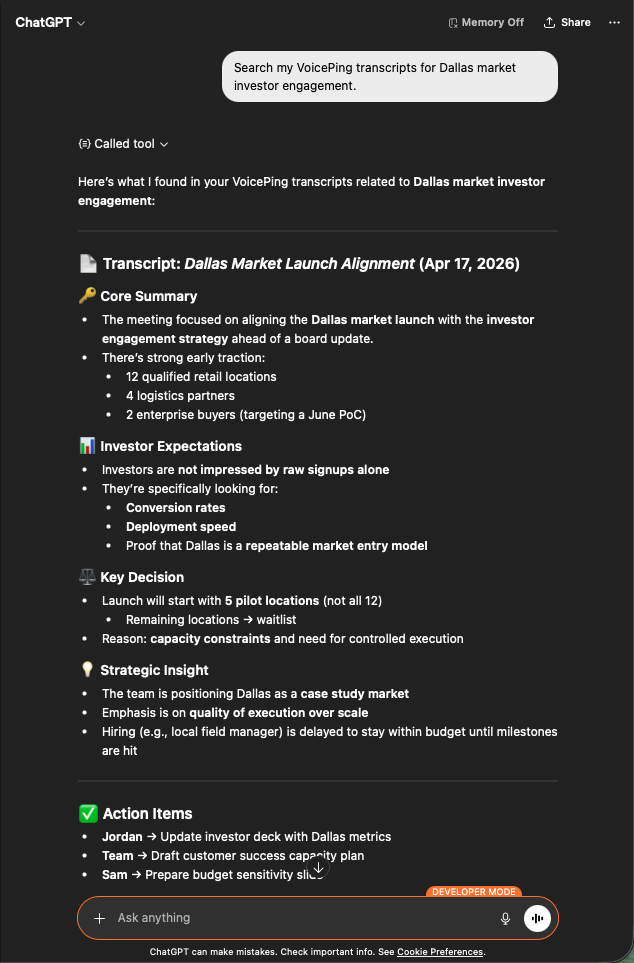
    바로 보낼 수 있는 이메일을 얻게 됩니다: 제목, 간결한 요약, 글머리 기호로 정리된 의사결정, 올바른 담당자와 기한이 지정된 실행 항목. Gmail에 붙여넣고 검토 후 발송하면 됩니다.

    <div style={{maxWidth: "600px", margin: "0 auto"}}>
      <Frame>
        <img src="https://mintcdn.com/test-cf63e467/z13MfE0CikV5b-4X/en/images/external_access/Follow-up%20email%20creation%202.png?fit=max&auto=format&n=z13MfE0CikV5b-4X&q=85&s=7440cfa879ba68ec0a1ade3cd9c2f0d5" alt="ChatGPT generating a professional follow-up email draft with subject, recap, decisions, and assigned action items" width="632" height="963" data-path="en/images/external_access/Follow-up email creation 2.png" />
      </Frame>
    </div>
  </Step>
</Steps>

**왜 중요한가.** 후속 이메일의 품질은 딜 속도의 선행 지표입니다. 30초짜리 작업으로 만들어두면, 사람들이 그것을 건너뛸 이유가 사라집니다.

***

## 다음 단계

<CardGroup cols={2}>
  <Card title="외부 접근 개요" icon="arrow-left" href="/ko/external-access">
    스코프, 라이프사이클 제어, 이벤트 로그 허브로 돌아가기.
  </Card>

  <Card title="MCP Access 활성화 방법" icon="plug" href="/ko/external-access/mcp">
    Claude, ChatGPT, Codex, Claude Code, Gemini CLI용 설정 가이드.
  </Card>
</CardGroup>

<FeedbackKo />