> ## Documentation Index
> Fetch the complete documentation index at: https://manual.voiceping.net/llms.txt
> Use this file to discover all available pages before exploring further.
# 세미나 라이브 음성 번역 자막
> 발표자의 음성을 실시간으로 번역하여 참가자에게 자막을 제공하는 방법
export const FeedbackKo = () => <>
이 기능에 대한 아이디어나 요청은 Product Feedback을 통해 팀에 보내주세요.
공식 링크
공식 웹사이트 방문
X에서 팔로우
Facebook에서 좋아요
LinkedIn에서 연결
;
* 발표자 측과 참가자 측 모두 인터넷 환경이 필요합니다. [https://fast.com/](https://fast.com/)에서 인터넷 속도를 검증할 수 있습니다. 30mbps 이상 권장 (최소 10mbps 필요)
* QR 코드 이미지 및 URL은 고정되어 있어 세션을 시작하거나 종료해도 변경되지 않습니다. 비밀번호를 설정하여 보안을 강화할 수 있습니다
* 참가자 측에서 마이크, 번역 텍스트 읽어주기 기능의 활성화/비활성화를 설정할 수 있습니다
* 문자 변환 언어를 숨기고 번역 텍스트만 표시하여 무대 스크린에 표시할 수 있습니다
* 문자 색상, 크기를 변경할 수 있습니다
* 번역 속도를 조절할 수 있습니다
* 프레젠테이션 자막을 표시할 수 있습니다. 자세한 내용은 [자막 모드(배경 투명)](/ko/transparent-presentation-subtitle-display-mode)를 참조하세요
## \[호스트용] 발표자의 음성을 번역하는 방법
1. **VoicePing 앱을 실행하고 "번역 시작"을 클릭하세요.**
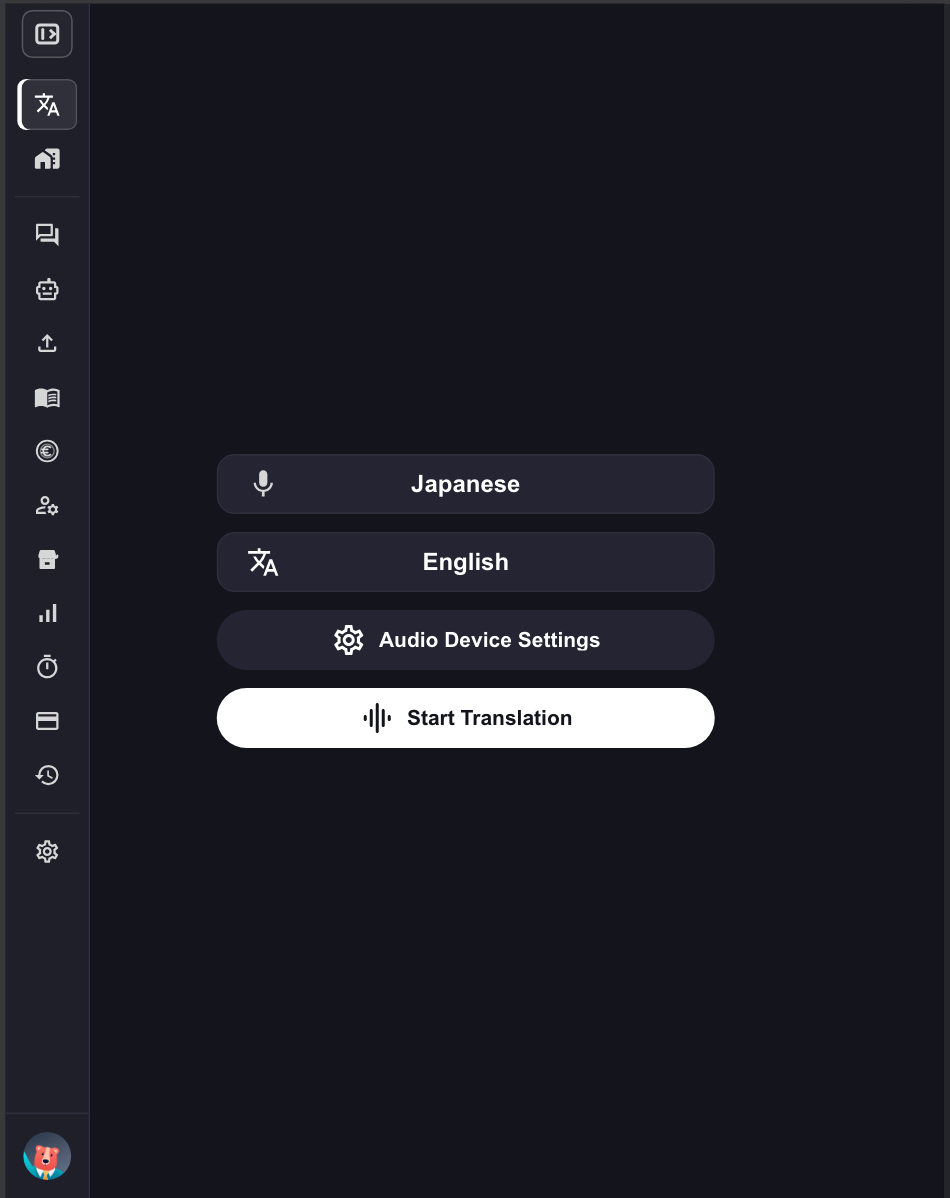 2. **번역 언어를 지정하세요.**
* 마이크 아이콘: 문자 변환 언어 (발표자의 언어)
* "문\&A" 아이콘: 번역 언어 (참가자용 언어)
2. **번역 언어를 지정하세요.**
* 마이크 아이콘: 문자 변환 언어 (발표자의 언어)
* "문\&A" 아이콘: 번역 언어 (참가자용 언어)
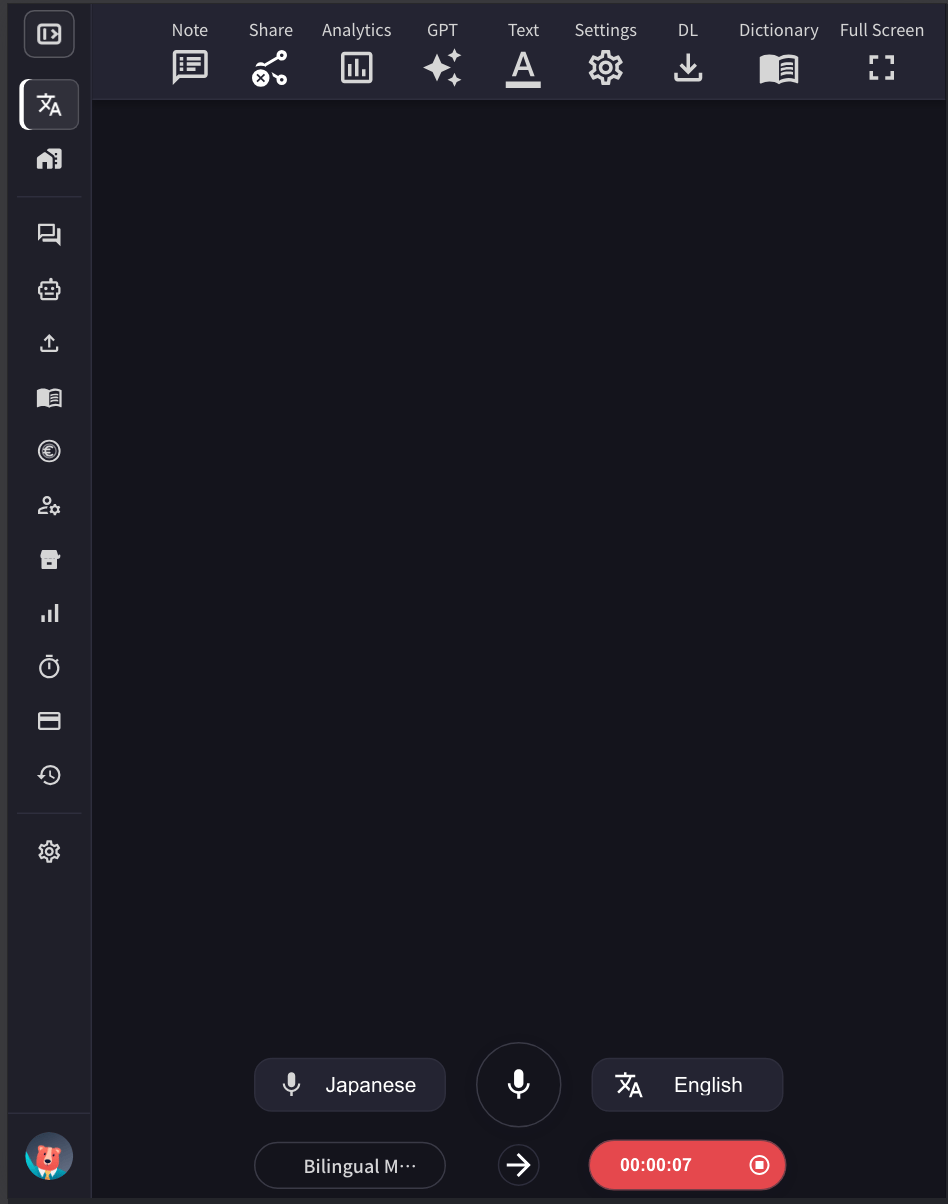 예: 영어를 일본어로 번역하려면 마이크 아이콘을 "영어"로, "문\&A" 아이콘을 "일본어"로 설정합니다.
3. **회장 스크린 크기에 맞게 VoicePing 번역 화면 크기, 텍스트 크기 및 색상을 조정합니다.**
* **글자 크기**와 **글자 색상**을 설정하려면 **텍스트** 패널을 여세요.
예: 영어를 일본어로 번역하려면 마이크 아이콘을 "영어"로, "문\&A" 아이콘을 "일본어"로 설정합니다.
3. **회장 스크린 크기에 맞게 VoicePing 번역 화면 크기, 텍스트 크기 및 색상을 조정합니다.**
* **글자 크기**와 **글자 색상**을 설정하려면 **텍스트** 패널을 여세요.
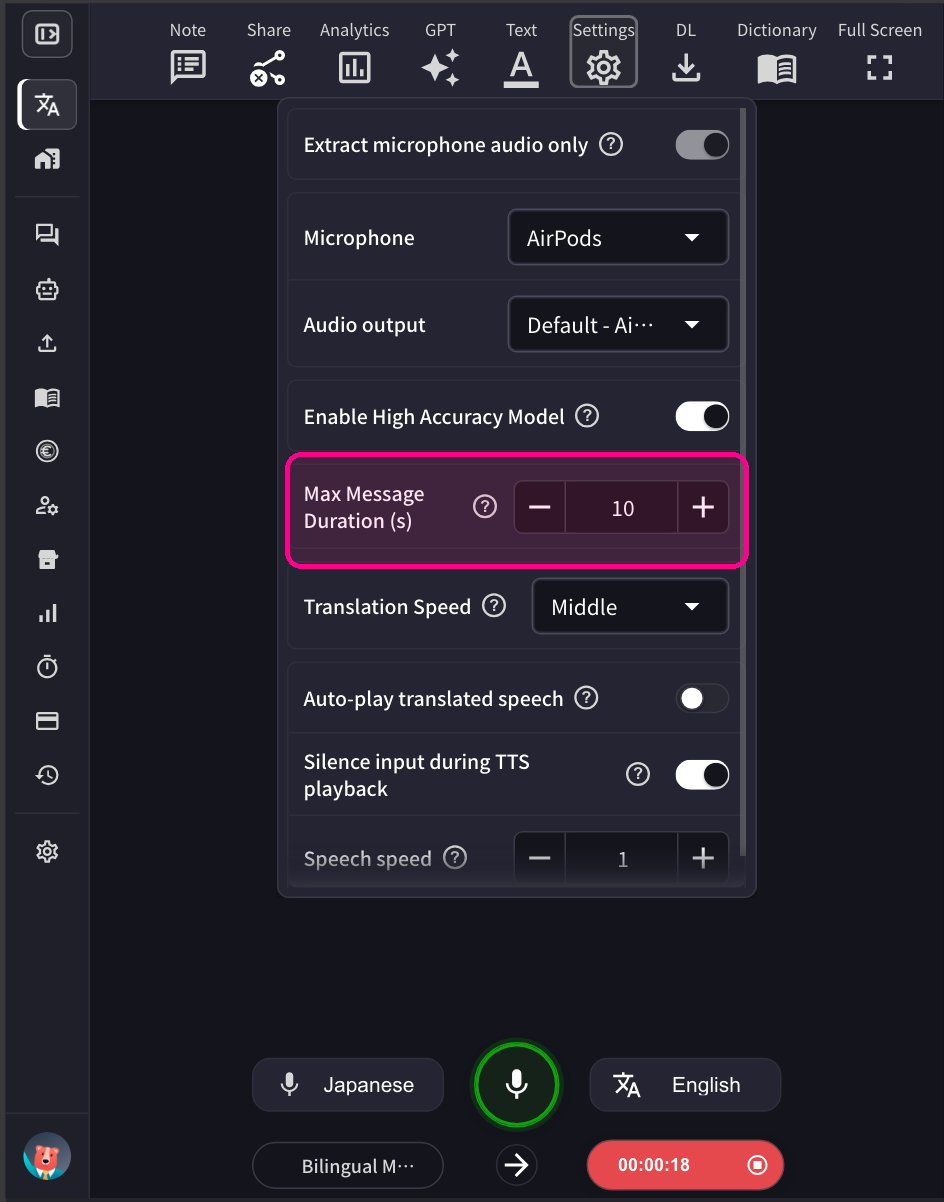
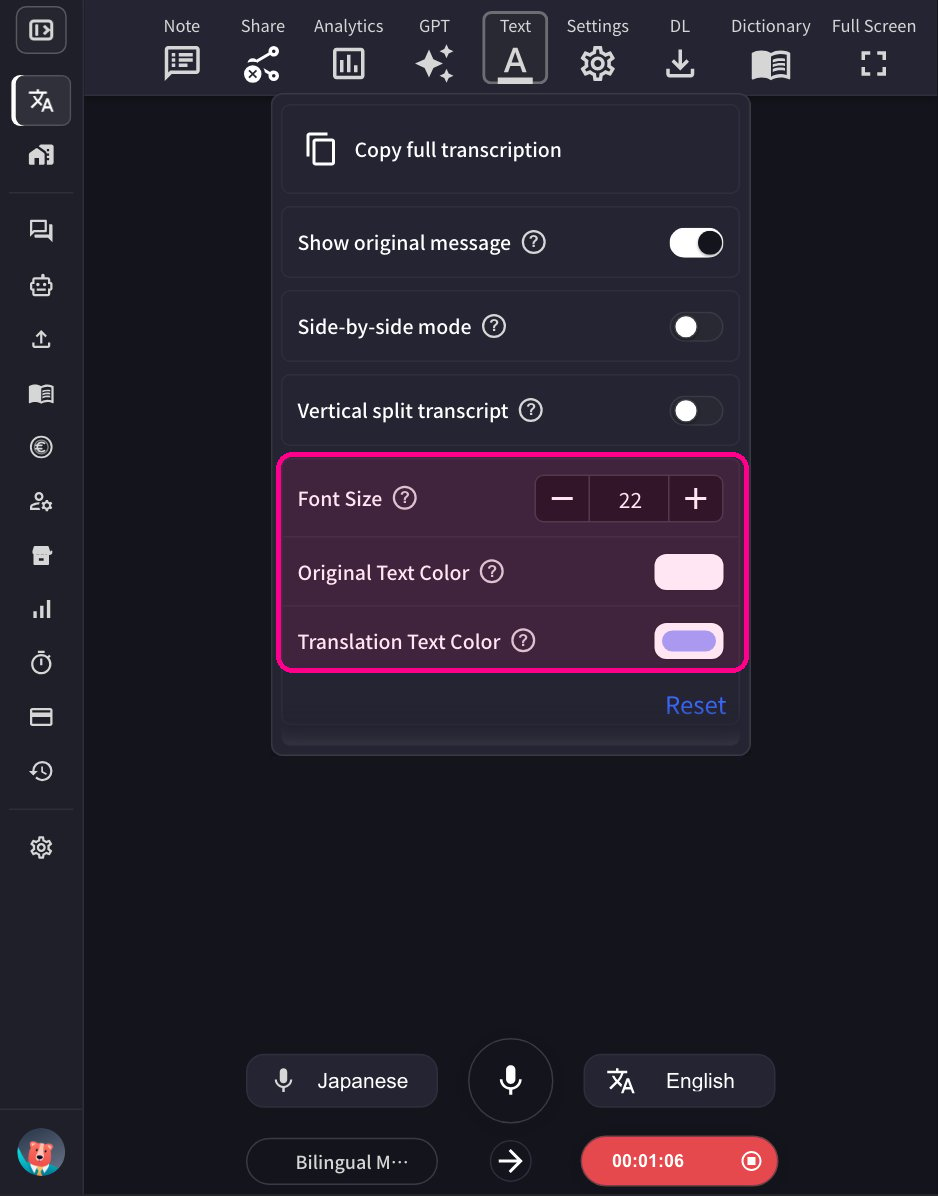 * 단일 오디오 세그먼트의 길이를 조정하려면 **설정** 패널에서 최대 메시지 시간을 조정하세요
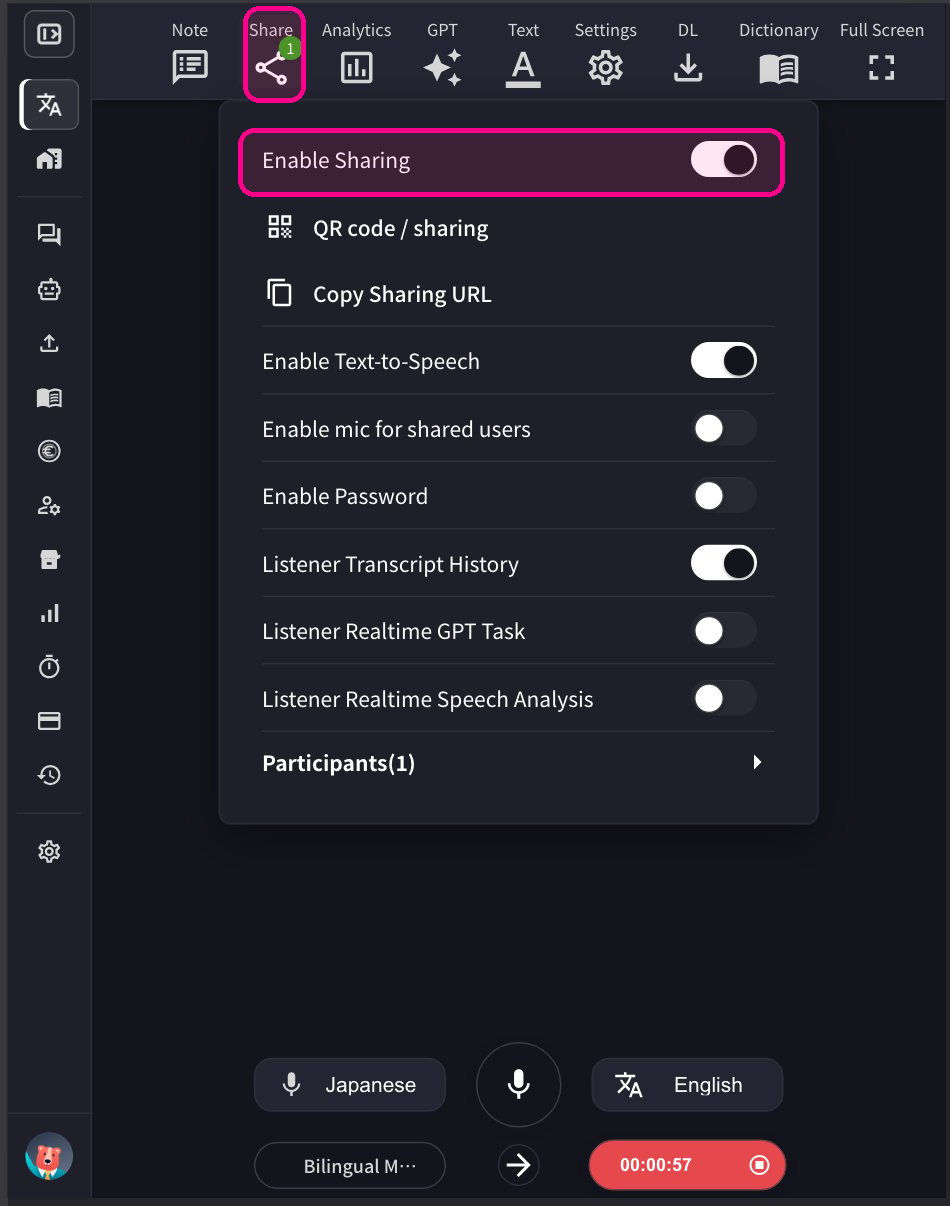
 4-1. **세션을 공유하려면 상단의 공유 아이콘을 클릭하고 공유를 활성화하세요.**
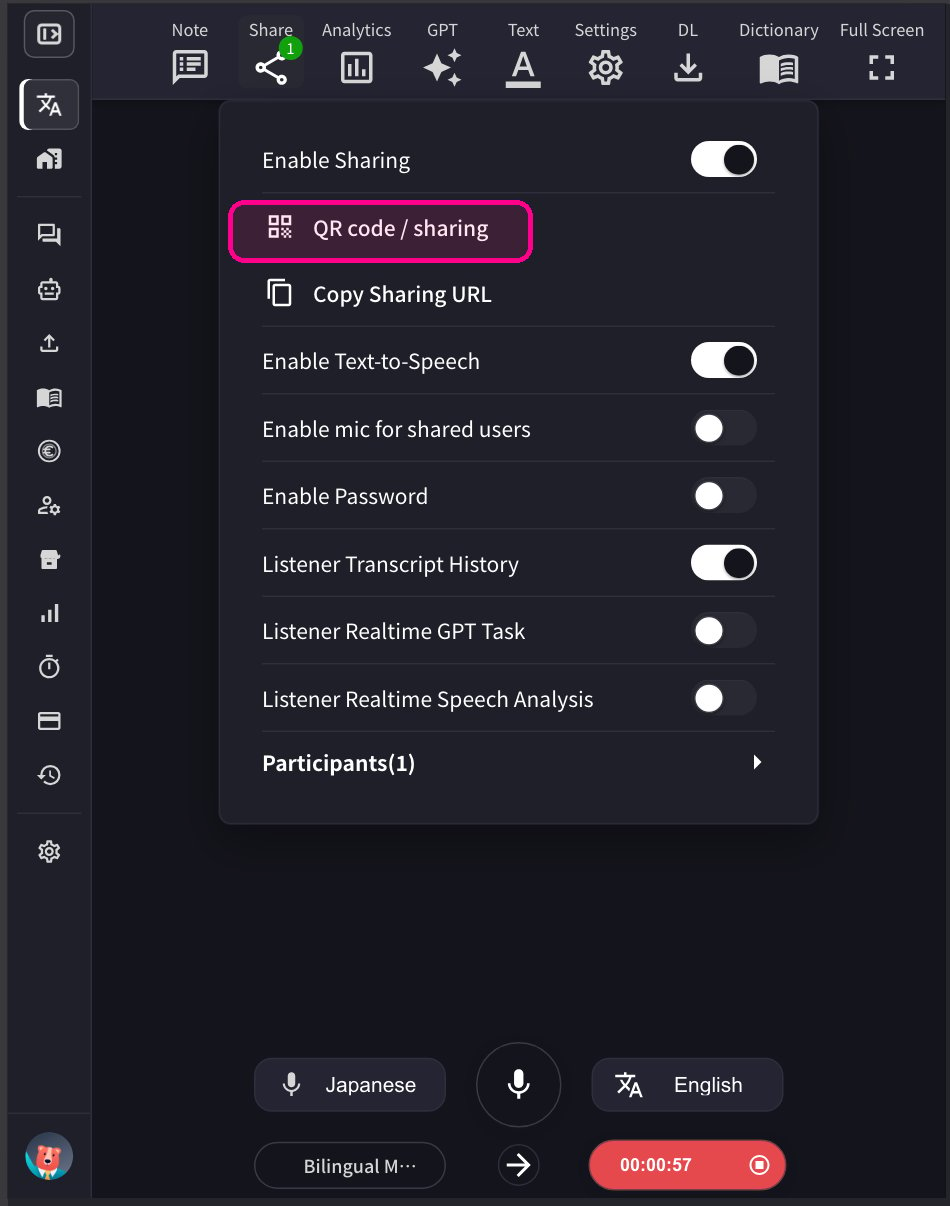
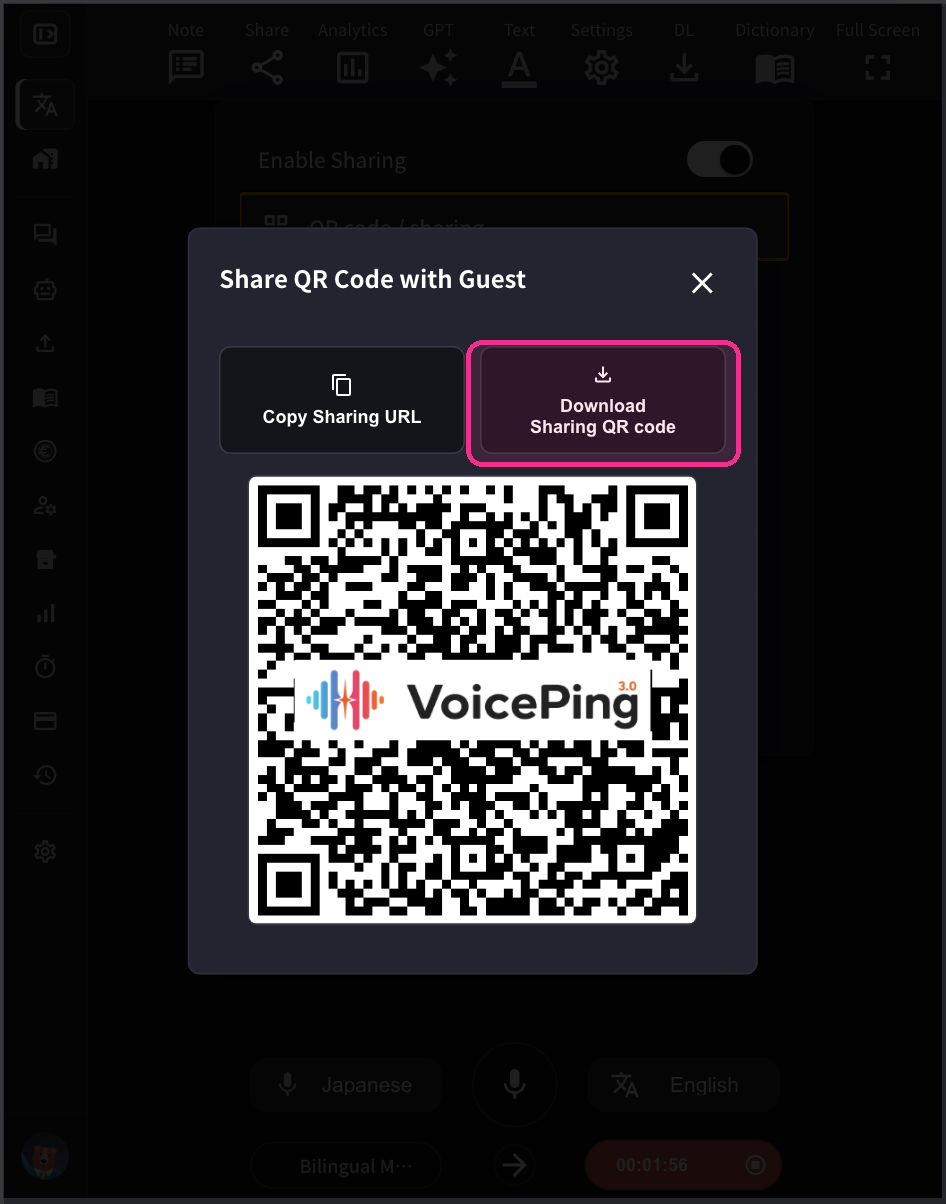
 4-2. **참가자가 자신의 모바일 기기에서 이 세션에 참여할 수 있도록 QR 코드를 공유하려면 QR 이미지를 게시하고 공유하세요.** 이 QR 코드는 각 계정의 고정 URL입니다. QR 코드는 영구적으로 변경되지 않습니다.
 참가자 수는 누적 접속 수가 아닌 **동시 접속 수**를 기준으로 카운트됩니다. 참가자가 세션을 떠나면 슬롯이 해제됩니다. 예를 들어, 50명이 QR 코드로 참가한 후 모두 퇴장하면 다시 50명 전체 슬롯을 사용할 수 있습니다.
## \[참가자용] 참여 방법
1. **모바일 카메라로 QR 코드를 스캔하거나 PC 웹 애플리케이션에서 위의 URL을 클릭하여 번역 채널에 접속합니다.**
참가자 수는 누적 접속 수가 아닌 **동시 접속 수**를 기준으로 카운트됩니다. 참가자가 세션을 떠나면 슬롯이 해제됩니다. 예를 들어, 50명이 QR 코드로 참가한 후 모두 퇴장하면 다시 50명 전체 슬롯을 사용할 수 있습니다.
## \[참가자용] 참여 방법
1. **모바일 카메라로 QR 코드를 스캔하거나 PC 웹 애플리케이션에서 위의 URL을 클릭하여 번역 채널에 접속합니다.**
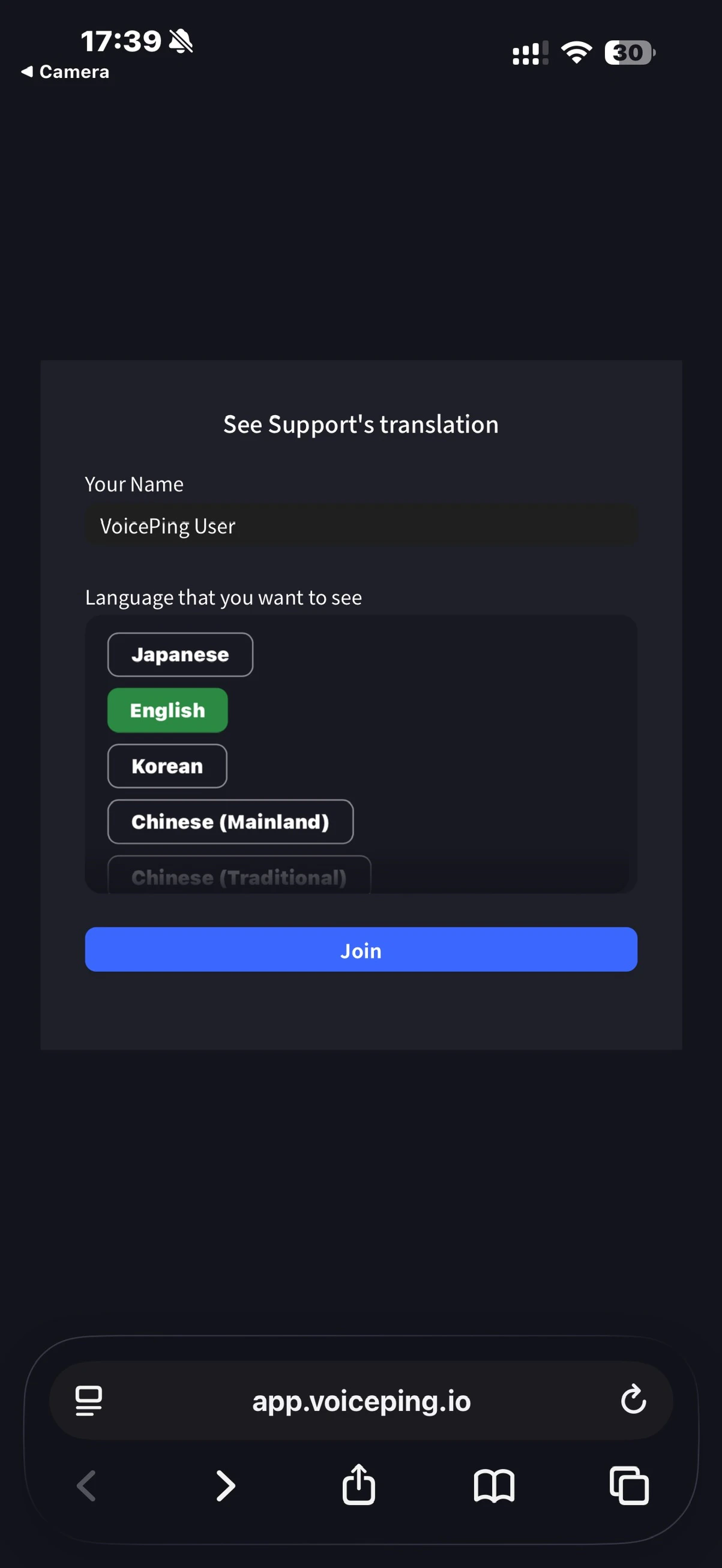 2. **접속 후 다음 항목을 입력합니다:**
* 이름: 참가자 이름 입력
* 보고 싶은 언어: 원하는 번역 언어 선택
3. **입장 후 다음 작업을 수행할 수 있습니다:**
* 언어 변경
* "설정"에서 번역 모양 조정
* 읽어주기 속도 조정
* 읽어주기 기능 켜기/끄기
* 나가기
2. **접속 후 다음 항목을 입력합니다:**
* 이름: 참가자 이름 입력
* 보고 싶은 언어: 원하는 번역 언어 선택
3. **입장 후 다음 작업을 수행할 수 있습니다:**
* 언어 변경
* "설정"에서 번역 모양 조정
* 읽어주기 속도 조정
* 읽어주기 기능 켜기/끄기
* 나가기