> ## Documentation Index
> Fetch the complete documentation index at: https://manual.voiceping.net/llms.txt
> Use this file to discover all available pages before exploring further.

# 모바일에서 다른 앱의 오디오 캡처

> 폰에서 재생되는 모든 오디오에 실시간 자막과 번역 — YouTube, 팟캐스트, 온라인 강의 등.

export const FeedbackKo = () => <>
    <Tip>
      이 기능에 대한 아이디어나 요청은 <a href="/ko/product-feedback">Product Feedback</a>을 통해 팀에 보내주세요.
    </Tip>

    <h2>공식 링크</h2>

    <CardGroup cols={2}>
      <Card title="공식 웹사이트" icon="globe" href="https://voiceping.net/en/">
        공식 웹사이트 방문
      </Card>
      <Card title="X (Twitter)" icon="x-twitter" href="https://x.com/VoicePingMedia">
        X에서 팔로우
      </Card>
      <Card title="Facebook" icon="facebook" href="https://www.facebook.com/voiceping.inc">
        Facebook에서 좋아요
      </Card>
      <Card title="LinkedIn" icon="linkedin" href="https://www.linkedin.com/company/28684130/">
        LinkedIn에서 연결
      </Card>
    </CardGroup>
  </>;

<Frame>
  <img src="https://mintcdn.com/test-cf63e467/z13MfE0CikV5b-4X/en/images/mobile-screen-record/hero-screen-record.webp?fit=max&auto=format&n=z13MfE0CikV5b-4X&q=85&s=0b9ef6267149aab213e587264deba281" alt="Capture Other-App Audio on Mobile" width="2752" height="1536" data-path="en/images/mobile-screen-record/hero-screen-record.webp" />
</Frame>

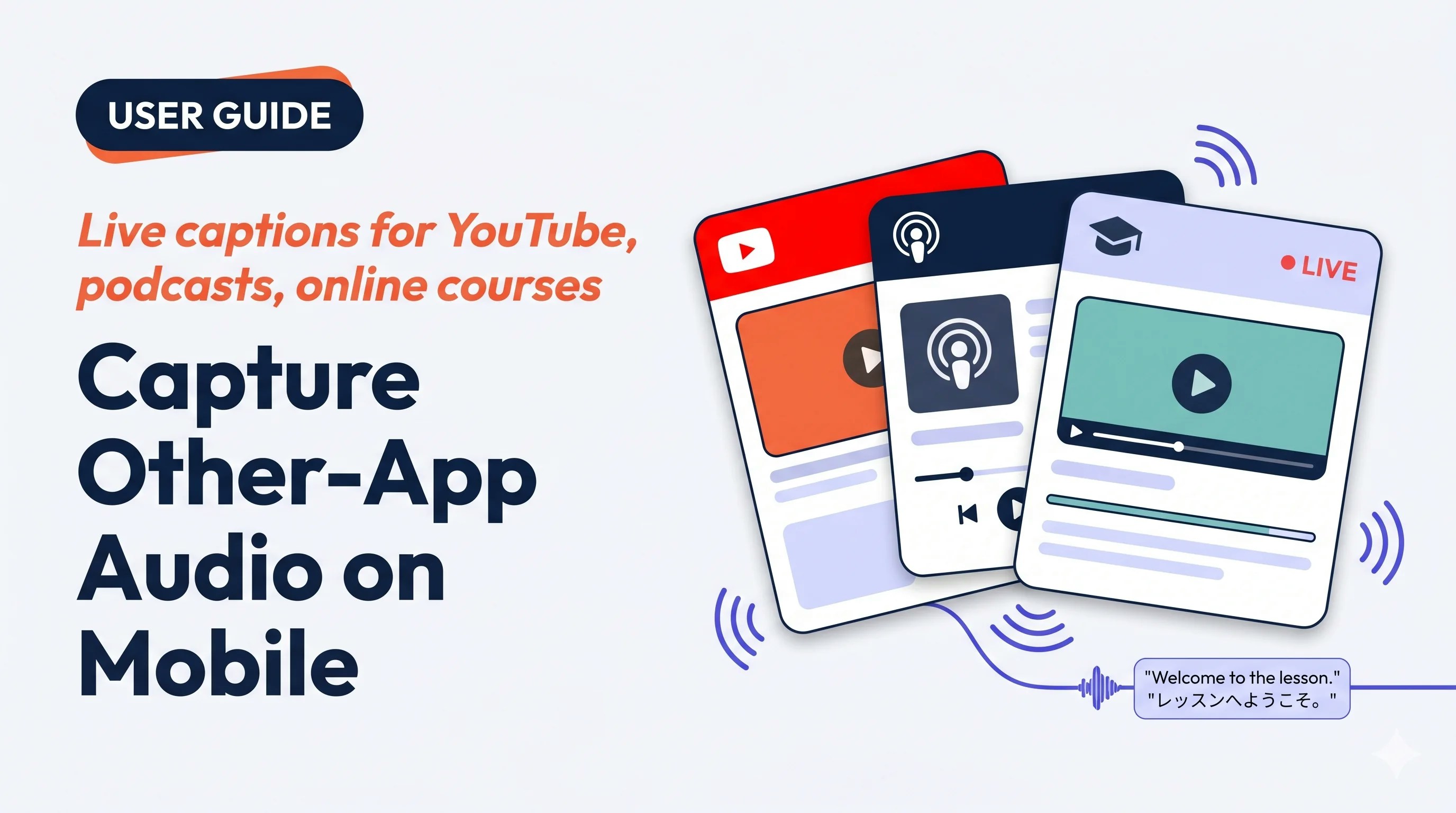
폰에서 재생되는 모든 것 — 외국어 YouTube 비디오, 팟캐스트, 온라인 강의, 저장된 오디오 클립 — 에 VoicePing 을 연결해 일반 세션 뷰에서 이중 언어 자막을 볼 수 있습니다.

## 이런 상황에 사용하세요

<CardGroup cols={2}>
  <Card img="https://mintcdn.com/test-cf63e467/z13MfE0CikV5b-4X/en/images/mobile-screen-record/usecases/training-webinar.webp?fit=max&auto=format&n=z13MfE0CikV5b-4X&q=85&s=1b37d856c837f389d8eafbb33cc0fe3f" width="2048" height="2048" data-path="en/images/mobile-screen-record/usecases/training-webinar.webp">
    외국어 강의, Udemy 강좌, 녹화된 웨비나 — 들으면서 선호하는 언어로 읽습니다.
  </Card>

  <Card img="https://mintcdn.com/test-cf63e467/yJOLVx6nWj9-gzC6/en/images/mobile-screen-record/usecases/youtube-podcast.webp?fit=max&auto=format&n=yJOLVx6nWj9-gzC6&q=85&s=1eafb0c4ffe0ff4ace41ce074240772b" width="2048" height="2048" data-path="en/images/mobile-screen-record/usecases/youtube-podcast.webp">
    이동 중에 외국어 YouTube 나 팟캐스트를 번역 — 다운로드 불필요.
  </Card>

  <Card img="https://mintcdn.com/test-cf63e467/z13MfE0CikV5b-4X/en/images/mobile-screen-record/usecases/review-recordings.webp?fit=max&auto=format&n=z13MfE0CikV5b-4X&q=85&s=f9d49e250e089e1a396ecd91e6654269" width="2048" height="2048" data-path="en/images/mobile-screen-record/usecases/review-recordings.webp">
    다른 플레이어에서 저장된 오디오 파일을 열면 VoicePing 이 재생 중 자막을 생성.
  </Card>

  <Card img="https://mintcdn.com/test-cf63e467/z13MfE0CikV5b-4X/en/images/mobile-screen-record/usecases/language-practice.webp?fit=max&auto=format&n=z13MfE0CikV5b-4X&q=85&s=32f8cef353723c1428b346a7cf695ae5" width="2048" height="2048" data-path="en/images/mobile-screen-record/usecases/language-practice.webp">
    원어민 팟캐스트와 상시 번역기로 리스닝 실력 향상.
  </Card>
</CardGroup>

## 하이라이트

* 폰에서 **오디오를 재생하는 모든 앱** 지원 (OS 의 화면 캡처 제한 내)
* 일반 VoicePing 세션과 동일한 라이브 미팅 뷰 — 편집, 회의록, 내보내기, 사전 모두 작동
* 세션이 워크스페이스 기록에 저장 — 팀원이 이후 PC 에서 열 수 있음
* **iOS (Screen Record)** 와 **Android (Device Audio)**

## 캡처 시작

<Steps>
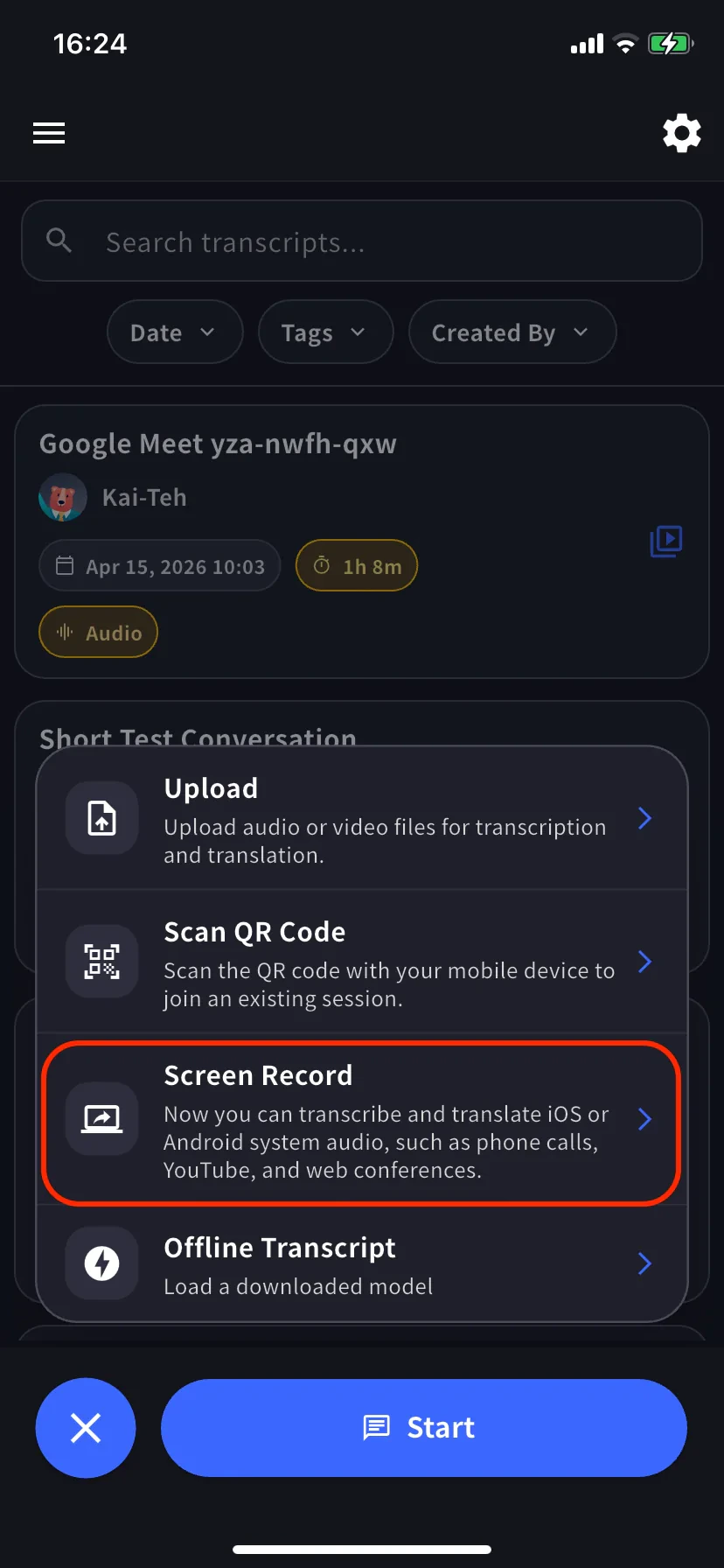
  <Step title="＋ → Screen Record">
    홈 화면에서 세션 메뉴를 여세요. Android 에서는 **Device Audio** 라고 표시됩니다.

    <div style={{display: "flex", gap: "12px", justifyContent: "center", flexWrap: "wrap"}}>
      <div style={{flex: "1 1 220px", maxWidth: "240px"}}>
        <Frame>
          <img src="https://mintcdn.com/test-cf63e467/yJOLVx6nWj9-gzC6/ja/images/mobile-screen-record/01-plus-menu-screen-record.webp?fit=max&auto=format&n=yJOLVx6nWj9-gzC6&q=85&s=cf1b0fe441efeda219aec42e7c7ed987" alt="Screen Record 가 하이라이트된 ＋ 메뉴" width="828" height="1792" data-path="ja/images/mobile-screen-record/01-plus-menu-screen-record.webp" />
        </Frame>
      </div>

      <div style={{flex: "1 1 220px", maxWidth: "240px"}}>
        <Frame>
          <img src="https://mintcdn.com/test-cf63e467/yJOLVx6nWj9-gzC6/ja/images/mobile-screen-record/02-capture-screen.webp?fit=max&auto=format&n=yJOLVx6nWj9-gzC6&q=85&s=72732700340e66c791410252eb619e2f" alt="언어 탭과 Bilingual 토글이 있는 라이브 화면" width="828" height="1792" data-path="ja/images/mobile-screen-record/02-capture-screen.webp" />
        </Frame>
      </div>
    </div>

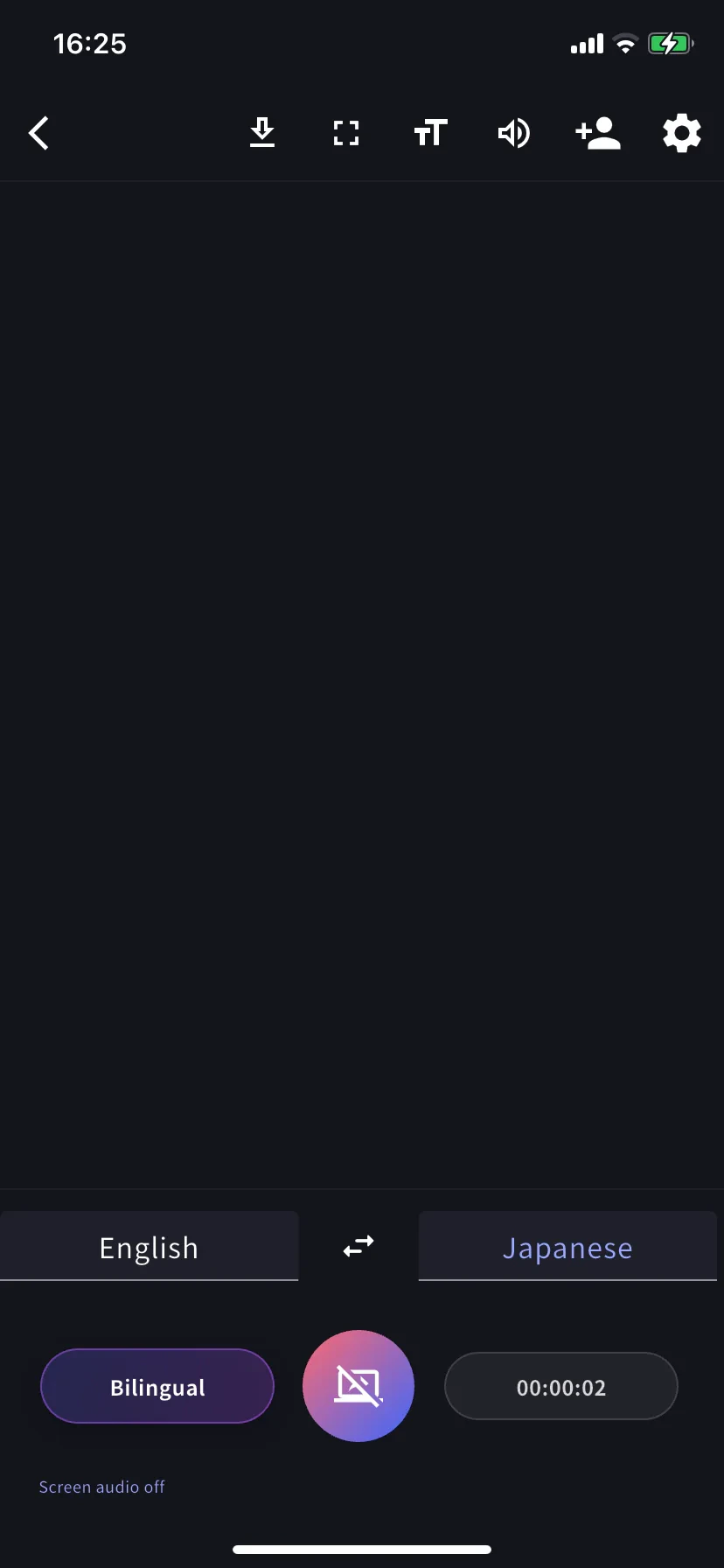
    전사 언어 (왼쪽 탭) 와 번역 언어 (오른쪽 탭) 를 설정하세요. 둘 다 표시하려면 **Bilingual** 을 켭니다.
  </Step>

  <Step title="브로드캐스트 시작">
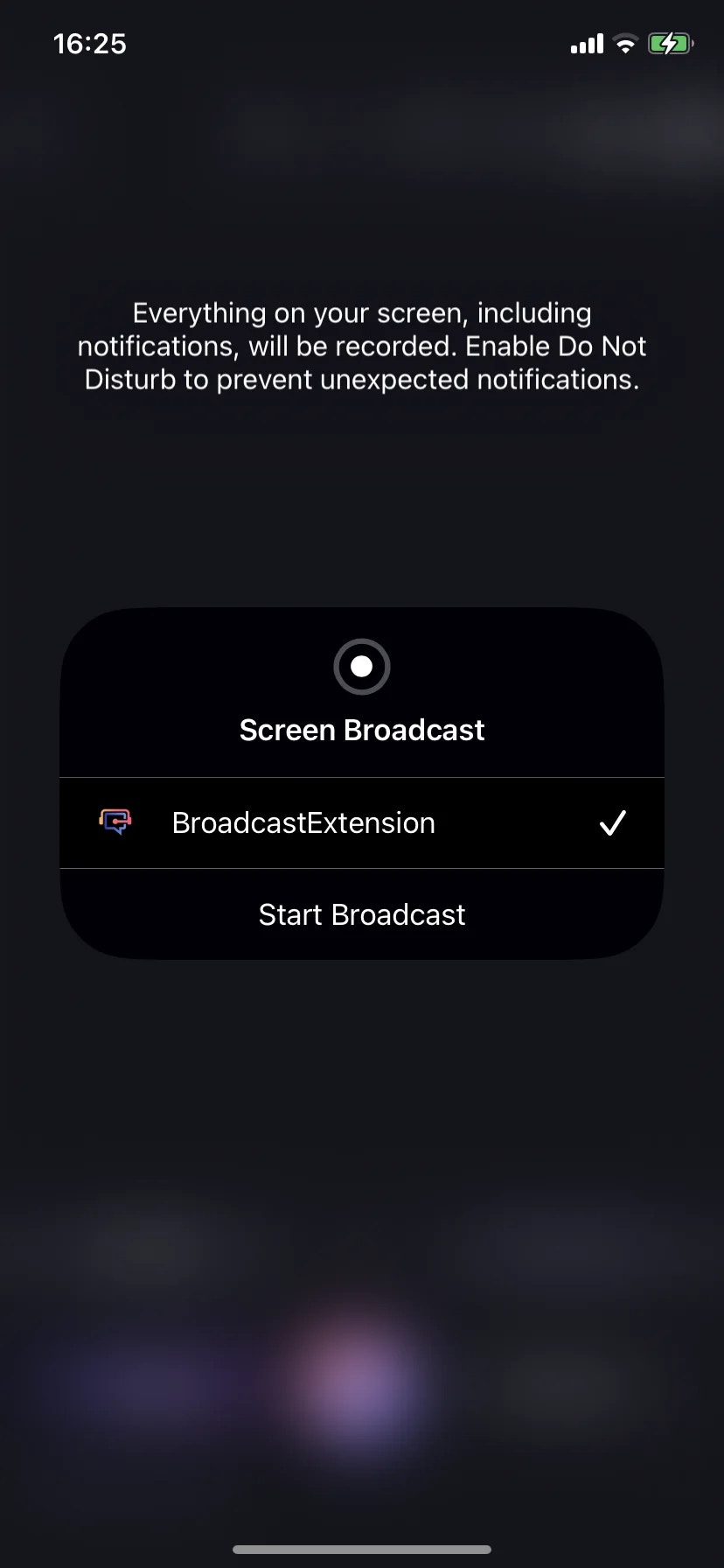
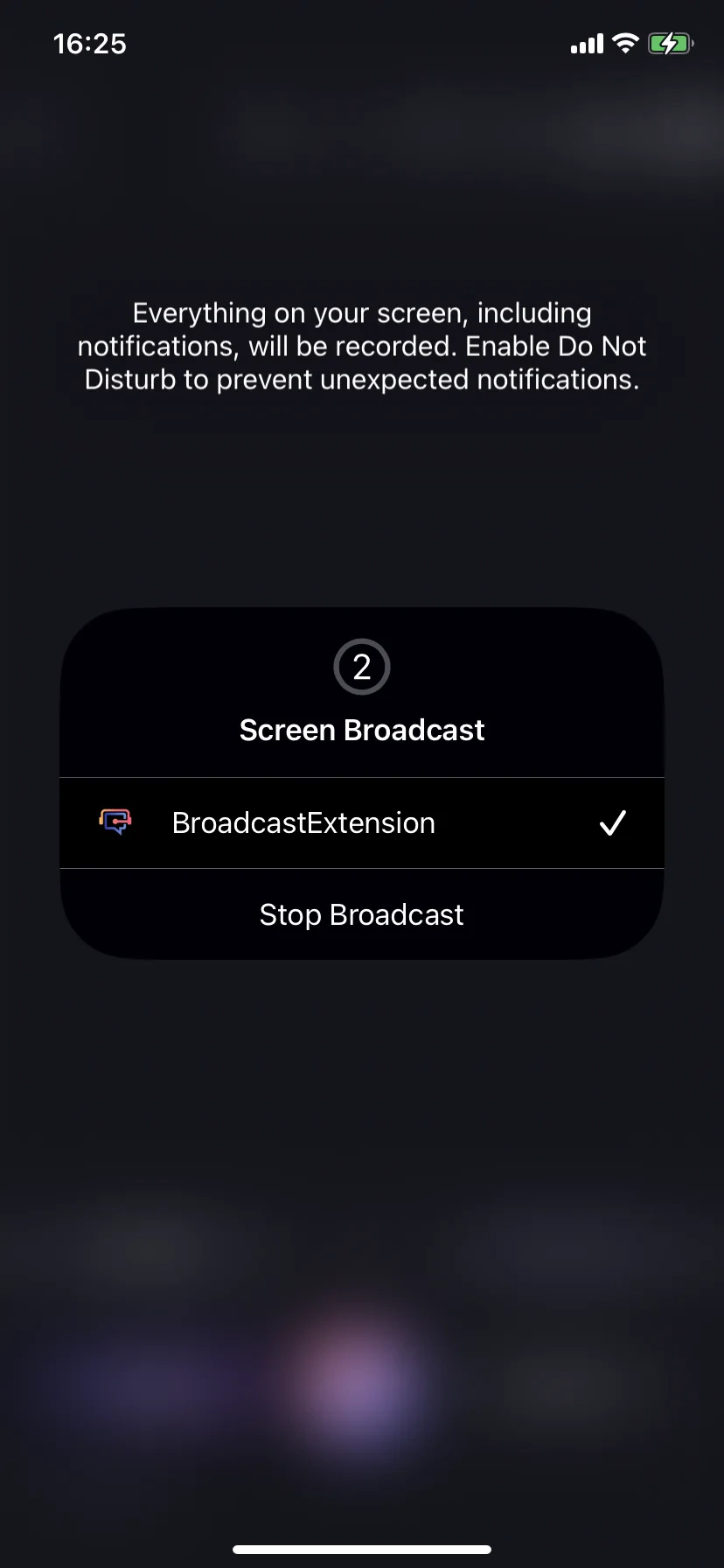
    캡처 버튼을 탭합니다. iOS 에서는 **BroadcastExtension → Start Broadcast** 를 선택하세요. Android 에서는 미디어 프로젝션 프롬프트를 수락하세요. 활성화되면 시트가 **Stop Broadcast** 로 전환됩니다.

    <div style={{display: "flex", gap: "12px", justifyContent: "center", flexWrap: "wrap"}}>
      <div style={{flex: "1 1 200px", maxWidth: "220px"}}>
        <Frame>
          <img src="https://mintcdn.com/test-cf63e467/yJOLVx6nWj9-gzC6/ja/images/mobile-screen-record/03-broadcast-start.webp?fit=max&auto=format&n=yJOLVx6nWj9-gzC6&q=85&s=dab7f16292726e5a7882accfb617f16d" alt="iOS Start Broadcast 프롬프트" width="828" height="1792" data-path="ja/images/mobile-screen-record/03-broadcast-start.webp" />
        </Frame>
      </div>

      <div style={{flex: "1 1 200px", maxWidth: "220px"}}>
        <Frame>
          <img src="https://mintcdn.com/test-cf63e467/yJOLVx6nWj9-gzC6/ja/images/mobile-screen-record/04-broadcast-active.webp?fit=max&auto=format&n=yJOLVx6nWj9-gzC6&q=85&s=e8c222c0318cbf212cd1d61f9371ea07" alt="활성 상태의 iOS Stop Broadcast" width="828" height="1792" data-path="ja/images/mobile-screen-record/04-broadcast-active.webp" />
        </Frame>
      </div>
    </div>
  </Step>

  <Step title="소스 앱에서 재생 후 복귀">
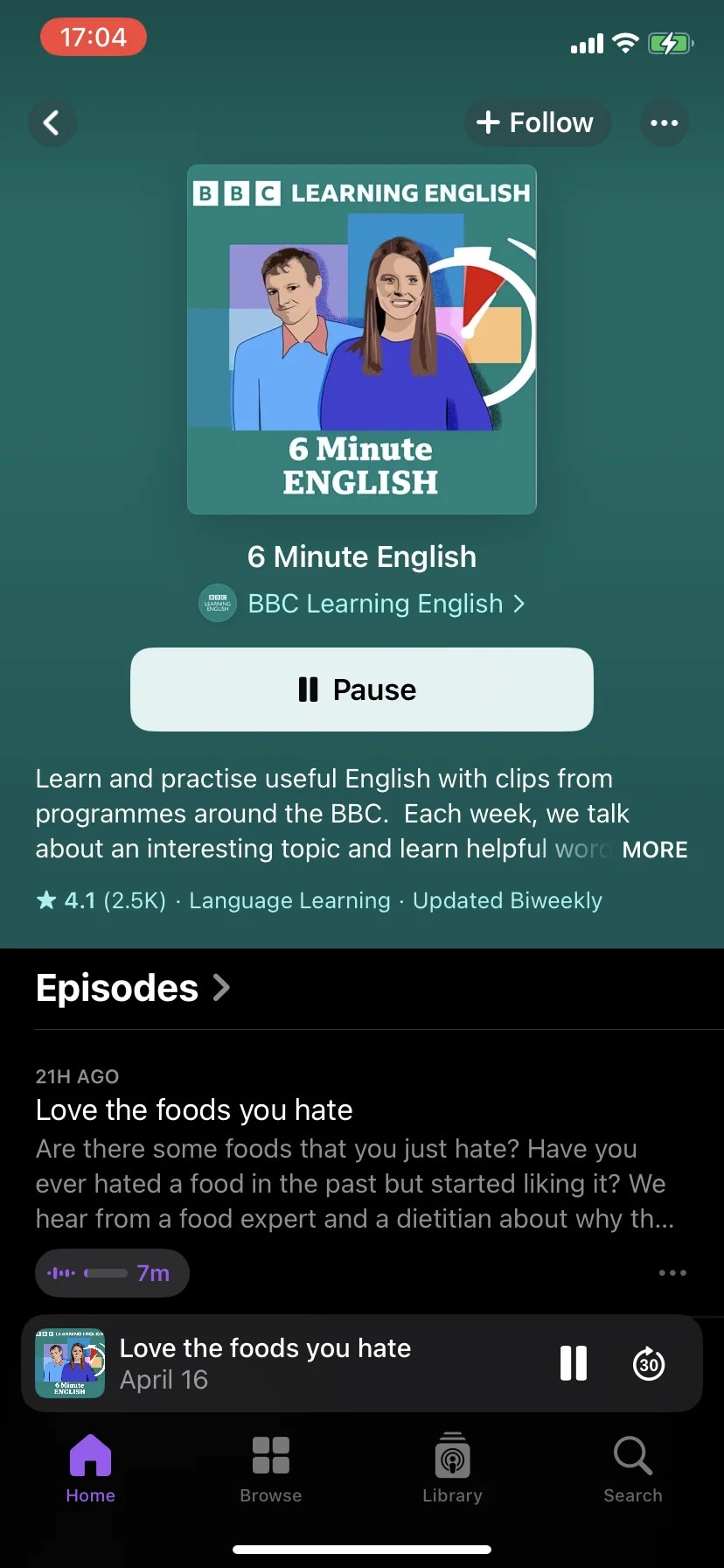
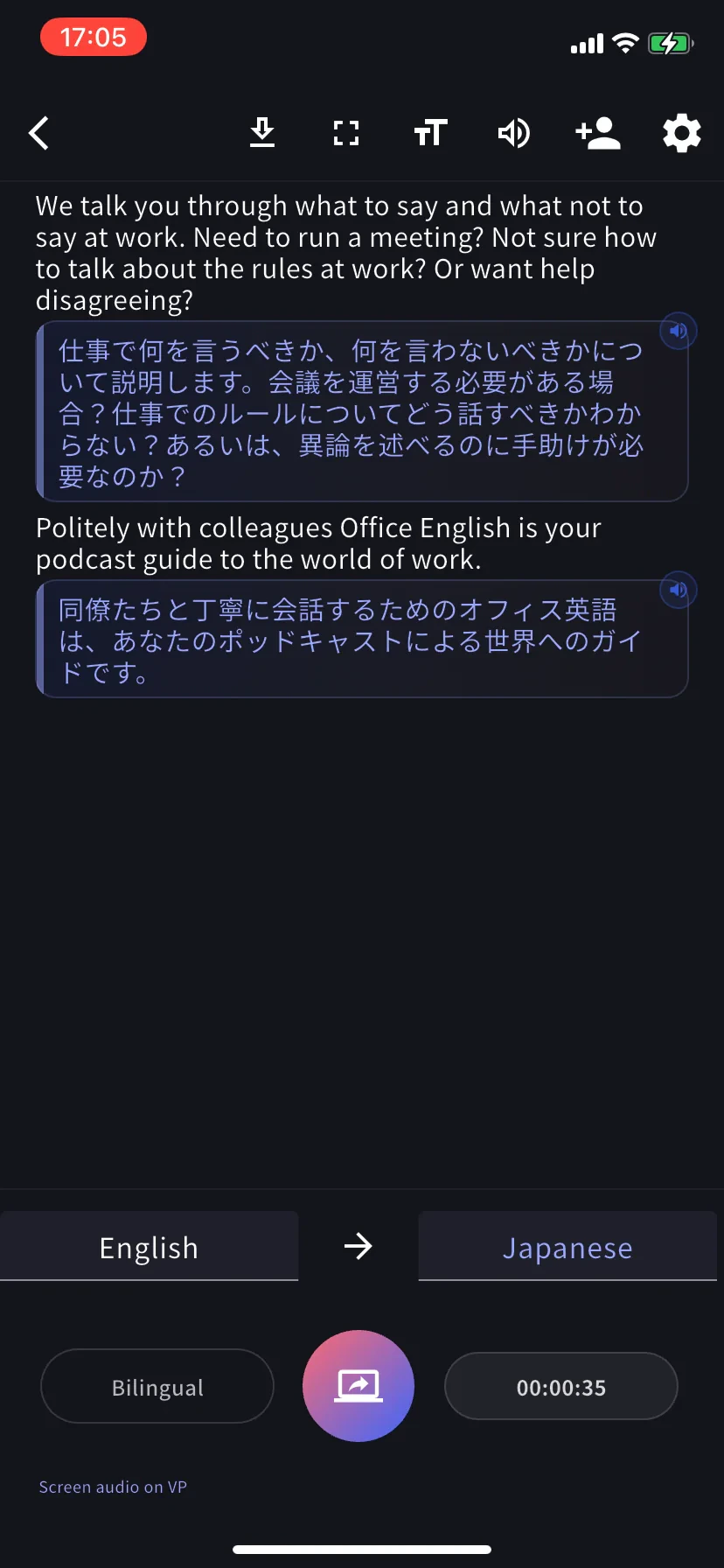
    VoicePing 을 백그라운드에 두고 소스 앱 (YouTube, 팟캐스트 앱, Safari, 온라인 강의 등) 을 열어 재생하세요. VoicePing 으로 돌아오면 타이머와 함께 이중 언어 자막이 스트리밍됩니다.

    <div style={{display: "flex", gap: "12px", justifyContent: "center", flexWrap: "wrap"}}>
      <div style={{flex: "1 1 200px", maxWidth: "220px"}}>
        <Frame>
          <img src="https://mintcdn.com/test-cf63e467/yJOLVx6nWj9-gzC6/ja/images/mobile-screen-record/05-source-app-playing.webp?fit=max&auto=format&n=yJOLVx6nWj9-gzC6&q=85&s=8060036c19cb9e0303cb50a05cb3e404" alt="소스 앱이 재생 중이고 VoicePing 이 캡처 중" width="828" height="1792" data-path="ja/images/mobile-screen-record/05-source-app-playing.webp" />
        </Frame>
      </div>

      <div style={{flex: "1 1 200px", maxWidth: "220px"}}>
        <Frame>
          <img src="https://mintcdn.com/test-cf63e467/yJOLVx6nWj9-gzC6/ja/images/mobile-screen-record/06-live-transcript.webp?fit=max&auto=format&n=yJOLVx6nWj9-gzC6&q=85&s=f06c2d8cc0224f8b0bcd50202677f676" alt="소스 앱의 실시간 이중 언어 자막" width="828" height="1792" data-path="ja/images/mobile-screen-record/06-live-transcript.webp" />
        </Frame>
      </div>
    </div>
  </Step>
</Steps>

## 중지

* **iOS** — 상태 표시줄의 브로드캐스트 인디케이터 탭 → **Stop Broadcast**, 또는 VoicePing 내부의 캡처 버튼.
* **Android** — 프로젝션 알림 탭 또는 VoicePing 의 캡처 버튼.

중지하면 세션이 확정되고 일반 미팅처럼 워크스페이스 기록에 저장됩니다.

## 팁

* 자신도 말할 때는 **헤드폰** 사용 — 캡처된 오디오가 마이크에 다시 들어가는 것을 방지합니다.
* 시작 전에 **방해 금지 모드** 를 켜세요 — 알림음도 캡처된다고 iOS 가 경고합니다.
* 긴 세션에서는 충전기를 연결하세요 (CPU + 네트워크 사용 지속).
* 일부 앱은 캡처를 차단합니다 (DRM 보호 스트리밍, 일부 뱅킹 앱). 전사가 비어 있으면 소스가 차단하는 것입니다.
* 자동 감지가 틀리면 왼쪽 탭에서 전사 언어를 수동 설정하세요.

## 세션 종료 후

일반 VoicePing 미팅처럼 동작합니다: [전사 편집](/ko/realtime-edit), [회의록 생성](/ko/meeting-minutes), 내보내기, 검색. 제품 용어 정확도 향상을 위해 워크스페이스 [사전](/ko/dictionary) 항목을 미리 로드하세요.
<FeedbackKo />