> ## Documentation Index
> Fetch the complete documentation index at: https://manual.voiceping.net/llms.txt
> Use this file to discover all available pages before exploring further.
# 회원가입: 새 워크스페이스 만들기 (소유자용)
> 이 가이드는 관리자(소유자)가 새 워크스페이스를 만들고 VoicePing 사용을 시작하는 방법을 설명합니다.
export const ContactKo = () => <>
문의 사항이 있으시면 이 양식을 통해 연락해 주세요.
공식 링크
공식 웹사이트 방문
X에서 팔로우
Facebook에서 좋아요
LinkedIn에서 연결
;
이 가이드는 관리자(소유자)가 새 워크스페이스를 만들고 VoicePing 사용을 시작하는 방법을 설명합니다.
## PC
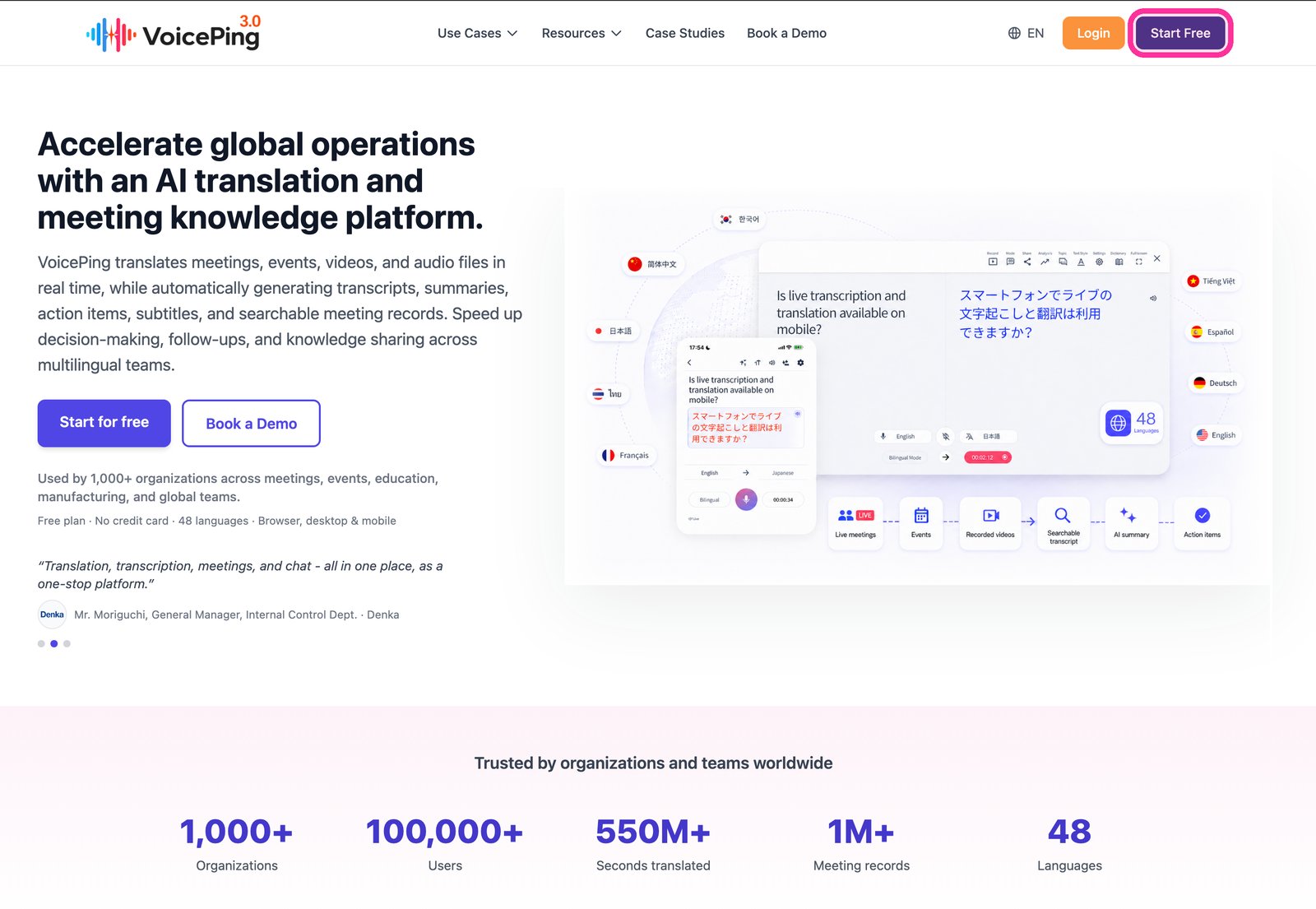
1. **[VoicePing 홈페이지](https://voiceping.net/)에 접속하여 오른쪽 상단의 "Start Free" 버튼을 클릭하세요.**
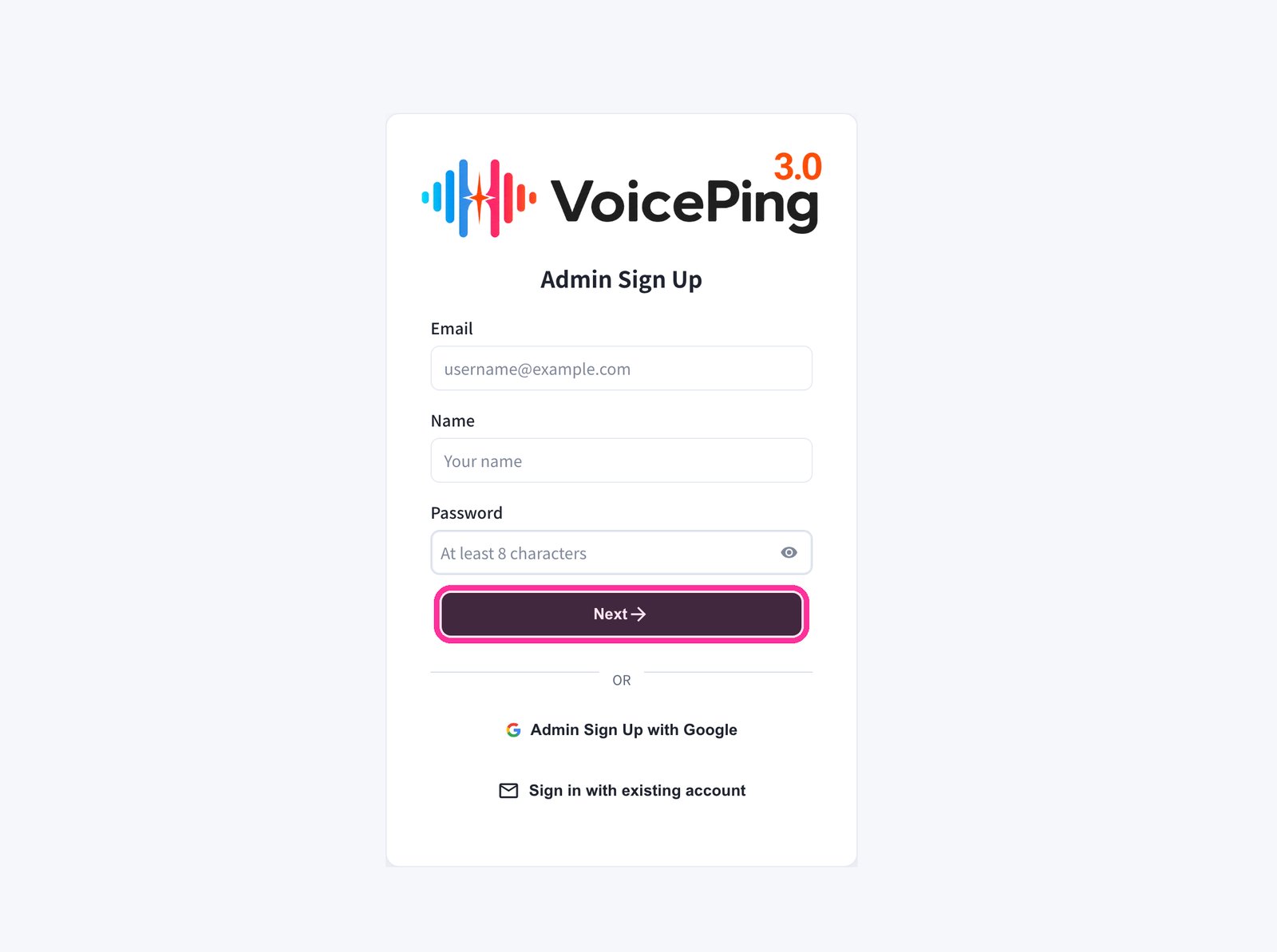
 2. **회원가입 양식이 표시됩니다. 이메일, 이름, 비밀번호를 입력한 후 "Next →"를 클릭하세요.**
* Google로 가입하려면 "Admin Sign Up with Google"을 클릭하세요.
* 이미 계정이 있는 경우 "Sign in with existing account"를 클릭하세요.
2. **회원가입 양식이 표시됩니다. 이메일, 이름, 비밀번호를 입력한 후 "Next →"를 클릭하세요.**
* Google로 가입하려면 "Admin Sign Up with Google"을 클릭하세요.
* 이미 계정이 있는 경우 "Sign in with existing account"를 클릭하세요.
 3. **등록한 이메일 주소로 전송된 인증 코드를 입력하세요.**
4. **화면의 안내에 따라 워크스페이스 기본 설정을 완료하세요.**
## 모바일 / 태블릿
### 이메일로 가입
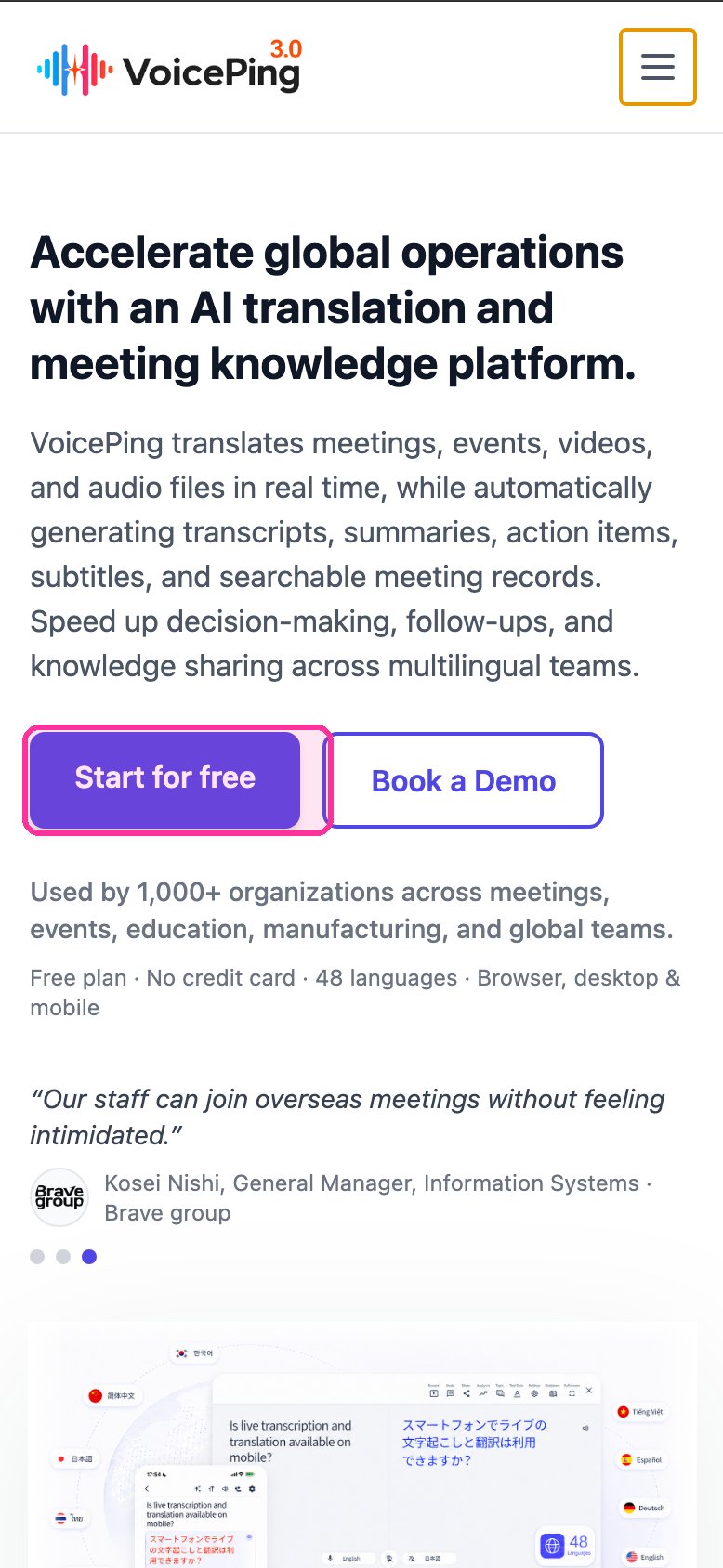
1. **[VoicePing 홈페이지](https://voiceping.net/)에 접속하여 "Start for free" 버튼을 탭하세요.**
3. **등록한 이메일 주소로 전송된 인증 코드를 입력하세요.**
4. **화면의 안내에 따라 워크스페이스 기본 설정을 완료하세요.**
## 모바일 / 태블릿
### 이메일로 가입
1. **[VoicePing 홈페이지](https://voiceping.net/)에 접속하여 "Start for free" 버튼을 탭하세요.**
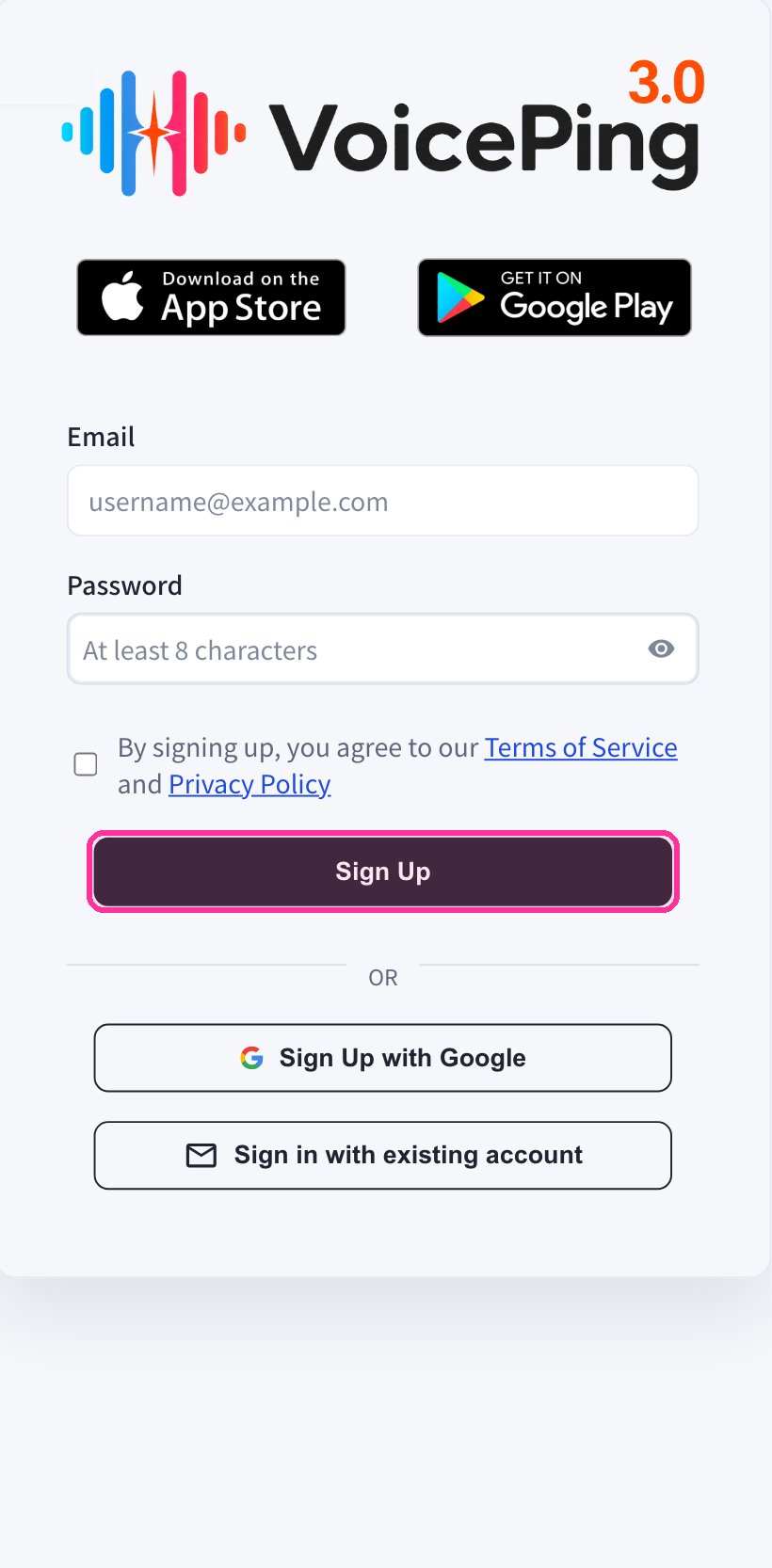
 2. **모바일 웹 앱에서 회원가입 양식이 표시됩니다. 이메일과 비밀번호를 입력하고 이용약관에 동의한 후 "Sign Up"을 탭하세요.**
 3. **등록한 이메일 주소로 전송된 인증 코드를 입력하세요.**
4. **화면의 안내에 따라 워크스페이스 기본 설정을 완료하세요.**
5. **[App Store](https://apps.apple.com/jp/app/voiceping-2-0/id6450720360) 또는 [Google Play](https://play.google.com/store/apps/details?id=com.voiceping.app)에서 VoicePing 앱을 다운로드하고, 생성한 계정으로 로그인하세요.**
### Google 또는 Apple 계정으로 가입
Google 또는 Apple 계정이 있으면 모바일 앱에서 직접 계정을 만들고 로그인할 수 있습니다.
1. **[App Store](https://apps.apple.com/jp/app/voiceping-2-0/id6450720360) 또는 [Google Play](https://play.google.com/store/apps/details?id=com.voiceping.app)에서 VoicePing 앱을 다운로드하세요.**
2. **앱을 열고 Google 또는 Apple 계정으로 가입하세요.**
PC 앱 다운로드가 자동으로 시작되지 않으면 [PC 앱 다운로드](/ko/pc-download) 페이지에서 직접 다운로드할 수 있습니다.
3. **등록한 이메일 주소로 전송된 인증 코드를 입력하세요.**
4. **화면의 안내에 따라 워크스페이스 기본 설정을 완료하세요.**
5. **[App Store](https://apps.apple.com/jp/app/voiceping-2-0/id6450720360) 또는 [Google Play](https://play.google.com/store/apps/details?id=com.voiceping.app)에서 VoicePing 앱을 다운로드하고, 생성한 계정으로 로그인하세요.**
### Google 또는 Apple 계정으로 가입
Google 또는 Apple 계정이 있으면 모바일 앱에서 직접 계정을 만들고 로그인할 수 있습니다.
1. **[App Store](https://apps.apple.com/jp/app/voiceping-2-0/id6450720360) 또는 [Google Play](https://play.google.com/store/apps/details?id=com.voiceping.app)에서 VoicePing 앱을 다운로드하세요.**
2. **앱을 열고 Google 또는 Apple 계정으로 가입하세요.**
PC 앱 다운로드가 자동으로 시작되지 않으면 [PC 앱 다운로드](/ko/pc-download) 페이지에서 직접 다운로드할 수 있습니다.