> ## Documentation Index
> Fetch the complete documentation index at: https://manual.voiceping.net/llms.txt
> Use this file to discover all available pages before exploring further.
# 플랜 변경, 해지 및 체험 종료
> VoicePing 플랜 업그레이드, 다운그레이드, 구독 해지, 무료 체험 종료 또는 계약 청구 신청 방법입니다.
export const ContactKo = () => <>
문의 사항이 있으시면 이 양식을 통해 연락해 주세요.
공식 링크
공식 웹사이트 방문
X에서 팔로우
Facebook에서 좋아요
LinkedIn에서 연결
;
Billing → Subscriptions 탭에서 업그레이드, 다운그레이드 또는 해지합니다.
Billing 허브의 Manage Plan에서 업그레이드, 다운그레이드, 해지, 복원을 관리합니다.
플랜 변경 또는 해지가 완료되면 `account@voice-ping.com` 에서 확인 이메일이 발송됩니다.
## 네 가지 변경 방식
PC와 모바일 모두 구독 변경은 네 가지 방식 중 하나입니다. 적용일, 오늘 결제 금액, 사용량 리셋 방식은 두 화면에서 동일합니다.
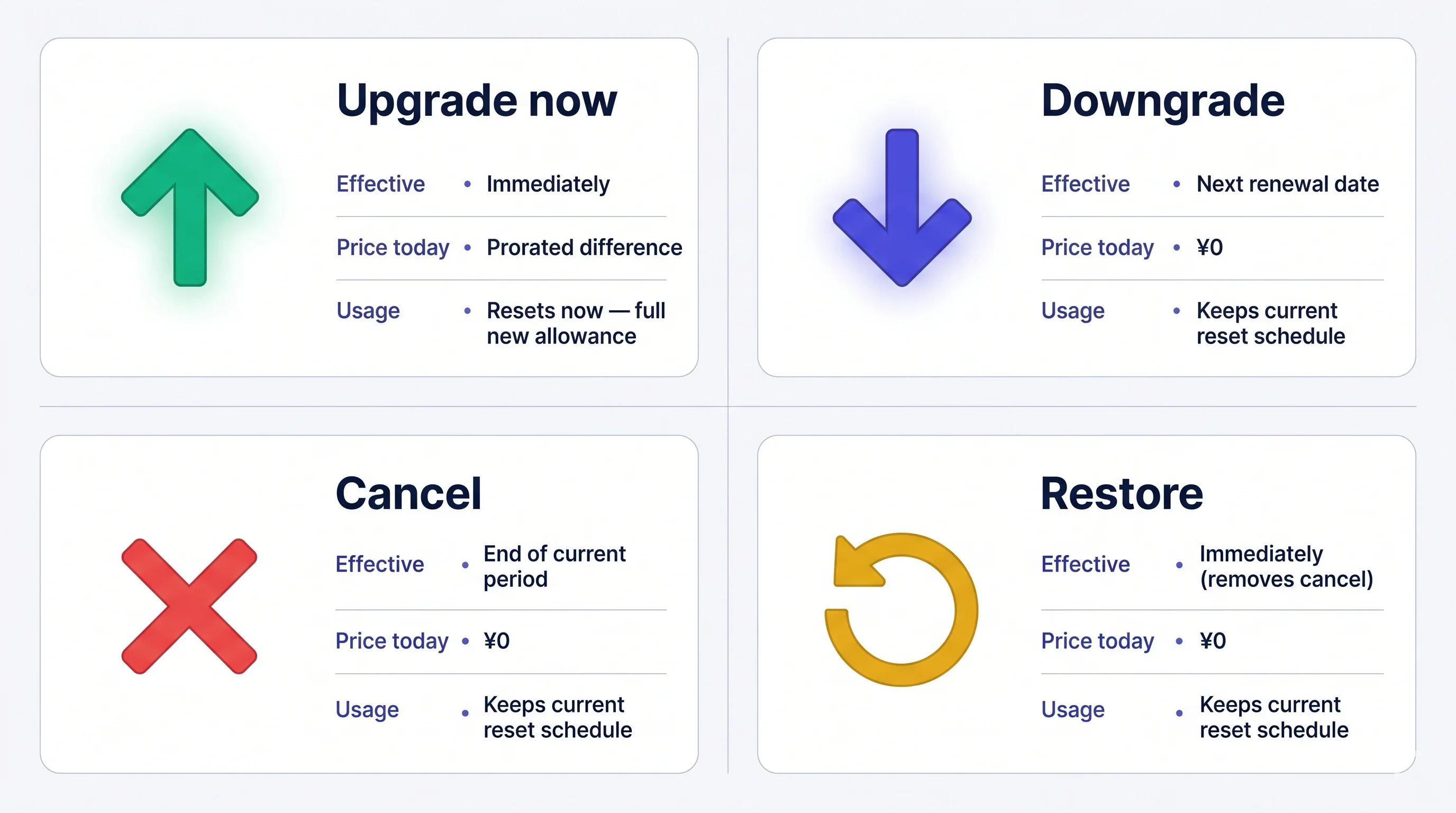 한번 청구된 요금은 **환불되지 않습니다**. 해지해도 현재 플랜은 기간 종료일까지 유지되며, 종료 전에는 무료로 복원할 수 있습니다.
## 플랜 변경 방법
### 1. PC
**Subscriptions 탭 열기:** 상단 내비게이션 → **Billing** → **Subscriptions**.
* **Free Plan에서** — **Upgrade Free Plan** CTA를 클릭합니다.
* **유료 플랜에서** — 현재 플랜 옆의 **Change Plan** 을 클릭합니다.
**변경할 플랜 선택:**
* **Individual / Small / Premium / Enterprise** — **Upgrade Plan** → **Purchase** → 카드 입력. 개인 플랜은 **1인 전용이며 월간 결제만** 가능합니다.
* **Free에서 Premium으로** — **1-Week Free Trial** → **Start Trial** → 카드 입력. 1주일 체험 후 자동 청구됩니다.
* **하위 플랜(다운그레이드)** — 플랜을 선택하고 확인합니다. 현재 플랜은 갱신일까지 유지되고, 다음 주기부터 새 플랜이 적용됩니다.
**개인 플랜은 1인 전용 플랜입니다.** 워크스페이스에 **활성 멤버가 1명**일 때만 개인 플랜으로 변경할 수 있습니다. 멤버가 더 있는 경우 먼저 추가 멤버를 삭제해 주세요 — VoicePing은 변경을 차단하고, 워크스페이스가 1명이 될 때까지 삭제해야 할 사용자 수를 안내합니다.
한번 청구된 요금은 **환불되지 않습니다**. 해지해도 현재 플랜은 기간 종료일까지 유지되며, 종료 전에는 무료로 복원할 수 있습니다.
## 플랜 변경 방법
### 1. PC
**Subscriptions 탭 열기:** 상단 내비게이션 → **Billing** → **Subscriptions**.
* **Free Plan에서** — **Upgrade Free Plan** CTA를 클릭합니다.
* **유료 플랜에서** — 현재 플랜 옆의 **Change Plan** 을 클릭합니다.
**변경할 플랜 선택:**
* **Individual / Small / Premium / Enterprise** — **Upgrade Plan** → **Purchase** → 카드 입력. 개인 플랜은 **1인 전용이며 월간 결제만** 가능합니다.
* **Free에서 Premium으로** — **1-Week Free Trial** → **Start Trial** → 카드 입력. 1주일 체험 후 자동 청구됩니다.
* **하위 플랜(다운그레이드)** — 플랜을 선택하고 확인합니다. 현재 플랜은 갱신일까지 유지되고, 다음 주기부터 새 플랜이 적용됩니다.
**개인 플랜은 1인 전용 플랜입니다.** 워크스페이스에 **활성 멤버가 1명**일 때만 개인 플랜으로 변경할 수 있습니다. 멤버가 더 있는 경우 먼저 추가 멤버를 삭제해 주세요 — VoicePing은 변경을 차단하고, 워크스페이스가 1명이 될 때까지 삭제해야 할 사용자 수를 안내합니다.
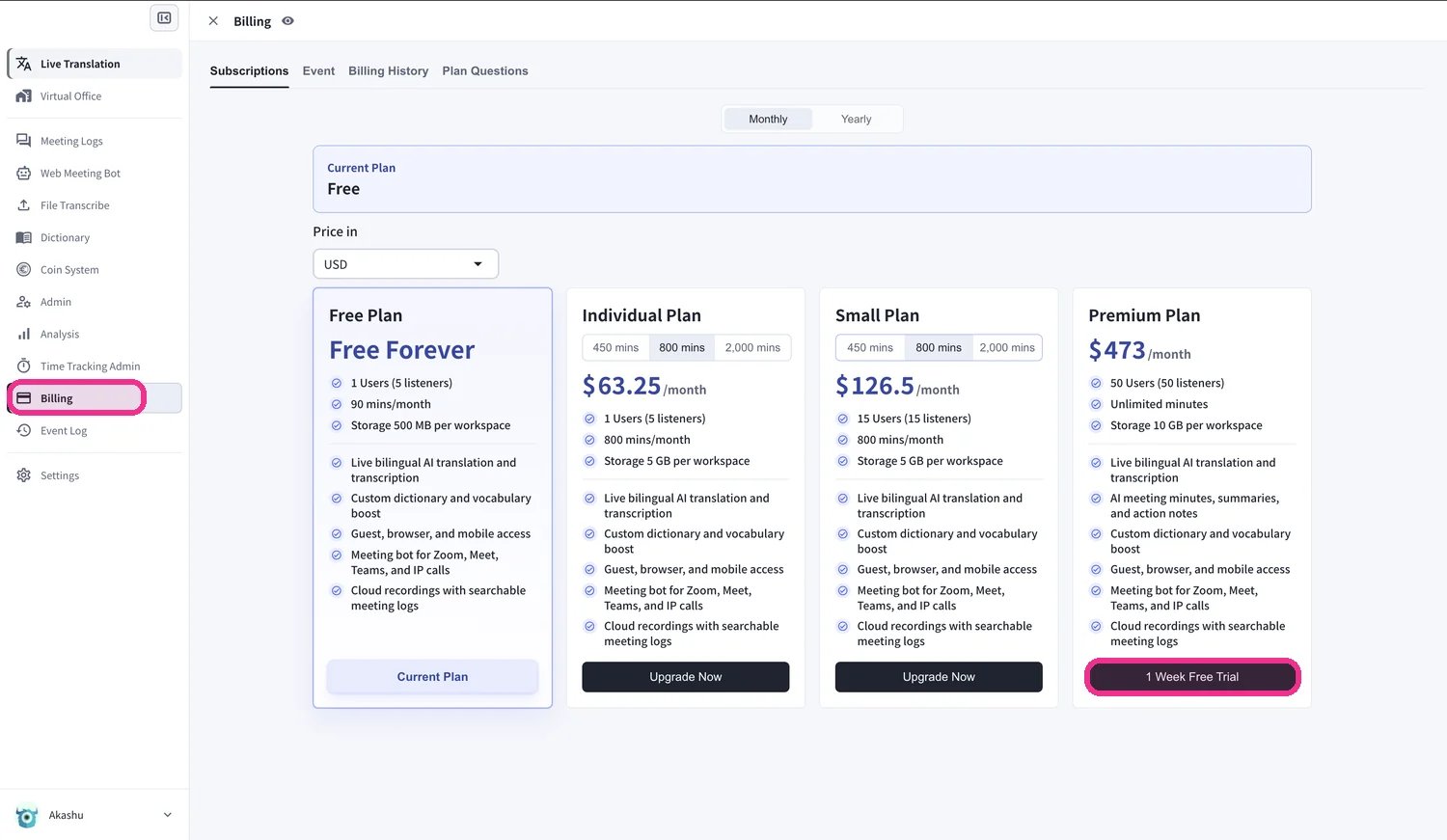 **업그레이드의 일할 계산.** 업그레이드일에 새 결제 주기가 시작되고, 기존 플랜의 미사용분이 새 가격에 크레딧으로 반영되며 사용량이 리셋됩니다. 기간 후반에 업그레이드할수록 크레딧이 작아지므로 갱신일에 업그레이드하는 것이 가장 저렴합니다. **다운그레이드** 는 다음 갱신일부터 적용되며 갱신일은 바뀌지 않습니다.
### 2. Mobile
App Store 정책상 무료 60분을 모두 사용해야 업그레이드와 해지 버튼이 표시됩니다. 60분을 사용하거나 PC에서 플랜을 변경하세요.
모바일의 모든 플랜 변경은 Billing 허브의 **Manage Plan** 에서 진행합니다.
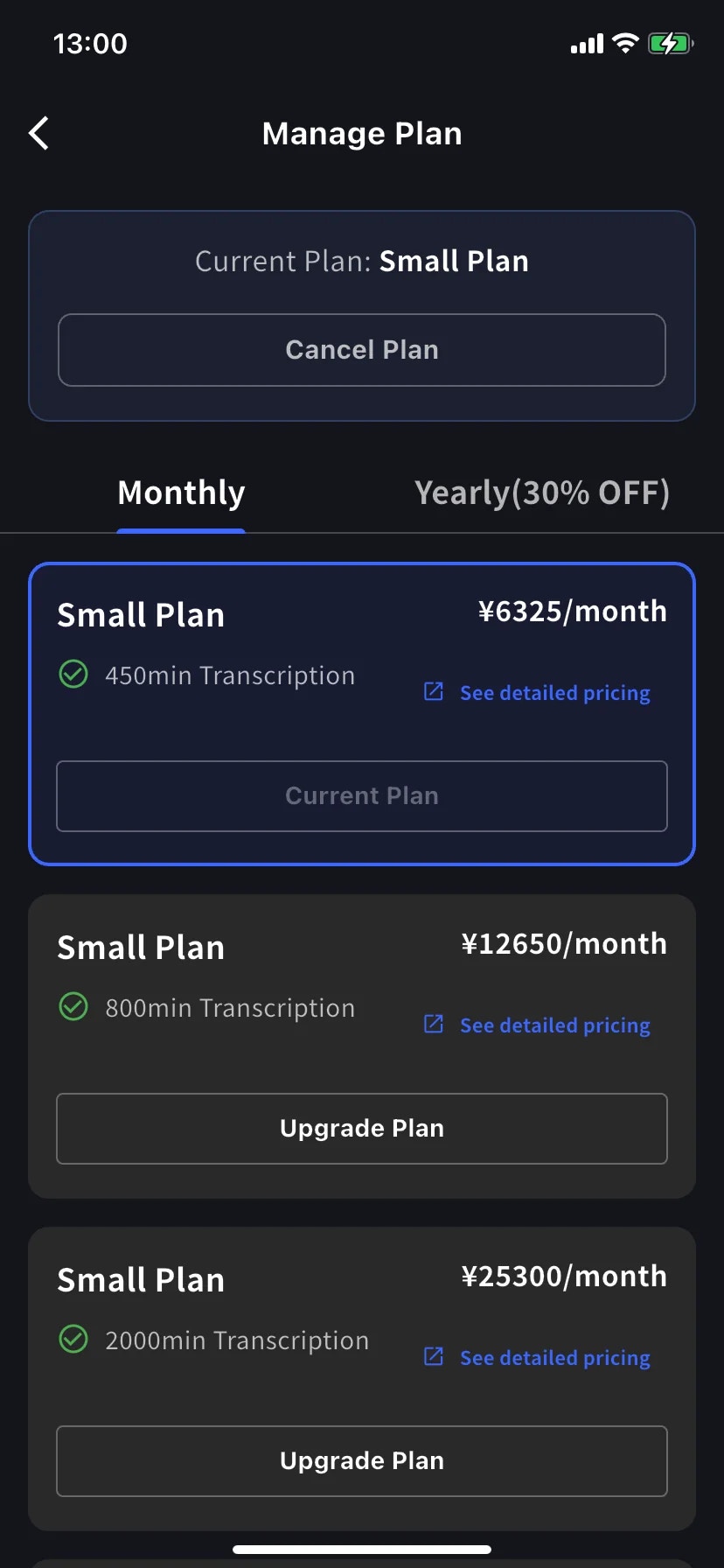
사이드 메뉴 → **User Settings** → **Billing** → **Manage Plan** 을 엽니다. 또는 Current Plan 카드의 **Manage Plan** 을 탭합니다. 상단에서 **Monthly** / **Yearly** 를 전환합니다. 현재보다 높은 티어는 **Upgrade Plan**, 낮은 티어는 **Change Plan** 으로 표시됩니다.
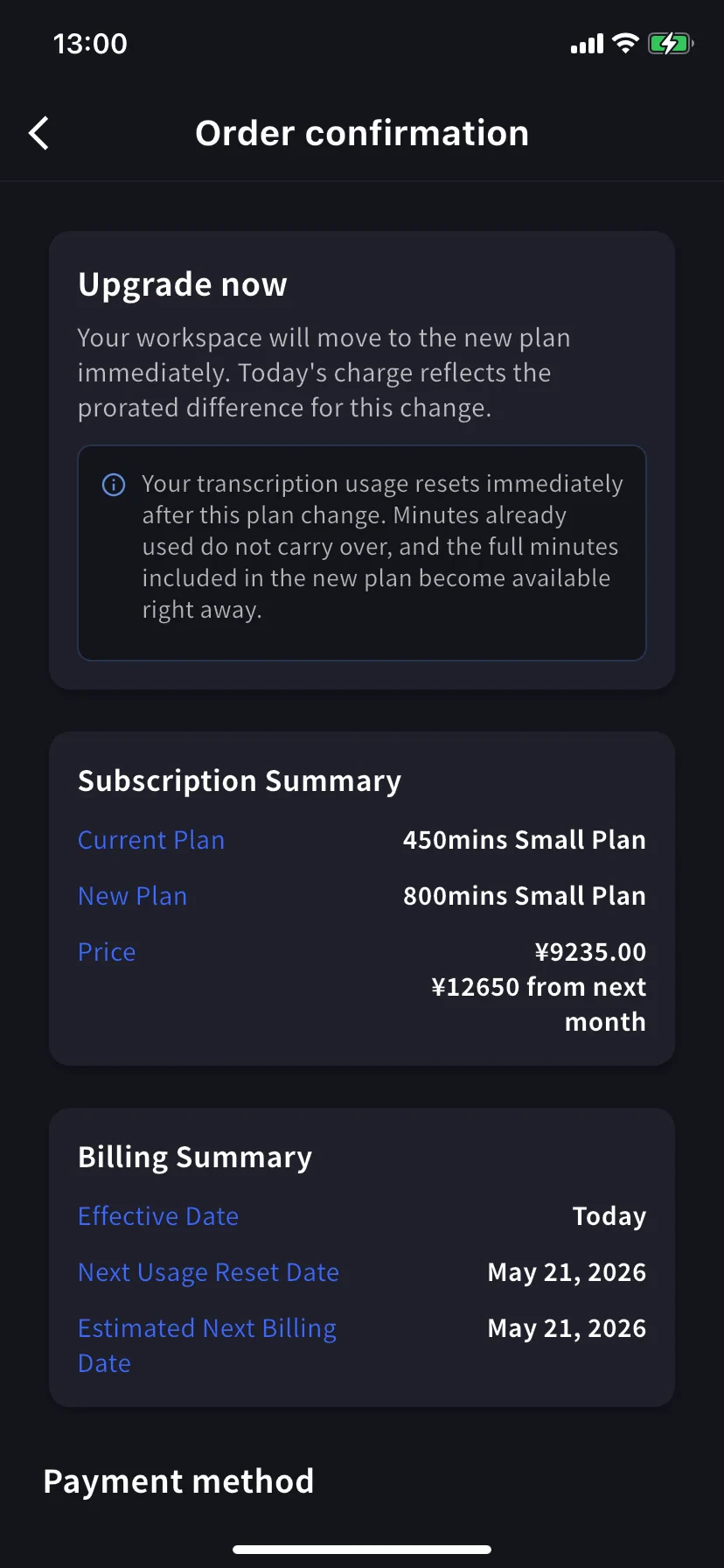
상위 티어의 **Upgrade Plan** 을 탭합니다. 배너에는 워크스페이스가 즉시 새 플랜으로 이동하고 오늘 청구액은 일할 차액이라는 안내가 표시됩니다. 기존 카드를 선택하거나 **+ Add new card** 를 탭하고 Terms / Privacy에 동의한 뒤 **Confirm Plan Change** 를 탭합니다.
**Free Plan에서 Premium** 은 1주일 체험으로 시작하며, 체험 종료 전까지 청구되지 않습니다.
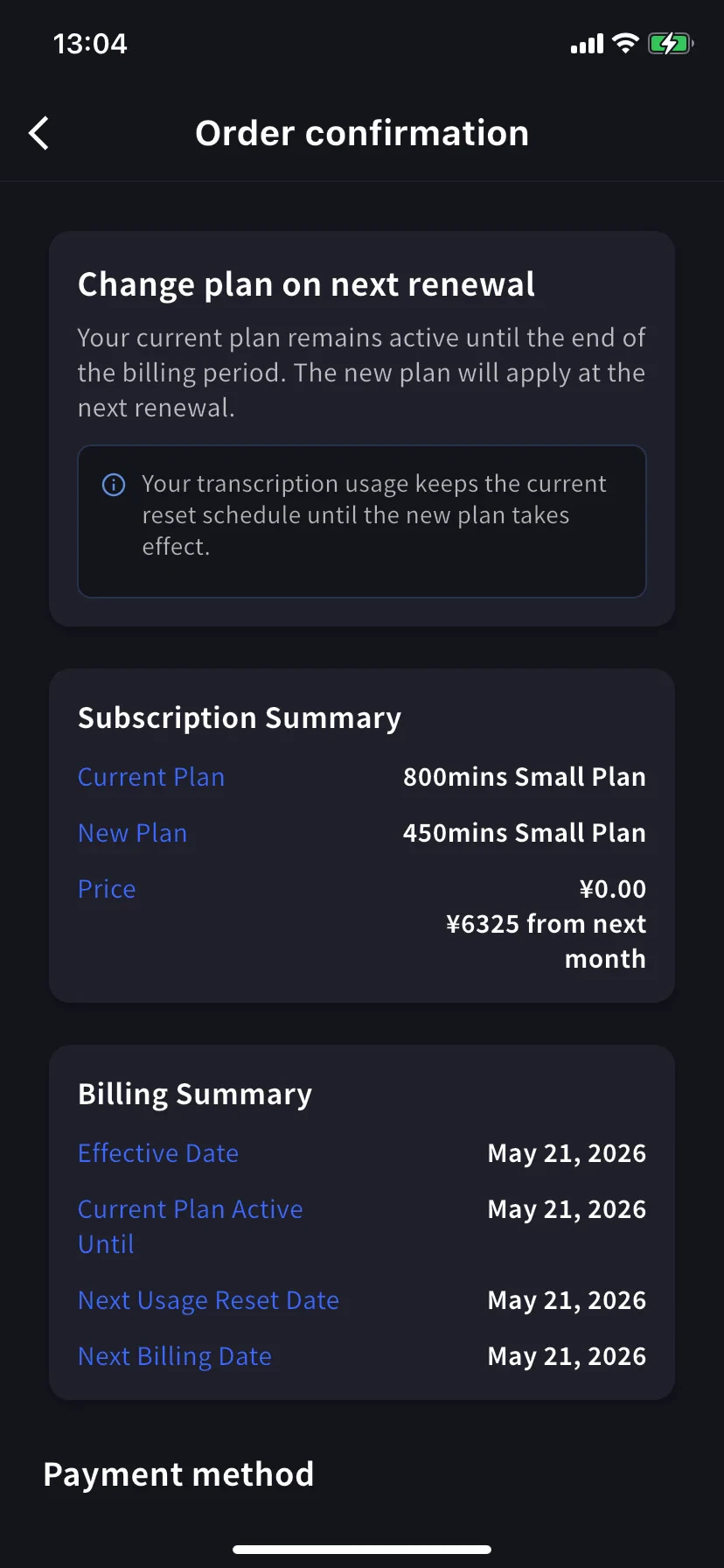
하위 티어의 **Change Plan** 을 탭합니다. 배너에는 현재 플랜이 결제 기간 종료일까지 유지된다고 표시됩니다. 오늘 금액은 **¥0 / \$0** 입니다. 업그레이드와 같은 방식으로 확인합니다.
### 3. Enterprise / 서면 / 전자 계약 고객
[Contract Procedures](/ko/contract-procedures)를 확인하고 [이 양식](https://forms.gle/6AUho7oj3zBr79e96)으로 다음 정보를 제출하세요.
1. 회사명 2. 회사 주소 3. 회사 전화번호 4. 담당자 5. 계약일 6. 현재 플랜 및 희망 플랜
## 해지 / 체험 종료
### 1. PC
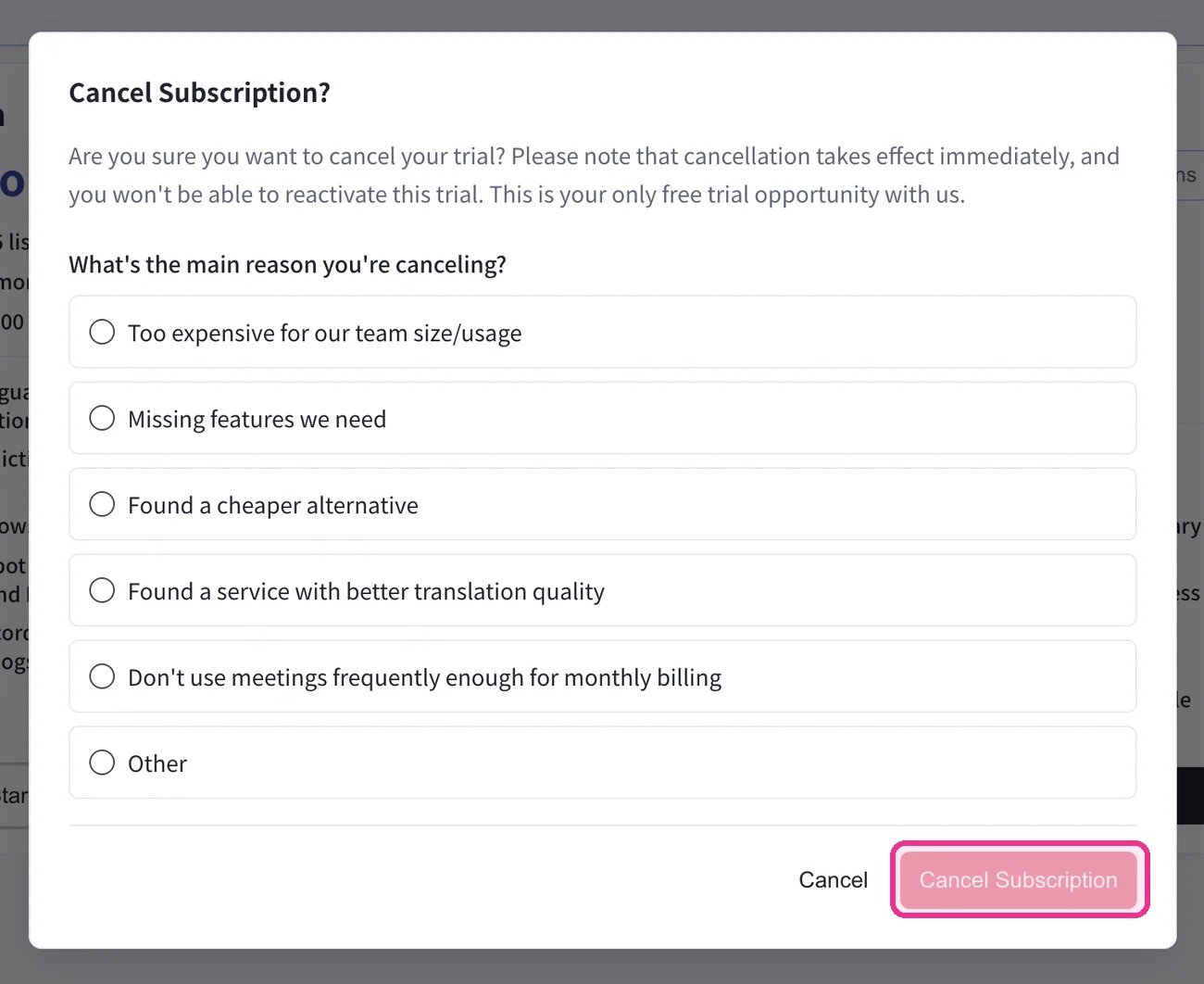
상단 내비게이션 → **Billing** → **Subscriptions** → **Free Plan** 아래 **Start Free Plan** 을 클릭합니다. **Cancel Subscription?** 대화상자에서 사유를 선택한 뒤 **Cancel Subscription** 을 클릭합니다.
**업그레이드의 일할 계산.** 업그레이드일에 새 결제 주기가 시작되고, 기존 플랜의 미사용분이 새 가격에 크레딧으로 반영되며 사용량이 리셋됩니다. 기간 후반에 업그레이드할수록 크레딧이 작아지므로 갱신일에 업그레이드하는 것이 가장 저렴합니다. **다운그레이드** 는 다음 갱신일부터 적용되며 갱신일은 바뀌지 않습니다.
### 2. Mobile
App Store 정책상 무료 60분을 모두 사용해야 업그레이드와 해지 버튼이 표시됩니다. 60분을 사용하거나 PC에서 플랜을 변경하세요.
모바일의 모든 플랜 변경은 Billing 허브의 **Manage Plan** 에서 진행합니다.
사이드 메뉴 → **User Settings** → **Billing** → **Manage Plan** 을 엽니다. 또는 Current Plan 카드의 **Manage Plan** 을 탭합니다. 상단에서 **Monthly** / **Yearly** 를 전환합니다. 현재보다 높은 티어는 **Upgrade Plan**, 낮은 티어는 **Change Plan** 으로 표시됩니다.
상위 티어의 **Upgrade Plan** 을 탭합니다. 배너에는 워크스페이스가 즉시 새 플랜으로 이동하고 오늘 청구액은 일할 차액이라는 안내가 표시됩니다. 기존 카드를 선택하거나 **+ Add new card** 를 탭하고 Terms / Privacy에 동의한 뒤 **Confirm Plan Change** 를 탭합니다.
**Free Plan에서 Premium** 은 1주일 체험으로 시작하며, 체험 종료 전까지 청구되지 않습니다.
하위 티어의 **Change Plan** 을 탭합니다. 배너에는 현재 플랜이 결제 기간 종료일까지 유지된다고 표시됩니다. 오늘 금액은 **¥0 / \$0** 입니다. 업그레이드와 같은 방식으로 확인합니다.
### 3. Enterprise / 서면 / 전자 계약 고객
[Contract Procedures](/ko/contract-procedures)를 확인하고 [이 양식](https://forms.gle/6AUho7oj3zBr79e96)으로 다음 정보를 제출하세요.
1. 회사명 2. 회사 주소 3. 회사 전화번호 4. 담당자 5. 계약일 6. 현재 플랜 및 희망 플랜
## 해지 / 체험 종료
### 1. PC
상단 내비게이션 → **Billing** → **Subscriptions** → **Free Plan** 아래 **Start Free Plan** 을 클릭합니다. **Cancel Subscription?** 대화상자에서 사유를 선택한 뒤 **Cancel Subscription** 을 클릭합니다.
 **Billing History** 탭에서 해지가 완료되었는지 확인하세요 — **Succeeded to cancel Trial** 항목(또는 이에 해당하는 플랜 해지 항목)이 표시됩니다.
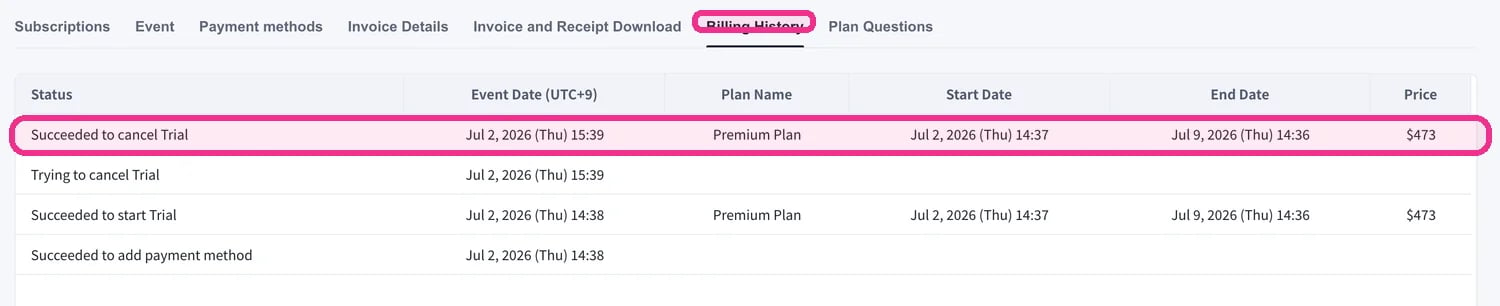 해지가 **Billing History** 에 표시되는지 반드시 확인하세요. 이 단계를 건너뛰면 해지가 완료되지 않은 것으로 처리되며 환불은 불가합니다.
### 2. Mobile
모바일에서는 Billing 허브의 **Manage Plan** 에서 해지합니다. 기간 종료 전에는 언제든 복원할 수 있습니다.
##### 해지
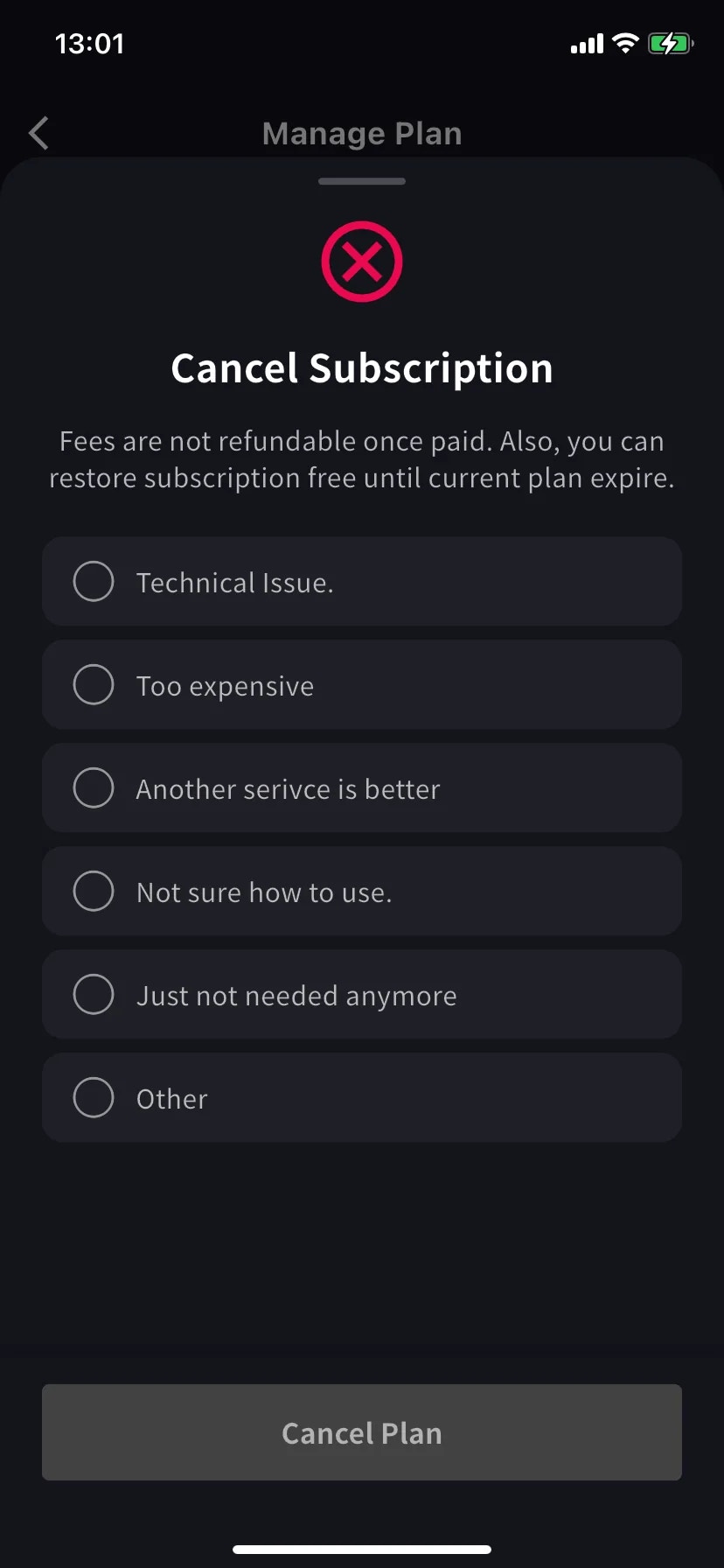
필수 사유 목록 시트가 올라옵니다. 사유를 선택할 때까지 Cancel Plan 버튼은 비활성화되어 있습니다.
**Other** 를 선택하면 최소 15자를 입력해야 합니다.
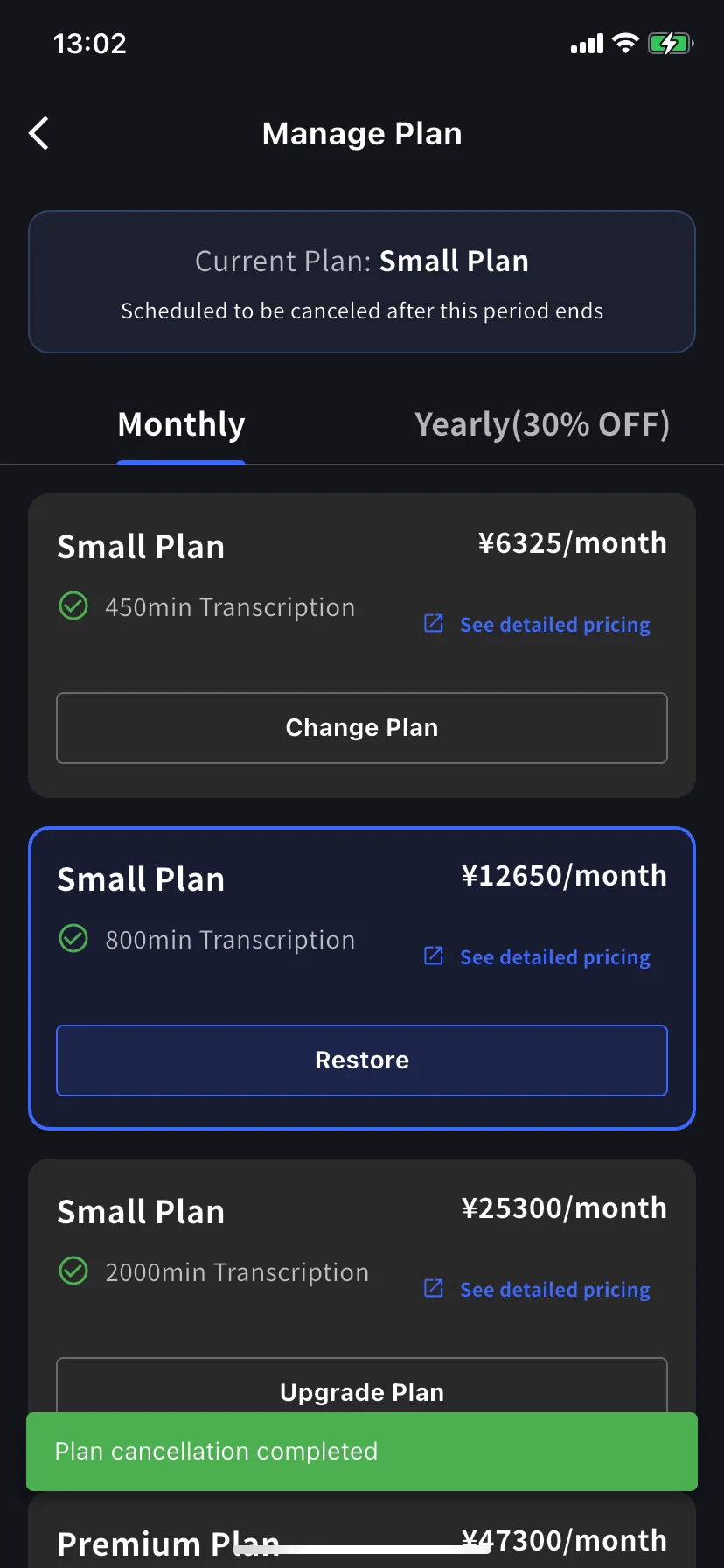
Current plan 배너가 **Scheduled to be canceled after this period ends** 로 바뀌고, 하위 티어에는 **Restore** 버튼이 표시됩니다. 갱신일까지 현재 플랜과 분을 계속 사용할 수 있습니다.
##### 자동 갱신 복원
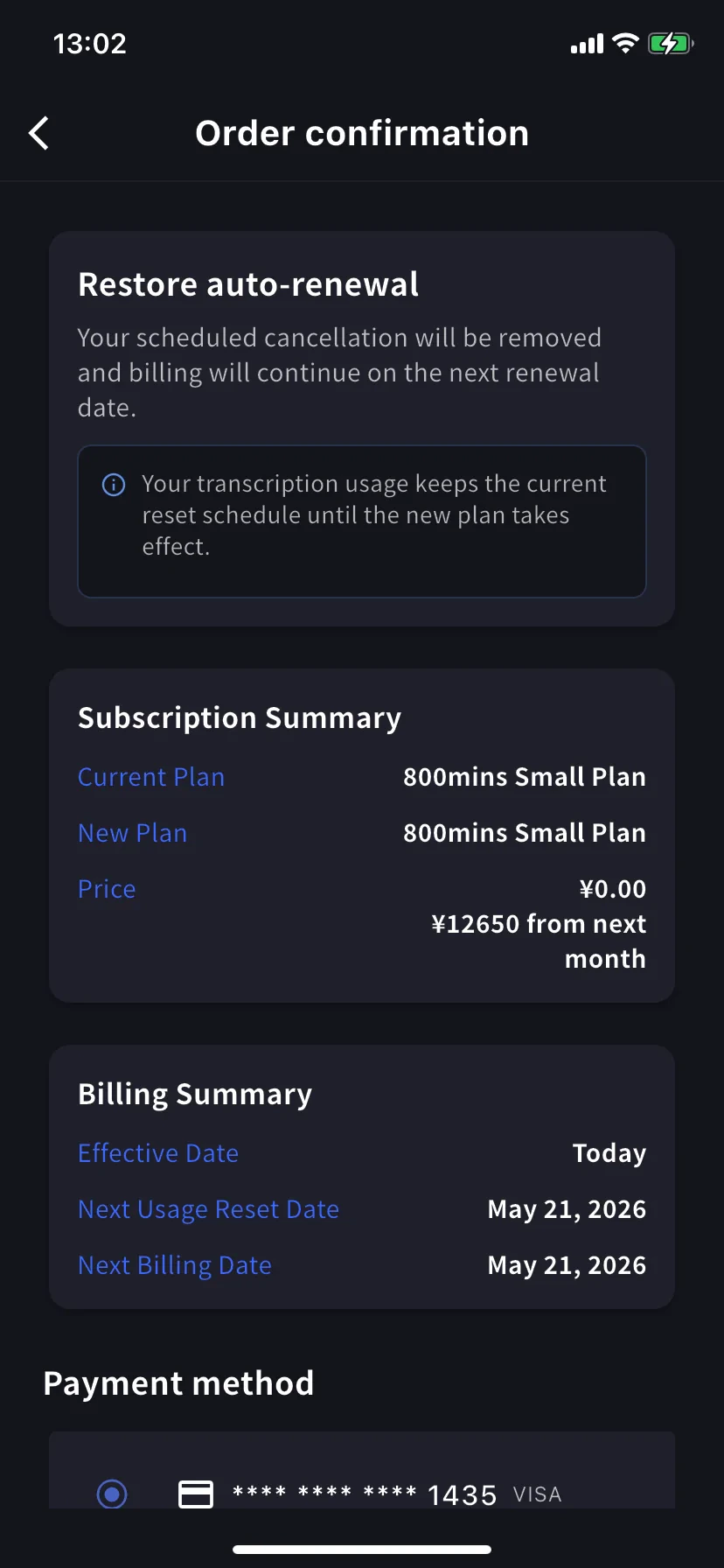
현재 티어에서 **Restore** 를 탭합니다. 주문 확인에는 예약된 해지가 제거되고 다음 갱신일부터 결제가 계속된다는 안내가 표시됩니다. 오늘 금액은 \$0입니다. **Confirm Plan Change** 를 탭하면 정상 갱신 구독으로 돌아갑니다. 사용량 리셋 일정은 그대로 유지됩니다.
### 3. Enterprise / 서면 / 전자 계약 고객
계약/수동 청구 고객도 **Subscriptions** 탭은 표시되지만 VoicePing에서 관리하는 수동 계약 화면이 표시됩니다. 플랜 변경 또는 해지는 [이 양식](https://forms.gle/6AUho7oj3zBr79e96)으로 다음 정보를 제출하세요.
1. 회사명 2. 회사 주소 3. 회사 전화번호 4. 담당자 5. 계약일 6. 계약 플랜 유형 7. 해지 사유
해지가 **Billing History** 에 표시되는지 반드시 확인하세요. 이 단계를 건너뛰면 해지가 완료되지 않은 것으로 처리되며 환불은 불가합니다.
### 2. Mobile
모바일에서는 Billing 허브의 **Manage Plan** 에서 해지합니다. 기간 종료 전에는 언제든 복원할 수 있습니다.
##### 해지
필수 사유 목록 시트가 올라옵니다. 사유를 선택할 때까지 Cancel Plan 버튼은 비활성화되어 있습니다.
**Other** 를 선택하면 최소 15자를 입력해야 합니다.
Current plan 배너가 **Scheduled to be canceled after this period ends** 로 바뀌고, 하위 티어에는 **Restore** 버튼이 표시됩니다. 갱신일까지 현재 플랜과 분을 계속 사용할 수 있습니다.
##### 자동 갱신 복원
현재 티어에서 **Restore** 를 탭합니다. 주문 확인에는 예약된 해지가 제거되고 다음 갱신일부터 결제가 계속된다는 안내가 표시됩니다. 오늘 금액은 \$0입니다. **Confirm Plan Change** 를 탭하면 정상 갱신 구독으로 돌아갑니다. 사용량 리셋 일정은 그대로 유지됩니다.
### 3. Enterprise / 서면 / 전자 계약 고객
계약/수동 청구 고객도 **Subscriptions** 탭은 표시되지만 VoicePing에서 관리하는 수동 계약 화면이 표시됩니다. 플랜 변경 또는 해지는 [이 양식](https://forms.gle/6AUho7oj3zBr79e96)으로 다음 정보를 제출하세요.
1. 회사명 2. 회사 주소 3. 회사 전화번호 4. 담당자 5. 계약일 6. 계약 플랜 유형 7. 해지 사유