> ## Documentation Index
> Fetch the complete documentation index at: https://manual.voiceping.net/llms.txt
> Use this file to discover all available pages before exploring further.
# 음성·동영상 파일 음성 인식 및 번역
> 녹음된 음성 또는 동영상 파일을 VoicePing에 업로드하여 음성 인식, 번역, 요약하고 자막 또는 더빙 동영상을 생성한 다음, Meeting Log를 열거나 결과를 다운로드하세요.
export const FeedbackKo = () => <>
이 기능에 대한 아이디어나 요청은 Product Feedback을 통해 팀에 보내주세요.
공식 링크
공식 웹사이트 방문
X에서 팔로우
Facebook에서 좋아요
LinkedIn에서 연결
;
VoicePing은 실시간 번역 이상의 기능을 제공합니다. 기존 음성·동영상 파일(MP3, MP4 등)을 업로드하여 **음성 인식**, **번역**, **요약**하고, 나아가 **자막** 또는 **더빙** 버전까지 생성할 수 있습니다. 이 작업은 **File Transcribe** 도구가 처리합니다.
## 파일 제출
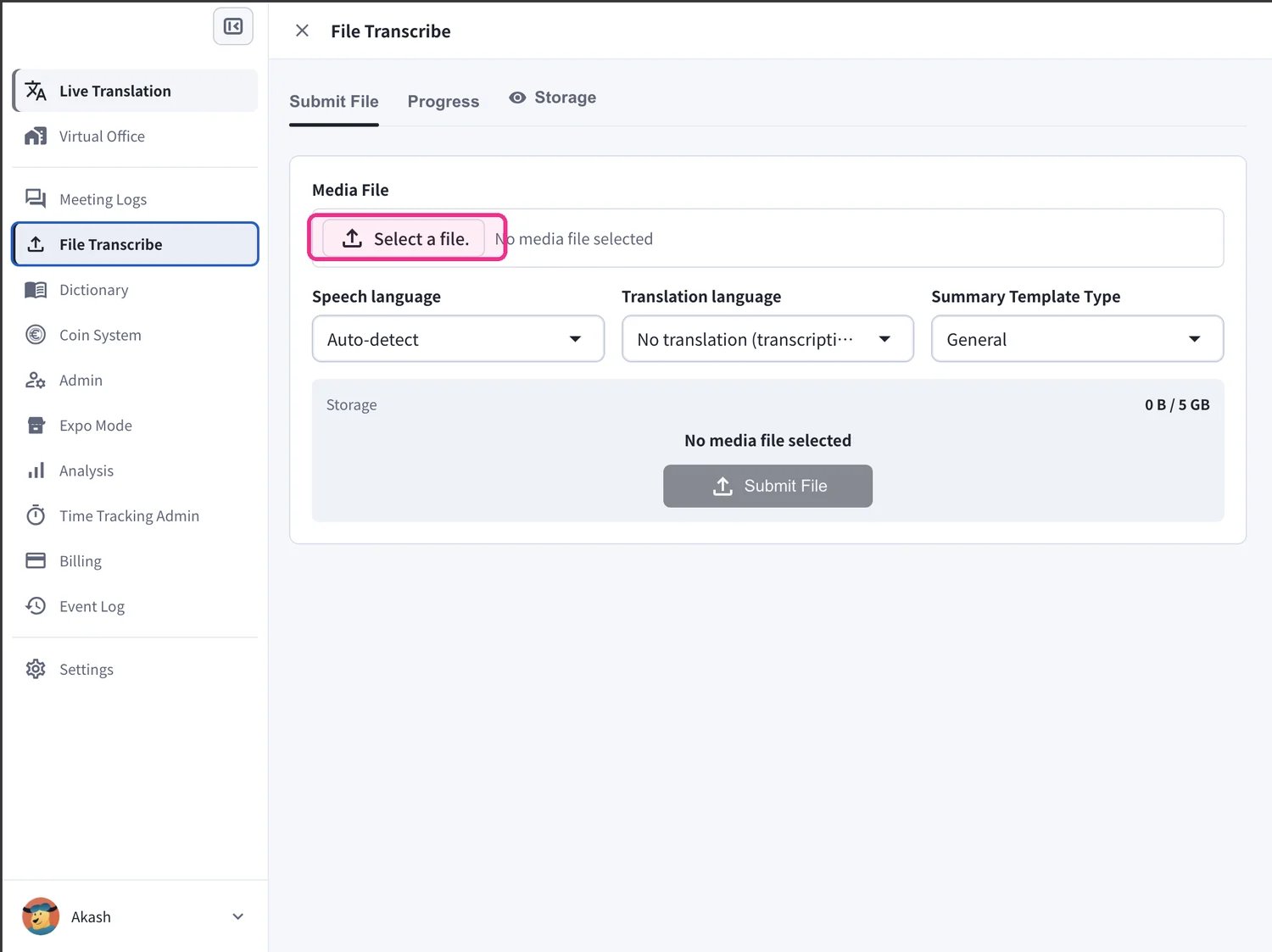
왼쪽 사이드바에서 **File Transcribe**를 열고 **Submit File** 탭에 머무릅니다.
1. **Media File** 아래에서 \*\*Select a file.\*\*을 클릭하고 처리할 음성 또는 동영상 파일을 선택합니다.
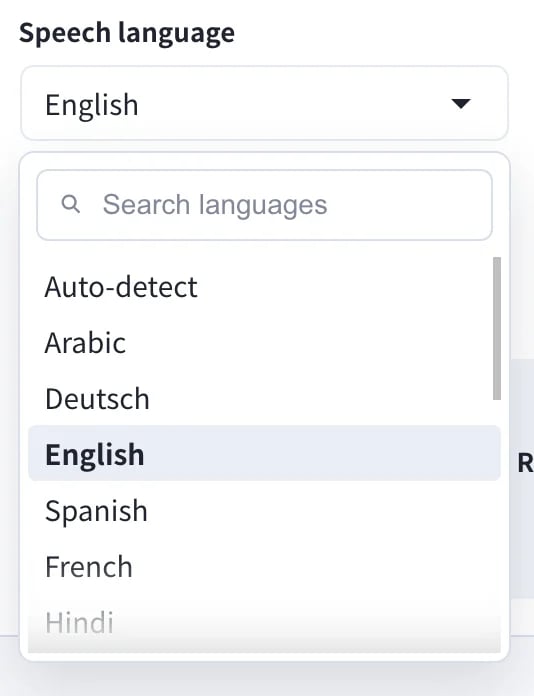
2. **Speech language**(파일에서 사용된 언어)를 설정합니다. **Auto-detect**로 두면 VoicePing이 자동으로 언어를 인식합니다.
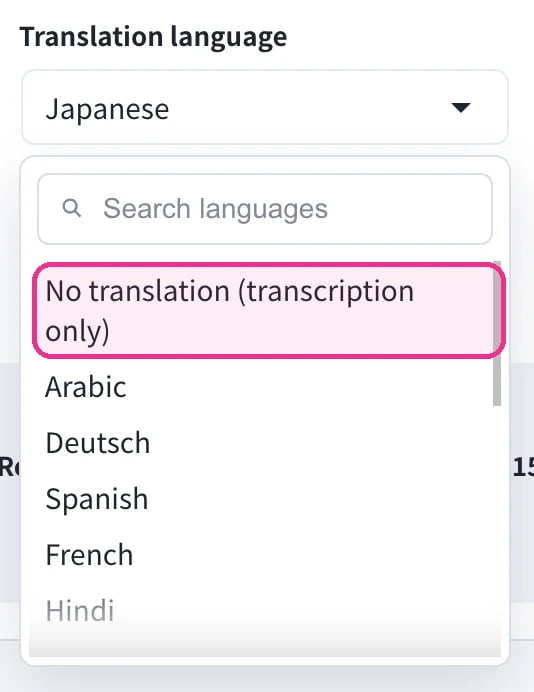
3. **Translation language**를 설정합니다. 번역할 대상 언어를 선택하거나, 음성 인식 결과만 필요한 경우 \*\*No translation (transcription only)\*\*을 선택합니다.
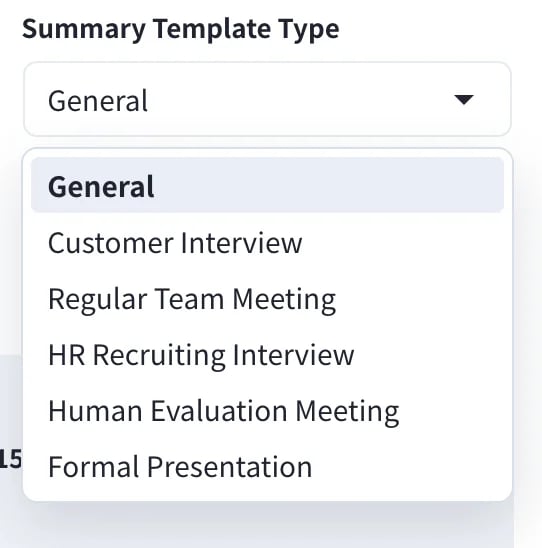
4. AI 요약이 콘텐츠에 맞도록 **Summary Template Type**을 선택합니다. 예를 들어 **General**, **Customer Interview**, **Regular Team Meeting**, **HR Recruiting Interview**, **Human Evaluation Meeting**, **Formal Presentation** 중에서 선택할 수 있습니다.
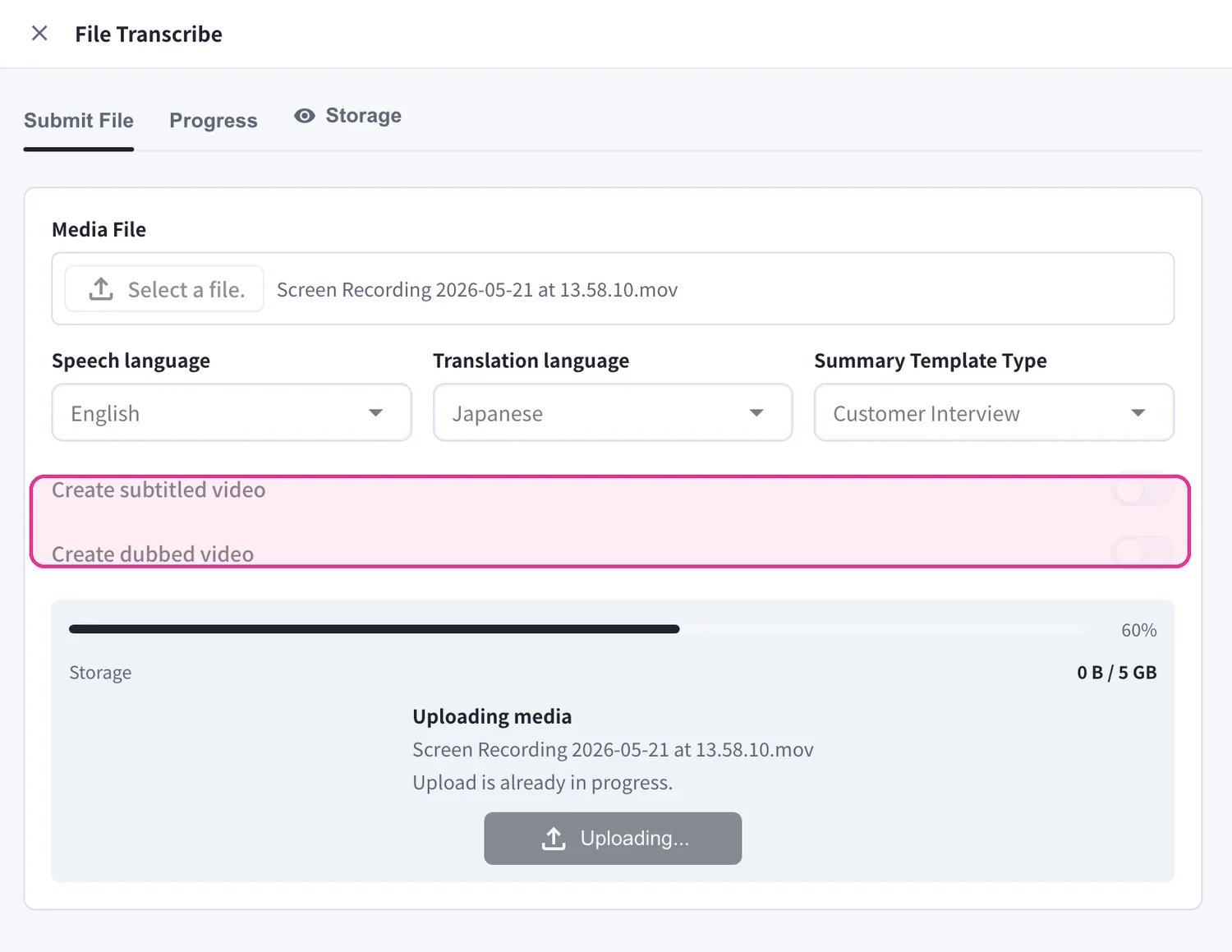
5. 필요에 따라 **Create subtitled video** 및/또는 **Create dubbed video**를 켜서 자막이 삽입된 동영상이나 번역된 보이스오버가 포함된 동영상도 생성할 수 있습니다. 그런 다음 **Submit File**을 클릭하여 처리를 시작합니다.
* 음성 인식 결과와 요약만 얻으려면 **Translation language**를 \*\*No translation (transcription only)\*\*으로 두세요.
* **Create subtitled video**와 **Create dubbed video**는 **Translation language**가 필요하며 추가 처리 시간이 소요됩니다.
* 여러 파일을 연달아 제출할 수 있으며, 각 파일은 개별 작업이 됩니다.
## 진행 상황 확인
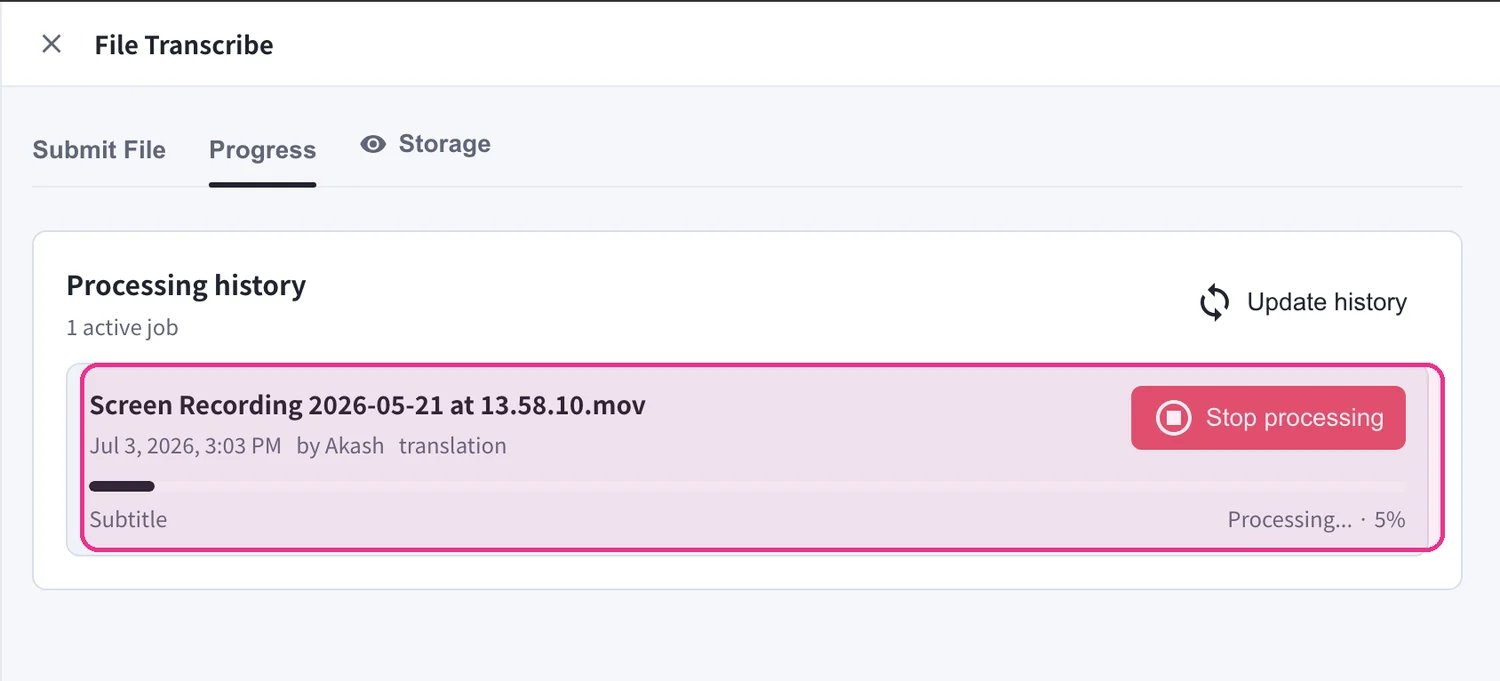
**Progress** 탭을 열어 파일이 처리되는 과정을 확인합니다. **Processing history**의 각 작업에는 진행률 표시줄과 상태(예: *Processing… 5%*)가 표시됩니다. 실행 중인 작업을 취소하려면 **Stop processing**을, 목록을 새로 고치려면 **Update history**를 사용합니다.
## 결과 확인
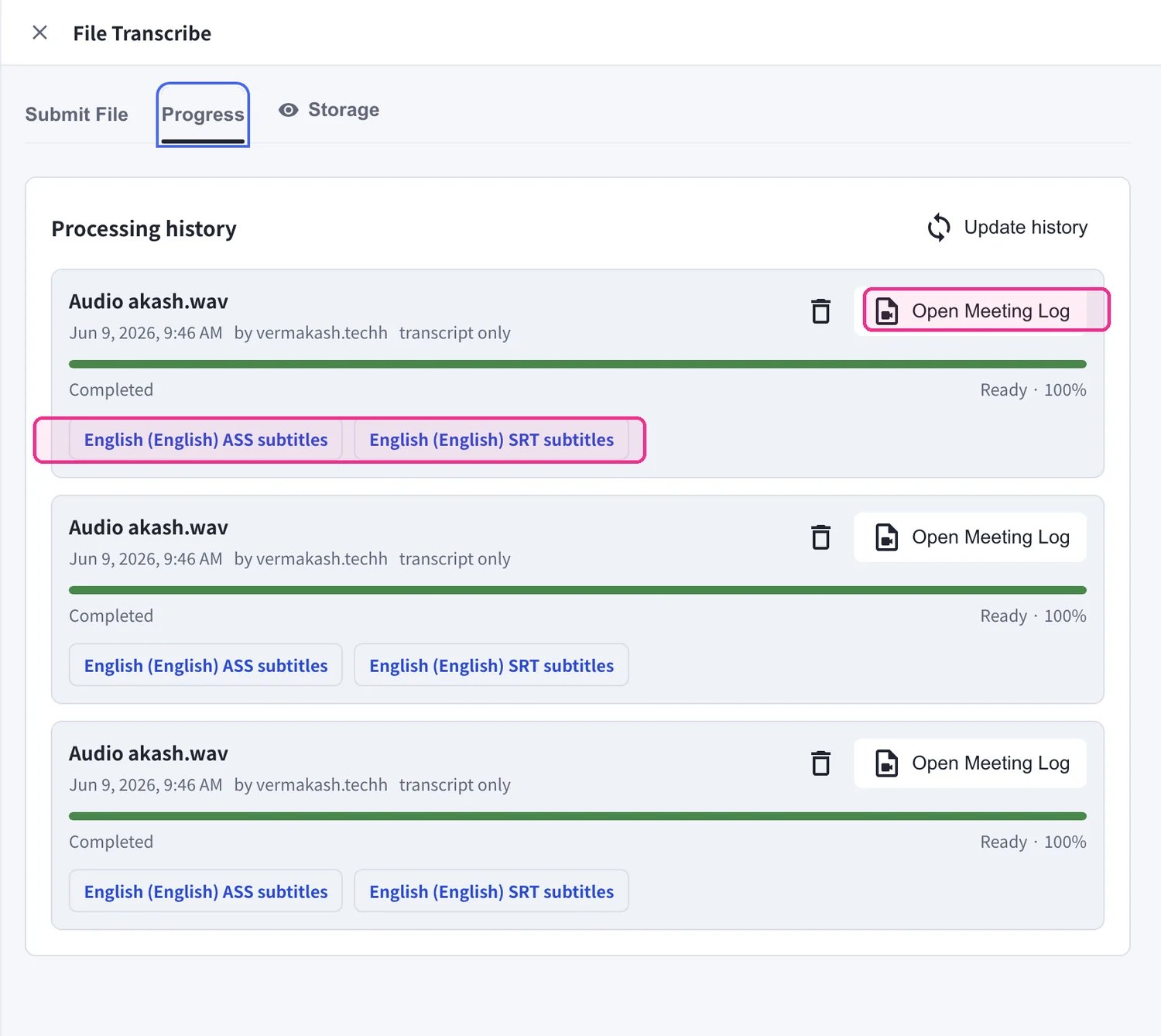
작업이 **Completed** 상태가 되면, 생성된 모든 결과물과 함께 **Processing history**에 남아 있습니다.
* **Open Meeting Log**를 클릭하여 전체 음성 인식 결과, 번역, AI 요약을 확인합니다.
* 자막을 생성한 경우, 완료된 작업에 나타나는 **ASS subtitles** 및 **SRT subtitles** 버튼으로 직접 다운로드할 수 있습니다.
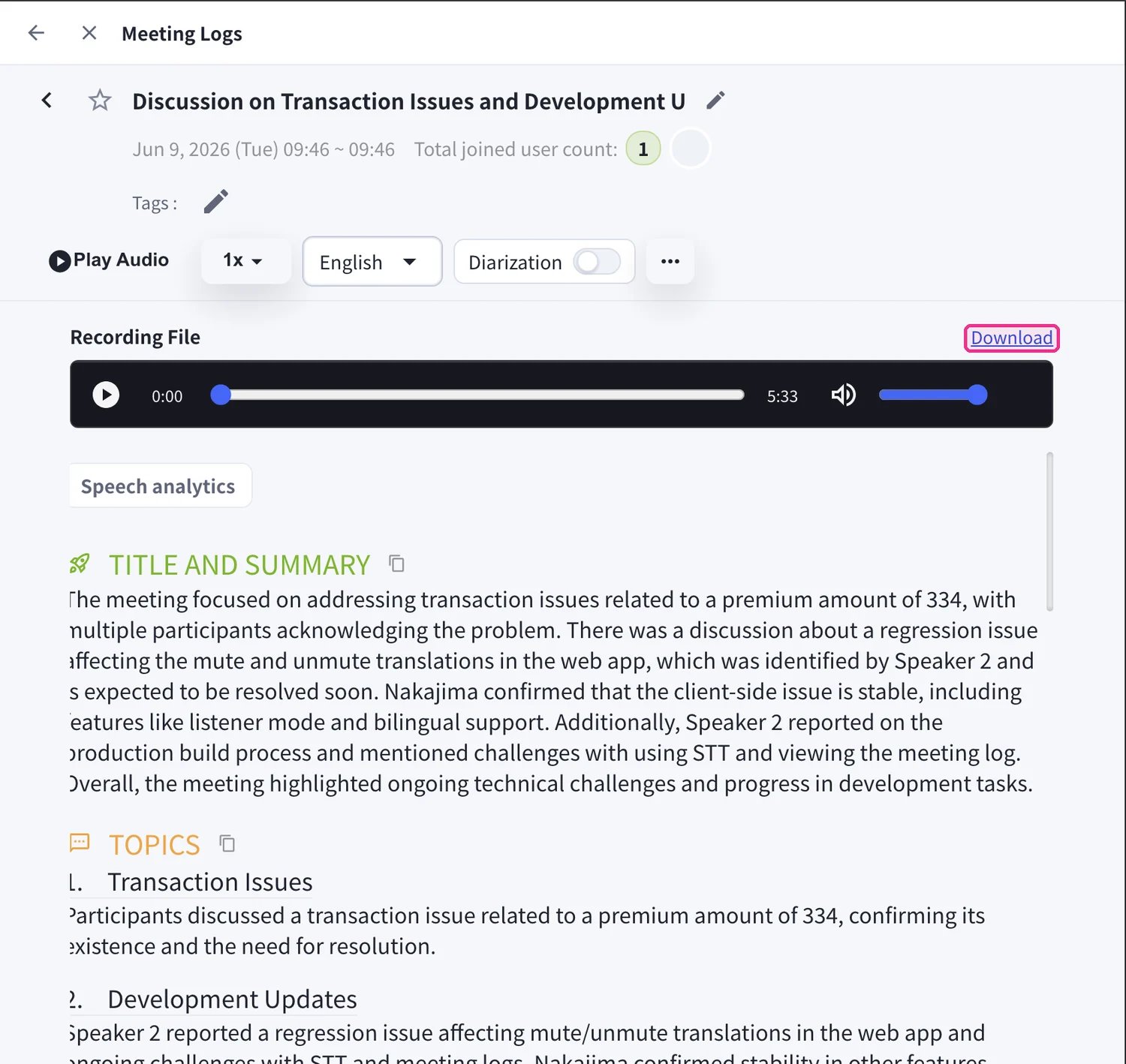
**Meeting Log**는 실시간 회의와 동일한 화면을 엽니다. 음성을 재생하고, 표시 언어를 전환하며, **Diarization**(화자 분리)을 켜고, **Title and Summary** 및 **Topics**를 확인할 수 있습니다. 원본 미디어를 저장하려면 **Recording File** 옆의 **Download**를 사용합니다.
자막 및 더빙 동영상은 제출 시의 **Create subtitled video** / **Create dubbed video** 옵션에서 생성됩니다. 자막이 삽입된 동영상이나 번역된 보이스오버가 필요하다면 **Submit File**을 클릭하기 전에 해당 옵션을 켜세요.
## 저장 공간 관리
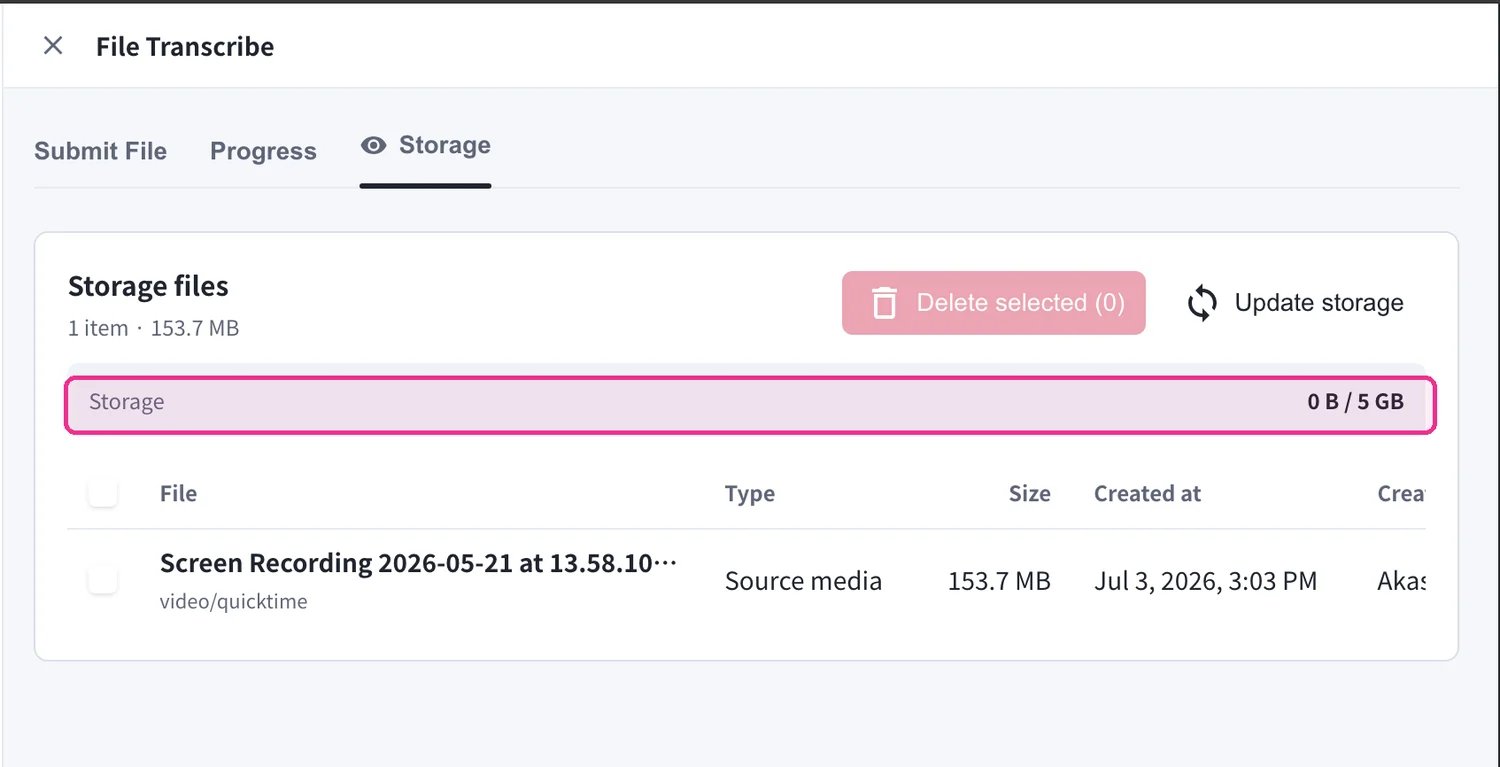
업로드한 미디어는 워크스페이스의 File Transcribe 저장 공간을 차지합니다. **Storage** 탭을 열면 저장된 모든 파일과 함께 각 파일의 **Type**, **Size**, **Created at** 날짜를 확인할 수 있습니다. 각 워크스페이스에는 **5 GB**가 포함됩니다. 파일을 선택하고 **Delete selected**를 클릭하여 공간을 확보하거나, **Update storage**로 총량을 새로 고칩니다.
저장 공간이 가득 차면 기존 파일을 삭제할 때까지 새로운 업로드가 차단됩니다. 삭제는 영구적이므로 보관하려는 파일은 삭제하기 전에 다운로드하세요.
## 지원 파일 형식
**음성 파일**
* MP3
* WAV
* M4A
* 기타 일반적인 음성 형식
**동영상 파일**
* MP4
* MOV
* AVI
* 기타 일반적인 동영상 형식
## 활용 시나리오
**다국어 세미나·강연**
녹화한 세미나나 강연에 자막이나 더빙 음성을 추가하여 다국어 대응 콘텐츠를 제작할 수 있습니다.
**회의록 작성**
녹음한 회의 음성에서 자동으로 음성 인식과 AI 요약을 생성하여 회의록 작성 시간을 대폭 단축할 수 있습니다.
**YouTube 동영상의 다국어 전개**
기존 동영상 콘텐츠에 여러 언어의 자막을 추가하여 글로벌 시청자에게 도달할 수 있습니다.
 2. **Speech language**(파일에서 사용된 언어)를 설정합니다. **Auto-detect**로 두면 VoicePing이 자동으로 언어를 인식합니다.
 3. **Translation language**를 설정합니다. 번역할 대상 언어를 선택하거나, 음성 인식 결과만 필요한 경우 \*\*No translation (transcription only)\*\*을 선택합니다.
 4. AI 요약이 콘텐츠에 맞도록 **Summary Template Type**을 선택합니다. 예를 들어 **General**, **Customer Interview**, **Regular Team Meeting**, **HR Recruiting Interview**, **Human Evaluation Meeting**, **Formal Presentation** 중에서 선택할 수 있습니다.
 5. 필요에 따라 **Create subtitled video** 및/또는 **Create dubbed video**를 켜서 자막이 삽입된 동영상이나 번역된 보이스오버가 포함된 동영상도 생성할 수 있습니다. 그런 다음 **Submit File**을 클릭하여 처리를 시작합니다.
 ## 결과 확인
작업이 **Completed** 상태가 되면, 생성된 모든 결과물과 함께 **Processing history**에 남아 있습니다.
* **Open Meeting Log**를 클릭하여 전체 음성 인식 결과, 번역, AI 요약을 확인합니다.
* 자막을 생성한 경우, 완료된 작업에 나타나는 **ASS subtitles** 및 **SRT subtitles** 버튼으로 직접 다운로드할 수 있습니다.
## 결과 확인
작업이 **Completed** 상태가 되면, 생성된 모든 결과물과 함께 **Processing history**에 남아 있습니다.
* **Open Meeting Log**를 클릭하여 전체 음성 인식 결과, 번역, AI 요약을 확인합니다.
* 자막을 생성한 경우, 완료된 작업에 나타나는 **ASS subtitles** 및 **SRT subtitles** 버튼으로 직접 다운로드할 수 있습니다.
 **Meeting Log**는 실시간 회의와 동일한 화면을 엽니다. 음성을 재생하고, 표시 언어를 전환하며, **Diarization**(화자 분리)을 켜고, **Title and Summary** 및 **Topics**를 확인할 수 있습니다. 원본 미디어를 저장하려면 **Recording File** 옆의 **Download**를 사용합니다.