> ## Documentation Index
> Fetch the complete documentation index at: https://manual.voiceping.net/llms.txt
> Use this file to discover all available pages before exploring further.
# 자막 모드 (배경 투명)
> 프레젠테이션이나 웨비나 중에 슬라이드, PDF, 동영상 위에 투명한 실시간 AI 자막을 겹쳐 표시 — 텍스트, 색상, 전체 화면 표시를 조절할 수 있는 실시간 이중 언어 자막.
export const FeedbackKo = () => <>
이 기능에 대한 아이디어나 요청은 Product Feedback을 통해 팀에 보내주세요.
공식 링크
공식 웹사이트 방문
X에서 팔로우
Facebook에서 좋아요
LinkedIn에서 연결
;
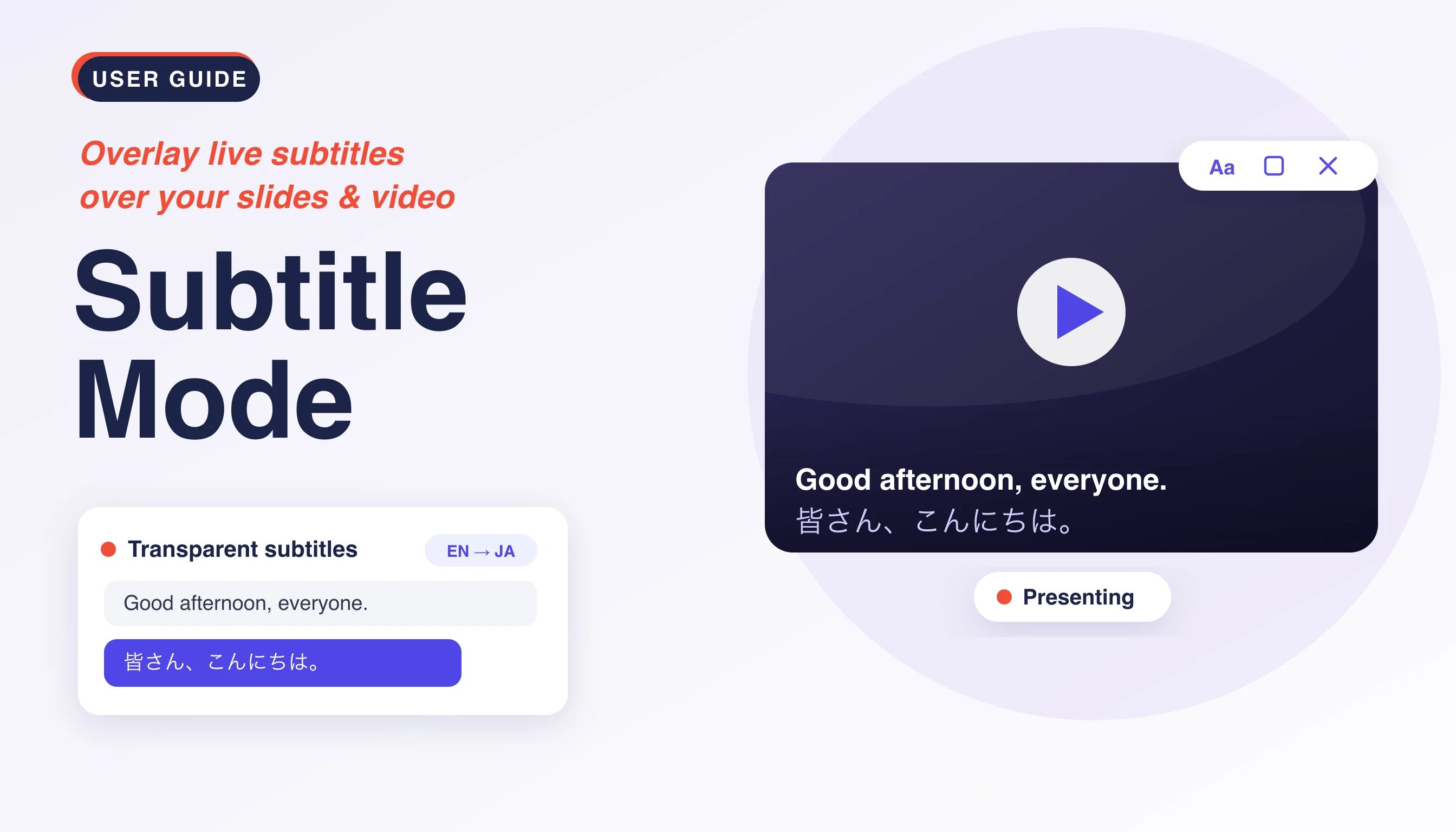 자막 모드는 VoicePing의 실시간 음성 인식과 번역을 **배경이 투명한** 자막으로 표시하여, 공유 중인 슬라이드, PDF, 동영상(YouTube, 영화 등) 위에 자막이 바로 떠 있게 합니다. 청중이 콘텐츠를 가리지 않고 함께 읽을 수 있어야 하는 발표나 웨비나에 이상적입니다.
## 사용 방법
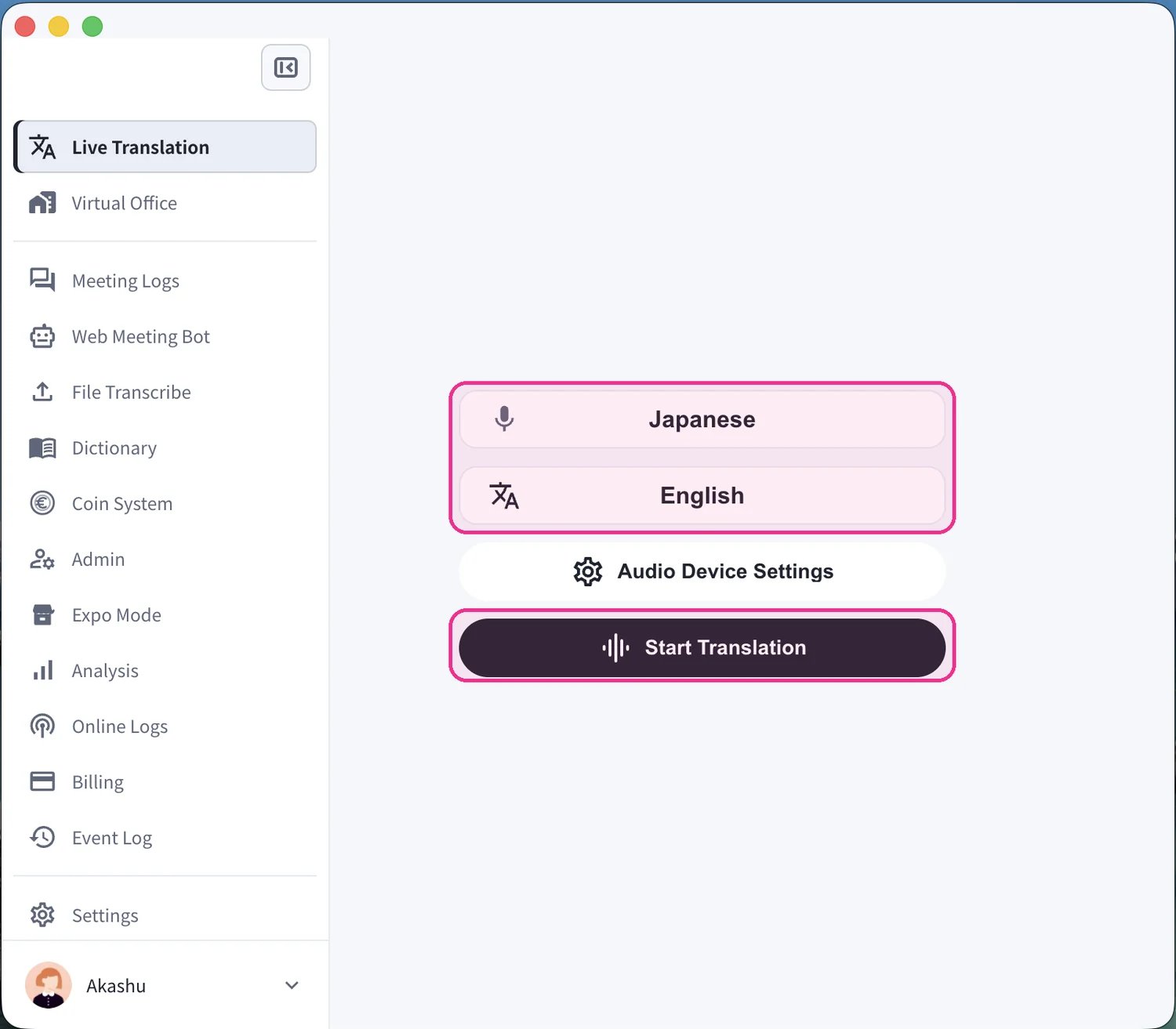
1. **번역을 시작합니다.** **Live Translation** 화면에서 말하는 언어(마이크 아이콘)와 번역 언어("Text & A" 아이콘)를 설정한 후 **Start Translation**을 클릭합니다.
자막 모드는 VoicePing의 실시간 음성 인식과 번역을 **배경이 투명한** 자막으로 표시하여, 공유 중인 슬라이드, PDF, 동영상(YouTube, 영화 등) 위에 자막이 바로 떠 있게 합니다. 청중이 콘텐츠를 가리지 않고 함께 읽을 수 있어야 하는 발표나 웨비나에 이상적입니다.
## 사용 방법
1. **번역을 시작합니다.** **Live Translation** 화면에서 말하는 언어(마이크 아이콘)와 번역 언어("Text & A" 아이콘)를 설정한 후 **Start Translation**을 클릭합니다.
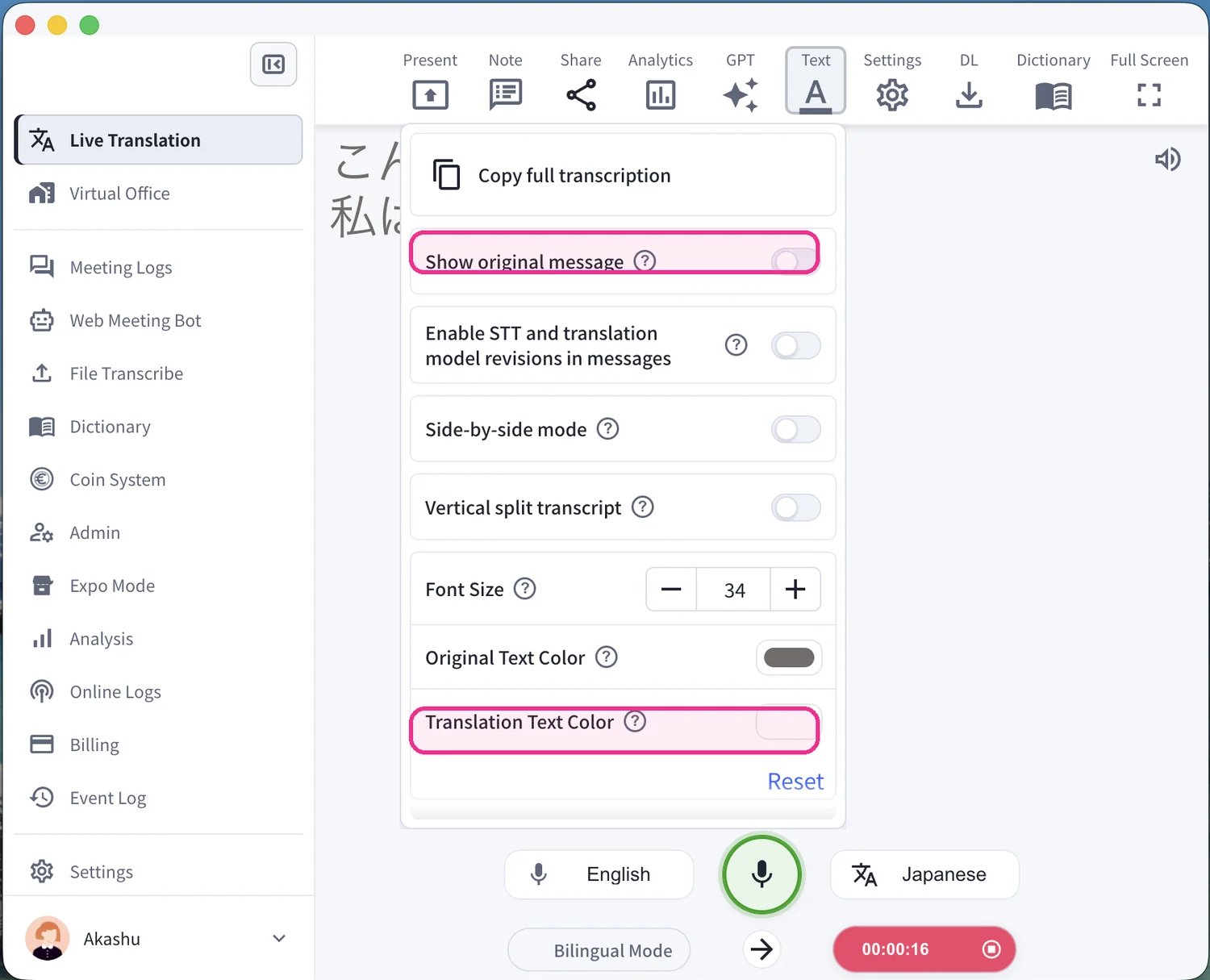
 2. **자막이 보이는 방식을 설정합니다.** 발표하기 전에 상단 도구 모음에서 **Text** 패널을 열어 화면을 조절합니다. **Show original message**를 전환하여 원본 언어를 표시하거나 숨기고, 자막이 콘텐츠 위에서 선명하게 읽히도록 **Translation Text Color**(및 글꼴 크기)를 설정합니다.
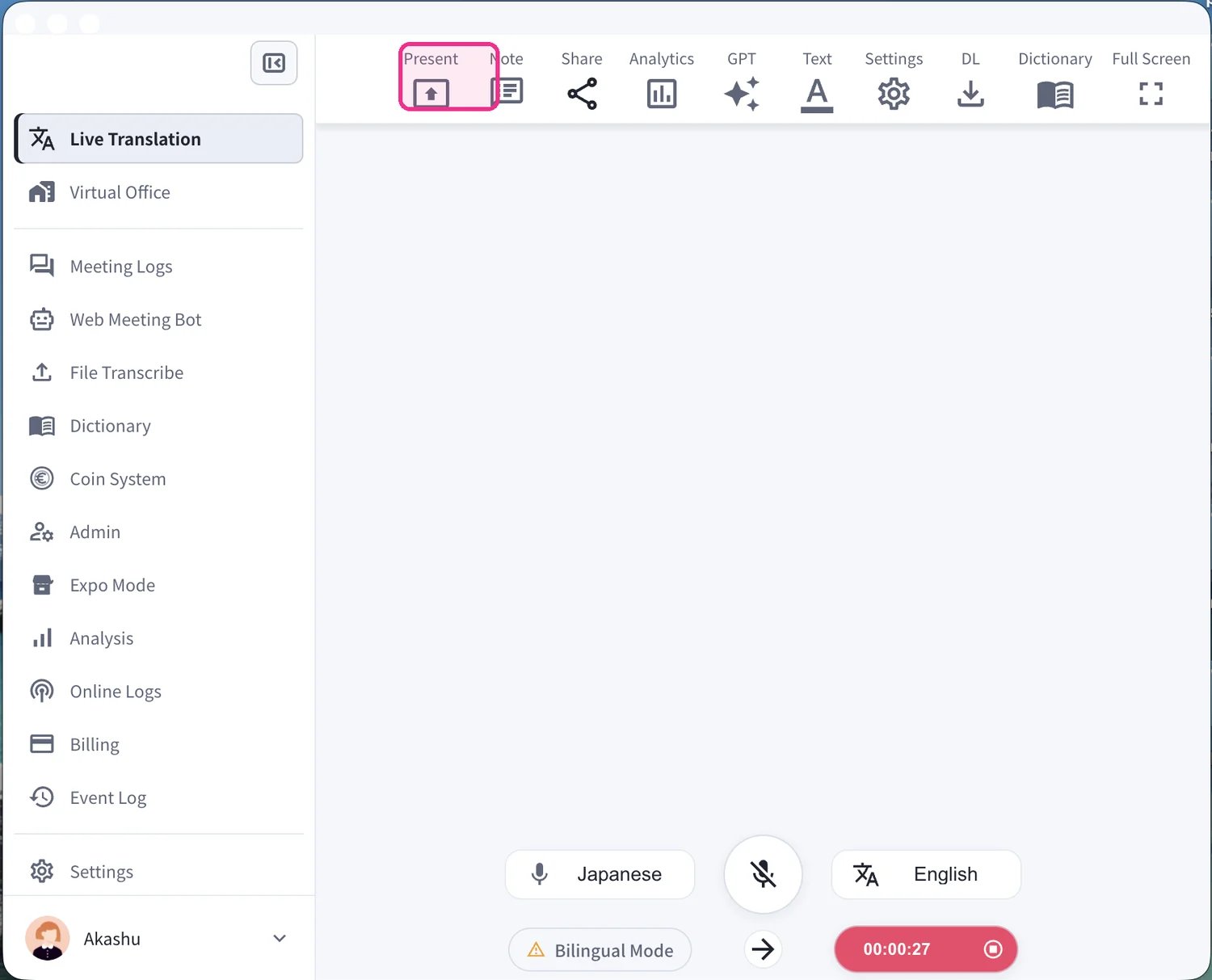
 3. **Present 모드를 엽니다.** 상단 도구 모음에서 **Present**를 클릭하여 프레젠테이션 자막 창을 실행합니다.
 4. **콘텐츠 위에 자막을 겹칩니다.** 자막 창이 투명한 배경으로 열립니다. 슬라이드, PDF, 동영상 위에 배치하면 실시간 자막(원본 텍스트와 번역)이 자료 위에 실시간으로 표시됩니다.
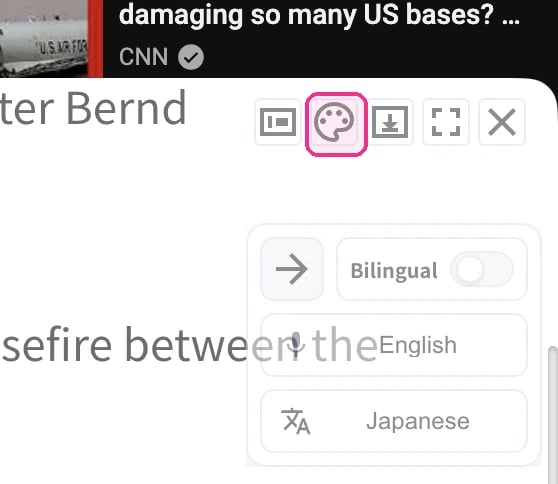
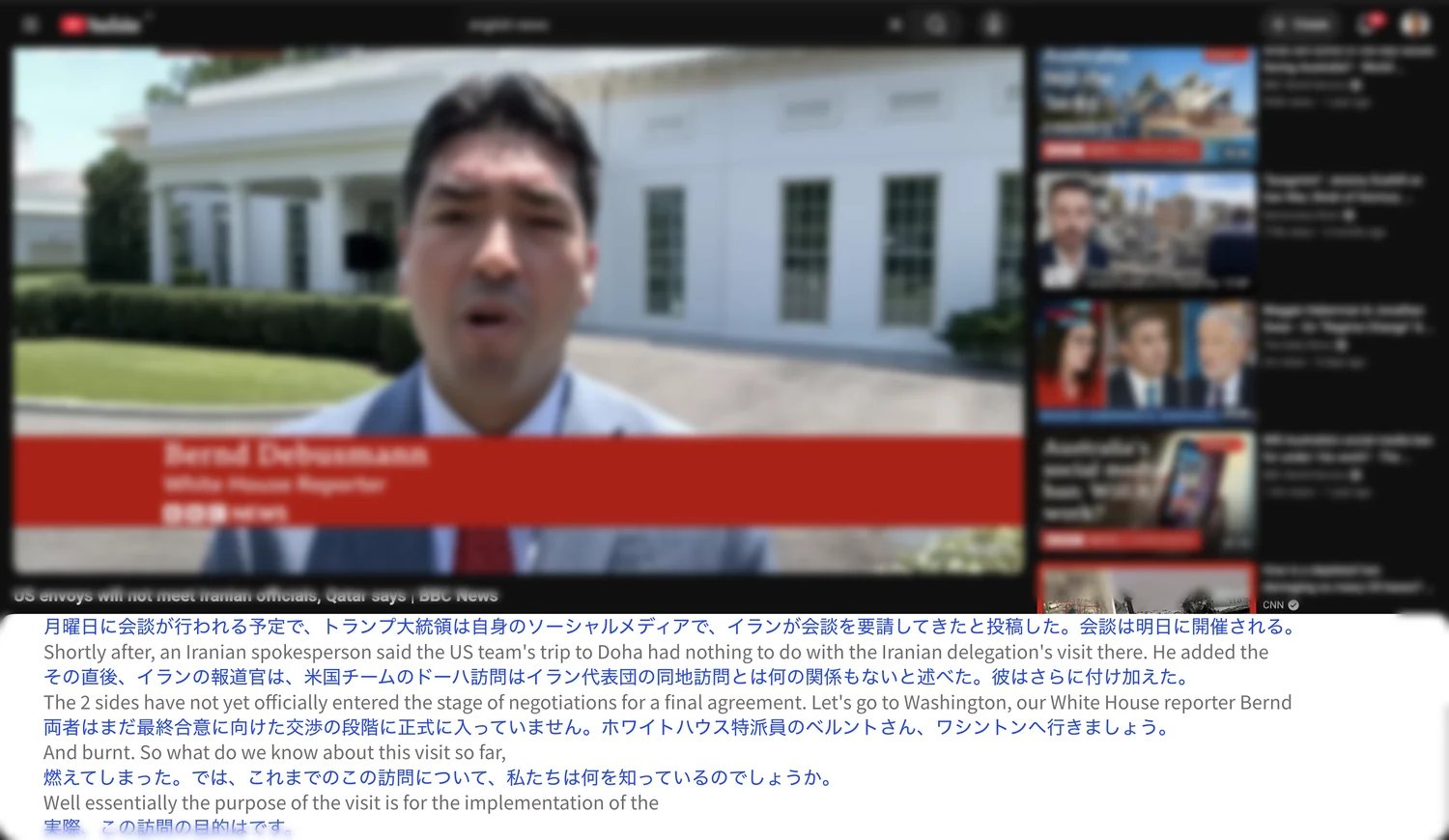 5. **투명 모드를 전환합니다.** 떠 있는 자막 창에서 **팔레트 아이콘**을 클릭하여 투명 모드(자막이 비치는 배경으로 콘텐츠 위에 겹쳐지는 모드)와 불투명한 단색 배경 사이를 전환합니다. **Bilingual**을 전환하거나 음성 인식 언어와 번역 언어를 바꿀 수도 있습니다.
 6. **깔끔하게 겹쳐진 자막으로 발표합니다.** 최종 모습을 위해 전체 화면으로 전환하세요 — 투명 자막이 배경 상자 없이 동영상이나 슬라이드 위에 바로 표시됩니다.
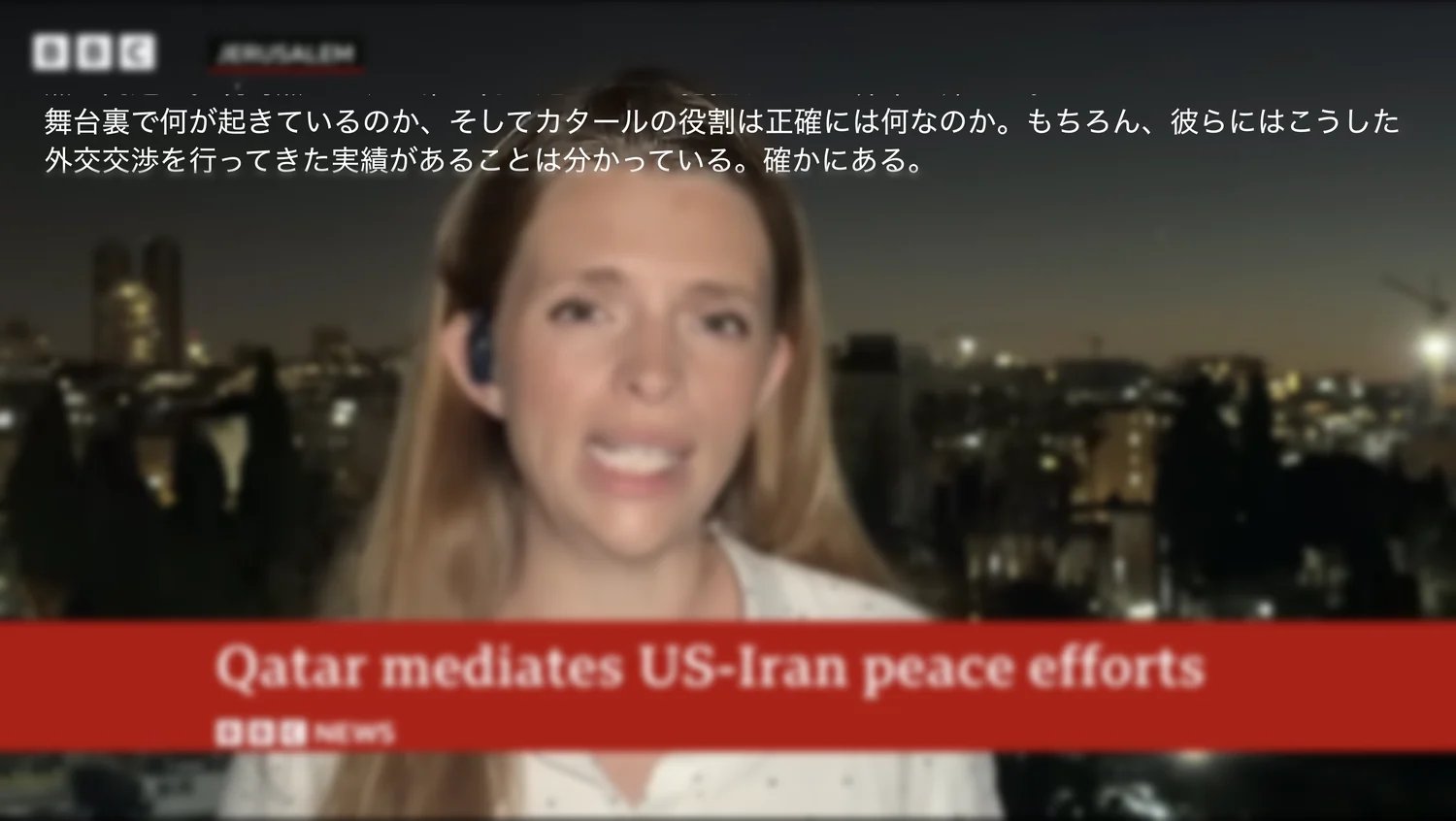 자막의 텍스트 크기와 색상을 조절할 수 있으며, 음성 인식 언어를 숨겨 번역만 표시할 수도 있습니다. 발표자 및 참가자 전체 설정은 [세미나용 실시간 음성 번역 자막](/ko/live-subtitles)을 참고하세요.