> ## Documentation Index
> Fetch the complete documentation index at: https://manual.voiceping.net/llms.txt
> Use this file to discover all available pages before exploring further.
# 사용자 상태
> 가상 오피스 내의 사용자 상태 관리
export const FeedbackKo = () => <>
이 기능에 대한 아이디어나 요청은 Product Feedback을 통해 팀에 보내주세요.
공식 링크
공식 웹사이트 방문
X에서 팔로우
Facebook에서 좋아요
LinkedIn에서 연결
;
# 1. 사용자 상태란
가상 오피스 내의 멤버가 지금 무엇을 하고 있는지 파악할 수 있습니다.
# 2. 3가지 상태
1. 온라인
 2. 다른 용무 중
 3. 자리 비움
 ## 1. 기본 상태 변경 방법
1. 앱 왼쪽 상단의 이름 아래에 있는 상태 버튼을 클릭
2. 원하는 상태를 선택
## 2. "자리 비움" 상태 변경 시간 설정 (오너 및 매니저)
상태가 전환되는 PC 미조작 시간은 워크스페이스 관리자가 아래 시간 중에서 선택하여 설정할 수 있습니다.
## 1. 기본 상태 변경 방법
1. 앱 왼쪽 상단의 이름 아래에 있는 상태 버튼을 클릭
2. 원하는 상태를 선택
## 2. "자리 비움" 상태 변경 시간 설정 (오너 및 매니저)
상태가 전환되는 PC 미조작 시간은 워크스페이스 관리자가 아래 시간 중에서 선택하여 설정할 수 있습니다.
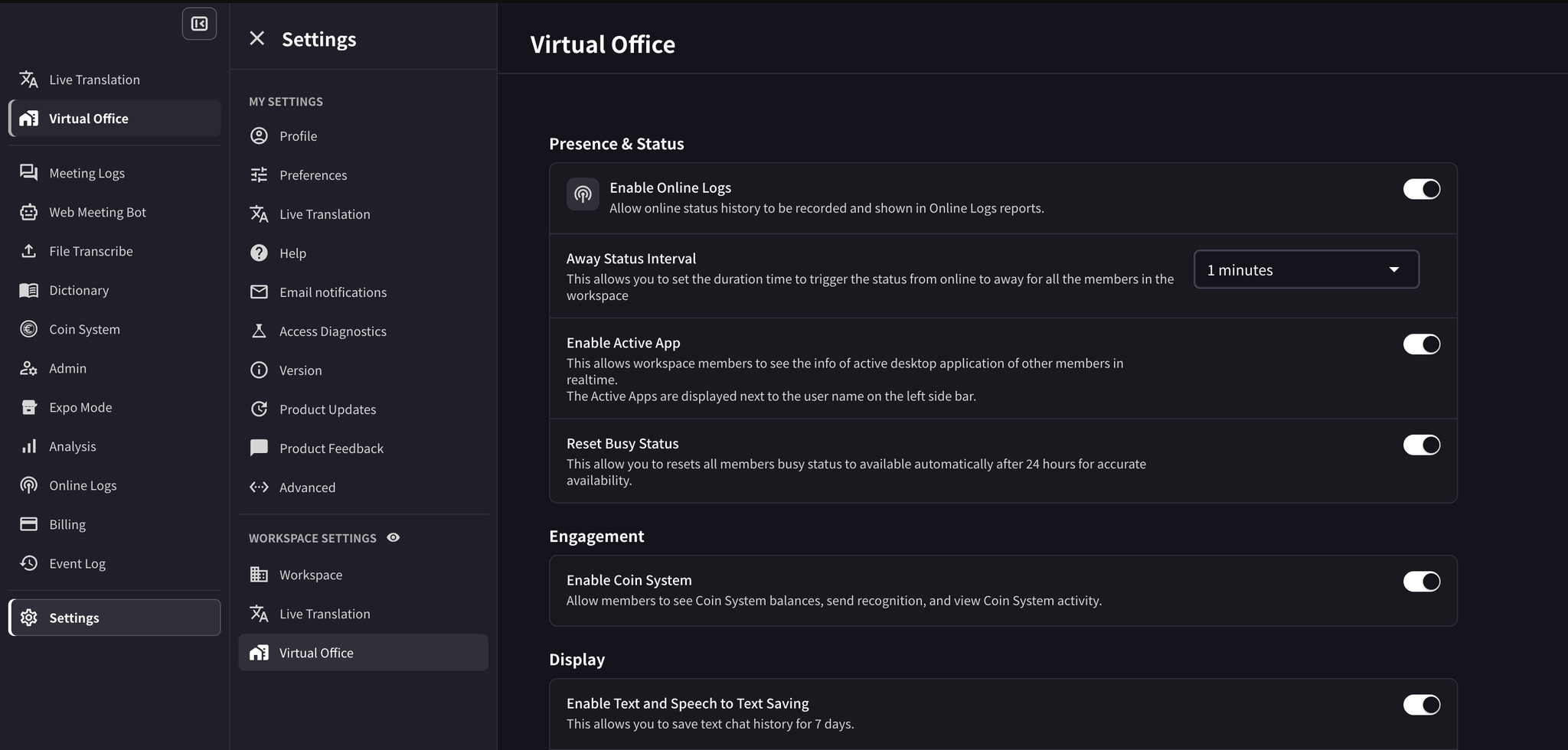 1. 왼쪽 사이드바에서 **Settings** 클릭
2. **Workspace Settings** 아래의 **Virtual Office** 클릭
3. **Presence & Status**에서 **Away Status Interval** 설정
4. 설정은 자동으로 저장됩니다
## 3. "다른 용무 중" 상태 자동 리셋
모든 워크스페이스 사용자의 "다른 용무 중" 상태를 자동으로 "온라인"으로 되돌릴 수 있습니다.
위에 표시된 동일한 **Presence & Status** 화면에서 설정합니다.
1. 왼쪽 사이드바에서 **Settings** 클릭
2. **Workspace Settings** 아래의 **Virtual Office** 클릭
3. **Presence & Status**에서 **Reset Busy Status** 켜기
4. 설정은 자동으로 저장되므로 **Update** 버튼은 없습니다
## 4. 작업 메모
Virtual Office 왼쪽 사이드바의 작업 메모 입력란을 사용해 현재 작업 중인 내용을 표시할 수 있습니다.
1. 왼쪽 사이드바에서 **Settings** 클릭
2. **Workspace Settings** 아래의 **Virtual Office** 클릭
3. **Presence & Status**에서 **Away Status Interval** 설정
4. 설정은 자동으로 저장됩니다
## 3. "다른 용무 중" 상태 자동 리셋
모든 워크스페이스 사용자의 "다른 용무 중" 상태를 자동으로 "온라인"으로 되돌릴 수 있습니다.
위에 표시된 동일한 **Presence & Status** 화면에서 설정합니다.
1. 왼쪽 사이드바에서 **Settings** 클릭
2. **Workspace Settings** 아래의 **Virtual Office** 클릭
3. **Presence & Status**에서 **Reset Busy Status** 켜기
4. 설정은 자동으로 저장되므로 **Update** 버튼은 없습니다
## 4. 작업 메모
Virtual Office 왼쪽 사이드바의 작업 메모 입력란을 사용해 현재 작업 중인 내용을 표시할 수 있습니다.
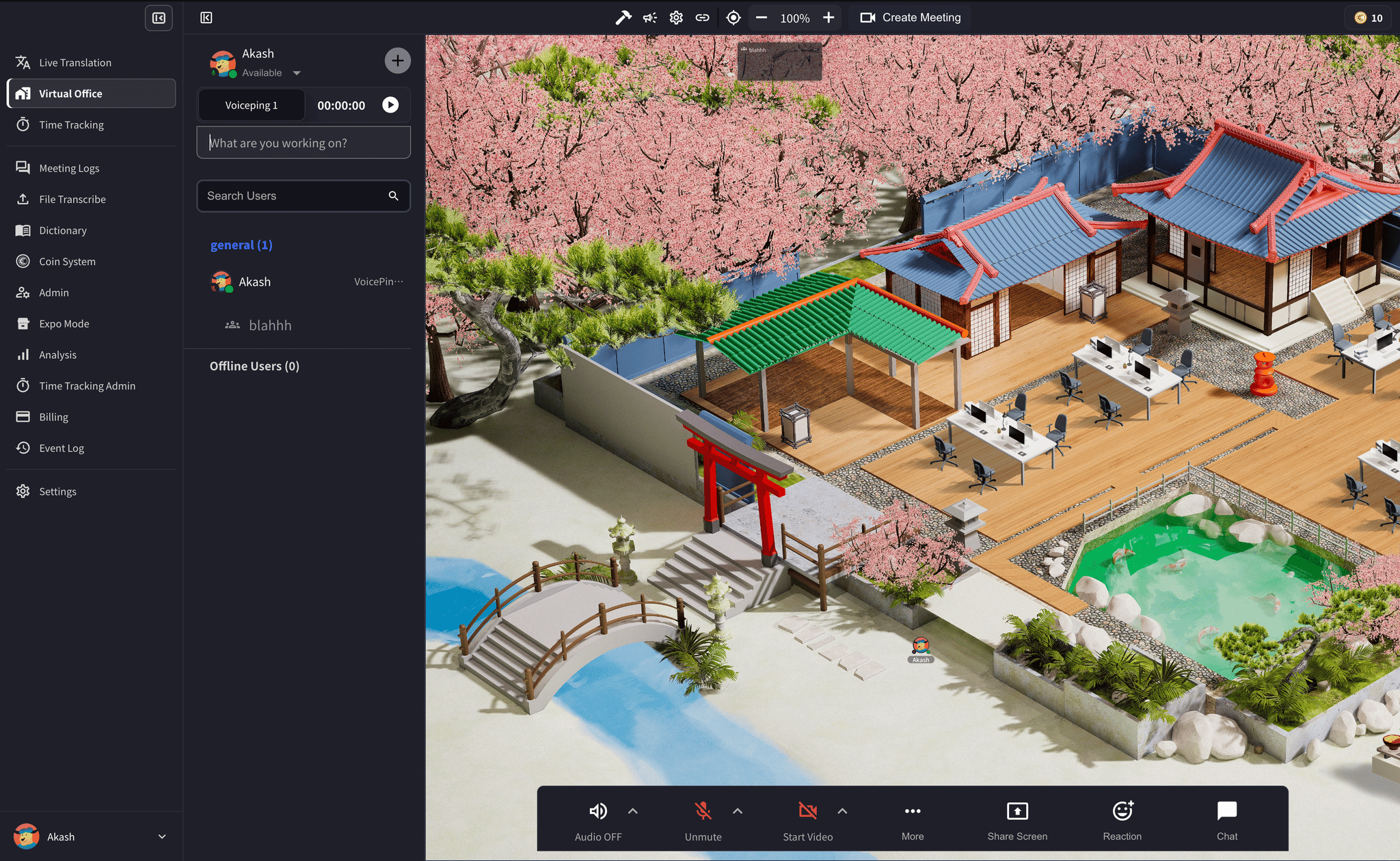 1. **Virtual Office** 열기
2. 왼쪽 사이드바에서 상태 또는 작업 타이머 아래의 입력란 클릭
3. 현재 작업 메모 입력
1. **Virtual Office** 열기
2. 왼쪽 사이드바에서 상태 또는 작업 타이머 아래의 입력란 클릭
3. 현재 작업 메모 입력