> ## Documentation Index
> Fetch the complete documentation index at: https://manual.voiceping.net/llms.txt
> Use this file to discover all available pages before exploring further.
# 가상 오피스
> 모바일 앱을 사용한 가상 오피스에서의 팀 커뮤니케이션
export const FeedbackKo = () => <>
이 기능에 대한 아이디어나 요청은 Product Feedback을 통해 팀에 보내주세요.
공식 링크
공식 웹사이트 방문
X에서 팔로우
Facebook에서 좋아요
LinkedIn에서 연결
;
VoicePing 사용자는 데스크톱 앱 외에도 모바일 앱을 이용하실 수 있습니다. 데스크톱 앱과 마찬가지로 모바일 앱에는 말 걸기 기능이나 음성 번역 기능, 회의실이 있으므로 컴퓨터를 열 수 없을 때도 팀과 커뮤니케이션할 수 있습니다.
## 가상 오피스 모드로 전환하기
메인 화면에서 가상 오피스 모드와 음성 번역 모드를 전환할 수 있습니다. 메뉴 상단의 "가상 오피스 모드로 전환"을 클릭하여 가상 오피스에 입장합니다.
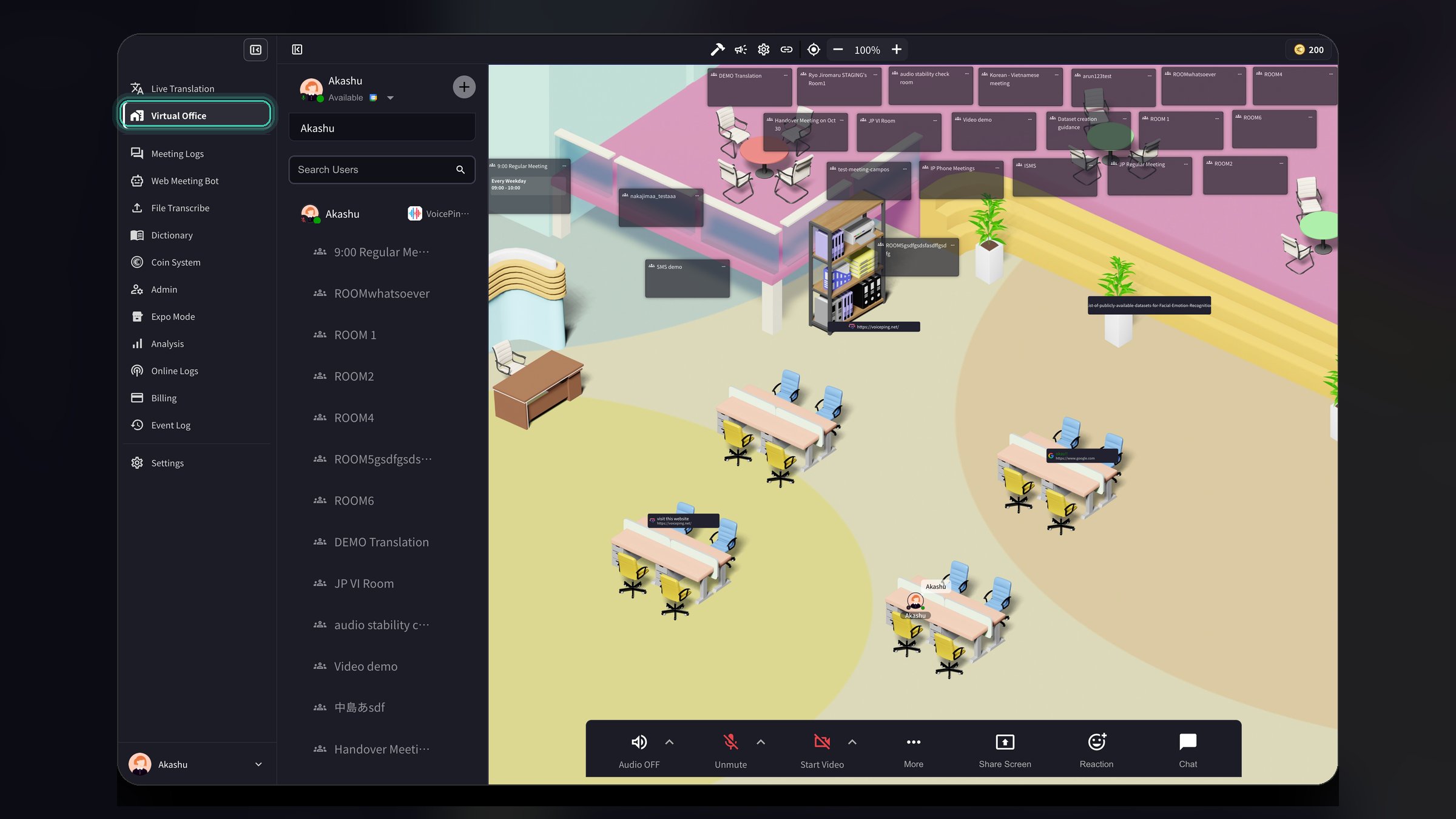 모드 전환 시 다음 옵션도 표시됩니다:
* **마이크 오디오만 추출**: 활성화하면 마이크 입력만 추출되어 번역되고, 다른 오디오는 무시됩니다
* **회의 감지**: 설정에서 선택한 앱의 회의를 감지하면 알림을 전송합니다
* **기본 마이크 활성화**: 번역을 시작하면 자동으로 마이크가 켜집니다
* **프레젠테이션 자막**: 프레젠테이션용 투명 텍스트 채팅 창을 표시하고 자막이 하이라이트됩니다
## 가상 오피스 활성화 또는 비활성화
워크스페이스 관리자는 워크스페이스 내 모든 멤버에 대해 가상 오피스 기능을 활성화하거나 비활성화할 수 있습니다.
1. **설정**을 엽니다 (오른쪽 상단의 톱니바퀴 아이콘 클릭)
2. 왼쪽 사이드바에서 **워크스페이스** 선택
3. **가상 오피스 활성화** 토글 찾기
4. 켜기/끄기로 모든 워크스페이스 멤버의 가상 오피스를 활성화/비활성화
5. **업데이트**를 클릭하여 변경 사항 저장
모드 전환 시 다음 옵션도 표시됩니다:
* **마이크 오디오만 추출**: 활성화하면 마이크 입력만 추출되어 번역되고, 다른 오디오는 무시됩니다
* **회의 감지**: 설정에서 선택한 앱의 회의를 감지하면 알림을 전송합니다
* **기본 마이크 활성화**: 번역을 시작하면 자동으로 마이크가 켜집니다
* **프레젠테이션 자막**: 프레젠테이션용 투명 텍스트 채팅 창을 표시하고 자막이 하이라이트됩니다
## 가상 오피스 활성화 또는 비활성화
워크스페이스 관리자는 워크스페이스 내 모든 멤버에 대해 가상 오피스 기능을 활성화하거나 비활성화할 수 있습니다.
1. **설정**을 엽니다 (오른쪽 상단의 톱니바퀴 아이콘 클릭)
2. 왼쪽 사이드바에서 **워크스페이스** 선택
3. **가상 오피스 활성화** 토글 찾기
4. 켜기/끄기로 모든 워크스페이스 멤버의 가상 오피스를 활성화/비활성화
5. **업데이트**를 클릭하여 변경 사항 저장
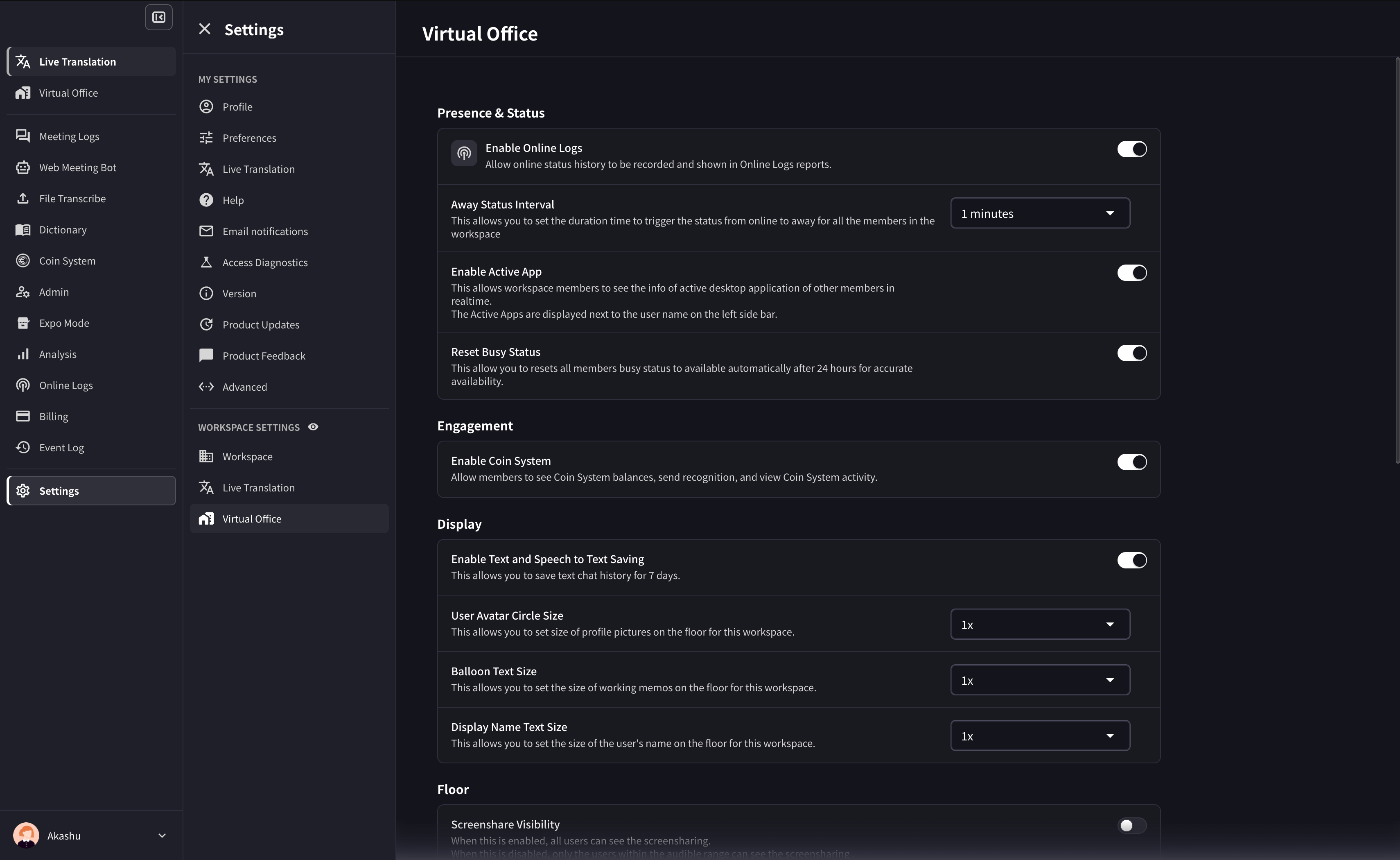 추가 설정 항목:
* **자리 비움 상태 간격**: 멤버의 상태가 자동으로 "자리 비움"으로 변경되기까지의 시간 설정
* **활성 앱 활성화**: 워크스페이스 멤버가 다른 멤버의 활성 데스크톱 애플리케이션을 실시간으로 확인할 수 있도록 허용
## 1. VoicePing 계정 및 워크스페이스 생성
아직 VoicePing 계정 및 워크스페이스가 없으신 분은 VoicePing 앱을 앱스토어에서 다운로드해 주세요. 앱 다운로드 후 앱 사용을 시작하고 계정과 새 워크스페이스를 생성해 주세요. 생성 방법은 [여기](/ko/owner-signup)
## 2. 팀 멤버 초대
VoicePing 데스크톱 앱에서는 사내 인원을 [VoicePing 워크스페이스에 초대하는 방법이 3가지](/ko/invite-members) 있지만, 모바일 앱에서는 팀 멤버를 워크스페이스에 초대하는 방법이 1가지뿐입니다.
앱 왼쪽 상단에 있는 프로필 아이콘을 클릭하면 사이드바가 표시됩니다. \[설정] > \[URL로 초대]로 이동하면 초대 링크가 표시됩니다.
## 플로어에서 팀과 대화하기
재택근무에서의 커뮤니케이션이라고 하면 웹 회의를 진행하는 것이 표준이 되어가고 있지만, 일정 조정이 번거롭다는 이유 등으로 커뮤니케이션이 줄었다는 사례가 적지 않습니다.
이 고민을 해결하기 위해 VoicePing 가상 오피스에는 간편하게 팀과 대화할 수 있는 "말 걸기" 기능이 있습니다.
먼저 사용자 상태에서 상대방이 대화 가능한지 확인합시다.
### 사용자 상태
### 말 걸기
상대방이 대화 가능한 상태라면 "말 걸기" 기능을 사용해 주세요.
모바일 앱에서는 상대방의 사용자 아이콘 또는 사이드바에서 수화기 아이콘을 클릭하면 상대방을 호출할 수 있습니다.
### 텍스트 채팅
"말 걸기" 기능 외에도 다른 사람과 대화하는 도구로 채팅 박스가 제공됩니다.
모바일 앱에서는 화면 하단에 있는 텍스트 아이콘 또는 사용자 아바타에서 텍스트 아이콘을 클릭하여 메시지를 전송하세요.
화면 오른쪽 상단에 있는 키보드 아이콘을 클릭하여 메시지 박스를 표시하거나 숨길 수 있습니다.
## 회의 진행하기
VoicePing 모바일 앱에서도 회의를 진행할 수 있습니다. 플로어에 회의실이 없다면 생성해 주세요.
### 회의실 생성
플로어 위의 "+" 버튼을 클릭하면 새 회의실을 생성할 수 있습니다.
회의실 이름을 입력하고 디자인을 선택해 주세요.
## 음성 번역 (선택사항)
음성 번역 기능은 VoicePing 모바일 앱에서도 이용하실 수 있습니다. 먼저 설정에서 번역 가능한 언어를 선택해 주세요.
### 번역 가능한 언어 설정
앱 왼쪽 상단에 있는 사용자 아이콘을 클릭하면 사이드바가 표시됩니다. \[설정] > \[워크스페이스]로 이동하면 \[음성 인식 및 번역] 설정이 있습니다. 화살표 아이콘을 클릭하여 워크스페이스에서 사용할 언어를 선택하세요.
### 언어 지정
음성 번역 기능을 사용할 때 발화 언어와 번역 언어를 선택해 주세요.
## Data Retention
Audio data on paid self-service plans is retained for up to 3 months. Meeting logs are retained according to the workspace plan or managed contract. Web Meeting Bot or recording video is documented only where that video is available for a session and is retained for up to 1 month. Download needed data before the retention period ends.
## VoicePing 3.0 Virtual Office Notes
* Floor access can be affected by member, group, and policy settings. If assignment fails, check [Member Management](/ko/member-management) and group settings.
* Meeting rooms support card position lock, grid/presenter video layouts, and member-managed meeting rooms where permitted.
* Floor text chat can default to nearby users as the receiver.
* Custom objects support text editing, URLs, YouTube, and iframe embeds.
추가 설정 항목:
* **자리 비움 상태 간격**: 멤버의 상태가 자동으로 "자리 비움"으로 변경되기까지의 시간 설정
* **활성 앱 활성화**: 워크스페이스 멤버가 다른 멤버의 활성 데스크톱 애플리케이션을 실시간으로 확인할 수 있도록 허용
## 1. VoicePing 계정 및 워크스페이스 생성
아직 VoicePing 계정 및 워크스페이스가 없으신 분은 VoicePing 앱을 앱스토어에서 다운로드해 주세요. 앱 다운로드 후 앱 사용을 시작하고 계정과 새 워크스페이스를 생성해 주세요. 생성 방법은 [여기](/ko/owner-signup)
## 2. 팀 멤버 초대
VoicePing 데스크톱 앱에서는 사내 인원을 [VoicePing 워크스페이스에 초대하는 방법이 3가지](/ko/invite-members) 있지만, 모바일 앱에서는 팀 멤버를 워크스페이스에 초대하는 방법이 1가지뿐입니다.
앱 왼쪽 상단에 있는 프로필 아이콘을 클릭하면 사이드바가 표시됩니다. \[설정] > \[URL로 초대]로 이동하면 초대 링크가 표시됩니다.
## 플로어에서 팀과 대화하기
재택근무에서의 커뮤니케이션이라고 하면 웹 회의를 진행하는 것이 표준이 되어가고 있지만, 일정 조정이 번거롭다는 이유 등으로 커뮤니케이션이 줄었다는 사례가 적지 않습니다.
이 고민을 해결하기 위해 VoicePing 가상 오피스에는 간편하게 팀과 대화할 수 있는 "말 걸기" 기능이 있습니다.
먼저 사용자 상태에서 상대방이 대화 가능한지 확인합시다.
### 사용자 상태
### 말 걸기
상대방이 대화 가능한 상태라면 "말 걸기" 기능을 사용해 주세요.
모바일 앱에서는 상대방의 사용자 아이콘 또는 사이드바에서 수화기 아이콘을 클릭하면 상대방을 호출할 수 있습니다.
### 텍스트 채팅
"말 걸기" 기능 외에도 다른 사람과 대화하는 도구로 채팅 박스가 제공됩니다.
모바일 앱에서는 화면 하단에 있는 텍스트 아이콘 또는 사용자 아바타에서 텍스트 아이콘을 클릭하여 메시지를 전송하세요.
화면 오른쪽 상단에 있는 키보드 아이콘을 클릭하여 메시지 박스를 표시하거나 숨길 수 있습니다.
## 회의 진행하기
VoicePing 모바일 앱에서도 회의를 진행할 수 있습니다. 플로어에 회의실이 없다면 생성해 주세요.
### 회의실 생성
플로어 위의 "+" 버튼을 클릭하면 새 회의실을 생성할 수 있습니다.
회의실 이름을 입력하고 디자인을 선택해 주세요.
## 음성 번역 (선택사항)
음성 번역 기능은 VoicePing 모바일 앱에서도 이용하실 수 있습니다. 먼저 설정에서 번역 가능한 언어를 선택해 주세요.
### 번역 가능한 언어 설정
앱 왼쪽 상단에 있는 사용자 아이콘을 클릭하면 사이드바가 표시됩니다. \[설정] > \[워크스페이스]로 이동하면 \[음성 인식 및 번역] 설정이 있습니다. 화살표 아이콘을 클릭하여 워크스페이스에서 사용할 언어를 선택하세요.
### 언어 지정
음성 번역 기능을 사용할 때 발화 언어와 번역 언어를 선택해 주세요.
## Data Retention
Audio data on paid self-service plans is retained for up to 3 months. Meeting logs are retained according to the workspace plan or managed contract. Web Meeting Bot or recording video is documented only where that video is available for a session and is retained for up to 1 month. Download needed data before the retention period ends.
## VoicePing 3.0 Virtual Office Notes
* Floor access can be affected by member, group, and policy settings. If assignment fails, check [Member Management](/ko/member-management) and group settings.
* Meeting rooms support card position lock, grid/presenter video layouts, and member-managed meeting rooms where permitted.
* Floor text chat can default to nearby users as the receiver.
* Custom objects support text editing, URLs, YouTube, and iframe embeds.