> ## Documentation Index
> Fetch the complete documentation index at: https://manual.voiceping.net/llms.txt
> Use this file to discover all available pages before exploring further.
# App Integrations
> Manage current VoicePing 3.0 integrations for Google Calendar, Outlook Calendar, and Slack.
export const FeedbackTh = () => <>
มีไอเดียหรือคำขอเกี่ยวกับฟีเจอร์นี้ไหม? ส่งถึงทีมผ่าน Product Feedback
ลิงก์อย่างเป็นทางการ
เยี่ยมชมเว็บไซต์อย่างเป็นทางการของเรา
ติดตามเราบน X
ติดตามเราบน Facebook
เชื่อมต่อบน LinkedIn
;
VoicePing 3.0 currently manages user integrations for Google Calendar, Outlook Calendar, and Slack.
## Open Integrations
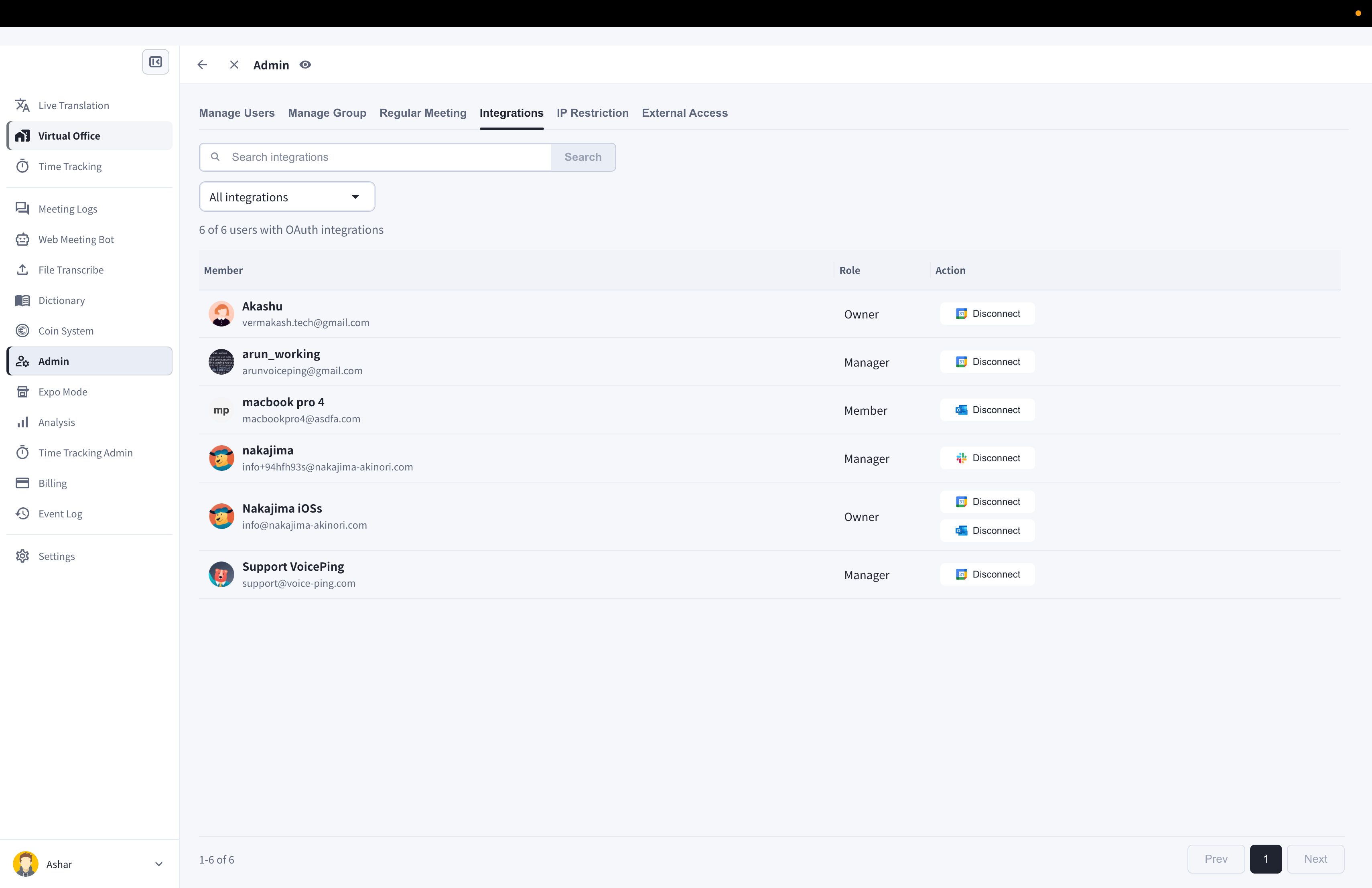
1. Open **Admin**.
2. Select **Integrations**.
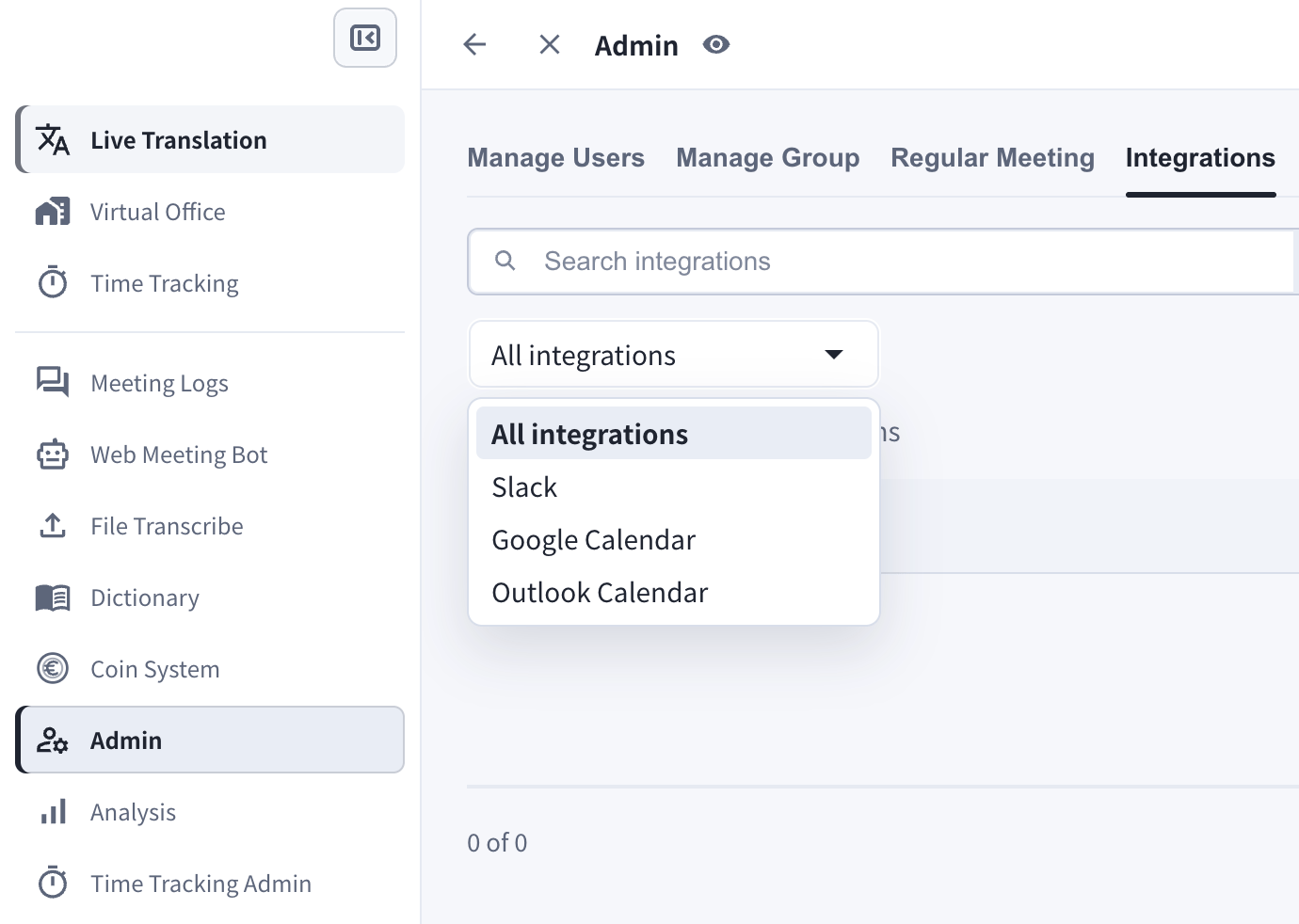
3. Filter by **All integrations**, **Slack**, **Google**, or **Outlook**.
 ## Calendar Integrations
Members can connect calendars from their settings. Calendar integration can:
* Share calendar availability with teammates.
* Support calendar-based meeting detection and picture-in-picture reminders.
* Let Web Meeting Bot prepare supported Zoom, Google Meet, or Microsoft Teams sessions from calendar events.
## Calendar Integrations
Members can connect calendars from their settings. Calendar integration can:
* Share calendar availability with teammates.
* Support calendar-based meeting detection and picture-in-picture reminders.
* Let Web Meeting Bot prepare supported Zoom, Google Meet, or Microsoft Teams sessions from calendar events.
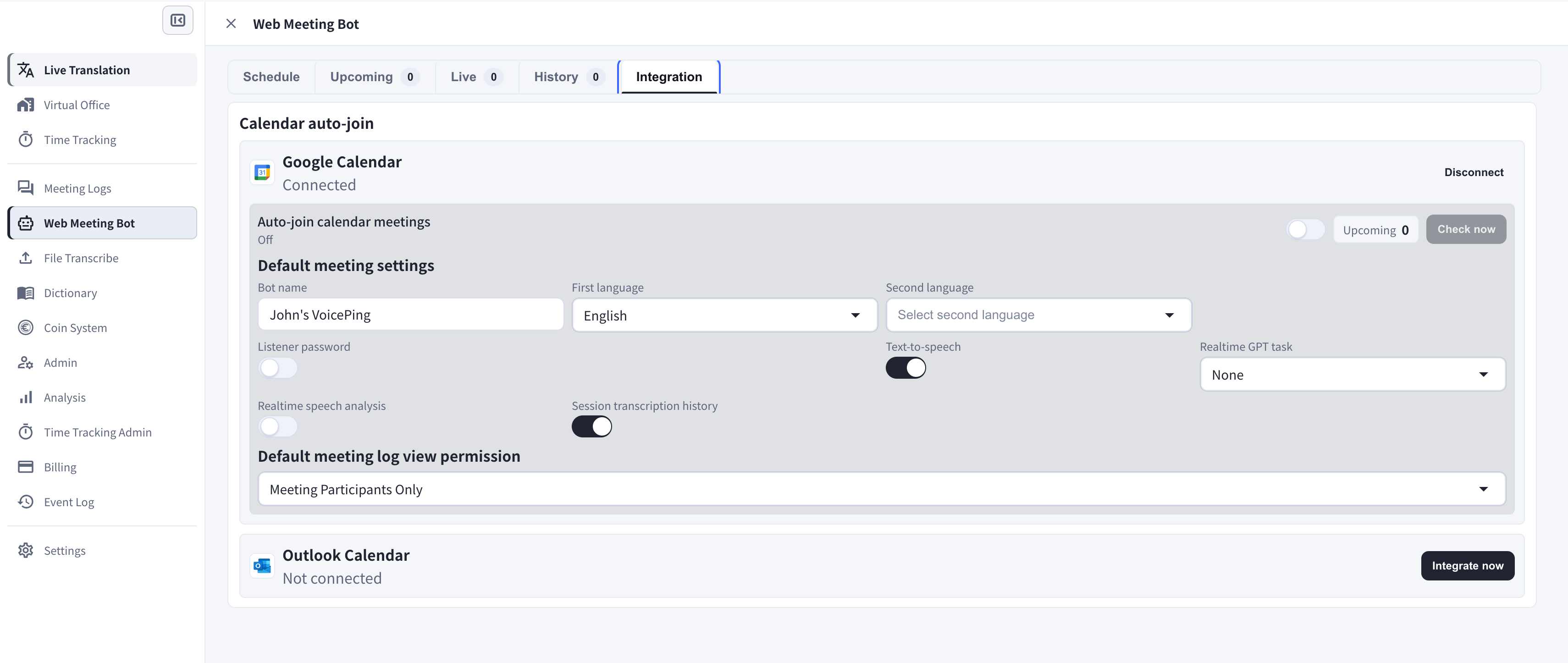 ## Google Calendar
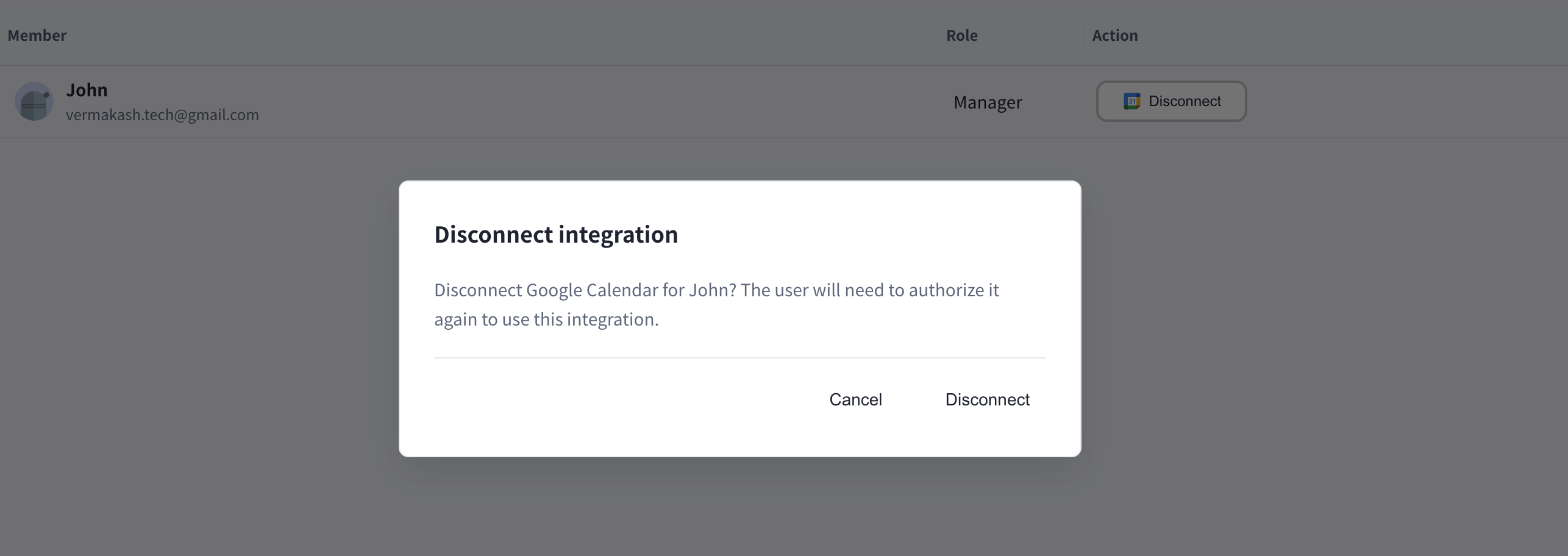
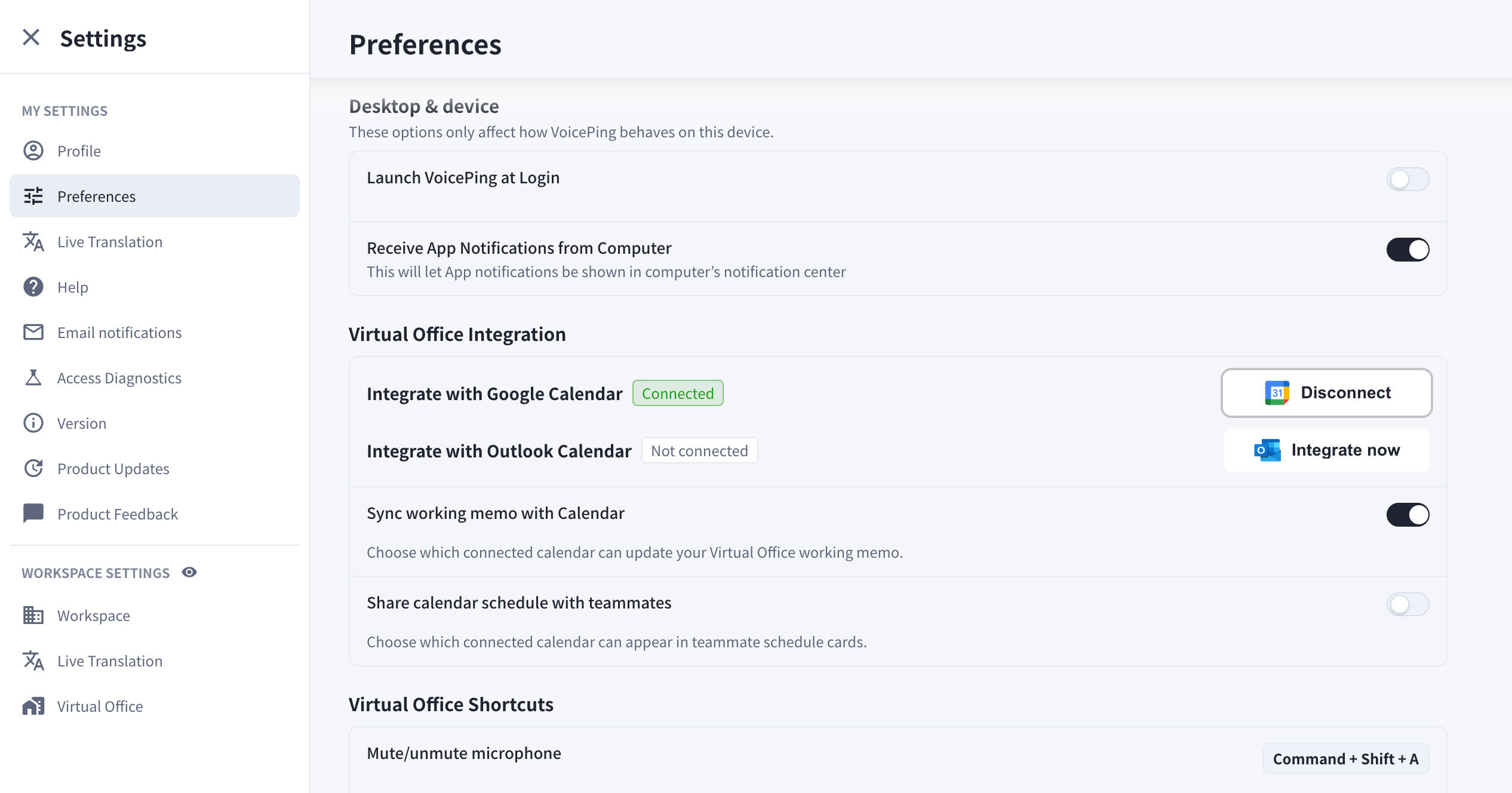
Use **Integrate with Google Calendar** to connect Google Calendar. You can disconnect the integration later from Integrations.
## Outlook Calendar
Use **Integrate with Outlook Calendar** to connect Microsoft Outlook Calendar. You can disconnect the integration later from Integrations.
## Slack
Slack integration is managed from the integrations screen. Managers can review connected members and disconnect provider access when needed.
Older notification integration instructions are deprecated and are no longer part of the public VoicePing 3.0 manual.
## Google Calendar
Use **Integrate with Google Calendar** to connect Google Calendar. You can disconnect the integration later from Integrations.
## Outlook Calendar
Use **Integrate with Outlook Calendar** to connect Microsoft Outlook Calendar. You can disconnect the integration later from Integrations.
## Slack
Slack integration is managed from the integrations screen. Managers can review connected members and disconnect provider access when needed.
Older notification integration instructions are deprecated and are no longer part of the public VoicePing 3.0 manual.