> ## Documentation Index
> Fetch the complete documentation index at: https://manual.voiceping.net/llms.txt
> Use this file to discover all available pages before exploring further.

# ออกจากระบบและปิดแอปพลิเคชัน

> วิธีปิดแอปพลิเคชัน VoicePing อย่างสมบูรณ์ (Windows และ Mac)

export const FeedbackTh = () => <>
    <Tip>
      มีไอเดียหรือคำขอเกี่ยวกับฟีเจอร์นี้ไหม? ส่งถึงทีมผ่าน <a href="/th/product-feedback">Product Feedback</a>
    </Tip>

    <h2>ลิงก์อย่างเป็นทางการ</h2>

    <CardGroup cols={2}>
      <Card title="เว็บไซต์อย่างเป็นทางการ" icon="globe" href="https://voiceping.net/en/">
        เยี่ยมชมเว็บไซต์อย่างเป็นทางการของเรา
      </Card>
      <Card title="X (Twitter)" icon="x-twitter" href="https://x.com/VoicePingMedia">
        ติดตามเราบน X
      </Card>
      <Card title="Facebook" icon="facebook" href="https://www.facebook.com/voiceping.inc">
        ติดตามเราบน Facebook
      </Card>
      <Card title="LinkedIn" icon="linkedin" href="https://www.linkedin.com/company/28684130/">
        เชื่อมต่อบน LinkedIn
      </Card>
    </CardGroup>
  </>;

แอปพลิเคชัน VoicePing ถูกออกแบบมาเพื่อให้สมาชิก "มีอยู่" ในพื้นที่เสมือน ดังนั้นจะทำงานต่อไปในพื้นหลังเว้นแต่คุณจะปิดแอปพลิเคชันอย่างสมบูรณ์

## ออกจากระบบบัญชีของคุณ

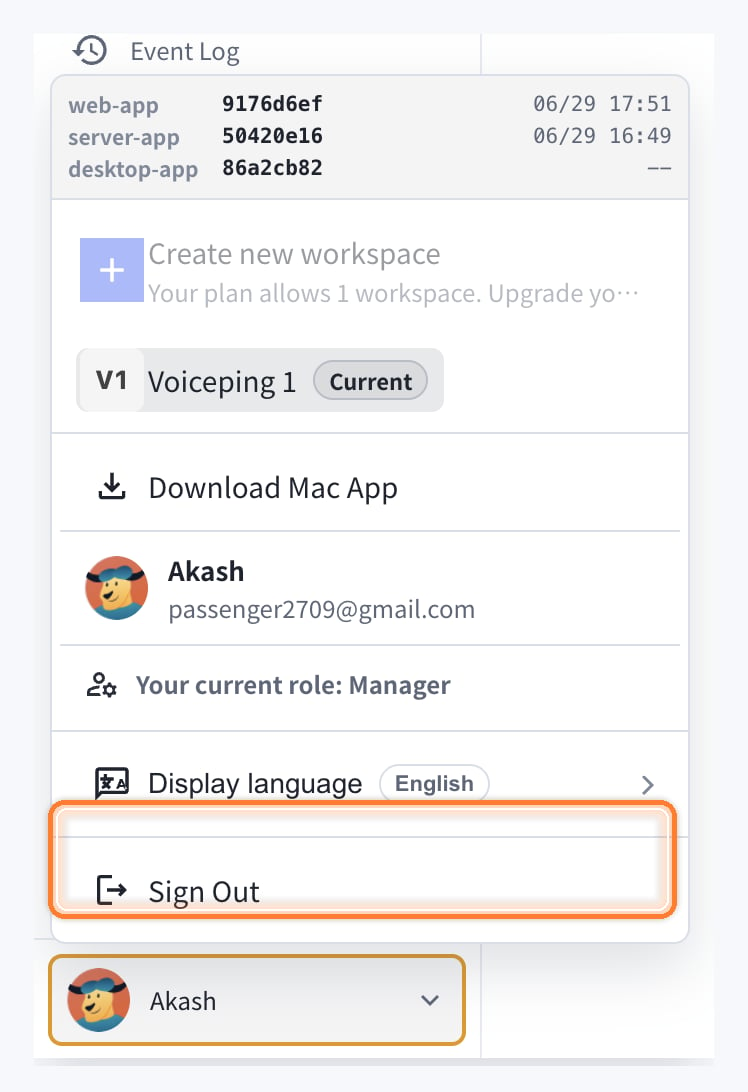
ใช้ "Sign Out" เมื่อต้องการออกจากบัญชี VoicePing ปัจจุบันหรือสลับบัญชี การออกจากระบบไม่ได้ปิดแอปเดสก์ท็อปอย่างสมบูรณ์

1. คลิกเมนูโปรไฟล์ที่มุมล่างซ้าย
2. คลิก "Sign Out"
<Frame>
  <img src="https://mintcdn.com/test-cf63e467/1_BQkW2BilGmh1Db/en/images/app-logout/sign-out-menu-highlighted.png?fit=max&auto=format&n=1_BQkW2BilGmh1Db&q=85&s=95748d7f0f7226b0e4778eb43f95ea39" alt="ตัวเลือก Sign Out ที่ถูกเน้น" width="748" height="1092" data-path="en/images/app-logout/sign-out-menu-highlighted.png" />
</Frame>

## สำหรับ Windows OS

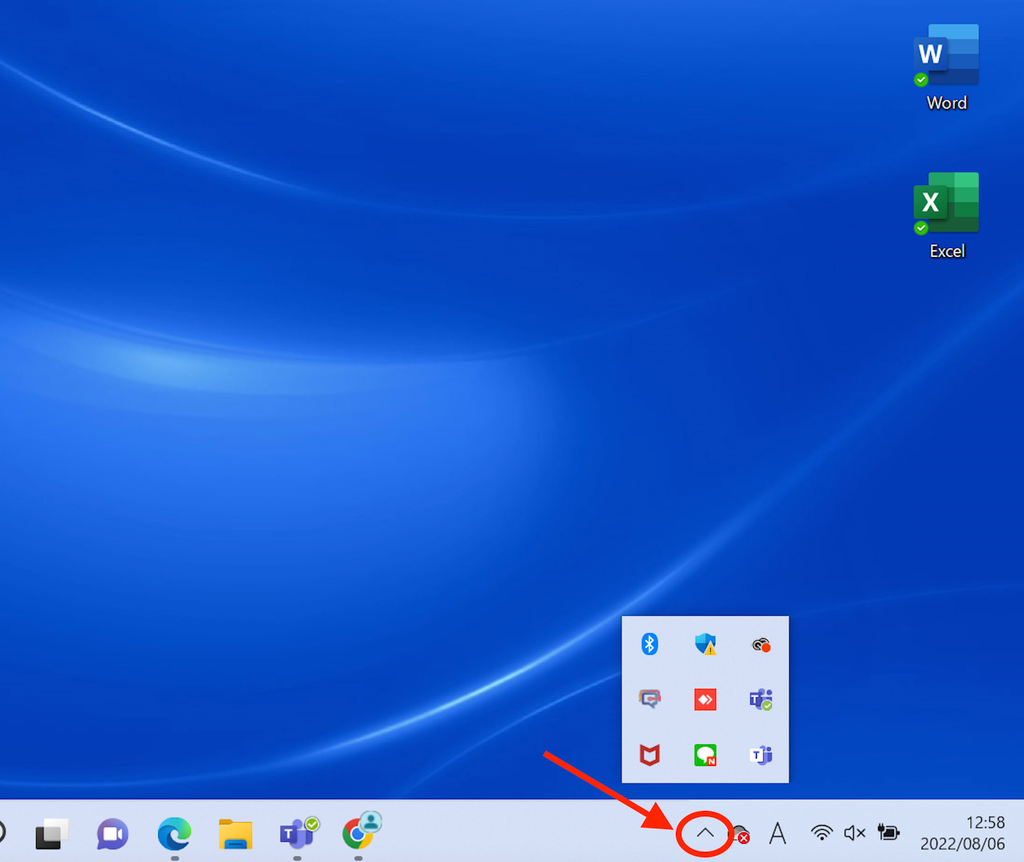
### ขั้นตอนที่ 1: เปิดไอคอนที่ซ่อนอยู่

คลิกซ้ายที่ไอคอนตัวบ่งชี้ที่ซ่อนอยู่ที่มุมล่างขวาของแถบงาน
<Frame>
  <img src="https://mintcdn.com/test-cf63e467/4vHpBWNcRcAS0vJ1/ja/images/app-logout/01-windows-indicator.png?fit=max&auto=format&n=4vHpBWNcRcAS0vJ1&q=85&s=45ddbc053e2f5f25bb59ef833bc2519c" alt="ตัวบ่งชี้ Windows" width="1024" height="862" data-path="ja/images/app-logout/01-windows-indicator.png" />
</Frame>

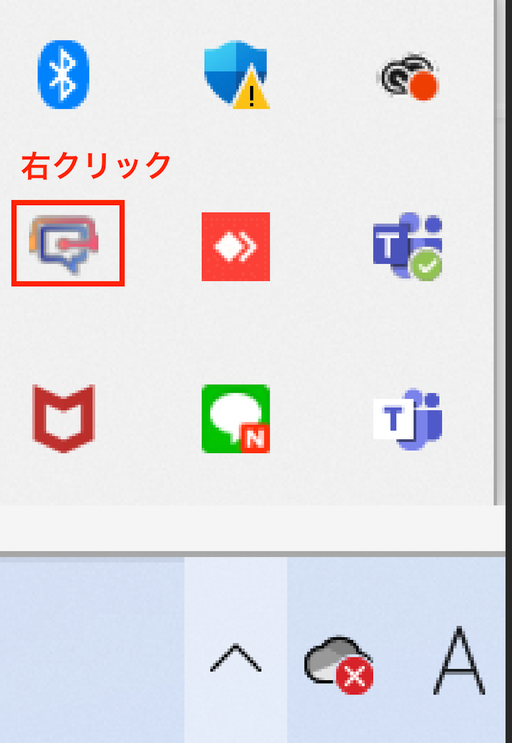
### ขั้นตอนที่ 2: คลิกขวาที่แอปพลิเคชัน VoicePing

คลิกขวาที่ไอคอนแอปพลิเคชัน VoicePing
<Frame>
  <img src="https://mintcdn.com/test-cf63e467/4vHpBWNcRcAS0vJ1/ja/images/app-logout/02-right-click-menu.png?fit=max&auto=format&n=4vHpBWNcRcAS0vJ1&q=85&s=9a2f7b07483f8efe3e62752d9340e961" alt="เมนูคลิกขวา VoicePing" width="512" height="743" data-path="ja/images/app-logout/02-right-click-menu.png" />
</Frame>

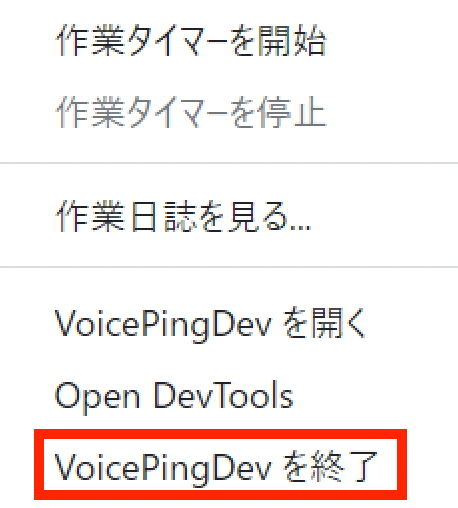
### ขั้นตอนที่ 3: ปิดแอปพลิเคชัน

คลิก "ปิด VoicePing"
<Frame>
  <img src="https://mintcdn.com/test-cf63e467/4vHpBWNcRcAS0vJ1/ja/images/app-logout/03-quit-button.png?fit=max&auto=format&n=4vHpBWNcRcAS0vJ1&q=85&s=6f8f3400c1a53b5adeda6ab475326bf8" alt="ปุ่มปิด" width="458" height="508" data-path="ja/images/app-logout/03-quit-button.png" />
</Frame>

## สำหรับ Mac OS

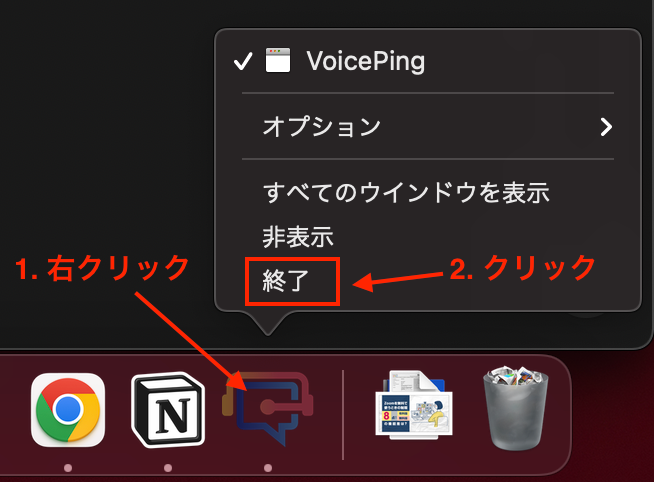
### ขั้นตอนที่ 1: คลิกขวาที่แอปพลิเคชัน

คลิกขวาที่แอปพลิเคชัน VoicePing จาก Dock ที่แสดงแอปพลิเคชันที่กำลังทำงานอยู่ที่มุมล่างขวา

### ขั้นตอนที่ 2: คลิกปิด

คลิก "ปิด"
<Frame>
  <img src="https://mintcdn.com/test-cf63e467/4vHpBWNcRcAS0vJ1/ja/images/app-logout/04-mac-quit-screen.png?fit=max&auto=format&n=4vHpBWNcRcAS0vJ1&q=85&s=5792e763b707b2bfdfacb685eeced266" alt="หน้าจอปิด Mac" width="654" height="482" data-path="ja/images/app-logout/04-mac-quit-screen.png" />
</Frame>

<FeedbackTh />
