> ## Documentation Index
> Fetch the complete documentation index at: https://manual.voiceping.net/llms.txt
> Use this file to discover all available pages before exploring further.

# เวิร์กโฟลว์ — ติดตาม KPI ทั่วทั้งทีมของคุณ

> ดึงการประชุมทุกครั้งที่สมาชิกทีมจัด และสร้างรายงานเปรียบเทียบ KPI ที่พร้อมเสนอผู้จัดการ — ตามพื้นที่โฟกัส พร้อมหลักฐานและข้อสรุป ใช้ VoicePing MCP Access

export const FeedbackTh = () => <>
    <Tip>
      มีไอเดียหรือคำขอเกี่ยวกับฟีเจอร์นี้ไหม? ส่งถึงทีมผ่าน <a href="/th/product-feedback">Product Feedback</a>
    </Tip>

    <h2>ลิงก์อย่างเป็นทางการ</h2>

    <CardGroup cols={2}>
      <Card title="เว็บไซต์อย่างเป็นทางการ" icon="globe" href="https://voiceping.net/en/">
        เยี่ยมชมเว็บไซต์อย่างเป็นทางการของเรา
      </Card>
      <Card title="X (Twitter)" icon="x-twitter" href="https://x.com/VoicePingMedia">
        ติดตามเราบน X
      </Card>
      <Card title="Facebook" icon="facebook" href="https://www.facebook.com/voiceping.inc">
        ติดตามเราบน Facebook
      </Card>
      <Card title="LinkedIn" icon="linkedin" href="https://www.linkedin.com/company/28684130/">
        เชื่อมต่อบน LinkedIn
      </Card>
    </CardGroup>
  </>;

## ติดตาม KPI ทั่วทั้งทีมของคุณ

**สถานการณ์.** คุณเป็นผู้จัดการ คุณมีผู้ใต้บังคับบัญชา 4 คน — Priya, Marcus, Hana, Daniel — ทุกคนจัดประชุมกับลูกค้าใน workspace VoicePing เดียวกัน คุณต้องการรู้โดยไม่ต้องนัด 1:1 สี่ครั้งว่าแต่ละคนใช้เวลาไปกับอะไร ทำงานดีลไหนอยู่ และช่องว่างอยู่ที่ไหน

เวิร์กโฟลว์นี้สมมติว่าคุณได้เปิดใช้งาน [MCP Access](/th/external-access/mcp) และเชื่อมต่อไคลเอนต์ AI ของคุณแล้ว

<Steps>
  <Step title="จับคู่สมาชิกทีมกับ workspace">
    ```text theme={null}
    List workspace users in VoicePing and identify these team members:
    Priya Shah, Marcus Lee, Hana Sato, and Daniel Chen.
    ```

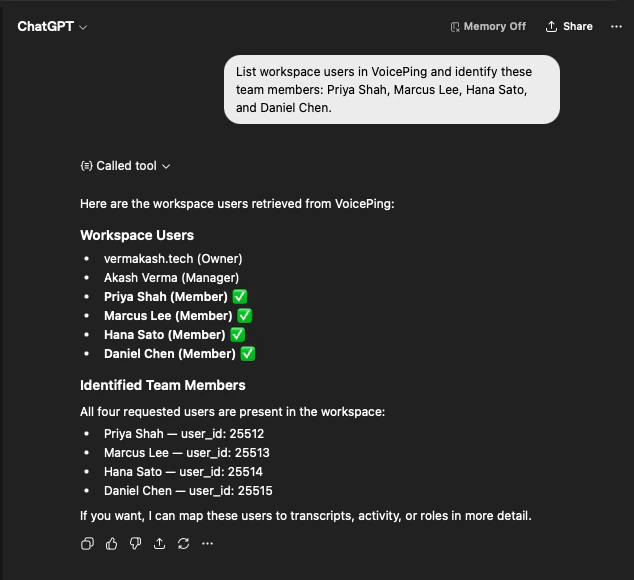
    AI ดึงรายชื่อผู้ใช้ workspace และยืนยันว่าทั้ง 4 คนอยู่ครบ — พร้อม user ID — เพื่อให้คุณรู้ว่าการวิเคราะห์จะครอบคลุมคนที่ถูกต้อง

    <div style={{maxWidth: "550px", margin: "0 auto"}}>
      <Frame>
        <img src="https://mintcdn.com/test-cf63e467/z13MfE0CikV5b-4X/en/images/external_access/KPIs%20tracking%201.png?fit=max&auto=format&n=z13MfE0CikV5b-4X&q=85&s=10ccb10ad84779822232446cc463adc8" alt="ChatGPT listing VoicePing workspace users and confirming Priya Shah, Marcus Lee, Hana Sato, and Daniel Chen as team members with their user IDs" width="634" height="580" data-path="en/images/external_access/KPIs tracking 1.png" />
      </Frame>
    </div>
  </Step>

  <Step title="ดึงการประชุมทุกครั้งที่เกี่ยวข้องกับ KPI ของคุณ">
    ```text theme={null}
    Search transcripts created by Priya Shah, Marcus Lee, Hana Sato,
    and Daniel Chen. Focus on meetings tagged or related to KPI, proposal,
    pipeline, customer health, product feedback, expansion, and bottlenecks.
    ```

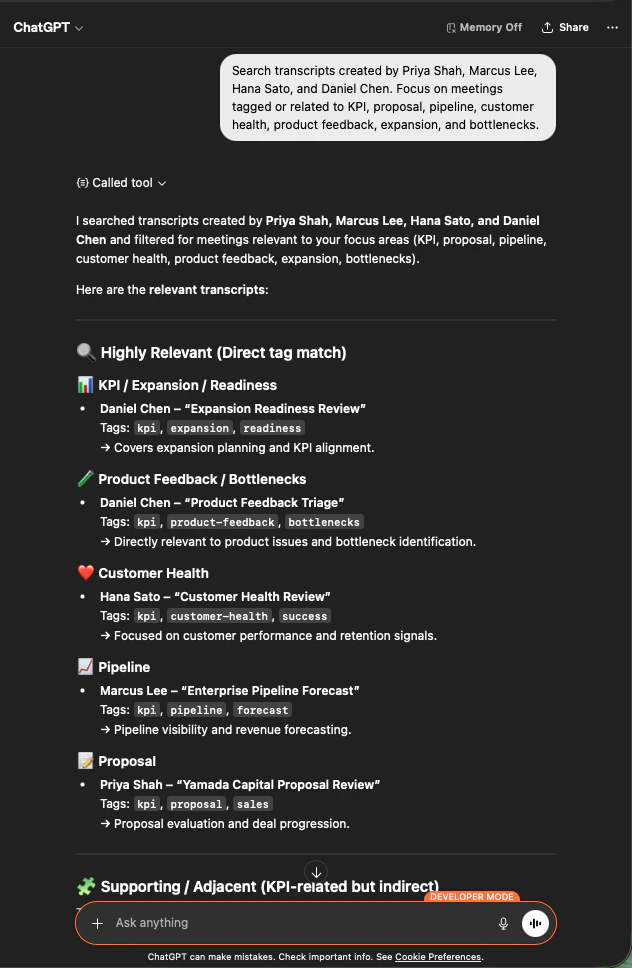
    คุณจะได้รายการการประชุมที่สำคัญในขอบเขตที่กำหนด — จัดกลุ่มตามพื้นที่โฟกัส (KPI/Expansion, Product Feedback, Customer Health, Pipeline, Proposal) พร้อมสมาชิกทีมที่เป็นเจ้าของและแท็กที่เกี่ยวข้อง

    <div style={{maxWidth: "600px", margin: "0 auto"}}>
      <Frame>
        <img src="https://mintcdn.com/test-cf63e467/z13MfE0CikV5b-4X/en/images/external_access/KPIs%20tracking%202.png?fit=max&auto=format&n=z13MfE0CikV5b-4X&q=85&s=f7ccca133a82cab61b4d39c3c16d5955" alt="ChatGPT listing team transcripts grouped by focus area — KPI, Product Feedback, Customer Health, Pipeline, Proposal — with team owner and tags" width="632" height="968" data-path="en/images/external_access/KPIs tracking 2.png" />
      </Frame>
    </div>
  </Step>

  <Step title="ผลิตรายงาน KPI ที่พร้อมเสนอผู้จัดการ">
    ```text theme={null}
    Create a manager-ready KPI report comparing Priya, Marcus, Hana, and Daniel.
    Keep it structured and practical.
    ```

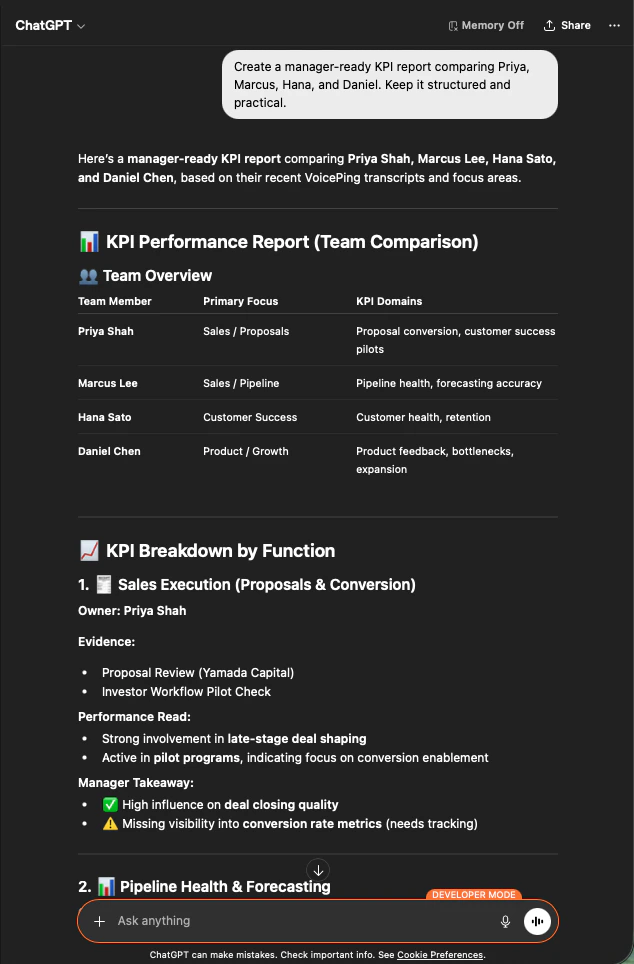
    AI สร้างตารางภาพรวมทีม การแจกแจง KPI ตามฟังก์ชัน (Sales Execution, Pipeline Health, Customer Success, Product/Growth) พร้อมหลักฐาน การอ่านประสิทธิภาพ และข้อสรุปสำหรับผู้จัดการสำหรับแต่ละคน

    <div style={{maxWidth: "600px", margin: "0 auto"}}>
      <Frame>
        <img src="https://mintcdn.com/test-cf63e467/z13MfE0CikV5b-4X/en/images/external_access/KPIs%20tracking%203.png?fit=max&auto=format&n=z13MfE0CikV5b-4X&q=85&s=65c04fcccb097e24e0018e1ea869ac8c" alt="ChatGPT generating a manager-ready KPI report comparing four team members with primary focus, KPI domains, evidence, and takeaways" width="634" height="964" data-path="en/images/external_access/KPIs tracking 3.png" />
      </Frame>
    </div>
  </Step>
</Steps>

<Info>
  สิ่งนี้ใช้ได้เพราะ MCP Access เคารพขอบเขตของ workspace — AI เห็นเฉพาะบันทึกที่การเชื่อมต่อได้รับอนุญาตให้อ่าน และจากผู้ใช้ภายใน workspace นั้นเท่านั้น ผู้จัดการได้รับการมองเห็นทีมของตน ไม่ใช่ของคนอื่น
</Info>

***

## ขั้นตอนถัดไป

<CardGroup cols={2}>
  <Card title="ภาพรวม External Access" icon="arrow-left" href="/th/external-access">
    กลับสู่ศูนย์กลางเพื่อดูขอบเขต การควบคุมวงจรชีวิต และบันทึกเหตุการณ์
  </Card>

  <Card title="วิธีเปิด MCP Access" icon="plug" href="/th/external-access/mcp">
    คู่มือตั้งค่าสำหรับ Claude, ChatGPT, Codex, Claude Code และ Gemini CLI
  </Card>
</CardGroup>

<FeedbackTh />