> ## Documentation Index
> Fetch the complete documentation index at: https://manual.voiceping.net/llms.txt
> Use this file to discover all available pages before exploring further.
# การเรียกเก็บเงินบนมือถือ
> จัดการแพลน บัตร ใบแจ้งหนี้ และประวัติการเรียกเก็บในแอปมือถือ
export const ContactTh = () => <>
หากคุณมีคำถามใดๆ กรุณาติดต่อเราผ่าน แบบฟอร์มนี้
ลิงก์อย่างเป็นทางการ
เยี่ยมชมเว็บไซต์อย่างเป็นทางการของเรา
ติดตามเราบน X
ติดตามเราบน Facebook
เชื่อมต่อบน LinkedIn
;
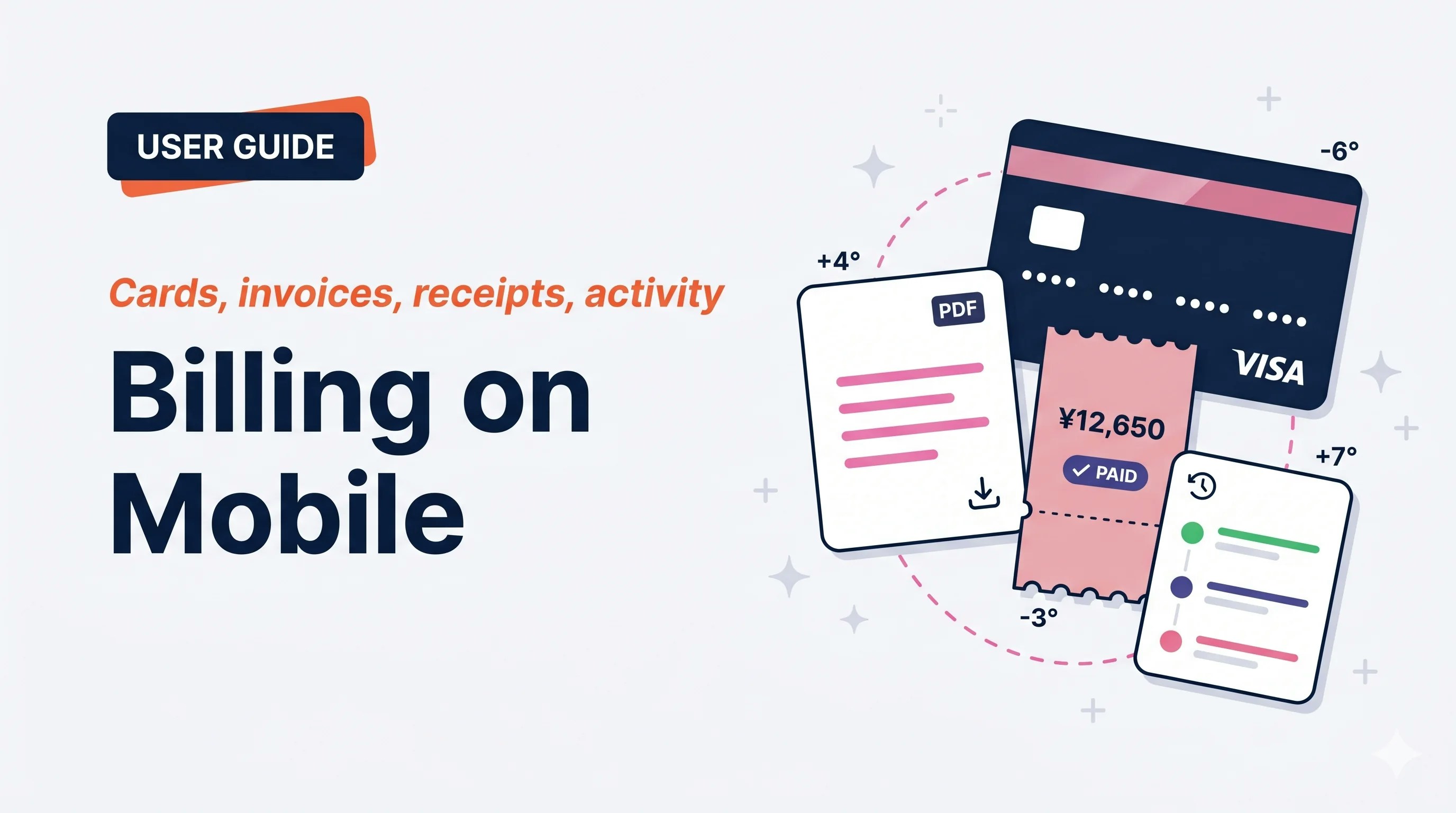 ทุกอย่างที่คุณทำในแดชบอร์ดผู้ดูแล PC — เปลี่ยนบัตร รับใบเสร็จ ดูประวัติ — อยู่ในหน้าจอ **Billing** เดียวในแอปมือถือ เปิดแล้วแพลนปัจจุบันและทางลัด 5 รายการอยู่พร้อม
## ใช้เมื่อ…
ทุกอย่างที่คุณทำในแดชบอร์ดผู้ดูแล PC — เปลี่ยนบัตร รับใบเสร็จ ดูประวัติ — อยู่ในหน้าจอ **Billing** เดียวในแอปมือถือ เปิดแล้วแพลนปัจจุบันและทางลัด 5 รายการอยู่พร้อม
## ใช้เมื่อ…
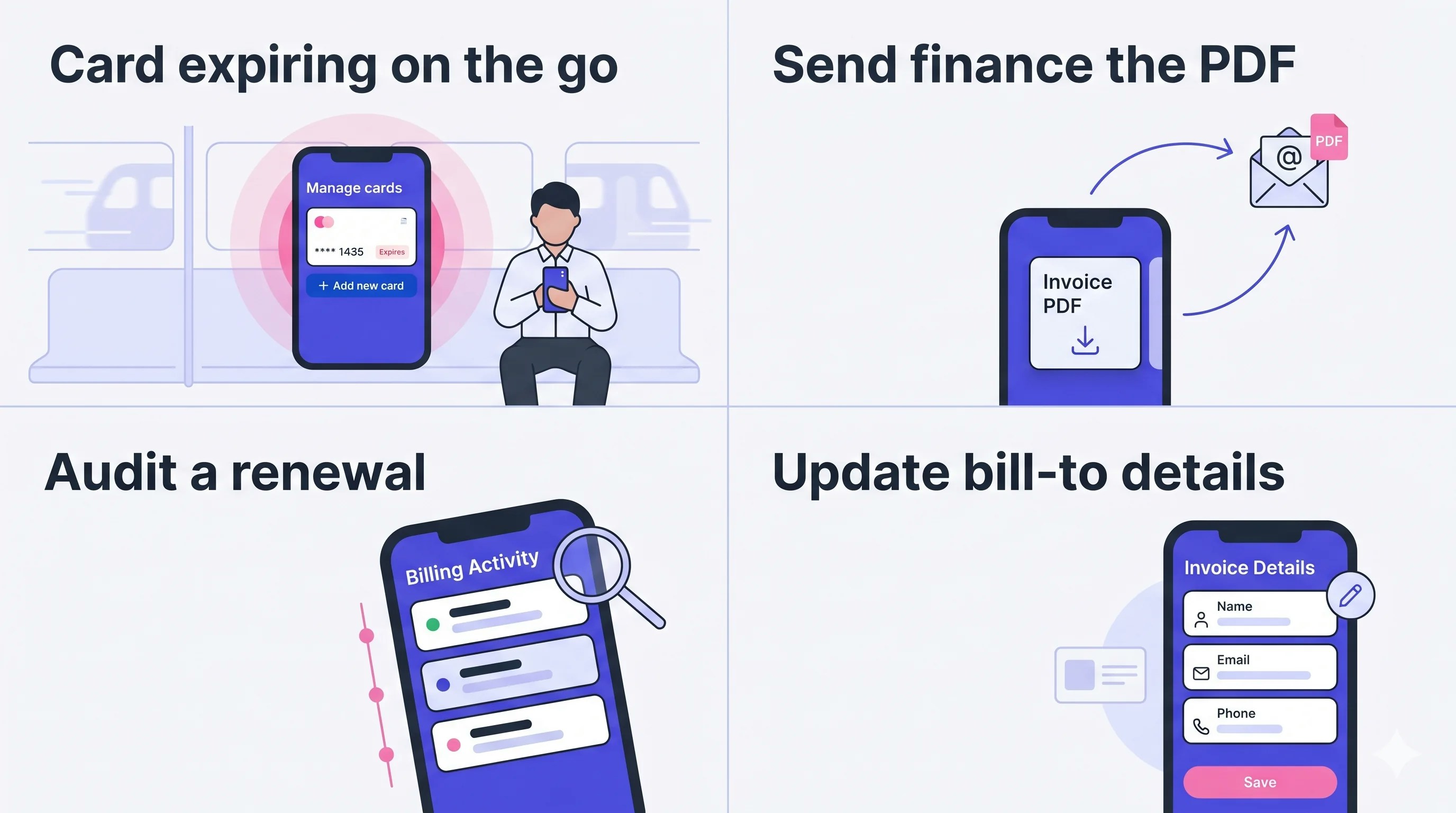 * **บัตรใกล้หมดอายุระหว่างอยู่นอก** — เปลี่ยนเป็นบัตรใหม่จากรถไฟใต้ดิน ไม่ต้องใช้แล็ปท็อป ไม่ต้องรอถึงวันจันทร์
* **ส่ง PDF ให้ฝ่ายการเงิน** — ดึง Invoice PDF จากรายการ Invoices & Receipts และส่งต่อทาง Mail
* **ตรวจสอบการต่ออายุ** — ทุกการต่ออายุ ยกเลิก คืนสถานะ และเปลี่ยนบัตรถูกบันทึกพร้อม timestamp และ IP
* **อัปเดตข้อมูลการเรียกเก็บ** — แก้ไขชื่อบริษัท / อีเมล / โทรศัพท์ในหน้า Invoice Details ก่อนรอบบิลต่อไป
## เปิดฮับ Billing
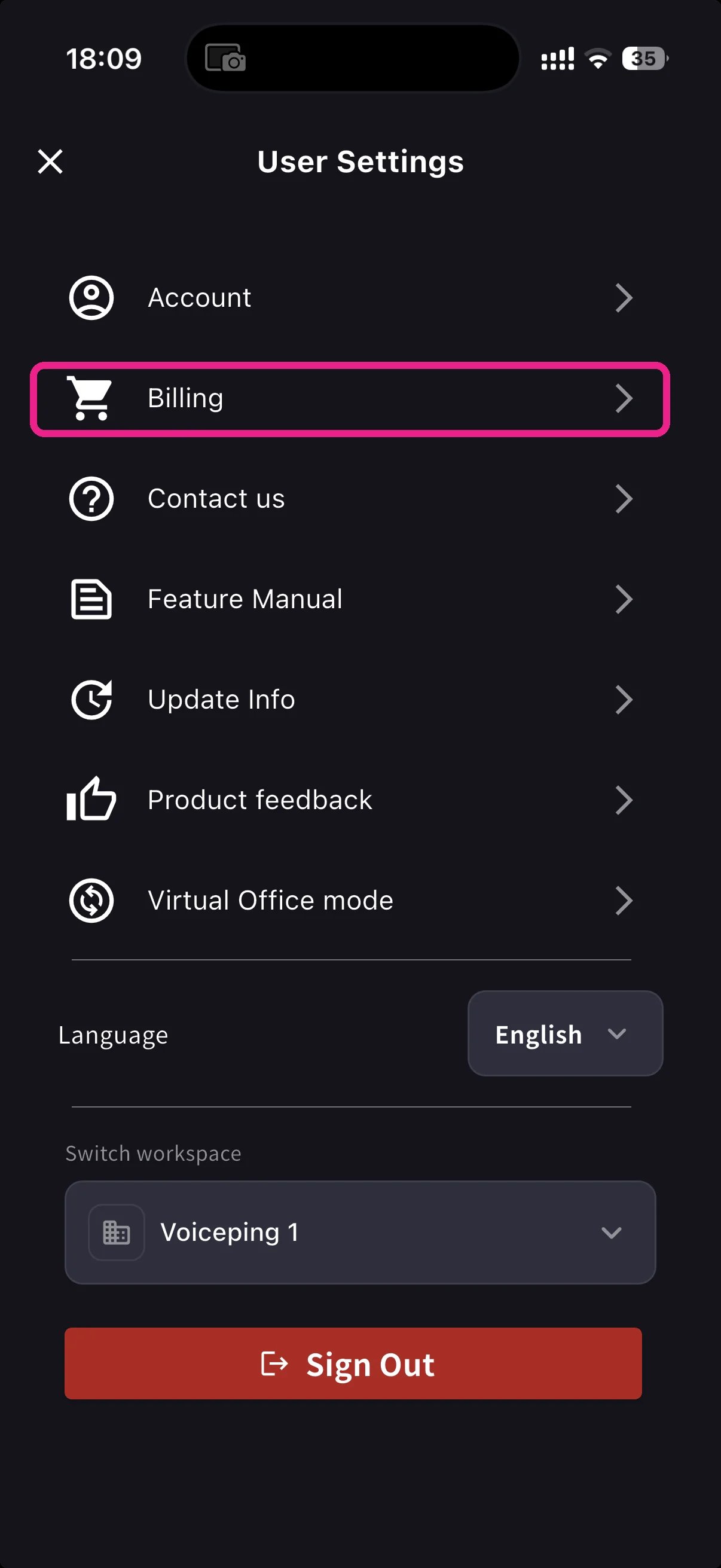
เปิดเมนูด้านข้างจากหน้าหลัก แตะ **Billing** (ไอคอนรถเข็น)
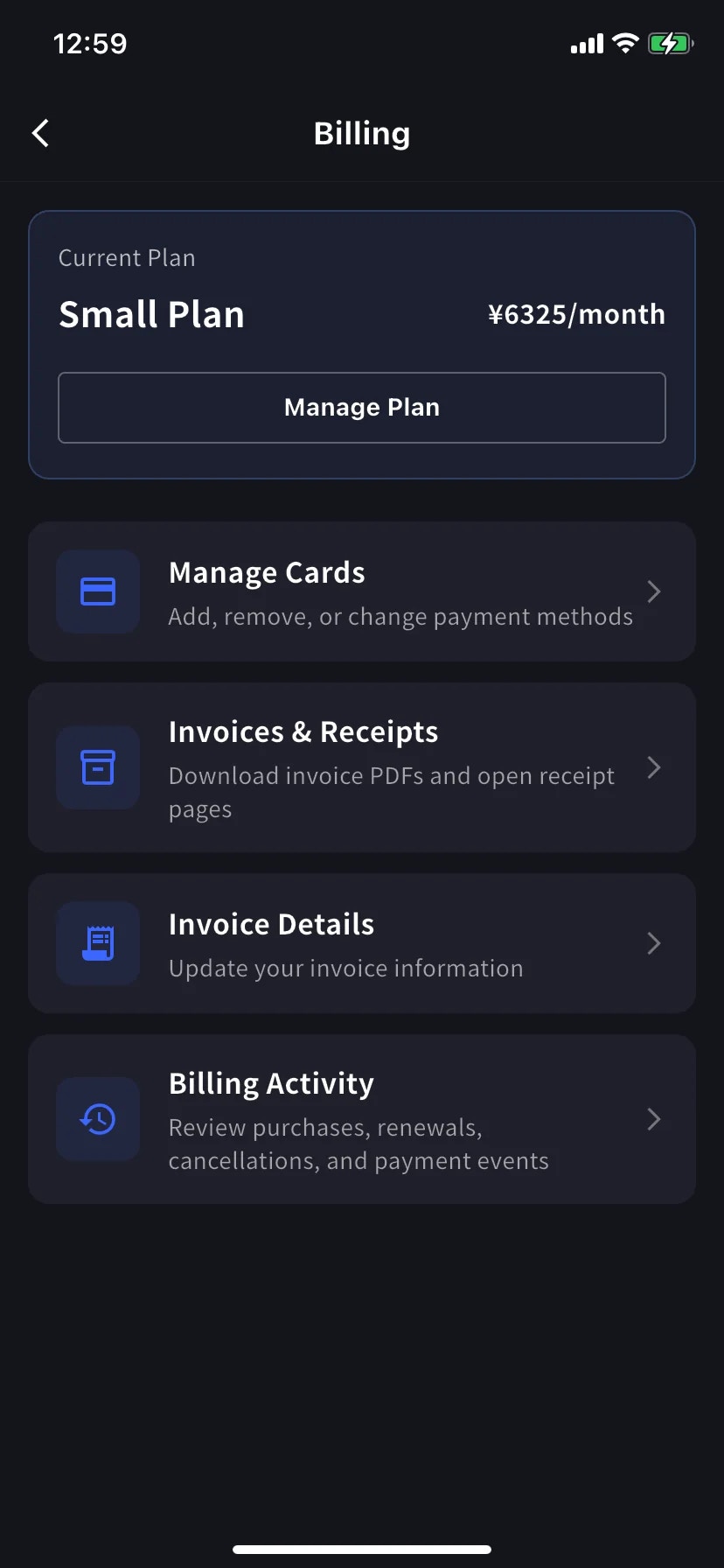
การ์ด **Current Plan** แสดงชื่อแพลนและราคารายเดือน โดยมีปุ่ม **Manage Plan** ข้างๆ ด้านล่างมีทางลัด 4 รายการ:
| ทางลัด | ใช้ทำอะไร |
| ----------------------- | ------------------------------------------------- |
| **Manage Cards** | เพิ่ม ลบ หรือเปลี่ยนวิธีการชำระเงิน |
| **Invoices & Receipts** | ดาวน์โหลด PDF ใบแจ้งหนี้และเปิดใบเสร็จ |
| **Invoice Details** | ชื่อ อีเมล โทรศัพท์สำหรับใบแจ้งหนี้ |
| **Billing Activity** | บันทึกเหตุการณ์ — ซื้อ ต่ออายุ ยกเลิก เปลี่ยนบัตร |
สำหรับอัปเกรด / ดาวน์เกรด / ยกเลิกแพลน แตะ **Manage Plan** → ดู [อัปเกรด ดาวน์เกรด และยกเลิกบนมือถือ](/th/mobile-plan-change)
## Manage Cards
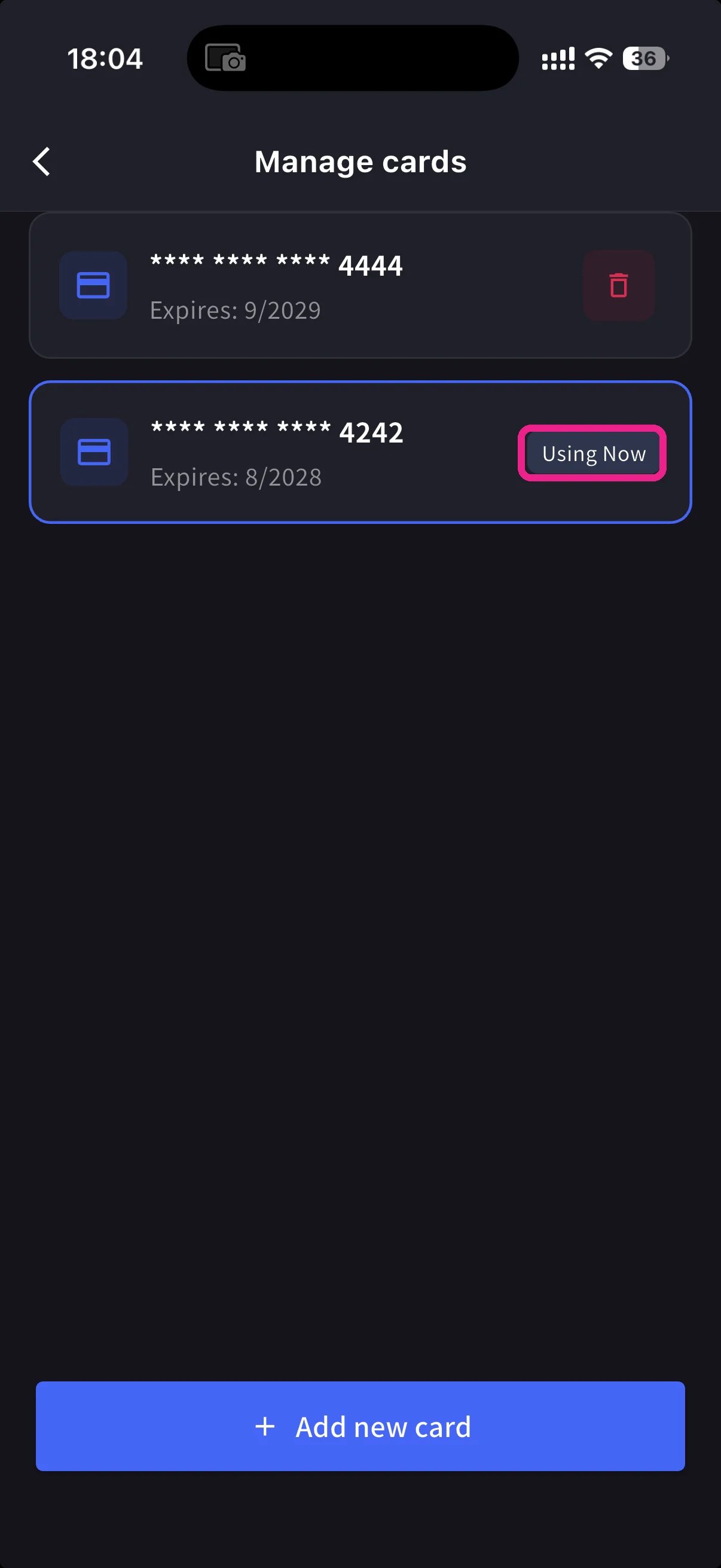
แสดงบัตรทุกใบที่บันทึก ที่ใช้งานอยู่จะมี pill **Using Now** เพิ่มบัตรใหม่ด้วยปุ่มสีฟ้า **+ Add new card** ด้านล่าง
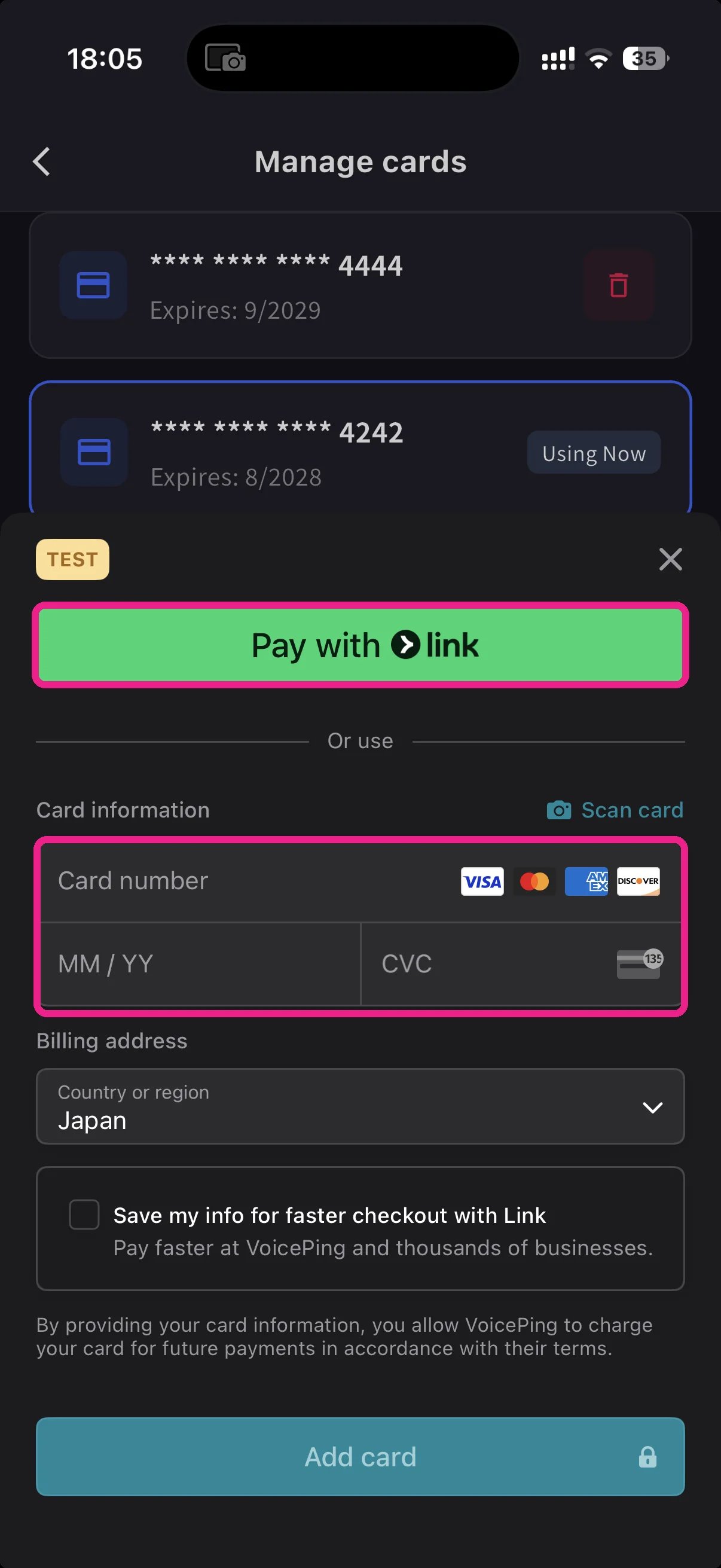
แผ่นงานเพิ่มบัตรมีสองเส้นทาง:
* **Pay with Link** — Stripe Link — แตะเดียวถ้าเบอร์โทรถูกเชื่อมโยงแล้ว
* **Manual card** — พิมพ์หมายเลข MM/YY CVC หรือแตะ **📷 Scan card** เพื่อกรอกจากกล้อง เลือกประเทศเรียกเก็บและแตะ **Add card**
บัตรถูก tokenize โดย Stripe — VoicePing ไม่เคยเก็บหมายเลขบัตรดิบ
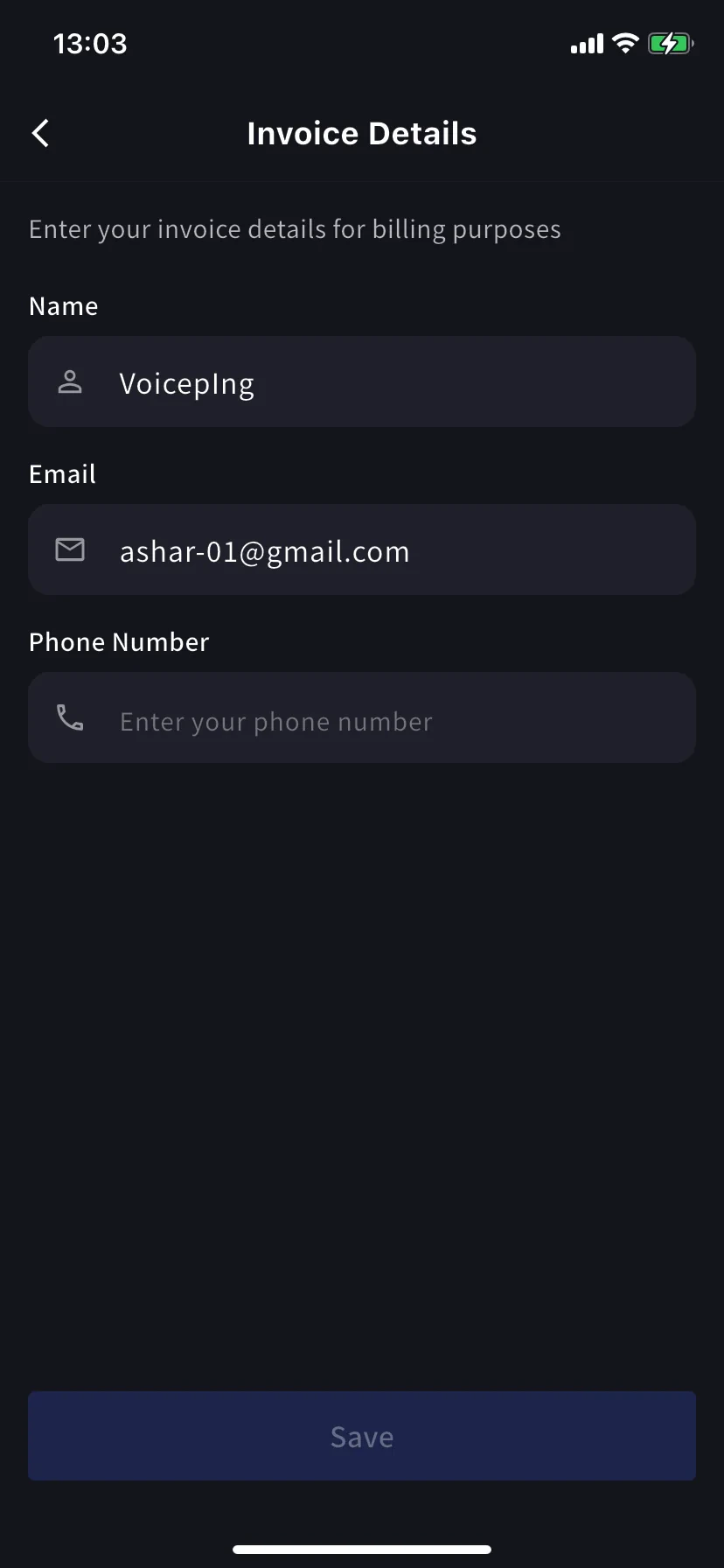
## Invoice Details (ผู้รับใบแจ้งหนี้)
ตั้งชื่อ อีเมล และโทรศัพท์ที่ปรากฏบน PDF ใบแจ้งหนี้
ตั้ง **ก่อน** วันเรียกเก็บถัดไป Stripe ใช้ฟิลด์เหล่านี้ในขณะสร้างใบแจ้งหนี้ — แก้ไขภายหลังจะไม่ประทับตรา PDF เก่าใหม่
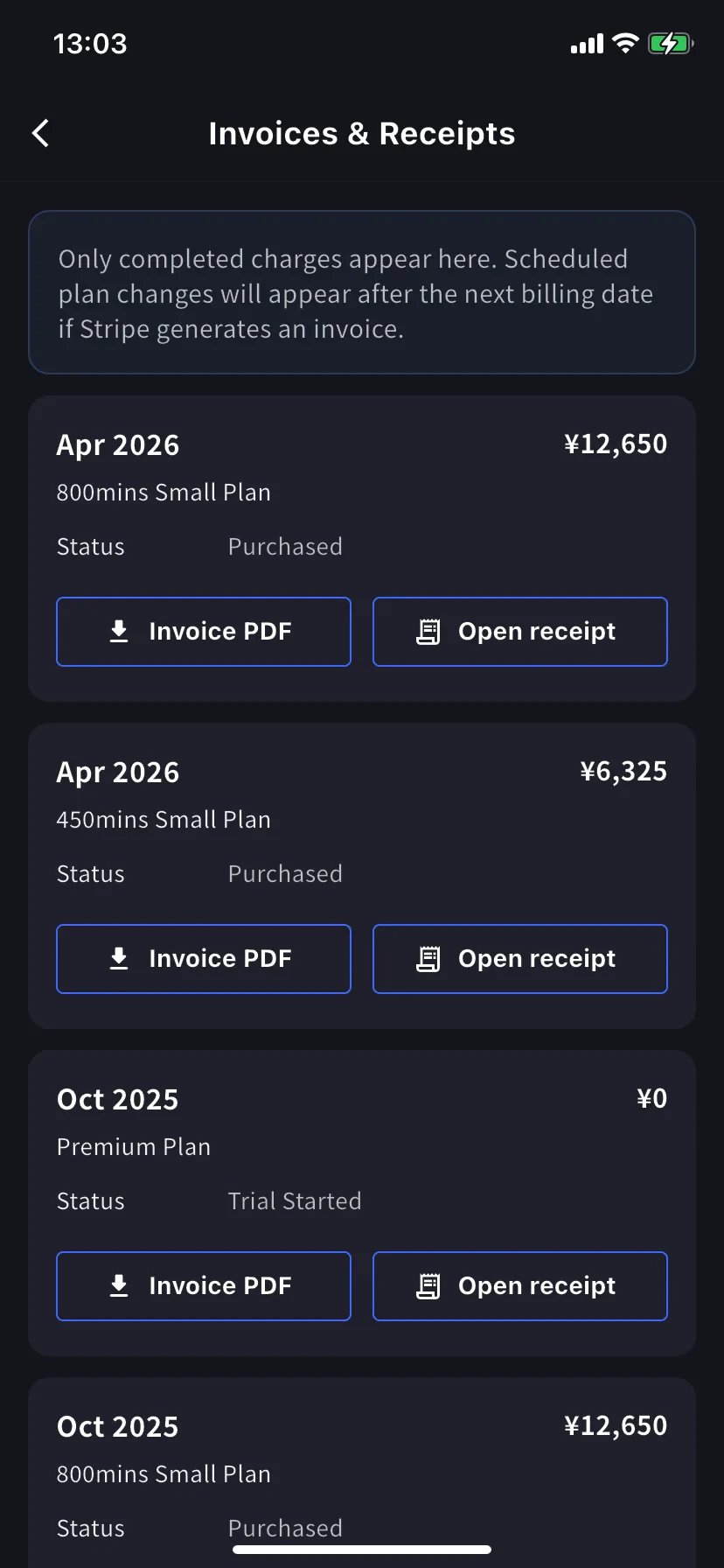
## Invoices & Receipts
การเรียกเก็บในอดีตปรากฏเป็นการ์ดรายเดือน แต่ละการ์ดมีสองการกระทำ:
| ปุ่ม | เปิด |
| ---------------- | --------------------------------------------------------- |
| **Invoice PDF** | PDF ใบแจ้งหนี้ที่ดาวน์โหลดได้ (แชร์ / บันทึก / ส่งต่อ) |
| **Open receipt** | หน้าใบเสร็จที่ Stripe โฮสต์พร้อมรายละเอียดการชำระเงินเต็ม |
เฉพาะการเรียกเก็บที่เสร็จสมบูรณ์แสดงที่นี่ การเปลี่ยนแพลนที่กำหนดจะปรากฏหลังวันเรียกเก็บถัดไปเมื่อ Stripe สร้างใบแจ้งหนี้ แถว `¥0` สถานะ **Trial Started** ก็ถูกบันทึก — มีประโยชน์ในการติดตามเมื่อ trial เริ่ม
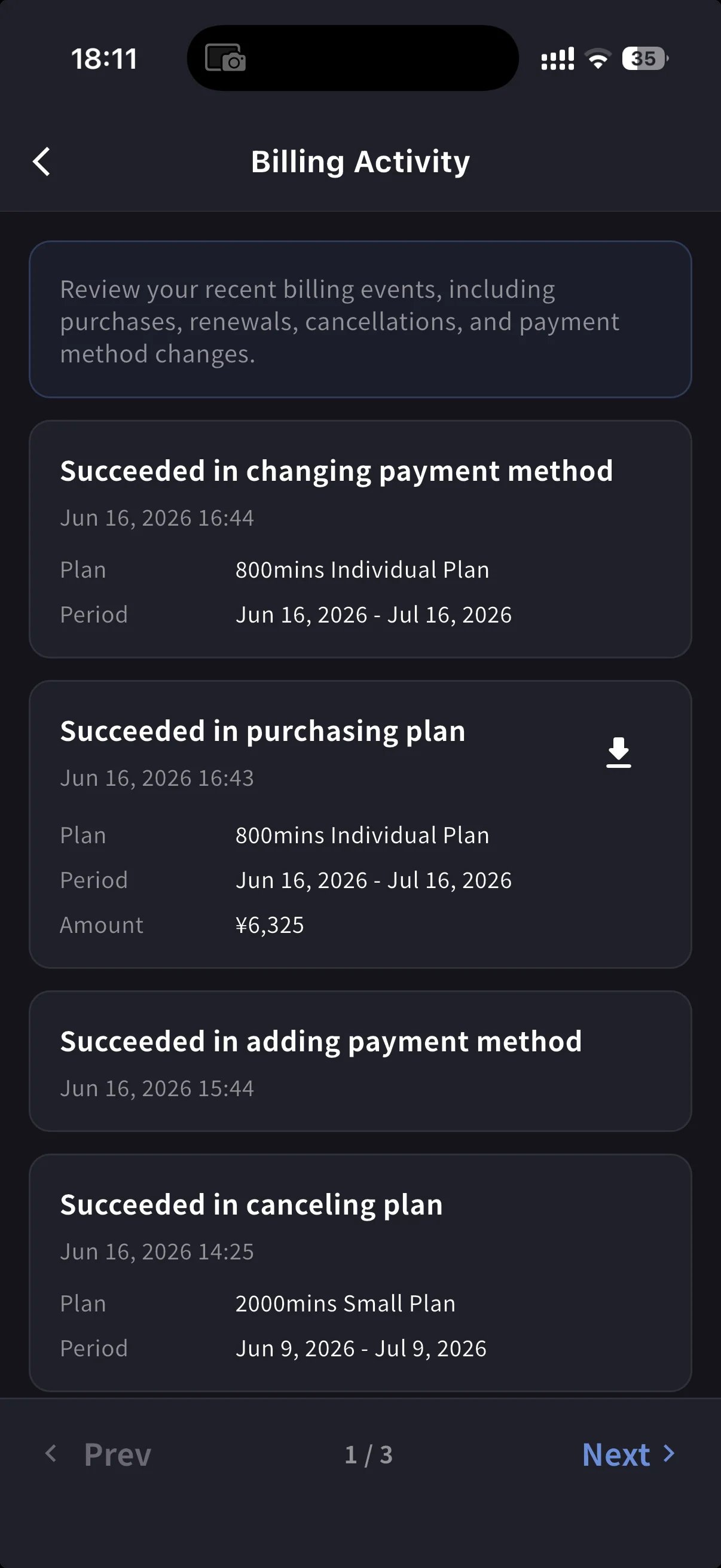
## Billing Activity
บันทึกเหตุการณ์ — ทุกอย่างที่ workspace ทำกับการสมัครสมาชิก
แต่ละแถวมี:
* ชื่อเหตุการณ์ — เช่น *Succeeded in upgrading plan*, *Subscription will be canceled on the next payment date*, *Succeeded in restoring subscription*
* Timestamp (`YYYY/MM/DD HH:MM`)
* แพลน ระยะเวลาเรียกเก็บ และจำนวนเงิน (ถ้ามี)
* **IP Address** — ใครกระทำจากที่ไหน สำหรับตรวจสอบ / ทบทวนความปลอดภัย
* ไอคอนดาวน์โหลดบนการเรียกเก็บที่เสร็จสมบูรณ์ — ดึง PDF ใบแจ้งหนี้สำหรับเหตุการณ์นั้น
ใช้เพื่อตอบ "เดี๋ยว เกิดอะไรขึ้นเมื่อไหร่?" โดยไม่ต้องขุดอีเมล
## เคล็ดลับ
* **Link** ประหยัดการพิมพ์ — ถ้าคุณเคยใช้ Stripe Link ที่อื่น บัตรจะเติมอัตโนมัติหลังกรอกโทรศัพท์
* การ์ด **Current Plan** ในฮับเป็นเส้นทางเร็วที่สุดไป Manage Plan — ไม่ต้องเข้า Settings ซ้ำทุกครั้ง
* การเปลี่ยนแปลงบนมือถือซิงค์ทันทีกับเว็บแอป — สามารถเริ่มบนมือถือและจบบน PC
* ผู้ดูแล PC สามารถทำสิ่งเดียวกันจาก **Admin Dashboard → Payment Information** หน้านี้สำหรับเมื่ออยู่ห่างจากโต๊ะ
## ที่เกี่ยวข้อง
* [อัปเกรด ดาวน์เกรด และยกเลิกบนมือถือ](/th/mobile-plan-change) — ขั้นตอน Manage Plan ทั้งหมด
* [การเปลี่ยนแพลน การยกเลิก และสิ้นสุด Trial](/th/plan-changes) — เทียบเท่าแดชบอร์ดผู้ดูแล PC
* [เปลี่ยนบัตรเครดิตชำระเงิน](/th/credit-card-change) — ขั้นตอนเปลี่ยนบัตรบน PC
* [ราคา](/th/pricing)
* **บัตรใกล้หมดอายุระหว่างอยู่นอก** — เปลี่ยนเป็นบัตรใหม่จากรถไฟใต้ดิน ไม่ต้องใช้แล็ปท็อป ไม่ต้องรอถึงวันจันทร์
* **ส่ง PDF ให้ฝ่ายการเงิน** — ดึง Invoice PDF จากรายการ Invoices & Receipts และส่งต่อทาง Mail
* **ตรวจสอบการต่ออายุ** — ทุกการต่ออายุ ยกเลิก คืนสถานะ และเปลี่ยนบัตรถูกบันทึกพร้อม timestamp และ IP
* **อัปเดตข้อมูลการเรียกเก็บ** — แก้ไขชื่อบริษัท / อีเมล / โทรศัพท์ในหน้า Invoice Details ก่อนรอบบิลต่อไป
## เปิดฮับ Billing
เปิดเมนูด้านข้างจากหน้าหลัก แตะ **Billing** (ไอคอนรถเข็น)
การ์ด **Current Plan** แสดงชื่อแพลนและราคารายเดือน โดยมีปุ่ม **Manage Plan** ข้างๆ ด้านล่างมีทางลัด 4 รายการ:
| ทางลัด | ใช้ทำอะไร |
| ----------------------- | ------------------------------------------------- |
| **Manage Cards** | เพิ่ม ลบ หรือเปลี่ยนวิธีการชำระเงิน |
| **Invoices & Receipts** | ดาวน์โหลด PDF ใบแจ้งหนี้และเปิดใบเสร็จ |
| **Invoice Details** | ชื่อ อีเมล โทรศัพท์สำหรับใบแจ้งหนี้ |
| **Billing Activity** | บันทึกเหตุการณ์ — ซื้อ ต่ออายุ ยกเลิก เปลี่ยนบัตร |
สำหรับอัปเกรด / ดาวน์เกรด / ยกเลิกแพลน แตะ **Manage Plan** → ดู [อัปเกรด ดาวน์เกรด และยกเลิกบนมือถือ](/th/mobile-plan-change)
## Manage Cards
แสดงบัตรทุกใบที่บันทึก ที่ใช้งานอยู่จะมี pill **Using Now** เพิ่มบัตรใหม่ด้วยปุ่มสีฟ้า **+ Add new card** ด้านล่าง
แผ่นงานเพิ่มบัตรมีสองเส้นทาง:
* **Pay with Link** — Stripe Link — แตะเดียวถ้าเบอร์โทรถูกเชื่อมโยงแล้ว
* **Manual card** — พิมพ์หมายเลข MM/YY CVC หรือแตะ **📷 Scan card** เพื่อกรอกจากกล้อง เลือกประเทศเรียกเก็บและแตะ **Add card**
บัตรถูก tokenize โดย Stripe — VoicePing ไม่เคยเก็บหมายเลขบัตรดิบ
## Invoice Details (ผู้รับใบแจ้งหนี้)
ตั้งชื่อ อีเมล และโทรศัพท์ที่ปรากฏบน PDF ใบแจ้งหนี้
ตั้ง **ก่อน** วันเรียกเก็บถัดไป Stripe ใช้ฟิลด์เหล่านี้ในขณะสร้างใบแจ้งหนี้ — แก้ไขภายหลังจะไม่ประทับตรา PDF เก่าใหม่
## Invoices & Receipts
การเรียกเก็บในอดีตปรากฏเป็นการ์ดรายเดือน แต่ละการ์ดมีสองการกระทำ:
| ปุ่ม | เปิด |
| ---------------- | --------------------------------------------------------- |
| **Invoice PDF** | PDF ใบแจ้งหนี้ที่ดาวน์โหลดได้ (แชร์ / บันทึก / ส่งต่อ) |
| **Open receipt** | หน้าใบเสร็จที่ Stripe โฮสต์พร้อมรายละเอียดการชำระเงินเต็ม |
เฉพาะการเรียกเก็บที่เสร็จสมบูรณ์แสดงที่นี่ การเปลี่ยนแพลนที่กำหนดจะปรากฏหลังวันเรียกเก็บถัดไปเมื่อ Stripe สร้างใบแจ้งหนี้ แถว `¥0` สถานะ **Trial Started** ก็ถูกบันทึก — มีประโยชน์ในการติดตามเมื่อ trial เริ่ม
## Billing Activity
บันทึกเหตุการณ์ — ทุกอย่างที่ workspace ทำกับการสมัครสมาชิก
แต่ละแถวมี:
* ชื่อเหตุการณ์ — เช่น *Succeeded in upgrading plan*, *Subscription will be canceled on the next payment date*, *Succeeded in restoring subscription*
* Timestamp (`YYYY/MM/DD HH:MM`)
* แพลน ระยะเวลาเรียกเก็บ และจำนวนเงิน (ถ้ามี)
* **IP Address** — ใครกระทำจากที่ไหน สำหรับตรวจสอบ / ทบทวนความปลอดภัย
* ไอคอนดาวน์โหลดบนการเรียกเก็บที่เสร็จสมบูรณ์ — ดึง PDF ใบแจ้งหนี้สำหรับเหตุการณ์นั้น
ใช้เพื่อตอบ "เดี๋ยว เกิดอะไรขึ้นเมื่อไหร่?" โดยไม่ต้องขุดอีเมล
## เคล็ดลับ
* **Link** ประหยัดการพิมพ์ — ถ้าคุณเคยใช้ Stripe Link ที่อื่น บัตรจะเติมอัตโนมัติหลังกรอกโทรศัพท์
* การ์ด **Current Plan** ในฮับเป็นเส้นทางเร็วที่สุดไป Manage Plan — ไม่ต้องเข้า Settings ซ้ำทุกครั้ง
* การเปลี่ยนแปลงบนมือถือซิงค์ทันทีกับเว็บแอป — สามารถเริ่มบนมือถือและจบบน PC
* ผู้ดูแล PC สามารถทำสิ่งเดียวกันจาก **Admin Dashboard → Payment Information** หน้านี้สำหรับเมื่ออยู่ห่างจากโต๊ะ
## ที่เกี่ยวข้อง
* [อัปเกรด ดาวน์เกรด และยกเลิกบนมือถือ](/th/mobile-plan-change) — ขั้นตอน Manage Plan ทั้งหมด
* [การเปลี่ยนแพลน การยกเลิก และสิ้นสุด Trial](/th/plan-changes) — เทียบเท่าแดชบอร์ดผู้ดูแล PC
* [เปลี่ยนบัตรเครดิตชำระเงิน](/th/credit-card-change) — ขั้นตอนเปลี่ยนบัตรบน PC
* [ราคา](/th/pricing)