> ## Documentation Index
> Fetch the complete documentation index at: https://manual.voiceping.net/llms.txt
> Use this file to discover all available pages before exploring further.
# จับเสียงจากแอปอื่นบนมือถือ
> คำบรรยายแบบสดและการแปลสำหรับเสียงที่เล่นในมือถือของคุณ — YouTube, พอดแคสต์, คอร์สออนไลน์ และอื่น ๆ
export const FeedbackTh = () => <>
มีไอเดียหรือคำขอเกี่ยวกับฟีเจอร์นี้ไหม? ส่งถึงทีมผ่าน Product Feedback
ลิงก์อย่างเป็นทางการ
เยี่ยมชมเว็บไซต์อย่างเป็นทางการของเรา
ติดตามเราบน X
ติดตามเราบน Facebook
เชื่อมต่อบน LinkedIn
;
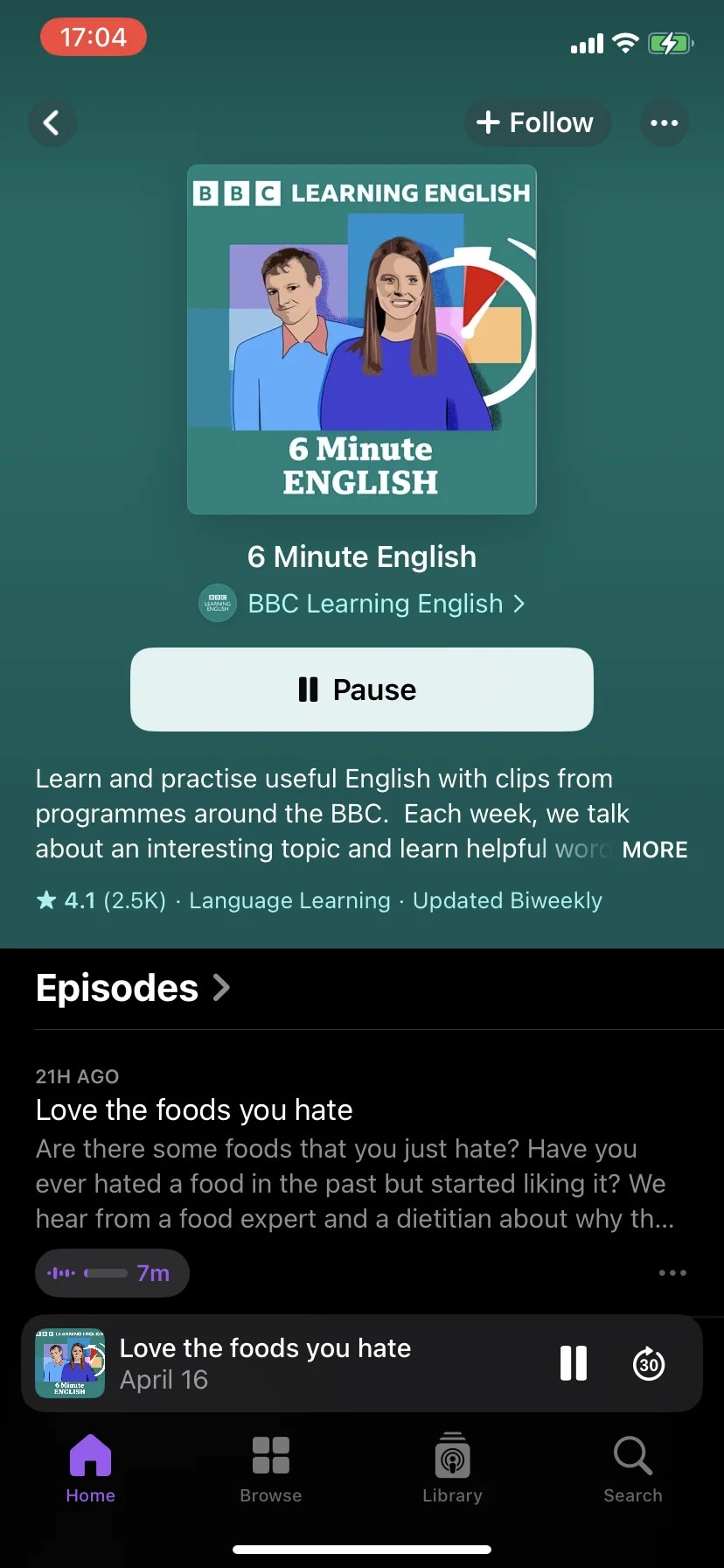
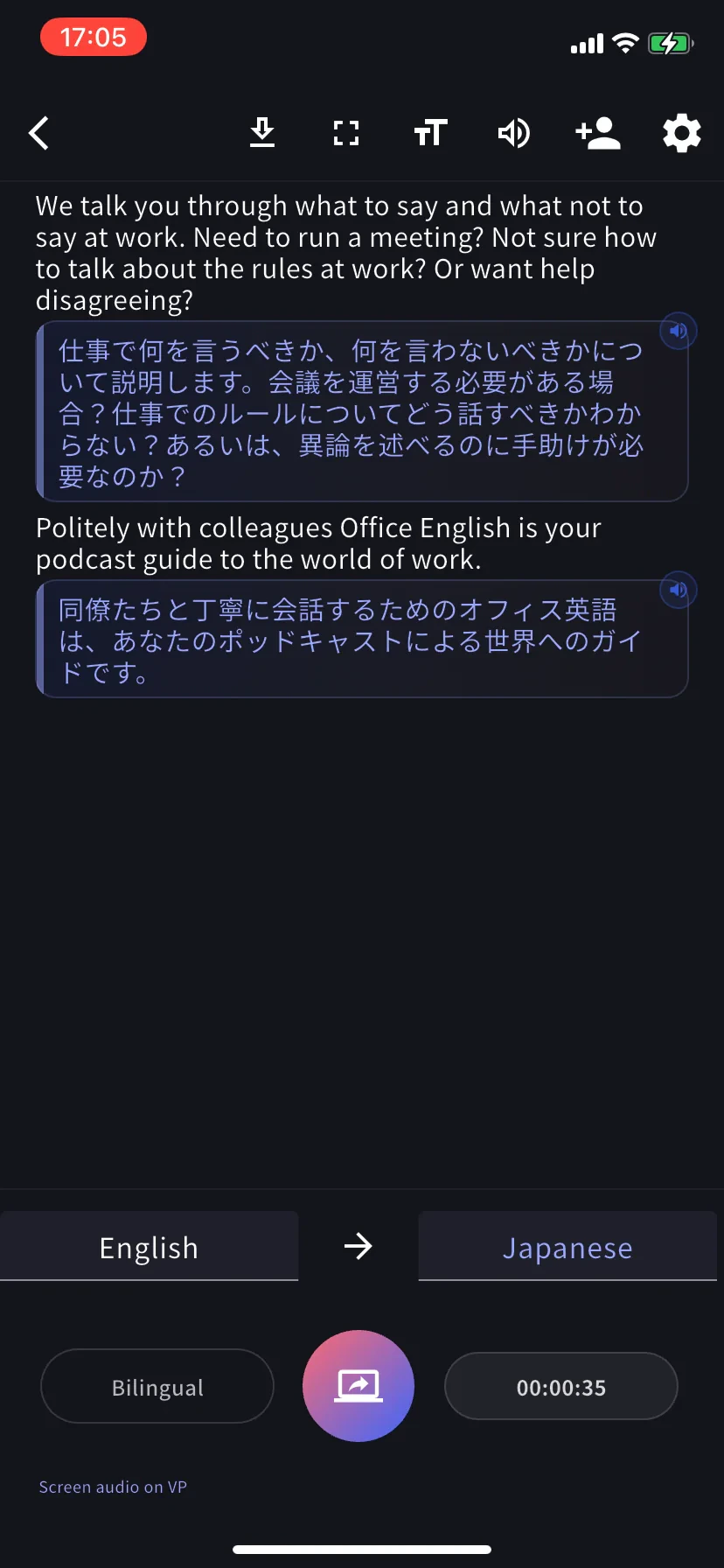
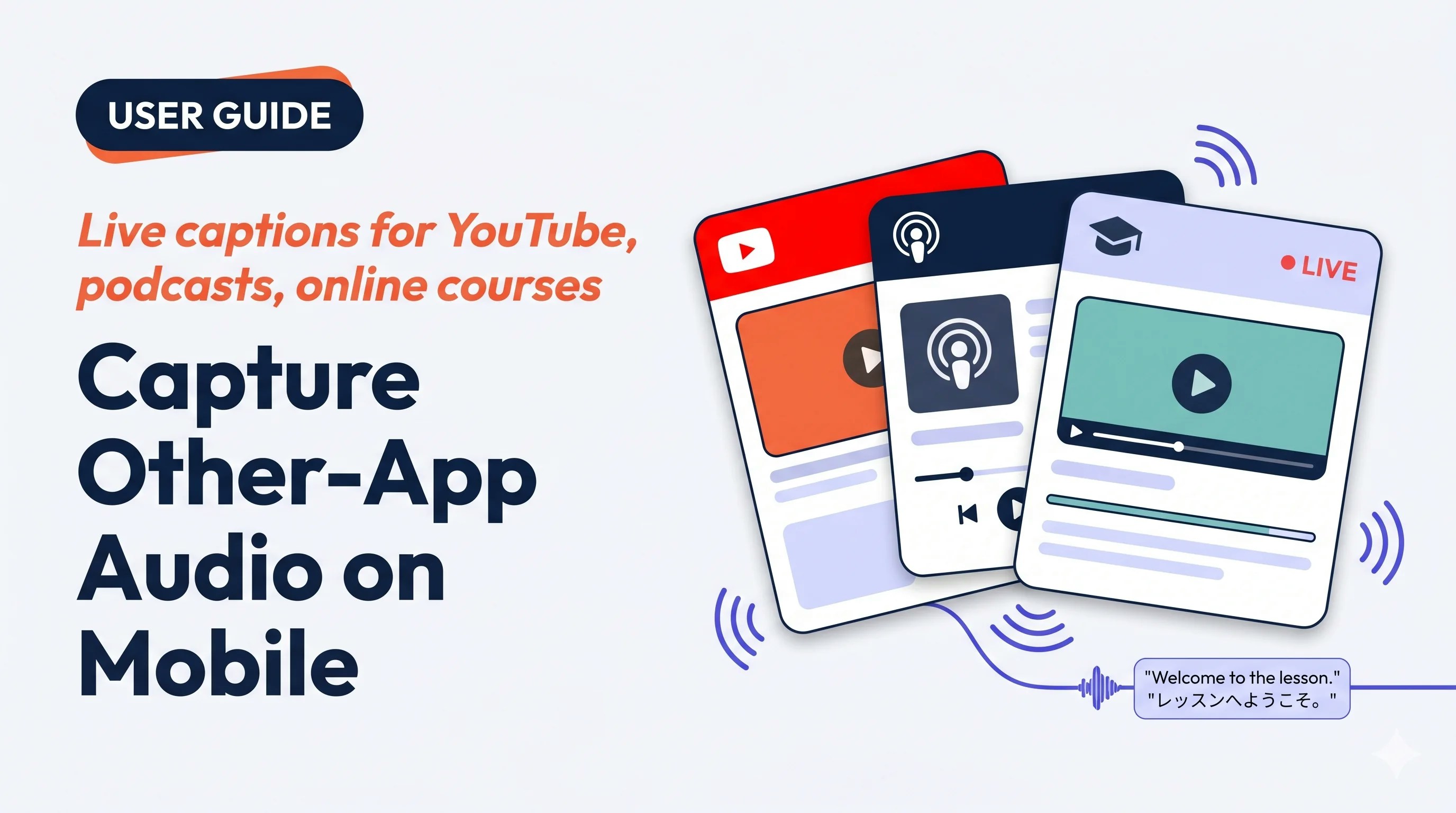 ชี้ VoicePing ไปที่เสียงที่กำลังเล่นในมือถือของคุณ — วิดีโอ YouTube ภาษาต่างประเทศ พอดแคสต์ คอร์สออนไลน์ คลิปเสียงที่บันทึกไว้ — และอ่านคำบรรยายสองภาษาแบบสดในมุมมองเซสชันปกติ
## ใช้เมื่อ…
การบรรยายภาษาต่างประเทศ คอร์ส Udemy เว็บบินาร์ที่บันทึก — อ่านในภาษาที่คุณต้องการขณะฟัง
แปลวิดีโอ YouTube หรือพอดแคสต์ภาษาต่างประเทศขณะเดินทาง — ไม่ต้องดาวน์โหลด
เปิดไฟล์เสียงที่บันทึกไว้ในโปรแกรมเล่นอื่น และ VoicePing จะเพิ่มคำบรรยายขณะเล่น
สร้างทักษะการฟังด้วยพอดแคสต์ภาษาแม่และนักแปลที่เปิดตลอด
## จุดเด่น
* ทำงานกับ **แอปใดก็ได้ที่เล่นเสียง** (ขึ้นอยู่กับกฎการจับหน้าจอของ OS)
* มุมมองการประชุมแบบสดเดียวกับเซสชัน VoicePing ปกติ — การแก้ไข รายงาน การส่งออก พจนานุกรม ทั้งหมดใช้ได้
* เซสชันบันทึกในประวัติ workspace — เพื่อนร่วมทีมเปิดบน PC ได้ภายหลัง
* **iOS (Screen Record)** และ **Android (Device Audio)**
## เริ่มการจับเสียง
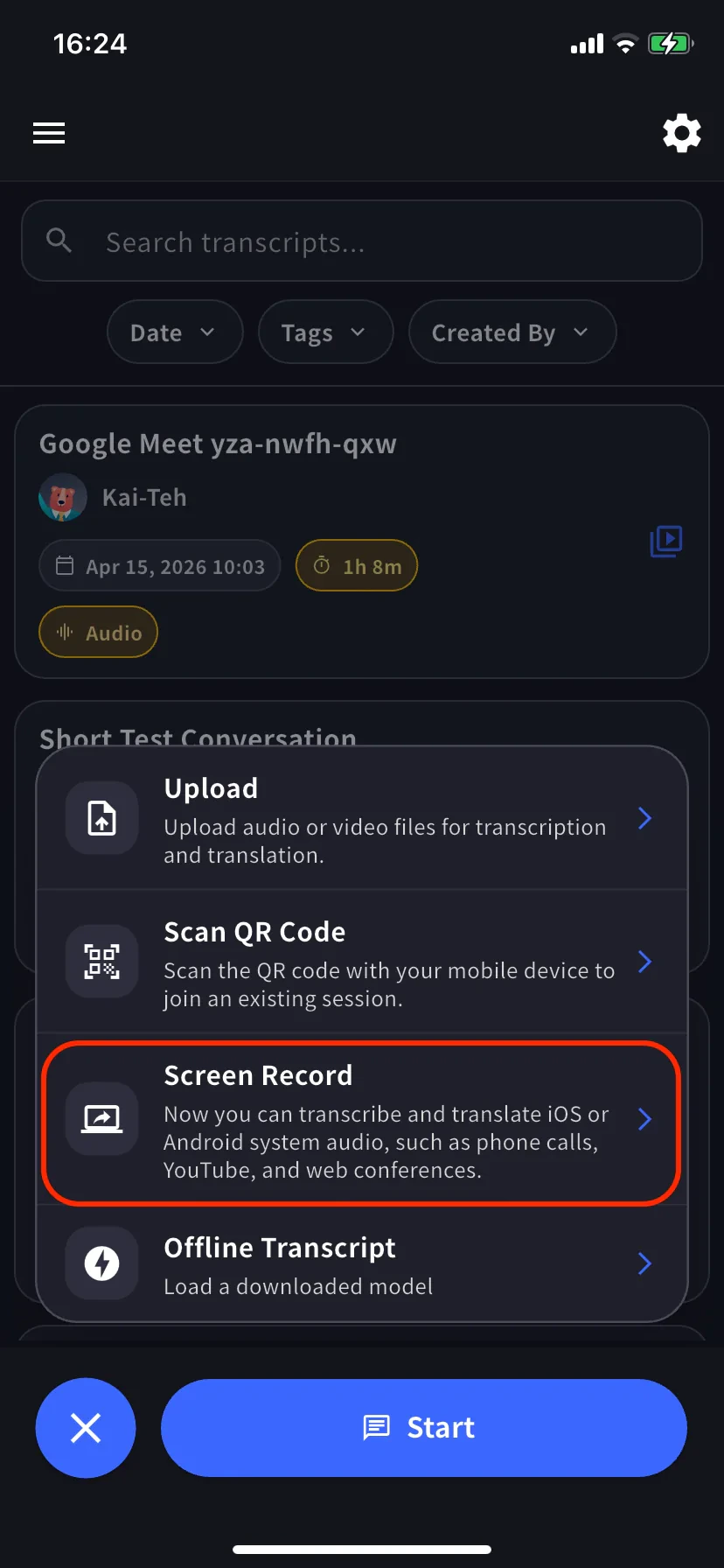
จากหน้าจอหลัก เปิดเมนูเซสชัน บน Android ตัวเลือกคือ **Device Audio**
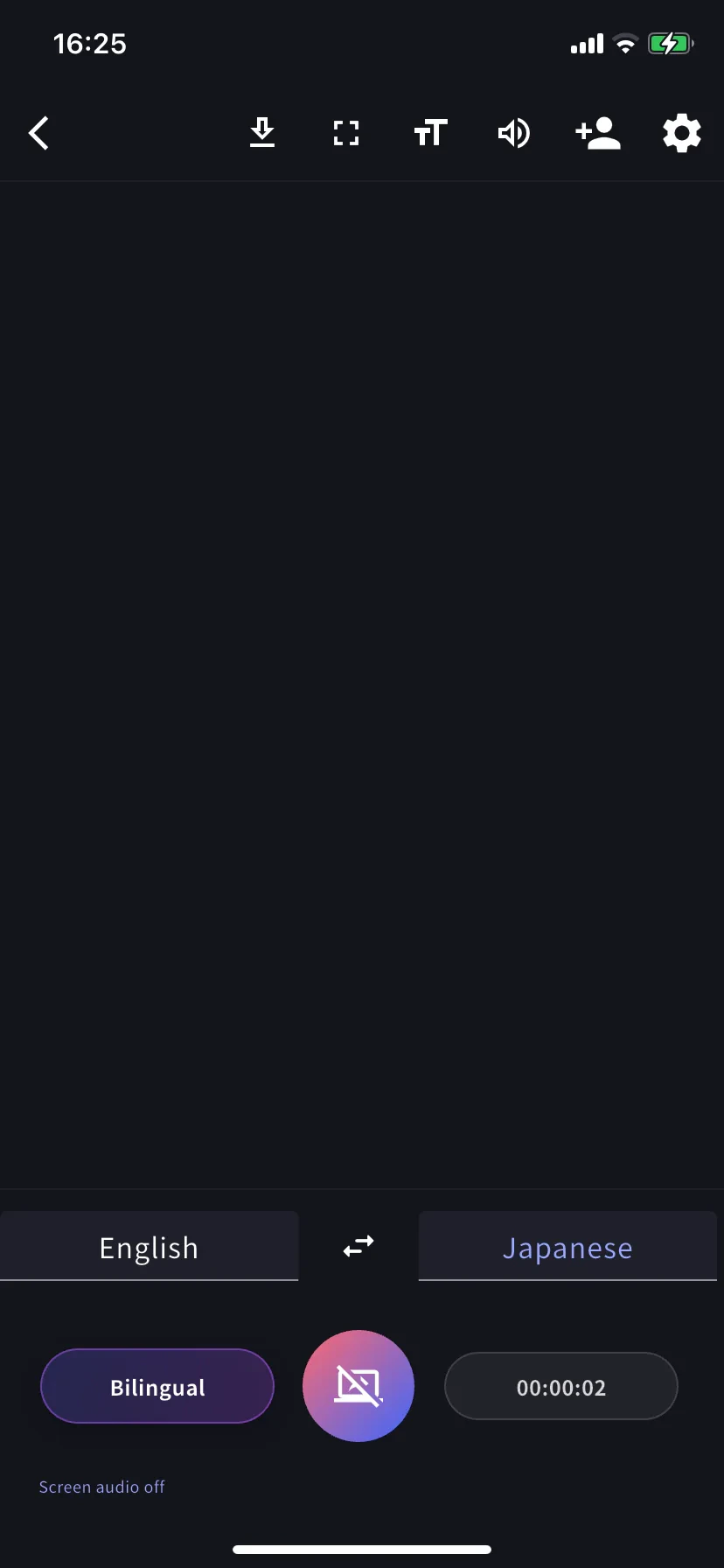
ตั้งภาษาถอดเสียง (แท็บซ้าย) และภาษาแปล (แท็บขวา) เปิด **Bilingual** เพื่อแสดงทั้งสอง
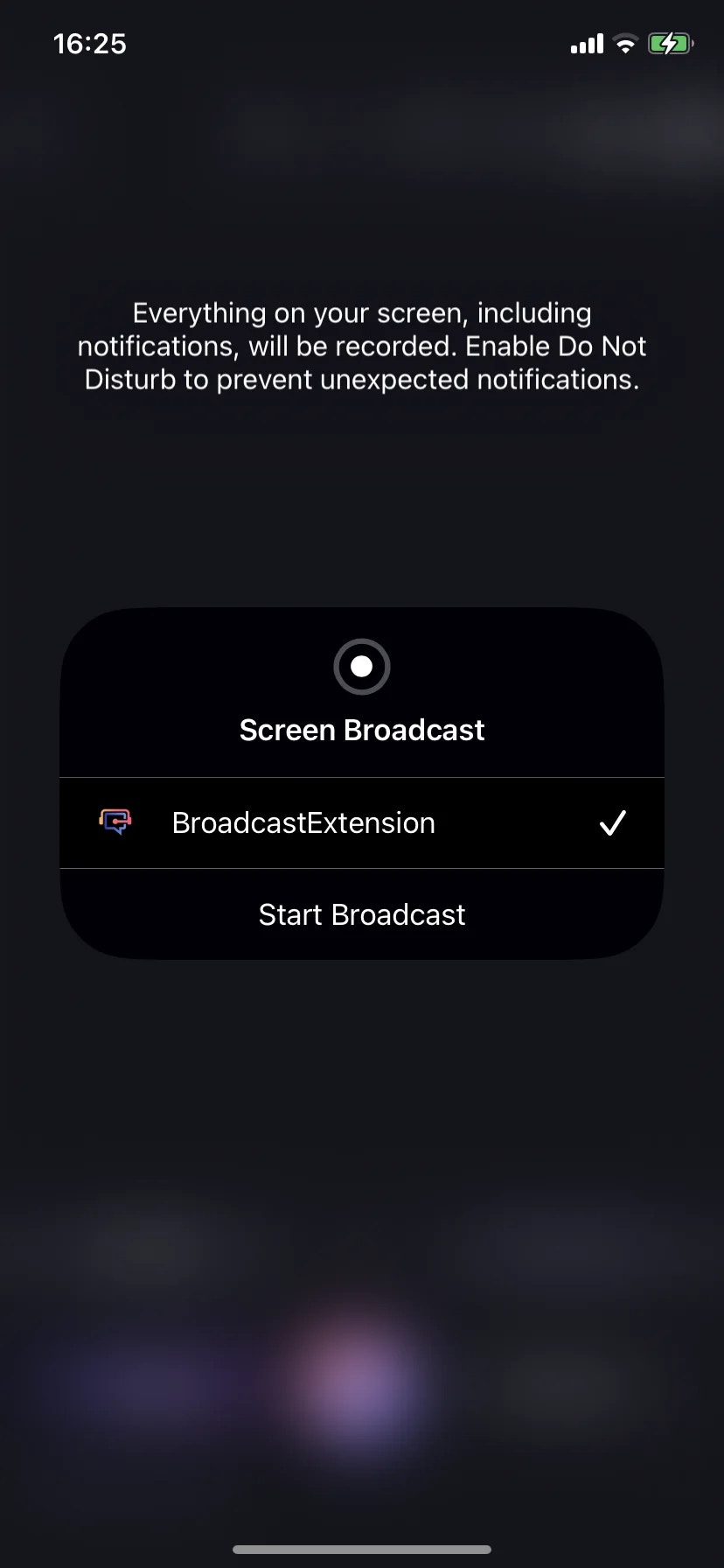
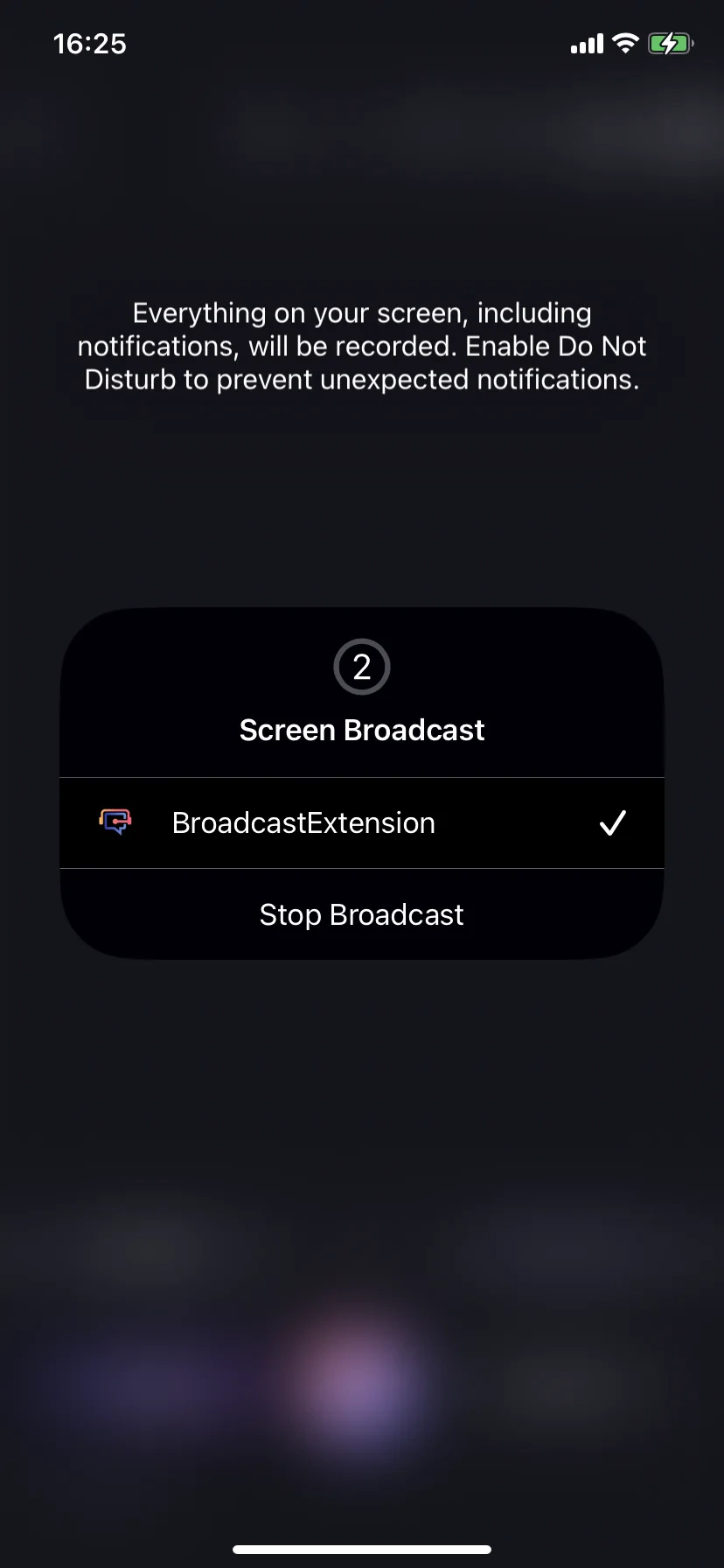
แตะปุ่มจับภาพ บน iOS เลือก **BroadcastExtension → Start Broadcast** บน Android ยอมรับ prompt สำหรับ media-projection เมื่อเปิดใช้งาน แผ่นจะเปลี่ยนเป็น **Stop Broadcast**
ปล่อย VoicePing ไว้เบื้องหลัง เปิดแอปต้นทาง (YouTube, แอปพอดแคสต์, Safari, คอร์สออนไลน์ ฯลฯ) แล้วเล่น กลับมาที่ VoicePing — คำบรรยายสองภาษาไหลพร้อมตัวจับเวลา
## หยุด
* **iOS** — แตะตัวบ่งชี้ broadcast บนแถบสถานะ → **Stop Broadcast** หรือปุ่มจับภาพใน VoicePing
* **Android** — แตะการแจ้งเตือน projection หรือปุ่มจับภาพใน VoicePing
การหยุดจะสรุปเซสชันและบันทึกในประวัติ workspace เหมือนการประชุมอื่น ๆ
## เคล็ดลับ
* ใช้ **หูฟัง** เมื่อคุณพูดด้วย — ป้องกันเสียงที่จับได้กลับเข้าไมค์
* เปิด **ห้ามรบกวน** ก่อนเริ่ม — iOS เตือนว่าการแจ้งเตือนจะถูกจับ
* เสียบที่ชาร์จสำหรับเซสชันยาว (ใช้ CPU + เครือข่ายต่อเนื่อง)
* บางแอปบล็อกการจับ (การสตรีมที่มี DRM แอปธนาคารบางตัว) การถอดเสียงว่าง = ต้นทางบล็อก
* ตรวจจับอัตโนมัติผิด? ตั้งภาษาถอดเสียงด้วยตนเองจากแท็บซ้าย
## หลังเซสชัน
ทำงานเหมือนการประชุม VoicePing ใด ๆ: [แก้ไขการถอดเสียง](/th/realtime-edit) [สร้างรายงาน](/th/meeting-minutes) ส่งออก ค้นหา โหลดรายการ [พจนานุกรม](/th/dictionary) workspace ไว้ล่วงหน้าเพื่อความแม่นยำที่ดีกว่าในคำศัพท์ผลิตภัณฑ์
ชี้ VoicePing ไปที่เสียงที่กำลังเล่นในมือถือของคุณ — วิดีโอ YouTube ภาษาต่างประเทศ พอดแคสต์ คอร์สออนไลน์ คลิปเสียงที่บันทึกไว้ — และอ่านคำบรรยายสองภาษาแบบสดในมุมมองเซสชันปกติ
## ใช้เมื่อ…
การบรรยายภาษาต่างประเทศ คอร์ส Udemy เว็บบินาร์ที่บันทึก — อ่านในภาษาที่คุณต้องการขณะฟัง
แปลวิดีโอ YouTube หรือพอดแคสต์ภาษาต่างประเทศขณะเดินทาง — ไม่ต้องดาวน์โหลด
เปิดไฟล์เสียงที่บันทึกไว้ในโปรแกรมเล่นอื่น และ VoicePing จะเพิ่มคำบรรยายขณะเล่น
สร้างทักษะการฟังด้วยพอดแคสต์ภาษาแม่และนักแปลที่เปิดตลอด
## จุดเด่น
* ทำงานกับ **แอปใดก็ได้ที่เล่นเสียง** (ขึ้นอยู่กับกฎการจับหน้าจอของ OS)
* มุมมองการประชุมแบบสดเดียวกับเซสชัน VoicePing ปกติ — การแก้ไข รายงาน การส่งออก พจนานุกรม ทั้งหมดใช้ได้
* เซสชันบันทึกในประวัติ workspace — เพื่อนร่วมทีมเปิดบน PC ได้ภายหลัง
* **iOS (Screen Record)** และ **Android (Device Audio)**
## เริ่มการจับเสียง
จากหน้าจอหลัก เปิดเมนูเซสชัน บน Android ตัวเลือกคือ **Device Audio**
ตั้งภาษาถอดเสียง (แท็บซ้าย) และภาษาแปล (แท็บขวา) เปิด **Bilingual** เพื่อแสดงทั้งสอง
แตะปุ่มจับภาพ บน iOS เลือก **BroadcastExtension → Start Broadcast** บน Android ยอมรับ prompt สำหรับ media-projection เมื่อเปิดใช้งาน แผ่นจะเปลี่ยนเป็น **Stop Broadcast**
ปล่อย VoicePing ไว้เบื้องหลัง เปิดแอปต้นทาง (YouTube, แอปพอดแคสต์, Safari, คอร์สออนไลน์ ฯลฯ) แล้วเล่น กลับมาที่ VoicePing — คำบรรยายสองภาษาไหลพร้อมตัวจับเวลา
## หยุด
* **iOS** — แตะตัวบ่งชี้ broadcast บนแถบสถานะ → **Stop Broadcast** หรือปุ่มจับภาพใน VoicePing
* **Android** — แตะการแจ้งเตือน projection หรือปุ่มจับภาพใน VoicePing
การหยุดจะสรุปเซสชันและบันทึกในประวัติ workspace เหมือนการประชุมอื่น ๆ
## เคล็ดลับ
* ใช้ **หูฟัง** เมื่อคุณพูดด้วย — ป้องกันเสียงที่จับได้กลับเข้าไมค์
* เปิด **ห้ามรบกวน** ก่อนเริ่ม — iOS เตือนว่าการแจ้งเตือนจะถูกจับ
* เสียบที่ชาร์จสำหรับเซสชันยาว (ใช้ CPU + เครือข่ายต่อเนื่อง)
* บางแอปบล็อกการจับ (การสตรีมที่มี DRM แอปธนาคารบางตัว) การถอดเสียงว่าง = ต้นทางบล็อก
* ตรวจจับอัตโนมัติผิด? ตั้งภาษาถอดเสียงด้วยตนเองจากแท็บซ้าย
## หลังเซสชัน
ทำงานเหมือนการประชุม VoicePing ใด ๆ: [แก้ไขการถอดเสียง](/th/realtime-edit) [สร้างรายงาน](/th/meeting-minutes) ส่งออก ค้นหา โหลดรายการ [พจนานุกรม](/th/dictionary) workspace ไว้ล่วงหน้าเพื่อความแม่นยำที่ดีกว่าในคำศัพท์ผลิตภัณฑ์