> ## Documentation Index
> Fetch the complete documentation index at: https://manual.voiceping.net/llms.txt
> Use this file to discover all available pages before exploring further.

# Hướng Dẫn Thiết Lập SSO (Microsoft Entra ID)

> Hướng dẫn thiết lập đăng nhập một lần sử dụng Microsoft Entra ID (trước đây là Azure AD)

export const ContactVi = () => <>
    <Tip>
      Nếu bạn có bất kỳ câu hỏi nào, vui lòng liên hệ với chúng tôi qua <a href="https://forms.gle/6AUho7oj3zBr79e96">biểu mẫu này</a>.
    </Tip>

    <h2>Liên kết chính thức</h2>

    <CardGroup cols={2}>
      <Card title="Website chính thức" icon="globe" href="https://voiceping.net/en/">
        Truy cập website chính thức
      </Card>
      <Card title="X (Twitter)" icon="x-twitter" href="https://x.com/VoicePingMedia">
        Theo dõi trên X
      </Card>
      <Card title="Facebook" icon="facebook" href="https://www.facebook.com/voiceping.inc">
        Thích trên Facebook
      </Card>
      <Card title="LinkedIn" icon="linkedin" href="https://www.linkedin.com/company/28684130/">
        Kết nối trên LinkedIn
      </Card>
    </CardGroup>
  </>;

## Tính Năng Đăng Nhập Một Lần

Khách hàng gói Enterprise có thể bật đăng nhập một lần (SSO) trong không gian làm việc của họ, cho phép người dùng đăng nhập vào VoicePing bằng Microsoft Entra ID.

Hướng dẫn này giải thích cách bật SSO trong không gian làm việc và cách cấu hình Microsoft Entra ID làm IdP (Nhà Cung Cấp Danh Tính).

## Điều Kiện Tiên Quyết

<Check>Có tài khoản người dùng gói VoicePing Enterprise</Check>
<Check>Có tài khoản Microsoft Azure</Check>

***

## Đăng Ký Nhà Cung Cấp Danh Tính

### Cấu Hình Microsoft Entra ID

<Steps>
  <Step title="Thêm VoicePing vào Ứng Dụng Doanh Nghiệp">
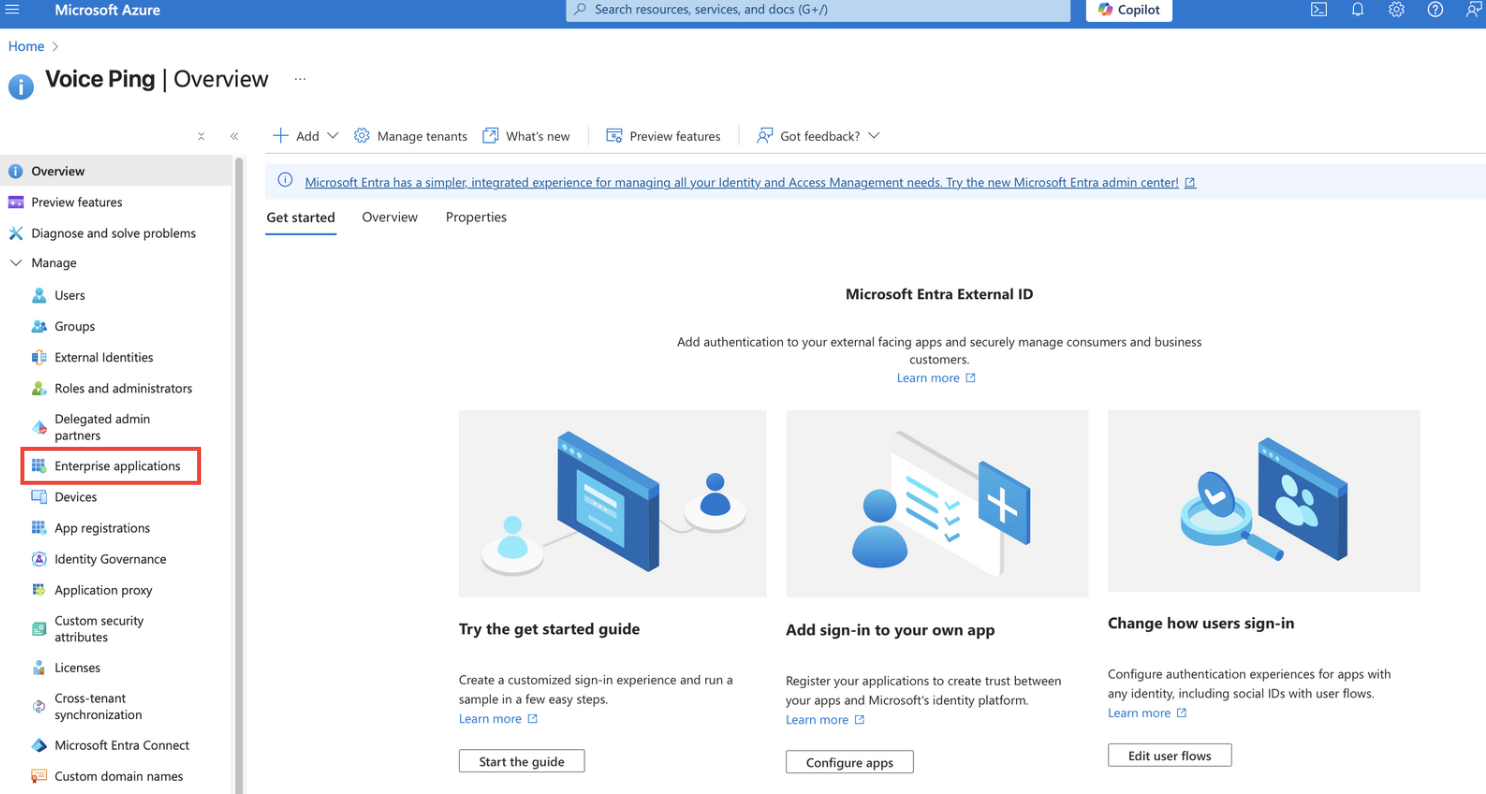
    Mở Microsoft Entra ID từ cổng Azure và mở trang Ứng Dụng Doanh Nghiệp.
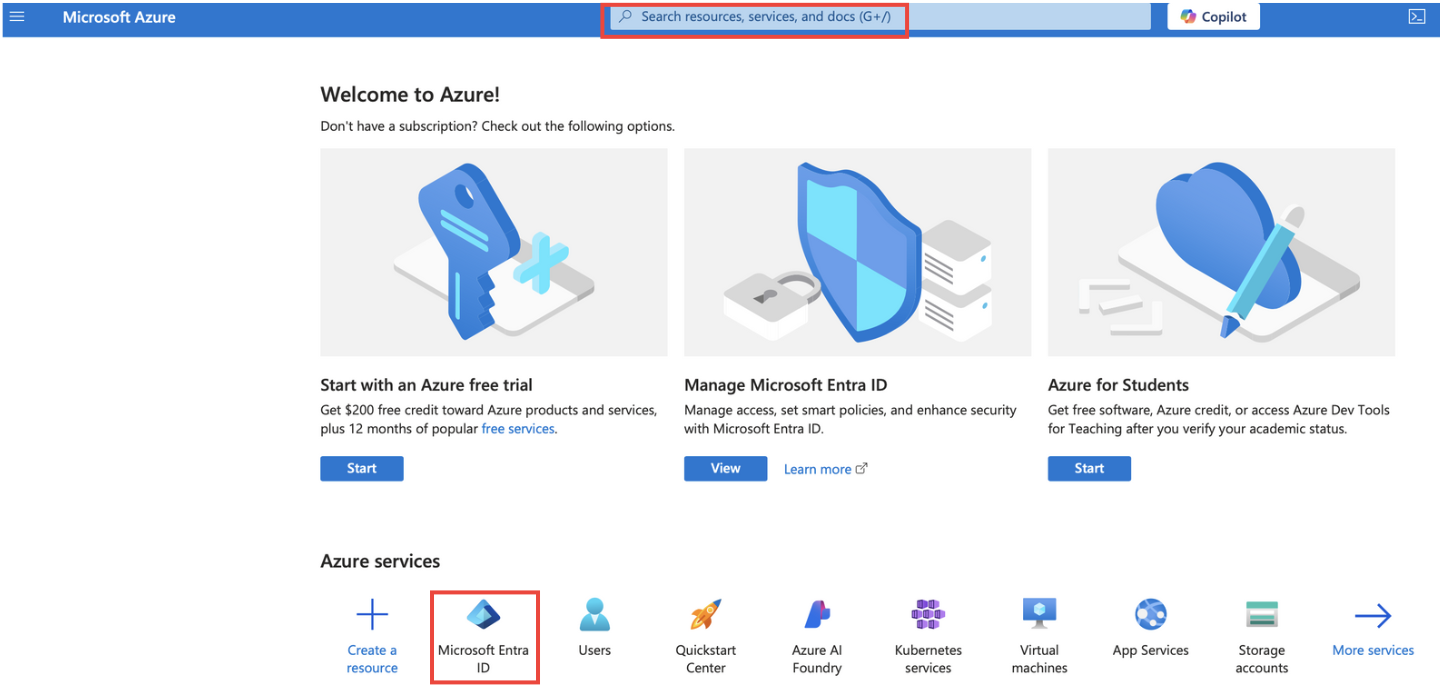
    <Frame>
      <img src="https://mintcdn.com/test-cf63e467/UDonPy9U4TF-4rTr/ja/images/sso-entra/01-azure-entra-id.png?fit=max&auto=format&n=UDonPy9U4TF-4rTr&q=85&s=b02e79d9bff931861b8146854d8716bf" alt="Azure Entra ID" width="1440" height="700" data-path="ja/images/sso-entra/01-azure-entra-id.png" />
    </Frame>

    Nhấn "Ứng dụng mới" và thêm VoicePing.
    <Frame>
      <img src="https://mintcdn.com/test-cf63e467/UDonPy9U4TF-4rTr/ja/images/sso-entra/02-enterprise-apps.png?fit=max&auto=format&n=UDonPy9U4TF-4rTr&q=85&s=d15a2f004f309344646ec9a9cec6d924" alt="Ứng dụng doanh nghiệp" width="1486" height="794" data-path="ja/images/sso-entra/02-enterprise-apps.png" />
    </Frame>
  </Step>

  <Step title="Cấu Hình Giao Thức SAML 2.0">
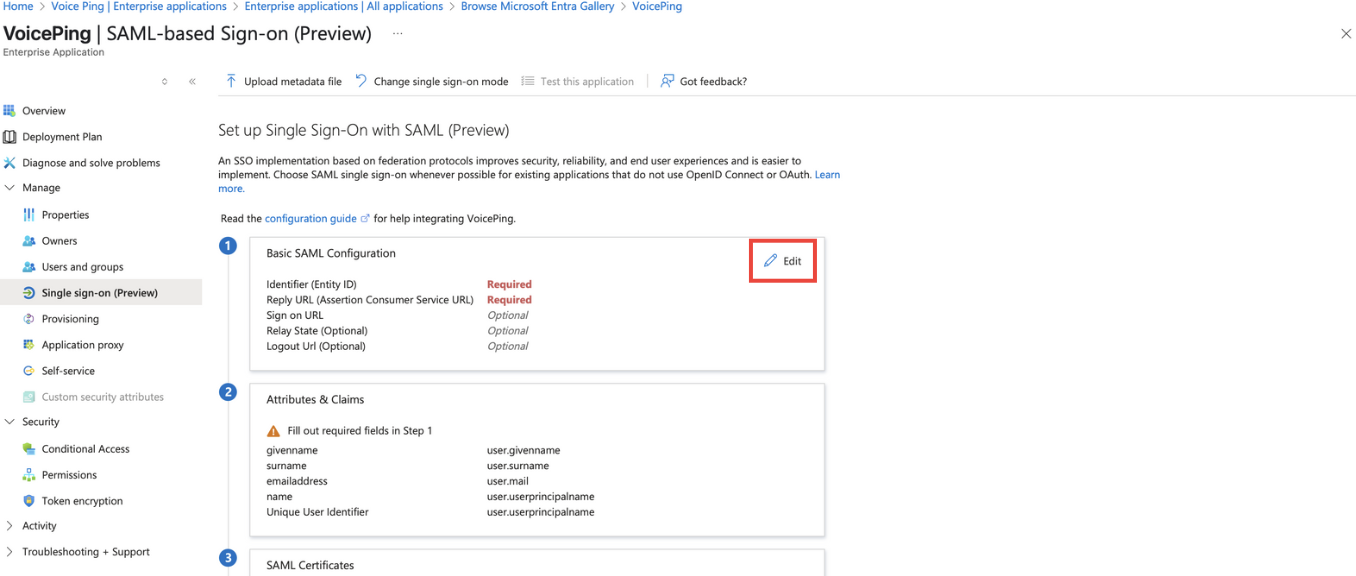
    Cấu hình ứng dụng VoicePing trên IdP để sử dụng giao thức SAML 2.0 cho SSO.

    <Frame>
      <img src="https://mintcdn.com/test-cf63e467/UDonPy9U4TF-4rTr/ja/images/sso-entra/03-saml-setup.png?fit=max&auto=format&n=UDonPy9U4TF-4rTr&q=85&s=d1ee7ef387296219c8e00eb18e29544f" alt="Thiết lập SAML" width="1420" height="688" data-path="ja/images/sso-entra/03-saml-setup.png" />
    </Frame>
  </Step>

  <Step title="Cấu Hình Thông Tin Nhà Cung Cấp Dịch Vụ (SP)">
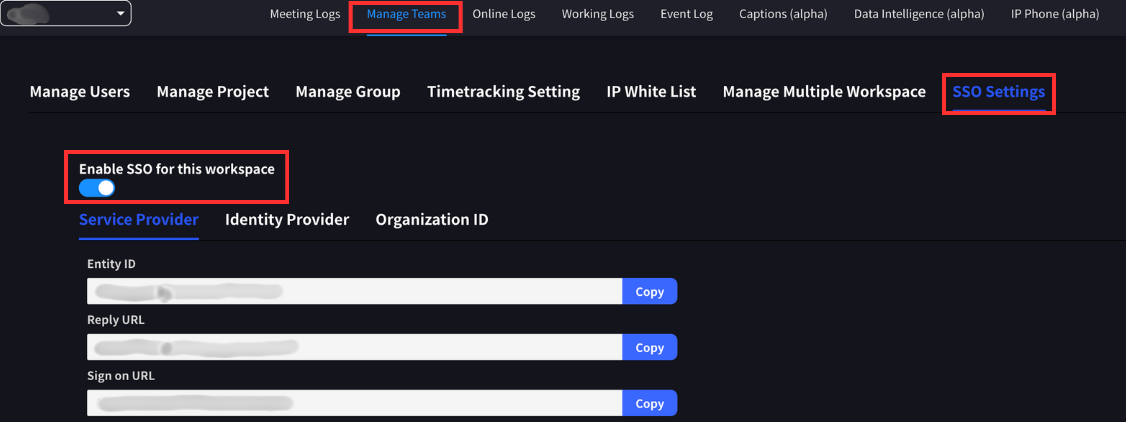
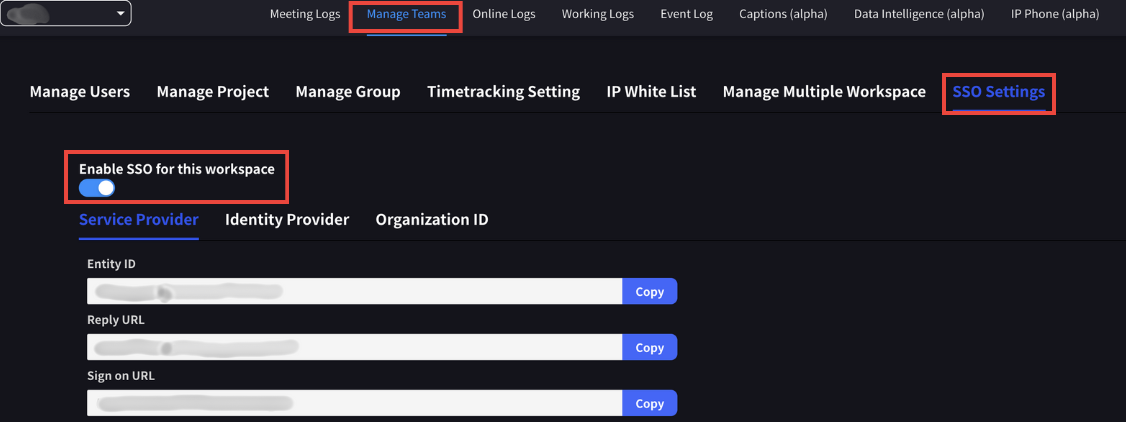
    Bạn có thể kiểm tra các trường bắt buộc trong tab "Quản Lý Đội > Cài Đặt SSO" của bảng điều khiển quản lý không gian làm việc trong ứng dụng VoicePing.

    <Info>
      Chỉ có thể truy cập bởi chủ sở hữu hoặc quản lý của các không gian làm việc đã bật SSO.
    </Info>

    | Mục       | Giá Trị                                    |
    | --------- | ------------------------------------------ |
    | ACS URL   | `https://api.voiceping.io/api/v1/user/acs` |
    | Entity ID | `voice-ping`                               |
    <Frame>
      <img src="https://mintcdn.com/test-cf63e467/UDonPy9U4TF-4rTr/ja/images/sso-entra/04-sp-config.png?fit=max&auto=format&n=UDonPy9U4TF-4rTr&q=85&s=d37efd4c234fecf241e8a29ee119a637" alt="Cấu hình SP" width="1356" height="576" data-path="ja/images/sso-entra/04-sp-config.png" />
    </Frame>
  </Step>

  <Step title="Bao Gồm Địa Chỉ Email Trong SAML Claim">
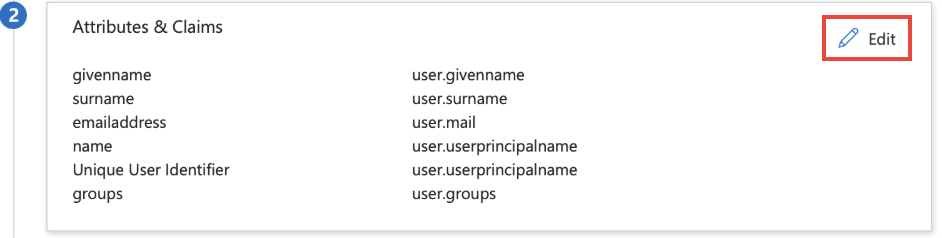
    Bao gồm địa chỉ email của người dùng trong SAML claim. Điều này cần thiết cho việc xác thực trong nền tảng VoicePing.

    <Warning>
      Địa chỉ email được định nghĩa trong IdP phải khớp với địa chỉ được sử dụng khi đăng ký người dùng trong VoicePing.
    </Warning>

    Điều này nên được đặt mặc định trong Microsoft Entra ID, nhưng hãy thêm nếu chưa được cấu hình.
    <Frame>
      <img src="https://mintcdn.com/test-cf63e467/UDonPy9U4TF-4rTr/ja/images/sso-entra/05-claims.png?fit=max&auto=format&n=UDonPy9U4TF-4rTr&q=85&s=88af2ee3cc1463233ab55b5a9b46852e" alt="Cấu hình claims" width="942" height="238" data-path="ja/images/sso-entra/05-claims.png" />
    </Frame>

    <Frame>
      <img src="https://mintcdn.com/test-cf63e467/LU3oFsc_lcA5rDjy/ja/images/sso-entra/14-configuration-step.png?fit=max&auto=format&n=LU3oFsc_lcA5rDjy&q=85&s=0d361d1f642bbad50d2bb306a5c519de" alt="Bước cấu hình" width="1132" height="942" data-path="ja/images/sso-entra/14-configuration-step.png" />
    </Frame>

    <Frame>
      <img src="https://mintcdn.com/test-cf63e467/LU3oFsc_lcA5rDjy/ja/images/sso-entra/15-attributes-mapping.png?fit=max&auto=format&n=LU3oFsc_lcA5rDjy&q=85&s=62b9ba6c8f3b5013a59763be13ca4541" alt="Ánh xạ thuộc tính" width="1126" height="422" data-path="ja/images/sso-entra/15-attributes-mapping.png" />
    </Frame>

    <Frame>
      <img src="https://mintcdn.com/test-cf63e467/LU3oFsc_lcA5rDjy/ja/images/sso-entra/16-claim-configuration.png?fit=max&auto=format&n=LU3oFsc_lcA5rDjy&q=85&s=6b55f0de6c87852a3de9e50ea708f5d6" alt="Cấu hình claim" width="1324" height="514" data-path="ja/images/sso-entra/16-claim-configuration.png" />
    </Frame>
  </Step>

  <Step title="Thêm Người Dùng">
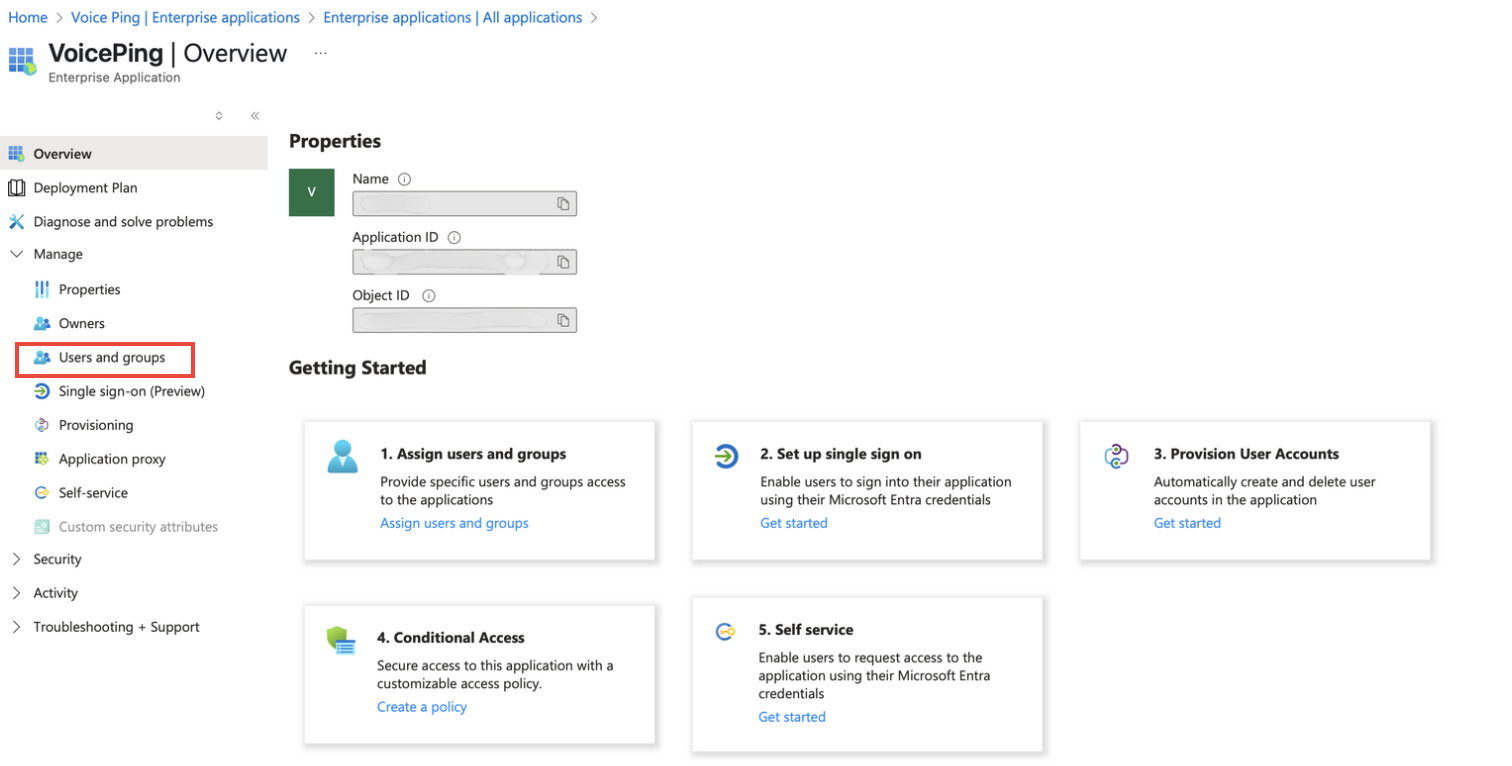
    Thêm người dùng vào ứng dụng VoicePing đã tạo.

    1. Mở trang "Người dùng và nhóm" từ ứng dụng VoicePing trong Microsoft Entra ID
    2. Nhấn "Thêm người dùng/nhóm"
    3. Chọn người dùng hoặc nhóm bạn muốn cấp quyền truy cập
    4. Nhấn "Chọn" và "Gán"
    <Frame>
      <img src="https://mintcdn.com/test-cf63e467/UDonPy9U4TF-4rTr/ja/images/sso-entra/06-add-users.png?fit=max&auto=format&n=UDonPy9U4TF-4rTr&q=85&s=669c43583e467126f06e9ad0db5c4024" alt="Thêm người dùng" width="1512" height="766" data-path="ja/images/sso-entra/06-add-users.png" />
    </Frame>
  </Step>

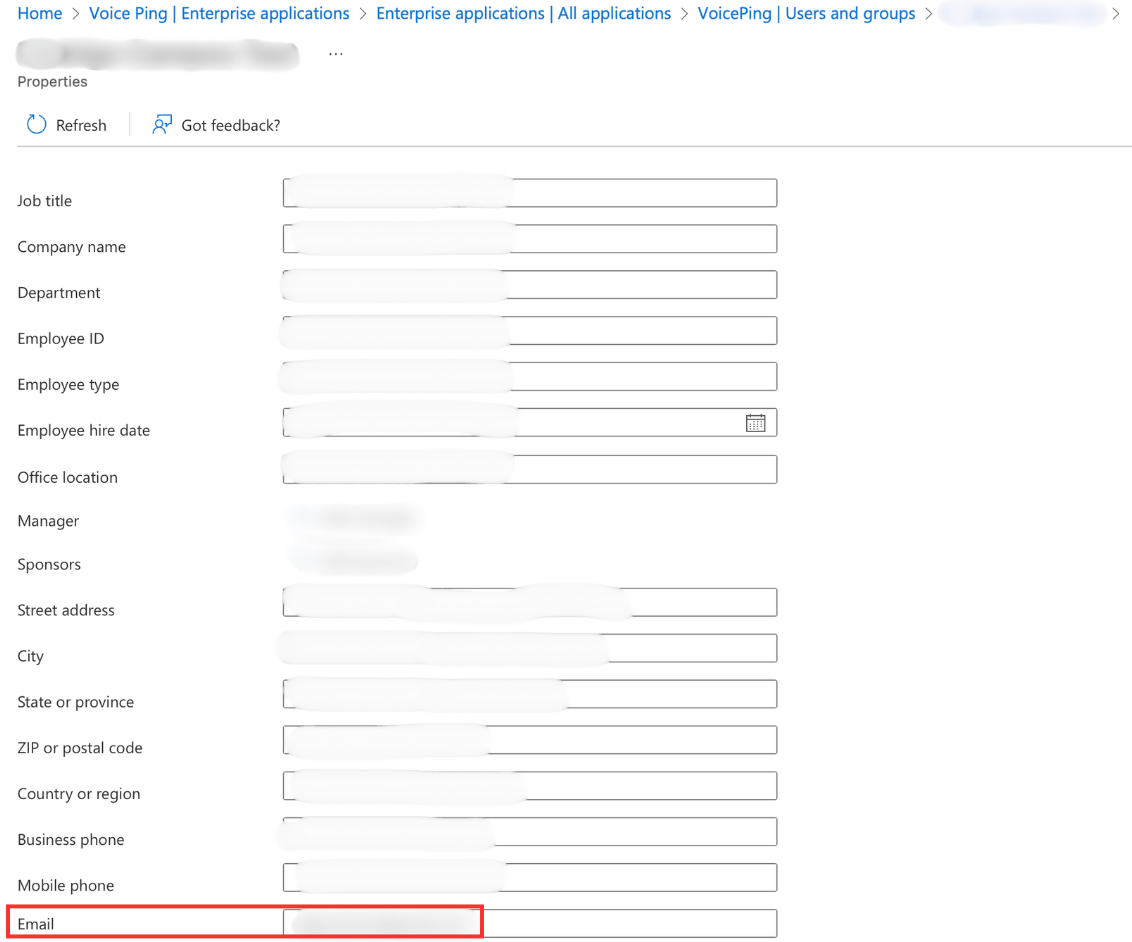
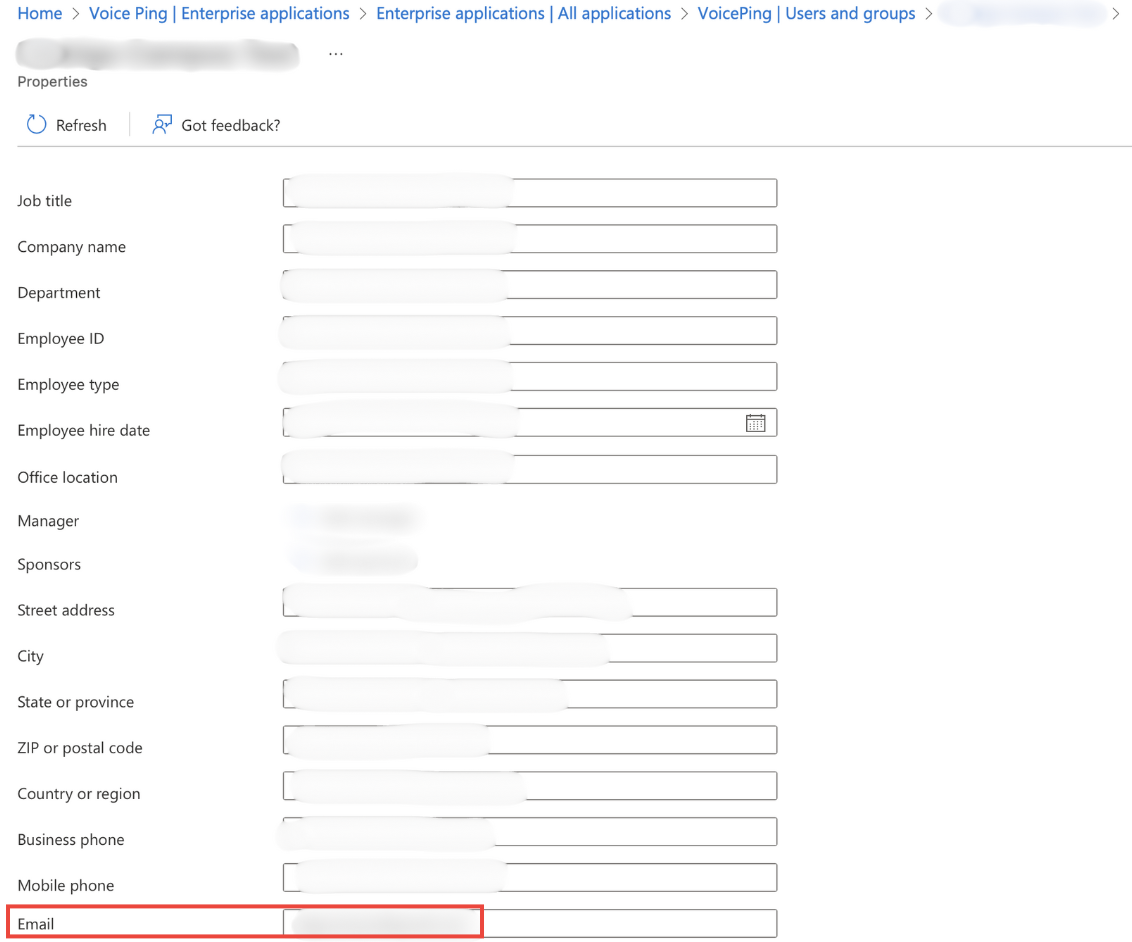
  <Step title="Xác Minh Địa Chỉ Email">
    Đảm bảo rằng người dùng được thêm đã thiết lập địa chỉ email của họ trong Microsoft Azure.
    <Frame>
      <img src="https://mintcdn.com/test-cf63e467/LU3oFsc_lcA5rDjy/ja/images/sso-entra/07-verify-email.png?fit=max&auto=format&n=LU3oFsc_lcA5rDjy&q=85&s=4a4424d581be8ffc3db16bd508527283" alt="Xác minh địa chỉ email" width="1132" height="942" data-path="ja/images/sso-entra/07-verify-email.png" />
    </Frame>
  </Step>

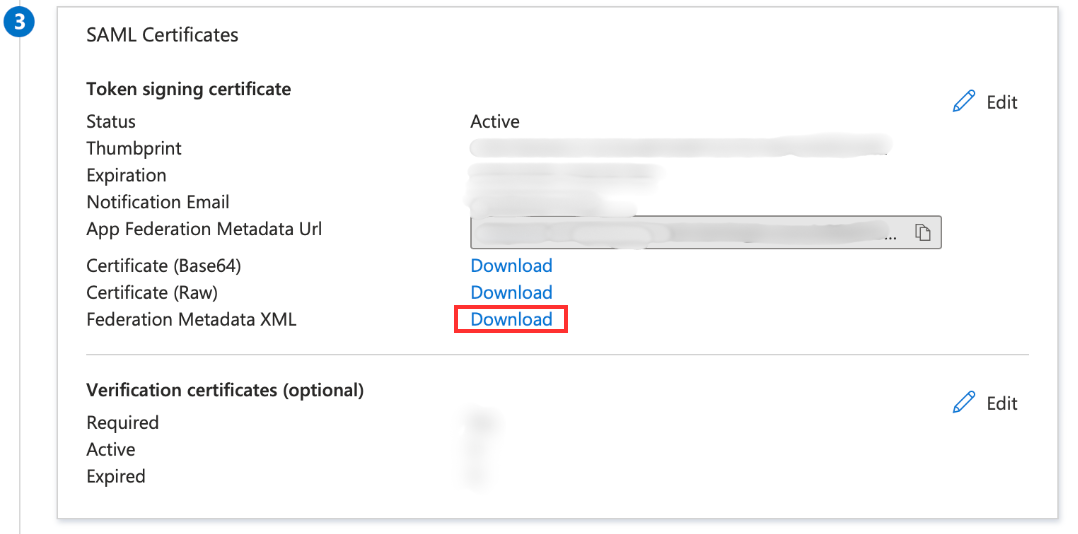
  <Step title="Tải Tệp Metadata">
    Tải tệp metadata từ IdP (Microsoft Entra ID). Tệp này sẽ được sử dụng sau đó ở phía VoicePing.
    <Frame>
      <img src="https://mintcdn.com/test-cf63e467/LU3oFsc_lcA5rDjy/ja/images/sso-entra/17-download-metadata.png?fit=max&auto=format&n=LU3oFsc_lcA5rDjy&q=85&s=eebd136808932f4a3df27ff401669a08" alt="Tải metadata" width="1078" height="534" data-path="ja/images/sso-entra/17-download-metadata.png" />
    </Frame>
  </Step>
</Steps>

***

## Cấu Hình VoicePing

<Steps>
  <Step title="Bật SSO">
    Đi đến bảng điều khiển quản lý không gian làm việc, mở tab "Quản Lý Đội > Cài Đặt SSO", và bật SSO.
    <Frame>
      <img src="https://mintcdn.com/test-cf63e467/LU3oFsc_lcA5rDjy/ja/images/sso-entra/08-enable-sso.png?fit=max&auto=format&n=LU3oFsc_lcA5rDjy&q=85&s=455be44d72a3955447f0438c5ee0e50f" alt="Bật SSO" width="1126" height="422" data-path="ja/images/sso-entra/08-enable-sso.png" />
    </Frame>
  </Step>

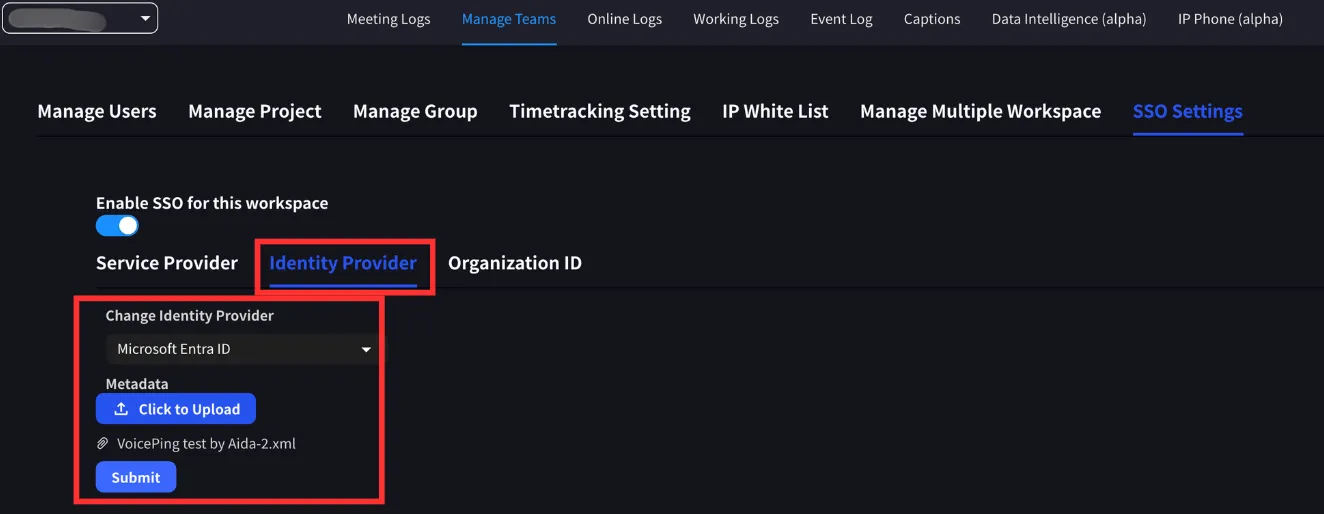
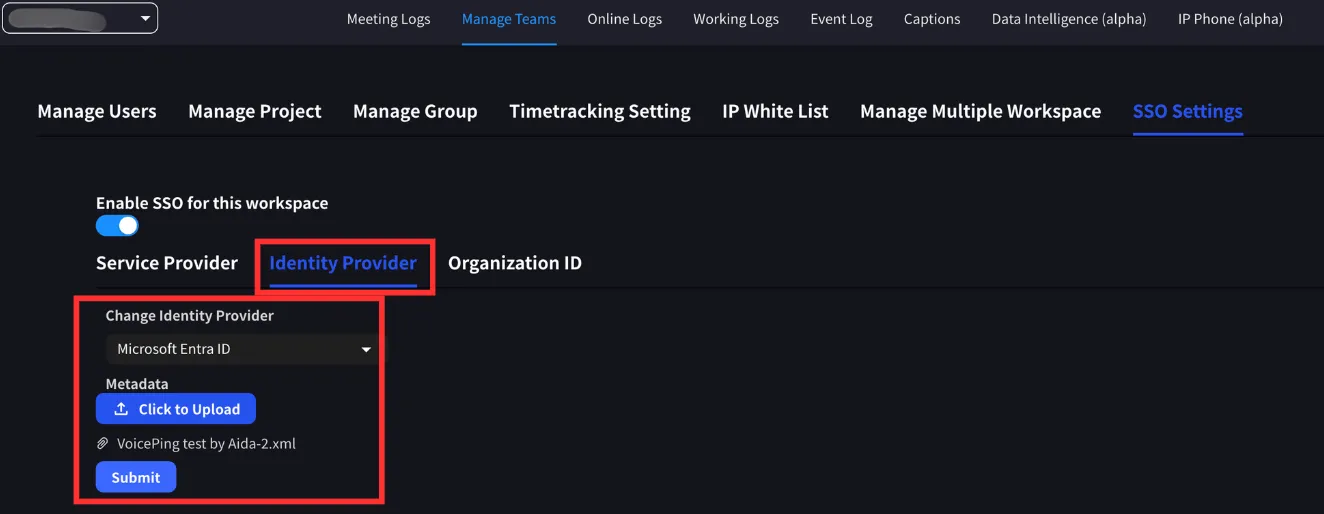
  <Step title="Tải Lên Metadata IdP">
    Chuyển sang tab Nhà Cung Cấp Danh Tính. Chọn Microsoft Entra ID làm IdP, tải lên tệp metadata IdP và gửi các thay đổi.

    <Info>
      Tệp metadata có thể được lấy từ Microsoft Entra ID.
    </Info>

    <Frame>
      <img src="https://mintcdn.com/test-cf63e467/LU3oFsc_lcA5rDjy/ja/images/sso-entra/09-upload-metadata.png?fit=max&auto=format&n=LU3oFsc_lcA5rDjy&q=85&s=83ccfb799777efc8bc4fcf0b73888d2c" alt="Tải lên metadata" width="1324" height="514" data-path="ja/images/sso-entra/09-upload-metadata.png" />
    </Frame>

    <Frame>
      <img src="https://mintcdn.com/test-cf63e467/LU3oFsc_lcA5rDjy/ja/images/sso-entra/18-voiceping-sso-settings.png?fit=max&auto=format&n=LU3oFsc_lcA5rDjy&q=85&s=e7d9b124a8056dc8b94c2be2422df5f5" alt="Cài đặt SSO VoicePing" width="1134" height="370" data-path="ja/images/sso-entra/18-voiceping-sso-settings.png" />
    </Frame>

    <Frame>
      <img src="https://mintcdn.com/test-cf63e467/LU3oFsc_lcA5rDjy/ja/images/sso-entra/19-upload-metadata-xml.png?fit=max&auto=format&n=LU3oFsc_lcA5rDjy&q=85&s=168dae8854d6775e31f6c99f7bacc6da" alt="Tải lên metadata XML" width="940" height="306" data-path="ja/images/sso-entra/19-upload-metadata-xml.png" />
    </Frame>
  </Step>

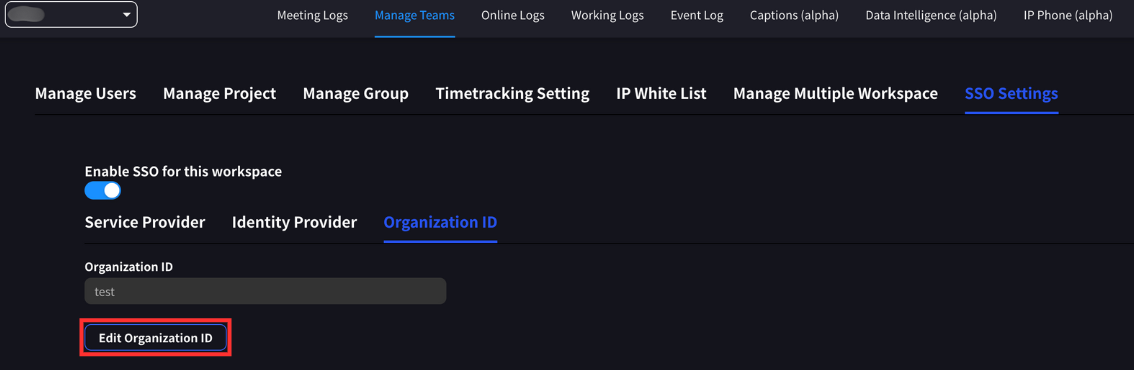
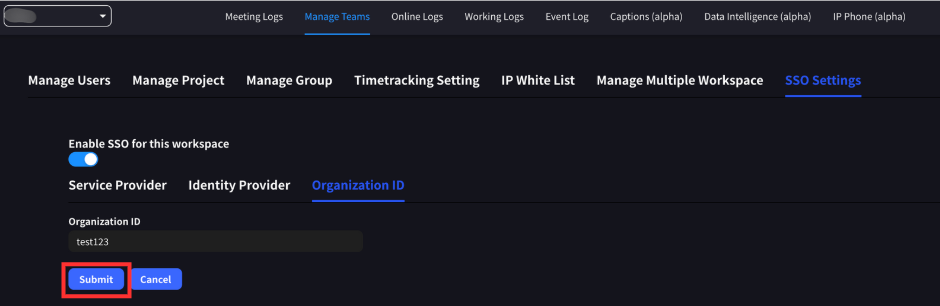
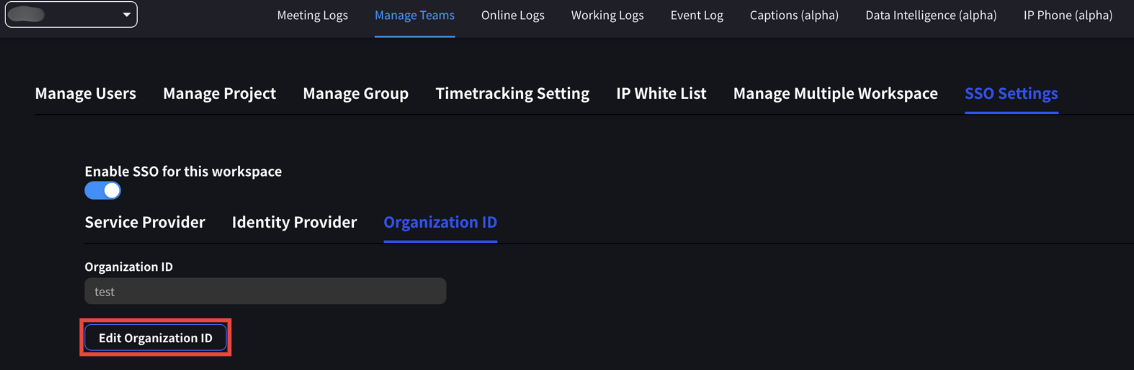
  <Step title="Định Nghĩa ID Tổ Chức">
    Định nghĩa ID tổ chức. Đây phải là một chuỗi duy nhất ít nhất 3 ký tự và tối đa 20 ký tự.

    <Warning>
      ID tổ chức sẽ được yêu cầu từ người dùng khi đăng nhập bằng SSO.
    </Warning>

    <Frame>
      <img src="https://mintcdn.com/test-cf63e467/LU3oFsc_lcA5rDjy/ja/images/sso-entra/10-org-id.png?fit=max&auto=format&n=LU3oFsc_lcA5rDjy&q=85&s=6ab40a533c140ac9482eb9e3b519f474" alt="Thiết lập ID tổ chức" width="1134" height="370" data-path="ja/images/sso-entra/10-org-id.png" />
    </Frame>

    <Frame>
      <img src="https://mintcdn.com/test-cf63e467/LU3oFsc_lcA5rDjy/ja/images/sso-entra/20-organization-id.png?fit=max&auto=format&n=LU3oFsc_lcA5rDjy&q=85&s=0ff5b81ad00148106d961eadf624377c" alt="Màn hình nhập ID tổ chức" width="1468" height="360" data-path="ja/images/sso-entra/20-organization-id.png" />
    </Frame>

    <Frame>
      <img src="https://mintcdn.com/test-cf63e467/LU3oFsc_lcA5rDjy/ja/images/sso-entra/21-sso-enabled-confirmation.png?fit=max&auto=format&n=LU3oFsc_lcA5rDjy&q=85&s=c6f12c9adccded7db5cd5412e3979461" alt="Xác nhận đã bật SSO" width="934" height="762" data-path="ja/images/sso-entra/21-sso-enabled-confirmation.png" />
    </Frame>
  </Step>

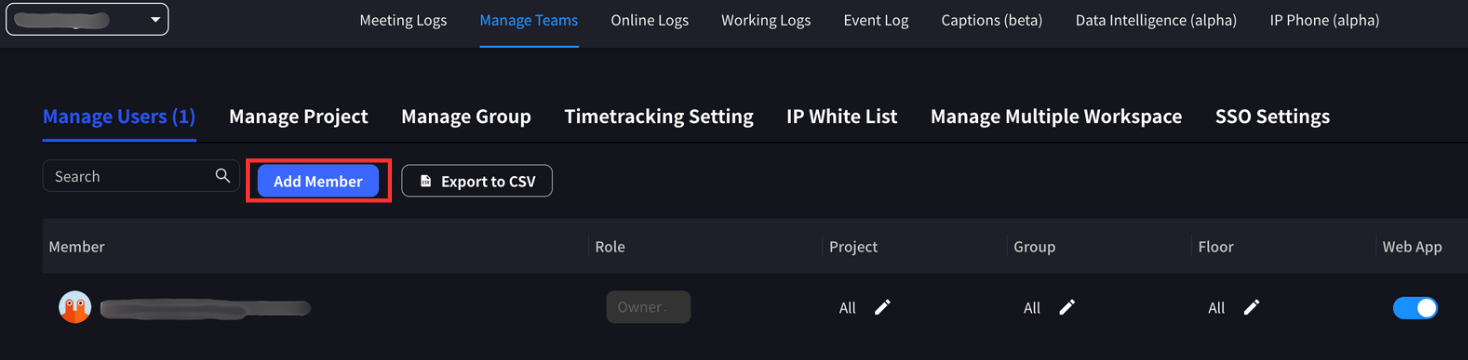
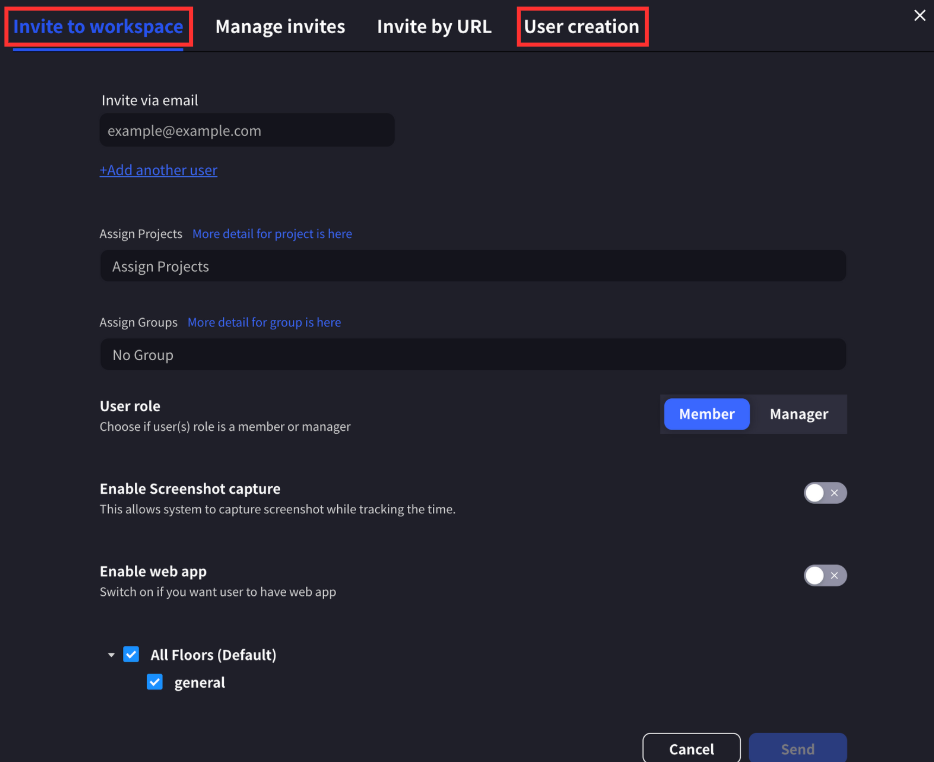
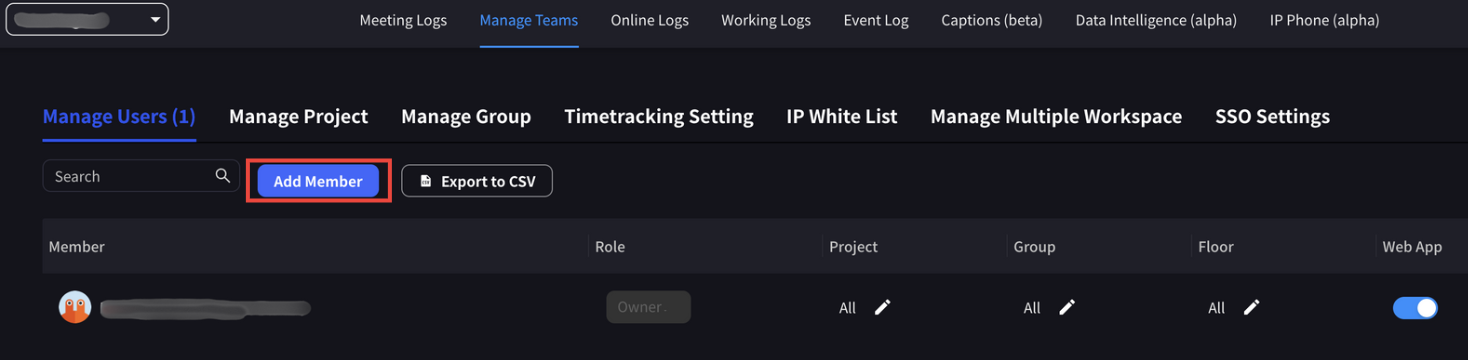
  <Step title="Thêm Người Dùng">
    Thêm người dùng vào không gian làm việc. Địa chỉ email của người dùng phải khớp với địa chỉ email của người dùng được chọn trong cấu hình Microsoft Entra ID.

    Người dùng có thể được thêm bằng lời mời hoặc tạo trực tiếp.
    <Frame>
      <img src="https://mintcdn.com/test-cf63e467/LU3oFsc_lcA5rDjy/ja/images/sso-entra/11-add-workspace-users.png?fit=max&auto=format&n=LU3oFsc_lcA5rDjy&q=85&s=d5f8aaf20d9af87901c7181838ccbbf7" alt="Thêm người dùng không gian làm việc" width="1468" height="360" data-path="ja/images/sso-entra/11-add-workspace-users.png" />
    </Frame>

    <Frame>
      <img src="https://mintcdn.com/test-cf63e467/LU3oFsc_lcA5rDjy/ja/images/sso-entra/22-user-assignment.png?fit=max&auto=format&n=LU3oFsc_lcA5rDjy&q=85&s=bc4bc3baab78f34b9d9a227d3939a8b1" alt="Gán người dùng" width="1024" height="1667" data-path="ja/images/sso-entra/22-user-assignment.png" />
    </Frame>
  </Step>
</Steps>

***

## Đăng Nhập Bằng SSO

Sau khi SSO được cấu hình trong không gian làm việc:

* **Chủ Sở Hữu và Quản Lý**: Có thể đăng nhập vào VoicePing bằng các phương pháp khác
* **Người Dùng Thành Viên**: Yêu cầu xác thực qua SSO

Khi bạn mời người dùng VoicePing mới vào không gian làm việc SSO, tài khoản người dùng VoicePing sẽ được cung cấp khi người dùng đăng ký bằng SSO.

### Các Bước Đăng Nhập

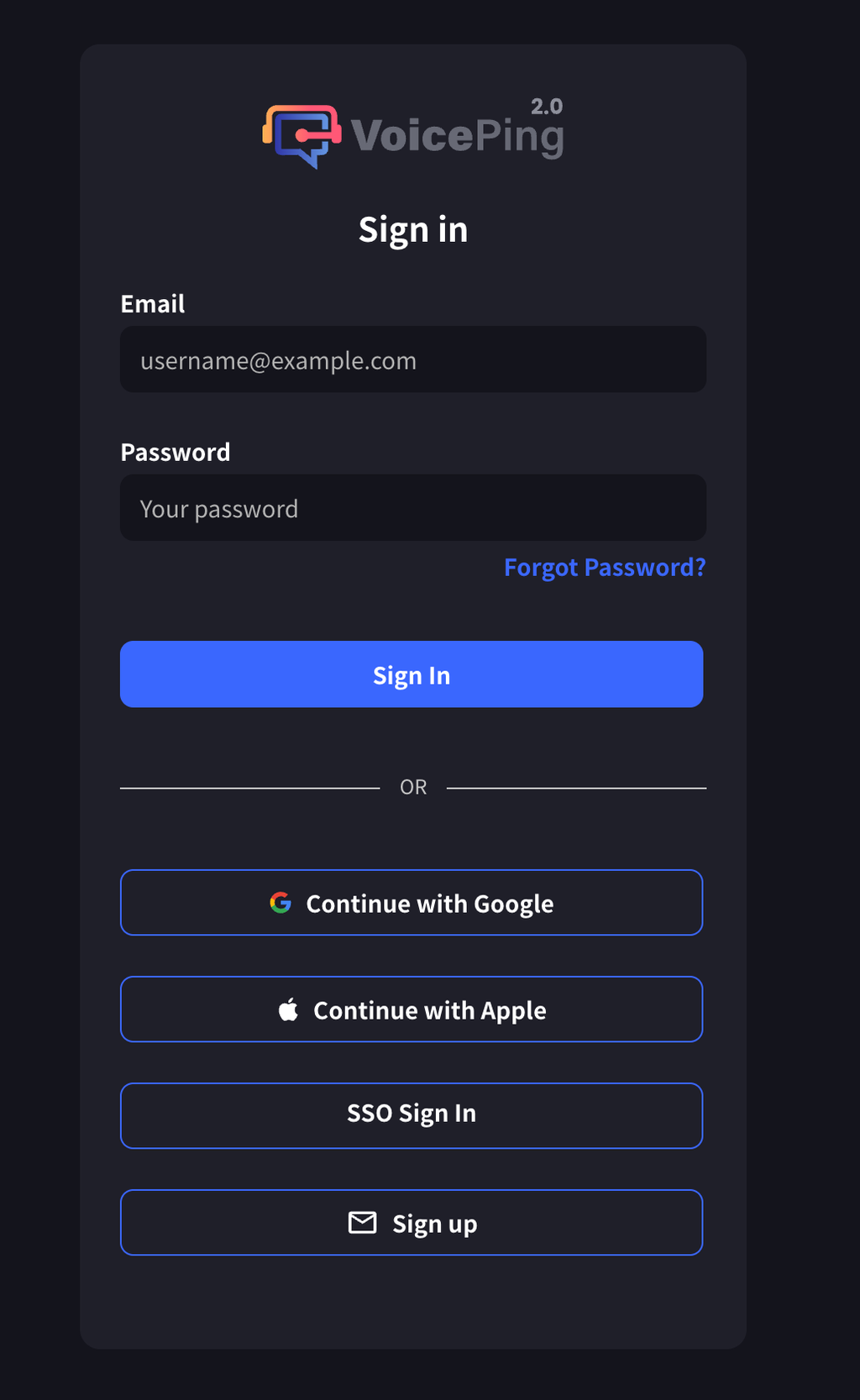
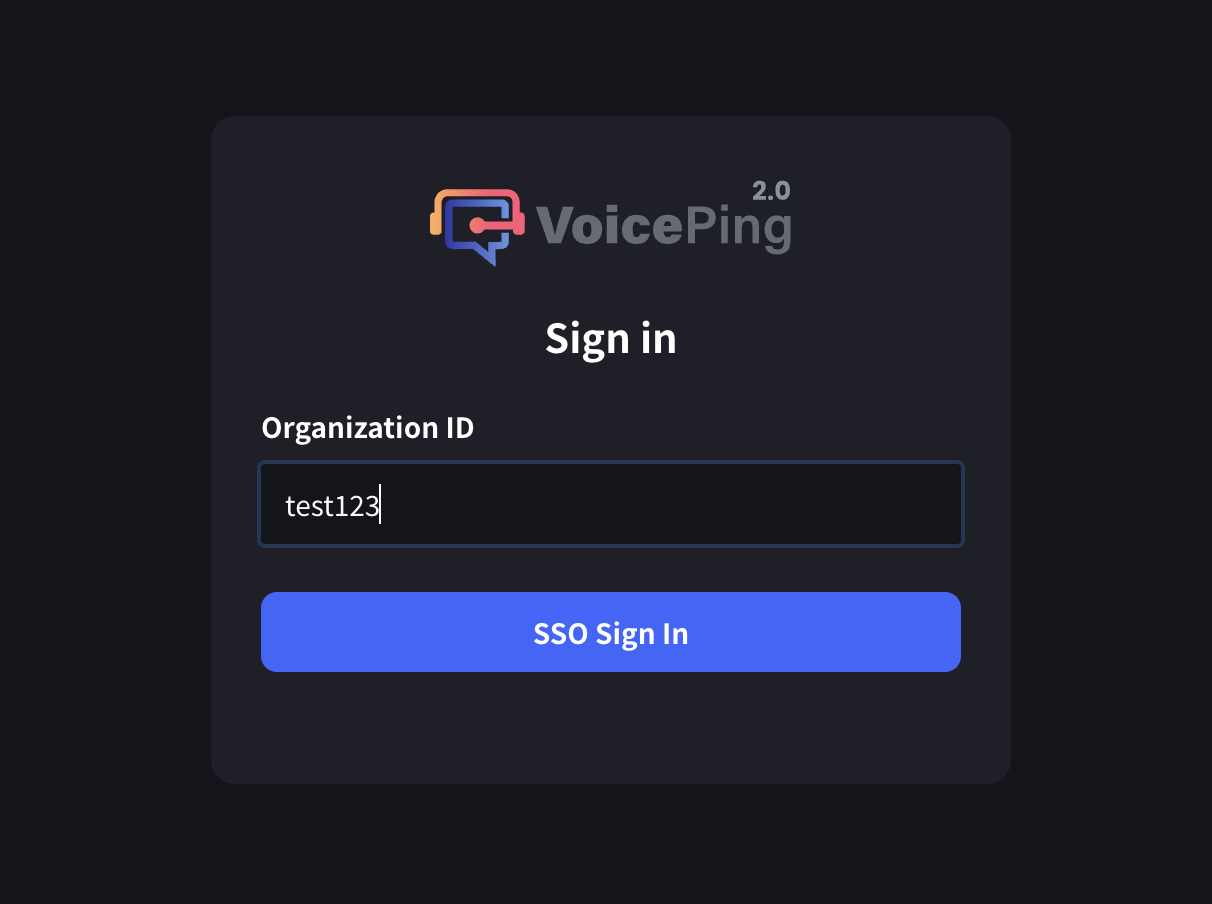
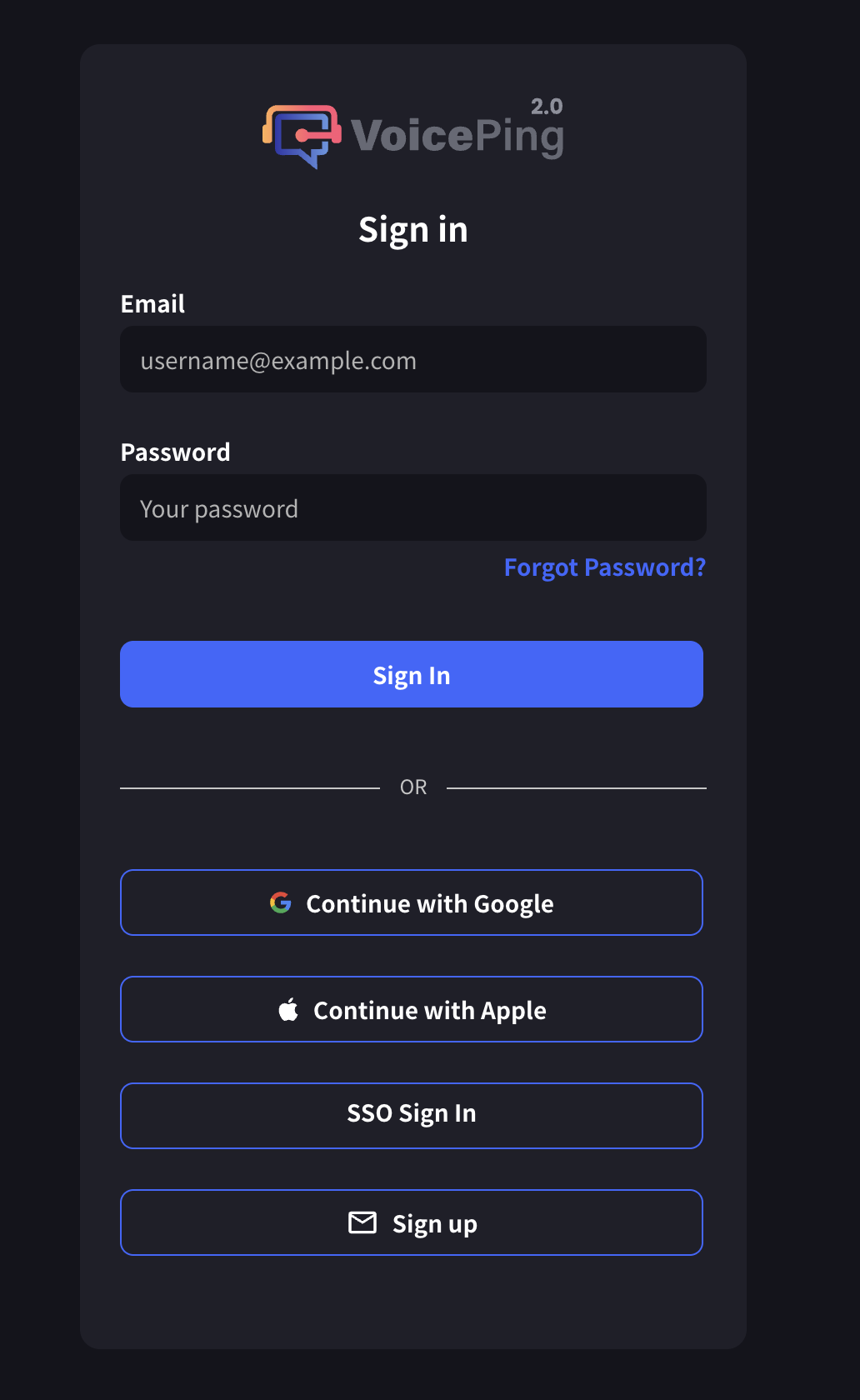
1. Đi đến trang đăng nhập VoicePing
2. Nhấn nút "Đăng Nhập SSO"
<Frame>
  <img src="https://mintcdn.com/test-cf63e467/LU3oFsc_lcA5rDjy/ja/images/sso-entra/12-sso-login.png?fit=max&auto=format&n=LU3oFsc_lcA5rDjy&q=85&s=2bc56d7ceb21cab227505830301b5ec8" alt="Đăng nhập SSO" width="1032" height="1680" data-path="ja/images/sso-entra/12-sso-login.png" />
</Frame>

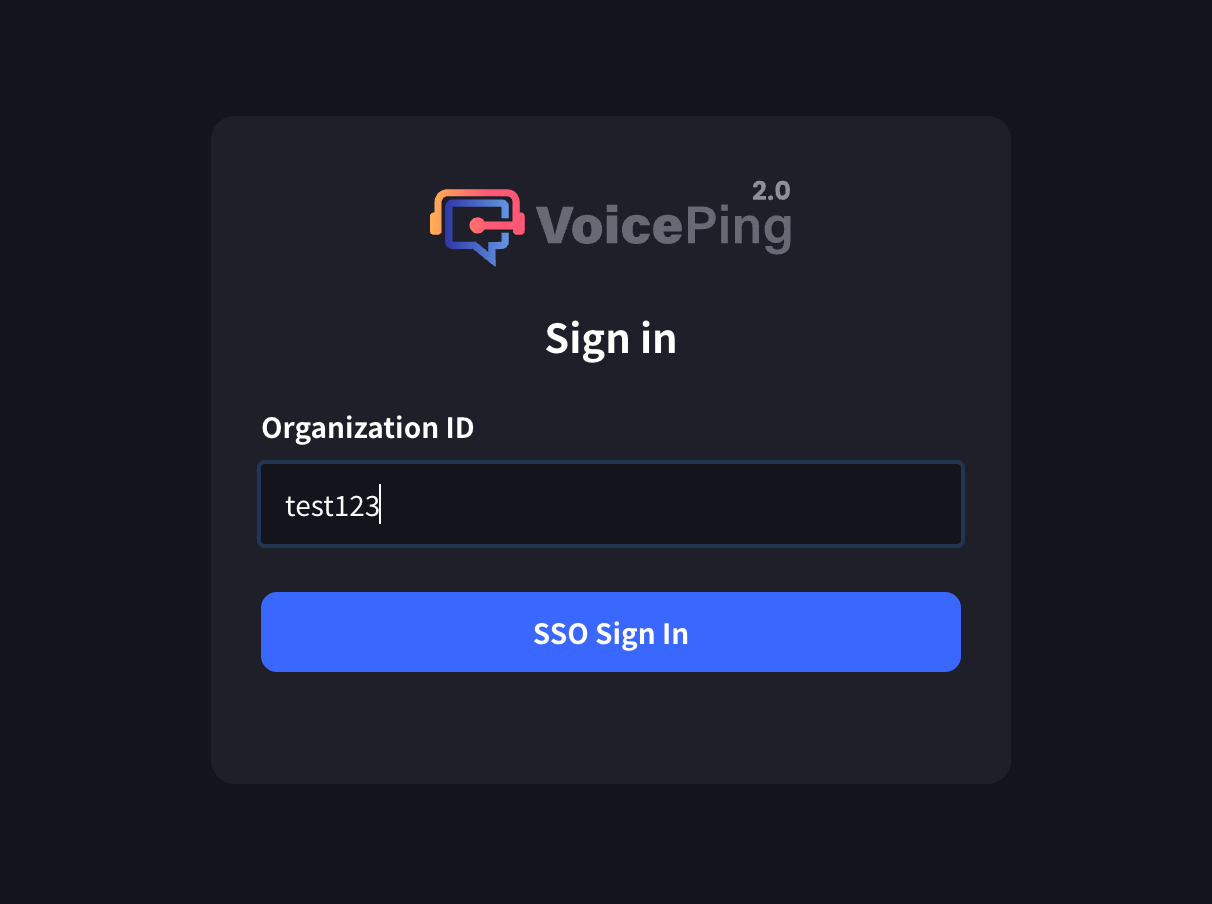
3. Nhập ID tổ chức

<Frame>
  <img src="https://mintcdn.com/test-cf63e467/LU3oFsc_lcA5rDjy/ja/images/sso-entra/13-org-id-input.png?fit=max&auto=format&n=LU3oFsc_lcA5rDjy&q=85&s=b83087d876e61fc2f03f303cf0c8a92a" alt="Nhập ID tổ chức" width="1212" height="904" data-path="ja/images/sso-entra/13-org-id-input.png" />
</Frame>

<Frame>
  <img src="https://mintcdn.com/test-cf63e467/LU3oFsc_lcA5rDjy/ja/images/sso-entra/23-test-sso-login.png?fit=max&auto=format&n=LU3oFsc_lcA5rDjy&q=85&s=23c62802ec383efc5a51a13ee3f8745e" alt="Kiểm tra đăng nhập SSO" width="1212" height="904" data-path="ja/images/sso-entra/23-test-sso-login.png" />
</Frame>

<Frame>
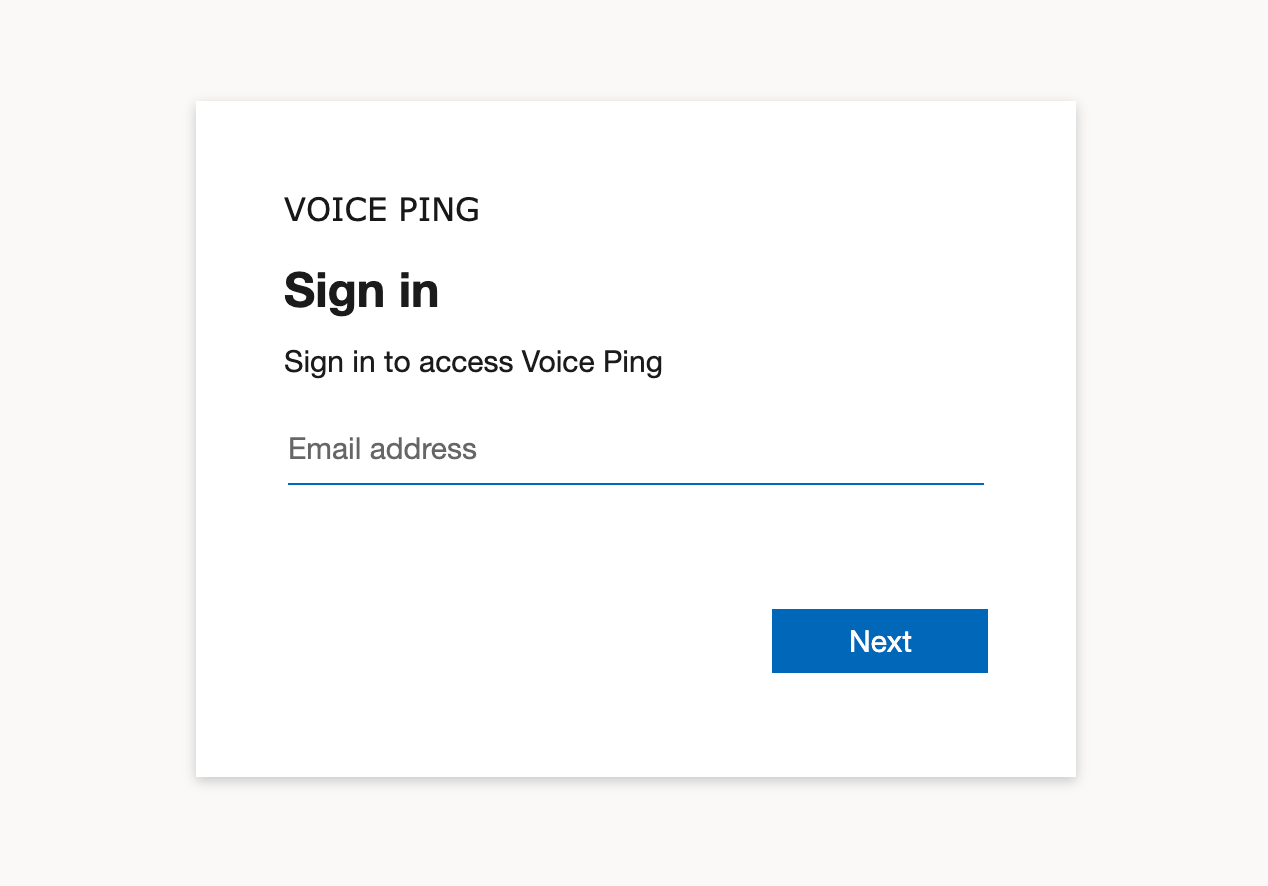
  <img src="https://mintcdn.com/test-cf63e467/LU3oFsc_lcA5rDjy/ja/images/sso-entra/24-org-id-login-screen.png?fit=max&auto=format&n=LU3oFsc_lcA5rDjy&q=85&s=694925b91b1594a04ea55b51c7922e00" alt="Màn hình đăng nhập ID tổ chức" width="1268" height="886" data-path="ja/images/sso-entra/24-org-id-login-screen.png" />
</Frame>

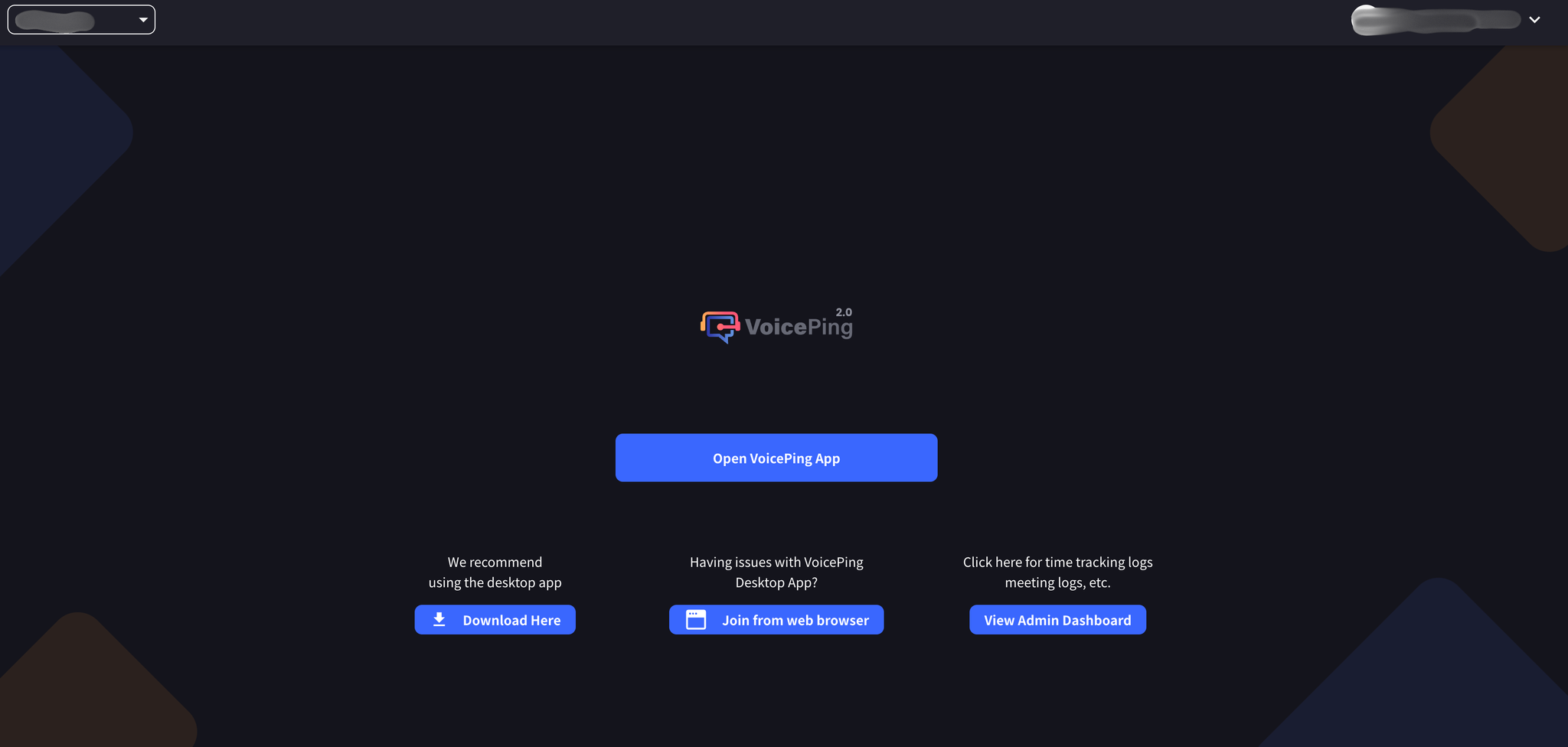
4. Xác thực trên trang xác thực Microsoft Entra ID
<Frame>
  <img src="https://mintcdn.com/test-cf63e467/LU3oFsc_lcA5rDjy/ja/images/sso-entra/25-sso-complete.png?fit=max&auto=format&n=LU3oFsc_lcA5rDjy&q=85&s=80a9bea3e92e40bc0d7219204a464783" alt="Hoàn tất xác thực SSO" width="2048" height="976" data-path="ja/images/sso-entra/25-sso-complete.png" />
</Frame>

***

<ContactVi />