> ## Documentation Index
> Fetch the complete documentation index at: https://manual.voiceping.net/llms.txt
> Use this file to discover all available pages before exploring further.

# 下班/退出應用程式

> VoicePing應用程式的完全退出方法（Windows/Mac）

export const ContactZhTW = () => <>
    <Tip>
      如有任何問題，請透過<a href="https://forms.gle/6AUho7oj3zBr79e96">此表單</a>與我們聯繫。
    </Tip>

    ## 官方連結

    <CardGroup cols={2}>
      <Card title="官方網站" icon="globe" href="https://voiceping.net/en/">
        造訪官方網站
      </Card>
      <Card title="X (Twitter)" icon="x-twitter" href="https://x.com/VoicePingMedia">
        在X上追蹤我們
      </Card>
      <Card title="Facebook" icon="facebook" href="https://www.facebook.com/voiceping.inc">
        在Facebook上按讚
      </Card>
      <Card title="LinkedIn" icon="linkedin" href="https://www.linkedin.com/company/28684130/">
        在LinkedIn上連結
      </Card>
    </CardGroup>
  </>;

VoicePing應用程式設計為讓成員能夠在虛擬空間中「常駐」，因此除非完全退出應用程式，否則會在背景持續運作。

## 登出目前帳號

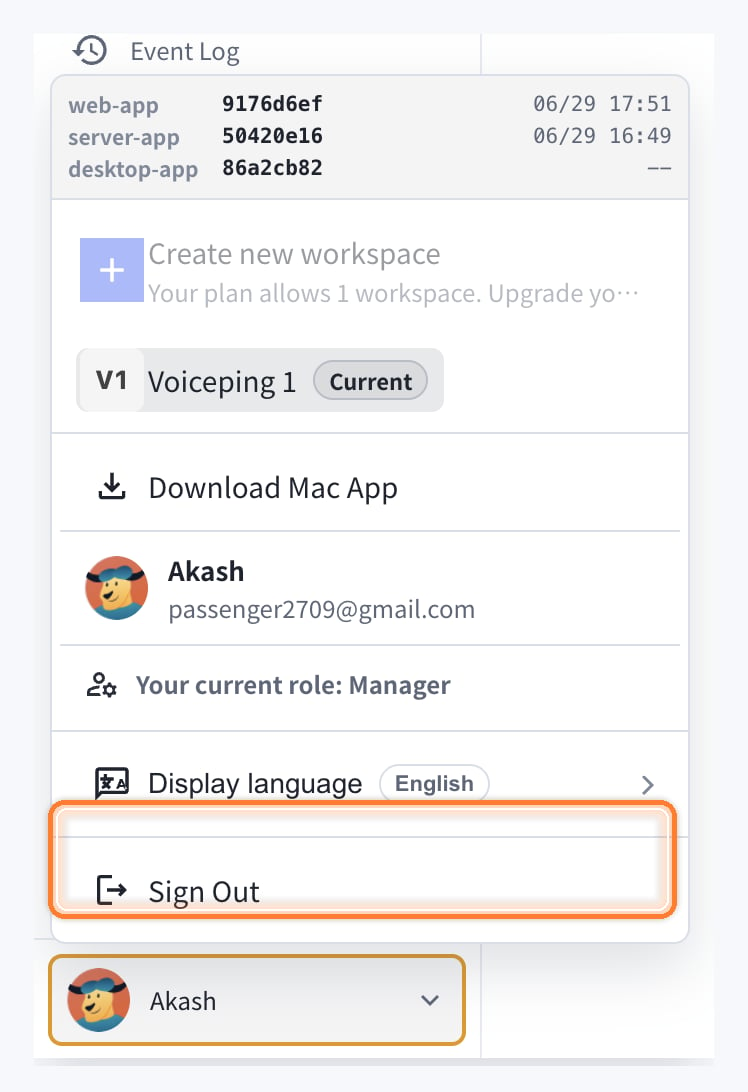
如果要登出目前的 VoicePing 帳號或切換帳號，請使用「Sign Out」。登出帳號不會完全關閉桌面應用程式。

1. 點選左下角的個人資料選單。
2. 點選「Sign Out」。
<Frame>
  <img src="https://mintcdn.com/test-cf63e467/1_BQkW2BilGmh1Db/en/images/app-logout/sign-out-menu-highlighted.png?fit=max&auto=format&n=1_BQkW2BilGmh1Db&q=85&s=95748d7f0f7226b0e4778eb43f95ea39" alt="高亮顯示的 Sign Out 選單" width="748" height="1092" data-path="en/images/app-logout/sign-out-menu-highlighted.png" />
</Frame>

## Windows OS的情況

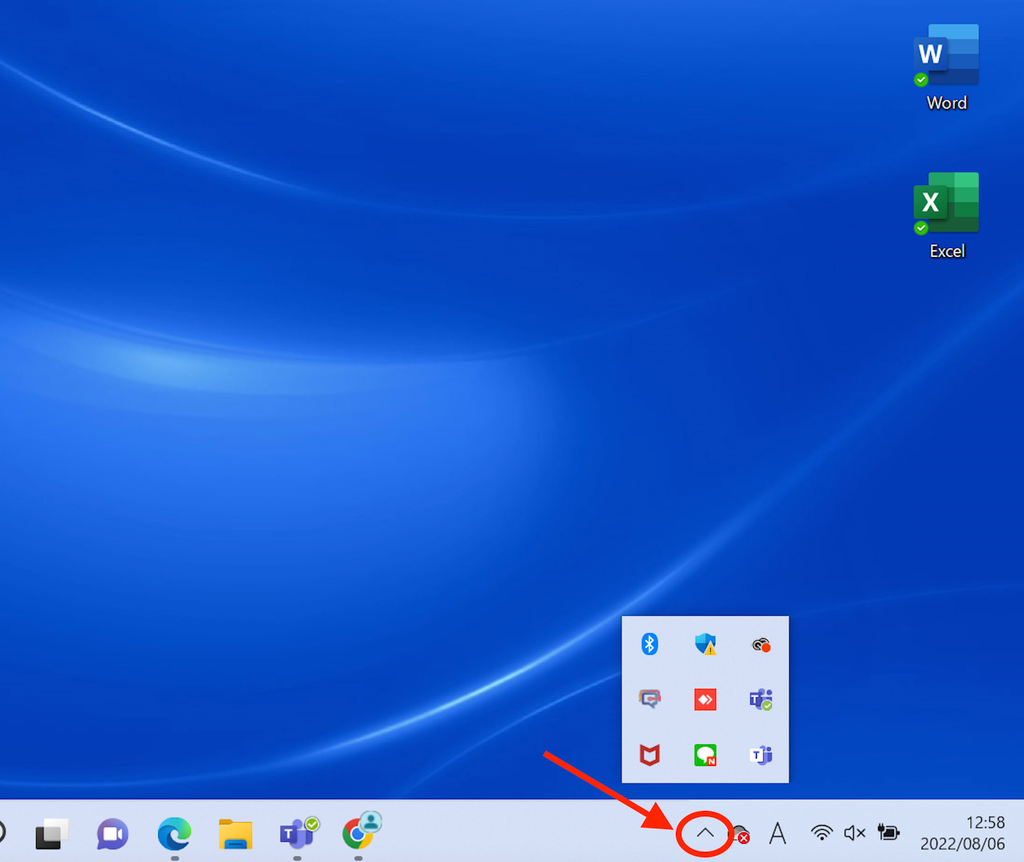
### 步驟1：開啟隱藏的指示器

左鍵點選選單列右下角隱藏的指示器

<Frame>
  <img src="https://mintcdn.com/test-cf63e467/4vHpBWNcRcAS0vJ1/ja/images/app-logout/01-windows-indicator.png?fit=max&auto=format&n=4vHpBWNcRcAS0vJ1&q=85&s=45ddbc053e2f5f25bb59ef833bc2519c" alt="Windows指示器" width="1024" height="862" data-path="ja/images/app-logout/01-windows-indicator.png" />
</Frame>

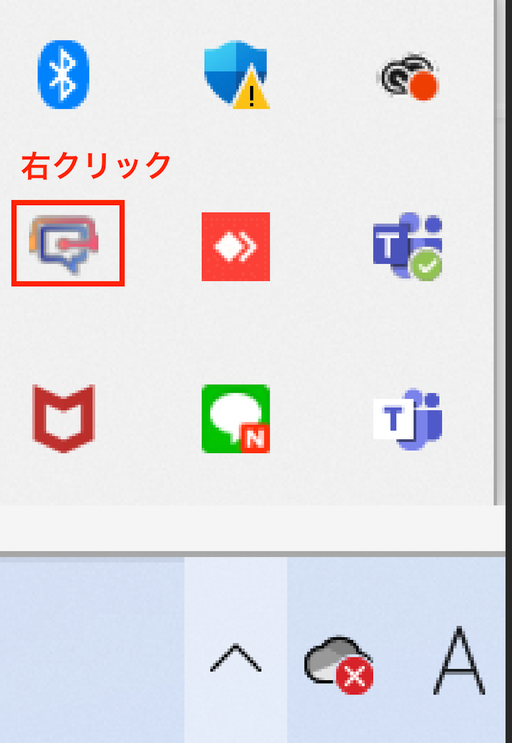
### 步驟2：右鍵點選VoicePing應用程式

右鍵點選VoicePing應用程式

<Frame>
  <img src="https://mintcdn.com/test-cf63e467/4vHpBWNcRcAS0vJ1/ja/images/app-logout/02-right-click-menu.png?fit=max&auto=format&n=4vHpBWNcRcAS0vJ1&q=85&s=9a2f7b07483f8efe3e62752d9340e961" alt="VoicePing右鍵選單" width="512" height="743" data-path="ja/images/app-logout/02-right-click-menu.png" />
</Frame>

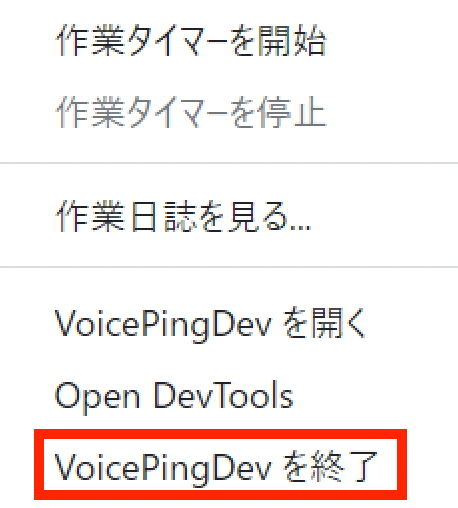
### 步驟3：退出應用程式

點選「退出VoicePing」

<Frame>
  <img src="https://mintcdn.com/test-cf63e467/4vHpBWNcRcAS0vJ1/ja/images/app-logout/03-quit-button.png?fit=max&auto=format&n=4vHpBWNcRcAS0vJ1&q=85&s=6f8f3400c1a53b5adeda6ab475326bf8" alt="退出按鈕" width="458" height="508" data-path="ja/images/app-logout/03-quit-button.png" />
</Frame>

## Mac OS的情況

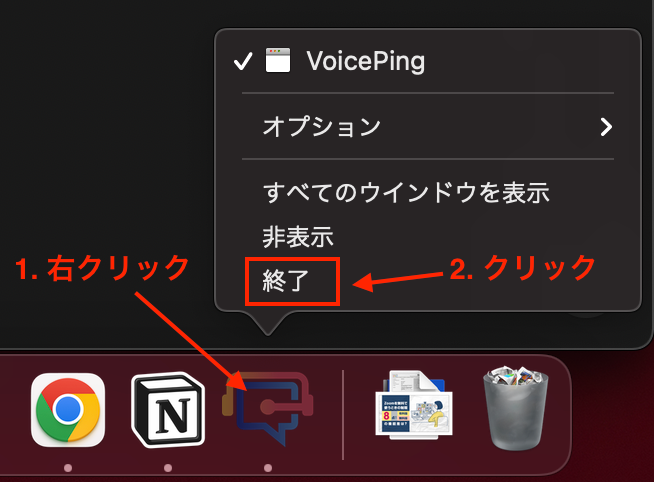
### 步驟1：右鍵點選應用程式

在右下角顯示目前執行應用程式的列中，右鍵點選VoicePing應用程式

### 步驟2：點選退出

點選「退出」

<Frame>
  <img src="https://mintcdn.com/test-cf63e467/4vHpBWNcRcAS0vJ1/ja/images/app-logout/04-mac-quit-screen.png?fit=max&auto=format&n=4vHpBWNcRcAS0vJ1&q=85&s=5792e763b707b2bfdfacb685eeced266" alt="Mac退出畫面" width="654" height="482" data-path="ja/images/app-logout/04-mac-quit-screen.png" />
</Frame>

<ContactZhTW />