> ## Documentation Index
> Fetch the complete documentation index at: https://manual.voiceping.net/llms.txt
> Use this file to discover all available pages before exploring further.
# Event Log
> 使用 VoicePing 3.0 Event Log 稽核成員、存取、工作區設定、虛擬辦公室、會議、Web Meeting Bot、帳單與時間追蹤等事件。
export const ContactZhTW = () => <>
如有任何問題,請透過此表單與我們聯繫。
## 官方連結
造訪官方網站
在X上追蹤我們
在Facebook上按讚
在LinkedIn上連結
;
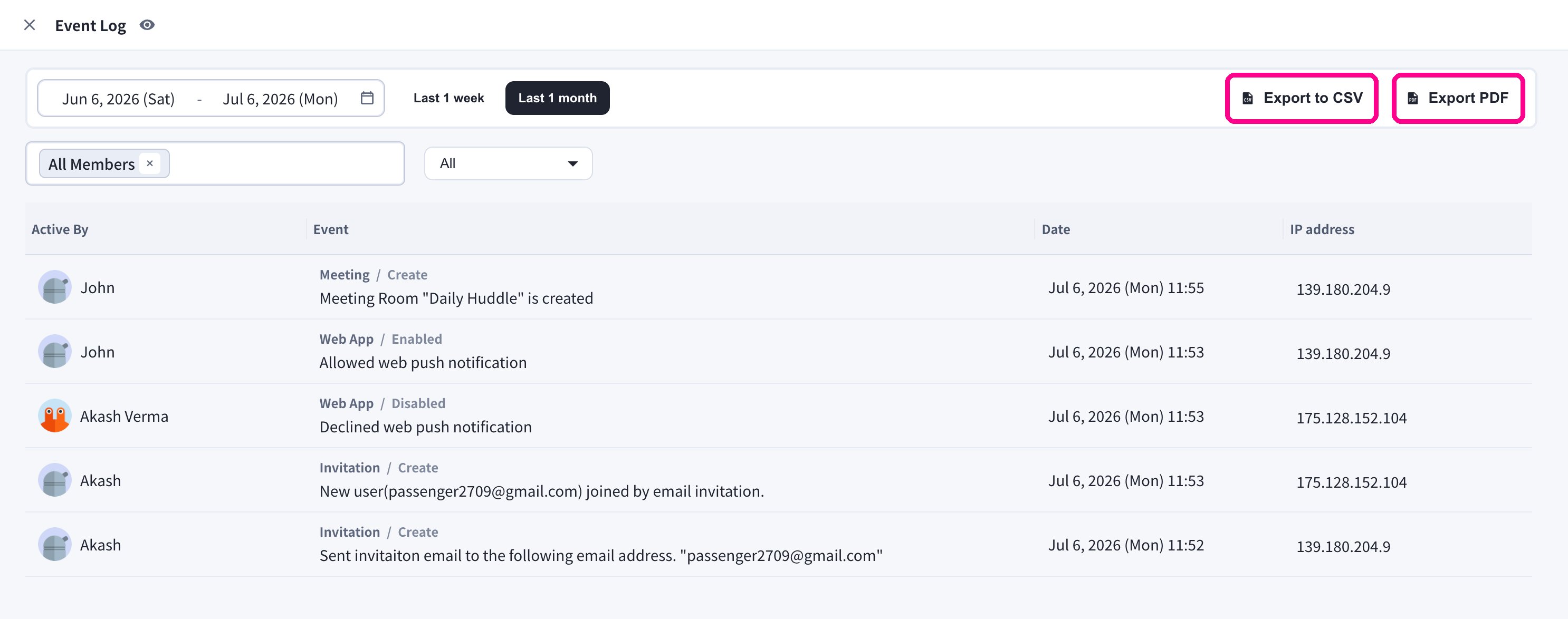
工作區管理員可透過 **Event Log** 稽核重要的工作區活動。
## 開啟 Event Log
1. 開啟 VoicePing 桌面應用程式。
2. 在左側邊欄中選擇 **Event Log**。
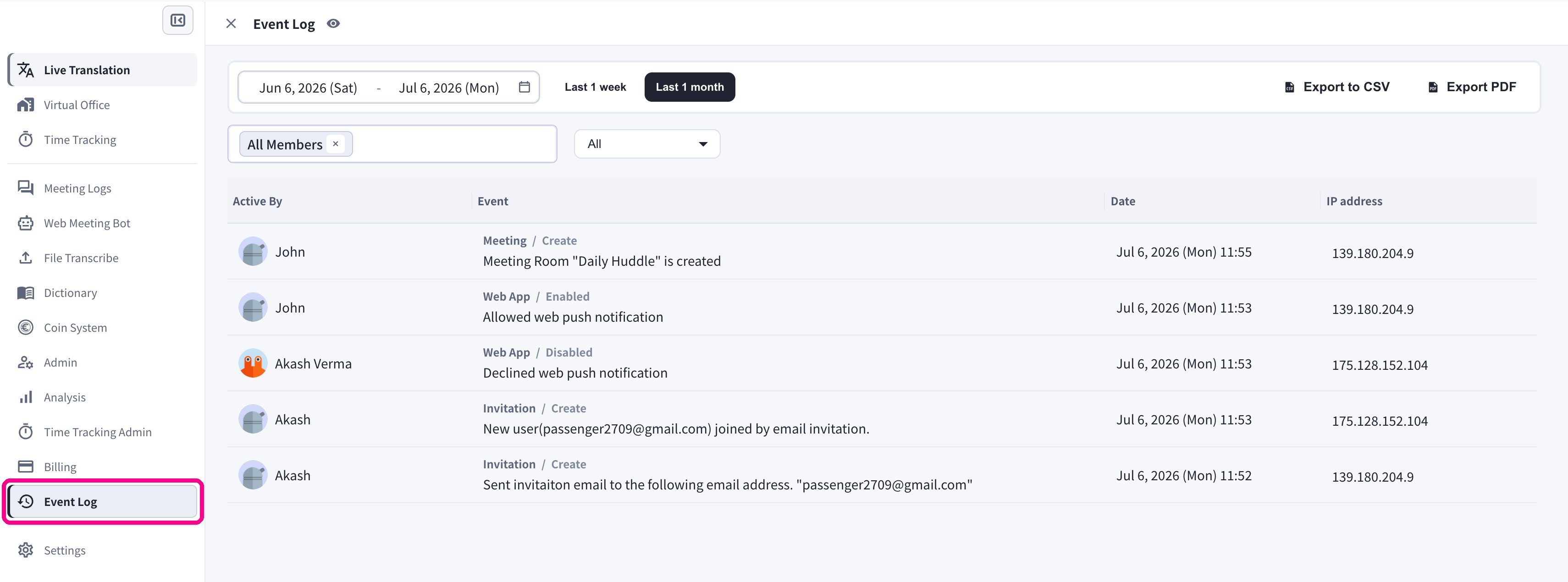 每筆記錄都會顯示觸發事件的成員(**Active By**)、事件類別與詳細內容、**日期與時間**,以及操作來源的 **IP 位址**。
## 篩選
| 篩選項目 | 用途 |
| ------------------- | -------------- |
| **Date range** | 檢視特定期間的記錄。 |
| **Member selector** | 依一位或多位使用者篩選事件。 |
| **Category** | 聚焦於某個產品或安全領域。 |
### 日期範圍
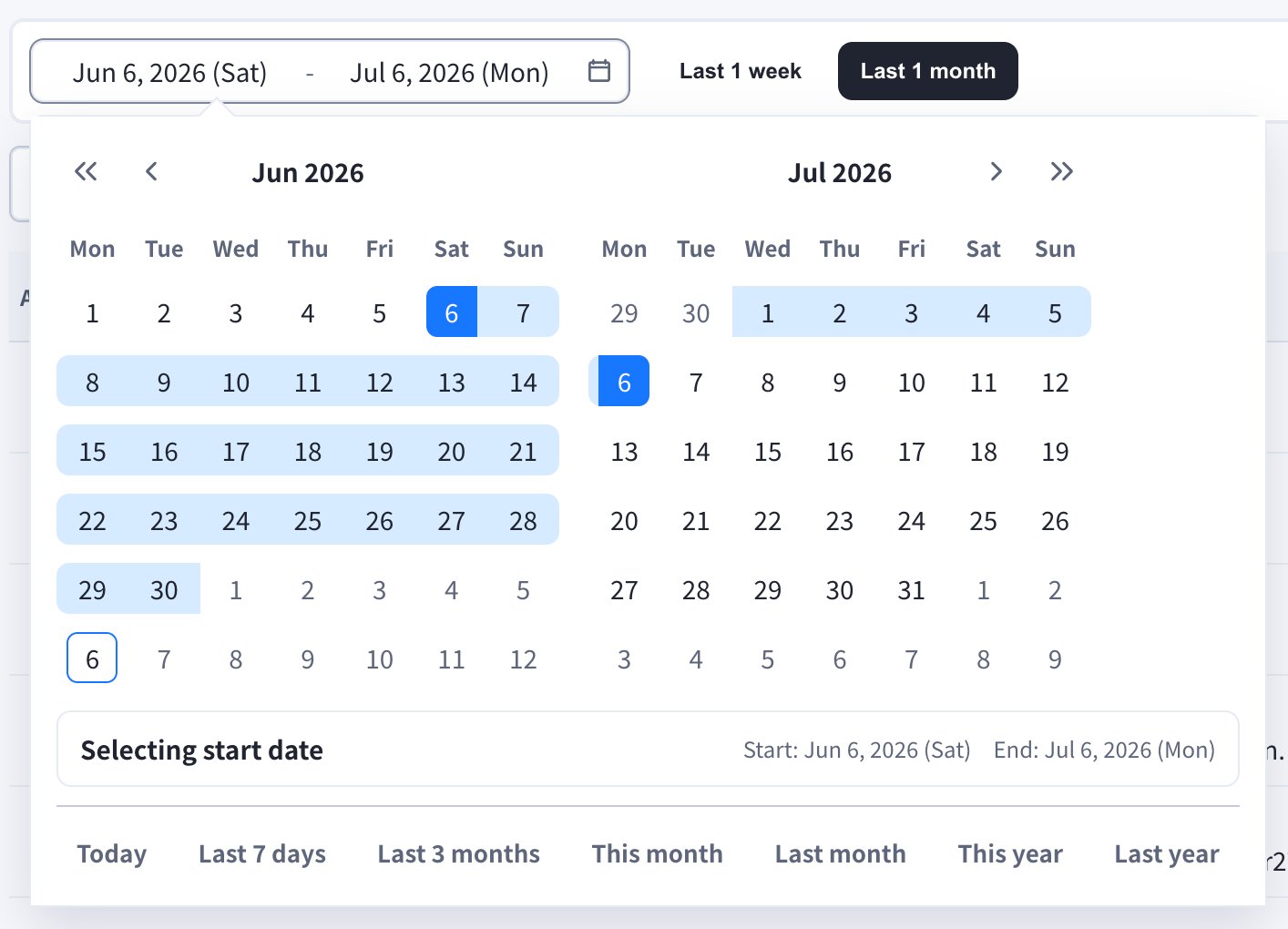
使用 **Last 1 week** / **Last 1 month** 快速按鈕,或開啟日期欄位選擇自訂範圍。行事曆中還提供 **Today**、**Last 7 days**、**Last 3 months**、**This month**、**Last month**、**This year**、**Last year** 等快速選項。
每筆記錄都會顯示觸發事件的成員(**Active By**)、事件類別與詳細內容、**日期與時間**,以及操作來源的 **IP 位址**。
## 篩選
| 篩選項目 | 用途 |
| ------------------- | -------------- |
| **Date range** | 檢視特定期間的記錄。 |
| **Member selector** | 依一位或多位使用者篩選事件。 |
| **Category** | 聚焦於某個產品或安全領域。 |
### 日期範圍
使用 **Last 1 week** / **Last 1 month** 快速按鈕,或開啟日期欄位選擇自訂範圍。行事曆中還提供 **Today**、**Last 7 days**、**Last 3 months**、**This month**、**Last month**、**This year**、**Last year** 等快速選項。
 ### 成員
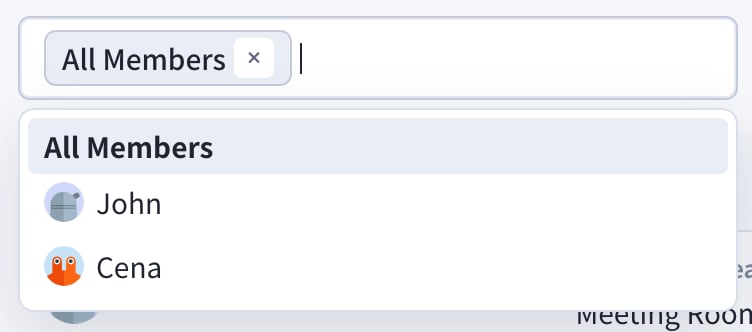
選擇 **All Members** 檢視全部成員的事件,或選擇特定成員僅檢視其事件。
### 成員
選擇 **All Members** 檢視全部成員的事件,或選擇特定成員僅檢視其事件。
 ### 類別
使用類別下拉選單聚焦於某一領域。
### 類別
使用類別下拉選單聚焦於某一領域。
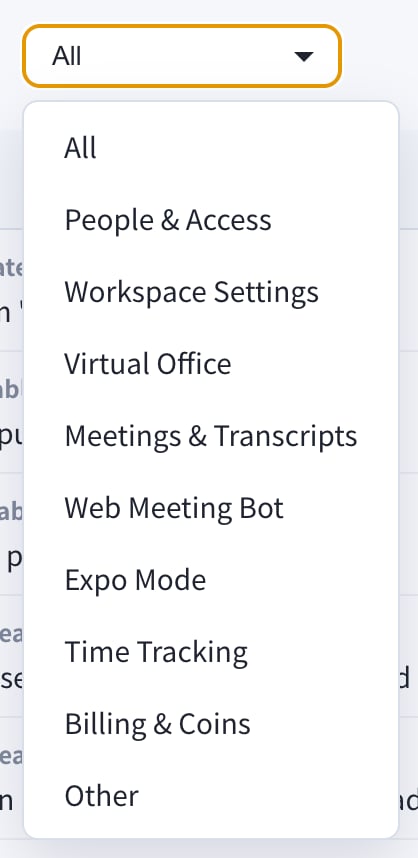 * All
* People & Access
* Workspace Settings
* Virtual Office
* Meetings & Transcripts
* Web Meeting Bot
* Expo Mode
* Time Tracking
* Billing & Coins
* Other
## 匯出
需要在 Event Log 畫面之外分享稽核記錄時,請使用右上角的 **Export to CSV** 或 **Export PDF** 按鈕。
* All
* People & Access
* Workspace Settings
* Virtual Office
* Meetings & Transcripts
* Web Meeting Bot
* Expo Mode
* Time Tracking
* Billing & Coins
* Other
## 匯出
需要在 Event Log 畫面之外分享稽核記錄時,請使用右上角的 **Export to CSV** 或 **Export PDF** 按鈕。
 Event Log 用於工作區稽核記錄。如需檢視產品使用趨勢與儀表板,請使用 [Analysis](/zh-tw/analytics)。