> ## Documentation Index
> Fetch the complete documentation index at: https://manual.voiceping.net/llms.txt
> Use this file to discover all available pages before exploring further.

# 工作流程 — 從過往會議建立客戶端可直接使用的議程

> 將與客戶最近 3–4 次的會議記錄轉化為可直接貼入行事曆邀請的實用、具時間分配的會議議程。搭配任何相容的 AI 使用者端使用 VoicePing MCP 存取。

export const FeedbackZhTW = () => <>
    <Tip>
      對此功能有想法或需求？請透過 <a href="/zh-tw/product-feedback">Product Feedback</a> 傳送給團隊。
    </Tip>

    <h2>官方連結</h2>

    <CardGroup cols={2}>
      <Card title="官方網站" icon="globe" href="https://voiceping.net/en/">
        造訪官方網站
      </Card>
      <Card title="X (Twitter)" icon="x-twitter" href="https://x.com/VoicePingMedia">
        在X上追蹤我們
      </Card>
      <Card title="Facebook" icon="facebook" href="https://www.facebook.com/voiceping.inc">
        在Facebook上按讚
      </Card>
      <Card title="LinkedIn" icon="linkedin" href="https://www.linkedin.com/company/28684130/">
        在LinkedIn上連結
      </Card>
    </CardGroup>
  </>;

## 從過往會議建立客戶端可直接使用的議程

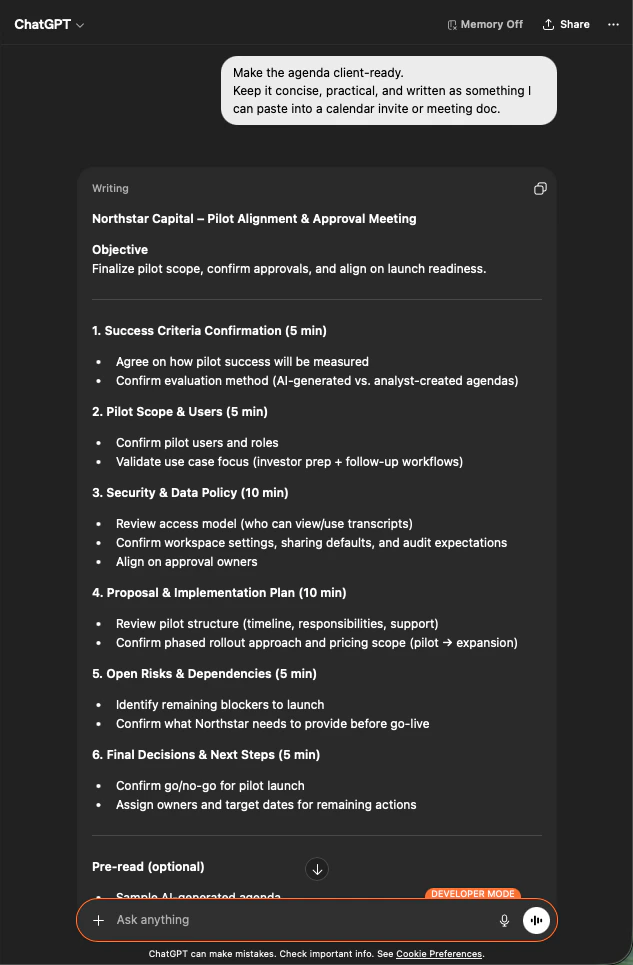
**情境。** 您週一要與客戶（例如 Northstar Capital）進行追蹤會議，過去兩週已和他們開過三次會：需求探索、資安審查，以及 ROI 討論。您可以重新閱讀每份會議記錄、手動拼湊出議程；或者，您也可以直接詢問 AI。

此工作流程假設您已啟用 [MCP 存取](/zh-tw/external-access/mcp) 並連線好 AI 使用者端。

<Steps>
  <Step title="請 AI 找出相關的過往會議">
    直接給 AI 客戶名稱，讓它自動找出重要的過往對話。

    ```text theme={null}
    Search my VoicePing transcripts for Northstar Capital meetings.
    Find the most relevant previous meetings with this customer and list the
    meeting titles, dates, and short reason why each one is relevant.
    ```

    AI 會回傳過去的三次會議，附上日期以及一行「為何重要」的說明 — 您立即就能看見這段客戶關係的脈絡。

    <div style={{maxWidth: "600px", margin: "0 auto"}}>
      <Frame>
        <img src="https://mintcdn.com/test-cf63e467/z13MfE0CikV5b-4X/en/images/external_access/meeting%20agenda%20creation%201.png?fit=max&auto=format&n=z13MfE0CikV5b-4X&q=85&s=5926c260849933b5be8031d18da011cd" alt="ChatGPT searching VoicePing transcripts and returning the three most relevant Northstar Capital meetings with dates and relevance notes" width="704" height="963" data-path="en/images/external_access/meeting agenda creation 1.png" />
      </Frame>
    </div>
  </Step>

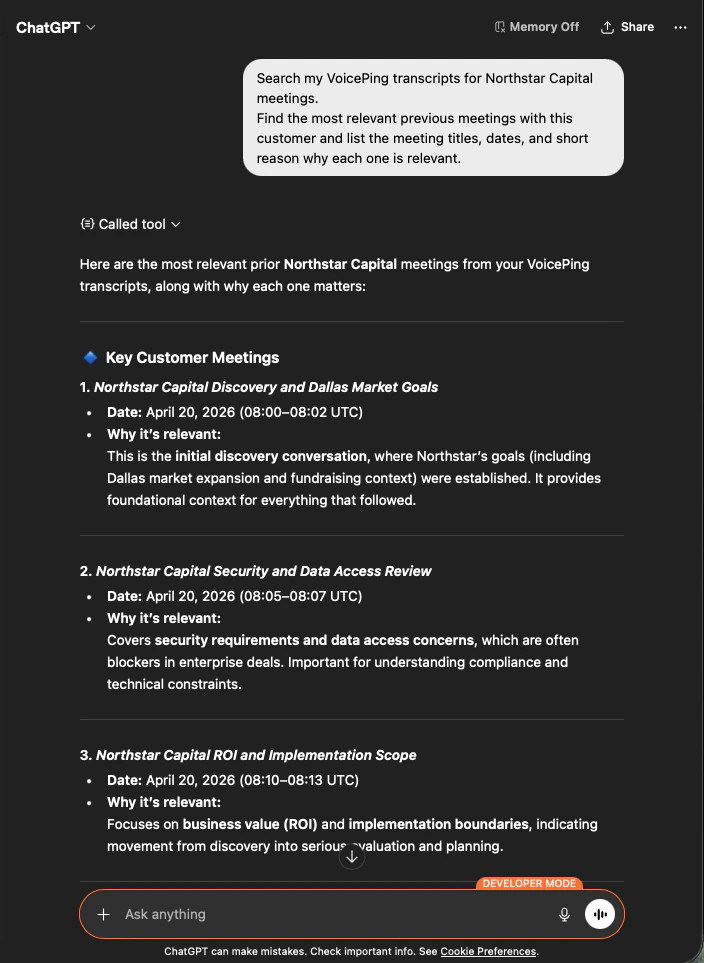
  <Step title="請 AI 產出可直接發給客戶的議程">
    接著請它將這些會議轉化為您能直接寄出的內容。

    ```text theme={null}
    Make the agenda client-ready.
    Keep it concise, practical, and written as something I can paste into
    a calendar invite or meeting doc.
    ```

    您會得到一份六段式、具時間分配的議程 — 成功標準（Success Criteria）、試行範圍（Pilot Scope）、資安與資料政策（Security & Data Policy）、提案計畫（Proposal Plan）、未解風險（Open Risks），以及最終決策（Final Decisions） — 全部都根據實際對話內容建構。

    <div style={{maxWidth: "600px", margin: "0 auto"}}>
      <Frame>
        <img src="https://mintcdn.com/test-cf63e467/z13MfE0CikV5b-4X/en/images/external_access/meeting%20agenda%20creation%202.png?fit=max&auto=format&n=z13MfE0CikV5b-4X&q=85&s=c05e7906fcfba54cd6a23befe80b5da9" alt="ChatGPT producing a time-boxed, six-section meeting agenda for Northstar Capital based on prior transcripts" width="633" height="965" data-path="en/images/external_access/meeting agenda creation 2.png" />
      </Frame>
    </div>
  </Step>
</Steps>

**為何這很有用。** 原本 20 分鐘的準備工作，變成 60 秒就能完成。而且這份議程真正反映了該客戶的歷程 — 並非一份通用模板。

<Tip>
  \*\*共通模式：\*\*搜尋會議記錄 → 縮小至關鍵會議 → 指定您需要的輸出格式。同樣的三步驟提示詞結構可套用於本網站所有工作流程 — 以及您自行設計的任何流程。
</Tip>

***

## 下一步

<CardGroup cols={2}>
  <Card title="外部存取總覽" icon="arrow-left" href="/zh-tw/external-access">
    回到總覽，瞭解許可權範圍、生命週期控制與事件記錄。
  </Card>

  <Card title="如何啟用 MCP 存取" icon="plug" href="/zh-tw/external-access/mcp">
    Claude、ChatGPT、Codex、Claude Code 與 Gemini CLI 的設定指南。
  </Card>
</CardGroup>

<FeedbackZhTW />