> ## Documentation Index
> Fetch the complete documentation index at: https://manual.voiceping.net/llms.txt
> Use this file to discover all available pages before exploring further.
# 面對面會議的語音轉文字/翻譯
> 使用 VoicePing 在面對面會議中進行即時翻譯的方法
export const ContactZhTW = () => <>
如有任何問題,請透過此表單與我們聯繫。
## 官方連結
造訪官方網站
在X上追蹤我們
在Facebook上按讚
在LinkedIn上連結
;
* 講者端和參與者端都需要網路環境。網路速度可在 [https://fast.com/](https://fast.com/) 驗證。建議 30mbps 或更高(最低需要 10mbps)
* QR 碼圖片/URL 是固定的,即使您開始/結束會話也不會改變。可以通過設定密碼來增強安全性
* 參與者端的麥克風和翻譯文字朗讀功能可以啟用/停用
* 您可以隱藏語音轉文字語言,僅顯示翻譯文字
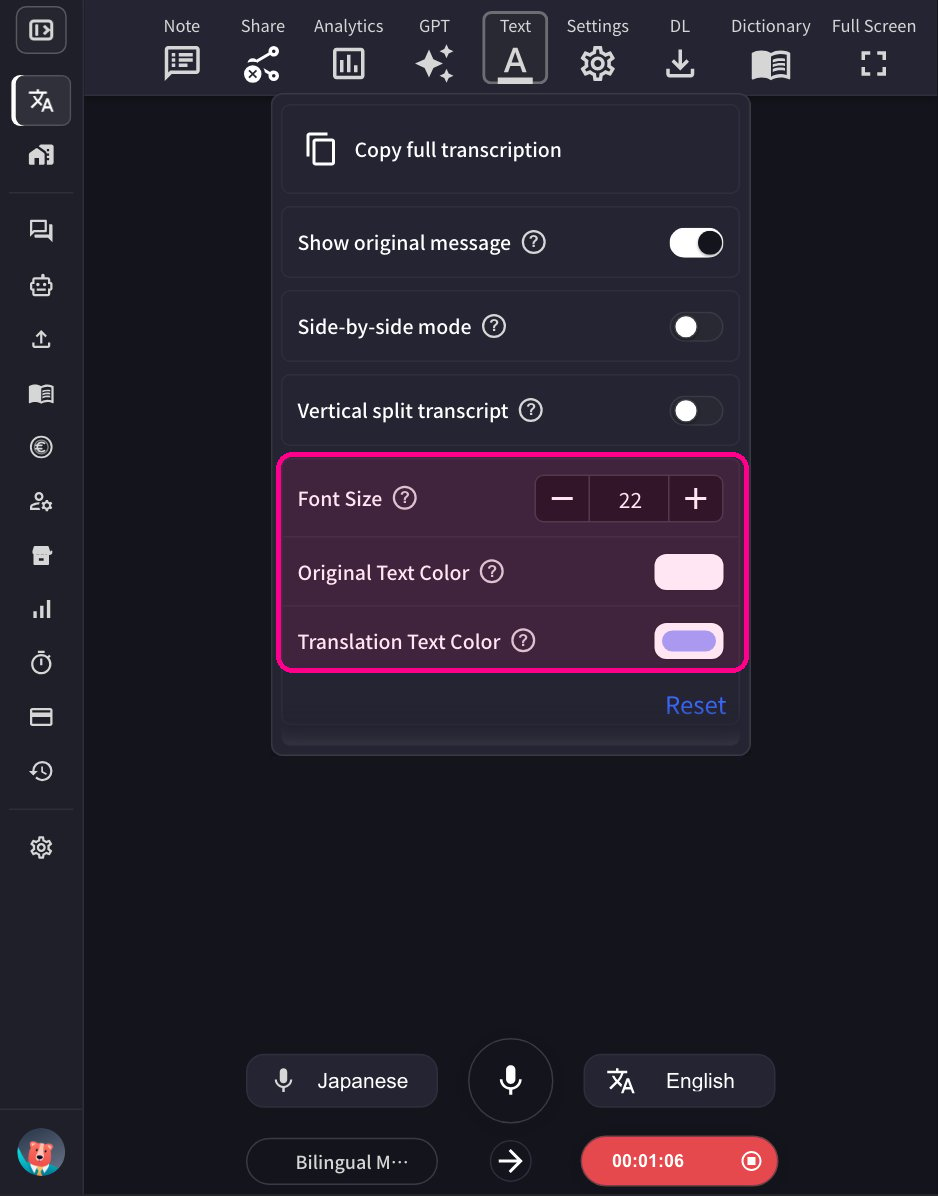
* 文字顏色和大小可以更改
* 翻譯速度可以調整
## 使用方法
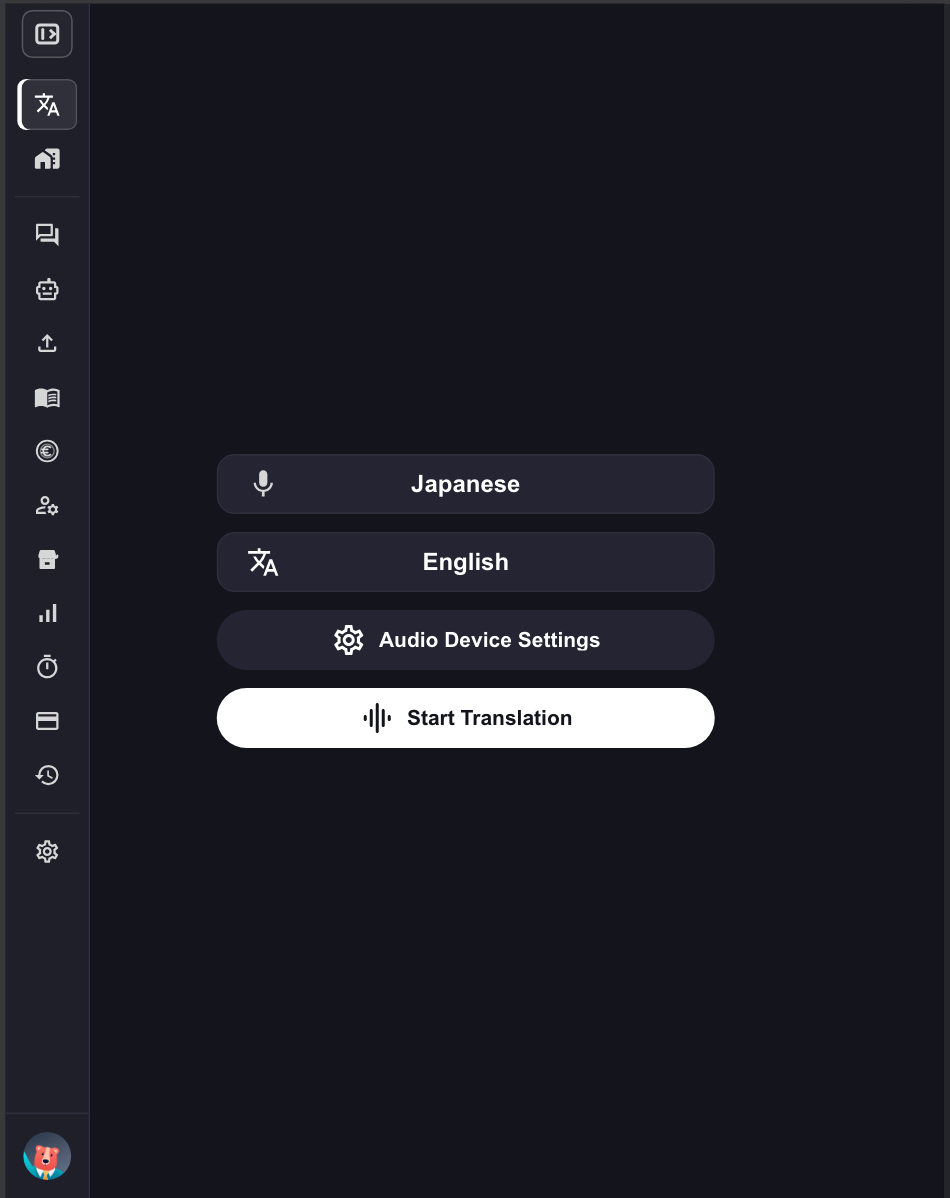
1. **啟動 VoicePing 應用程式並點選「開始翻譯」。**
 2. **指定翻譯語言。**
* 麥克風圖示:語音轉文字語言(講者的語言)
* 「文\&A」圖示:翻譯語言
2. **指定翻譯語言。**
* 麥克風圖示:語音轉文字語言(講者的語言)
* 「文\&A」圖示:翻譯語言
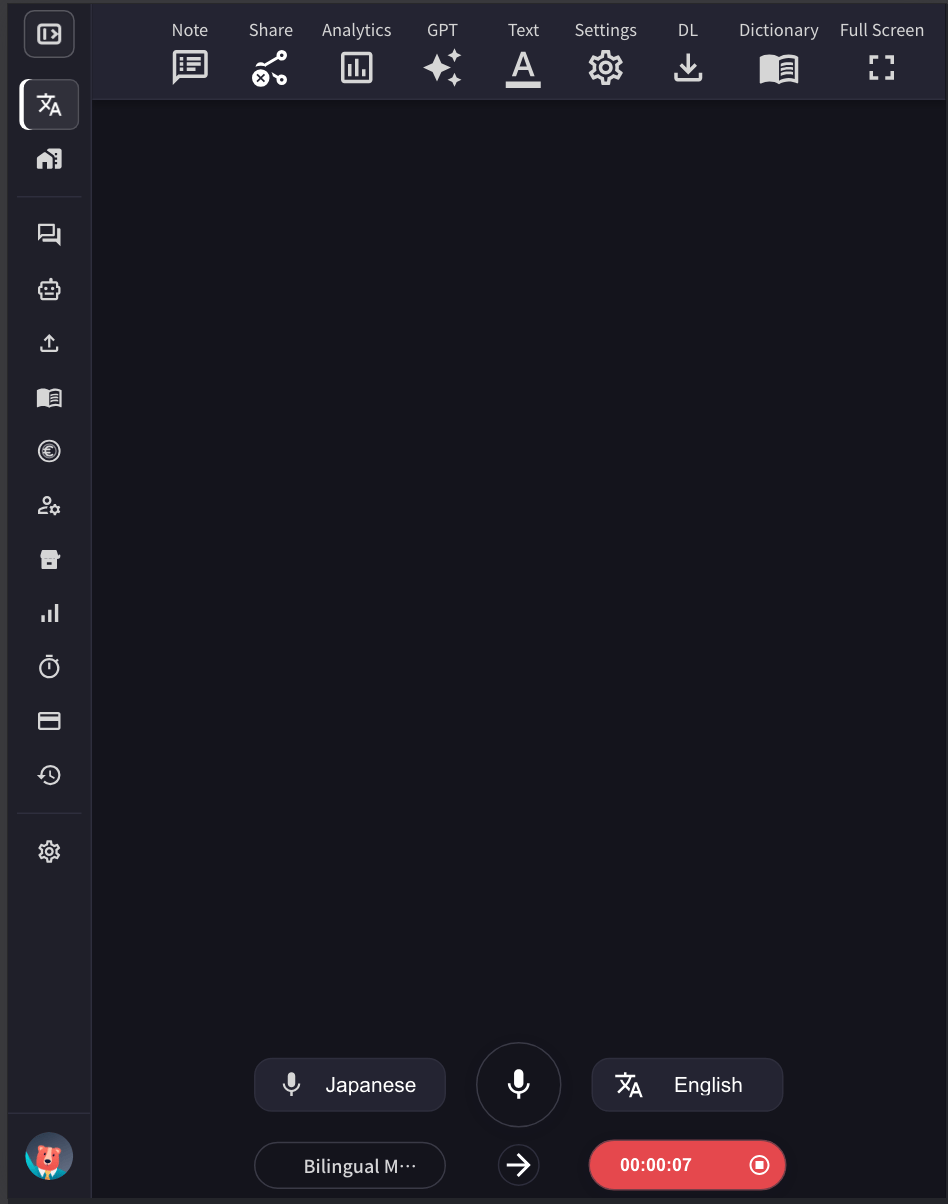 例如:要將英語翻譯成日語,將麥克風圖示設定為「English」,「文\&A」圖示設定為「Japanese」。
3. **根據需要調整 VoicePing 翻譯螢幕大小、文字大小和顏色。**
例如:要將英語翻譯成日語,將麥克風圖示設定為「English」,「文\&A」圖示設定為「Japanese」。
3. **根據需要調整 VoicePing 翻譯螢幕大小、文字大小和顏色。**
 4. **點選紅色錄製按鈕(顯示已經過的時間)以結束翻譯,然後透過為會議記錄新增標題和標籤來儲存內容。**
## 雙語模式
雙語模式允許對話雙方使用各自的母語進行交流。啟用後,應用程式會自動偵測正在使用的語言,並將其翻譯成另一種語言。
4. **點選紅色錄製按鈕(顯示已經過的時間)以結束翻譯,然後透過為會議記錄新增標題和標籤來儲存內容。**
## 雙語模式
雙語模式允許對話雙方使用各自的母語進行交流。啟用後,應用程式會自動偵測正在使用的語言,並將其翻譯成另一種語言。
 ### 運作原理
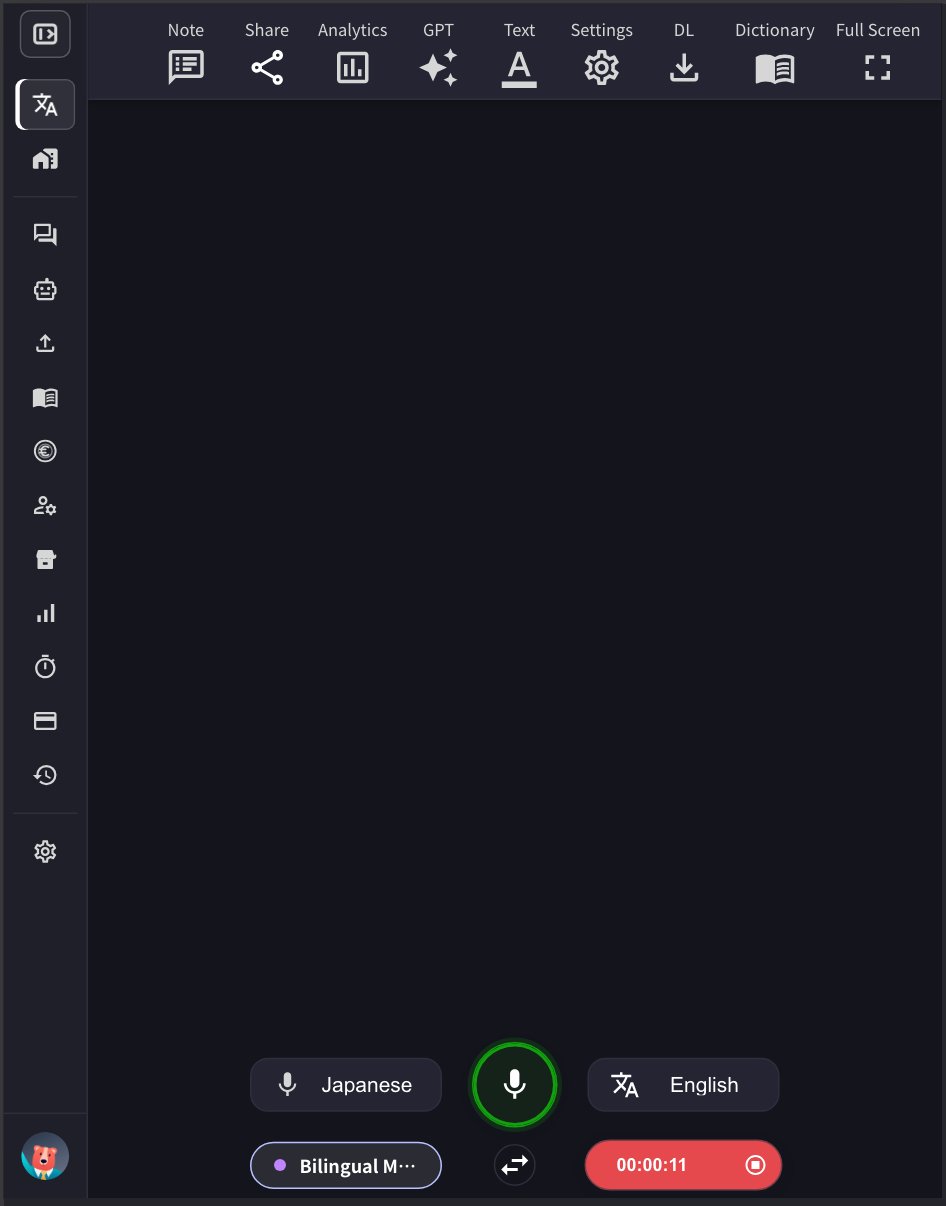
* 當雙語模式啟用時(左下角的「Bilingual Mode」按鈕會發光),可以使用兩種選定的語言進行交流
* 在上面的範例中,日語發言會自動翻譯成英語,英語發言會自動翻譯成日語
* 系統會偵測正在使用的語言,並即時翻譯成另一種語言
### 啟用/停用方法
點選應用程式左下角的 **Bilingual Mode** 按鈕即可開啟或關閉。啟用時按鈕會發出紫色光芒。
### 行動應用程式
行動應用程式的運作方式相同 - 點選 Bilingual Mode 按鈕即可啟用雙向翻譯。
**準確度權衡**
在雙語模式下,翻譯準確度可能低於固定發言語言的單語模式。這是因為系統需要先偵測正在使用的語言,然後才能進行翻譯。
**何時使用雙語模式:**
* 使用不同語言的雙方進行面對面交流時
* 說話者頻繁切換語言的情況
**何時使用單語模式:**
* 主要使用一種語言進行的會議
* 需要最高翻譯準確度的情況
* 事先知道將使用哪種語言時
## 最大訊息時長(秒)
此設定控制一個語音轉文字區塊使用多少秒的音訊。預設值為 20 秒。
* **較短時間(例如:10-15 秒):** 適合說話者頻繁切換的快速對話。語音轉文字會更頻繁地更新。
* **較長時間(例如:20-30 秒):** 適合一個人持續發言的單語演講或演示。這可以取得更多上下文,可能提高語音轉文字的準確度。
根據您的使用場景調整此設定,以最佳化語音轉文字型驗。
## 啟用高準確度模式
當此模式啟用時,會應用包含先前句子的額外後處理來提高語音辨識準確度。但是,這種額外處理會造成一些延遲。
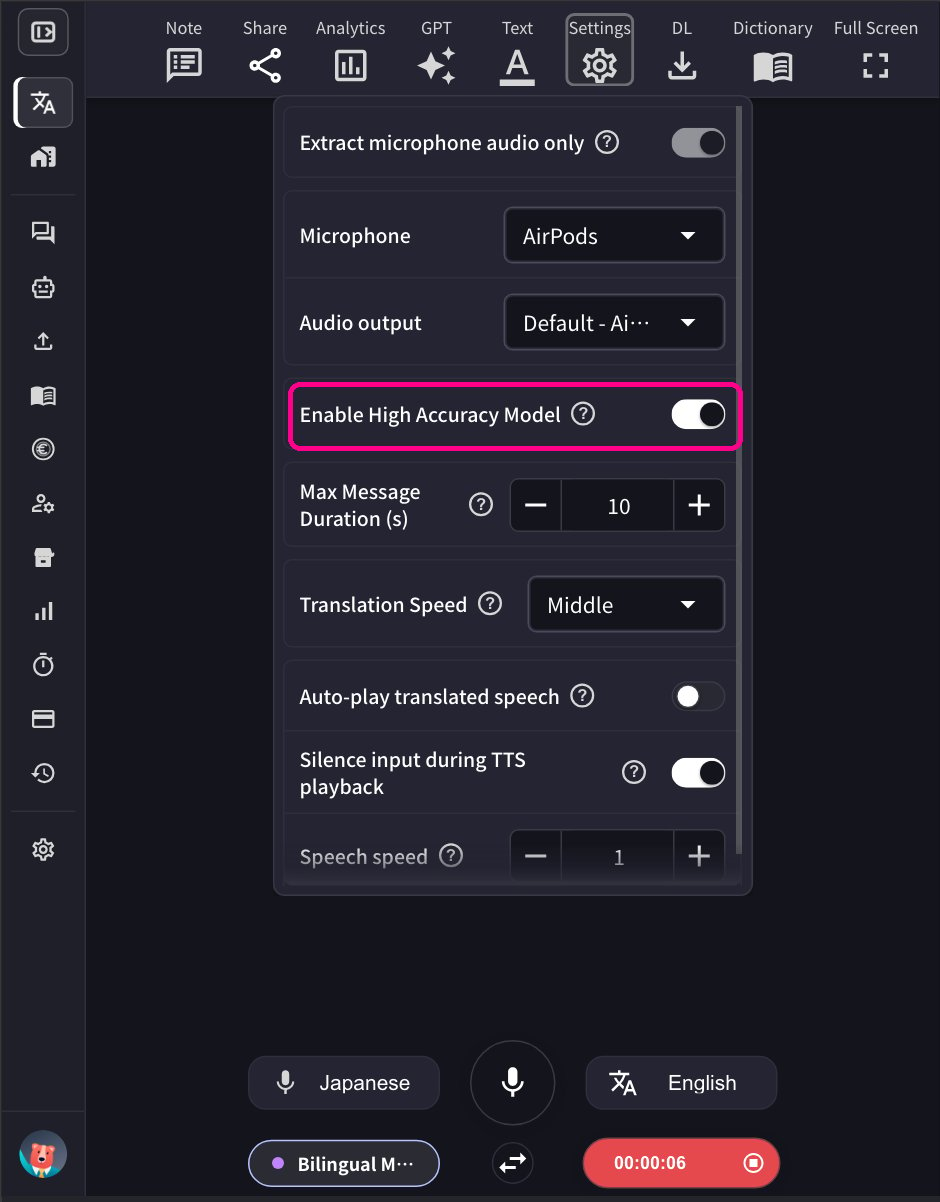
要啟用或停用此功能,請前往設定齒輪圖示選單 → Speech to Text 分頁 → 開啟或關閉「Enable High Accuracy Model」。
* **啟用時:** 提供更準確的語音轉文字,但增加處理時間。適合重要會議或準確度至關重要的情況。
* **停用時:** 以標準準確度等級提供更快的回應。
### 運作原理
* 當雙語模式啟用時(左下角的「Bilingual Mode」按鈕會發光),可以使用兩種選定的語言進行交流
* 在上面的範例中,日語發言會自動翻譯成英語,英語發言會自動翻譯成日語
* 系統會偵測正在使用的語言,並即時翻譯成另一種語言
### 啟用/停用方法
點選應用程式左下角的 **Bilingual Mode** 按鈕即可開啟或關閉。啟用時按鈕會發出紫色光芒。
### 行動應用程式
行動應用程式的運作方式相同 - 點選 Bilingual Mode 按鈕即可啟用雙向翻譯。
**準確度權衡**
在雙語模式下,翻譯準確度可能低於固定發言語言的單語模式。這是因為系統需要先偵測正在使用的語言,然後才能進行翻譯。
**何時使用雙語模式:**
* 使用不同語言的雙方進行面對面交流時
* 說話者頻繁切換語言的情況
**何時使用單語模式:**
* 主要使用一種語言進行的會議
* 需要最高翻譯準確度的情況
* 事先知道將使用哪種語言時
## 最大訊息時長(秒)
此設定控制一個語音轉文字區塊使用多少秒的音訊。預設值為 20 秒。
* **較短時間(例如:10-15 秒):** 適合說話者頻繁切換的快速對話。語音轉文字會更頻繁地更新。
* **較長時間(例如:20-30 秒):** 適合一個人持續發言的單語演講或演示。這可以取得更多上下文,可能提高語音轉文字的準確度。
根據您的使用場景調整此設定,以最佳化語音轉文字型驗。
## 啟用高準確度模式
當此模式啟用時,會應用包含先前句子的額外後處理來提高語音辨識準確度。但是,這種額外處理會造成一些延遲。
要啟用或停用此功能,請前往設定齒輪圖示選單 → Speech to Text 分頁 → 開啟或關閉「Enable High Accuracy Model」。
* **啟用時:** 提供更準確的語音轉文字,但增加處理時間。適合重要會議或準確度至關重要的情況。
* **停用時:** 以標準準確度等級提供更快的回應。
 ## 與訪客分享翻譯頻道的方法
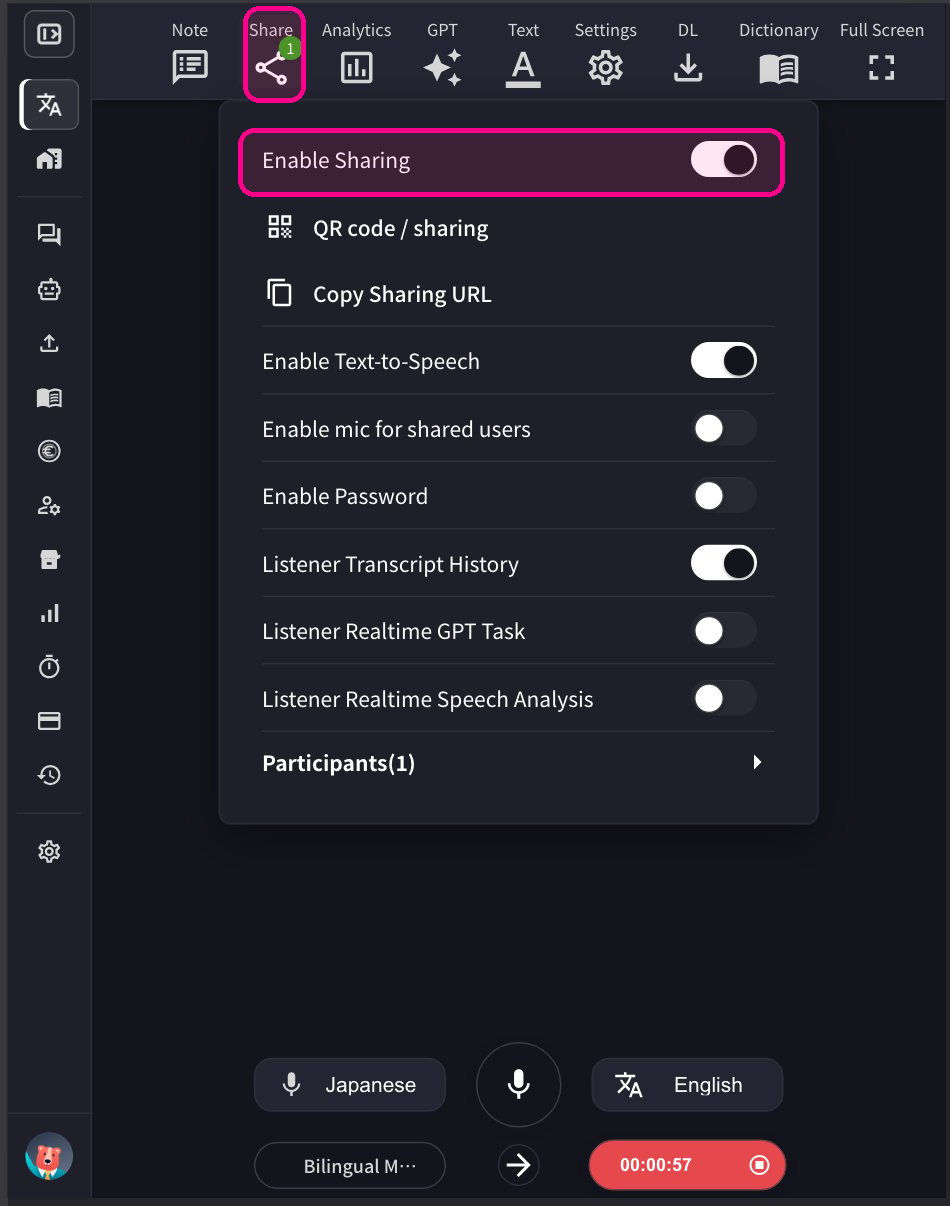
1. **點選頂部的分享圖示並啟用分享。**
## 與訪客分享翻譯頻道的方法
1. **點選頂部的分享圖示並啟用分享。**
 2. **與訪客分享 QR 碼。** 此 QR 碼是每個帳戶的靜態 URL,不會改變。
**安全注意事項:** 由於 QR 碼/URL 是靜態且永久的,任何有存取許可權的人都可以隨時加入您的翻譯頻道。為防止未經授權的存取,請從分享設定中設定密碼。訪客需要輸入密碼才能加入。主持人也可以隨時移除不想要的參與者。
2. **與訪客分享 QR 碼。** 此 QR 碼是每個帳戶的靜態 URL,不會改變。
**安全注意事項:** 由於 QR 碼/URL 是靜態且永久的,任何有存取許可權的人都可以隨時加入您的翻譯頻道。為防止未經授權的存取,請從分享設定中設定密碼。訪客需要輸入密碼才能加入。主持人也可以隨時移除不想要的參與者。
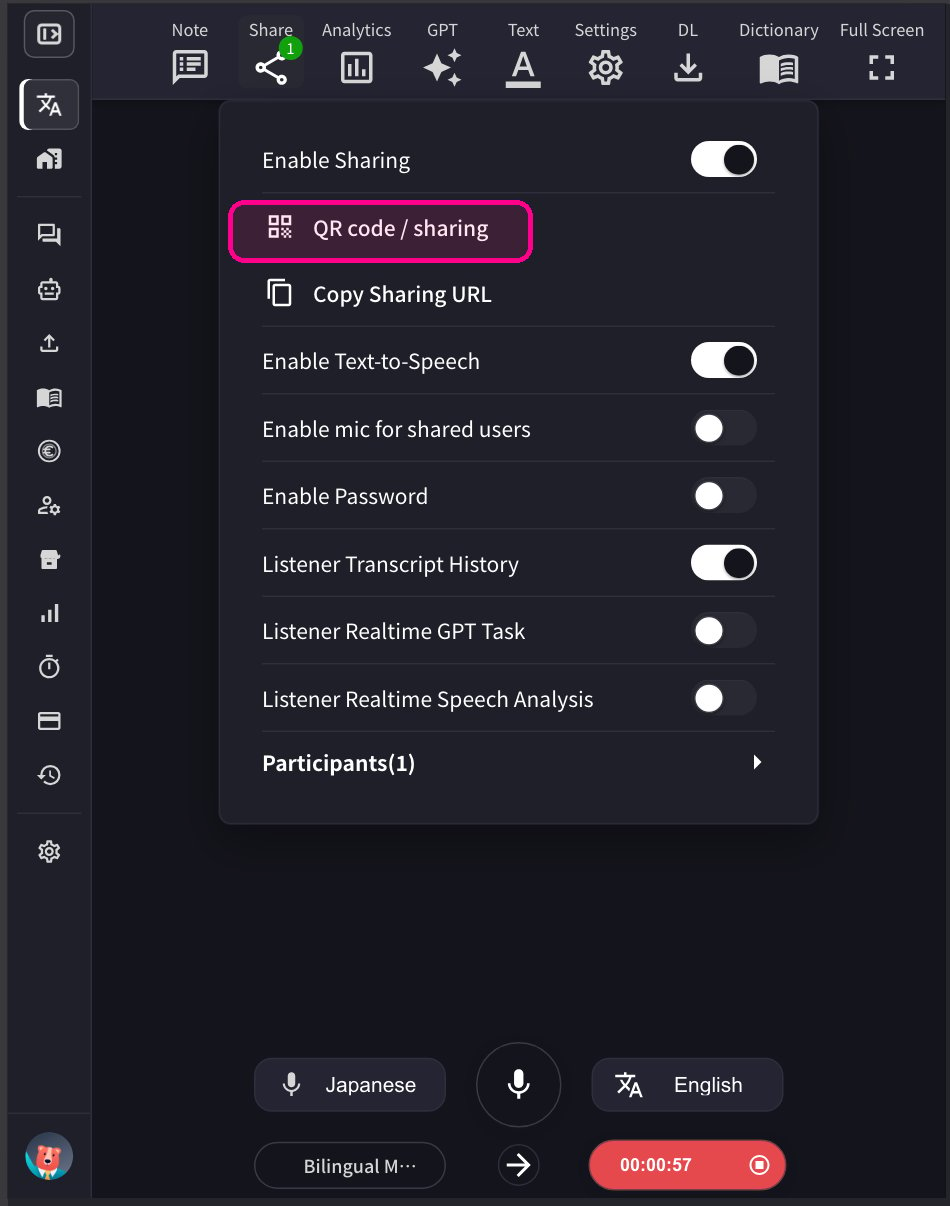
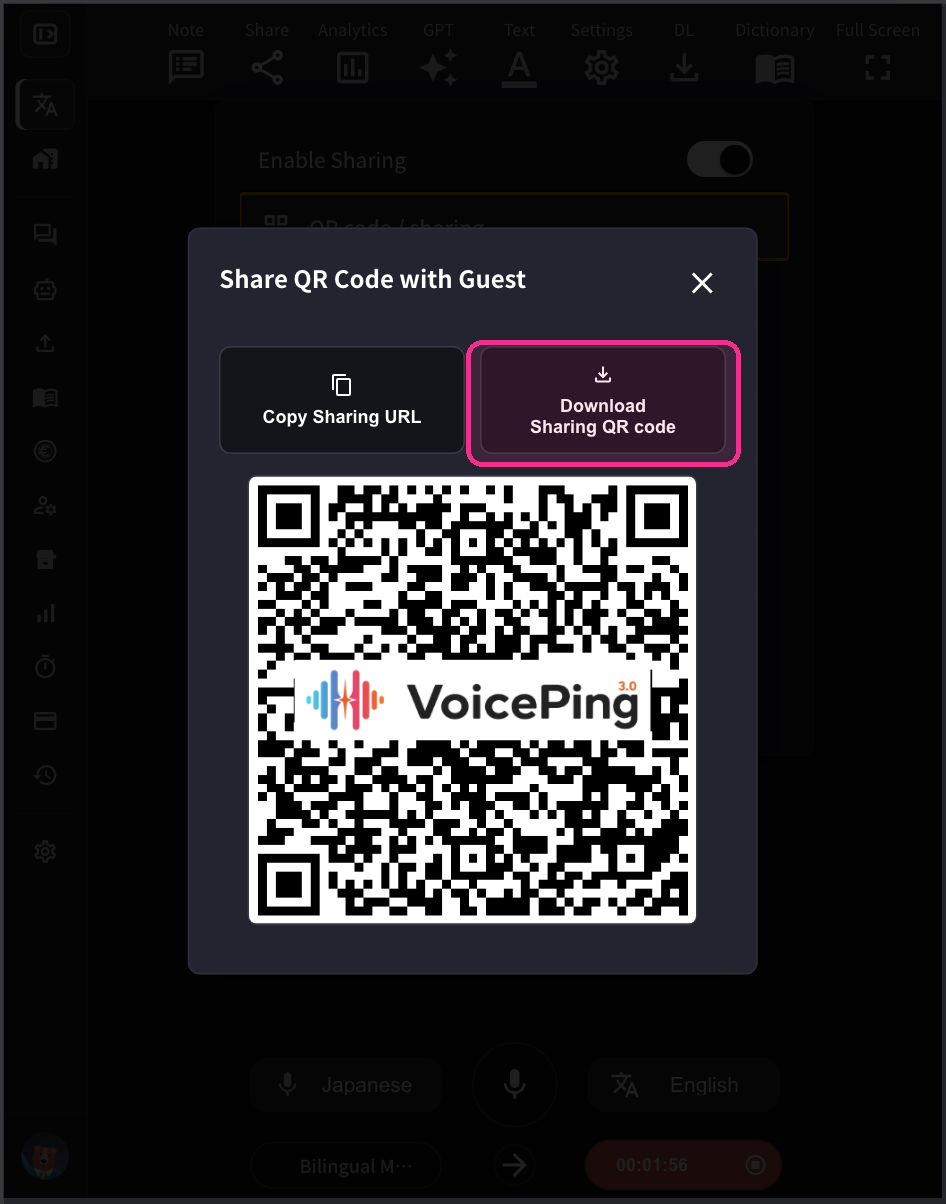 3. **當訪客加入時,他們的名字會出現在參與者列表中。** 您可以從「分享」圖示檢視參與者人數。使用「移除」將參與者從頻道中移除。
### 訪客指南:如何加入
1. **掃描 QR 碼或從瀏覽器存取 URL。**
3. **當訪客加入時,他們的名字會出現在參與者列表中。** 您可以從「分享」圖示檢視參與者人數。使用「移除」將參與者從頻道中移除。
### 訪客指南:如何加入
1. **掃描 QR 碼或從瀏覽器存取 URL。**
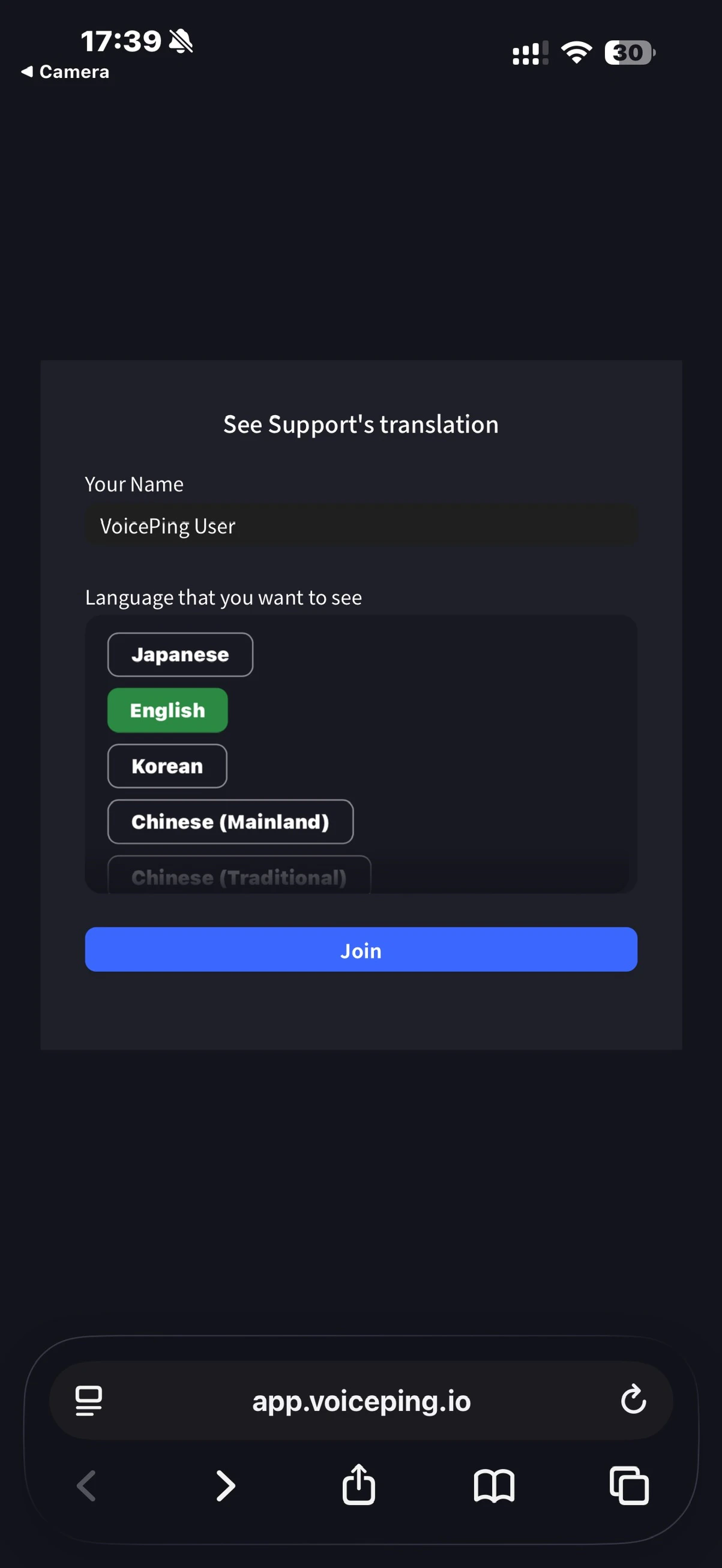 2. **輸入以下資訊:**
* 姓名:輸入您的姓名
* 您想檢視的語言:選擇所需的翻譯語言
3. **加入後,可以進行以下操作:**
* 更改語言
* 在「設定」中調整翻譯外觀
* 調整朗讀速度
* 開啟/關閉朗讀功能
* 使用麥克風說話(如果主持人已啟用)
* 離開
**啟用訪客麥克風:** 主持人可以從 VoicePing 應用程式為訪客啟用麥克風功能。啟用後,訪客可以通過他們的網頁應用程式說話,他們的語音將被即時轉文字和翻譯。
2. **輸入以下資訊:**
* 姓名:輸入您的姓名
* 您想檢視的語言:選擇所需的翻譯語言
3. **加入後,可以進行以下操作:**
* 更改語言
* 在「設定」中調整翻譯外觀
* 調整朗讀速度
* 開啟/關閉朗讀功能
* 使用麥克風說話(如果主持人已啟用)
* 離開
**啟用訪客麥克風:** 主持人可以從 VoicePing 應用程式為訪客啟用麥克風功能。啟用後,訪客可以通過他們的網頁應用程式說話,他們的語音將被即時轉文字和翻譯。