> ## Documentation Index
> Fetch the complete documentation index at: https://manual.voiceping.net/llms.txt
> Use this file to discover all available pages before exploring further.
# 發票管理
> 面向所有者和管理者的成員發票管理功能
export const ContactZhTW = () => <>
如有任何問題,請透過此表單與我們聯繫。
## 官方連結
造訪官方網站
在X上追蹤我們
在Facebook上按讚
在LinkedIn上連結
;
## 發票
VoicePing的時間追蹤功能會自動記錄使用者的工作日誌,因此可以輕鬆建立發票。
所有者和管理者可以檢視成員開立的發票。成員只能檢視和管理自己的發票。
### 存取發票
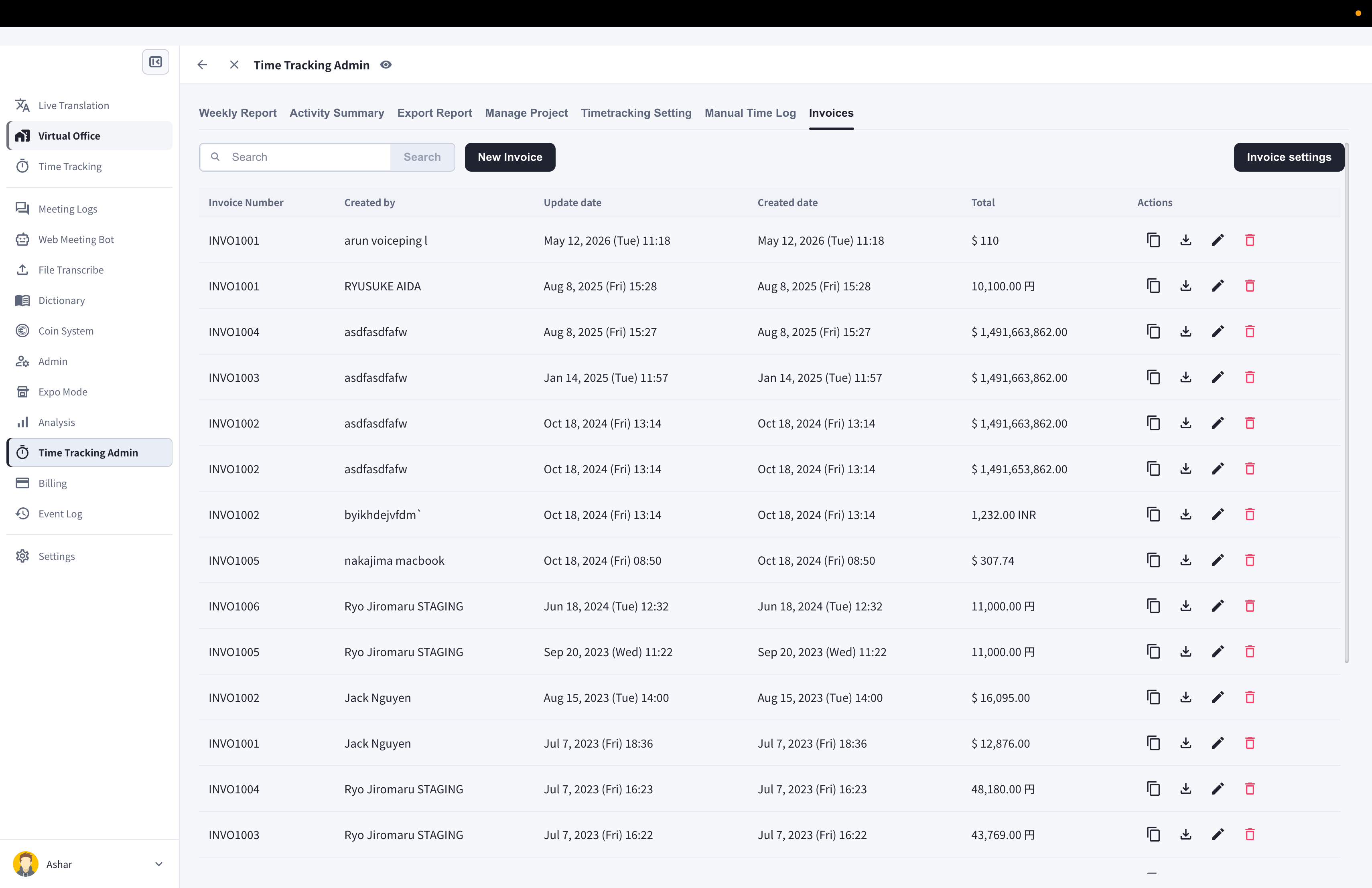
1. 從左側邊欄開啟**時間追蹤管理**
2. 點選**發票**標籤
 ### 發票設定
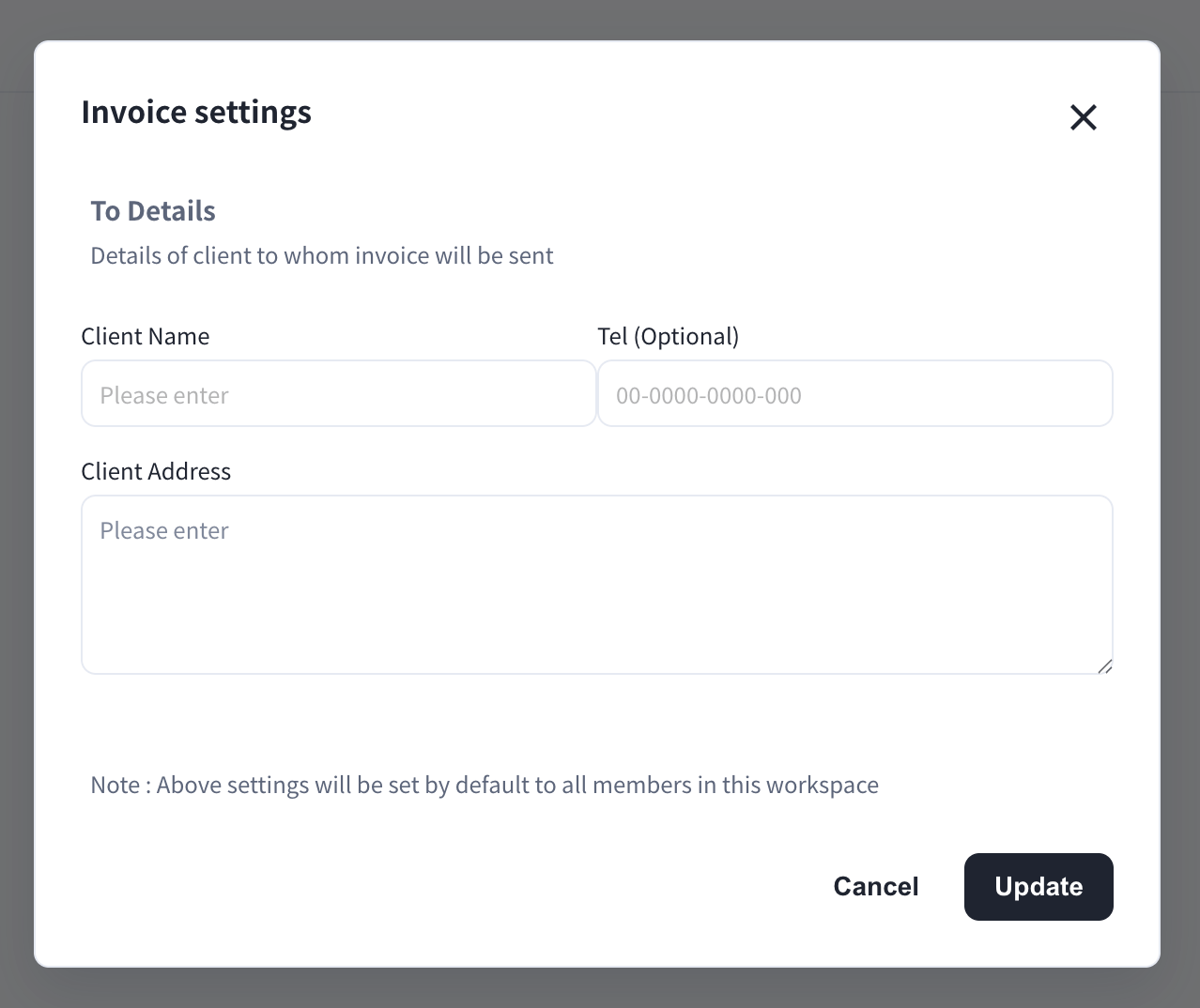
管理者可以點選**發票設定**按鈕,儲存預設的客戶帳單資訊(客戶名稱、電話、地址)。這些資訊將預設套用於工作區內所有成員的新發票。
### 發票設定
管理者可以點選**發票設定**按鈕,儲存預設的客戶帳單資訊(客戶名稱、電話、地址)。這些資訊將預設套用於工作區內所有成員的新發票。
 ### 建立發票
1. 點選**新建發票**按鈕
2. 填寫發票內容:From/To資訊、開立日期和到期日、發票編號和貨幣
3. 點選**從時間追蹤記錄產生項目**
4. 選擇**上個月**或**本月**,然後點選**產生** — 將從工作日誌建立明細項目
### 建立發票
1. 點選**新建發票**按鈕
2. 填寫發票內容:From/To資訊、開立日期和到期日、發票編號和貨幣
3. 點選**從時間追蹤記錄產生項目**
4. 選擇**上個月**或**本月**,然後點選**產生** — 將從工作日誌建立明細項目
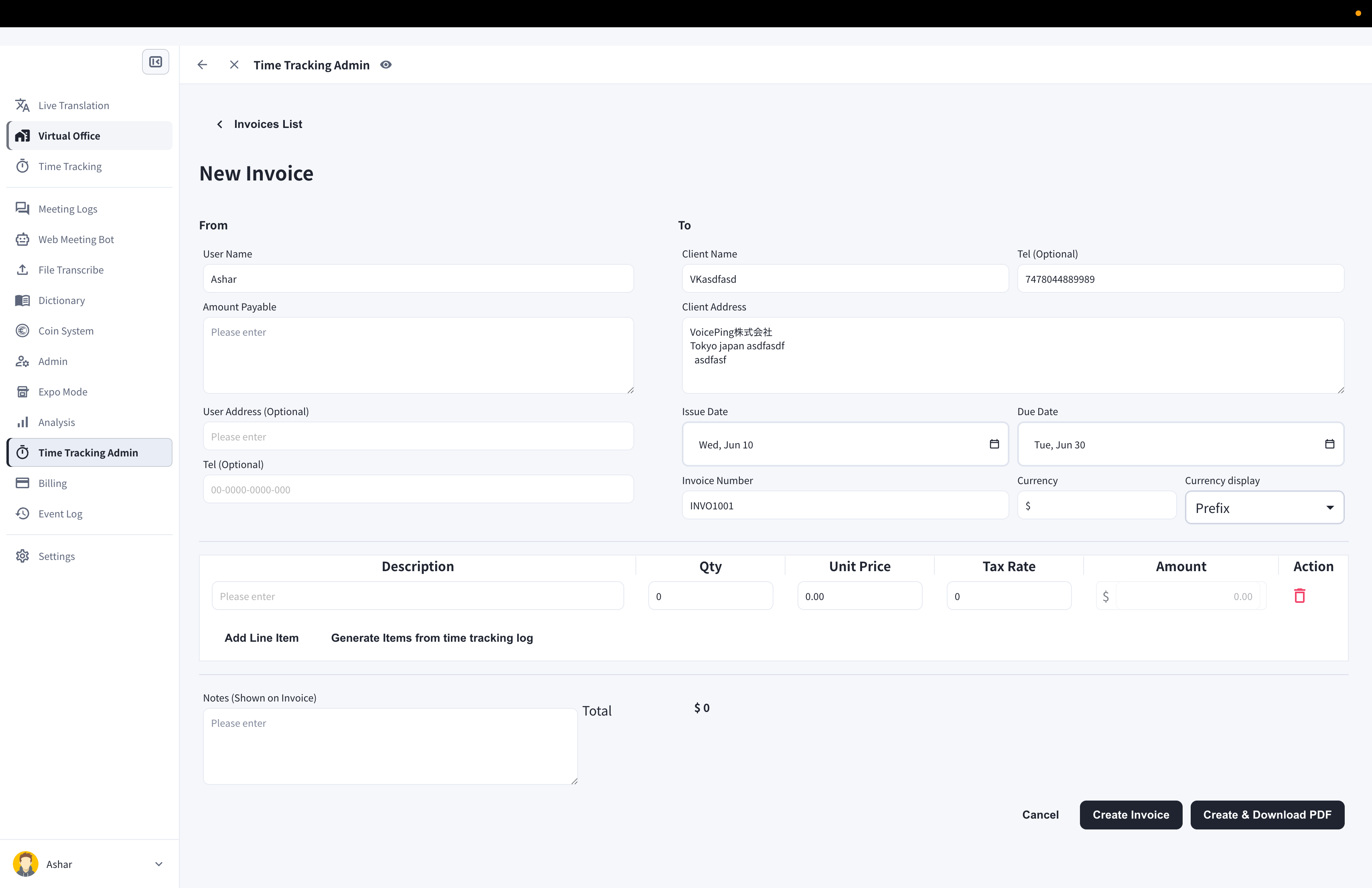 如果有未在應用程式中記錄的工作時間,可以點選**新增明細項目**進行新增。每個明細項目支援數量、單價和稅率。
5. 點選**建立發票**或**建立並下載 PDF**
### 發票:使用者搜尋功能
使用發票清單上方的搜尋欄,管理者在整理發票時可以按成員檢視發票。
### 複製發票
1. 點選要複製的發票的複製圖示
### 下載發票(PDF)
1. 點選要儲存的發票的下載圖示
### 編輯發票
1. 點選要編輯的發票的筆形圖示
2. 編輯後,點選**儲存發票**或**儲存並下載 PDF**
### 刪除發票
1. 點選要刪除的發票的垃圾桶圖示
2. 在確認對話方塊中點選**刪除發票**按鈕
如果有未在應用程式中記錄的工作時間,可以點選**新增明細項目**進行新增。每個明細項目支援數量、單價和稅率。
5. 點選**建立發票**或**建立並下載 PDF**
### 發票:使用者搜尋功能
使用發票清單上方的搜尋欄,管理者在整理發票時可以按成員檢視發票。
### 複製發票
1. 點選要複製的發票的複製圖示
### 下載發票(PDF)
1. 點選要儲存的發票的下載圖示
### 編輯發票
1. 點選要編輯的發票的筆形圖示
2. 編輯後,點選**儲存發票**或**儲存並下載 PDF**
### 刪除發票
1. 點選要刪除的發票的垃圾桶圖示
2. 在確認對話方塊中點選**刪除發票**按鈕