> ## Documentation Index
> Fetch the complete documentation index at: https://manual.voiceping.net/llms.txt
> Use this file to discover all available pages before exploring further.

# 研討會即時語音翻譯字幕

> 如何將演講者的語音即時翻譯並為參與者提供字幕

export const ContactZhTW = () => <>
    <Tip>
      如有任何問題，請透過<a href="https://forms.gle/6AUho7oj3zBr79e96">此表單</a>與我們聯繫。
    </Tip>

    ## 官方連結

    <CardGroup cols={2}>
      <Card title="官方網站" icon="globe" href="https://voiceping.net/en/">
        造訪官方網站
      </Card>
      <Card title="X (Twitter)" icon="x-twitter" href="https://x.com/VoicePingMedia">
        在X上追蹤我們
      </Card>
      <Card title="Facebook" icon="facebook" href="https://www.facebook.com/voiceping.inc">
        在Facebook上按讚
      </Card>
      <Card title="LinkedIn" icon="linkedin" href="https://www.linkedin.com/company/28684130/">
        在LinkedIn上連結
      </Card>
    </CardGroup>
  </>;

<Note>
  * 演講者和參與者都需要網路環境。可以在[https://fast.com/](https://fast.com/)檢測網速。建議30mbps以上（最低需要10mbps）
  * QR碼圖片/URL是固定的，即使開始/結束會話也不會改變。設定密碼可以提高安全性
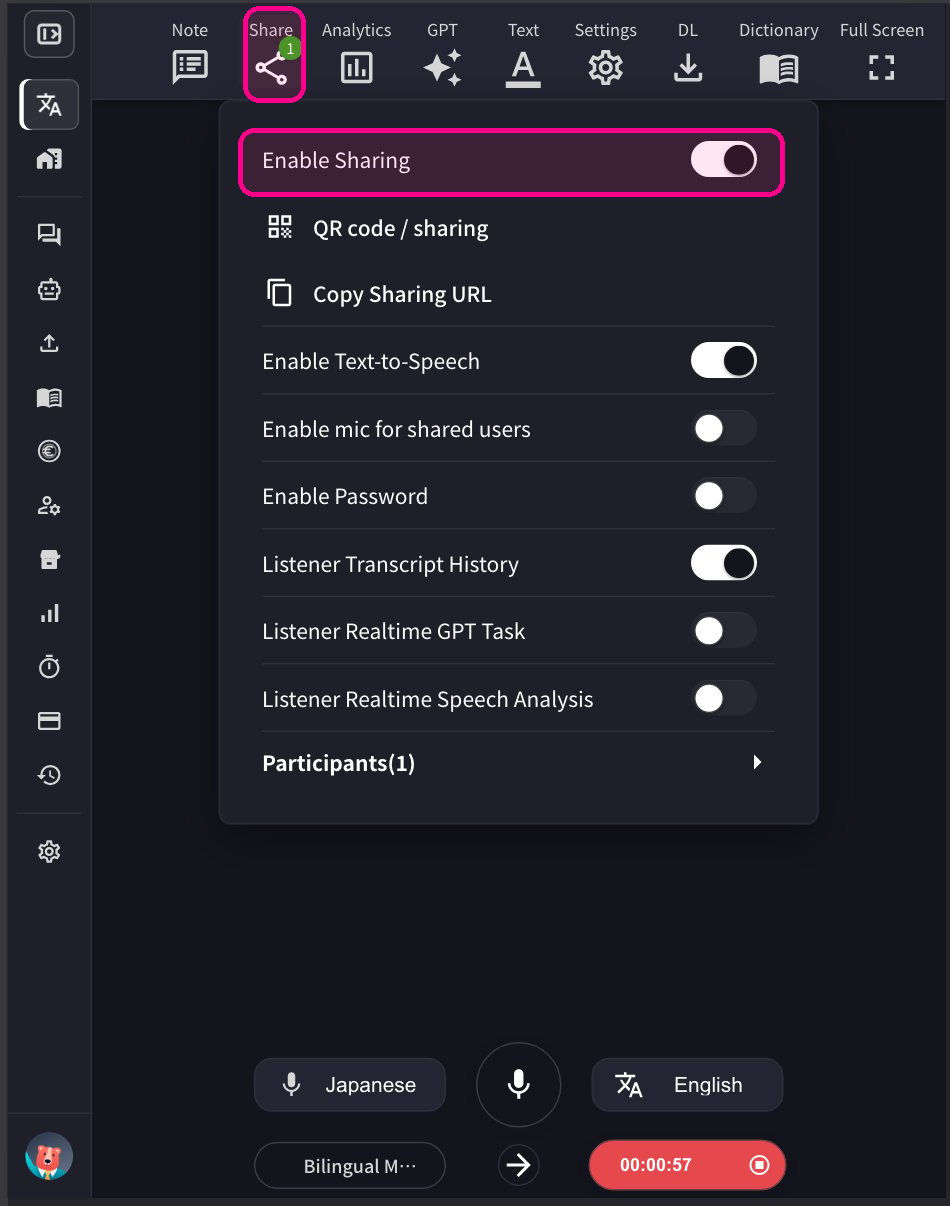
  * 可以啟用/停用參與者端的麥克風和翻譯文字朗讀功能
  * 可以隱藏轉寫語言，只顯示翻譯文字，投影到舞臺螢幕上
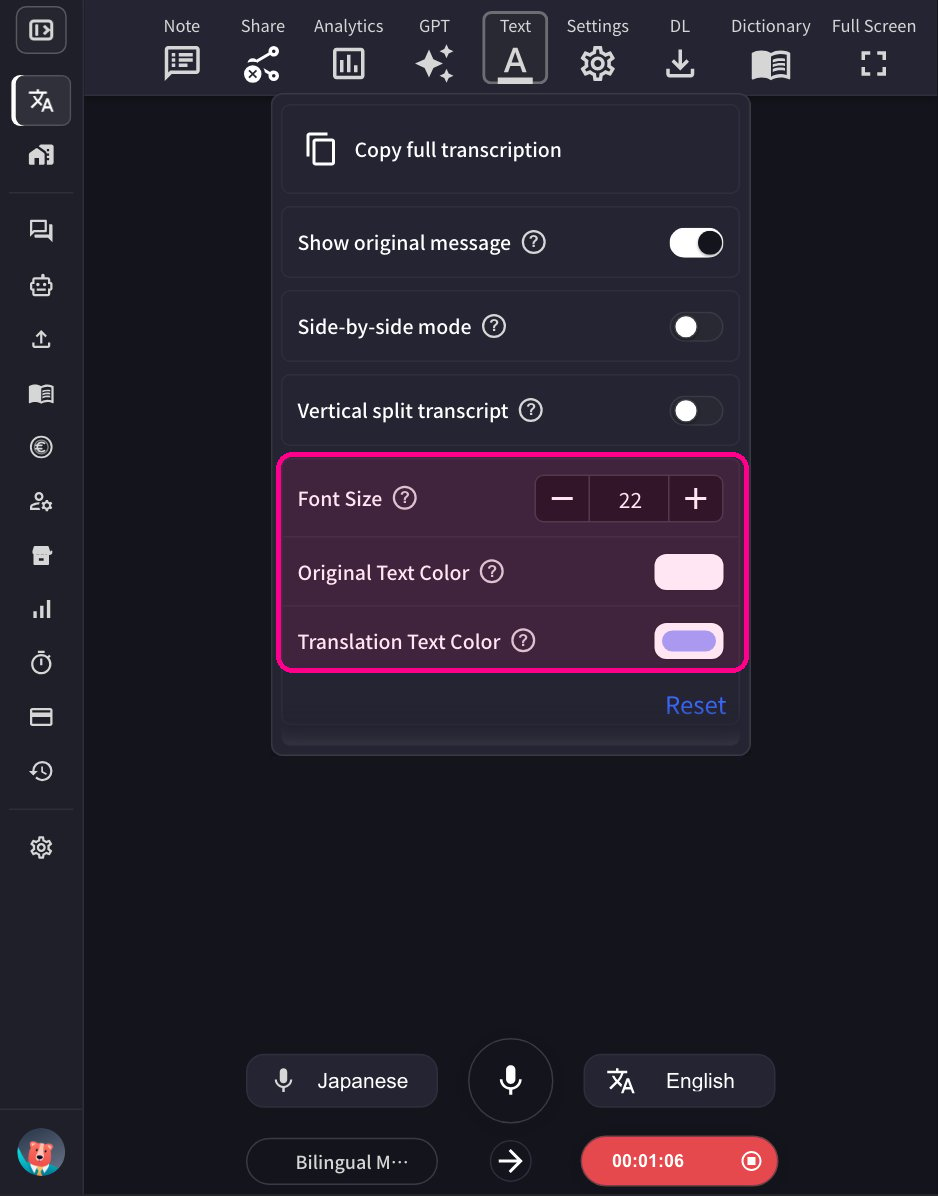
  * 可以變更文字顏色和大小
  * 可以調整翻譯速度
  * 可以顯示演示字幕。詳情請參閱[字幕模式（透明背景）](/zh-tw/transparent-presentation-subtitle-display-mode)
</Note>

## 【主持人】翻譯演講者語音的方法

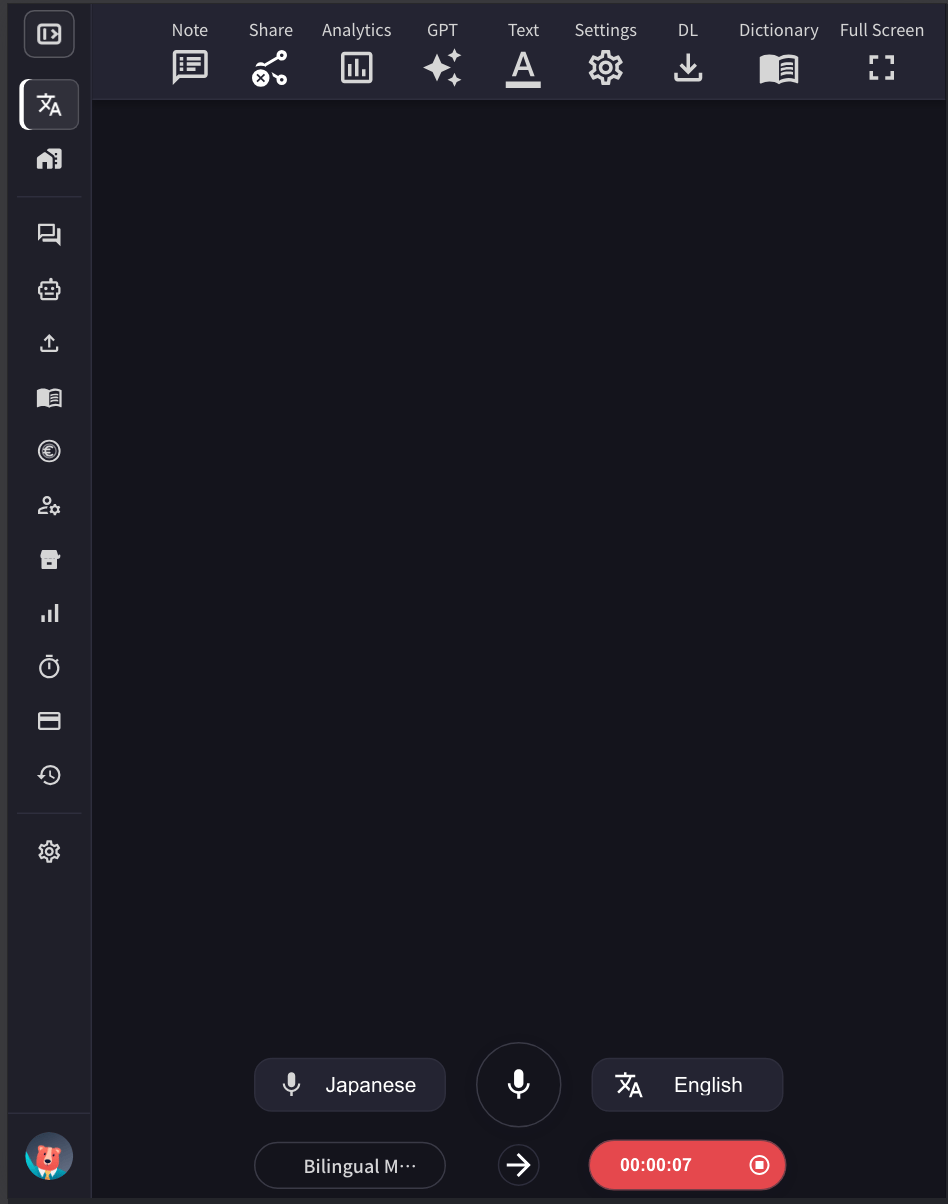
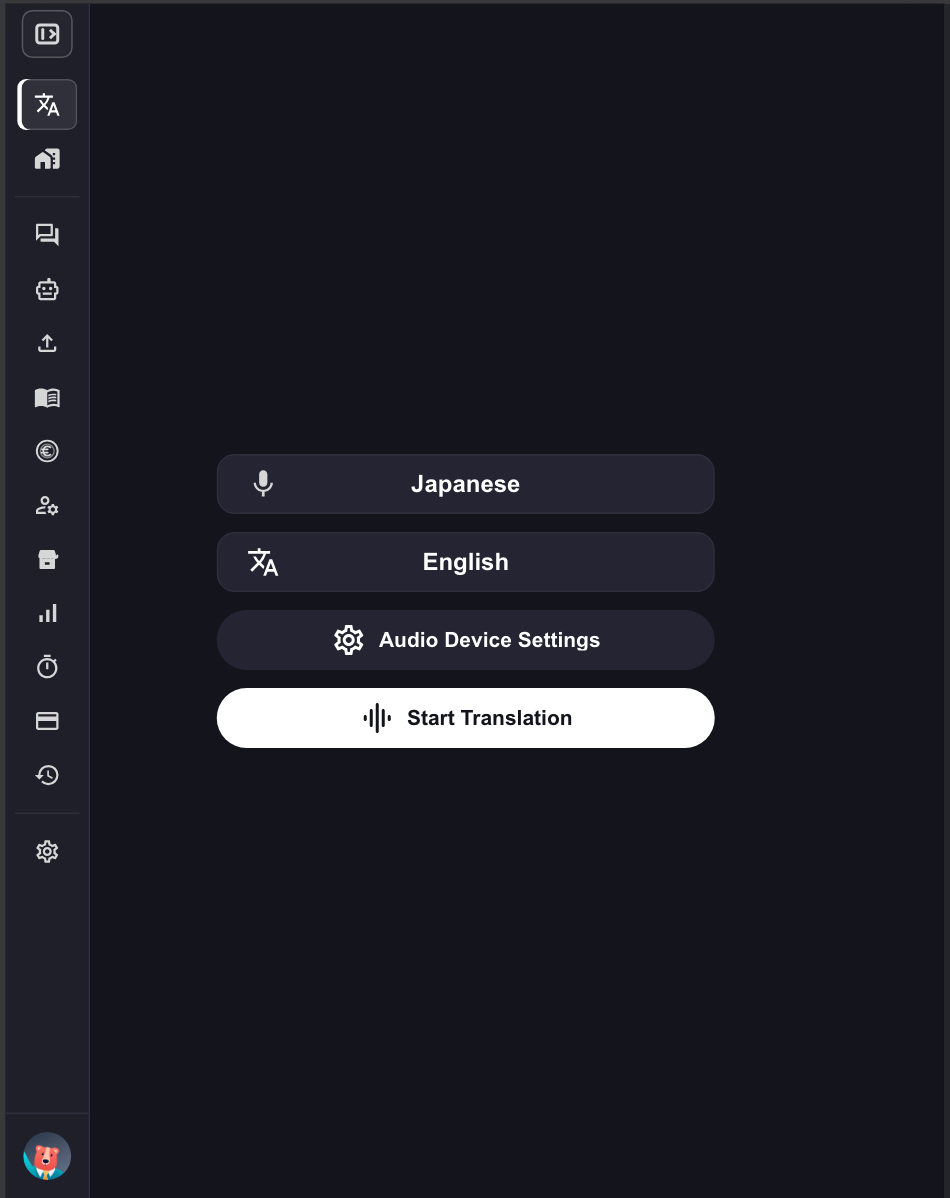
1. **啟動VoicePing應用程式並點選「開始翻譯」。**
<Frame>
  <img src="https://mintcdn.com/test-cf63e467/IbZ1LFopeCpJTyUC/en/images/live-subtitles/01-launch-app.png?fit=max&auto=format&n=IbZ1LFopeCpJTyUC&q=85&s=9ed1a4b0f09ba89b373b892e125616cf" alt="啟動VoicePing應用" width="400" data-path="en/images/live-subtitles/01-launch-app.png" />
</Frame>

2. **指定翻譯語言。**
   * 麥克風圖示：轉寫語言（演講者的語言）
   * 「文\&A」圖示：翻譯語言（參與者的語言）

<Frame>
  <img src="https://mintcdn.com/test-cf63e467/IbZ1LFopeCpJTyUC/en/images/live-subtitles/02-language-selection.png?fit=max&auto=format&n=IbZ1LFopeCpJTyUC&q=85&s=541ac8d5729b909975020002467b58a4" alt="語言選擇" width="400" data-path="en/images/live-subtitles/02-language-selection.png" />
</Frame>

<Tip>
  例如：要將英語翻譯成日語，請將麥克風圖示設定為「英語」，將「文\&A」圖示設定為「日語」。
</Tip>

3. **根據會場螢幕大小調整VoicePing翻譯螢幕大小、文字大小和顏色。**

   * 要設定**字型大小**和**文字顏色**，請開啟**文字**面板。

<Frame>
  <img src="https://mintcdn.com/test-cf63e467/IbZ1LFopeCpJTyUC/en/images/live-subtitles/04-adjust-settings.png?fit=max&auto=format&n=IbZ1LFopeCpJTyUC&q=85&s=1a4346a13b33f3942084e667c7546232" alt="文字面板 — 字型大小和文字顏色" width="400" data-path="en/images/live-subtitles/04-adjust-settings.png" />
</Frame>

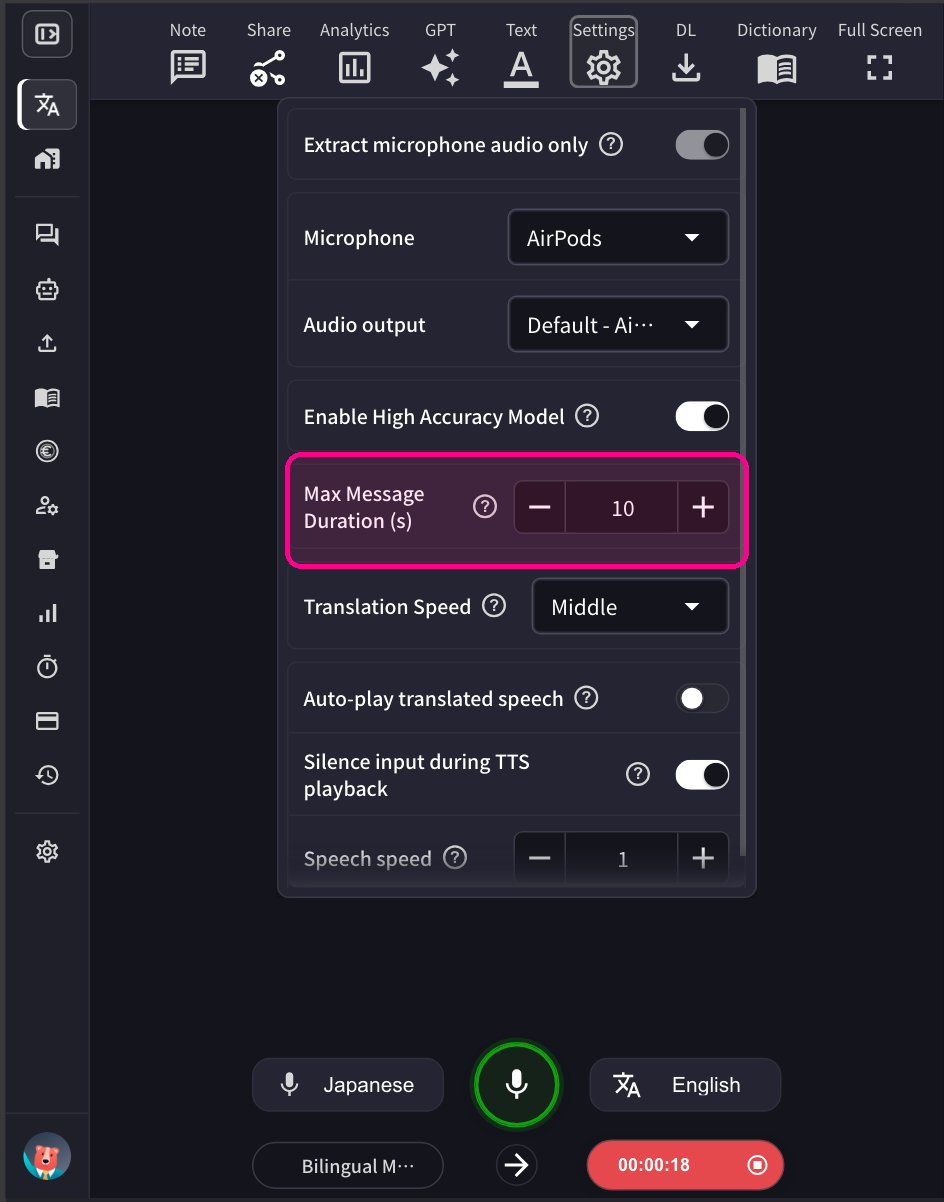
* 要調整單個音訊片段的長度，請在**設定**面板中調整最大訊息時間。

<Frame>
  <img src="https://mintcdn.com/test-cf63e467/IbZ1LFopeCpJTyUC/en/images/live-subtitles/04b-max-message-duration.png?fit=max&auto=format&n=IbZ1LFopeCpJTyUC&q=85&s=c4851f68f534c3447a8abc0983df2028" alt="設定面板 — 最大訊息時長" width="400" data-path="en/images/live-subtitles/04b-max-message-duration.png" />
</Frame>

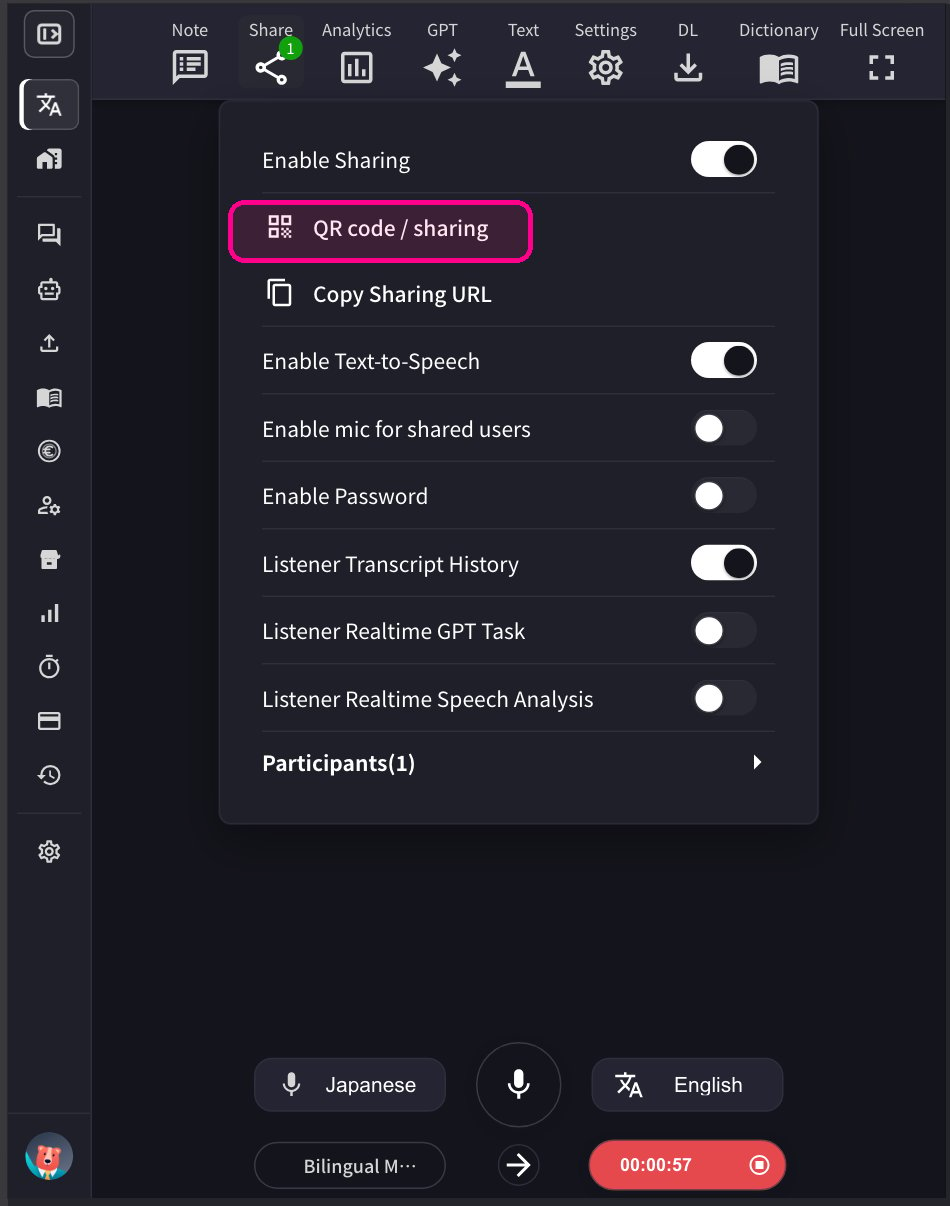
4-1. **要共享會話，點選頂部的共享圖示並啟用共享。**

<Frame>
  <img src="https://mintcdn.com/test-cf63e467/IbZ1LFopeCpJTyUC/en/images/live-subtitles/03-start-transcription.png?fit=max&auto=format&n=IbZ1LFopeCpJTyUC&q=85&s=da0be3b16d3a282d1b64af3bc4f1f734" alt="開始轉寫/翻譯按鈕" width="400" data-path="en/images/live-subtitles/03-start-transcription.png" />
</Frame>

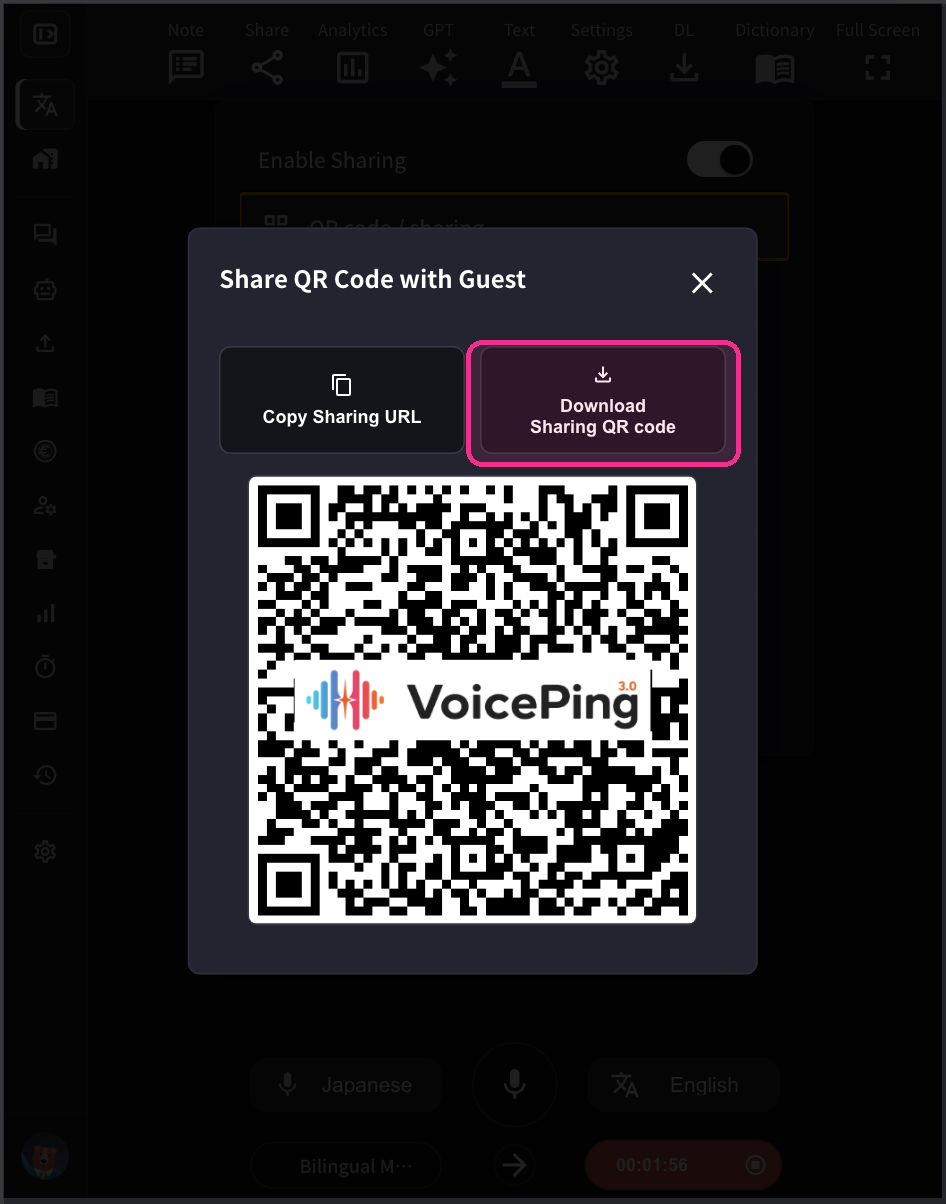
4-2. **要共享QR碼讓參與者從自己的行動裝置加入此會話，請發布QR碼圖片並與他們共享。** 此QR碼是每個帳戶的固定URL。QR碼永久不變。
<Frame>
  <img src="https://mintcdn.com/test-cf63e467/IbZ1LFopeCpJTyUC/en/images/live-subtitles/05-qr-share-1.png?fit=max&auto=format&n=IbZ1LFopeCpJTyUC&q=85&s=632c99591de7c4186f538f1cb7def4c6" alt="QR碼共享" width="400" data-path="en/images/live-subtitles/05-qr-share-1.png" />
</Frame>

<Frame>
  <img src="https://mintcdn.com/test-cf63e467/IbZ1LFopeCpJTyUC/en/images/live-subtitles/05-qr-share-2.png?fit=max&auto=format&n=IbZ1LFopeCpJTyUC&q=85&s=11aab6b396b9672783c5c1d424fee535" alt="QR碼顯示" width="400" data-path="en/images/live-subtitles/05-qr-share-2.png" />
</Frame>

<Tip>
  參與者數量基於**同時連線數**計算，而非累計存取數。當參與者離開工作階段時，名額將被釋放。例如，如果50人透過QR碼參加後全部退出，所有50個名額將全部恢復可用。
</Tip>

## 【參與者】如何加入

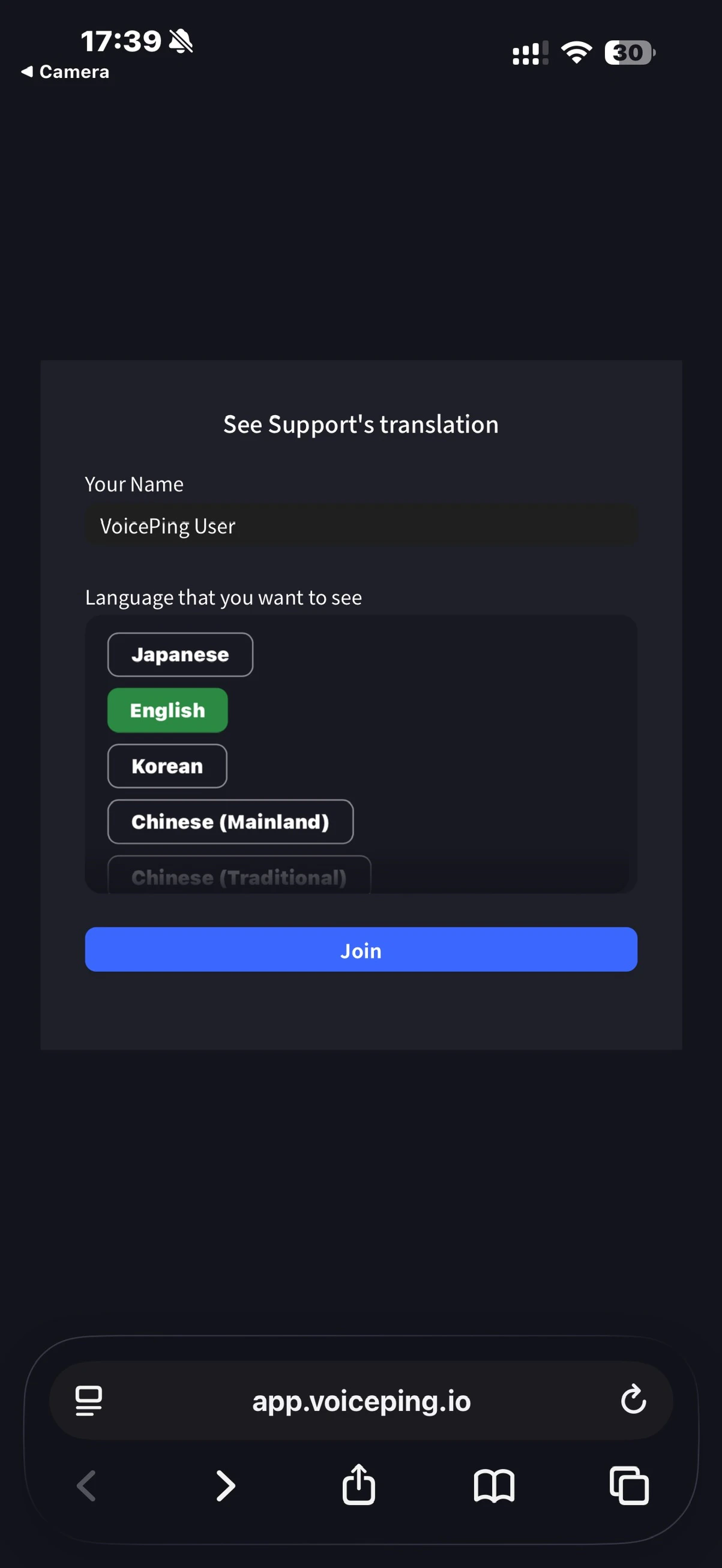
1. **使用手機相機掃描QR碼，或從PC網頁應用程式點選上述URL存取翻譯頻道。**

<Frame>
  <img src="https://mintcdn.com/test-cf63e467/IpSCqaapOB7XFWT9/en/images/live-subtitles/06-participant-join.jpeg?fit=max&auto=format&n=IpSCqaapOB7XFWT9&q=85&s=21c908f811de52c595b6fff763c69043" alt="參與者加入介面" width="400" data-path="en/images/live-subtitles/06-participant-join.jpeg" />
</Frame>

2. **存取後，輸入以下專案：**
   * 姓名：輸入參與者姓名
   * 您想檢視的語言：選擇所需的翻譯語言

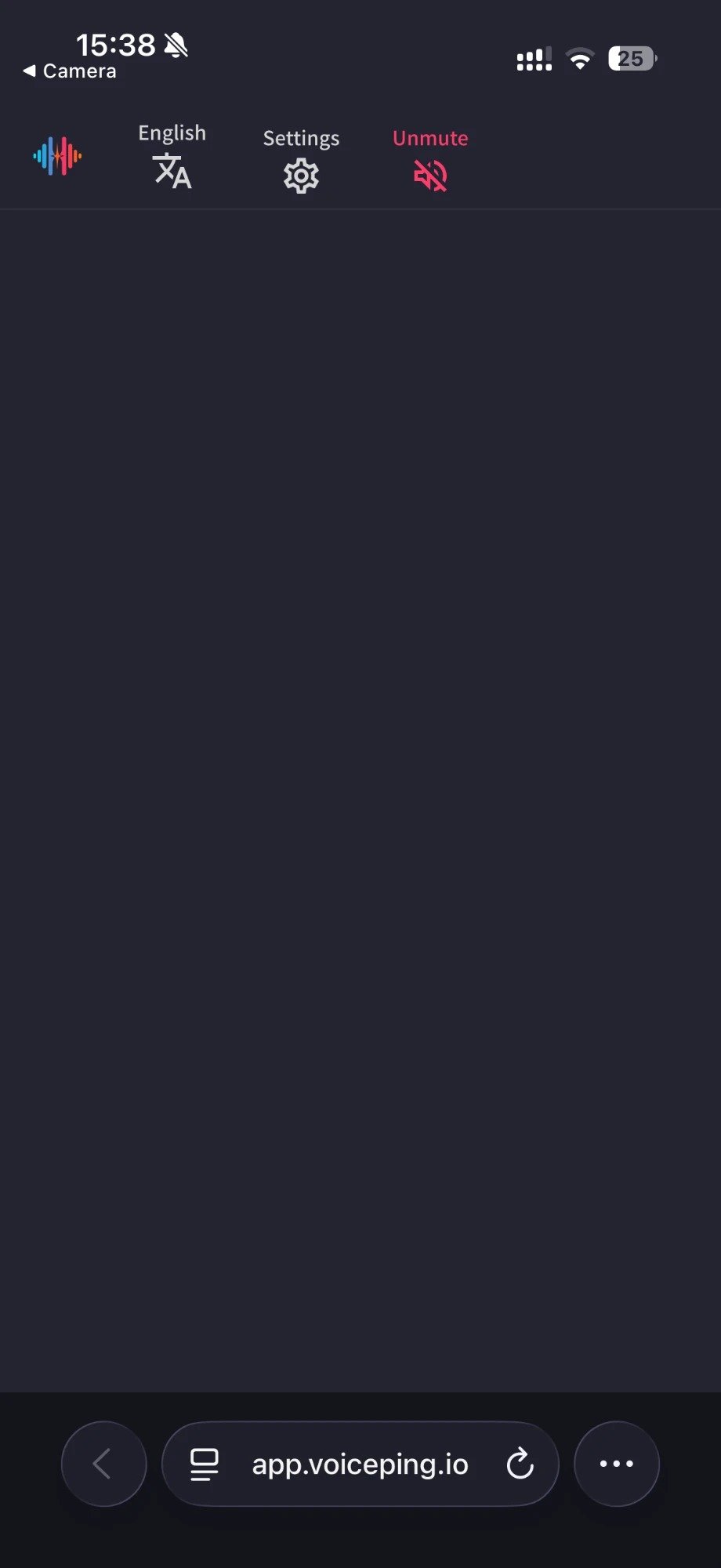
3. **進入後，可以進行以下操作：**
   * 變更語言
   * 在「設定」中調整翻譯外觀
   * 調整朗讀速度
   * 開啟/關閉朗讀功能
   * 離開
<Frame>
  <img src="https://mintcdn.com/test-cf63e467/IbZ1LFopeCpJTyUC/en/images/live-subtitles/07-participant-operations.jpeg?fit=max&auto=format&n=IbZ1LFopeCpJTyUC&q=85&s=9dbc84b4520353c53bf555ee141a1543" alt="參與者操作" width="400" data-path="en/images/live-subtitles/07-participant-operations.jpeg" />
</Frame>

<ContactZhTW />