> ## Documentation Index
> Fetch the complete documentation index at: https://manual.voiceping.net/llms.txt
> Use this file to discover all available pages before exploring further.

# 移動端即時轉錄

> iOS 和 Android 上的即時雙語轉錄與翻譯。

export const FeedbackZhTW = () => <>
    <Tip>
      對此功能有想法或需求？請透過 <a href="/zh-tw/product-feedback">Product Feedback</a> 傳送給團隊。
    </Tip>

    <h2>官方連結</h2>

    <CardGroup cols={2}>
      <Card title="官方網站" icon="globe" href="https://voiceping.net/en/">
        造訪官方網站
      </Card>
      <Card title="X (Twitter)" icon="x-twitter" href="https://x.com/VoicePingMedia">
        在X上追蹤我們
      </Card>
      <Card title="Facebook" icon="facebook" href="https://www.facebook.com/voiceping.inc">
        在Facebook上按讚
      </Card>
      <Card title="LinkedIn" icon="linkedin" href="https://www.linkedin.com/company/28684130/">
        在LinkedIn上連結
      </Card>
    </CardGroup>
  </>;

<Frame>
  <img src="https://mintcdn.com/test-cf63e467/z13MfE0CikV5b-4X/en/images/mobile-live-transcription/hero-live-transcription.webp?fit=max&auto=format&n=z13MfE0CikV5b-4X&q=85&s=4c1bb756bc1a7770eff03be789eace40" alt="Live Transcription & Translation on Mobile" width="2752" height="1536" data-path="en/images/mobile-live-transcription/hero-live-transcription.webp" />
</Frame>

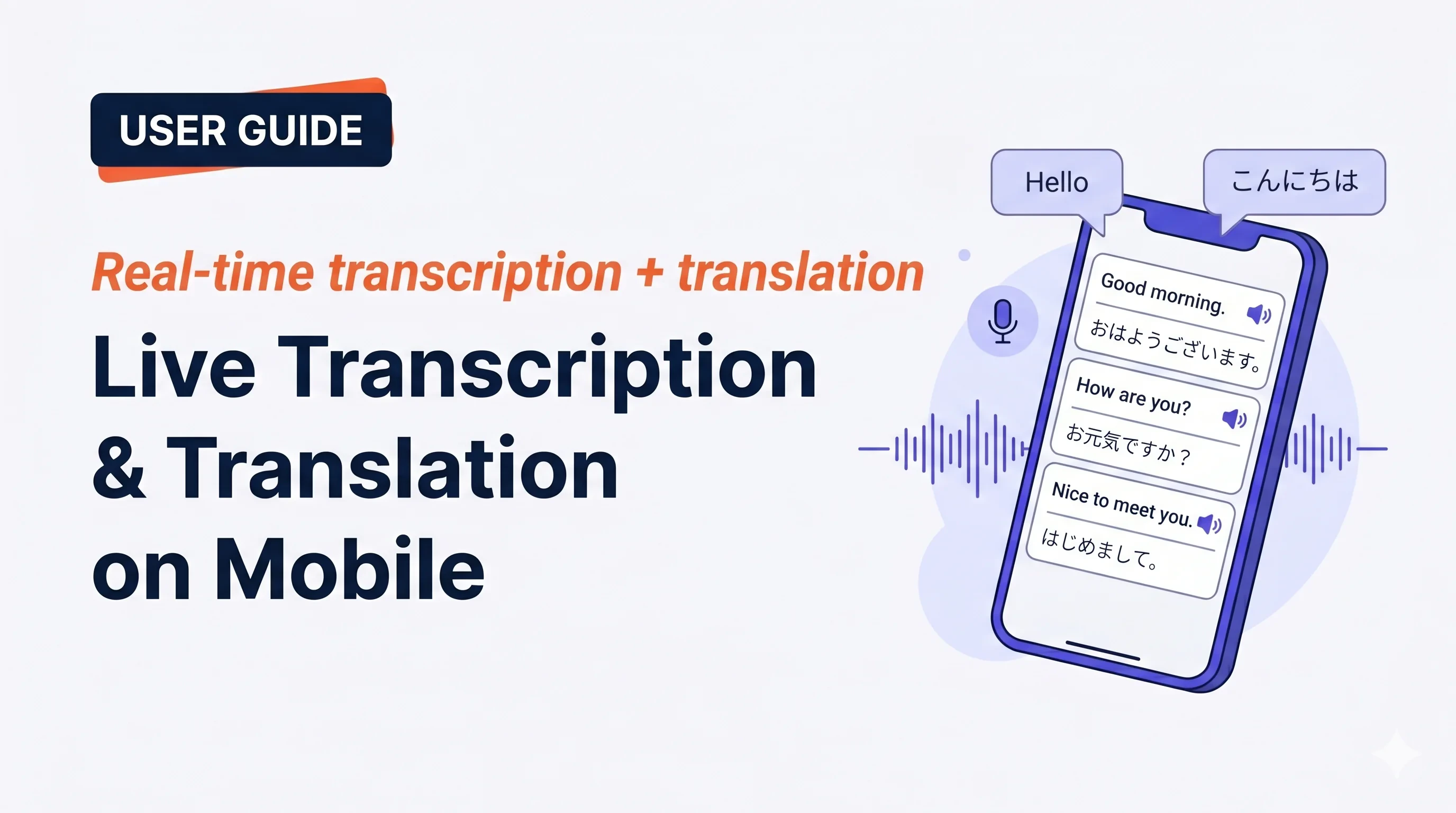
點選 **Start**，開始說話,轉錄和翻譯就會即時顯示出來。結束會話後會自動儲存到工作區歷史記錄中。

## 適用場景

<CardGroup cols={2}>
  <Card img="https://mintcdn.com/test-cf63e467/z13MfE0CikV5b-4X/en/images/mobile-live-transcription/usecases/face-to-face.webp?fit=max&auto=format&n=z13MfE0CikV5b-4X&q=85&s=ecfa6b1bbdace121e4a20016d80e503c" width="880" height="880" data-path="en/images/mobile-live-transcription/usecases/face-to-face.webp">
    在咖啡館、出租車或商店櫃臺，把手機放在你和對方之間。開啟 Face-to-face 模式，雙方都能用自己的語言閱讀。
  </Card>

  <Card img="https://mintcdn.com/test-cf63e467/z13MfE0CikV5b-4X/en/images/mobile-live-transcription/usecases/travelling-abroad.webp?fit=max&auto=format&n=z13MfE0CikV5b-4X&q=85&s=d7d11828b7e1be8d4a9612c88afaef9d" width="880" height="880" data-path="en/images/mobile-live-transcription/usecases/travelling-abroad.webp">
    酒店前臺、餐廳、診所、海關 — 雙向對話帶雙語字幕。
  </Card>

  <Card img="https://mintcdn.com/test-cf63e467/z13MfE0CikV5b-4X/en/images/mobile-live-transcription/usecases/language-practice.webp?fit=max&auto=format&n=z13MfE0CikV5b-4X&q=85&s=a58dbcf596055135684f509e05a77e9f" width="880" height="880" data-path="en/images/mobile-live-transcription/usecases/language-practice.webp">
    和導師、語言交換夥伴或母語人士交談,字幕是你想不起某個詞時的安全網。
  </Card>

  <Card img="https://mintcdn.com/test-cf63e467/z13MfE0CikV5b-4X/en/images/mobile-live-transcription/usecases/voice-memo.webp?fit=max&auto=format&n=z13MfE0CikV5b-4X&q=85&s=af2e394b163701f1d8071da3d9f0983b" width="880" height="880" data-path="en/images/mobile-live-transcription/usecases/voice-memo.webp">
    路途中捕捉靈感 — 一鍵 Start,說出想法,End。儲存為可搜尋的雙語轉錄。
  </Card>
</CardGroup>

## 開始會話

<Steps>
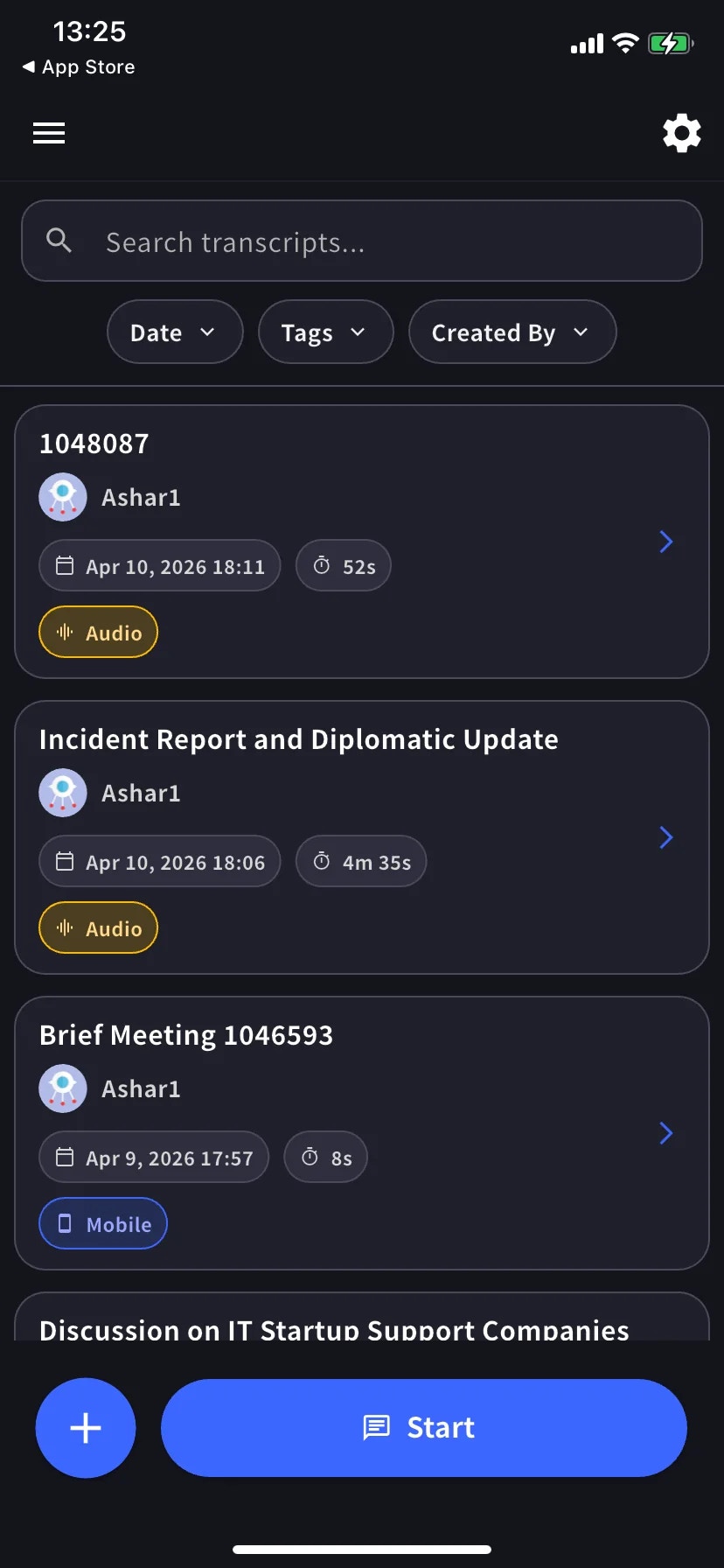
  <Step title="在主螢幕點選 Start">
    主螢幕列出過去的轉錄,底部有 **Start** 按鈕。

    <div style={{maxWidth: "270px", margin: "0 auto"}}>
      <Frame>
        <img src="https://mintcdn.com/test-cf63e467/z13MfE0CikV5b-4X/en/images/mobile-live-transcription/01-home-with-history.webp?fit=max&auto=format&n=z13MfE0CikV5b-4X&q=85&s=bb40ea11b0eeaa3fcf329951e82fdc08" alt="帶 Start 按鈕的主螢幕" width="828" height="1792" data-path="en/images/mobile-live-transcription/01-home-with-history.webp" />
      </Frame>
    </div>
  </Step>

  <Step title="說話">
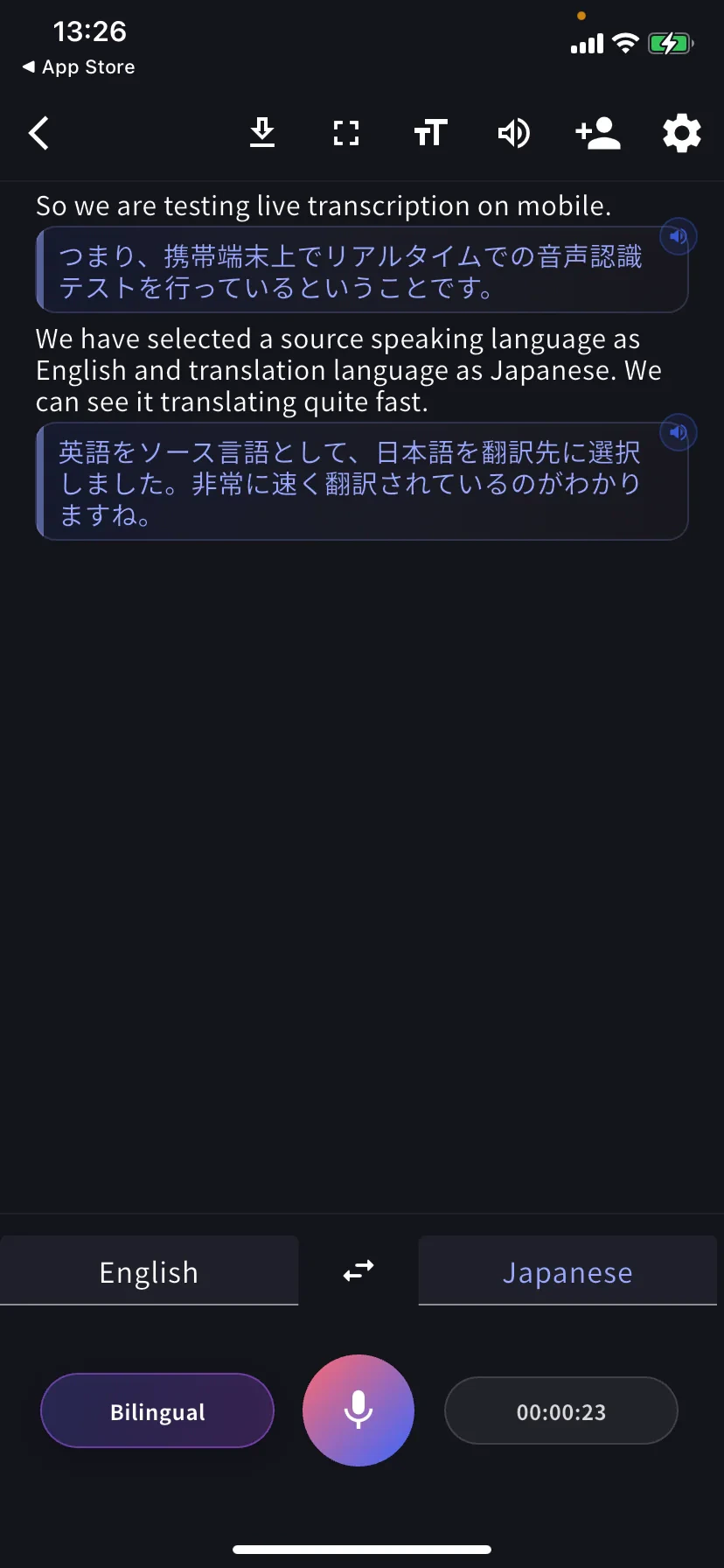
    每段話變成一行:上方為原文,下方為翻譯。點選某行上的揚聲器圖示可播放翻譯語音。

    <div style={{maxWidth: "270px", margin: "0 auto"}}>
      <Frame>
        <img src="https://mintcdn.com/test-cf63e467/z13MfE0CikV5b-4X/en/images/mobile-live-transcription/02-live-session.webp?fit=max&auto=format&n=z13MfE0CikV5b-4X&q=85&s=d6fb80b48295a4b5a5e1b974940f110a" alt="帶英文原文和日文翻譯的即時轉錄" width="828" height="1792" data-path="en/images/mobile-live-transcription/02-live-session.webp" />
      </Frame>
    </div>
  </Step>
</Steps>

## 底部控制元件

* **左側標籤** — 你說的語言 · **⇄** 交換 · **右側標籤** — 你讀的語言
* **Bilingual** 膠囊 — 切換雙語 / 僅翻譯檢視
* **麥克風** — 點選靜音 / 取消靜音
* **計時器** — 當前時長;點選結束並儲存

## 語音播放翻譯

點選任意翻譯行,即可用目標語言朗讀出來。適用於:

* 想讓對方**聽**而不是讀翻譯
* 你在**學習這門語言**,想聽剛才那句話的翻譯發音
* 對方不方便看螢幕

如需自動朗讀每行到達的翻譯,請在[音訊設定](/zh-tw/mobile-live-transcription-settings)中開啟 **Auto-play speech**,同時保持 **Auto-mute mic** 開啟,防止回放被自己麥克風拾取。

## 閱讀模式

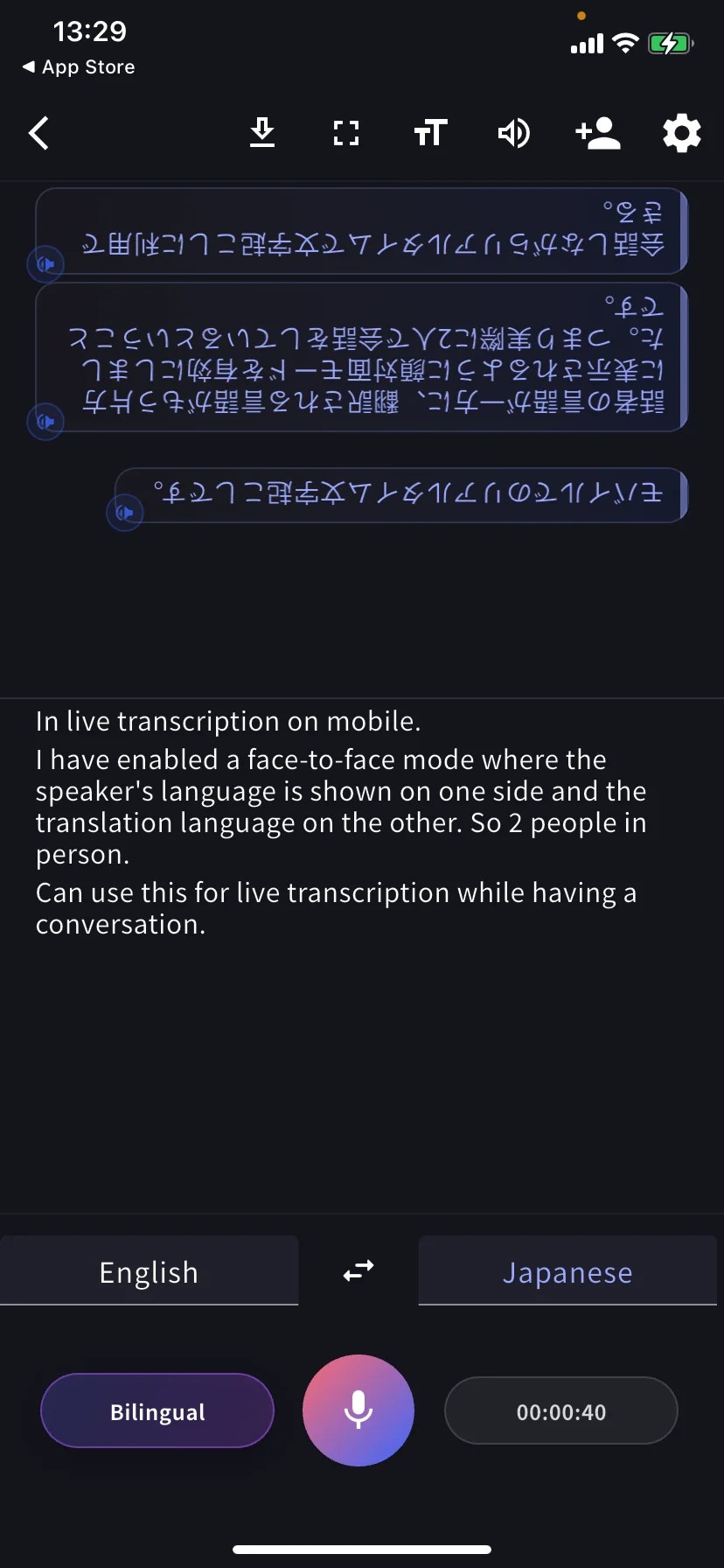
**Face-to-face 模式**(TT → Text display)將翻譯部分旋轉 180°,讓桌子對面的人從他們那邊正向閱讀。把手機平放在你們之間。

<div style={{maxWidth: "270px", margin: "0 auto"}}>
  <Frame>
    <img src="https://mintcdn.com/test-cf63e467/z13MfE0CikV5b-4X/en/images/mobile-live-transcription/04-face-to-face-mode.webp?fit=max&auto=format&n=z13MfE0CikV5b-4X&q=85&s=7ebc4ede4e28842cad2c75019a5f7b23" alt="Face-to-face 模式" width="828" height="1792" data-path="en/images/mobile-live-transcription/04-face-to-face-mode.webp" />
  </Frame>
</div>

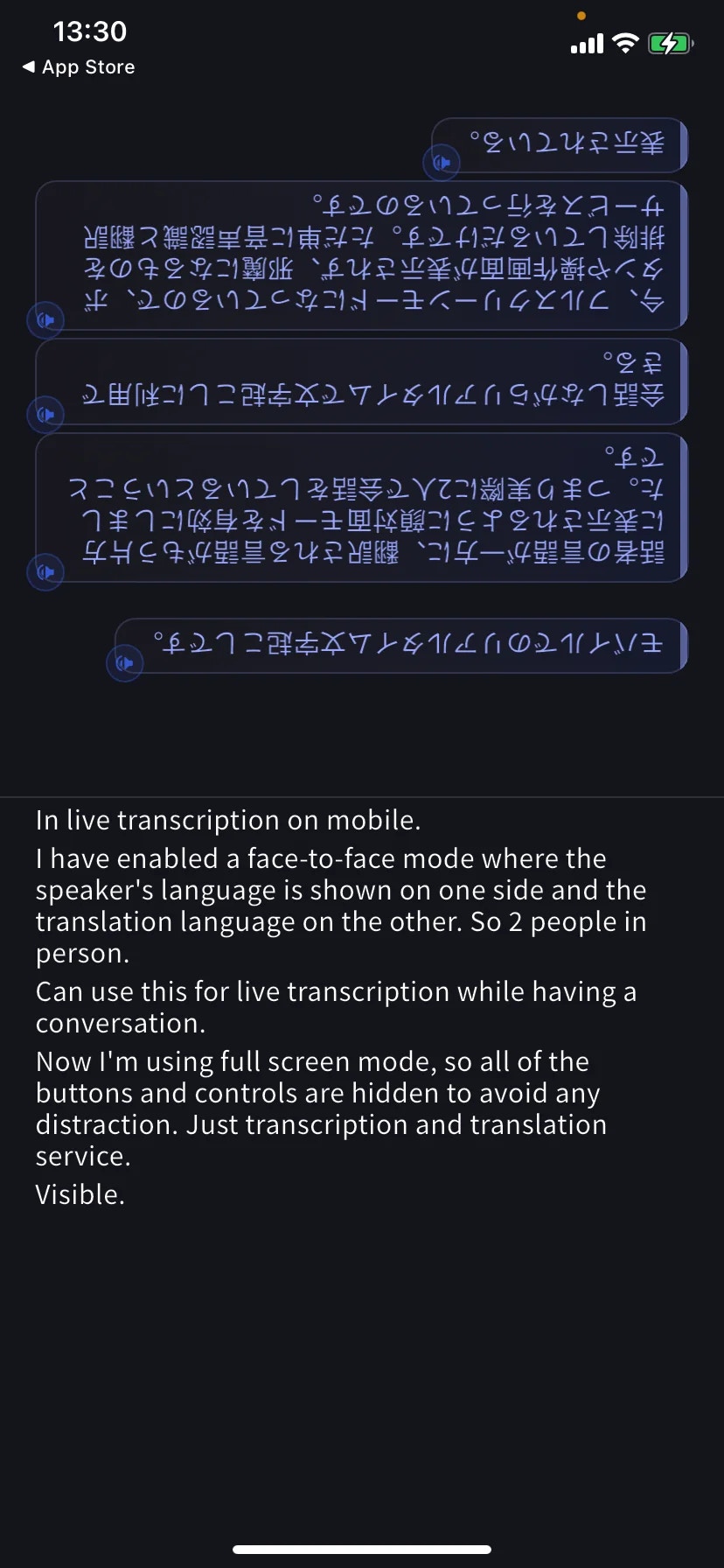
**Fullscreen 模式**(工具欄的 ⛶)隱藏工具欄和按鈕,讓對話不被打擾 — 手機平放時也不會誤觸控制元件。

<div style={{maxWidth: "270px", margin: "0 auto"}}>
  <Frame>
    <img src="https://mintcdn.com/test-cf63e467/z13MfE0CikV5b-4X/en/images/mobile-live-transcription/05-fullscreen-mode.webp?fit=max&auto=format&n=z13MfE0CikV5b-4X&q=85&s=70ca52a05418823d39a5817b4918824a" alt="全屏模式" width="828" height="1792" data-path="en/images/mobile-live-transcription/05-fullscreen-mode.webp" />
  </Frame>
</div>

## 會話中下載

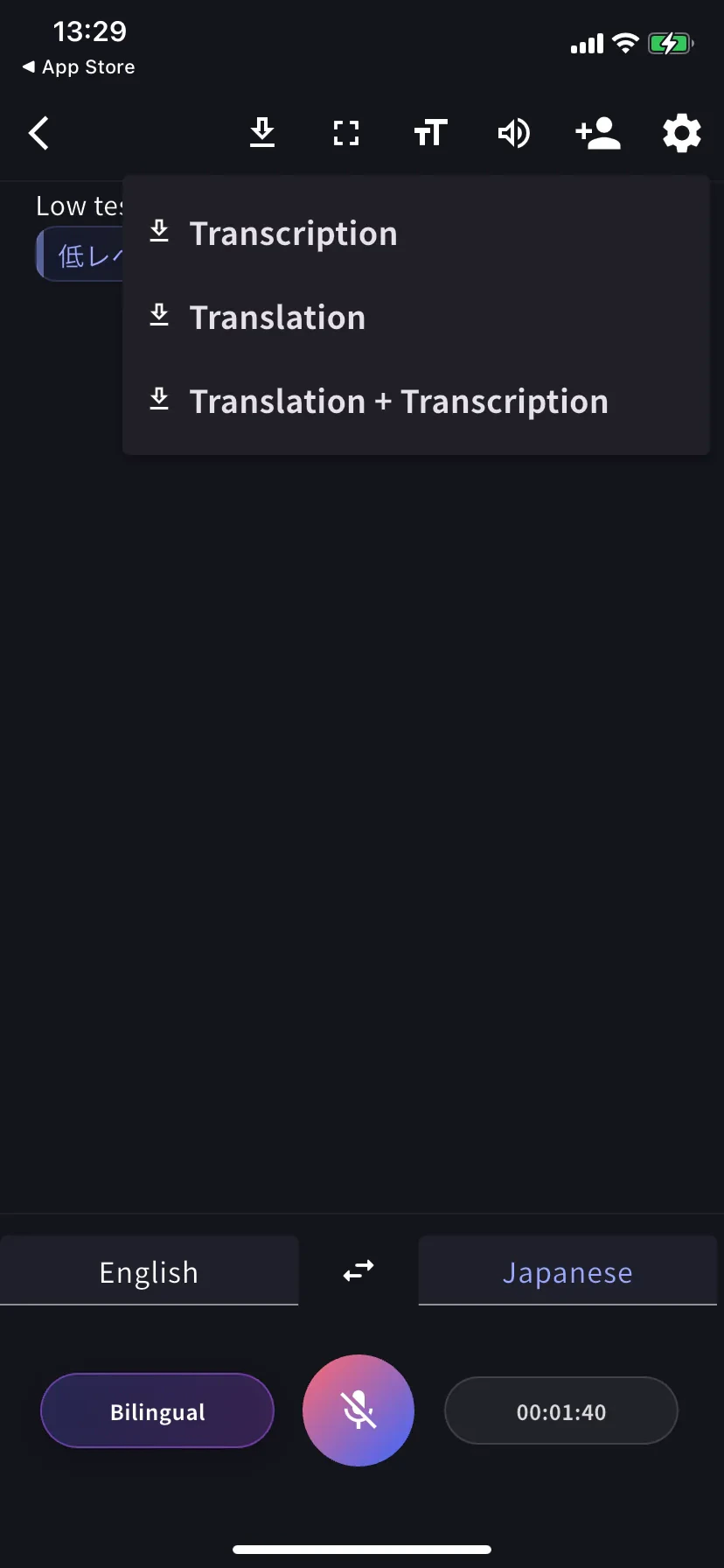
點選工具欄中的 **⬇**,不結束會話即可匯出:Transcription、Translation 或兩者皆選。

<div style={{maxWidth: "270px", margin: "0 auto"}}>
  <Frame>
    <img src="https://mintcdn.com/test-cf63e467/z13MfE0CikV5b-4X/en/images/mobile-live-transcription/03-download-menu.webp?fit=max&auto=format&n=z13MfE0CikV5b-4X&q=85&s=ec14e41ddcb20b3da58fbe8d730b620a" alt="下載選單" width="828" height="1792" data-path="en/images/mobile-live-transcription/03-download-menu.webp" />
  </Frame>
</div>

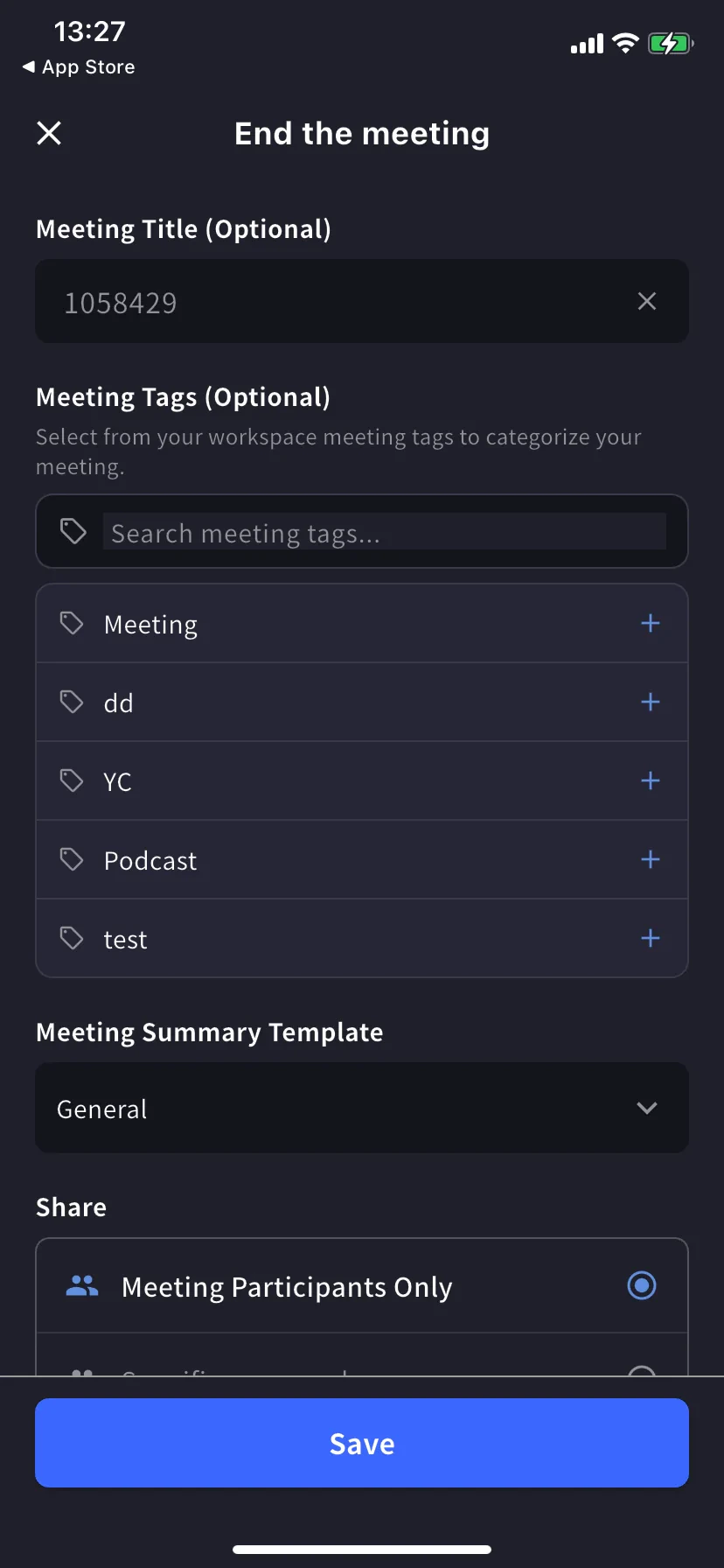
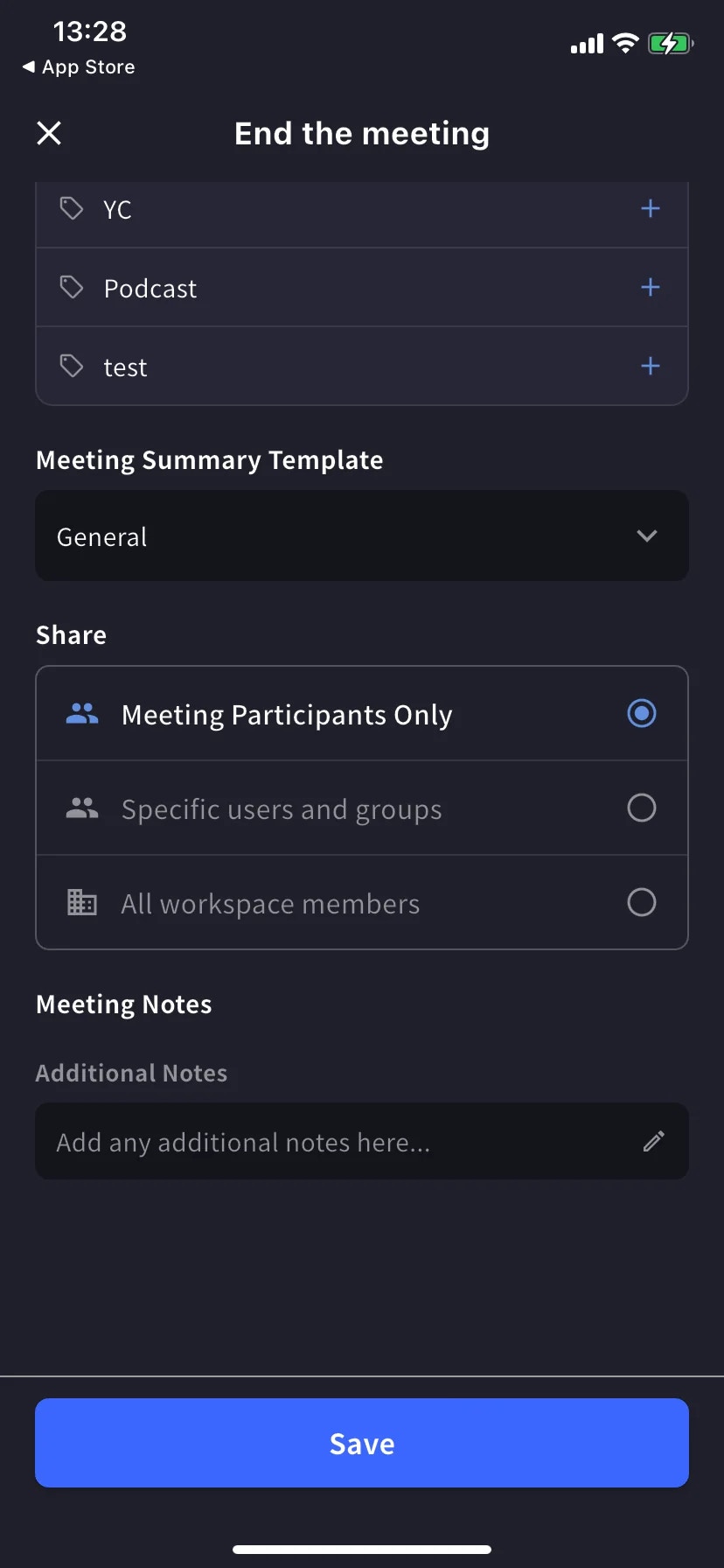
## 結束並儲存

點選底部的計時器 / 停止,開啟結束會議表單。

* **Title** — 自動數字命名,可修改
* **Tags** — 從工作區標籤中選擇(用於篩選)
* **Summary template** — 自動生成會議紀要的模板
* **Share scope** — Participants only / Specific users / All workspace members
* **Notes** — 與轉錄一起儲存的自由備注

<div style={{display: "flex", gap: "12px", justifyContent: "center", flexWrap: "wrap"}}>
  <div style={{flex: "1 1 220px", maxWidth: "240px"}}>
    <Frame>
      <img src="https://mintcdn.com/test-cf63e467/z13MfE0CikV5b-4X/en/images/mobile-live-transcription/10-end-meeting-form.webp?fit=max&auto=format&n=z13MfE0CikV5b-4X&q=85&s=5b614ea9e8df8ced3d5ac35d120ccda8" alt="結束會議表單 — 標題、標籤、模板" width="828" height="1792" data-path="en/images/mobile-live-transcription/10-end-meeting-form.webp" />
    </Frame>
  </div>

  <div style={{flex: "1 1 220px", maxWidth: "240px"}}>
    <Frame>
      <img src="https://mintcdn.com/test-cf63e467/z13MfE0CikV5b-4X/en/images/mobile-live-transcription/11-end-meeting-share.webp?fit=max&auto=format&n=z13MfE0CikV5b-4X&q=85&s=bf605f10c523975d1af0640c0dda8f3b" alt="共享範圍和備注" width="828" height="1792" data-path="en/images/mobile-live-transcription/11-end-meeting-share.webp" />
    </Frame>
  </div>
</div>

點選 **Save**。會話出現在主螢幕歷史列表中 — 支援文本搜尋,按 Date / Tags / Created By 篩選。

## 小貼士

* 把手機平放在你和對方之間 — 內建麥克風比手持更能均勻捕捉雙方聲音。
* 在嘈雜的咖啡館或街道上,插入有線或藍牙耳機。
* 保持應用在前臺 — iOS 在切換應用時可能暫停錄音。
* 提前在[詞典](/zh-tw/dictionary)中預先載入會出現的詞(個人或工作區,與桌面端相同)。

## 相關頁面

* [設定](/zh-tw/mobile-live-transcription-settings) — 音訊、文本顯示、詞典
* [分享給聽眾(QR)](/zh-tw/mobile-live-transcription-share)
* [離線翻譯](/zh-tw/mobile-offline-translation) · [捕獲其他應用音訊](/zh-tw/mobile-screen-record) · [上傳檔案](/zh-tw/mobile-upload-files)
<FeedbackZhTW />