> ## Documentation Index
> Fetch the complete documentation index at: https://manual.voiceping.net/llms.txt
> Use this file to discover all available pages before exploring further.

# 移動端捕獲其他應用的音訊

> 為手機上播放的任何音訊新增即時字幕和翻譯 — YouTube、播客、線上課程等。

export const FeedbackZhTW = () => <>
    <Tip>
      對此功能有想法或需求？請透過 <a href="/zh-tw/product-feedback">Product Feedback</a> 傳送給團隊。
    </Tip>

    <h2>官方連結</h2>

    <CardGroup cols={2}>
      <Card title="官方網站" icon="globe" href="https://voiceping.net/en/">
        造訪官方網站
      </Card>
      <Card title="X (Twitter)" icon="x-twitter" href="https://x.com/VoicePingMedia">
        在X上追蹤我們
      </Card>
      <Card title="Facebook" icon="facebook" href="https://www.facebook.com/voiceping.inc">
        在Facebook上按讚
      </Card>
      <Card title="LinkedIn" icon="linkedin" href="https://www.linkedin.com/company/28684130/">
        在LinkedIn上連結
      </Card>
    </CardGroup>
  </>;

<Frame>
  <img src="https://mintcdn.com/test-cf63e467/z13MfE0CikV5b-4X/en/images/mobile-screen-record/hero-screen-record.webp?fit=max&auto=format&n=z13MfE0CikV5b-4X&q=85&s=0b9ef6267149aab213e587264deba281" alt="Capture Other-App Audio on Mobile" width="2752" height="1536" data-path="en/images/mobile-screen-record/hero-screen-record.webp" />
</Frame>

將 VoicePing 指向手機上播放的任何內容 — 外語 YouTube 影片、播客、線上課程、儲存的音訊片段 — 在普通會話檢視中閱讀即時雙語字幕。

## 適用場景

<CardGroup cols={2}>
  <Card img="https://mintcdn.com/test-cf63e467/z13MfE0CikV5b-4X/en/images/mobile-screen-record/usecases/training-webinar.webp?fit=max&auto=format&n=z13MfE0CikV5b-4X&q=85&s=1b37d856c837f389d8eafbb33cc0fe3f" width="2048" height="2048" data-path="en/images/mobile-screen-record/usecases/training-webinar.webp">
    外語講座、Udemy 課程、錄製的網路研討會 — 聽的同時用自己偏好的語言閱讀。
  </Card>

  <Card img="https://mintcdn.com/test-cf63e467/yJOLVx6nWj9-gzC6/en/images/mobile-screen-record/usecases/youtube-podcast.webp?fit=max&auto=format&n=yJOLVx6nWj9-gzC6&q=85&s=1eafb0c4ffe0ff4ace41ce074240772b" width="2048" height="2048" data-path="en/images/mobile-screen-record/usecases/youtube-podcast.webp">
    在路上翻譯外語 YouTube 或播客 — 無需下載。
  </Card>

  <Card img="https://mintcdn.com/test-cf63e467/z13MfE0CikV5b-4X/en/images/mobile-screen-record/usecases/review-recordings.webp?fit=max&auto=format&n=z13MfE0CikV5b-4X&q=85&s=f9d49e250e089e1a396ecd91e6654269" width="2048" height="2048" data-path="en/images/mobile-screen-record/usecases/review-recordings.webp">
    在另一個播放器中開啟儲存的音訊檔案,VoicePing 在播放時自動新增字幕。
  </Card>

  <Card img="https://mintcdn.com/test-cf63e467/z13MfE0CikV5b-4X/en/images/mobile-screen-record/usecases/language-practice.webp?fit=max&auto=format&n=z13MfE0CikV5b-4X&q=85&s=32f8cef353723c1428b346a7cf695ae5" width="2048" height="2048" data-path="en/images/mobile-screen-record/usecases/language-practice.webp">
    用母語播客和常駐翻譯器提升聽力。
  </Card>
</CardGroup>

## 亮點

* 支援手機上**任何播放音訊的應用**(受 OS 螢幕捕獲規則限制)
* 與正常 VoicePing 會話相同的即時檢視 — 編輯、紀要、匯出、詞典都有效
* 會話儲存到工作區歷史 — 隊友可在 PC 上開啟
* **iOS(Screen Record)** 和 **Android(Device Audio)**

## 開始捕獲

<Steps>
  <Step title="＋ → Screen Record">
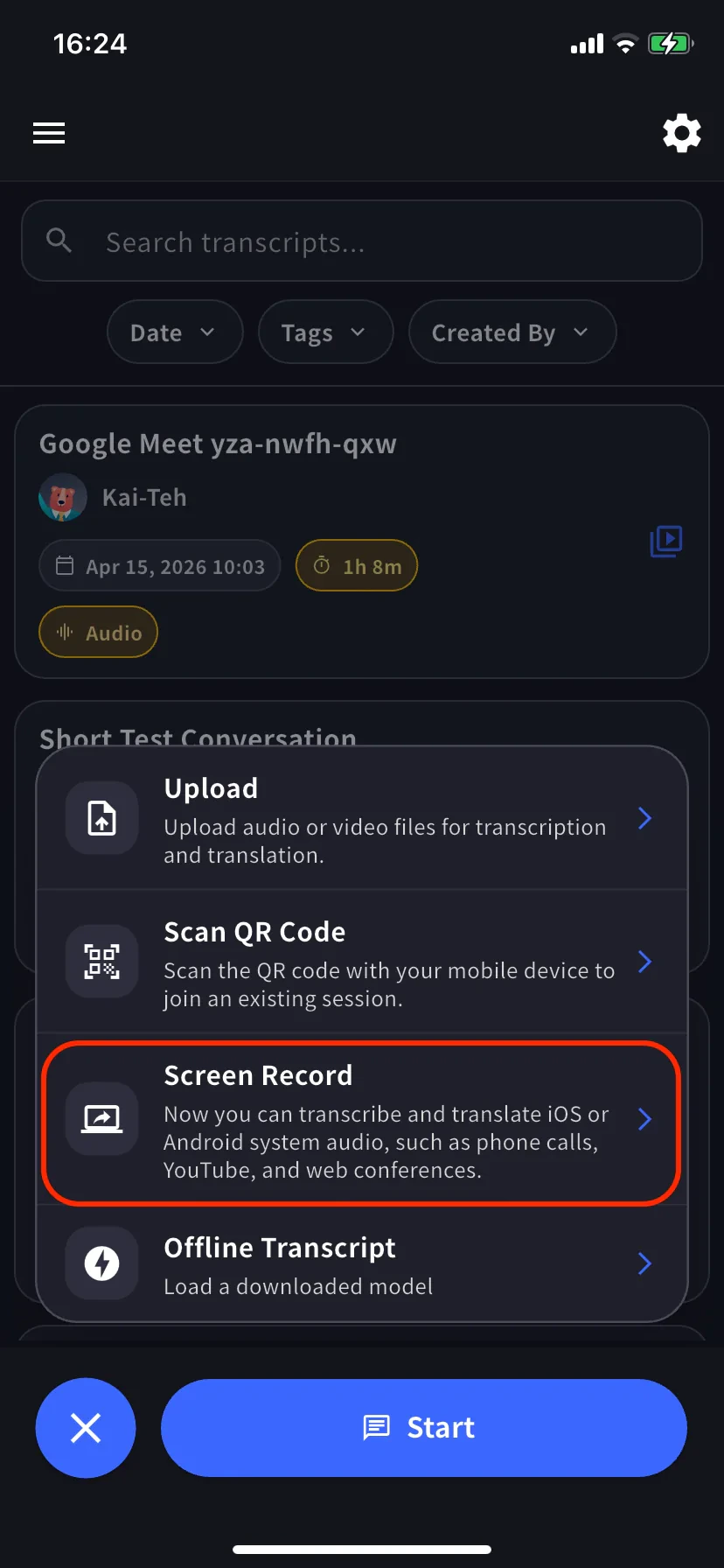
    在主螢幕開啟會話選單。Android 上標記為 **Device Audio**。

    <div style={{display: "flex", gap: "12px", justifyContent: "center", flexWrap: "wrap"}}>
      <div style={{flex: "1 1 220px", maxWidth: "240px"}}>
        <Frame>
          <img src="https://mintcdn.com/test-cf63e467/yJOLVx6nWj9-gzC6/ja/images/mobile-screen-record/01-plus-menu-screen-record.webp?fit=max&auto=format&n=yJOLVx6nWj9-gzC6&q=85&s=cf1b0fe441efeda219aec42e7c7ed987" alt="＋ 選單中高亮的 Screen Record" width="828" height="1792" data-path="ja/images/mobile-screen-record/01-plus-menu-screen-record.webp" />
        </Frame>
      </div>

      <div style={{flex: "1 1 220px", maxWidth: "240px"}}>
        <Frame>
          <img src="https://mintcdn.com/test-cf63e467/yJOLVx6nWj9-gzC6/ja/images/mobile-screen-record/02-capture-screen.webp?fit=max&auto=format&n=yJOLVx6nWj9-gzC6&q=85&s=72732700340e66c791410252eb619e2f" alt="帶語言標籤和 Bilingual 開關的即時螢幕" width="828" height="1792" data-path="ja/images/mobile-screen-record/02-capture-screen.webp" />
        </Frame>
      </div>
    </div>

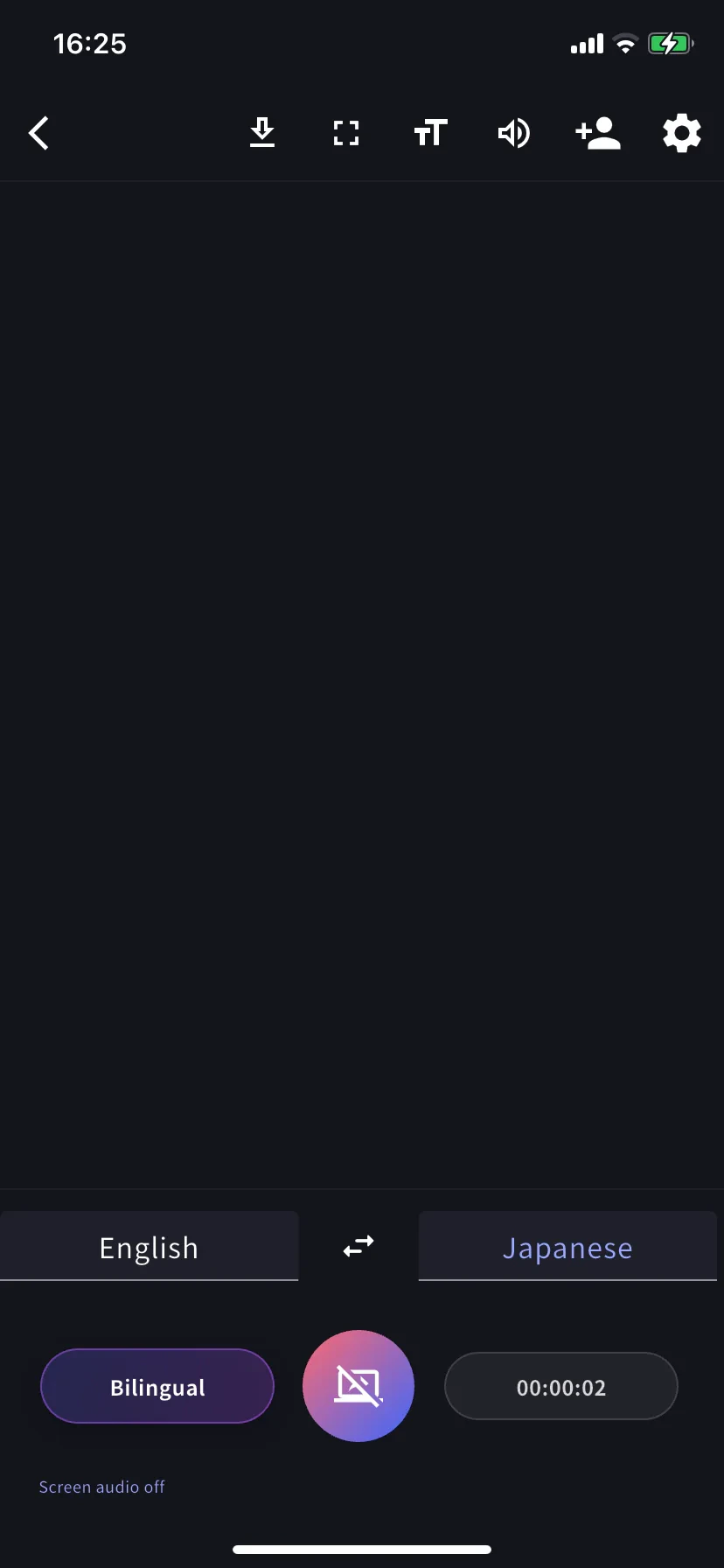
    設定轉錄語言(左標籤)和翻譯語言(右標籤)。需要同時顯示兩者就開啟 **Bilingual**。
  </Step>

  <Step title="開始廣播">
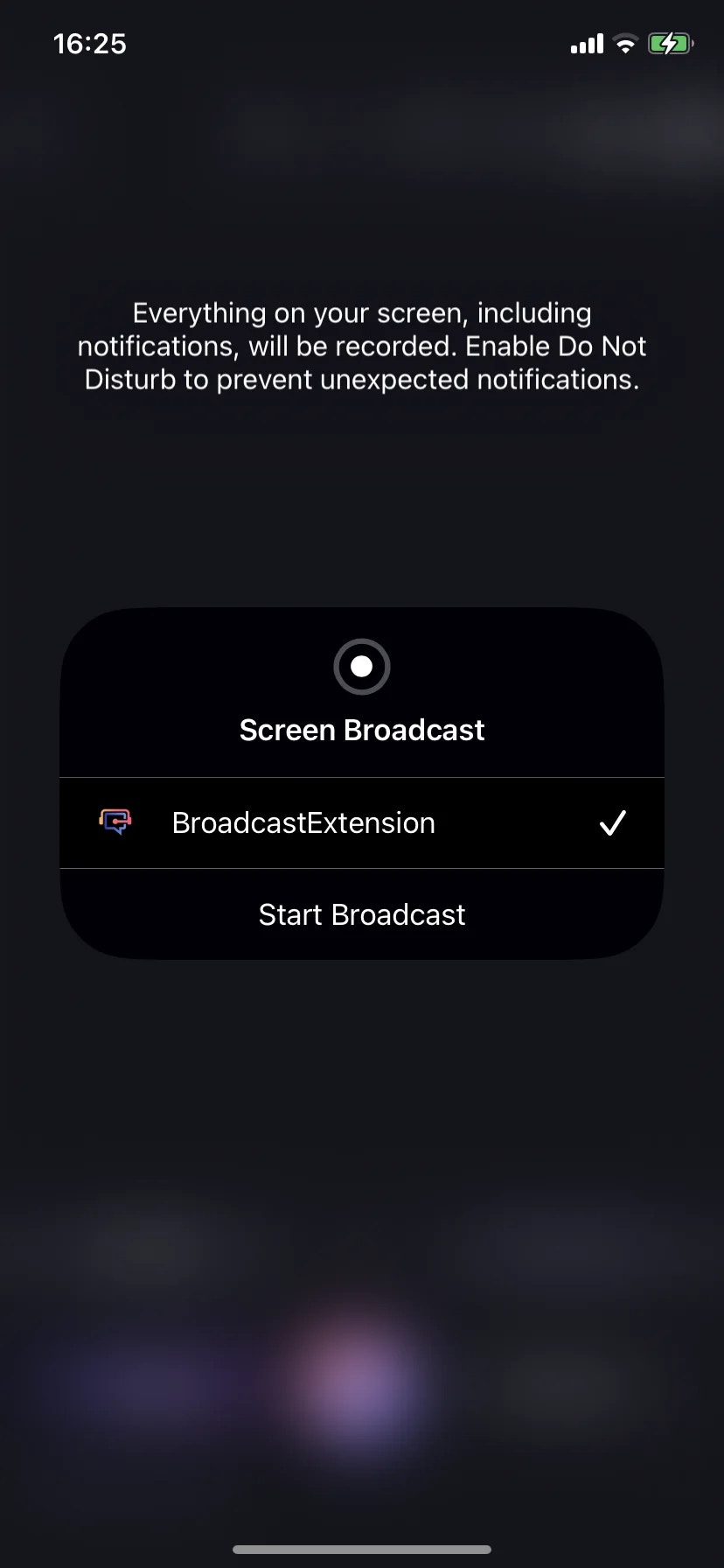
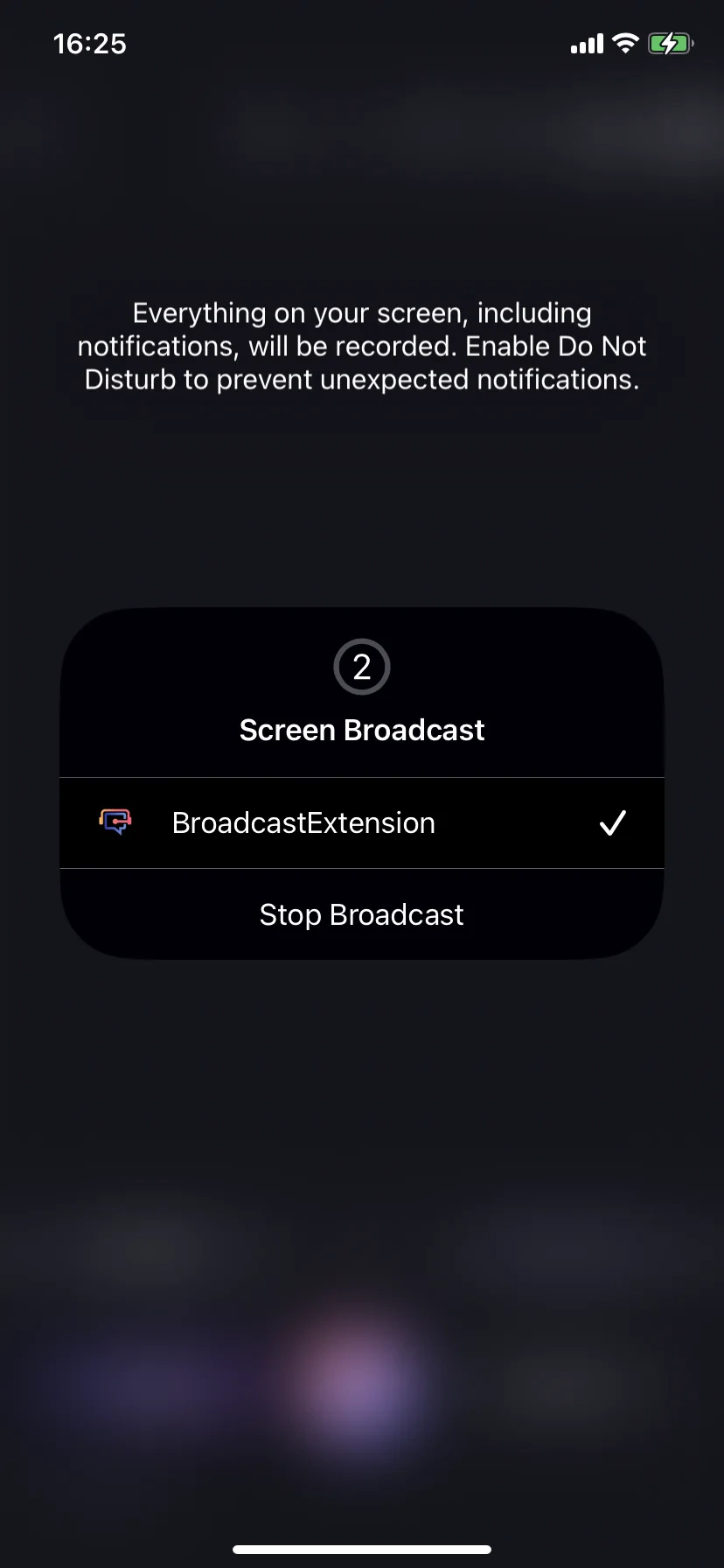
    點選捕獲按鈕。iOS 上選 **BroadcastExtension → Start Broadcast**。Android 上接受媒體投射提示。啟用後,面板變為 **Stop Broadcast**。

    <div style={{display: "flex", gap: "12px", justifyContent: "center", flexWrap: "wrap"}}>
      <div style={{flex: "1 1 200px", maxWidth: "220px"}}>
        <Frame>
          <img src="https://mintcdn.com/test-cf63e467/yJOLVx6nWj9-gzC6/ja/images/mobile-screen-record/03-broadcast-start.webp?fit=max&auto=format&n=yJOLVx6nWj9-gzC6&q=85&s=dab7f16292726e5a7882accfb617f16d" alt="iOS Start Broadcast 提示" width="828" height="1792" data-path="ja/images/mobile-screen-record/03-broadcast-start.webp" />
        </Frame>
      </div>

      <div style={{flex: "1 1 200px", maxWidth: "220px"}}>
        <Frame>
          <img src="https://mintcdn.com/test-cf63e467/yJOLVx6nWj9-gzC6/ja/images/mobile-screen-record/04-broadcast-active.webp?fit=max&auto=format&n=yJOLVx6nWj9-gzC6&q=85&s=e8c222c0318cbf212cd1d61f9371ea07" alt="活動狀態下的 iOS Stop Broadcast" width="828" height="1792" data-path="ja/images/mobile-screen-record/04-broadcast-active.webp" />
        </Frame>
      </div>
    </div>
  </Step>

  <Step title="在源應用中播放音訊然後返回">
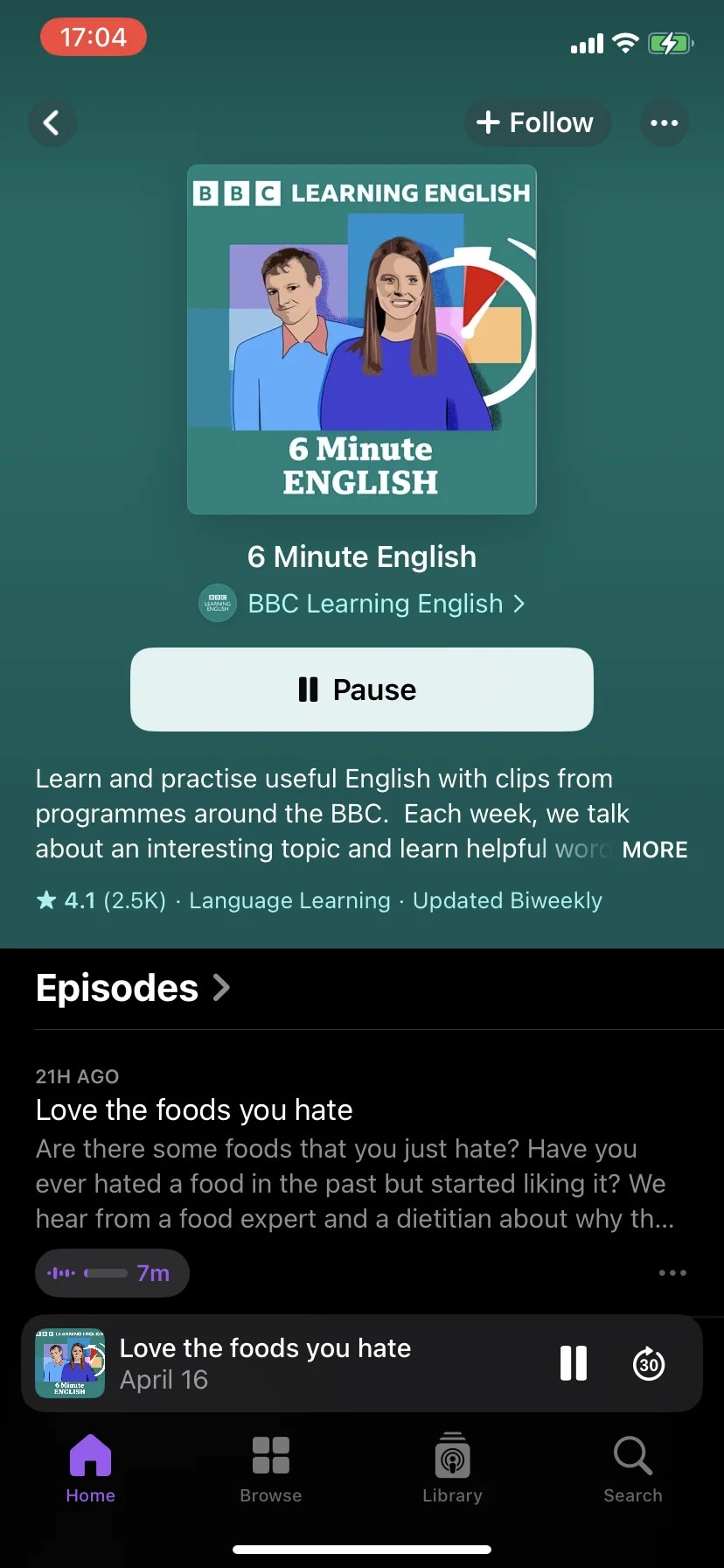
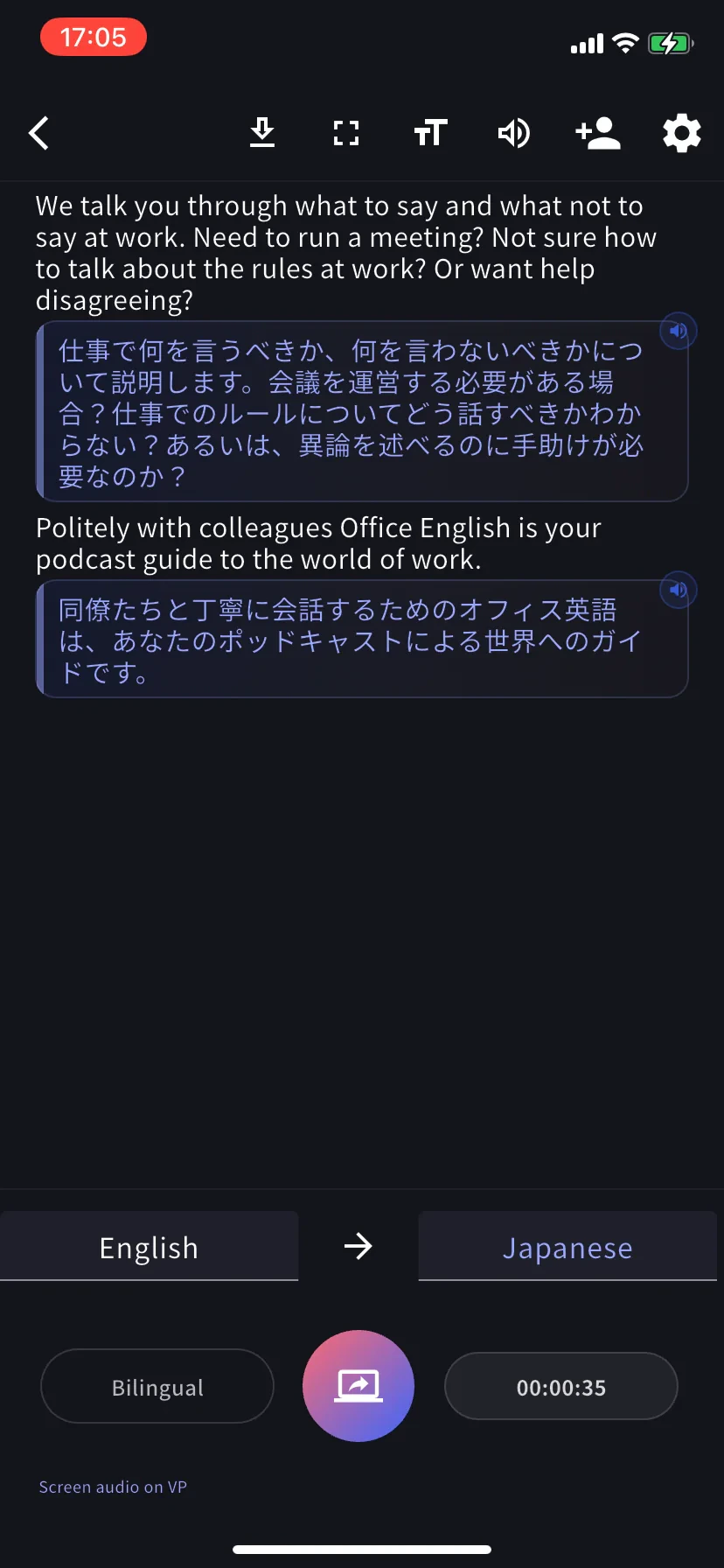
    讓 VoicePing 在後臺,開啟源應用(YouTube、播客應用、Safari、線上課程等)並播放。切回 VoicePing — 帶計時器的雙語字幕開始流式顯示。

    <div style={{display: "flex", gap: "12px", justifyContent: "center", flexWrap: "wrap"}}>
      <div style={{flex: "1 1 200px", maxWidth: "220px"}}>
        <Frame>
          <img src="https://mintcdn.com/test-cf63e467/yJOLVx6nWj9-gzC6/ja/images/mobile-screen-record/05-source-app-playing.webp?fit=max&auto=format&n=yJOLVx6nWj9-gzC6&q=85&s=8060036c19cb9e0303cb50a05cb3e404" alt="源應用在播放,VoicePing 在捕獲" width="828" height="1792" data-path="ja/images/mobile-screen-record/05-source-app-playing.webp" />
        </Frame>
      </div>

      <div style={{flex: "1 1 200px", maxWidth: "220px"}}>
        <Frame>
          <img src="https://mintcdn.com/test-cf63e467/yJOLVx6nWj9-gzC6/ja/images/mobile-screen-record/06-live-transcript.webp?fit=max&auto=format&n=yJOLVx6nWj9-gzC6&q=85&s=f06c2d8cc0224f8b0bcd50202677f676" alt="來自源應用的即時雙語字幕" width="828" height="1792" data-path="ja/images/mobile-screen-record/06-live-transcript.webp" />
        </Frame>
      </div>
    </div>
  </Step>
</Steps>

## 停止

* **iOS** — 點選狀態列中的廣播指示 → **Stop Broadcast**,或點選 VoicePing 內的捕獲按鈕。
* **Android** — 點選投射通知或 VoicePing 內的捕獲按鈕。

停止後會話定型並像任何其他會議一樣儲存到工作區歷史。

## 小貼士

* 自己說話時使用**耳機** — 避免捕獲的音訊回傳到麥克風。
* 開始前開啟**勿擾模式** — iOS 警告說通知會被捕獲。
* 長時間會話請接充電器(持續消耗 CPU + 網路)。
* 部分應用阻止捕獲(DRM 保護流媒體、某些銀行應用)。轉錄為空 = 源應用正在阻止。
* 自動偵測錯誤?從左標籤手動設定轉錄語言。

## 會話結束後

與任何 VoicePing 會議行為相同:[編輯轉錄](/zh-tw/realtime-edit)、[生成紀要](/zh-tw/meeting-minutes)、匯出、搜尋。預先載入工作區[詞典](/zh-tw/dictionary)條目以提高產品術語準確度。
<FeedbackZhTW />