> ## Documentation Index
> Fetch the complete documentation index at: https://manual.voiceping.net/llms.txt
> Use this file to discover all available pages before exploring further.
# 音訊/影片檔案語音轉文字與翻譯
> 將錄製的音訊或影片檔案上傳到 VoicePing,即可進行語音轉文字、翻譯、摘要,並產生嵌入字幕或配音的影片,接著開啟 Meeting Log 或下載結果。
export const ContactZhTW = () => <>
如有任何問題,請透過此表單與我們聯繫。
## 官方連結
造訪官方網站
在X上追蹤我們
在Facebook上按讚
在LinkedIn上連結
;
VoicePing 的功能不僅止於即時翻譯,您還可以上傳現有的音訊和影片檔案(MP3、MP4 等),進行**語音轉文字**、**翻譯**、**摘要**,甚至產生**嵌入字幕**或**配音**的版本。這些皆由 **File Transcribe** 工具處理。
## 提交檔案
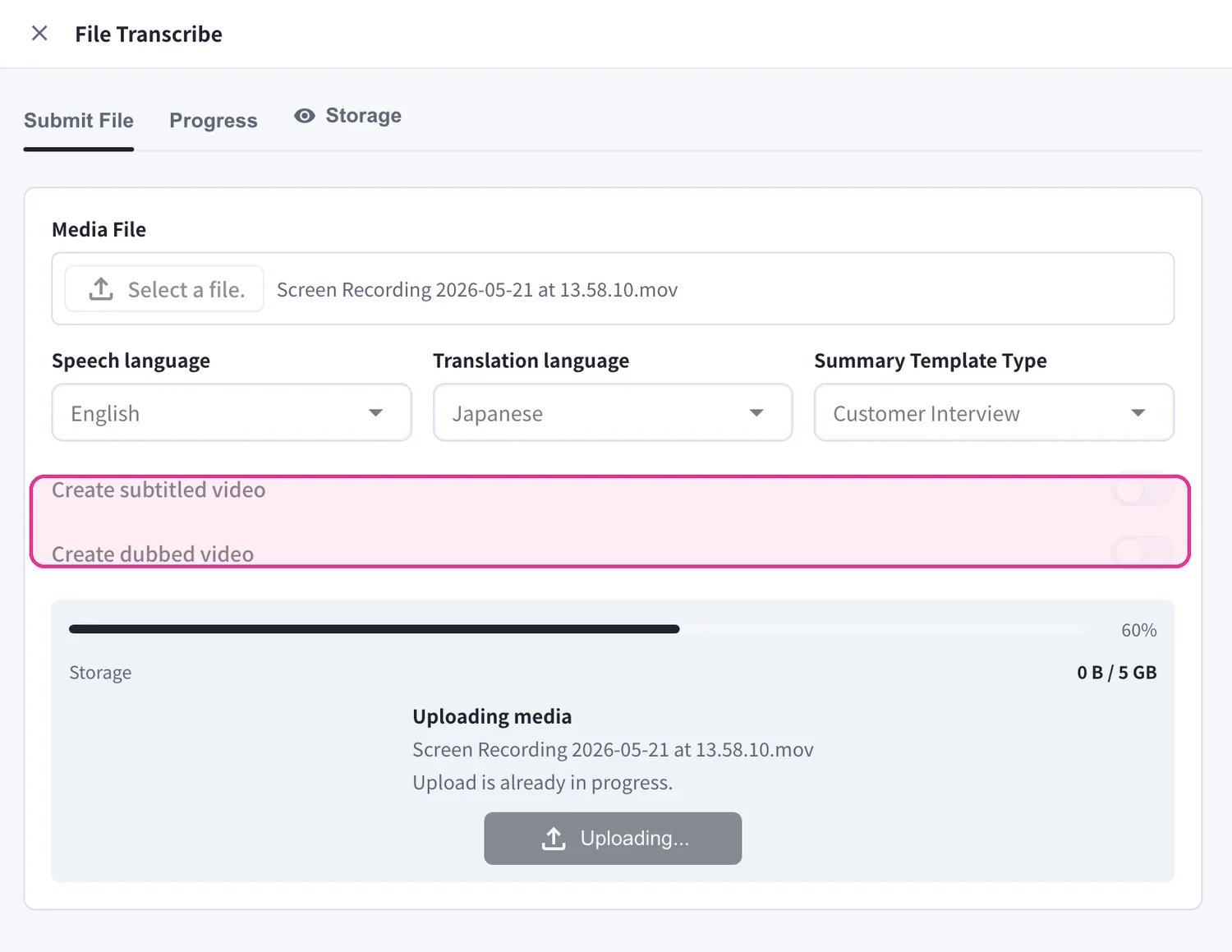
從左側邊欄開啟 **File Transcribe**,並停留在 **Submit File** 分頁。
1. 在 **Media File** 下方,點選 **Select a file.**,選擇您想處理的音訊或影片檔案。
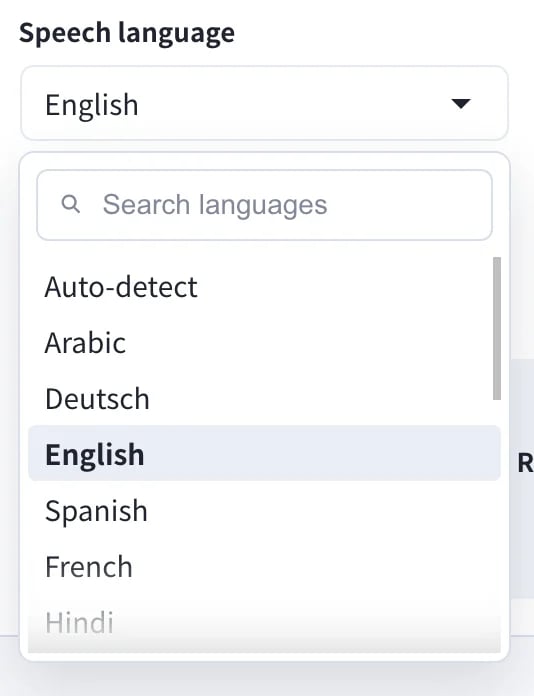
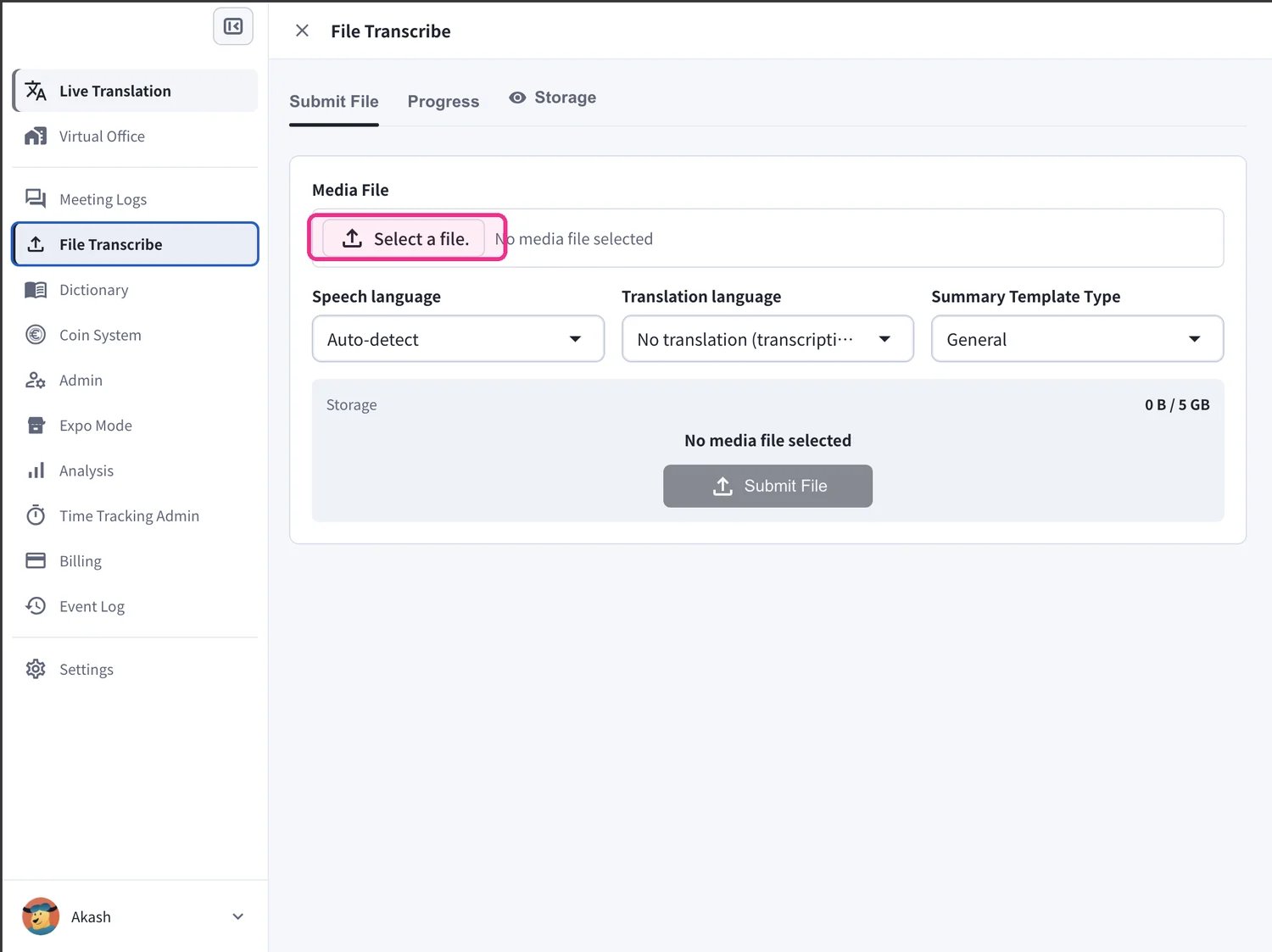 2. 設定 **Speech language**,也就是檔案中所使用的語言。保持在 **Auto-detect**,讓 VoicePing 為您自動辨識。
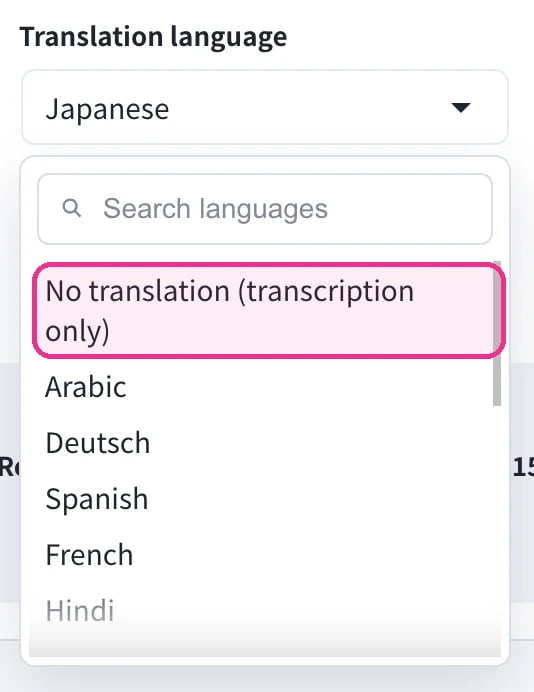
 3. 設定 **Translation language**。選擇要翻譯成的目標語言,若您只需要逐字稿,則選擇 **No translation (transcription only)**。
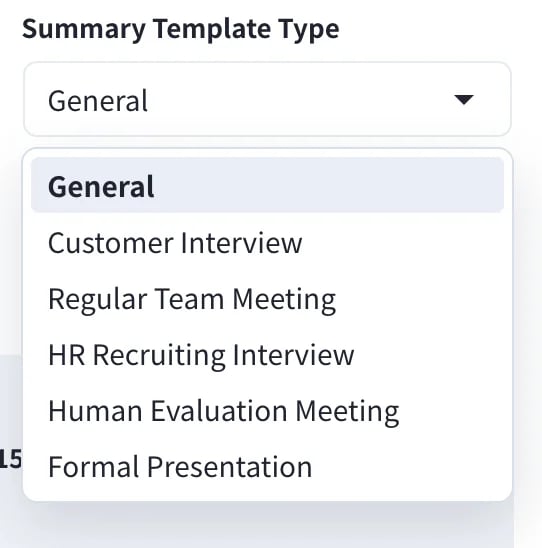
 4. 選擇 **Summary Template Type**,讓 AI 摘要符合您的內容,例如 **General**、**Customer Interview**、**Regular Team Meeting**、**HR Recruiting Interview**、**Human Evaluation Meeting** 或 **Formal Presentation**。
 5. 您可以選擇性開啟 **Create subtitled video** 和/或 **Create dubbed video**,以額外產生嵌入字幕的影片或翻譯配音的影片。接著點選 **Submit File** 開始處理。
 * 將 **Translation language** 保持在 **No translation (transcription only)**,即可僅取得逐字稿與摘要。
* **Create subtitled video** 和 **Create dubbed video** 需要設定 **Translation language**,且會花費額外的處理時間。
* 您可以連續提交多個檔案,每個檔案都會成為獨立的處理作業。
## 追蹤處理進度
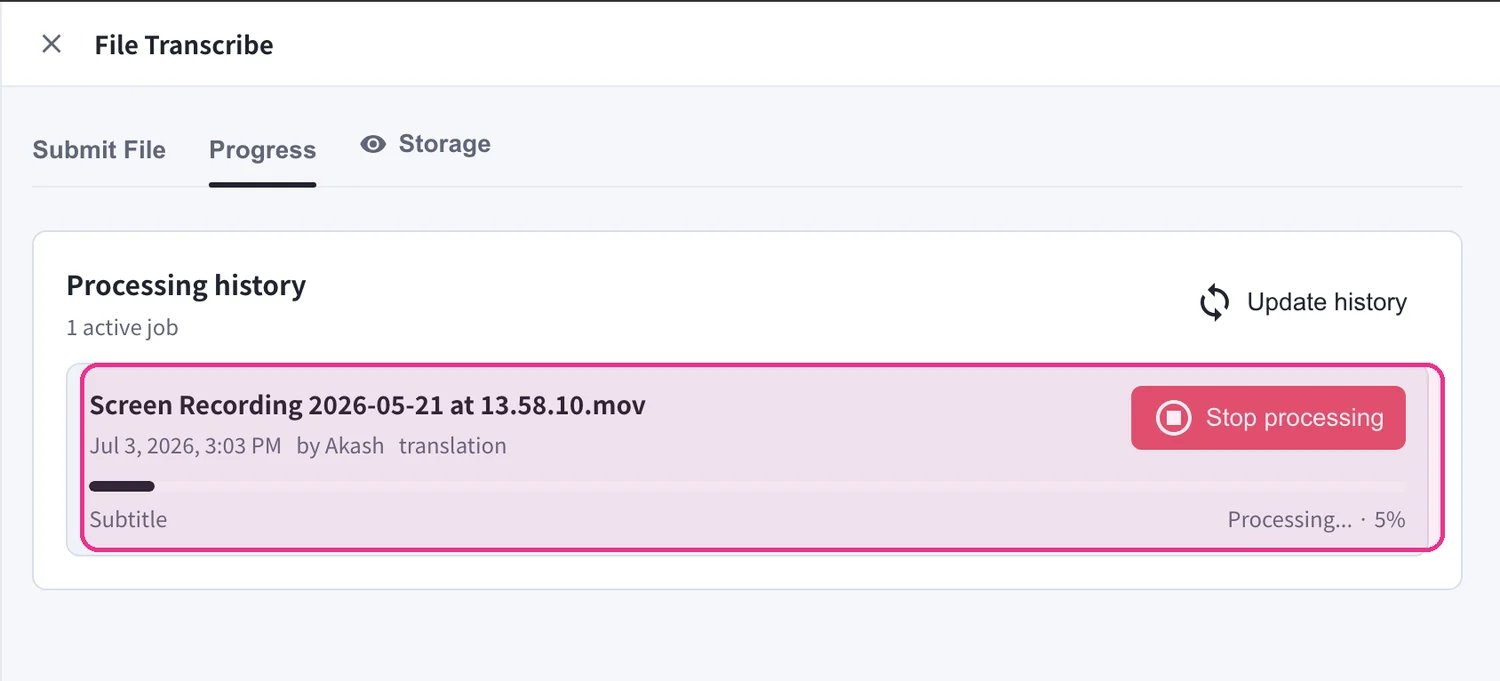
開啟 **Progress** 分頁,即可觀看檔案的處理情況。**Processing history** 中的每個作業都會顯示進度條與狀態(例如 *Processing… 5%*)。使用 **Stop processing** 可取消執行中的作業,或使用 **Update history** 重新整理清單。
* 將 **Translation language** 保持在 **No translation (transcription only)**,即可僅取得逐字稿與摘要。
* **Create subtitled video** 和 **Create dubbed video** 需要設定 **Translation language**,且會花費額外的處理時間。
* 您可以連續提交多個檔案,每個檔案都會成為獨立的處理作業。
## 追蹤處理進度
開啟 **Progress** 分頁,即可觀看檔案的處理情況。**Processing history** 中的每個作業都會顯示進度條與狀態(例如 *Processing… 5%*)。使用 **Stop processing** 可取消執行中的作業,或使用 **Update history** 重新整理清單。
 ## 取得結果
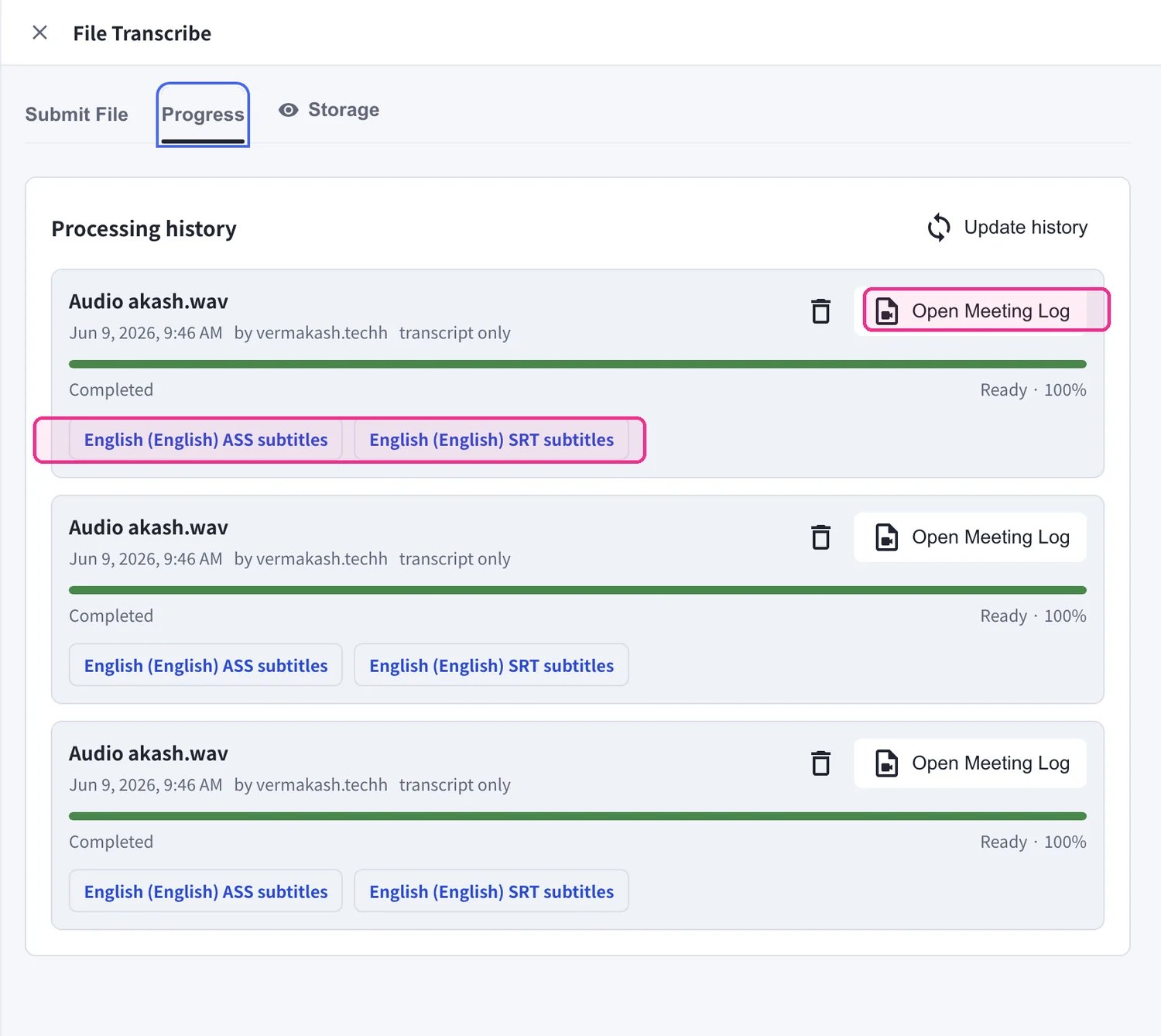
當作業狀態為 **Completed** 時,它會連同所有產生的內容一起保留在 **Processing history** 中:
* 點選 **Open Meeting Log** 可閱讀完整的逐字稿、翻譯與 AI 摘要。
* 若您產生了字幕,可直接下載,**ASS subtitles** 與 **SRT subtitles** 按鈕會顯示在已完成的作業上。
## 取得結果
當作業狀態為 **Completed** 時,它會連同所有產生的內容一起保留在 **Processing history** 中:
* 點選 **Open Meeting Log** 可閱讀完整的逐字稿、翻譯與 AI 摘要。
* 若您產生了字幕,可直接下載,**ASS subtitles** 與 **SRT subtitles** 按鈕會顯示在已完成的作業上。
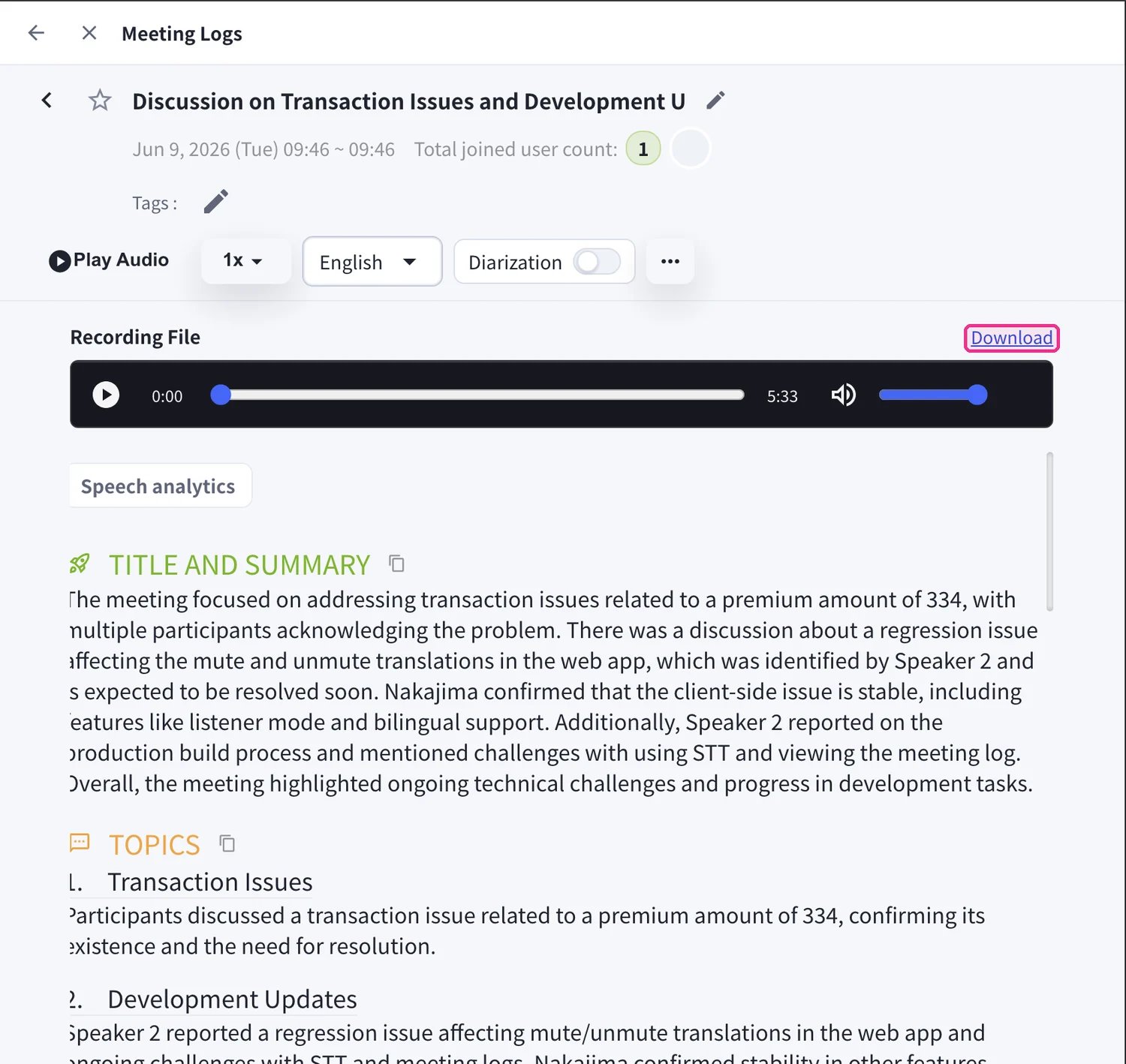
 **Meeting Log** 開啟的畫面與即時會議相同:播放音訊、切換顯示語言、切換 **Diarization**(說話者分離),並閱讀 **Title and Summary** 與 **Topics**。使用 **Recording File** 旁的 **Download** 可儲存原始媒體。
 嵌入字幕與配音的影片來自提交時的 **Create subtitled video** / **Create dubbed video** 選項,若您需要嵌入字幕的影片或翻譯配音,請在點選 **Submit File** 前先開啟它們。
## 管理儲存空間
上傳的媒體會計入您工作區的 File Transcribe 儲存空間。開啟 **Storage** 分頁,即可查看每個已儲存檔案的 **Type**、**Size** 與 **Created at** 日期。每個工作區皆包含 **5 GB**。選取檔案並點選 **Delete selected** 可釋出空間,或使用 **Update storage** 重新整理總計。
嵌入字幕與配音的影片來自提交時的 **Create subtitled video** / **Create dubbed video** 選項,若您需要嵌入字幕的影片或翻譯配音,請在點選 **Submit File** 前先開啟它們。
## 管理儲存空間
上傳的媒體會計入您工作區的 File Transcribe 儲存空間。開啟 **Storage** 分頁,即可查看每個已儲存檔案的 **Type**、**Size** 與 **Created at** 日期。每個工作區皆包含 **5 GB**。選取檔案並點選 **Delete selected** 可釋出空間,或使用 **Update storage** 重新整理總計。
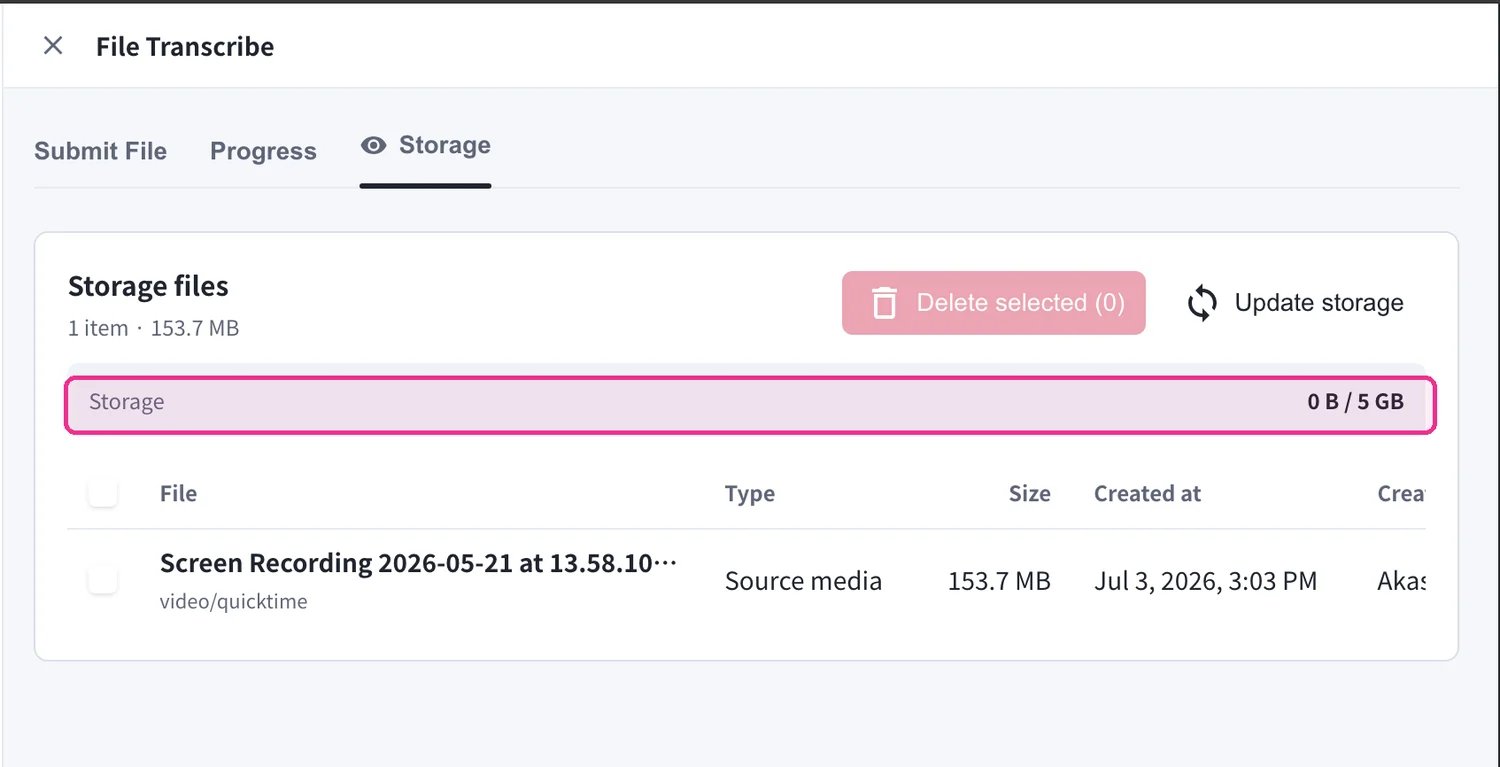 當儲存空間已滿時,新的上傳會被封鎖,直到您刪除現有檔案為止。刪除前請先下載任何您想保留的內容,因為刪除是永久性的。
## 支援的檔案格式
**音訊檔案**
* MP3
* WAV
* M4A
* 其他常見音訊格式
**影片檔案**
* MP4
* MOV
* AVI
* 其他常見影片格式
## 使用場景
**多語言研討會與講座**
為錄製的研討會與講座新增字幕或配音音訊,建立多語言內容。
**會議紀要製作**
從錄製的會議音訊自動建立逐字稿與 AI 摘要,大幅減少會議紀要的製作時間。
**YouTube 影片多語言擴充**
為現有影片內容新增多語言字幕,觸及全球觀眾。
當儲存空間已滿時,新的上傳會被封鎖,直到您刪除現有檔案為止。刪除前請先下載任何您想保留的內容,因為刪除是永久性的。
## 支援的檔案格式
**音訊檔案**
* MP3
* WAV
* M4A
* 其他常見音訊格式
**影片檔案**
* MP4
* MOV
* AVI
* 其他常見影片格式
## 使用場景
**多語言研討會與講座**
為錄製的研討會與講座新增字幕或配音音訊,建立多語言內容。
**會議紀要製作**
從錄製的會議音訊自動建立逐字稿與 AI 摘要,大幅減少會議紀要的製作時間。
**YouTube 影片多語言擴充**
為現有影片內容新增多語言字幕,觸及全球觀眾。