> ## Documentation Index
> Fetch the complete documentation index at: https://manual.voiceping.net/llms.txt
> Use this file to discover all available pages before exploring further.

# 時間追蹤日誌的檢視

> 如何檢視成員的工作時間、活動和變更歷史

export const ContactZhTW = () => <>
    <Tip>
      如有任何問題，請透過<a href="https://forms.gle/6AUho7oj3zBr79e96">此表單</a>與我們聯繫。
    </Tip>

    ## 官方連結

    <CardGroup cols={2}>
      <Card title="官方網站" icon="globe" href="https://voiceping.net/en/">
        造訪官方網站
      </Card>
      <Card title="X (Twitter)" icon="x-twitter" href="https://x.com/VoicePingMedia">
        在X上追蹤我們
      </Card>
      <Card title="Facebook" icon="facebook" href="https://www.facebook.com/voiceping.inc">
        在Facebook上按讚
      </Card>
      <Card title="LinkedIn" icon="linkedin" href="https://www.linkedin.com/company/28684130/">
        在LinkedIn上連結
      </Card>
    </CardGroup>
  </>;

管理者可以從左側邊欄的**時間追蹤管理**檢視所有成員的時間追蹤日誌。

## 1. 週報

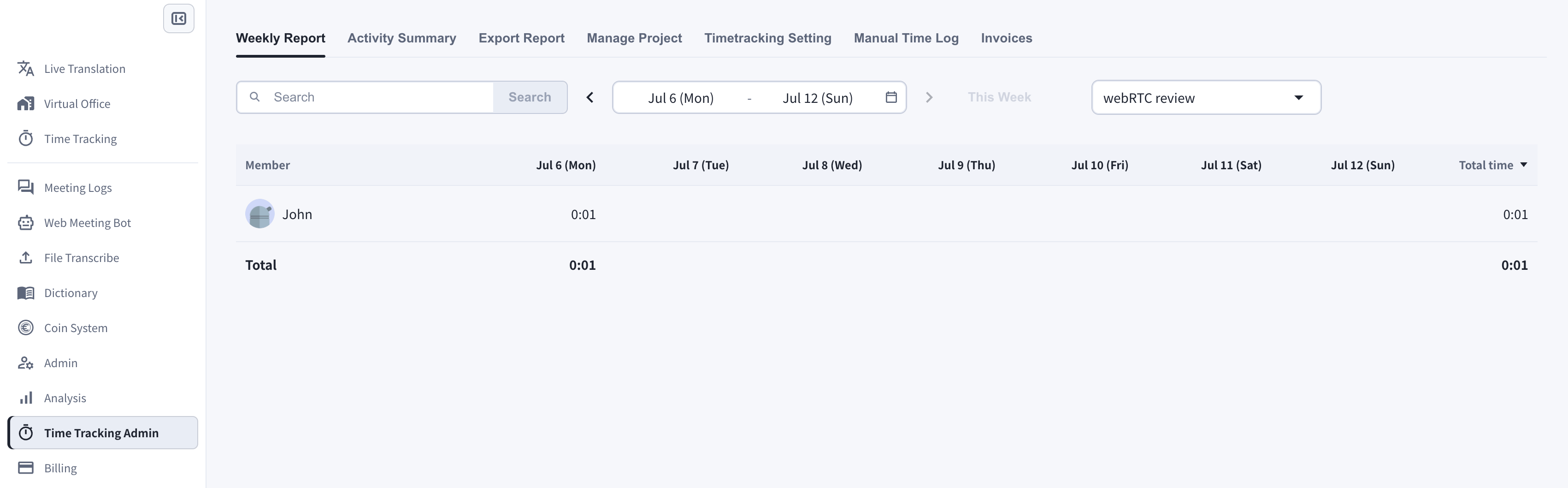
**週報**標籤顯示每位成員一週內每天的追蹤工時。可以搜尋成員、切換週次，並按專案篩選。

<Frame>
  <img src="https://mintcdn.com/test-cf63e467/XehoYRhOCnputp7e/en/images/time-tracking/04-weekly-report.png?fit=max&auto=format&n=XehoYRhOCnputp7e&q=85&s=e8e496e7cf801cc33e5f781842b16a98" alt="顯示每位成員每天追蹤工時的週報" width="3402" height="1058" data-path="en/images/time-tracking/04-weekly-report.png" />
</Frame>

## 2. 活動摘要

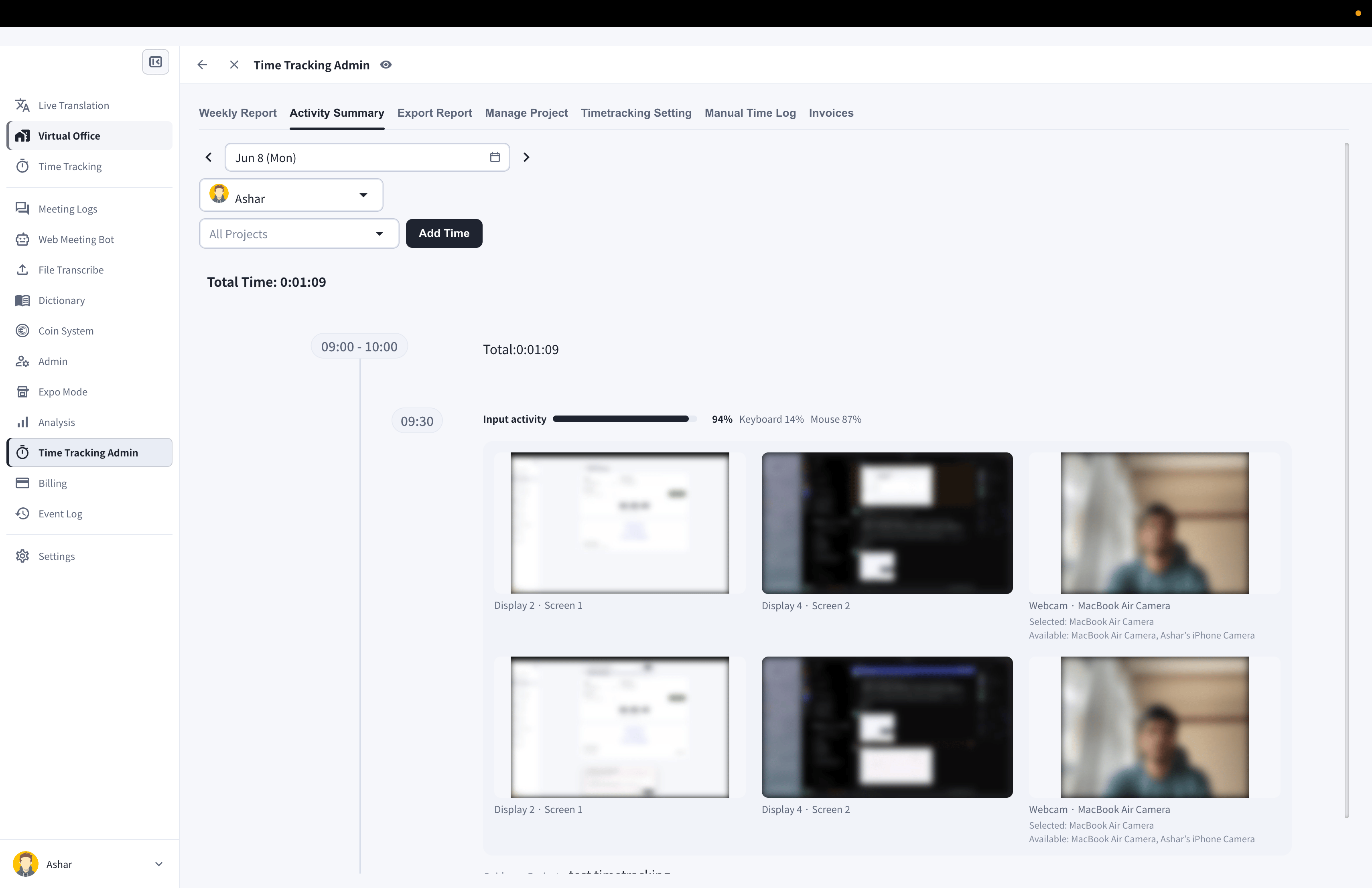
**活動摘要**標籤以時間軸形式顯示一位成員的一天：按專案的工作時間和備註，以及在[時間追蹤設定](/zh-tw/time-tracking-management)中啟用後，每個10分鐘時段的桌面螢幕截圖、網路攝影機拍攝和輸入活動程度。

<Frame>
  <img src="https://mintcdn.com/test-cf63e467/XehoYRhOCnputp7e/en/images/time-tracking-management/02-activity-summary-captures.png?fit=max&auto=format&n=XehoYRhOCnputp7e&q=85&s=bb7bc248faf3d8e1c1b59489b67a5bd7" alt="含有螢幕截圖、網路攝影機拍攝和輸入活動的活動摘要" width="3420" height="2214" data-path="en/images/time-tracking-management/02-activity-summary-captures.png" />
</Frame>

<Tip>
  您也可以在這裡使用**添加時間**按鈕為成員新增時間。
</Tip>

## 3. 手動時間記錄

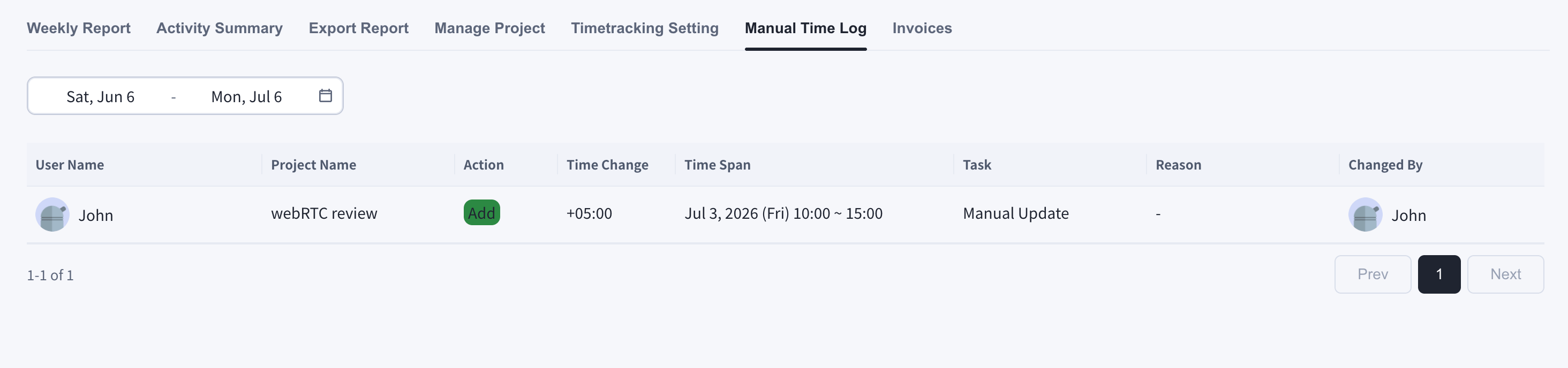
**手動時間記錄**標籤顯示成員工作日誌的變更歷史：每一次手動新增或刪除，以及時間變更、時段、任務、原因和變更人。

<Frame>
  <img src="https://mintcdn.com/test-cf63e467/XehoYRhOCnputp7e/en/images/time-tracking-logs/01-manual-time-log.png?fit=max&auto=format&n=XehoYRhOCnputp7e&q=85&s=3c0f14d485871998a56a1faadf95c27a" alt="列出手動新增和刪除及其原因和變更人的手動時間記錄" width="2928" height="688" data-path="en/images/time-tracking-logs/01-manual-time-log.png" />
</Frame>

## 4. 匯出報告

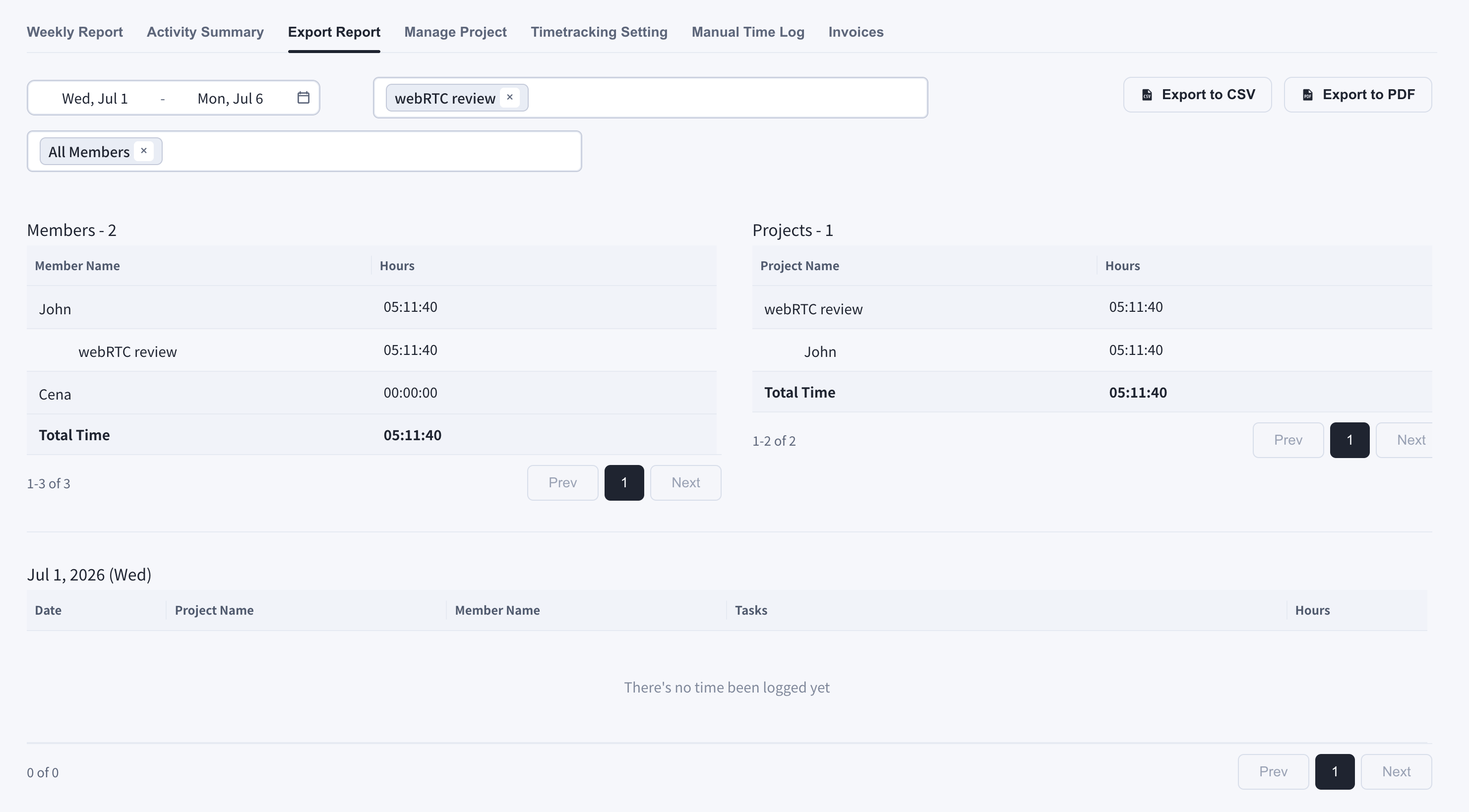
**匯出報告**標籤可按成員和專案彙總任意日期範圍內的追蹤工時，並將報告匯出為CSV或PDF。

<Frame>
  <img src="https://mintcdn.com/test-cf63e467/XehoYRhOCnputp7e/en/images/time-tracking-logs/02-export-report.png?fit=max&auto=format&n=XehoYRhOCnputp7e&q=85&s=ebb6428543b1e08da53397566cbdc248" alt="含有按成員和專案的合計以及CSV/PDF匯出按鈕的匯出報告" width="2962" height="1638" data-path="en/images/time-tracking-logs/02-export-report.png" />
</Frame>

## 5. 時間追蹤分析

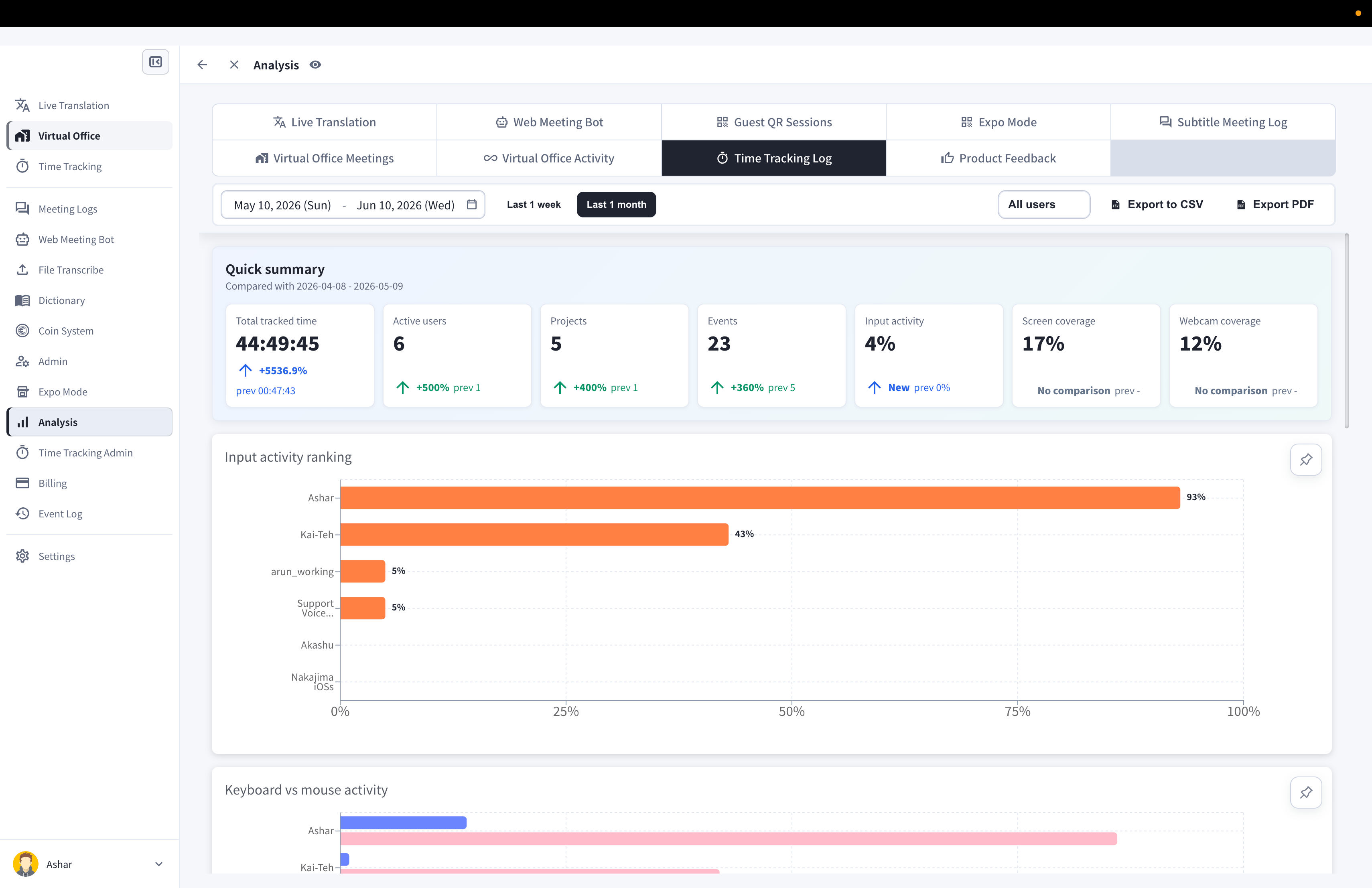
要檢視整個工作區的情況，請從左側邊欄開啟**分析**，然後選擇**時間追蹤記錄**標籤。它會顯示總追蹤時間、活躍使用者、專案、輸入活動以及螢幕/網路攝影機涵蓋率，並附有排名和按專案的明細。

<Frame>
  <img src="https://mintcdn.com/test-cf63e467/XehoYRhOCnputp7e/en/images/time-tracking-logs/03-analysis-time-tracking.png?fit=max&auto=format&n=XehoYRhOCnputp7e&q=85&s=840eb6f4d586e4394b6931c6da0d8e0d" alt="含有快速摘要和輸入活動排名的時間追蹤分析儀表板" width="3420" height="2214" data-path="en/images/time-tracking-logs/03-analysis-time-tracking.png" />
</Frame>

## 線上記錄（可選功能）

在啟用了虛擬辦公室和線上記錄的工作區中，側邊欄會顯示**線上記錄**項目。在這裡可以檢視：

* **每週線上記錄報告**: 每位成員一週內的登入時間
* **每日線上記錄事件**: 一位成員一天內的[使用者狀態](/zh-tw/user-status)變化歷史

<ContactZhTW />