> ## Documentation Index
> Fetch the complete documentation index at: https://manual.voiceping.net/llms.txt
> Use this file to discover all available pages before exploring further.

# 字幕模式（背景透明）

> 在簡報或網路研討會中，於投影片、PDF 或影片上疊加即時透明的 AI 字幕——具備可調整文字、顏色與全螢幕顯示的即時雙語字幕。

export const FeedbackZhTW = () => <>
    <Tip>
      對此功能有想法或需求？請透過 <a href="/zh-tw/product-feedback">Product Feedback</a> 傳送給團隊。
    </Tip>

    <h2>官方連結</h2>

    <CardGroup cols={2}>
      <Card title="官方網站" icon="globe" href="https://voiceping.net/en/">
        造訪官方網站
      </Card>
      <Card title="X (Twitter)" icon="x-twitter" href="https://x.com/VoicePingMedia">
        在X上追蹤我們
      </Card>
      <Card title="Facebook" icon="facebook" href="https://www.facebook.com/voiceping.inc">
        在Facebook上按讚
      </Card>
      <Card title="LinkedIn" icon="linkedin" href="https://www.linkedin.com/company/28684130/">
        在LinkedIn上連結
      </Card>
    </CardGroup>
  </>;

<Frame>
  <img src="https://mintcdn.com/test-cf63e467/o6tpTAF6qBkrf6dh/en/images/subtitle-mode/hero-subtitle-mode.webp?fit=max&auto=format&n=o6tpTAF6qBkrf6dh&q=85&s=04a679b0a7946816f9de09449593b17c" alt="字幕模式——在投影片與影片上疊加透明的即時字幕" width="2688" height="1536" data-path="en/images/subtitle-mode/hero-subtitle-mode.webp" />
</Frame>

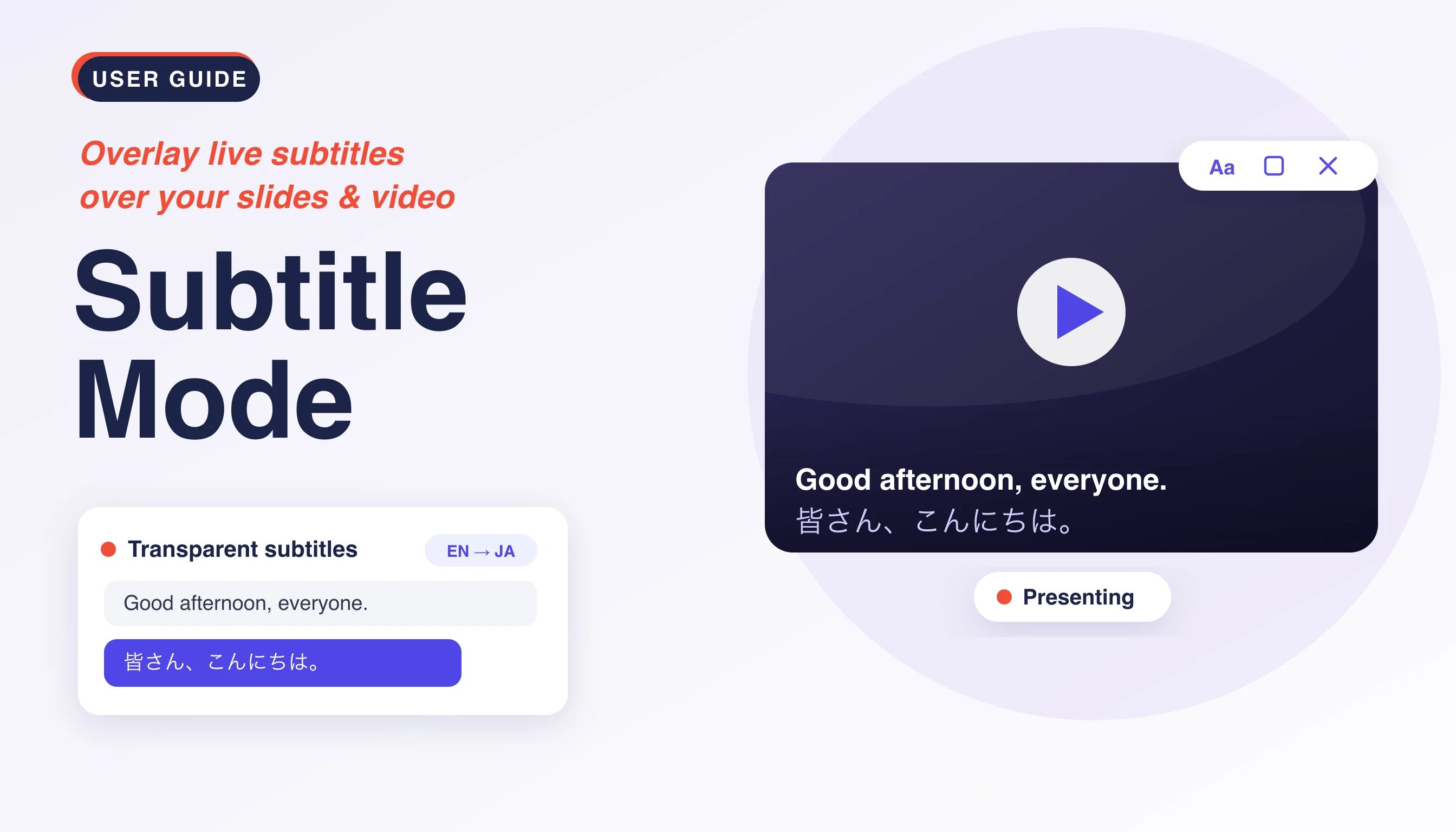
字幕模式會將 VoicePing 的即時語音轉文字與翻譯以**透明背景**的字幕呈現，讓字幕直接浮現在您所分享的任何內容之上——投影片、PDF 或影片（YouTube、電影等）。非常適合用於簡報與網路研討會，讓觀眾能夠一邊閱讀字幕，一邊不遮擋您的內容。

## 使用方法

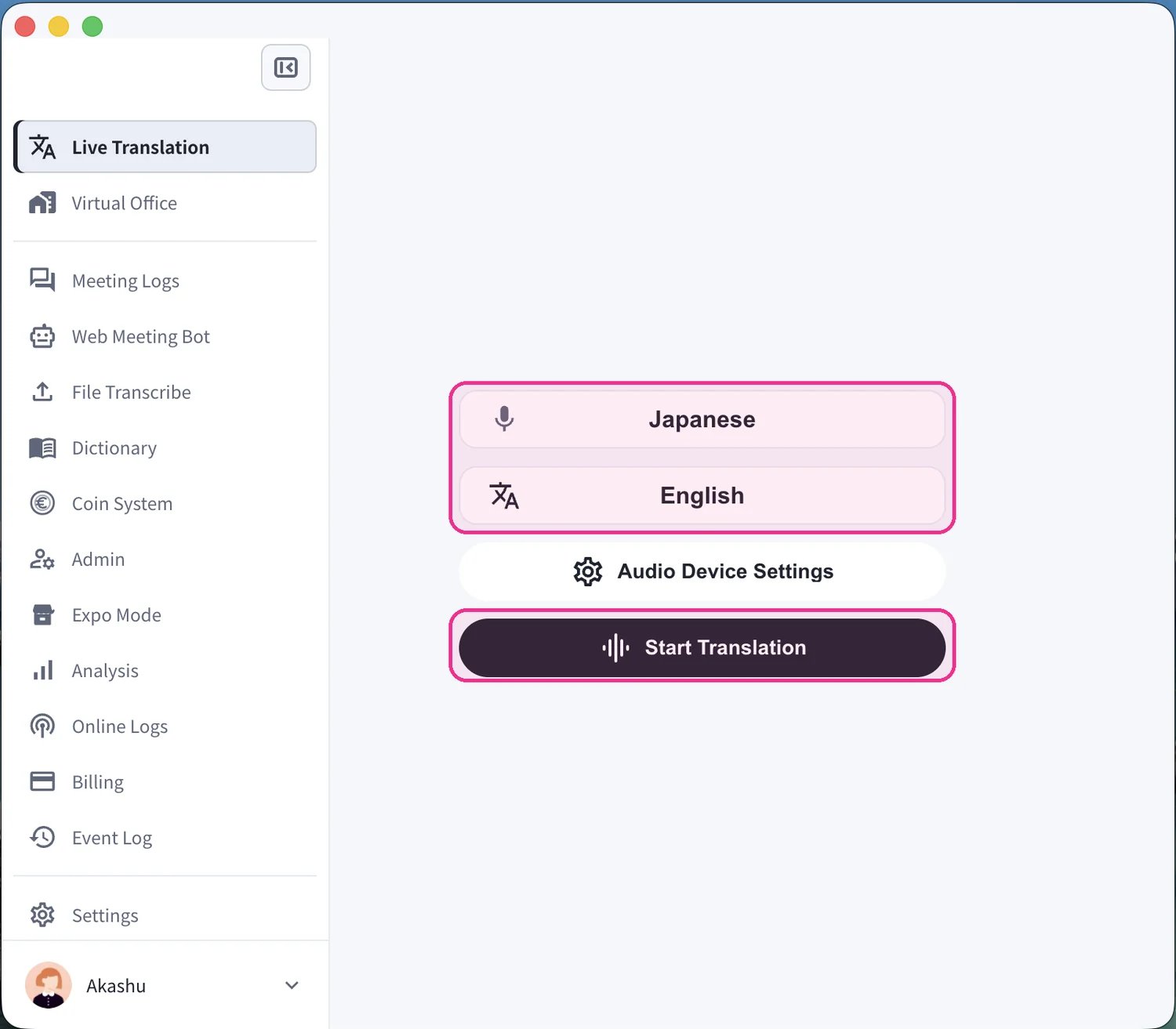
1. **開始翻譯。** 在 **Live Translation** 畫面中，設定您所說的語言（麥克風圖示）與翻譯語言（"Text & A" 圖示），然後點選 **Start Translation**。

<Frame>
  <img src="https://mintcdn.com/test-cf63e467/o6tpTAF6qBkrf6dh/en/images/subtitle-mode/01-start-translation.webp?fit=max&auto=format&n=o6tpTAF6qBkrf6dh&q=85&s=9dbf2396591ea1c169dd4c7da6cc332b" alt="選擇說話語言與翻譯語言，然後點選 Start Translation" width="1500" height="1313" data-path="en/images/subtitle-mode/01-start-translation.webp" />
</Frame>

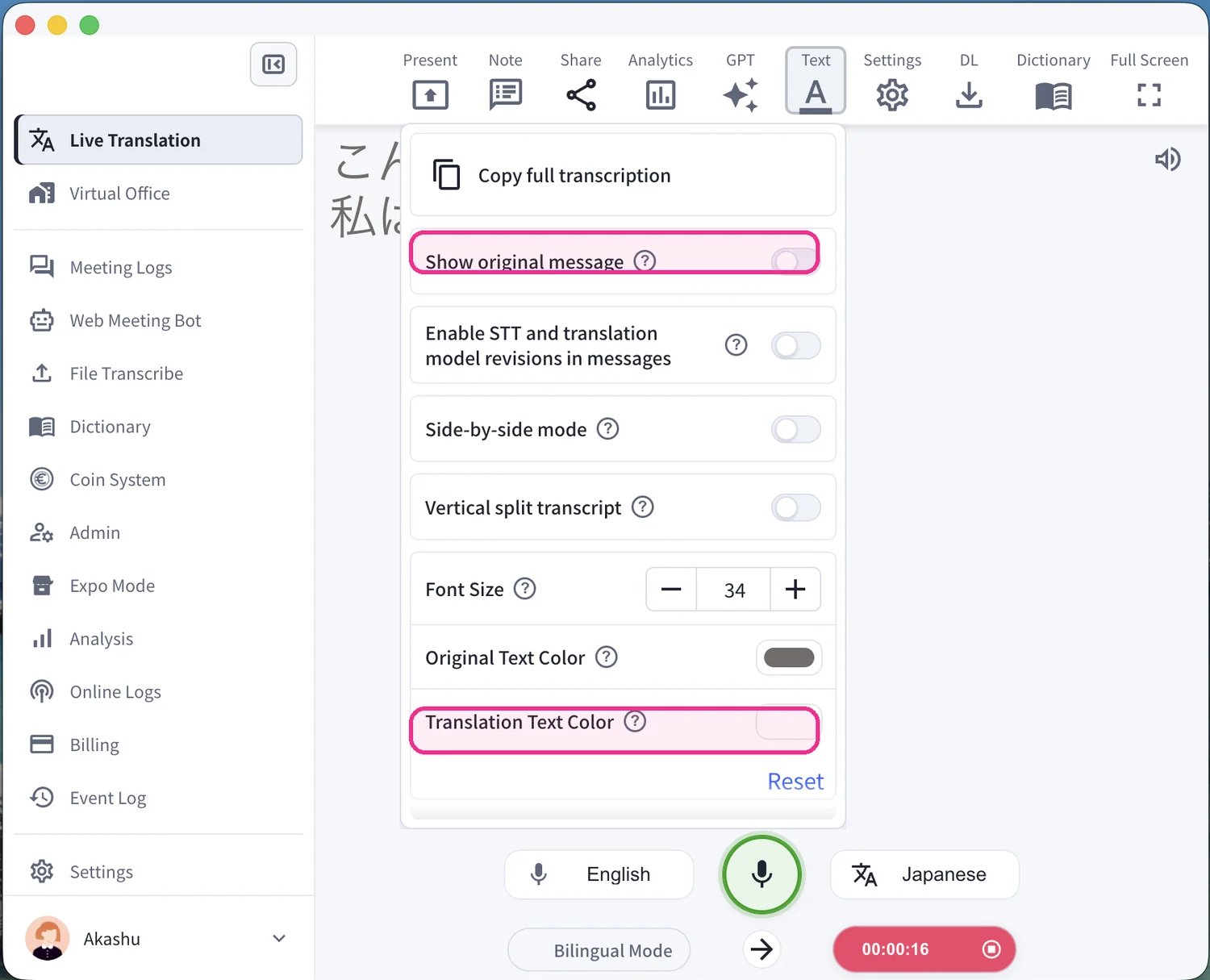
2. **設定字幕的顯示樣式。** 在開始簡報前，開啟頂端工具列中的 **Text** 面板來調整顯示方式。切換 **Show original message** 以顯示或隱藏原始語言，並設定 **Translation Text Color**（以及字型大小），讓字幕在您的內容上能清楚閱讀。

<Frame>
  <img src="https://mintcdn.com/test-cf63e467/o6tpTAF6qBkrf6dh/en/images/subtitle-mode/02-edit-view.webp?fit=max&auto=format&n=o6tpTAF6qBkrf6dh&q=85&s=85e5d8a34b04426d28bb92f55604ac4a" alt="Text 面板——切換 Show original message 並設定 Translation Text Color" width="1500" height="1215" data-path="en/images/subtitle-mode/02-edit-view.webp" />
</Frame>

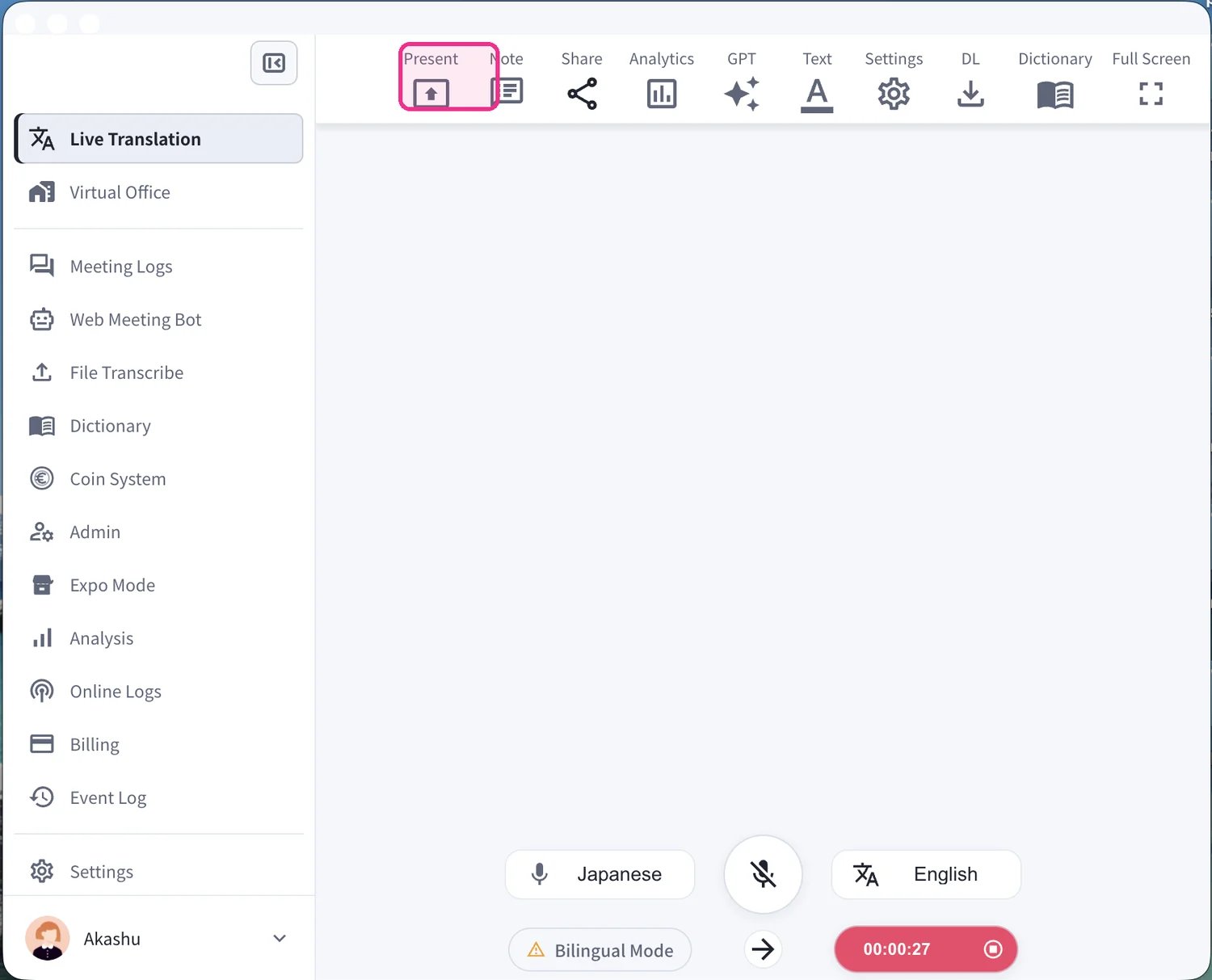
3. **開啟 Present 模式。** 點選頂端工具列中的 **Present**，即可啟動簡報字幕視窗。

<Frame>
  <img src="https://mintcdn.com/test-cf63e467/o6tpTAF6qBkrf6dh/en/images/subtitle-mode/03-click-present.webp?fit=max&auto=format&n=o6tpTAF6qBkrf6dh&q=85&s=72c9045504b7d100fd279ff8c6b90d8e" alt="點選頂端工具列中的 Present" width="1500" height="1213" data-path="en/images/subtitle-mode/03-click-present.webp" />
</Frame>

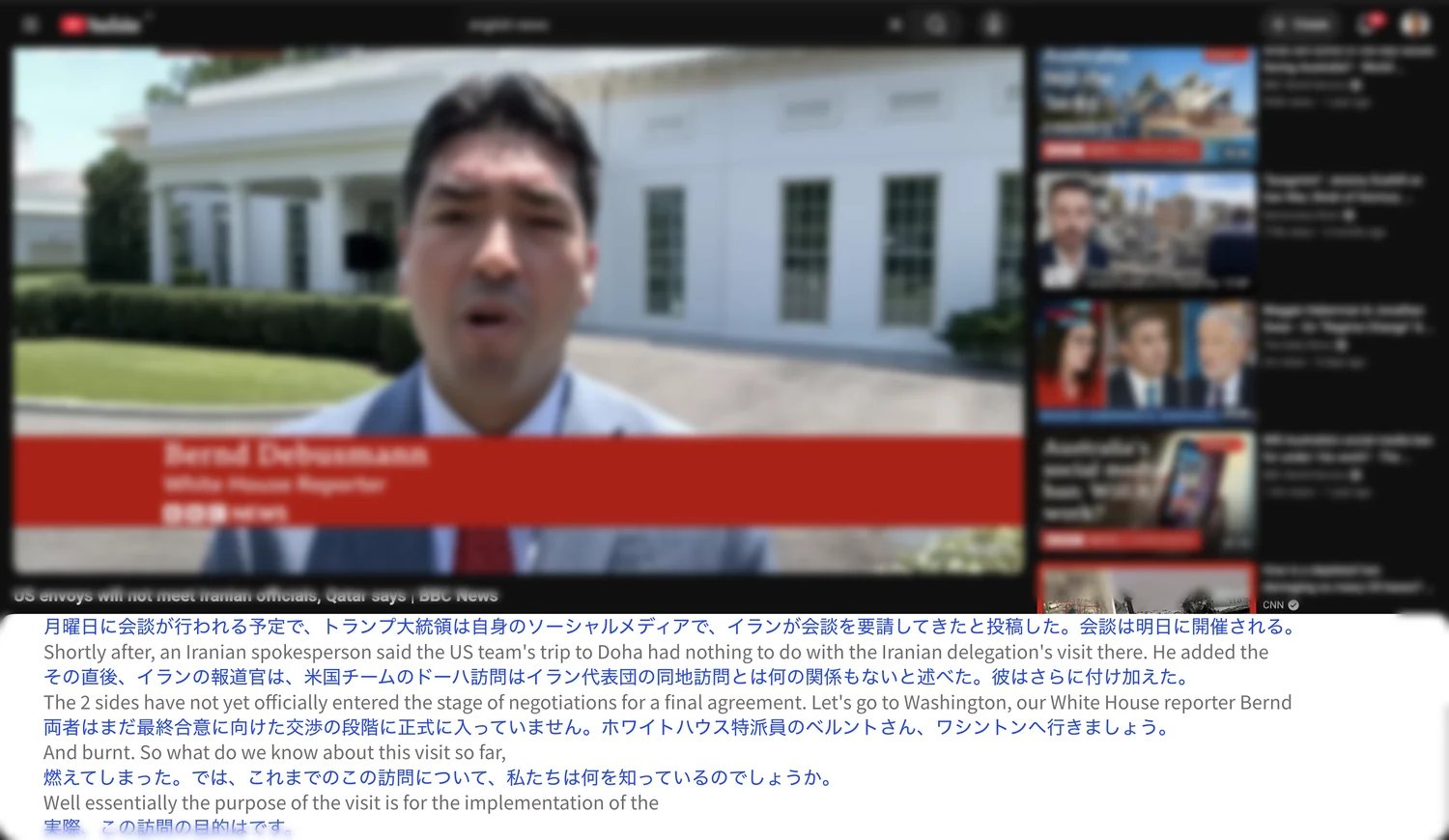
4. **將字幕疊加在您的內容上。** 字幕視窗會以透明背景開啟。將它放在您的投影片、PDF 或影片上，即時字幕——原始文字與翻譯——便會即時顯示在您的內容之上。

<Frame>
  <img src="https://mintcdn.com/test-cf63e467/o6tpTAF6qBkrf6dh/en/images/subtitle-mode/04-subtitles-over-content.webp?fit=max&auto=format&n=o6tpTAF6qBkrf6dh&q=85&s=7ad38323a7d1b663e9874d6338aa7440" alt="即時雙語字幕疊加在影片上" width="1500" height="870" data-path="en/images/subtitle-mode/04-subtitles-over-content.webp" />
</Frame>

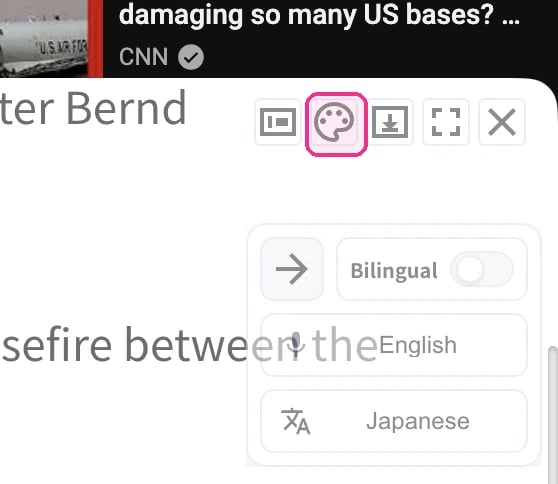
5. **切換透明模式。** 在浮動的字幕視窗中，點選**調色盤圖示**，即可在透明模式（字幕以透視背景疊加在您的內容上）與純色不透明背景之間切換。您也可以切換 **Bilingual**，或切換語音轉文字與翻譯的語言。

<Frame>
  <img src="https://mintcdn.com/test-cf63e467/o6tpTAF6qBkrf6dh/en/images/subtitle-mode/05-transparent-controls.webp?fit=max&auto=format&n=o6tpTAF6qBkrf6dh&q=85&s=3fc6e7b3748ff64ba2c1af8513dcabd8" alt="透明字幕視窗——調色盤圖示可在透明與純色背景之間切換" width="558" height="484" data-path="en/images/subtitle-mode/05-transparent-controls.webp" />
</Frame>

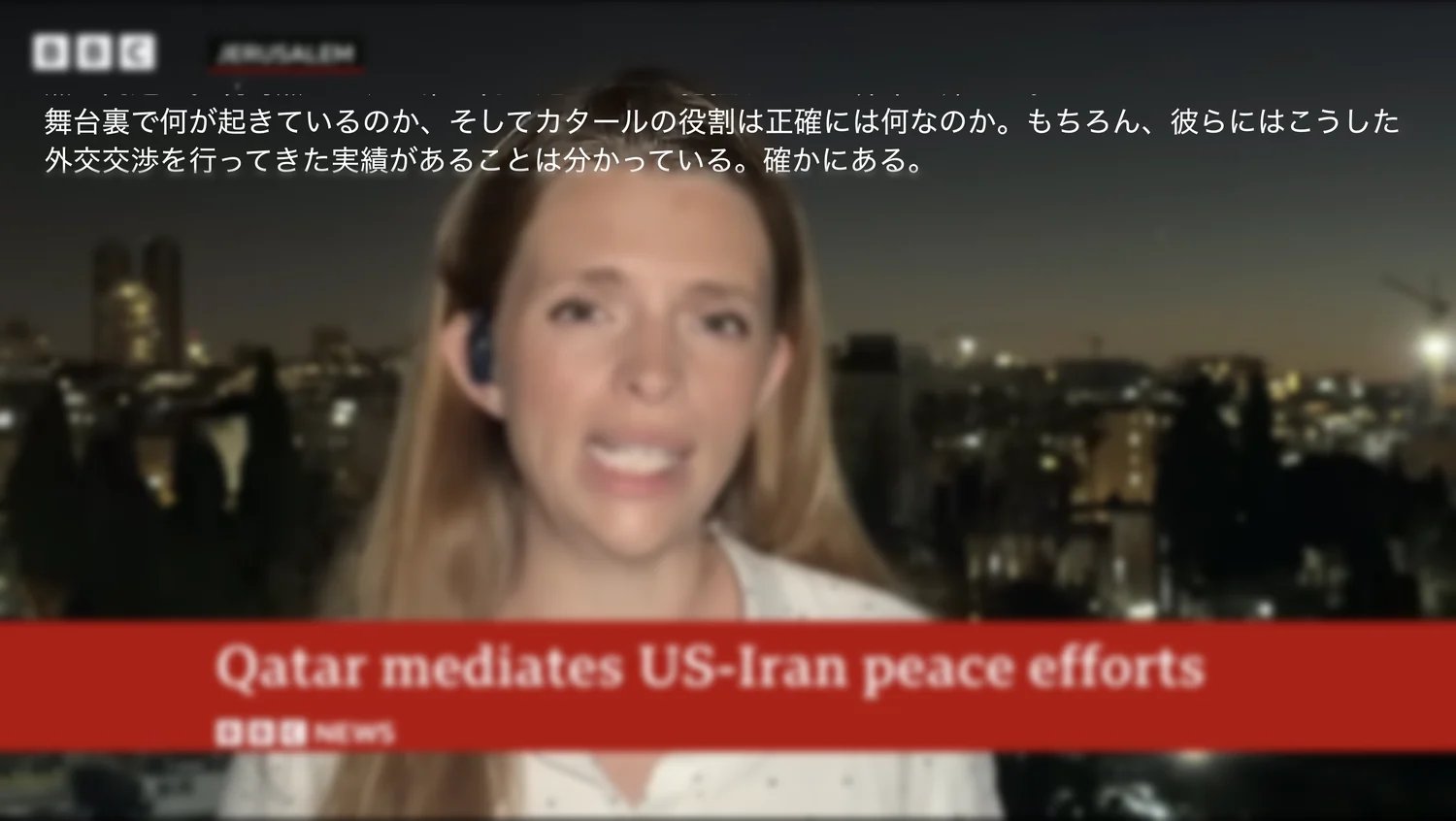
6. **以乾淨的疊加字幕進行簡報。** 切換為全螢幕以呈現最終效果——透明字幕會直接浮現在您的影片或投影片上，沒有任何背景方塊。

<Frame>
  <img src="https://mintcdn.com/test-cf63e467/o6tpTAF6qBkrf6dh/en/images/subtitle-mode/06-transparent-example.webp?fit=max&auto=format&n=o6tpTAF6qBkrf6dh&q=85&s=def9ac1063de99cd00211a521a4b645f" alt="透明字幕乾淨地顯示在全螢幕影片上" width="1500" height="846" data-path="en/images/subtitle-mode/06-transparent-example.webp" />
</Frame>

<Tip>
  您可以調整字幕的文字大小與顏色，並隱藏語音轉文字的語言以只顯示翻譯。如需完整的講者與參與者設定，請參閱[研討會即時語音翻譯字幕](/zh-tw/live-subtitles)。
</Tip>

<FeedbackZhTW />