> ## Documentation Index
> Fetch the complete documentation index at: https://manual.voiceping.net/llms.txt
> Use this file to discover all available pages before exploring further.
# 虛擬辦公室
> 使用行動應用程式在虛擬辦公室進行團隊溝通
export const ContactZhTW = () => <>
如有任何問題,請透過此表單與我們聯繫。
## 官方連結
造訪官方網站
在X上追蹤我們
在Facebook上按讚
在LinkedIn上連結
;
VoicePing使用者除了桌面應用程式外,還可以使用行動應用程式。與桌面應用程式一樣,行動應用程式具有呼叫功能、語音翻譯功能和會議室,即使無法開啟電腦也可以與團隊進行溝通。
## 切換到虛擬辦公室模式
您可以在主畫面上切換虛擬辦公室模式和語音翻譯模式。點選選單頂部的「切換到虛擬辦公室模式」進入虛擬辦公室。
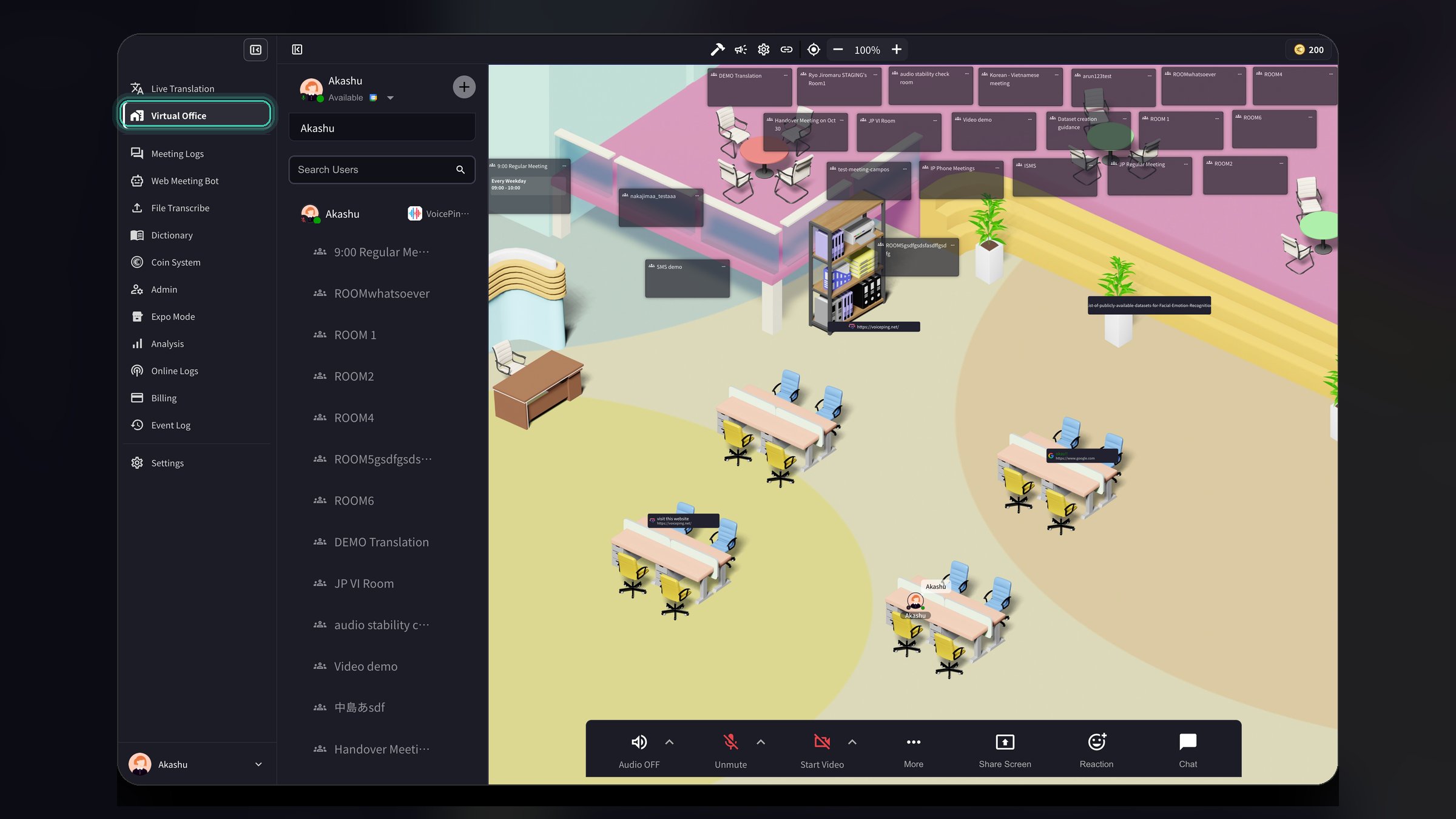 切換模式時,您還會看到以下選項:
* **僅擷取麥克風音訊**:啟用後,僅擷取和翻譯麥克風輸入,忽略其他音訊
* **偵測會議**:當偵測到設定中選擇的應用程式的會議時傳送通知
* **預設啟用麥克風**:開始翻譯時自動開啟麥克風
* **演示字幕**:顯示用於演示的透明文字聊天視窗,字幕會醒目顯示
## 啟用或停用虛擬辦公室
工作區管理員可以為工作區中的所有成員啟用或停用虛擬辦公室功能。
1. 開啟**設定**(點選右上角的齒輪圖示)
2. 從左側邊欄選擇**工作區**
3. 找到**啟用虛擬辦公室**開關
4. 開啟或關閉以為所有工作區成員啟用/停用虛擬辦公室
5. 點選**更新**儲存變更
切換模式時,您還會看到以下選項:
* **僅擷取麥克風音訊**:啟用後,僅擷取和翻譯麥克風輸入,忽略其他音訊
* **偵測會議**:當偵測到設定中選擇的應用程式的會議時傳送通知
* **預設啟用麥克風**:開始翻譯時自動開啟麥克風
* **演示字幕**:顯示用於演示的透明文字聊天視窗,字幕會醒目顯示
## 啟用或停用虛擬辦公室
工作區管理員可以為工作區中的所有成員啟用或停用虛擬辦公室功能。
1. 開啟**設定**(點選右上角的齒輪圖示)
2. 從左側邊欄選擇**工作區**
3. 找到**啟用虛擬辦公室**開關
4. 開啟或關閉以為所有工作區成員啟用/停用虛擬辦公室
5. 點選**更新**儲存變更
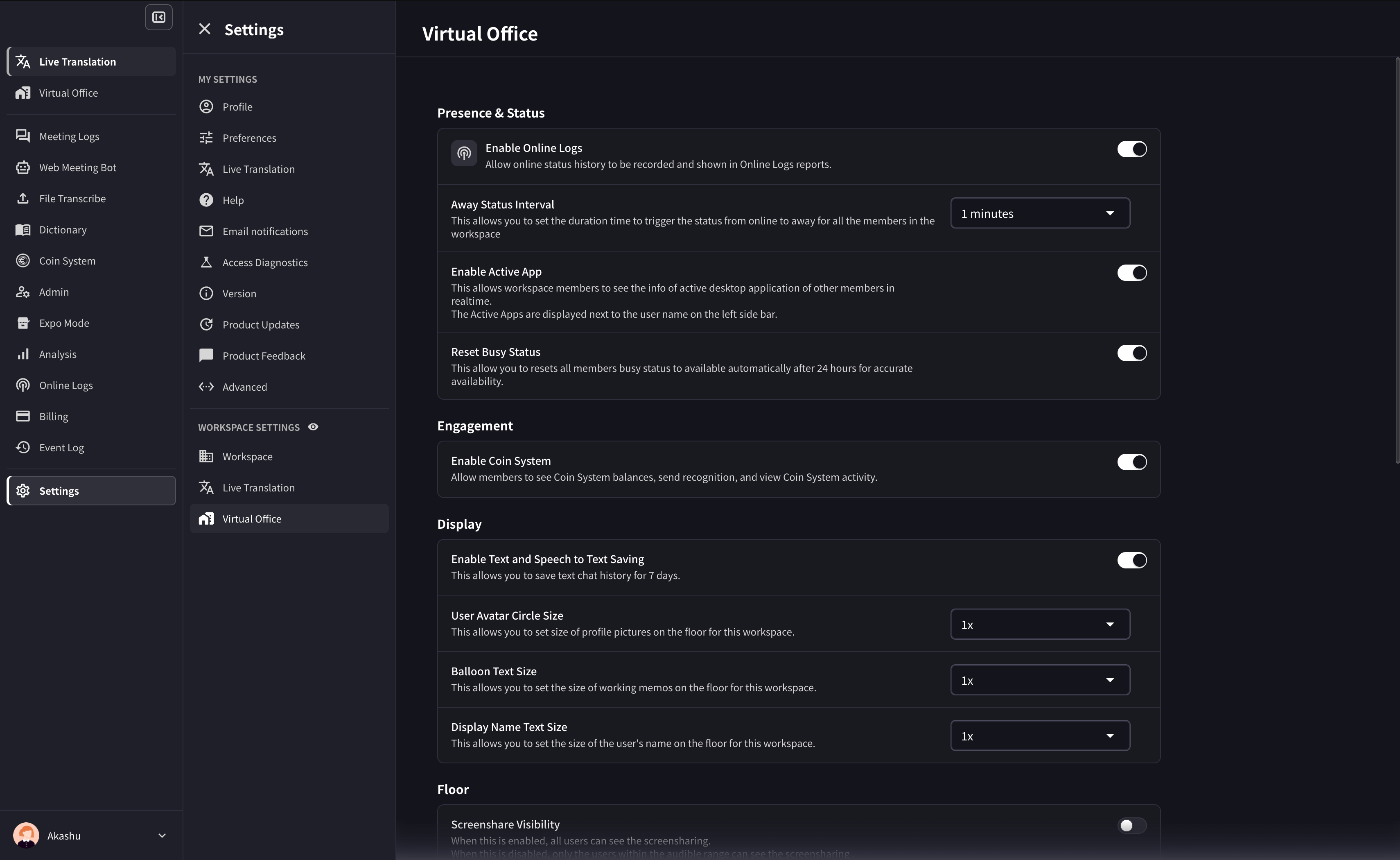 您還可以配置:
* **離開狀態間隔**:設定成員狀態自動變為「離開」之前的持續時間
* **啟用活動應用程式**:允許工作區成員即時檢視其他成員的活動桌面應用程式
## 1. 建立VoicePing帳號和工作區
如果您還沒有VoicePing帳號和工作區,請從應用程式商店下載VoicePing應用程式。下載應用程式後,開始使用應用程式,建立帳號和新工作區。建立方法請參閱[這裡](/zh-tw/owner-signup)
## 2. 邀請團隊成員
在VoicePing桌面應用程式中,有[3種方法邀請公司內部人員加入VoicePing工作區](/zh-tw/invite-members),但行動應用程式只有1種方法邀請團隊成員加入工作區。
點選應用程式左上角的個人資料圖示後,會顯示側邊欄。進入\[設定]>\[透過URL邀請],會顯示邀請連結。
## 在樓層與團隊交流
在遠端辦公中,進行網路會議正在成為標準,但由於日程調整麻煩等原因導致溝通減少的情況並不少見。
為瞭解決這個問題,VoicePing虛擬辦公室具有可以輕鬆與團隊交流的「呼叫」功能。
首先,讓我們從使用者狀態確認對方是否可以交談。
### 使用者狀態
### 呼叫
如果對方可以交談,請使用「呼叫」功能。
在行動應用程式中,點選對方的使用者圖示或側邊欄中的電話圖示即可呼叫對方。
### 文字聊天
除了「呼叫」功能外,還提供了聊天框作為與他人交流的工具。
在行動應用程式中,點選螢幕底部的文字圖示或使用者頭像中的文字圖示傳送訊息。
點選螢幕右上角的鍵盤圖示可以顯示/隱藏訊息框。
## 進行會議
VoicePing行動應用程式也可以進行會議。如果樓層沒有會議室,請建立一個。
### 建立會議室
點選樓層上的「+」按鈕可以建立新會議室。
輸入會議室名稱,選擇設計。
## 語音翻譯(可選)
語音翻譯功能也可以在VoicePing行動應用程式中使用。首先,從設定中選擇可翻譯的語言。
### 設定可翻譯的語言
點選應用程式左上角的使用者圖示後,會顯示側邊欄。進入\[設定]>\[工作區],有\[語音轉文字/翻譯]設定。點選箭頭圖示,選擇在工作區中使用的語言。
### 指定語言
使用語音翻譯功能時,請選擇發言語言和翻譯語言。
## Data Retention
Audio data on paid self-service plans is retained for up to 3 months. Meeting logs are retained according to the workspace plan or managed contract. Web Meeting Bot or recording video is documented only where that video is available for a session and is retained for up to 1 month. Download needed data before the retention period ends.
## VoicePing 3.0 Virtual Office Notes
* Floor access can be affected by member, group, and policy settings. If assignment fails, check [Member Management](/zh-tw/member-management) and group settings.
* Meeting rooms support card position lock, grid/presenter video layouts, and member-managed meeting rooms where permitted.
* Floor text chat can default to nearby users as the receiver.
* Custom objects support text editing, URLs, YouTube, and iframe embeds.
您還可以配置:
* **離開狀態間隔**:設定成員狀態自動變為「離開」之前的持續時間
* **啟用活動應用程式**:允許工作區成員即時檢視其他成員的活動桌面應用程式
## 1. 建立VoicePing帳號和工作區
如果您還沒有VoicePing帳號和工作區,請從應用程式商店下載VoicePing應用程式。下載應用程式後,開始使用應用程式,建立帳號和新工作區。建立方法請參閱[這裡](/zh-tw/owner-signup)
## 2. 邀請團隊成員
在VoicePing桌面應用程式中,有[3種方法邀請公司內部人員加入VoicePing工作區](/zh-tw/invite-members),但行動應用程式只有1種方法邀請團隊成員加入工作區。
點選應用程式左上角的個人資料圖示後,會顯示側邊欄。進入\[設定]>\[透過URL邀請],會顯示邀請連結。
## 在樓層與團隊交流
在遠端辦公中,進行網路會議正在成為標準,但由於日程調整麻煩等原因導致溝通減少的情況並不少見。
為瞭解決這個問題,VoicePing虛擬辦公室具有可以輕鬆與團隊交流的「呼叫」功能。
首先,讓我們從使用者狀態確認對方是否可以交談。
### 使用者狀態
### 呼叫
如果對方可以交談,請使用「呼叫」功能。
在行動應用程式中,點選對方的使用者圖示或側邊欄中的電話圖示即可呼叫對方。
### 文字聊天
除了「呼叫」功能外,還提供了聊天框作為與他人交流的工具。
在行動應用程式中,點選螢幕底部的文字圖示或使用者頭像中的文字圖示傳送訊息。
點選螢幕右上角的鍵盤圖示可以顯示/隱藏訊息框。
## 進行會議
VoicePing行動應用程式也可以進行會議。如果樓層沒有會議室,請建立一個。
### 建立會議室
點選樓層上的「+」按鈕可以建立新會議室。
輸入會議室名稱,選擇設計。
## 語音翻譯(可選)
語音翻譯功能也可以在VoicePing行動應用程式中使用。首先,從設定中選擇可翻譯的語言。
### 設定可翻譯的語言
點選應用程式左上角的使用者圖示後,會顯示側邊欄。進入\[設定]>\[工作區],有\[語音轉文字/翻譯]設定。點選箭頭圖示,選擇在工作區中使用的語言。
### 指定語言
使用語音翻譯功能時,請選擇發言語言和翻譯語言。
## Data Retention
Audio data on paid self-service plans is retained for up to 3 months. Meeting logs are retained according to the workspace plan or managed contract. Web Meeting Bot or recording video is documented only where that video is available for a session and is retained for up to 1 month. Download needed data before the retention period ends.
## VoicePing 3.0 Virtual Office Notes
* Floor access can be affected by member, group, and policy settings. If assignment fails, check [Member Management](/zh-tw/member-management) and group settings.
* Meeting rooms support card position lock, grid/presenter video layouts, and member-managed meeting rooms where permitted.
* Floor text chat can default to nearby users as the receiver.
* Custom objects support text editing, URLs, YouTube, and iframe embeds.