> ## Documentation Index
> Fetch the complete documentation index at: https://manual.voiceping.net/llms.txt
> Use this file to discover all available pages before exploring further.
# 更改付款信用卡
> 如何在 PC 或手机应用中更改已登记的信用卡。
export const ContactZh = () => <>
如有任何问题,请通过此表单与我们联系。
官方链接
访问官方网站
在X上关注我们
在Facebook上点赞
在LinkedIn上连接
;
## 1. PC
1. 打开顶部导航 → **Billing** → **Payment methods**,并登记新的信用卡。
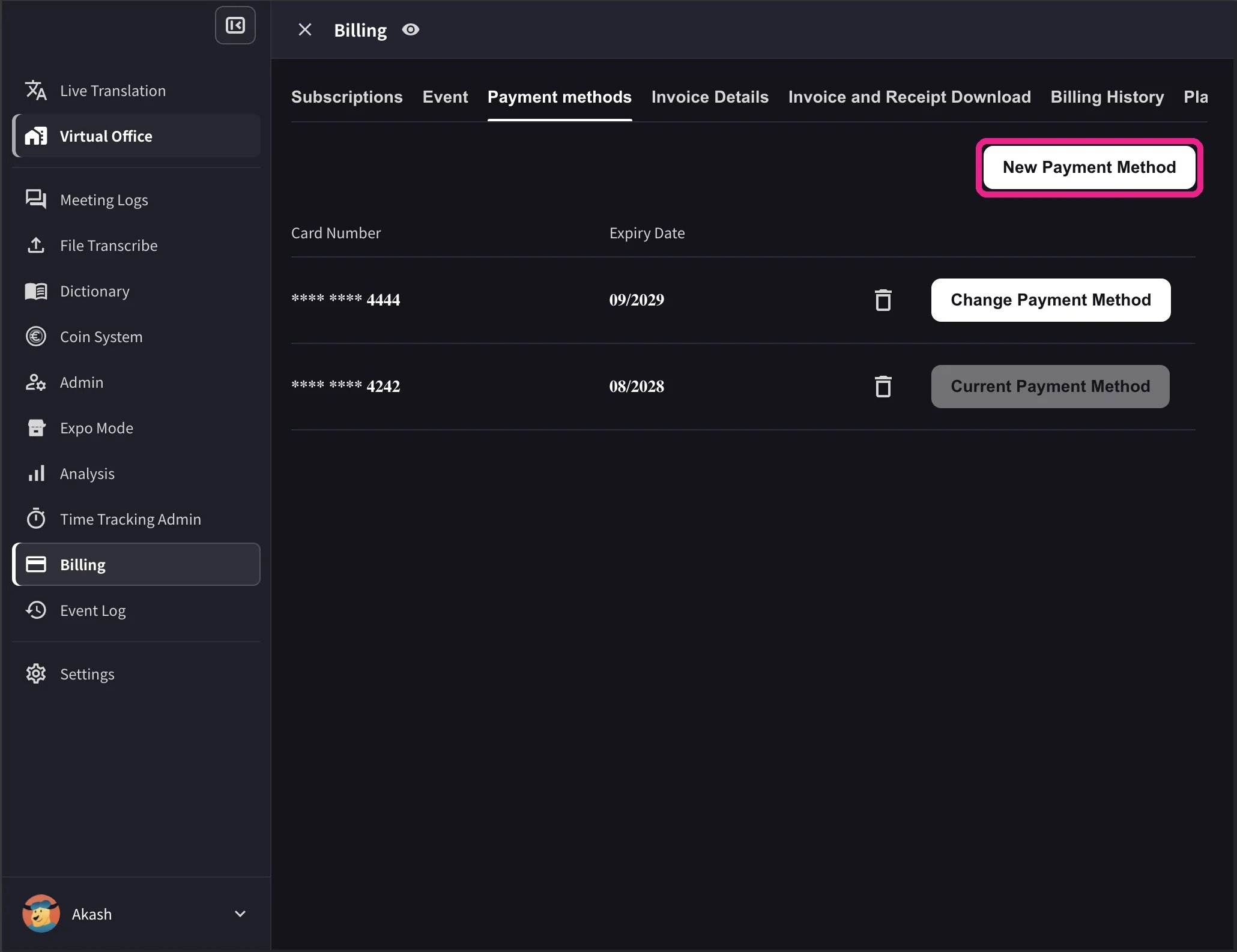 2. In the card list, click **Change Payment Method** on the card you want to use. The active card shows **Current Payment Method** after the change completes.
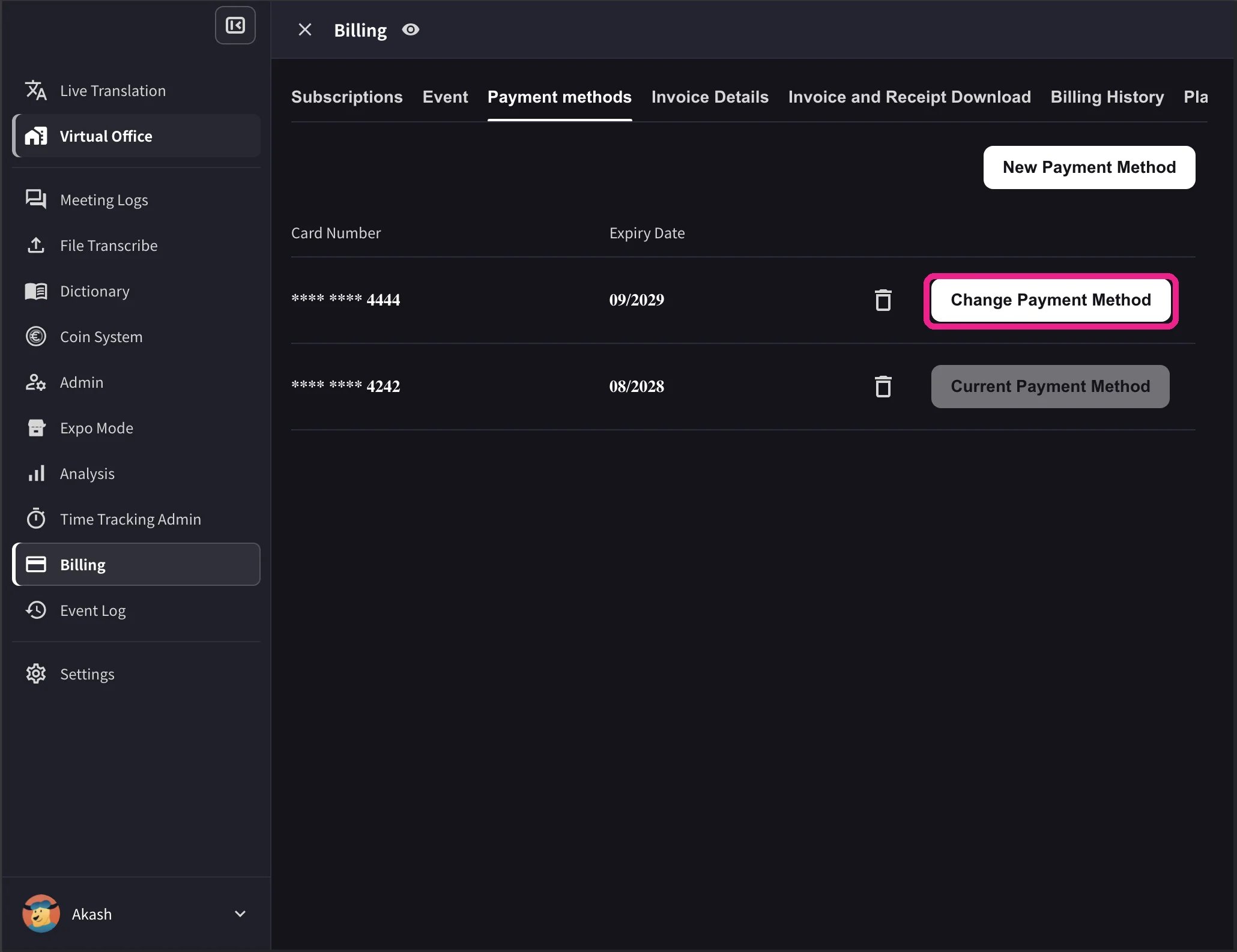 The desktop list also shows card expiry dates and a delete icon. **Change Payment Method** appears only when the workspace has an active Stripe subscription and no scheduled cancellation. Cards that cannot be used with the workspace currency show **Not Supported** instead of the change action.
## 2. Mobile
在手机应用中,卡片管理位于 **Billing → Manage Cards**。
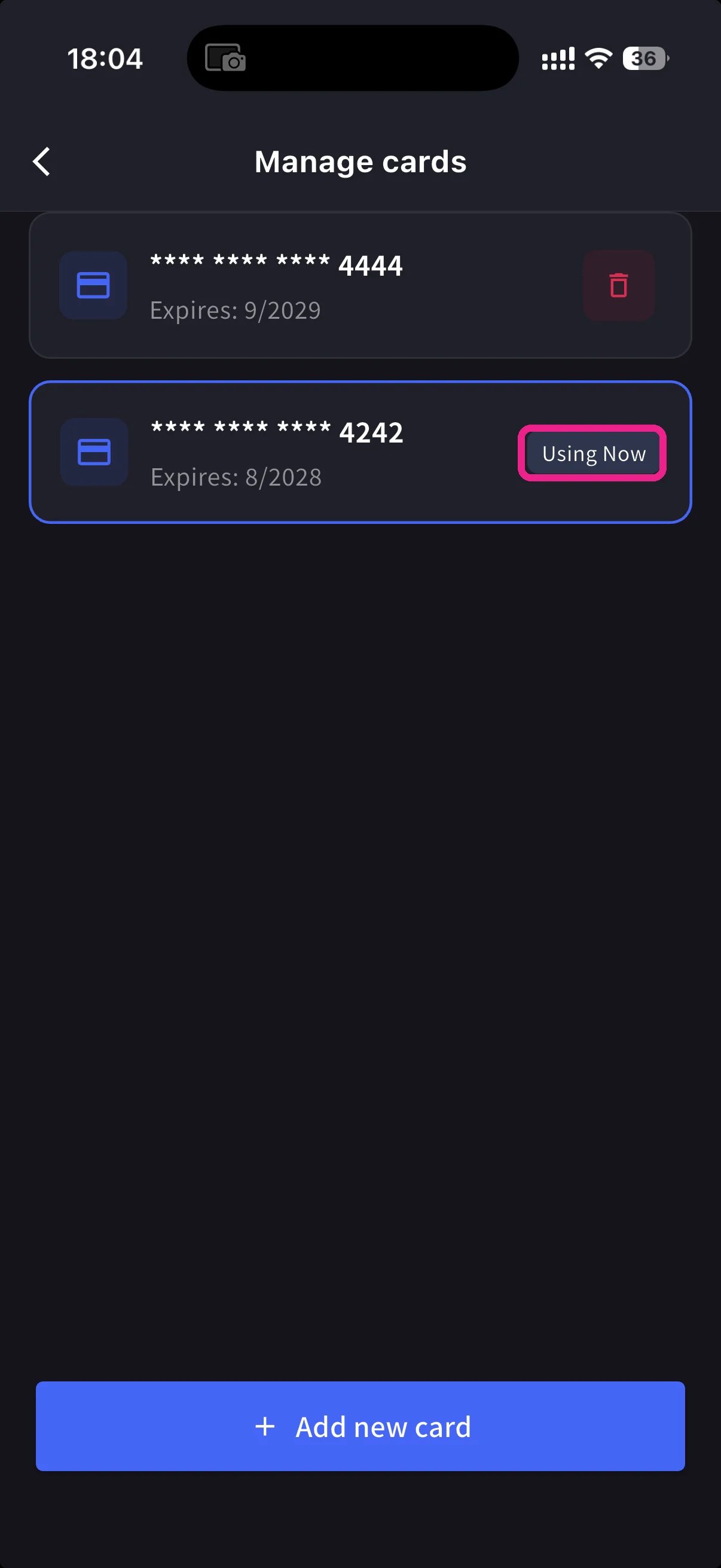
侧边菜单 → **User Settings** → **Billing** → **Manage Cards**。所有已登记卡片都会列出,正在使用的卡片带有 **Using Now** 标记。
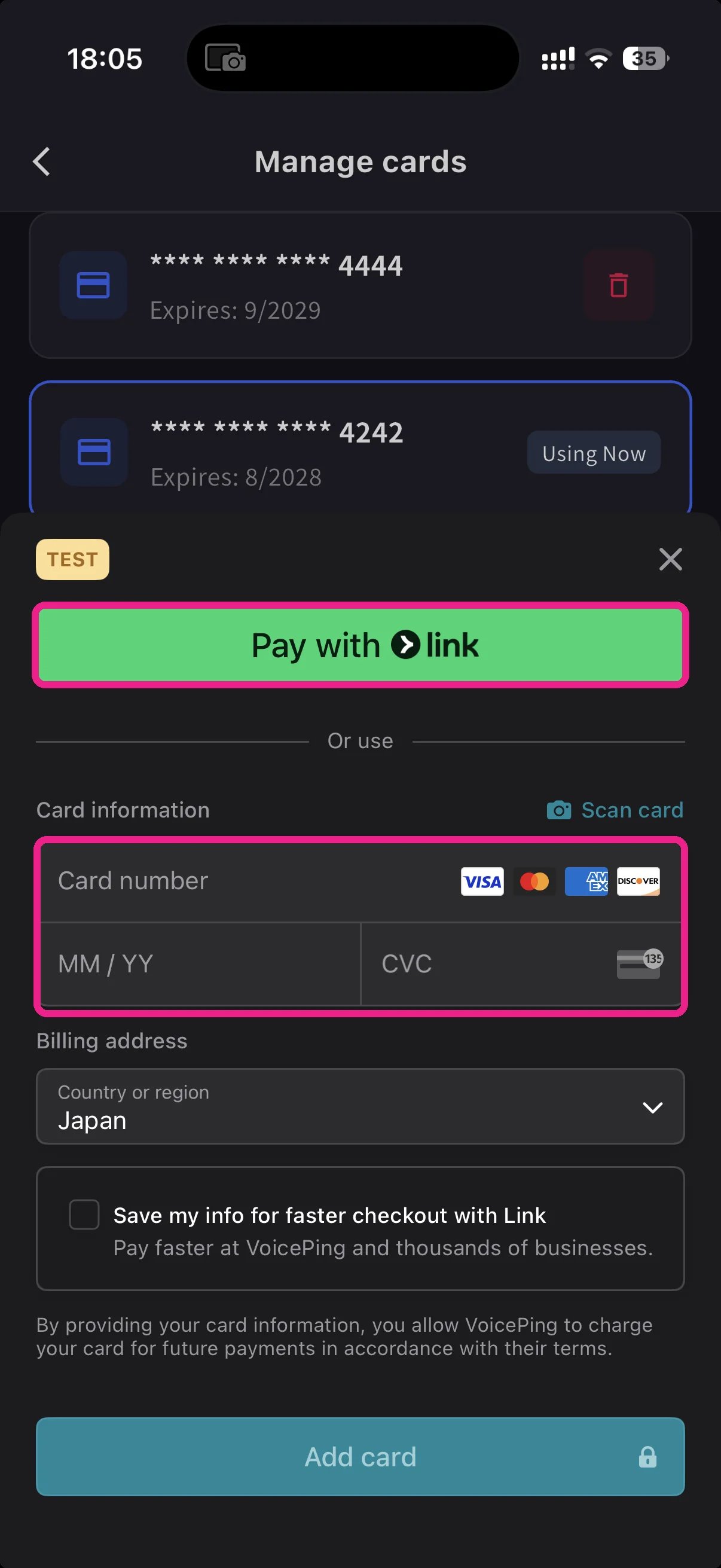
点击底部蓝色 **+ Add new card** 按钮。添加卡片表单提供两种方式:
* **Pay with Link** — 如果你的电话号码已关联 Stripe Link,可一键支付。
* **Manual card** — 输入卡号、MM/YY、CVC,或点击 **📷 Scan card** 用相机自动填写。选择账单国家,然后点击 **Add card**。
回到 Manage Cards,点击要使用的卡。**Using Now** 标记会移动到该卡,之后的扣款将使用所选卡片。
卡片由 Stripe 进行令牌化处理。VoicePing 不会保存原始卡号。
**Link** 可减少输入。如果你在其他地方用过 Stripe Link,输入电话号码后卡片会自动填充。手机上的变更会立即与 Web 应用同步。
## Related
* [Plan Changes, Cancellation & Trial End](/zh/plan-changes) — 升级、降级、取消
* [Invoices, Receipts & Billing Activity](/zh/invoices-receipts) — 发票 PDF、收据、事件日志
The desktop list also shows card expiry dates and a delete icon. **Change Payment Method** appears only when the workspace has an active Stripe subscription and no scheduled cancellation. Cards that cannot be used with the workspace currency show **Not Supported** instead of the change action.
## 2. Mobile
在手机应用中,卡片管理位于 **Billing → Manage Cards**。
侧边菜单 → **User Settings** → **Billing** → **Manage Cards**。所有已登记卡片都会列出,正在使用的卡片带有 **Using Now** 标记。
点击底部蓝色 **+ Add new card** 按钮。添加卡片表单提供两种方式:
* **Pay with Link** — 如果你的电话号码已关联 Stripe Link,可一键支付。
* **Manual card** — 输入卡号、MM/YY、CVC,或点击 **📷 Scan card** 用相机自动填写。选择账单国家,然后点击 **Add card**。
回到 Manage Cards,点击要使用的卡。**Using Now** 标记会移动到该卡,之后的扣款将使用所选卡片。
卡片由 Stripe 进行令牌化处理。VoicePing 不会保存原始卡号。
**Link** 可减少输入。如果你在其他地方用过 Stripe Link,输入电话号码后卡片会自动填充。手机上的变更会立即与 Web 应用同步。
## Related
* [Plan Changes, Cancellation & Trial End](/zh/plan-changes) — 升级、降级、取消
* [Invoices, Receipts & Billing Activity](/zh/invoices-receipts) — 发票 PDF、收据、事件日志