> ## Documentation Index
> Fetch the complete documentation index at: https://manual.voiceping.net/llms.txt
> Use this file to discover all available pages before exploring further.
# Event Log
> 使用 VoicePing 3.0 Event Log 审计成员、访问、工作区设置、虚拟办公室、会议、Web Meeting Bot、账单和时间跟踪等事件。
export const FeedbackZh = () => <>
对该功能有想法或需求?请通过 Product Feedback 发送给团队。
官方链接
访问官方网站
在X上关注我们
在Facebook上点赞
在LinkedIn上连接
;
工作区管理员可通过 **Event Log** 审计重要的工作区活动。
## 打开 Event Log
1. 打开 VoicePing 桌面应用。
2. 在左侧边栏中选择 **Event Log**。
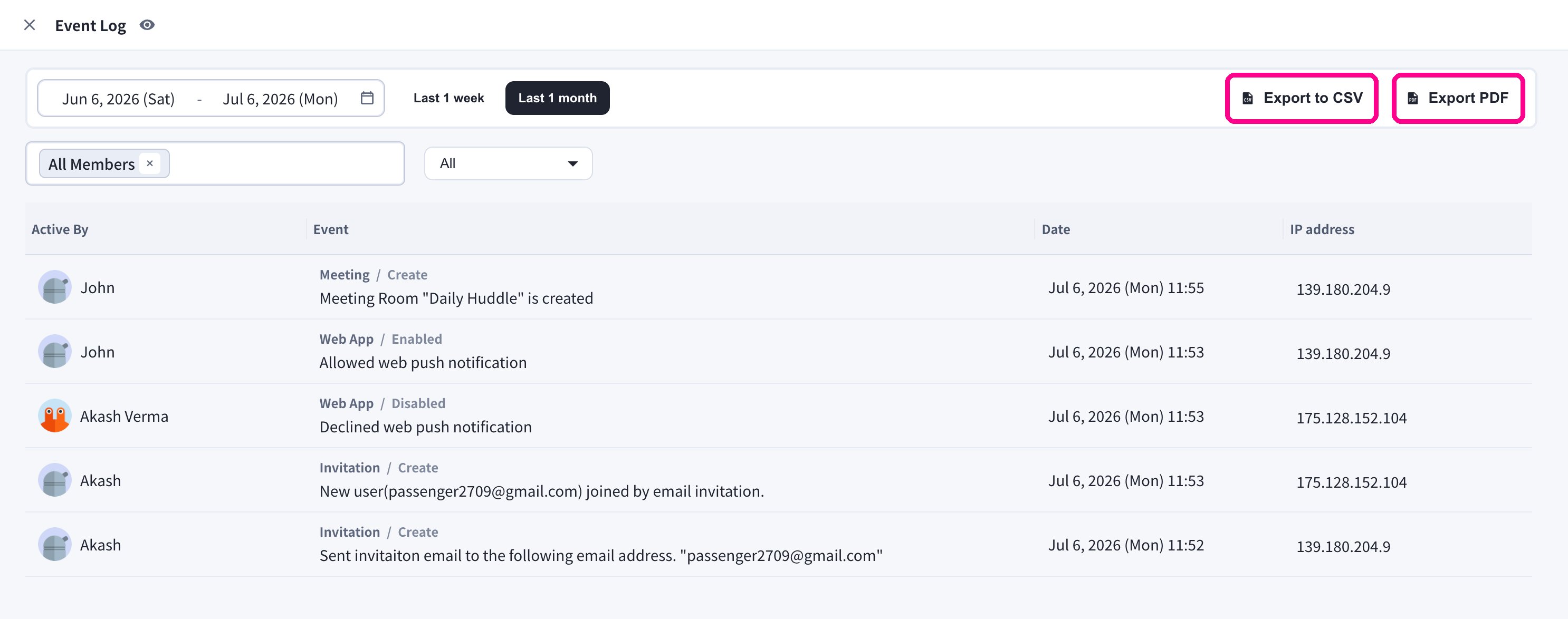
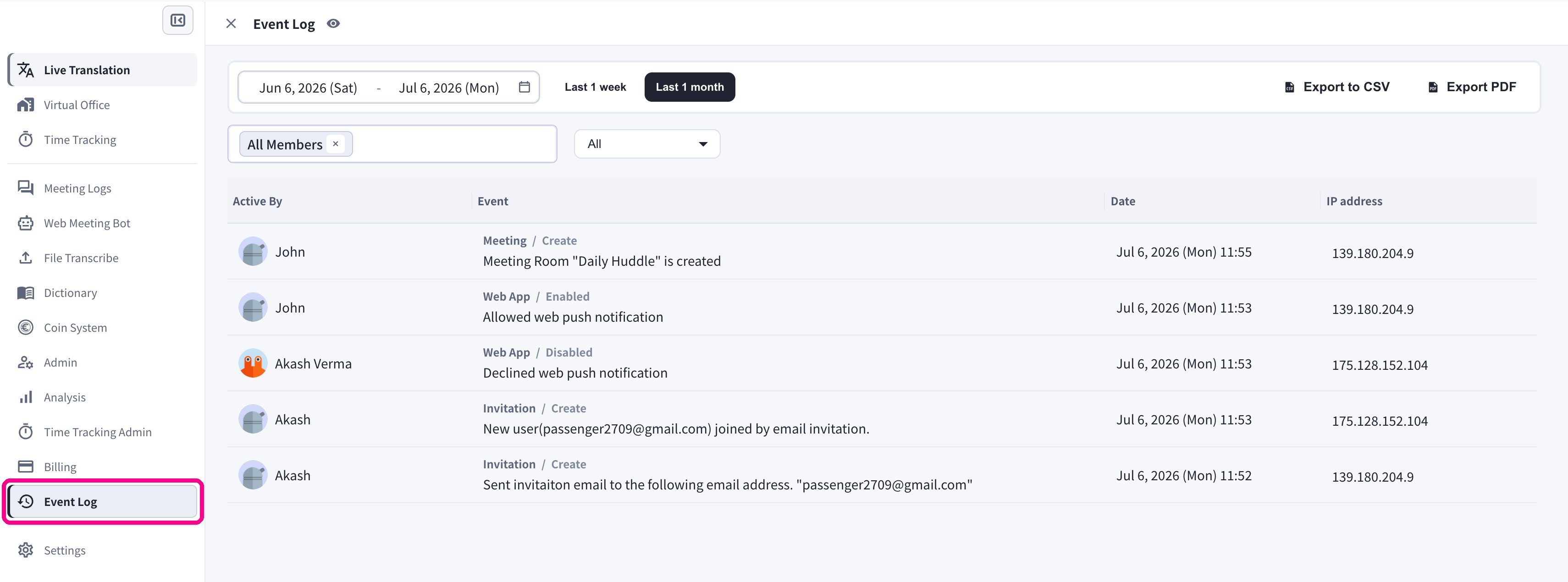 每条记录都会显示触发事件的成员(**Active By**)、事件类别和详情、**日期和时间**,以及操作来源的 **IP 地址**。
## 筛选
| 筛选项 | 用途 |
| ------------------- | ------------- |
| **Date range** | 查看特定时间段的记录。 |
| **Member selector** | 按一名或多名用户筛选事件。 |
| **Category** | 聚焦某个产品或安全领域。 |
### 日期范围
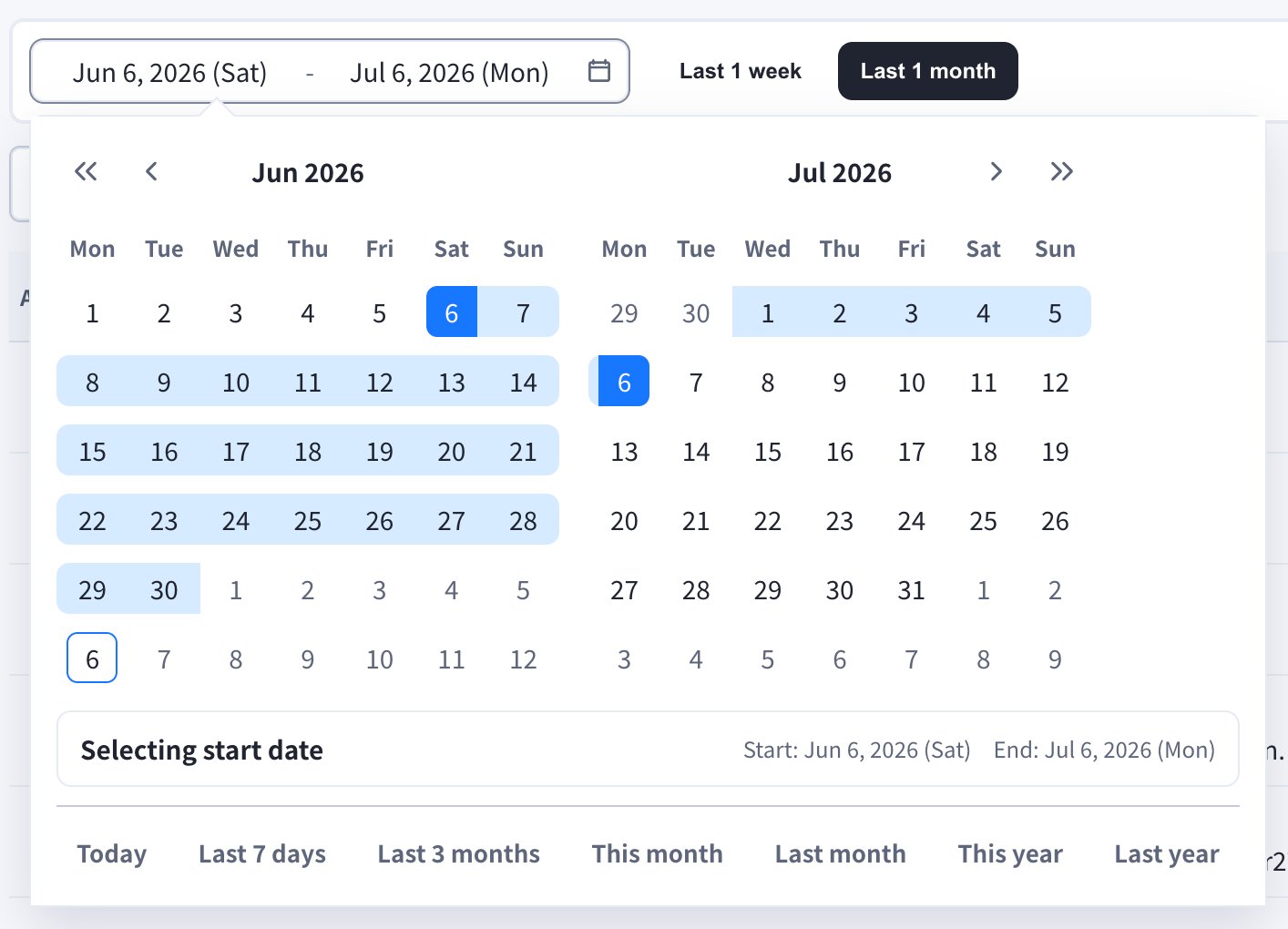
使用 **Last 1 week** / **Last 1 month** 快捷按钮,或打开日期字段选择自定义范围。日历中还提供 **Today**、**Last 7 days**、**Last 3 months**、**This month**、**Last month**、**This year**、**Last year** 等快捷选项。
每条记录都会显示触发事件的成员(**Active By**)、事件类别和详情、**日期和时间**,以及操作来源的 **IP 地址**。
## 筛选
| 筛选项 | 用途 |
| ------------------- | ------------- |
| **Date range** | 查看特定时间段的记录。 |
| **Member selector** | 按一名或多名用户筛选事件。 |
| **Category** | 聚焦某个产品或安全领域。 |
### 日期范围
使用 **Last 1 week** / **Last 1 month** 快捷按钮,或打开日期字段选择自定义范围。日历中还提供 **Today**、**Last 7 days**、**Last 3 months**、**This month**、**Last month**、**This year**、**Last year** 等快捷选项。
 ### 成员
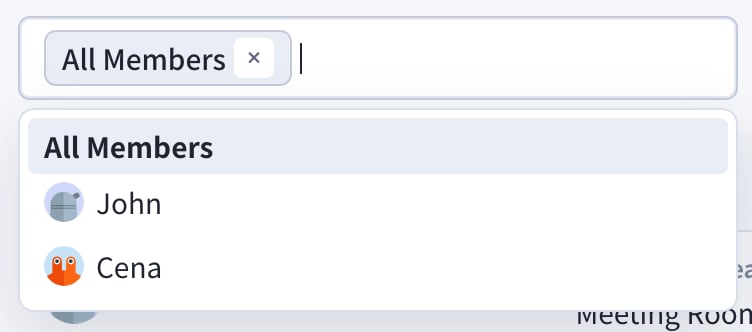
选择 **All Members** 查看全部成员的事件,或选择特定成员仅查看其事件。
### 成员
选择 **All Members** 查看全部成员的事件,或选择特定成员仅查看其事件。
 ### 类别
使用类别下拉菜单聚焦某一领域。
### 类别
使用类别下拉菜单聚焦某一领域。
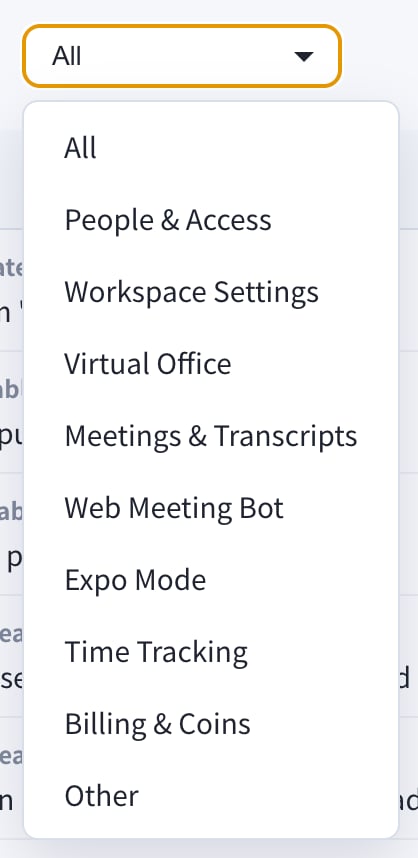 * All
* People & Access
* Workspace Settings
* Virtual Office
* Meetings & Transcripts
* Web Meeting Bot
* Expo Mode
* Time Tracking
* Billing & Coins
* Other
## 导出
需要在 Event Log 界面之外共享审计记录时,请使用右上角的 **Export to CSV** 或 **Export PDF** 按钮。
* All
* People & Access
* Workspace Settings
* Virtual Office
* Meetings & Transcripts
* Web Meeting Bot
* Expo Mode
* Time Tracking
* Billing & Coins
* Other
## 导出
需要在 Event Log 界面之外共享审计记录时,请使用右上角的 **Export to CSV** 或 **Export PDF** 按钮。
 Event Log 用于工作区审计记录。如需查看产品使用趋势和仪表盘,请使用 [Analysis](/zh/analytics)。