> ## Documentation Index
> Fetch the complete documentation index at: https://manual.voiceping.net/llms.txt
> Use this file to discover all available pages before exploring further.
# 面对面会议的语音转文字/翻译
> 使用 VoicePing 在面对面会议中进行实时翻译的方法
export const FeedbackZh = () => <>
对该功能有想法或需求?请通过 Product Feedback 发送给团队。
官方链接
访问官方网站
在X上关注我们
在Facebook上点赞
在LinkedIn上连接
;
* 讲者端和参与者端都需要网络环境。网络速度可在 [https://fast.com/](https://fast.com/) 验证。建议 30mbps 或更高(最低需要 10mbps)
* QR 码图片/URL 是固定的,即使您开始/结束会话也不会改变。可以通过设置密码来增强安全性
* 参与者端的麦克风和翻译文字朗读功能可以启用/禁用
* 您可以隐藏语音转文字语言,仅显示翻译文字
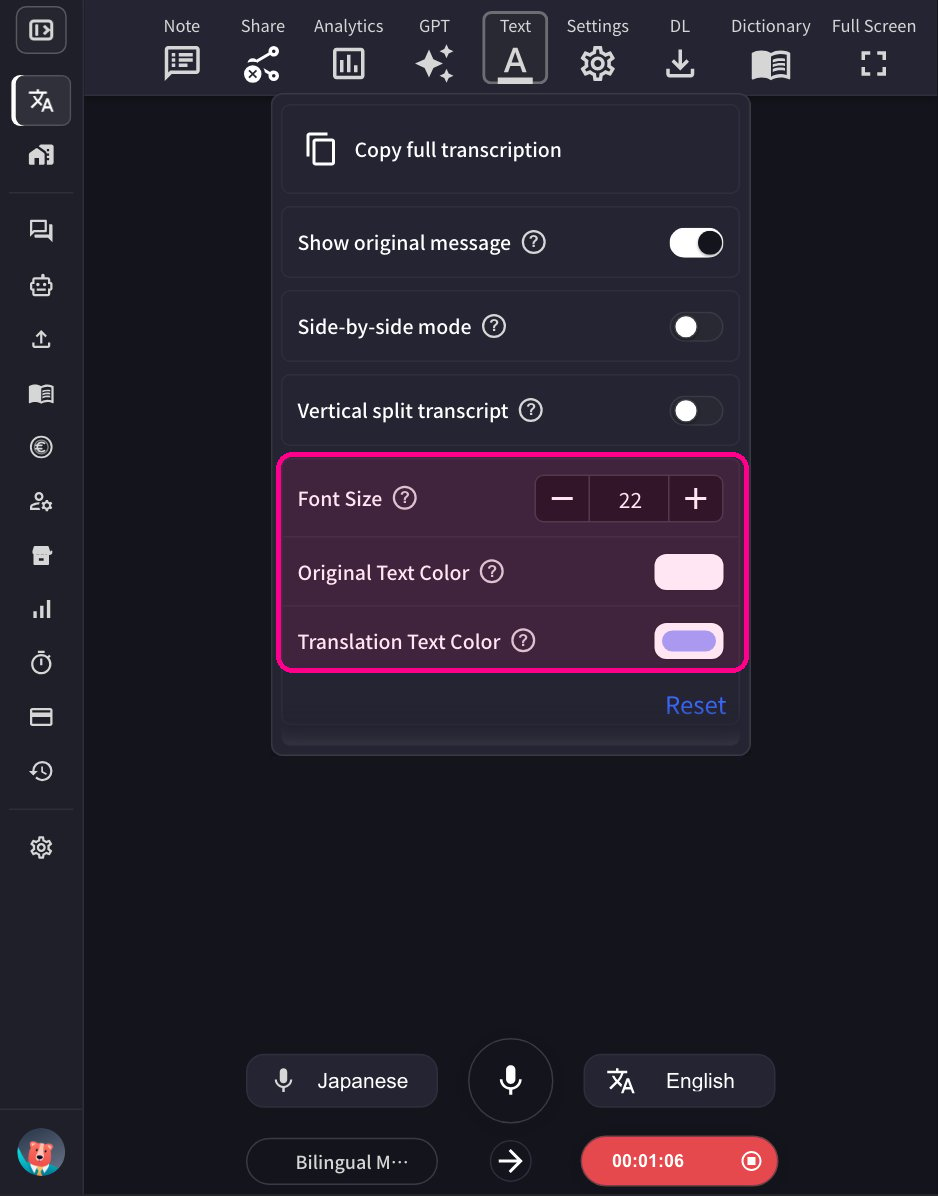
* 文字颜色和大小可以更改
* 翻译速度可以调整
## 使用方法
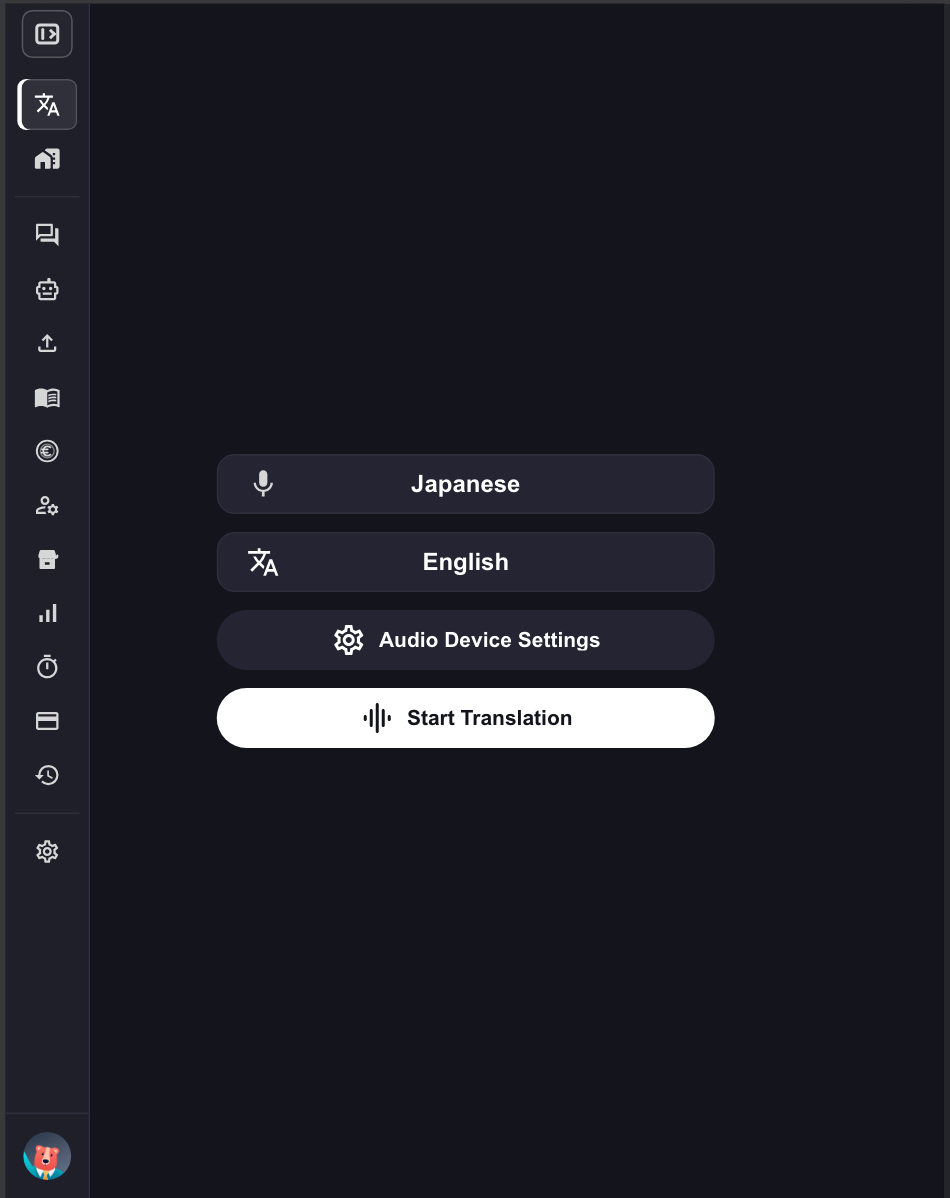
1. **启动 VoicePing 应用并点击「开始翻译」。**
 2. **指定翻译语言。**
* 麦克风图标:语音转文字语言(讲者的语言)
* 「文\&A」图标:翻译语言
2. **指定翻译语言。**
* 麦克风图标:语音转文字语言(讲者的语言)
* 「文\&A」图标:翻译语言
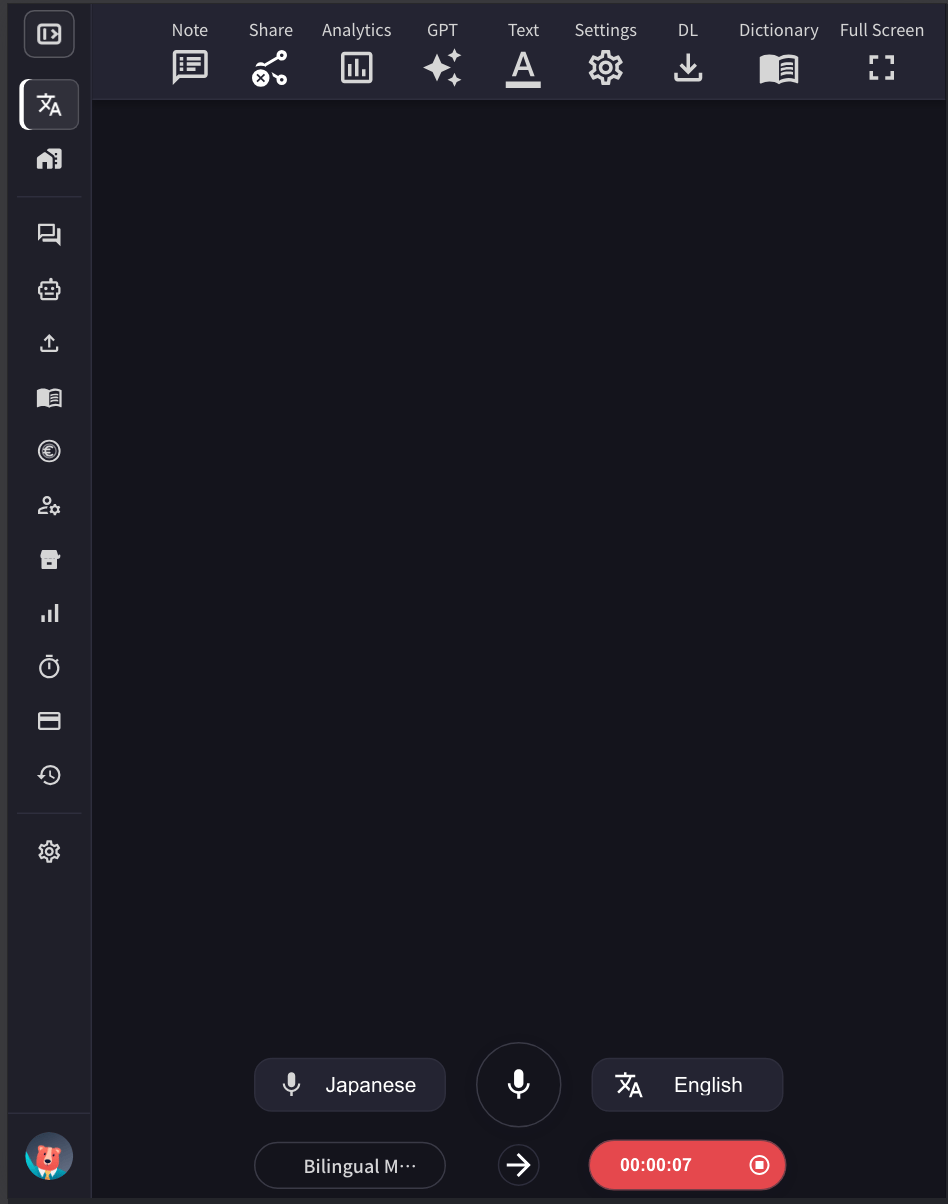 例如:要将英语翻译成日语,将麦克风图标设置为「English」,「文\&A」图标设置为「Japanese」。
3. **根据需要调整 VoicePing 翻译屏幕大小、文字大小和颜色。**
例如:要将英语翻译成日语,将麦克风图标设置为「English」,「文\&A」图标设置为「Japanese」。
3. **根据需要调整 VoicePing 翻译屏幕大小、文字大小和颜色。**
 4. **按红色录音按钮(显示已用时间)结束翻译,然后通过添加标题和标签到会议记录来保存内容。**
## 双语模式
双语模式允许对话双方使用各自的母语进行交流。启用后,应用会自动检测正在使用的语言,并将其翻译成另一种语言。
4. **按红色录音按钮(显示已用时间)结束翻译,然后通过添加标题和标签到会议记录来保存内容。**
## 双语模式
双语模式允许对话双方使用各自的母语进行交流。启用后,应用会自动检测正在使用的语言,并将其翻译成另一种语言。
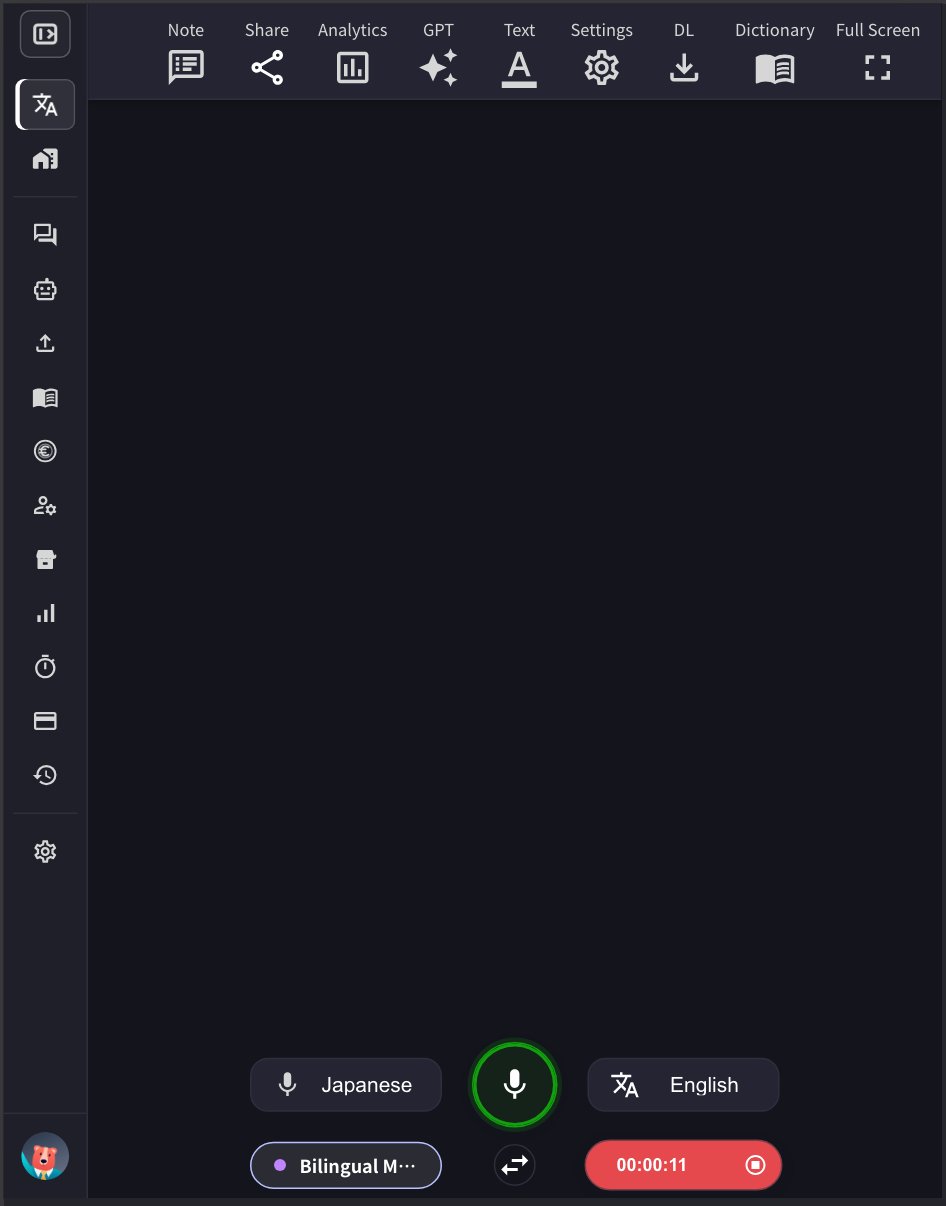 ### 工作原理
* 当双语模式启用时(左下角的「Bilingual Mode」按钮会发光),可以使用两种选定的语言进行交流
* 在上面的示例中,日语发言会自动翻译成英语,英语发言会自动翻译成日语
* 系统会检测正在使用的语言,并实时翻译成另一种语言
### 启用/禁用方法
点击应用左下角的 **Bilingual Mode** 按钮即可开启或关闭。启用时按钮会发出紫色光芒。
### 移动应用
移动应用的工作方式相同 - 点击 Bilingual Mode 按钮即可启用双向翻译。
**准确度权衡**
在双语模式下,翻译准确度可能低于固定发言语言的单语模式。这是因为系统需要先检测正在使用的语言,然后才能进行翻译。
**何时使用双语模式:**
* 使用不同语言的双方进行面对面交流时
* 说话者频繁切换语言的情况
**何时使用单语模式:**
* 主要使用一种语言进行的会议
* 需要最高翻译准确度的情况
* 事先知道将使用哪种语言时
## 最大消息时长(秒)
此设置用于指定在实时语音转文字确定当前消息之前,一段语音最长可持续的时间(秒)。说话者停顿时,消息通常会更早确定,因此该值只是单条连续消息的上限。可设置范围为 **5-20 秒**,默认值为 **10 秒**。
* **较短时间(例如 5-8 秒):** 消息会更快确定。尤其推荐在双语模式下使用——语言检测以消息为单位进行,消息越短,说话者交替时语言切换越快,还能避免两种语言混入同一条消息。
* **较长时间(例如 15-20 秒):** 每条消息可包含更多上下文,可能提高语音转文字的准确度。推荐用于一个人以同一种语言持续发言的演讲或演示。
根据您的使用场景调整此设置,以优化语音转文字体验。
## 启用高准确度模式
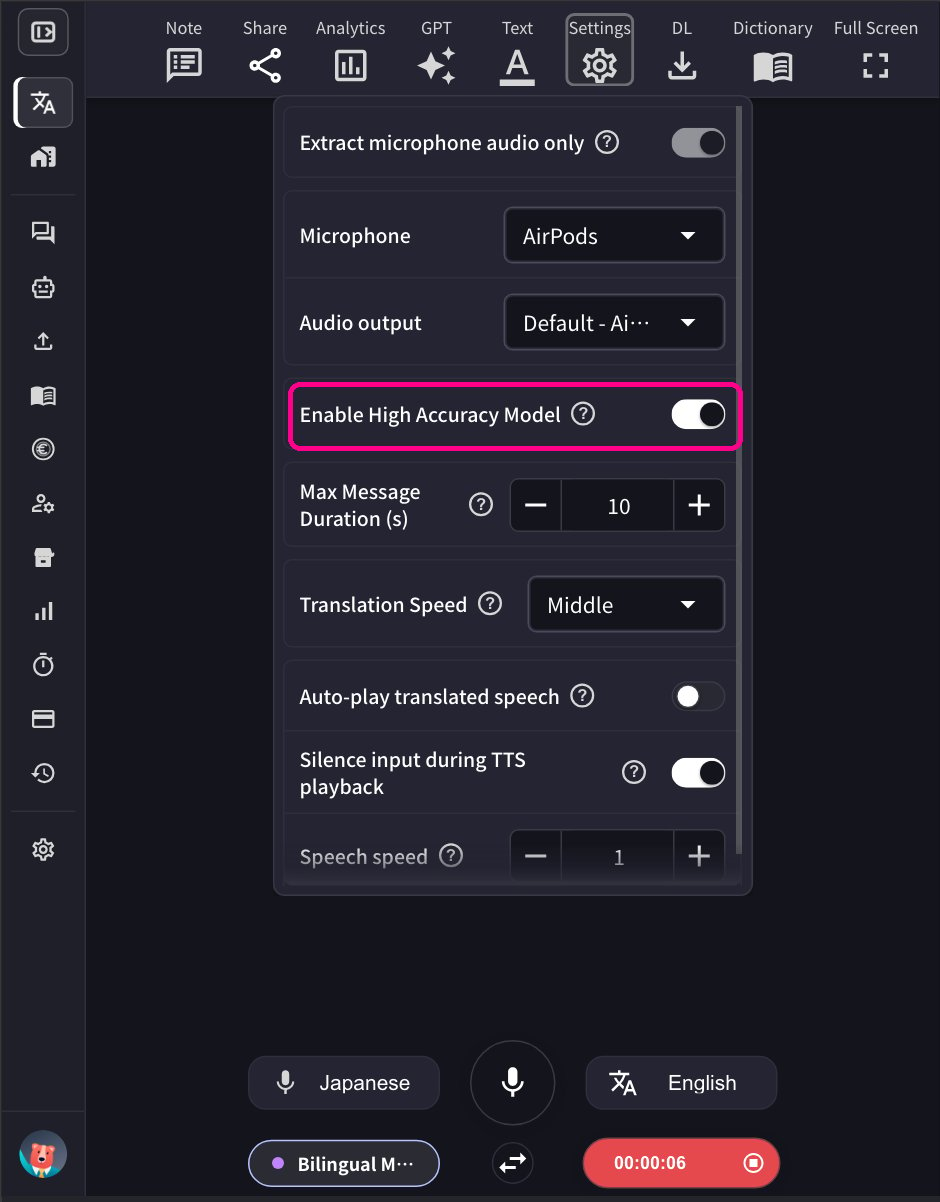
当此模式启用时,会应用包含先前句子的额外后处理来提高语音识别准确度。但是,这种额外处理会造成一些延迟。
要启用或禁用此功能,请前往设置齿轮图标菜单 → Speech to Text 选项卡 → 开启或关闭「Enable High Accuracy Model」。
* **启用时:** 提供更准确的语音转文字,但增加处理时间。适合重要会议或准确度至关重要的情况。
* **禁用时:** 以标准准确度等级提供更快的响应。
### 工作原理
* 当双语模式启用时(左下角的「Bilingual Mode」按钮会发光),可以使用两种选定的语言进行交流
* 在上面的示例中,日语发言会自动翻译成英语,英语发言会自动翻译成日语
* 系统会检测正在使用的语言,并实时翻译成另一种语言
### 启用/禁用方法
点击应用左下角的 **Bilingual Mode** 按钮即可开启或关闭。启用时按钮会发出紫色光芒。
### 移动应用
移动应用的工作方式相同 - 点击 Bilingual Mode 按钮即可启用双向翻译。
**准确度权衡**
在双语模式下,翻译准确度可能低于固定发言语言的单语模式。这是因为系统需要先检测正在使用的语言,然后才能进行翻译。
**何时使用双语模式:**
* 使用不同语言的双方进行面对面交流时
* 说话者频繁切换语言的情况
**何时使用单语模式:**
* 主要使用一种语言进行的会议
* 需要最高翻译准确度的情况
* 事先知道将使用哪种语言时
## 最大消息时长(秒)
此设置用于指定在实时语音转文字确定当前消息之前,一段语音最长可持续的时间(秒)。说话者停顿时,消息通常会更早确定,因此该值只是单条连续消息的上限。可设置范围为 **5-20 秒**,默认值为 **10 秒**。
* **较短时间(例如 5-8 秒):** 消息会更快确定。尤其推荐在双语模式下使用——语言检测以消息为单位进行,消息越短,说话者交替时语言切换越快,还能避免两种语言混入同一条消息。
* **较长时间(例如 15-20 秒):** 每条消息可包含更多上下文,可能提高语音转文字的准确度。推荐用于一个人以同一种语言持续发言的演讲或演示。
根据您的使用场景调整此设置,以优化语音转文字体验。
## 启用高准确度模式
当此模式启用时,会应用包含先前句子的额外后处理来提高语音识别准确度。但是,这种额外处理会造成一些延迟。
要启用或禁用此功能,请前往设置齿轮图标菜单 → Speech to Text 选项卡 → 开启或关闭「Enable High Accuracy Model」。
* **启用时:** 提供更准确的语音转文字,但增加处理时间。适合重要会议或准确度至关重要的情况。
* **禁用时:** 以标准准确度等级提供更快的响应。
 ## 与访客共享翻译频道的方法
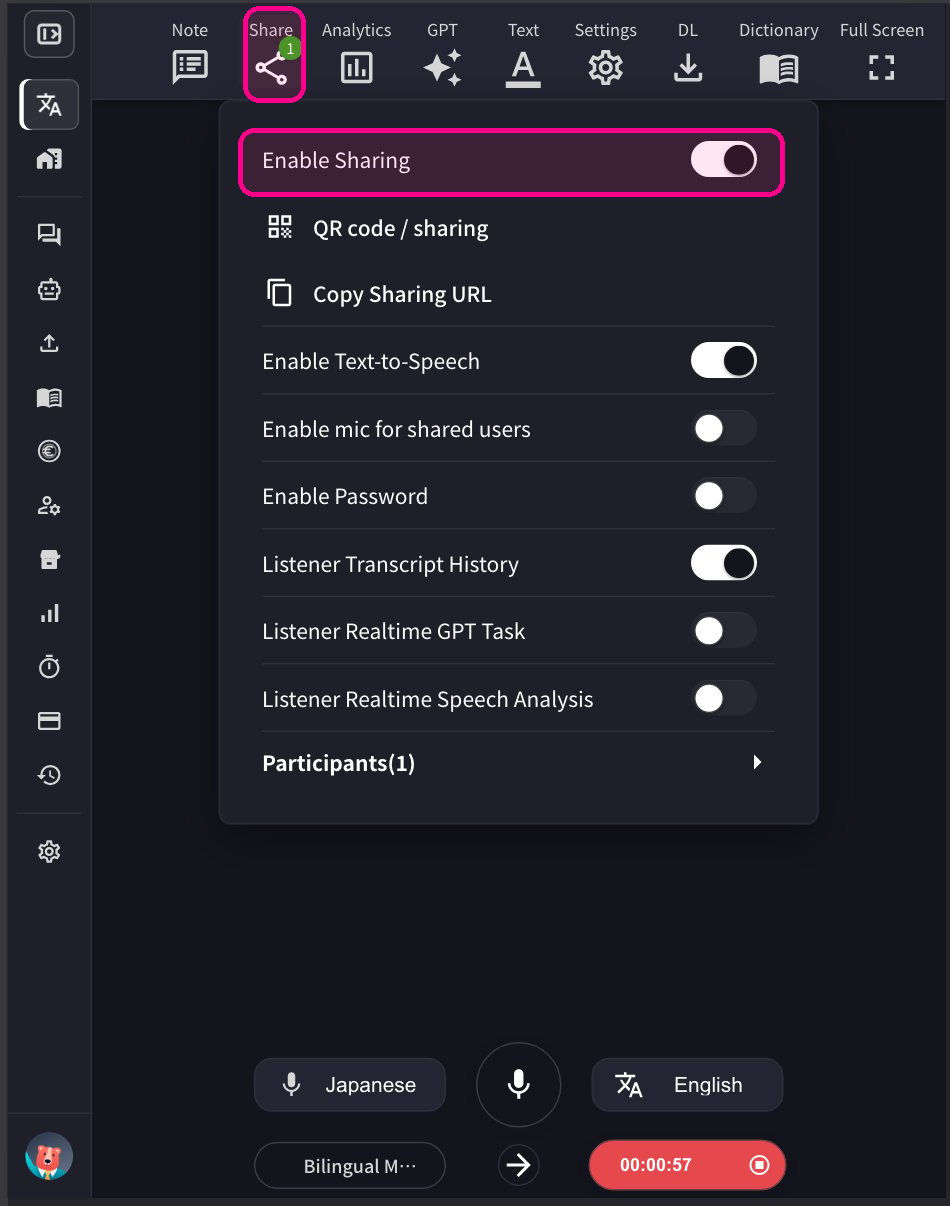
1. **点击顶部的共享图标并启用共享。**
## 与访客共享翻译频道的方法
1. **点击顶部的共享图标并启用共享。**
 2. **与访客共享 QR 码。** 此 QR 码是每个账户的静态 URL,不会改变。
**安全注意事项:** 由于 QR 码/URL 是静态且永久的,任何有访问权限的人都可以随时加入您的翻译频道。为防止未经授权的访问,请从共享设置中设置密码。访客需要输入密码才能加入。主持人也可以随时移除不想要的参与者。
2. **与访客共享 QR 码。** 此 QR 码是每个账户的静态 URL,不会改变。
**安全注意事项:** 由于 QR 码/URL 是静态且永久的,任何有访问权限的人都可以随时加入您的翻译频道。为防止未经授权的访问,请从共享设置中设置密码。访客需要输入密码才能加入。主持人也可以随时移除不想要的参与者。
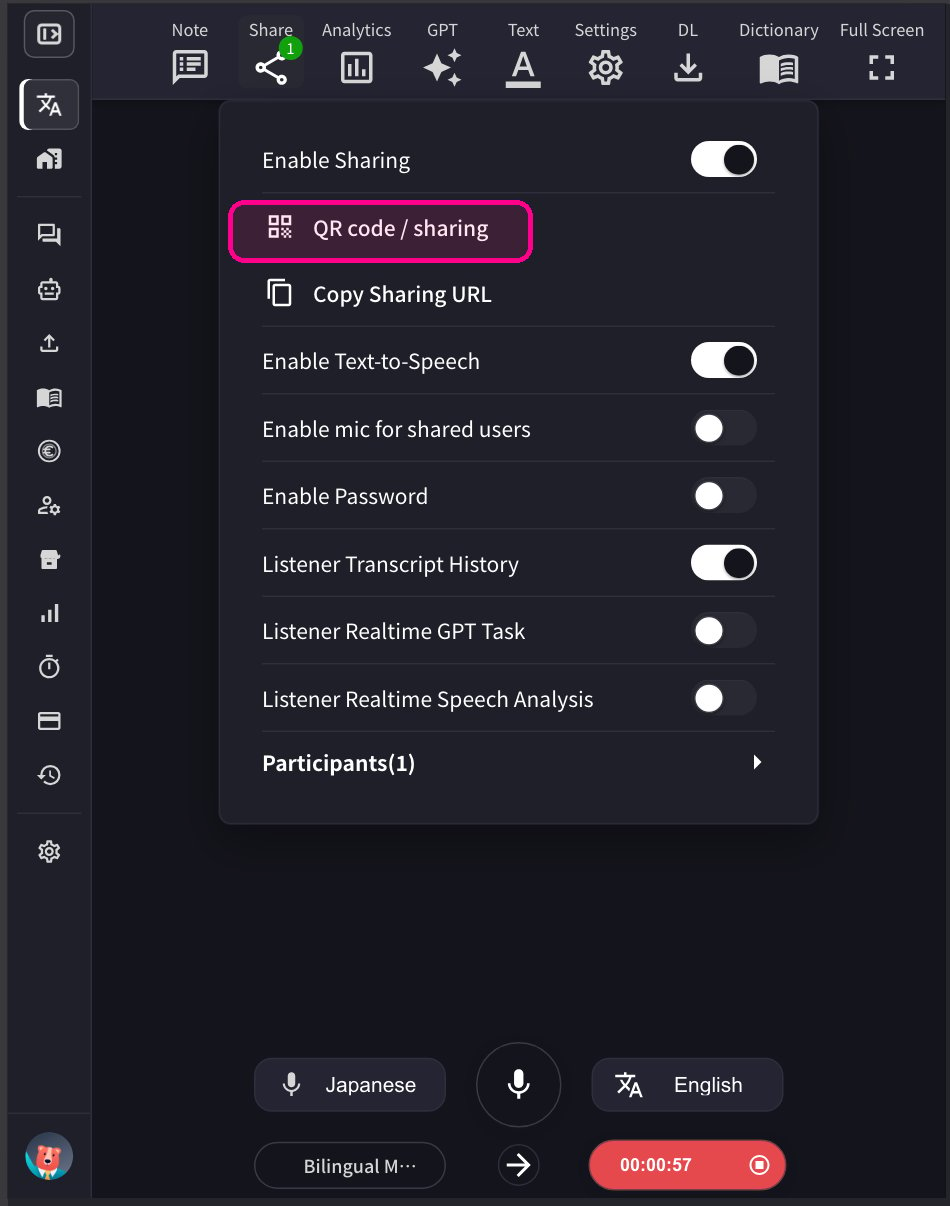
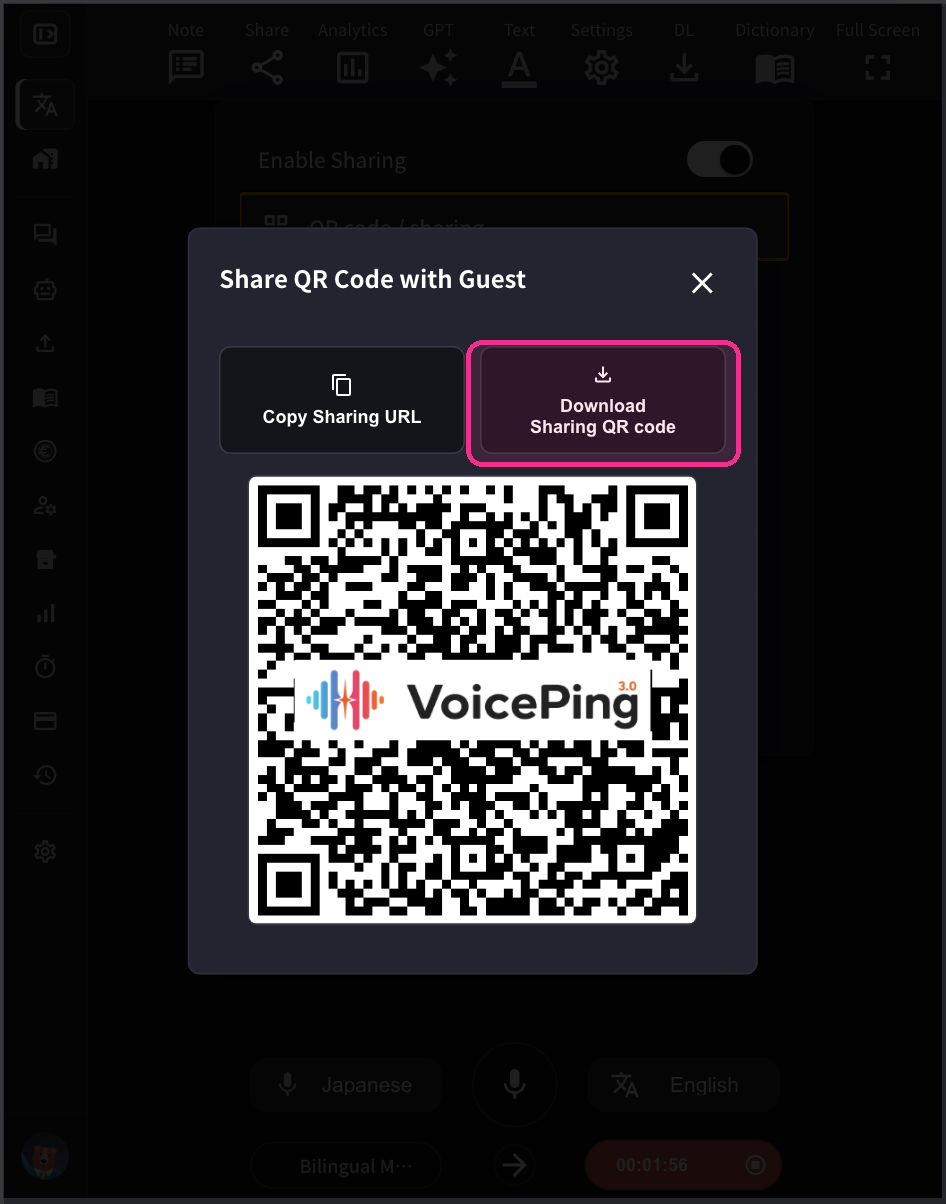 3. **当访客加入时,他们的名字会出现在参与者列表中。** 您可以从「共享」图标查看参与者人数。使用「移除」将参与者从频道中移除。
### 访客指南:如何加入
1. **扫描 QR 码或从浏览器访问 URL。**
3. **当访客加入时,他们的名字会出现在参与者列表中。** 您可以从「共享」图标查看参与者人数。使用「移除」将参与者从频道中移除。
### 访客指南:如何加入
1. **扫描 QR 码或从浏览器访问 URL。**
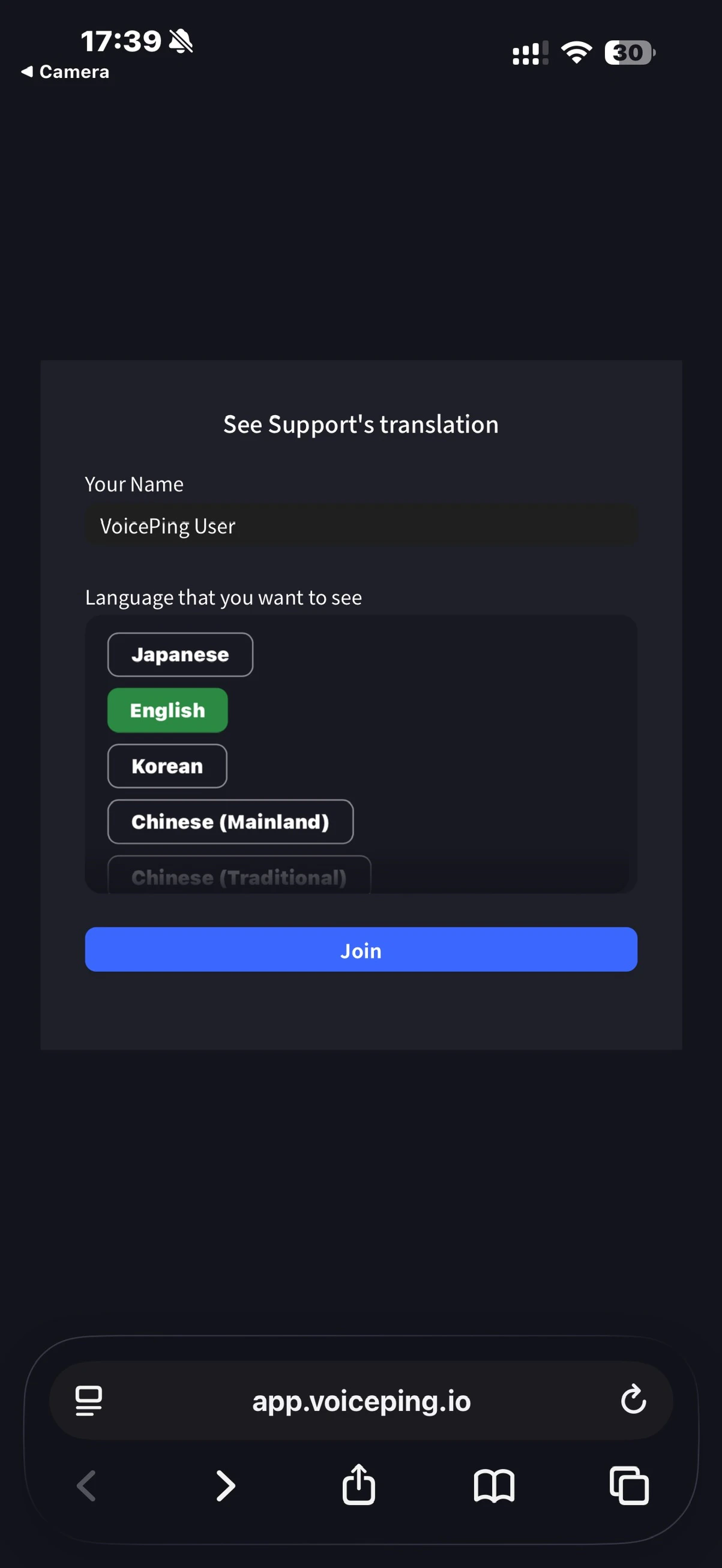 2. **输入以下信息:**
* 姓名:输入您的姓名
* 您想查看的语言:选择所需的翻译语言
3. **加入后,可以进行以下操作:**
* 更改语言
* 在「设置」中调整翻译外观
* 调整朗读速度
* 开启/关闭朗读功能
* 使用麦克风说话(如果主持人已启用)
* 离开
**启用访客麦克风:** 主持人可以从 VoicePing 应用为访客启用麦克风功能。启用后,访客可以通过他们的网页应用说话,他们的语音将被实时转文字和翻译。
2. **输入以下信息:**
* 姓名:输入您的姓名
* 您想查看的语言:选择所需的翻译语言
3. **加入后,可以进行以下操作:**
* 更改语言
* 在「设置」中调整翻译外观
* 调整朗读速度
* 开启/关闭朗读功能
* 使用麦克风说话(如果主持人已启用)
* 离开
**启用访客麦克风:** 主持人可以从 VoicePing 应用为访客启用麦克风功能。启用后,访客可以通过他们的网页应用说话,他们的语音将被实时转文字和翻译。