> ## Documentation Index
> Fetch the complete documentation index at: https://manual.voiceping.net/llms.txt
> Use this file to discover all available pages before exploring further.
# 发票管理
> 面向所有者和管理者的成员发票管理功能
export const FeedbackZh = () => <>
对该功能有想法或需求?请通过 Product Feedback 发送给团队。
官方链接
访问官方网站
在X上关注我们
在Facebook上点赞
在LinkedIn上连接
;
## 发票
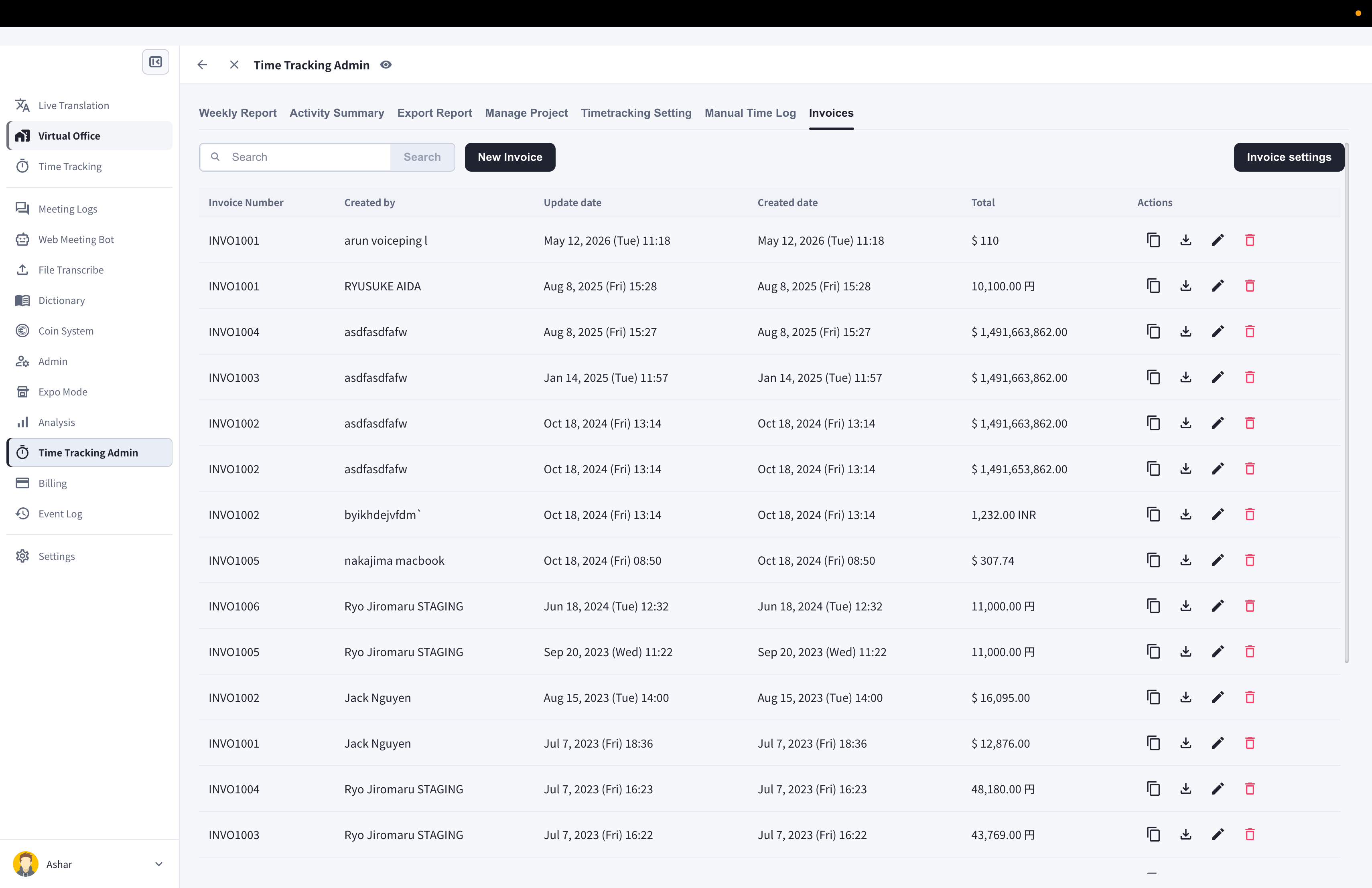
VoicePing的时间跟踪功能会自动记录用户的工作日志,因此可以轻松创建发票。
所有者和管理者可以查看成员开具的发票。成员只能查看和管理自己的发票。
### 访问发票
1. 从左侧边栏打开**时间跟踪管理**
2. 点击**发票**标签
 ### 发票设置
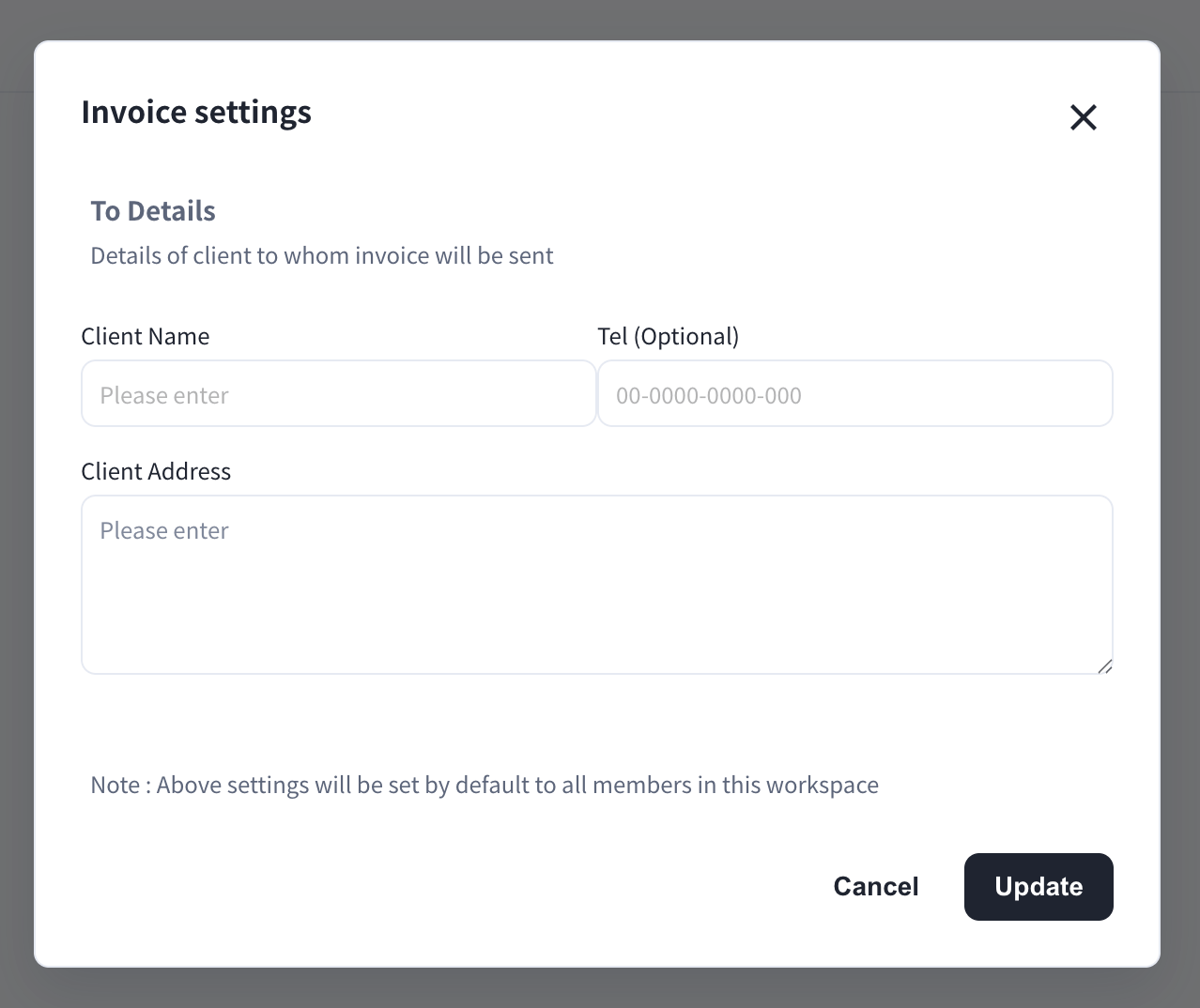
管理者可以点击**发票设置**按钮,保存默认的客户账单信息(客户名称、电话、地址)。这些信息将默认应用于工作区内所有成员的新发票。
### 发票设置
管理者可以点击**发票设置**按钮,保存默认的客户账单信息(客户名称、电话、地址)。这些信息将默认应用于工作区内所有成员的新发票。
 ### 创建发票
1. 点击**新建发票**按钮
2. 填写发票内容:From/To信息、开具日期和到期日、发票编号和货币
3. 点击**从时间跟踪日志生成项目**
4. 选择**上月**或**本月**,然后点击**生成** — 将从工作日志创建行项目
### 创建发票
1. 点击**新建发票**按钮
2. 填写发票内容:From/To信息、开具日期和到期日、发票编号和货币
3. 点击**从时间跟踪日志生成项目**
4. 选择**上月**或**本月**,然后点击**生成** — 将从工作日志创建行项目
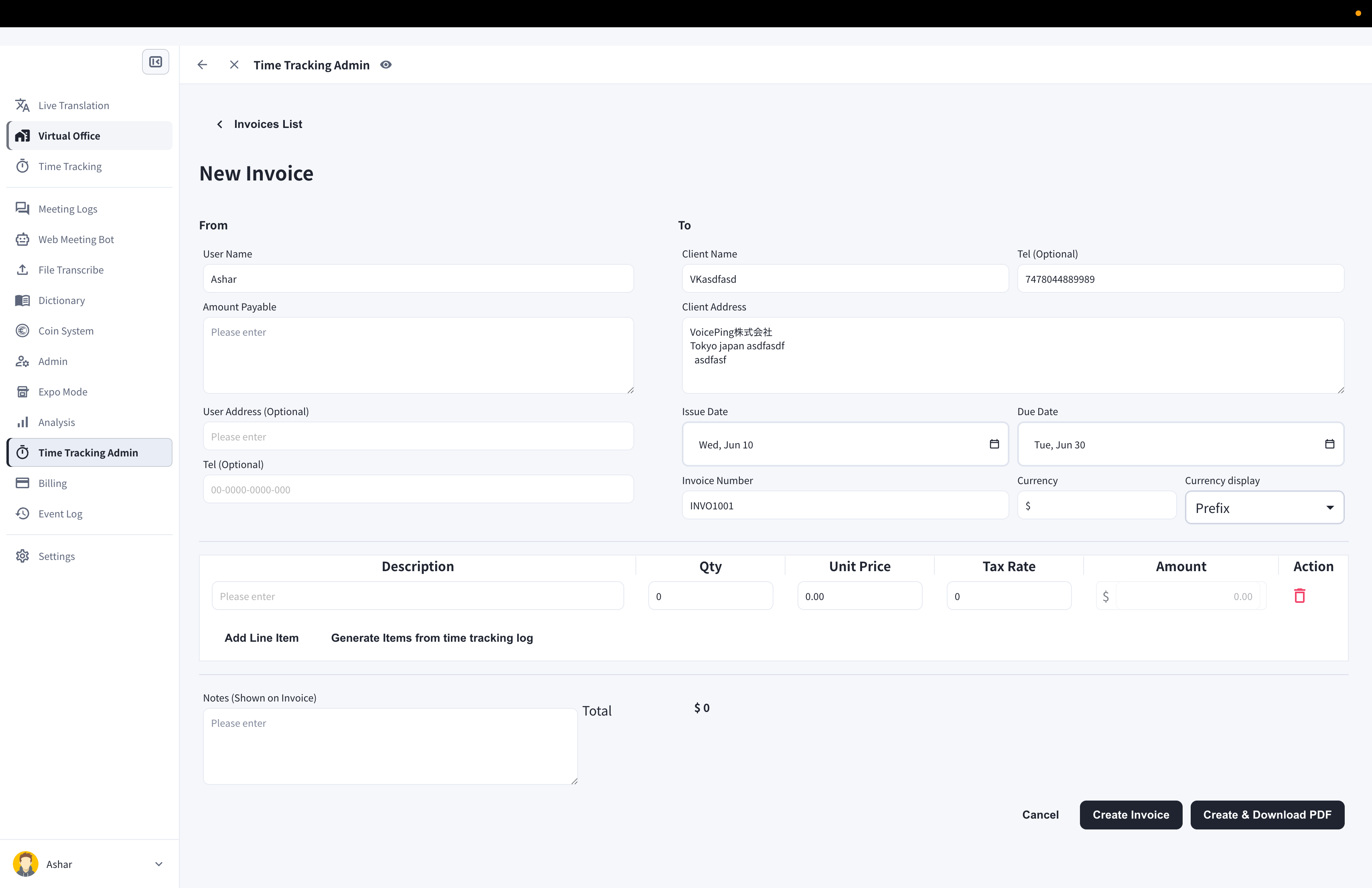 如果有未在应用中记录的工作时间,可以点击**添加行项目**进行添加。每个行项目支持数量、单价和税率。
5. 点击**创建发票**或**创建并下载PDF**
### 发票:用户搜索功能
使用发票列表上方的搜索框,管理者在整理发票时可以按成员查看发票。
### 复制发票
1. 点击要复制的发票的复制图标
### 下载发票(PDF)
1. 点击要保存的发票的下载图标
### 编辑发票
1. 点击要编辑的发票的笔形图标
2. 编辑后,点击**保存发票**或**保存并下载PDF**
### 删除发票
1. 点击要删除的发票的垃圾桶图标
2. 在确认对话框中点击**删除发票**按钮
如果有未在应用中记录的工作时间,可以点击**添加行项目**进行添加。每个行项目支持数量、单价和税率。
5. 点击**创建发票**或**创建并下载PDF**
### 发票:用户搜索功能
使用发票列表上方的搜索框,管理者在整理发票时可以按成员查看发票。
### 复制发票
1. 点击要复制的发票的复制图标
### 下载发票(PDF)
1. 点击要保存的发票的下载图标
### 编辑发票
1. 点击要编辑的发票的笔形图标
2. 编辑后,点击**保存发票**或**保存并下载PDF**
### 删除发票
1. 点击要删除的发票的垃圾桶图标
2. 在确认对话框中点击**删除发票**按钮