> ## Documentation Index
> Fetch the complete documentation index at: https://manual.voiceping.net/llms.txt
> Use this file to discover all available pages before exploring further.

# 研讨会实时语音翻译字幕

> 如何将演讲者的语音实时翻译并为参与者提供字幕

export const FeedbackZh = () => <>
    <Tip>
      对该功能有想法或需求？请通过 <a href="/zh/product-feedback">Product Feedback</a> 发送给团队。
    </Tip>

    <h2>官方链接</h2>

    <CardGroup cols={2}>
      <Card title="官方网站" icon="globe" href="https://voiceping.net/en/">
        访问官方网站
      </Card>
      <Card title="X (Twitter)" icon="x-twitter" href="https://x.com/VoicePingMedia">
        在X上关注我们
      </Card>
      <Card title="Facebook" icon="facebook" href="https://www.facebook.com/voiceping.inc">
        在Facebook上点赞
      </Card>
      <Card title="LinkedIn" icon="linkedin" href="https://www.linkedin.com/company/28684130/">
        在LinkedIn上连接
      </Card>
    </CardGroup>
  </>;

<Note>
  * 演讲者和参与者都需要互联网环境。可以在[https://fast.com/](https://fast.com/)检测网速。建议30mbps以上（最低需要10mbps）
  * 二维码图片/URL是固定的，即使开始/结束会话也不会改变。设置密码可以提高安全性
  * 可以启用/禁用参与者端的麦克风和翻译文本朗读功能
  * 可以隐藏转写语言，只显示翻译文本，投影到舞台屏幕上
  * 可以更改文字颜色和大小
  * 可以调整翻译速度
  * 可以显示演示字幕。详情请参阅[字幕模式（透明背景）](/zh/transparent-presentation-subtitle-display-mode)
</Note>

## 【主持人】翻译演讲者语音的方法

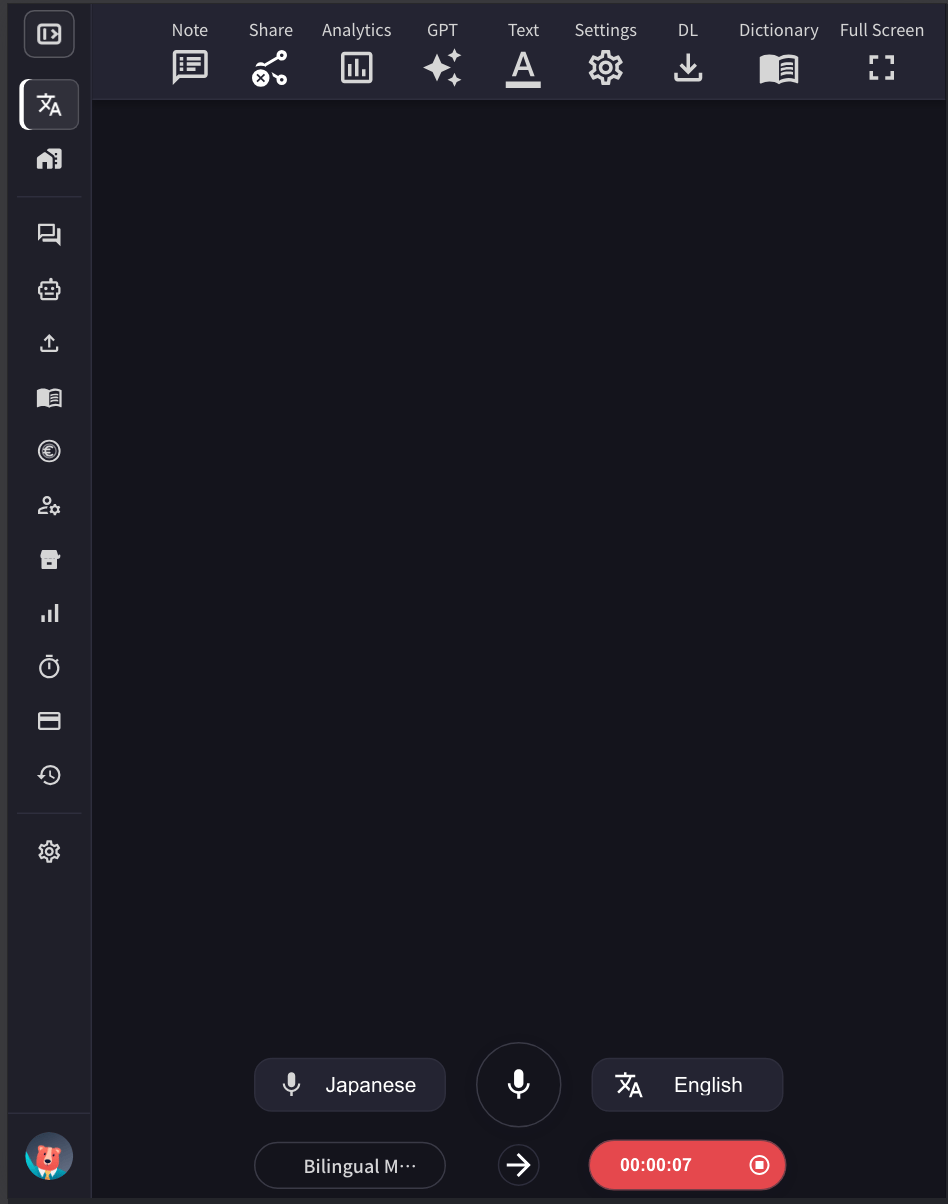
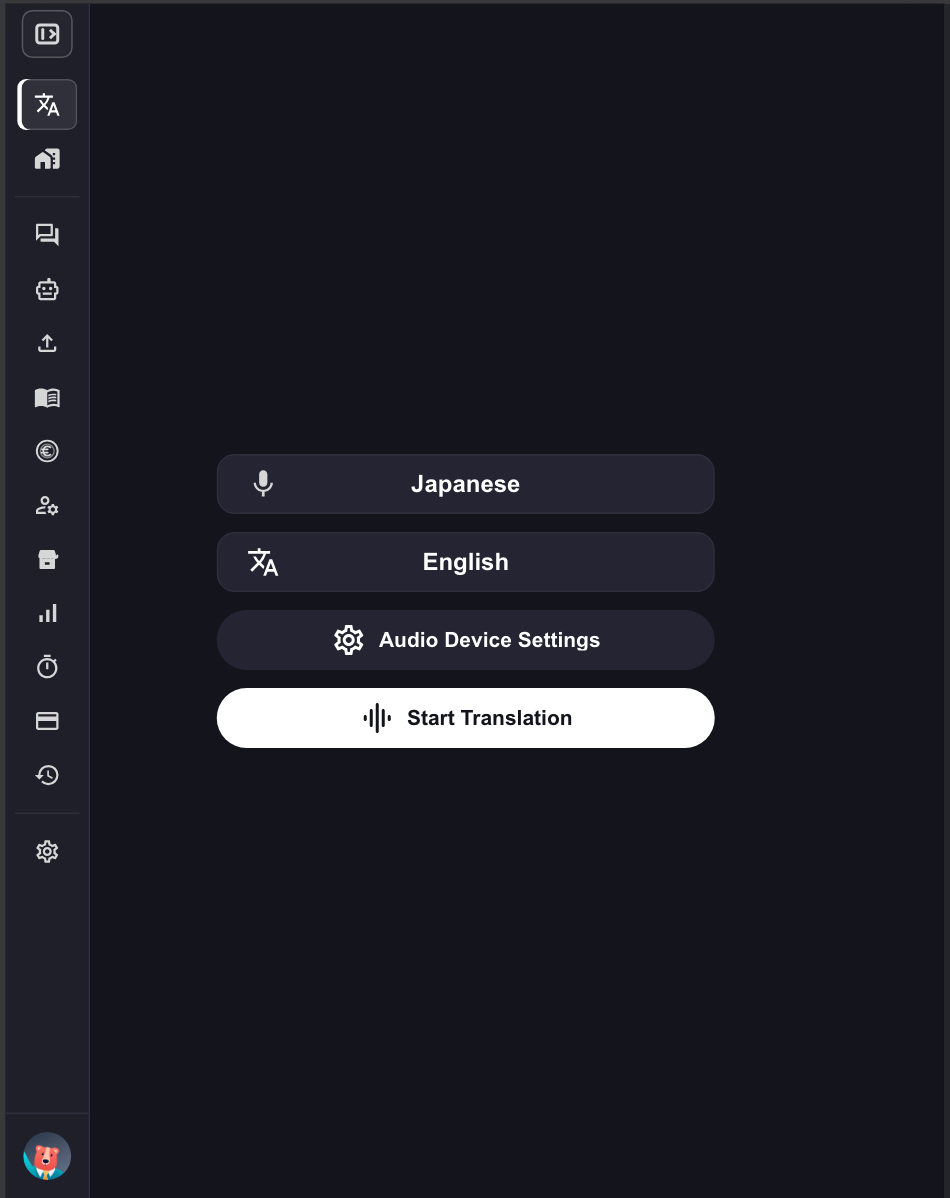
1. **启动VoicePing应用程序并点击"开始翻译"。**
<Frame>
  <img src="https://mintcdn.com/test-cf63e467/IbZ1LFopeCpJTyUC/en/images/live-subtitles/01-launch-app.png?fit=max&auto=format&n=IbZ1LFopeCpJTyUC&q=85&s=9ed1a4b0f09ba89b373b892e125616cf" alt="启动VoicePing应用" width="400" data-path="en/images/live-subtitles/01-launch-app.png" />
</Frame>

2. **指定翻译语言。**
   * 麦克风图标：转写语言（演讲者的语言）
   * "文\&A"图标：翻译语言（参与者的语言）

<Frame>
  <img src="https://mintcdn.com/test-cf63e467/IbZ1LFopeCpJTyUC/en/images/live-subtitles/02-language-selection.png?fit=max&auto=format&n=IbZ1LFopeCpJTyUC&q=85&s=541ac8d5729b909975020002467b58a4" alt="语言选择" width="400" data-path="en/images/live-subtitles/02-language-selection.png" />
</Frame>

<Tip>
  例如：要将英语翻译成日语，请将麦克风图标设置为"英语"，将"文\&A"图标设置为"日语"。
</Tip>

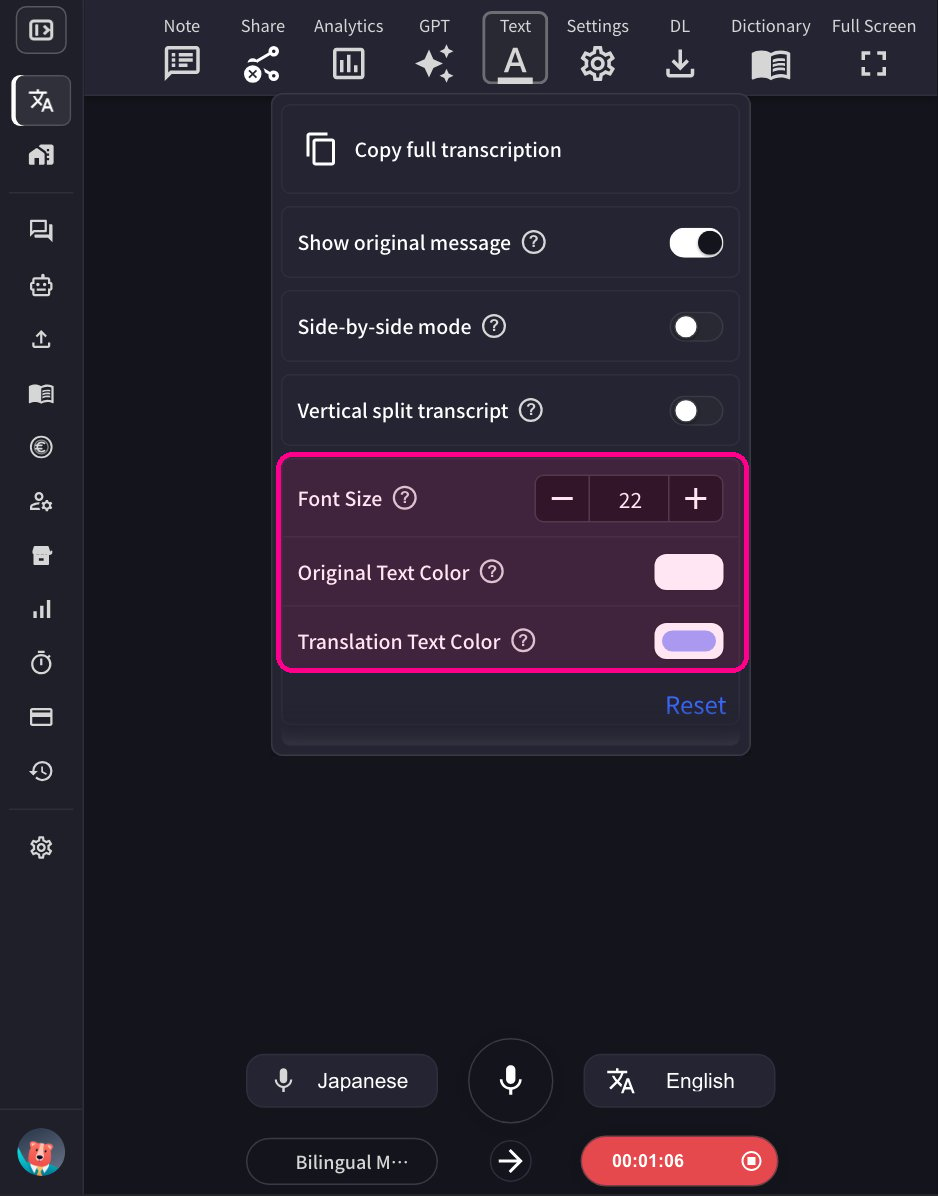
3. **根据会场屏幕大小调整VoicePing翻译屏幕大小、文字大小和颜色。**

   * 要设置**字体大小**和**文字颜色**，请打开**文本**面板。

<Frame>
  <img src="https://mintcdn.com/test-cf63e467/IbZ1LFopeCpJTyUC/en/images/live-subtitles/04-adjust-settings.png?fit=max&auto=format&n=IbZ1LFopeCpJTyUC&q=85&s=1a4346a13b33f3942084e667c7546232" alt="文本面板 — 字体大小和文字颜色" width="400" data-path="en/images/live-subtitles/04-adjust-settings.png" />
</Frame>

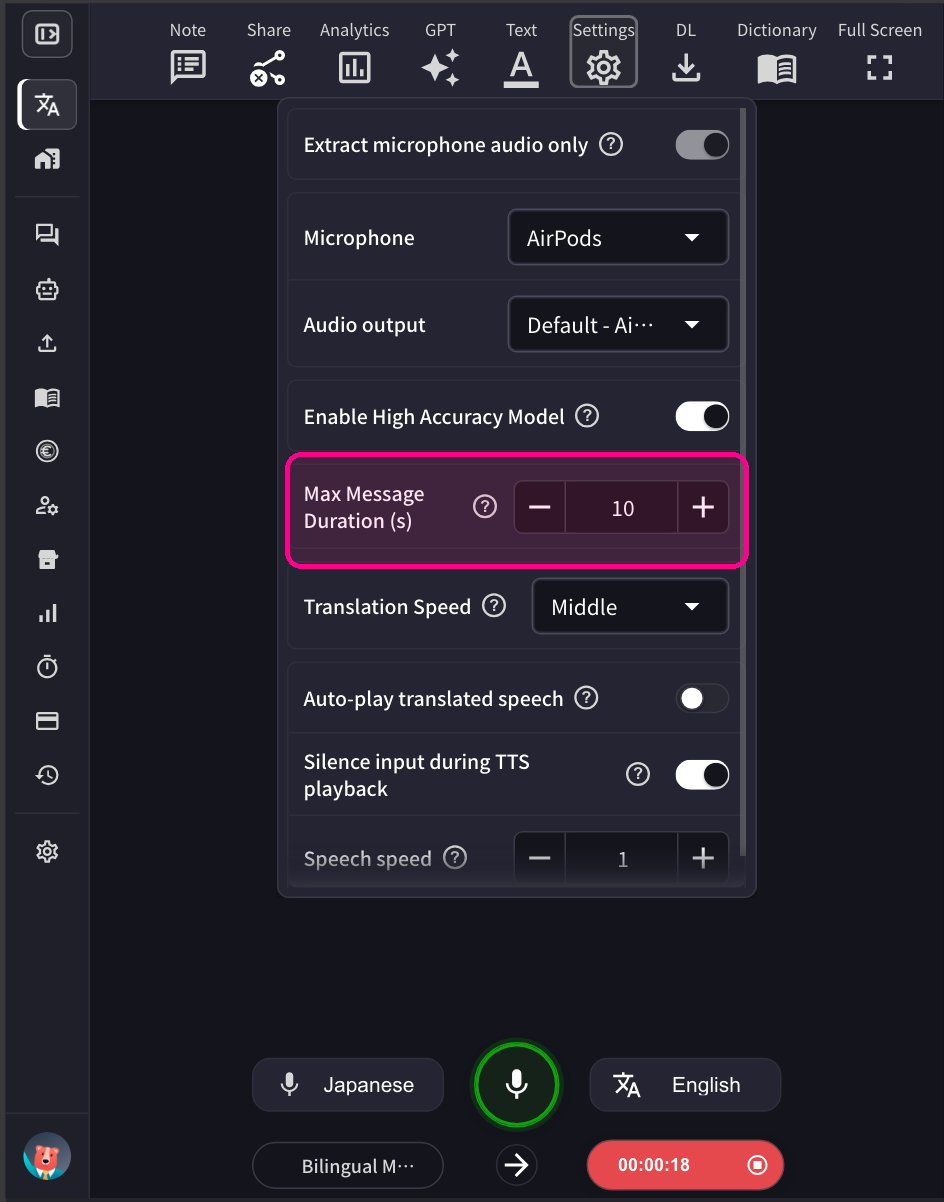
* 要调整单个音频片段的长度，请在**设置**面板中调整最大消息时间。

<Frame>
  <img src="https://mintcdn.com/test-cf63e467/IbZ1LFopeCpJTyUC/en/images/live-subtitles/04b-max-message-duration.png?fit=max&auto=format&n=IbZ1LFopeCpJTyUC&q=85&s=c4851f68f534c3447a8abc0983df2028" alt="设置面板 — 最大消息时长" width="400" data-path="en/images/live-subtitles/04b-max-message-duration.png" />
</Frame>

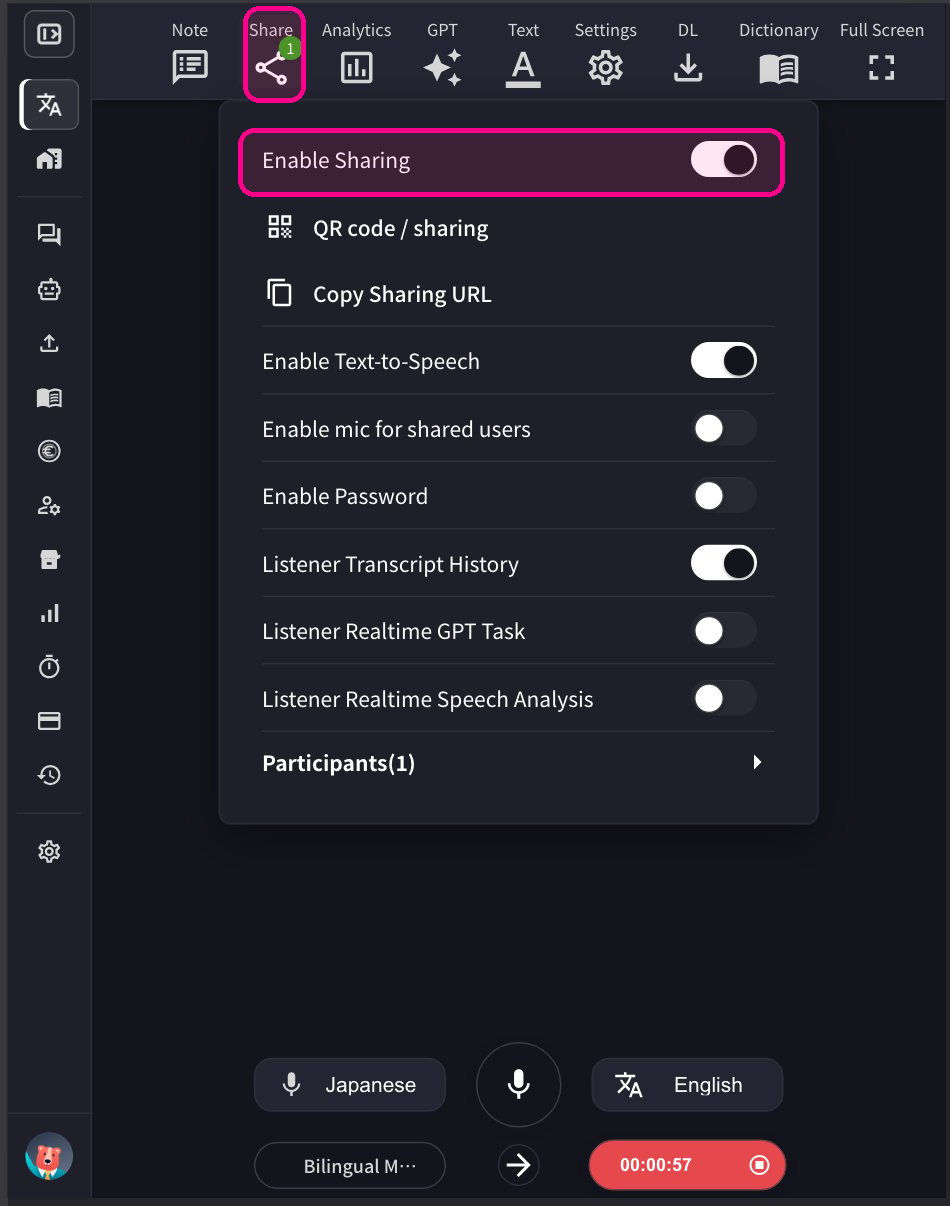
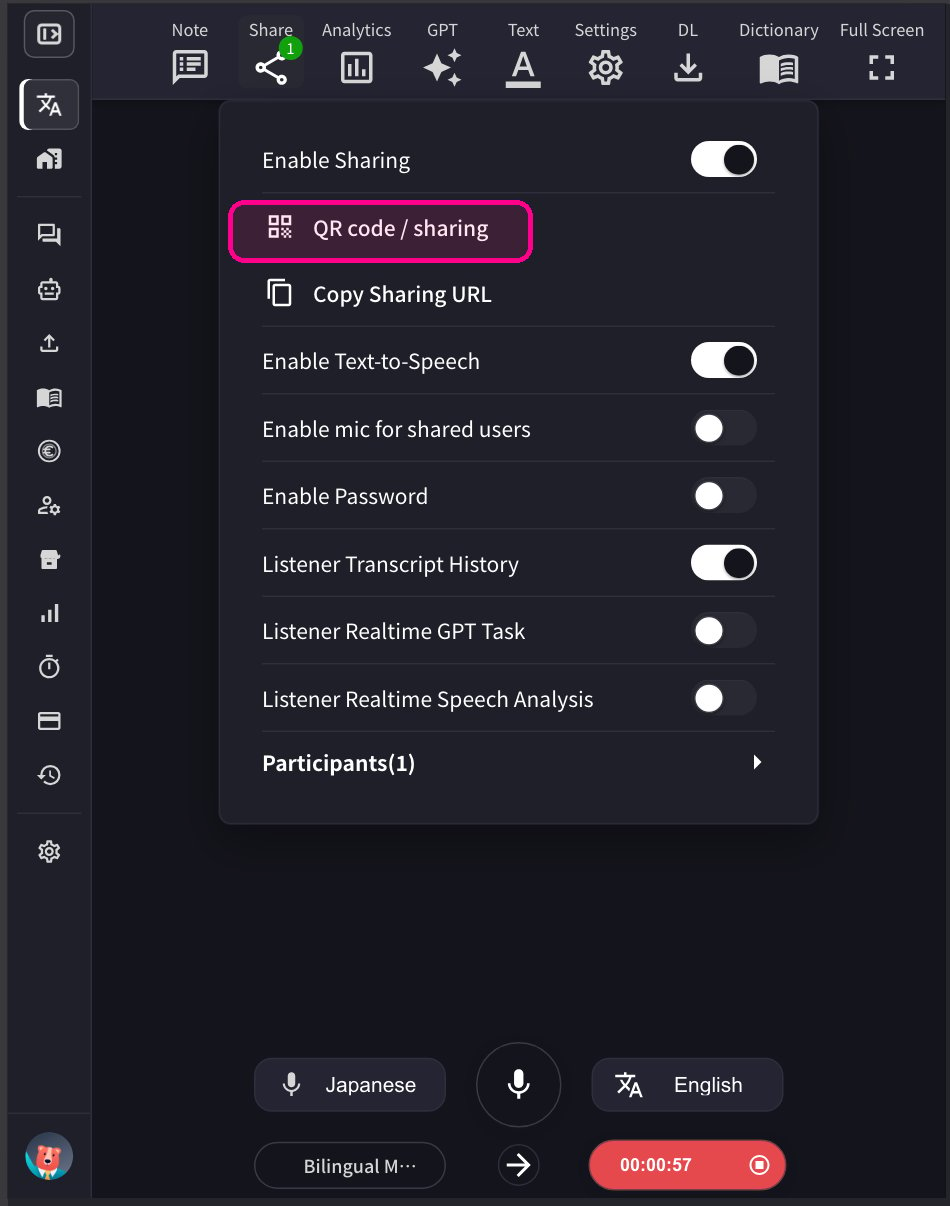
4-1. **要共享会话，点击顶部的共享图标并启用共享。**

<Frame>
  <img src="https://mintcdn.com/test-cf63e467/IbZ1LFopeCpJTyUC/en/images/live-subtitles/03-start-transcription.png?fit=max&auto=format&n=IbZ1LFopeCpJTyUC&q=85&s=da0be3b16d3a282d1b64af3bc4f1f734" alt="开始转写/翻译按钮" width="400" data-path="en/images/live-subtitles/03-start-transcription.png" />
</Frame>

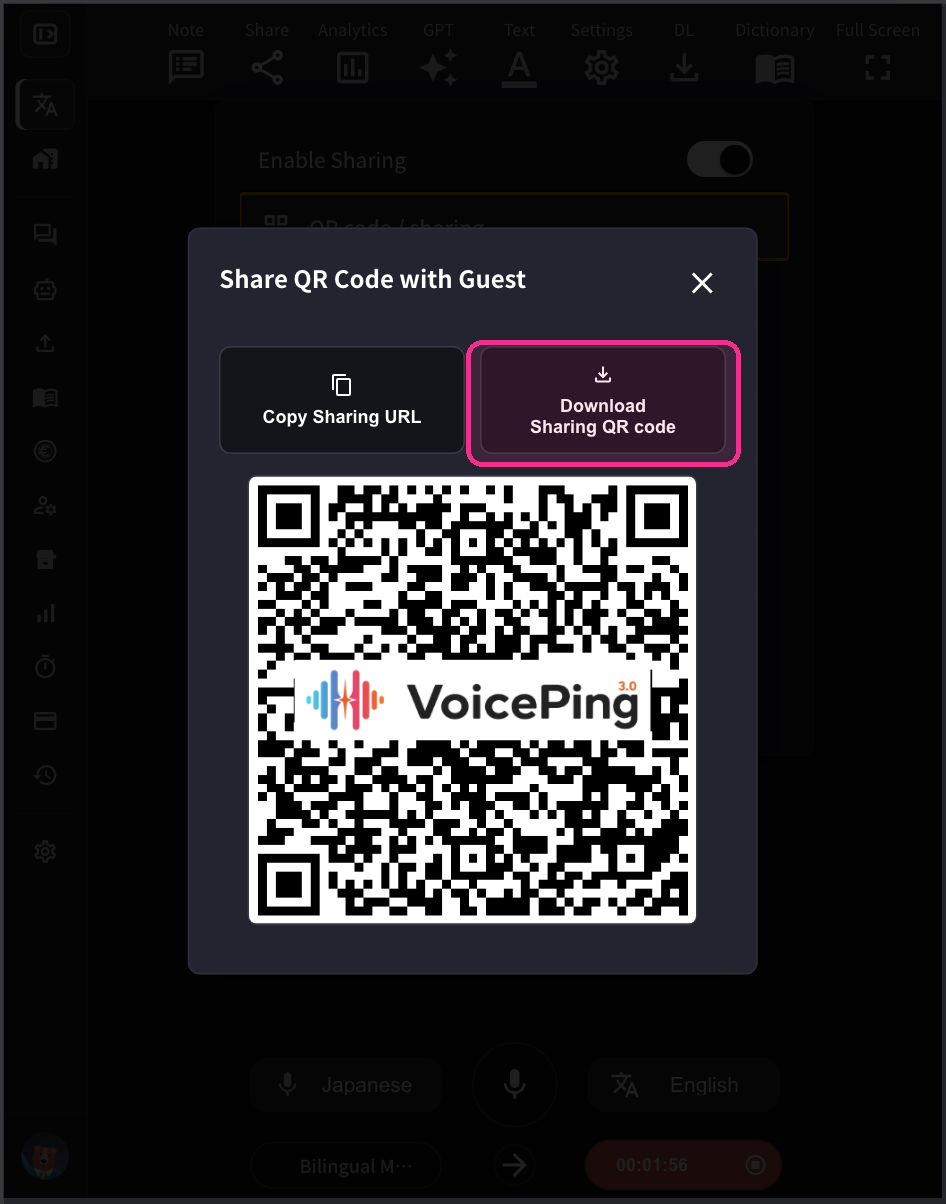
4-2. **要共享二维码让参与者从自己的移动设备加入此会话，请发布二维码图片并与他们共享。** 此二维码是每个账户的固定URL。二维码永久不变。
<Frame>
  <img src="https://mintcdn.com/test-cf63e467/IbZ1LFopeCpJTyUC/en/images/live-subtitles/05-qr-share-1.png?fit=max&auto=format&n=IbZ1LFopeCpJTyUC&q=85&s=632c99591de7c4186f538f1cb7def4c6" alt="二维码共享" width="400" data-path="en/images/live-subtitles/05-qr-share-1.png" />
</Frame>

<Frame>
  <img src="https://mintcdn.com/test-cf63e467/IbZ1LFopeCpJTyUC/en/images/live-subtitles/05-qr-share-2.png?fit=max&auto=format&n=IbZ1LFopeCpJTyUC&q=85&s=11aab6b396b9672783c5c1d424fee535" alt="二维码显示" width="400" data-path="en/images/live-subtitles/05-qr-share-2.png" />
</Frame>

<Tip>
  参与者数量基于**同时连接数**计算，而非累计访问数。当参与者离开会话时，名额将被释放。例如，如果50人通过QR码参加后全部退出，所有50个名额将全部恢复可用。
</Tip>

## 【参与者】如何加入

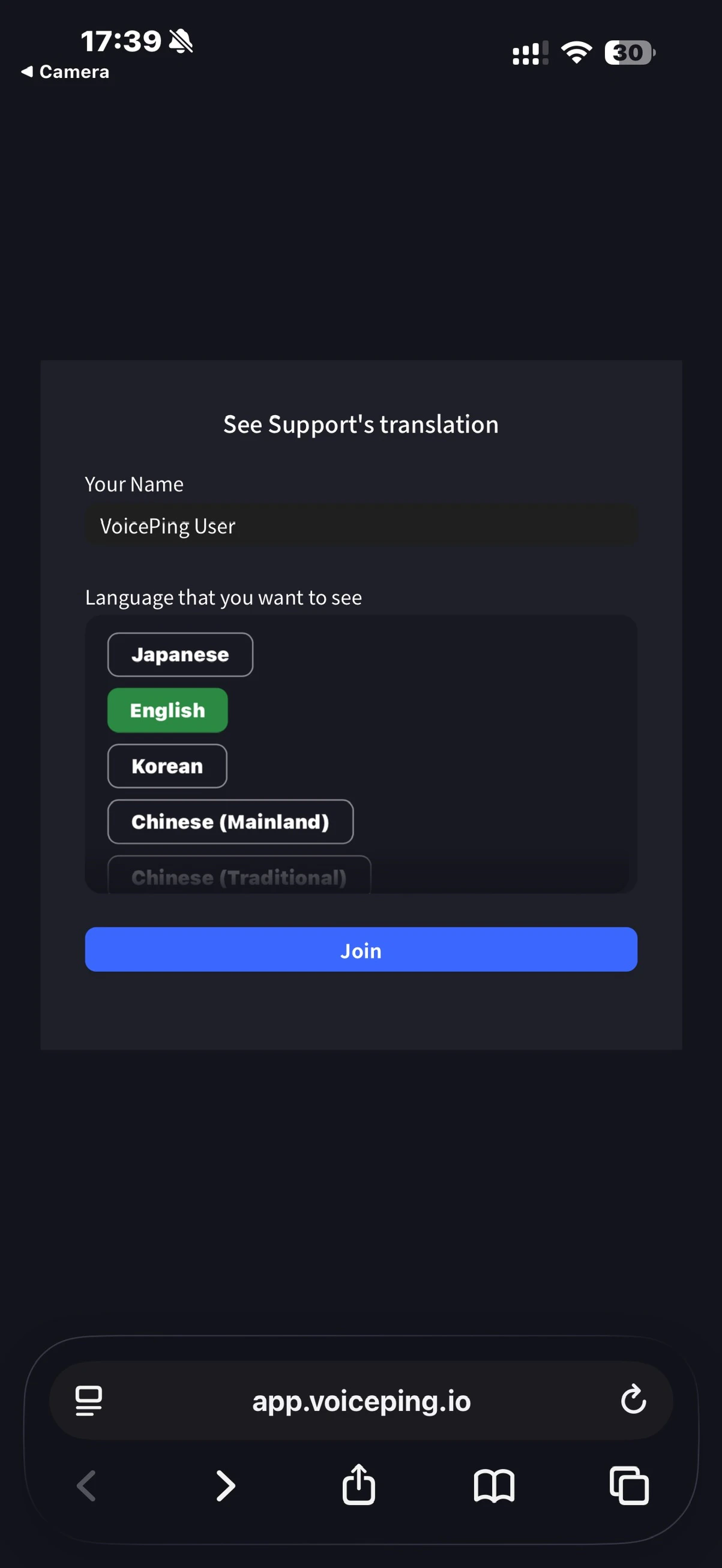
1. **使用手机摄像头扫描二维码，或从PC网页应用程序点击上述URL访问翻译频道。**

<Frame>
  <img src="https://mintcdn.com/test-cf63e467/IpSCqaapOB7XFWT9/en/images/live-subtitles/06-participant-join.jpeg?fit=max&auto=format&n=IpSCqaapOB7XFWT9&q=85&s=21c908f811de52c595b6fff763c69043" alt="参与者加入界面" width="400" data-path="en/images/live-subtitles/06-participant-join.jpeg" />
</Frame>

2. **访问后，输入以下项目：**
   * 姓名：输入参与者姓名
   * 您想查看的语言：选择所需的翻译语言

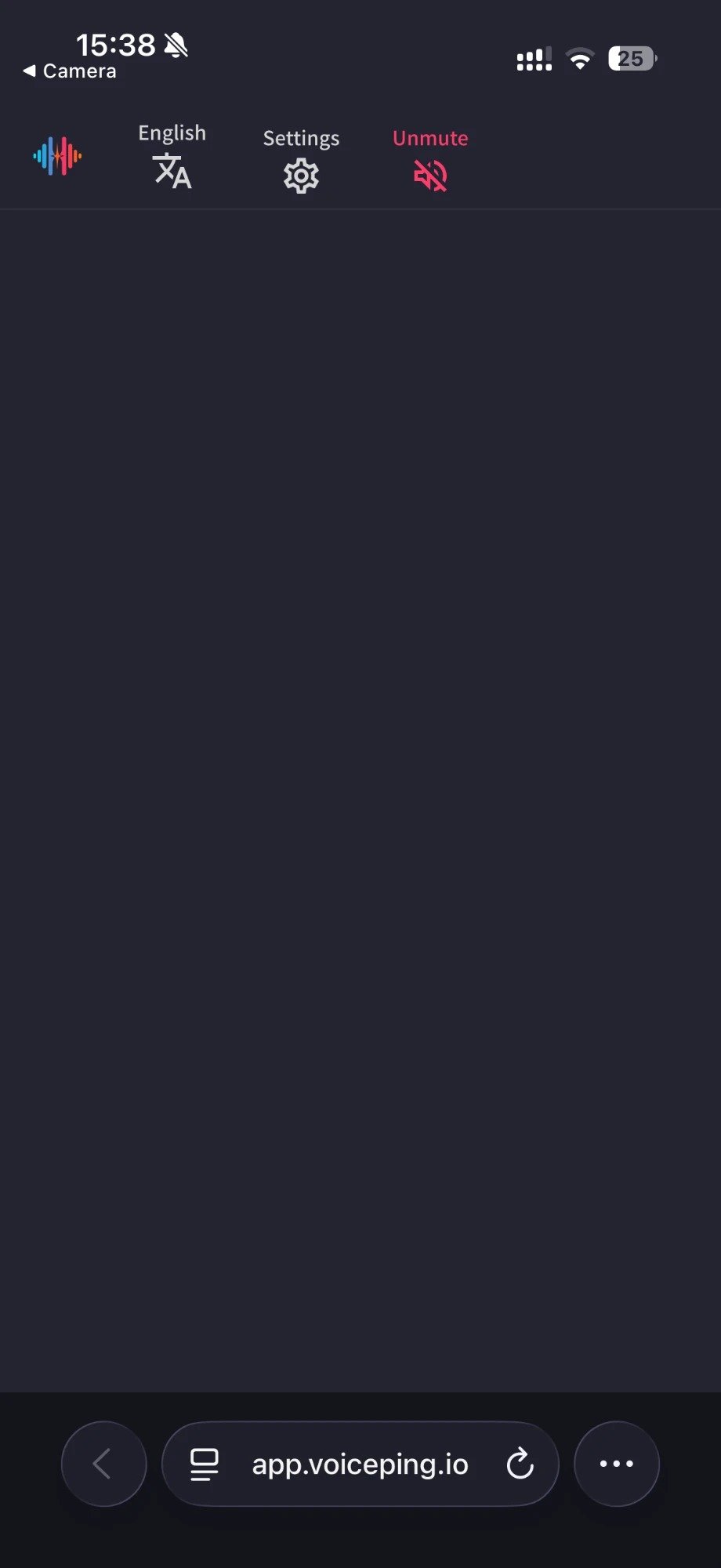
3. **进入后，可以进行以下操作：**
   * 更改语言
   * 在"设置"中调整翻译外观
   * 调整朗读速度
   * 开启/关闭朗读功能
   * 离开
<Frame>
  <img src="https://mintcdn.com/test-cf63e467/IbZ1LFopeCpJTyUC/en/images/live-subtitles/07-participant-operations.jpeg?fit=max&auto=format&n=IbZ1LFopeCpJTyUC&q=85&s=9dbc84b4520353c53bf555ee141a1543" alt="参与者操作" width="400" data-path="en/images/live-subtitles/07-participant-operations.jpeg" />
</Frame>

<FeedbackZh />