> ## Documentation Index
> Fetch the complete documentation index at: https://manual.voiceping.net/llms.txt
> Use this file to discover all available pages before exploring further.
# 移动端账单管理
> 在移动应用内管理套餐、卡片、发票和账单历史。
export const ContactZh = () => <>
如有任何问题,请通过此表单与我们联系。
官方链接
访问官方网站
在X上关注我们
在Facebook上点赞
在LinkedIn上连接
;
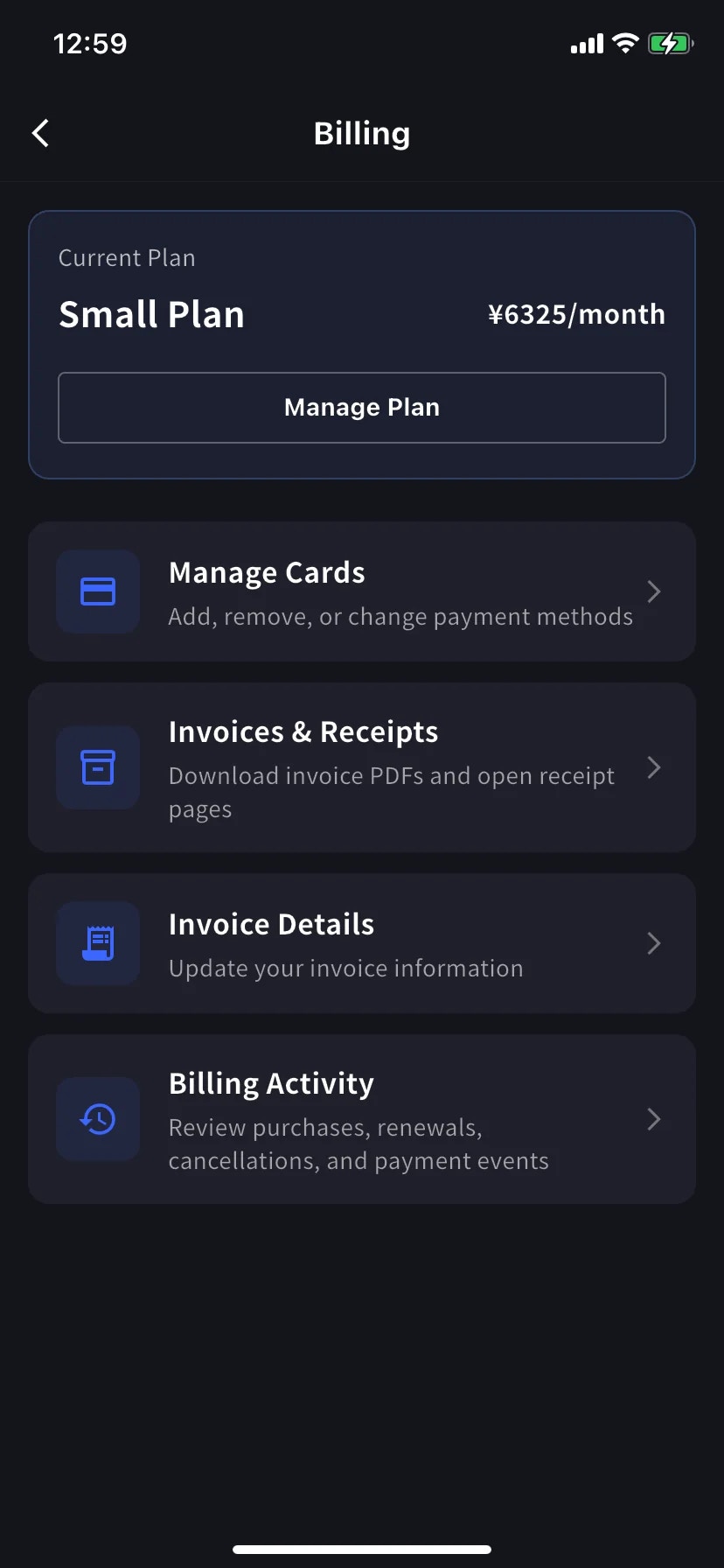
 PC 管理控制台上的一切操作 — 更换卡片、下载收据、查看历史 — 都集中在移动应用的 **Billing** 屏幕。打开即可看到当前套餐和五个快捷方式。
## 适用场景
PC 管理控制台上的一切操作 — 更换卡片、下载收据、查看历史 — 都集中在移动应用的 **Billing** 屏幕。打开即可看到当前套餐和五个快捷方式。
## 适用场景
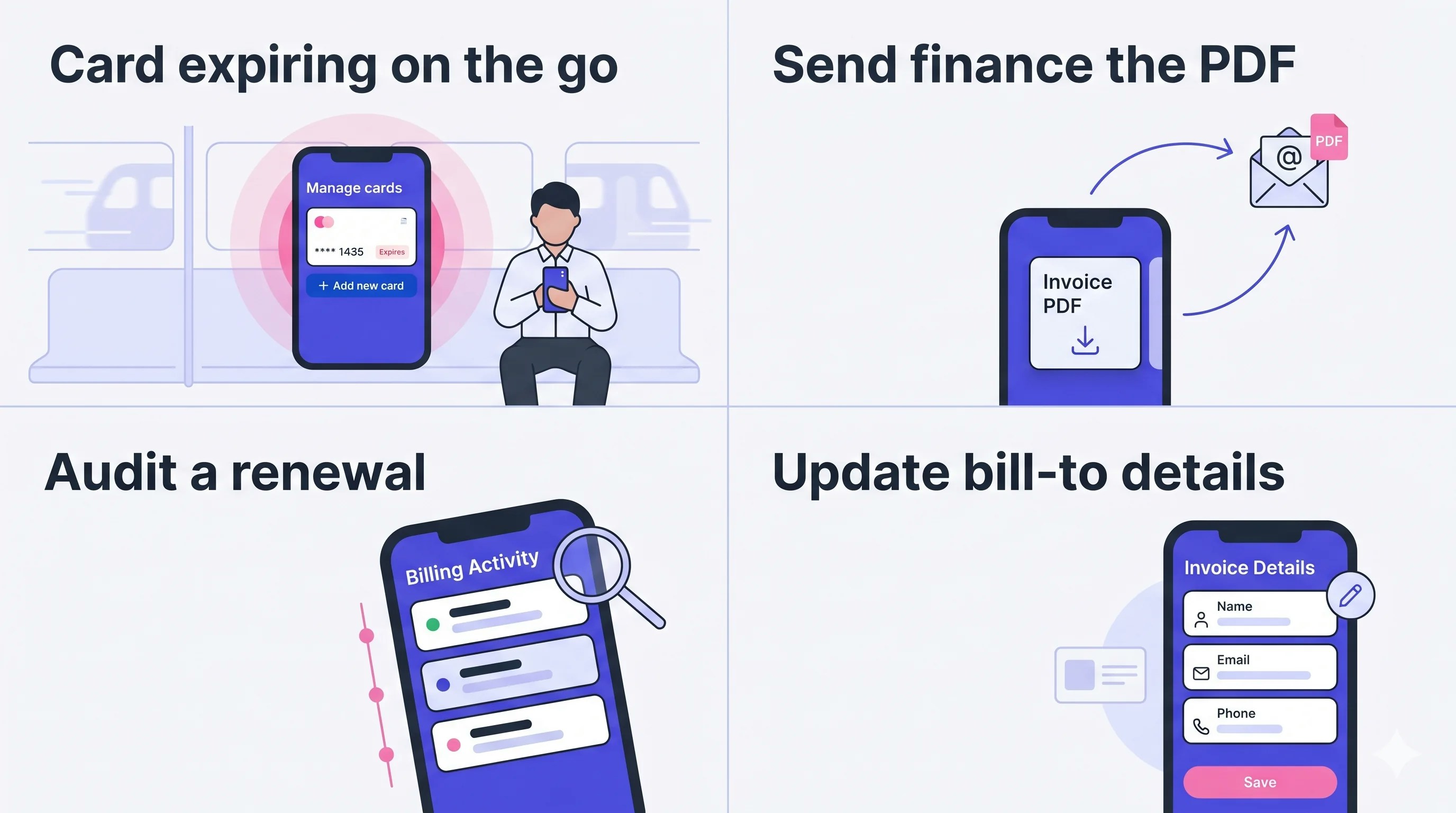 * **在外时卡片快到期** — 在地铁里就能换新卡。无需电脑,也不用等到周一。
* **发 PDF 给财务** — 从 Invoices & Receipts 列表获取发票 PDF,用邮件转发。
* **审计续订** — 每次续订、取消、恢复、卡片变更都带时间戳和 IP 记录。
* **更新账单信息** — 下一次计费前在 Invoice Details 屏幕编辑公司名 / 邮箱 / 电话。
## 打开 Billing 中心
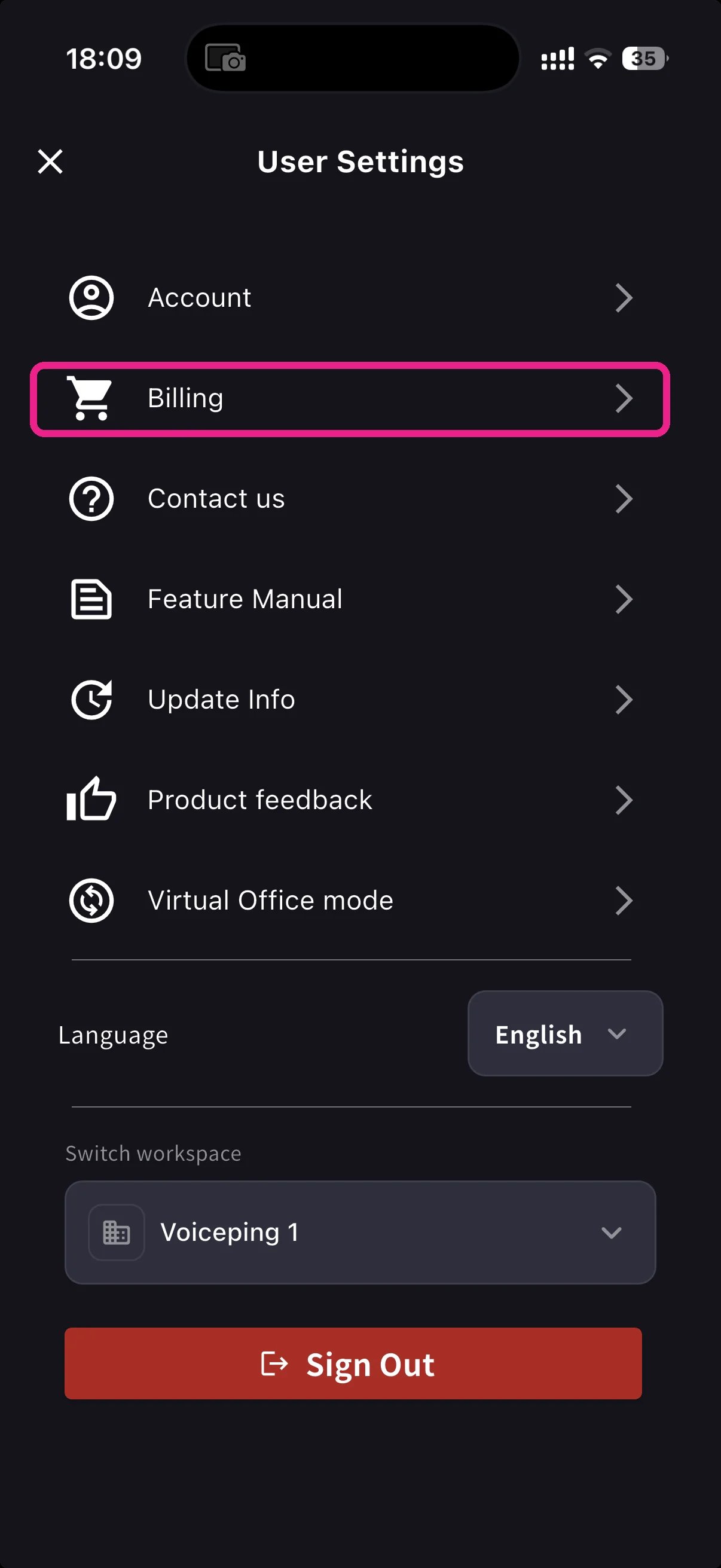
从主屏幕打开侧边菜单。点击 **Billing**(购物车图标)。
**Current Plan** 卡片显示套餐名和月费,旁边直接有 **Manage Plan** 按钮。下方四个快捷方式:
| 快捷方式 | 用途 |
| ----------------------- | ----------------- |
| **Manage Cards** | 添加、删除、更换支付方式 |
| **Invoices & Receipts** | 下载发票 PDF 和打开收据 |
| **Invoice Details** | 发票的收件人姓名、邮箱、电话 |
| **Billing Activity** | 购买、续订、取消、卡片变更事件日志 |
套餐升级 / 降级 / 取消,点击 **Manage Plan** → 参见[移动端升级、降级 & 取消](/zh/mobile-plan-change)。
## Manage Cards
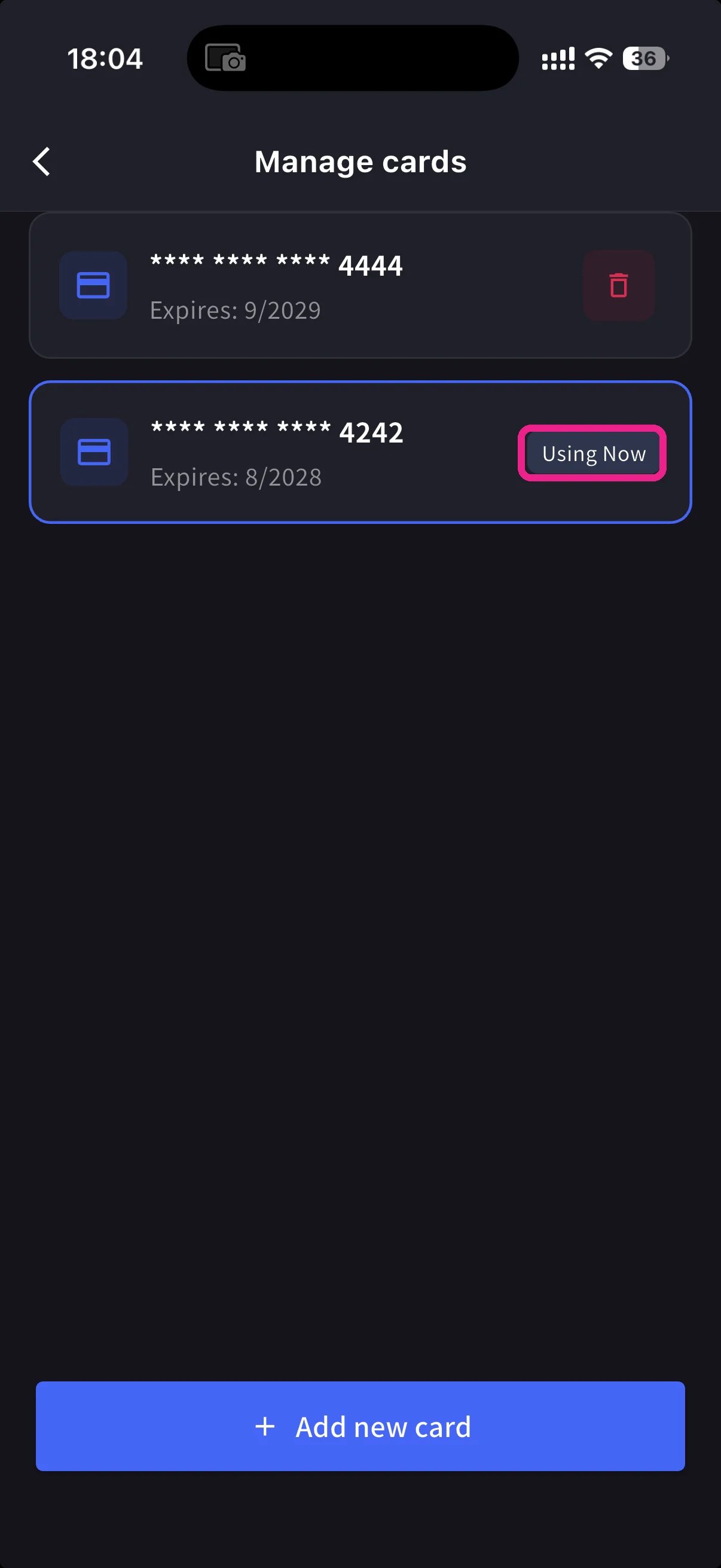
显示所有已登记的卡片。正在使用的卡片带 **Using Now** 徽标。点底部蓝色 **+ Add new card** 按钮添加新卡。
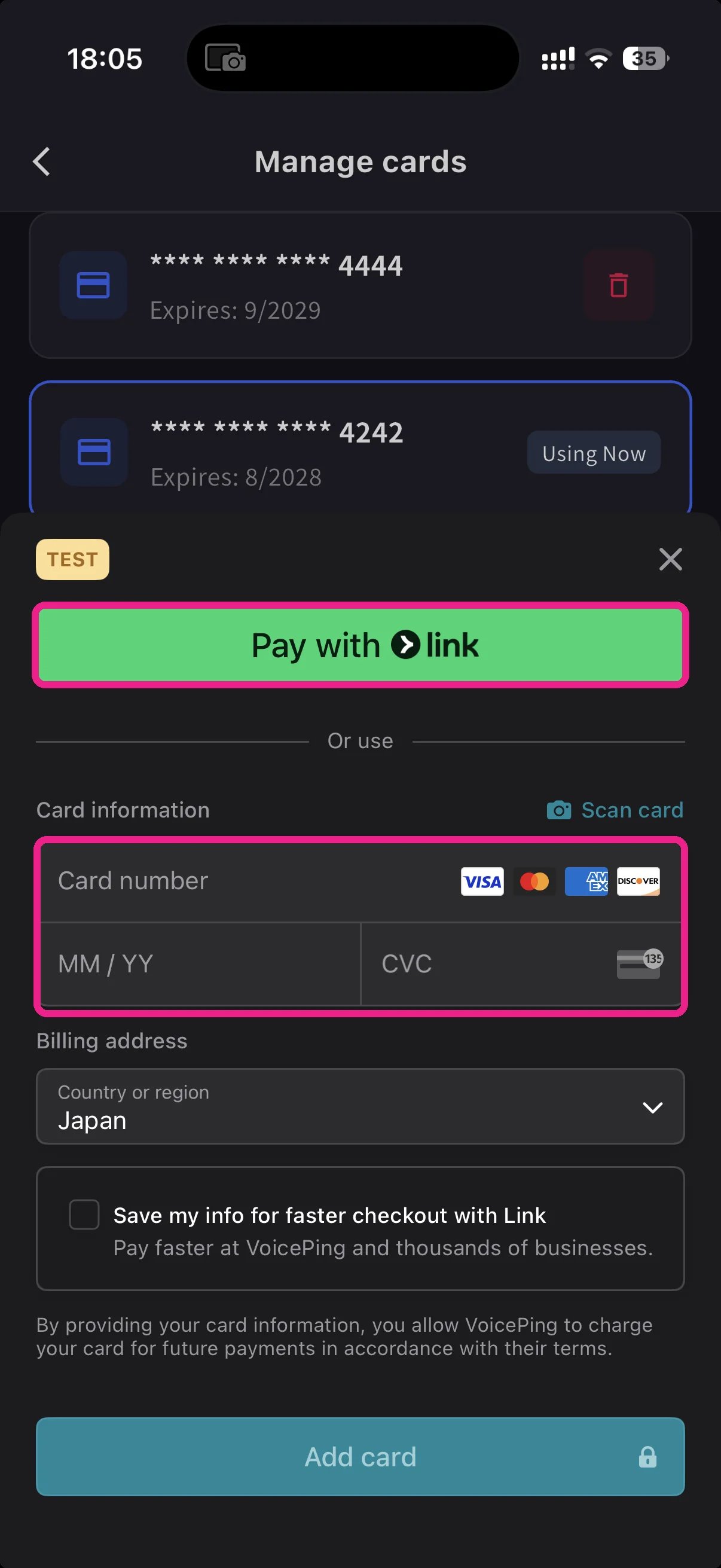
添加卡片有两种方式:
* **Pay with Link** — Stripe Link — 如电话号码已关联,一键登录。
* **Manual card** — 输入卡号、MM/YY、CVC,或点 **📷 Scan card** 用相机扫描。选择账单国家并点 **Add card**。
卡片由 Stripe 令牌化 — VoicePing 永不存储原始卡号。
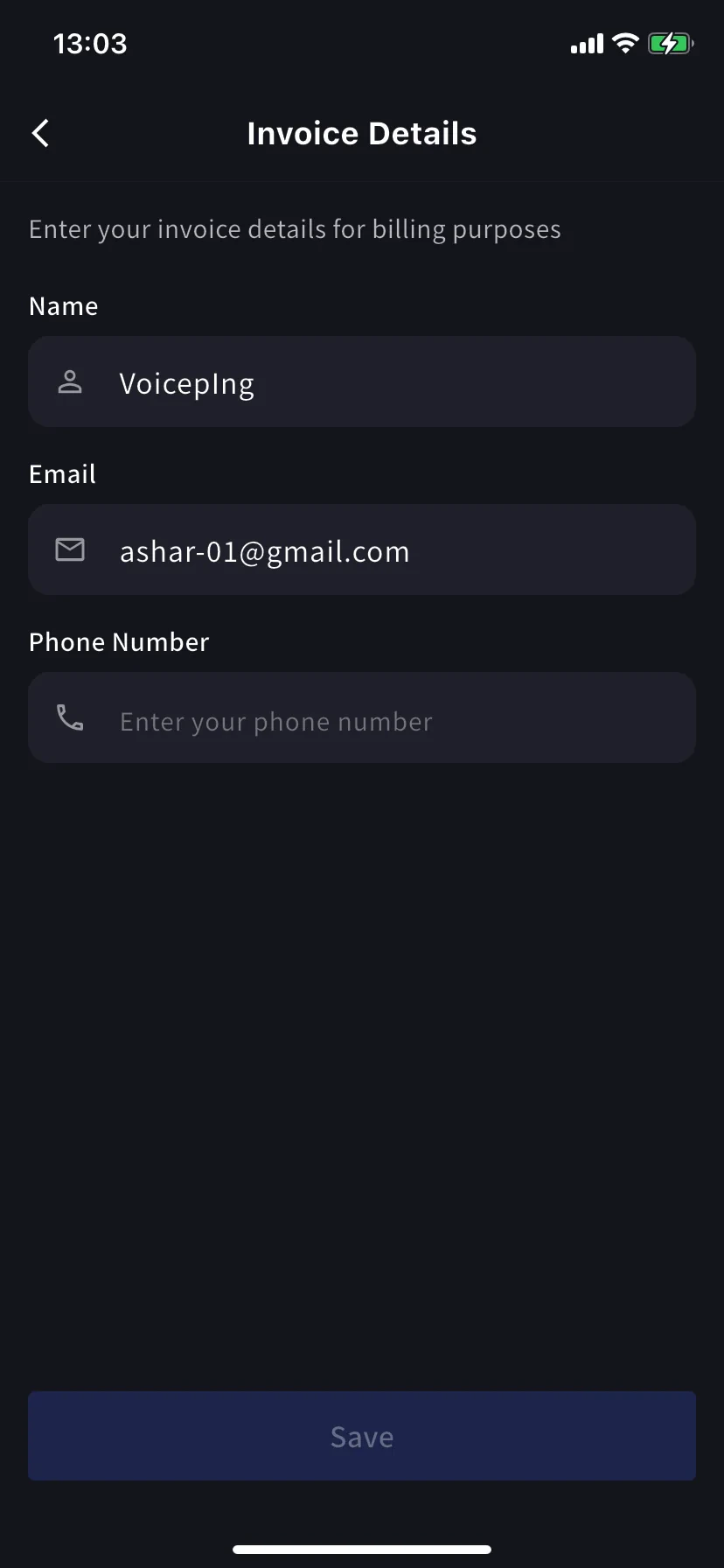
## Invoice Details(账单对象)
设置显示在发票 PDF 上的姓名、邮箱和电话。
在下次账单日期**前**设置好。Stripe 在生成发票时使用这些字段 — 以后编辑不会重新盖章过去的 PDF。
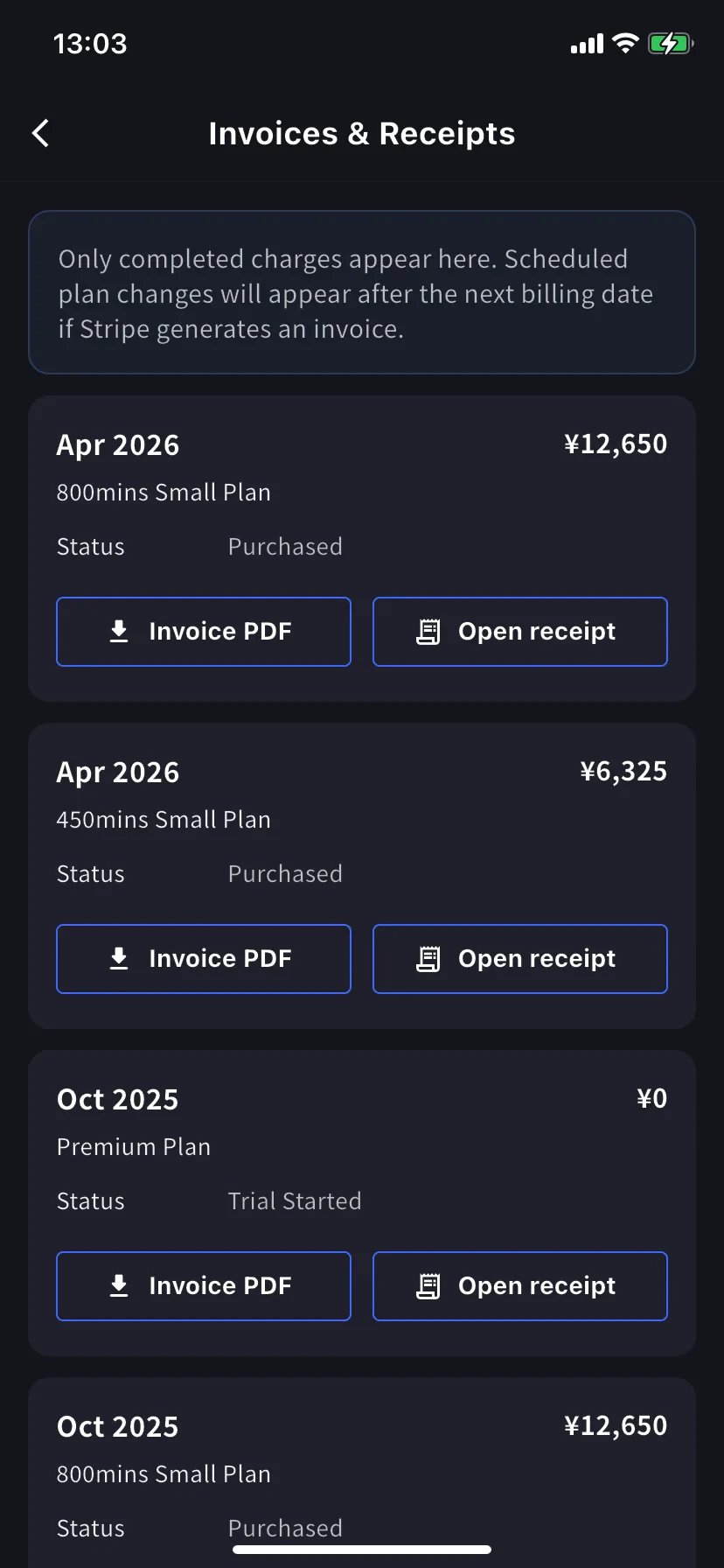
## Invoices & Receipts
过去的账单按月显示为卡片。每张卡片有两个动作:
| 按钮 | 打开 |
| ---------------- | --------------------------------------------------------------------------------------------------------- |
| **Invoice PDF** | 可下载的发票 PDF(分享 / 保存 / 转发) |
| **Open receipt** | Receipt download or stored receipt link; if unavailable, the hosted Stripe receipt/invoice fallback opens |
只显示已完成的账单。已安排的套餐变更在下次账单日期后由 Stripe 生成发票时出现。**Trial Started** 状态的 `¥0` 行也被记录 — 用于追踪试用开始。
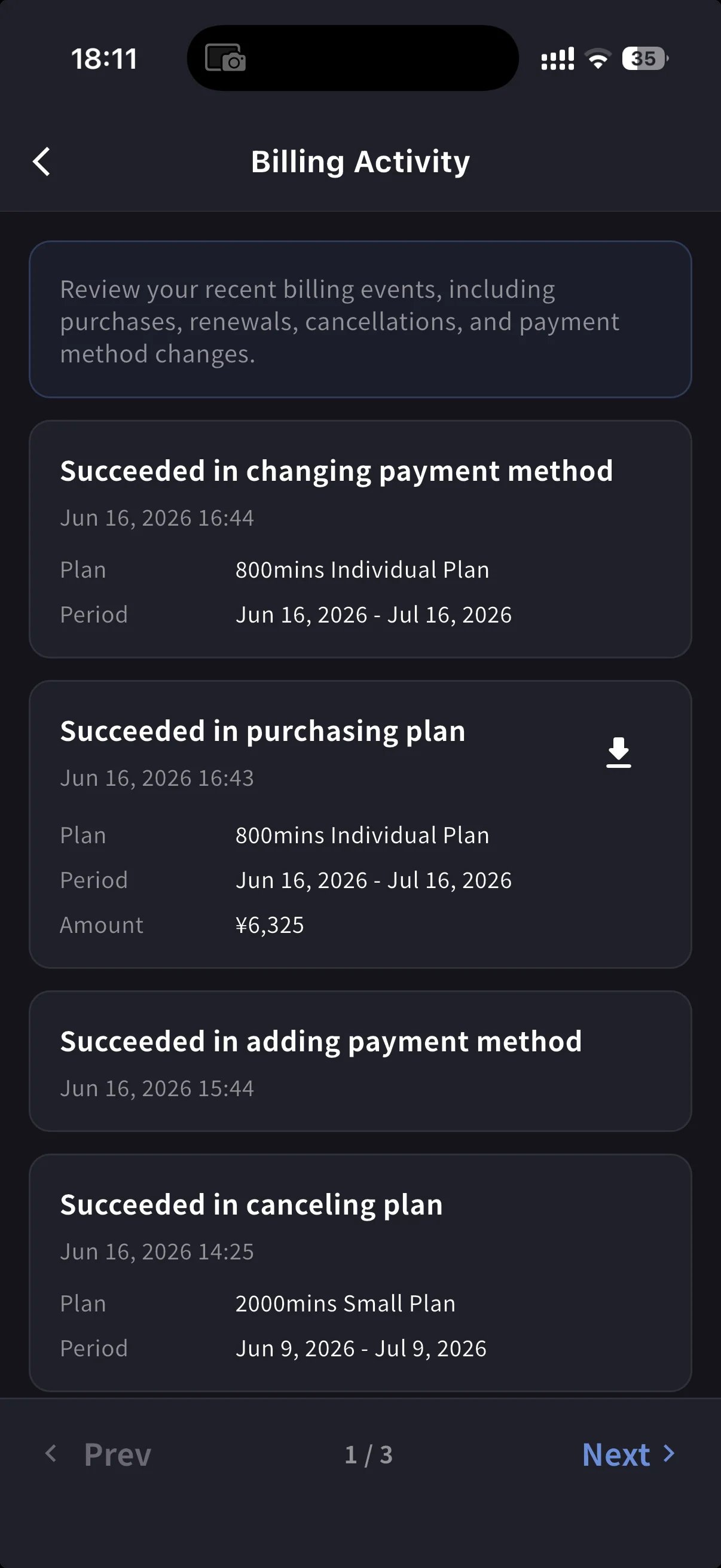
## Billing Activity
事件日志 — 工作区对订阅做的一切。
每行包含:
* 事件名 — 如 *Succeeded in upgrading plan*、*Subscription will be canceled on the next payment date*、*Succeeded in restoring subscription*
* 时间戳 (`YYYY/MM/DD HH:MM`)
* 套餐、计费周期和金额(如适用)
* **IP Address** — 谁在哪里操作,供审计 / 安全审查
* 已完成账单的下载图标 — 拉取该事件的发票 PDF
用来回答"等等,那是啥时候发生的?"而不必翻邮件。
## 使用提示
* **Link** 省输入 — 在别处用过 Stripe Link 的话,输入电话后卡片自动填充。
* 中心的 **Current Plan 卡片** 是进入 Manage Plan 最快的路径 — 不用每次重新从 Settings 进入。
* 在移动端的修改会立刻同步到 Web — 可在手机上开始,在 PC 上完成。
* PC 管理员可在 **Admin Dashboard → Payment Information** 做同样的事。此页面是你离开桌子时用的。
## 相关页面
* [移动端升级、降级 & 取消](/zh/mobile-plan-change) — 完整 Manage Plan 流程
* [套餐变更、取消 & 试用结束](/zh/plan-changes) — PC 管理控制台等价功能
* [更改付款信用卡](/zh/credit-card-change) — PC 卡片变更流程
* [定价](/zh/pricing)
* **在外时卡片快到期** — 在地铁里就能换新卡。无需电脑,也不用等到周一。
* **发 PDF 给财务** — 从 Invoices & Receipts 列表获取发票 PDF,用邮件转发。
* **审计续订** — 每次续订、取消、恢复、卡片变更都带时间戳和 IP 记录。
* **更新账单信息** — 下一次计费前在 Invoice Details 屏幕编辑公司名 / 邮箱 / 电话。
## 打开 Billing 中心
从主屏幕打开侧边菜单。点击 **Billing**(购物车图标)。
**Current Plan** 卡片显示套餐名和月费,旁边直接有 **Manage Plan** 按钮。下方四个快捷方式:
| 快捷方式 | 用途 |
| ----------------------- | ----------------- |
| **Manage Cards** | 添加、删除、更换支付方式 |
| **Invoices & Receipts** | 下载发票 PDF 和打开收据 |
| **Invoice Details** | 发票的收件人姓名、邮箱、电话 |
| **Billing Activity** | 购买、续订、取消、卡片变更事件日志 |
套餐升级 / 降级 / 取消,点击 **Manage Plan** → 参见[移动端升级、降级 & 取消](/zh/mobile-plan-change)。
## Manage Cards
显示所有已登记的卡片。正在使用的卡片带 **Using Now** 徽标。点底部蓝色 **+ Add new card** 按钮添加新卡。
添加卡片有两种方式:
* **Pay with Link** — Stripe Link — 如电话号码已关联,一键登录。
* **Manual card** — 输入卡号、MM/YY、CVC,或点 **📷 Scan card** 用相机扫描。选择账单国家并点 **Add card**。
卡片由 Stripe 令牌化 — VoicePing 永不存储原始卡号。
## Invoice Details(账单对象)
设置显示在发票 PDF 上的姓名、邮箱和电话。
在下次账单日期**前**设置好。Stripe 在生成发票时使用这些字段 — 以后编辑不会重新盖章过去的 PDF。
## Invoices & Receipts
过去的账单按月显示为卡片。每张卡片有两个动作:
| 按钮 | 打开 |
| ---------------- | --------------------------------------------------------------------------------------------------------- |
| **Invoice PDF** | 可下载的发票 PDF(分享 / 保存 / 转发) |
| **Open receipt** | Receipt download or stored receipt link; if unavailable, the hosted Stripe receipt/invoice fallback opens |
只显示已完成的账单。已安排的套餐变更在下次账单日期后由 Stripe 生成发票时出现。**Trial Started** 状态的 `¥0` 行也被记录 — 用于追踪试用开始。
## Billing Activity
事件日志 — 工作区对订阅做的一切。
每行包含:
* 事件名 — 如 *Succeeded in upgrading plan*、*Subscription will be canceled on the next payment date*、*Succeeded in restoring subscription*
* 时间戳 (`YYYY/MM/DD HH:MM`)
* 套餐、计费周期和金额(如适用)
* **IP Address** — 谁在哪里操作,供审计 / 安全审查
* 已完成账单的下载图标 — 拉取该事件的发票 PDF
用来回答"等等,那是啥时候发生的?"而不必翻邮件。
## 使用提示
* **Link** 省输入 — 在别处用过 Stripe Link 的话,输入电话后卡片自动填充。
* 中心的 **Current Plan 卡片** 是进入 Manage Plan 最快的路径 — 不用每次重新从 Settings 进入。
* 在移动端的修改会立刻同步到 Web — 可在手机上开始,在 PC 上完成。
* PC 管理员可在 **Admin Dashboard → Payment Information** 做同样的事。此页面是你离开桌子时用的。
## 相关页面
* [移动端升级、降级 & 取消](/zh/mobile-plan-change) — 完整 Manage Plan 流程
* [套餐变更、取消 & 试用结束](/zh/plan-changes) — PC 管理控制台等价功能
* [更改付款信用卡](/zh/credit-card-change) — PC 卡片变更流程
* [定价](/zh/pricing)